If you've never dealt with faxes or simply forgot how to send them, it's time to refresh your knowledge. There are various types of fax machines in the world, so it's essential to familiarize yourself with the instructions that come with your device. Sending a fax typically starts with drafting a cover letter, after which you'll need to input the recipient's number and send the fax.
Preparing to Send a Fax
Step 1. Write a Cover Letter.
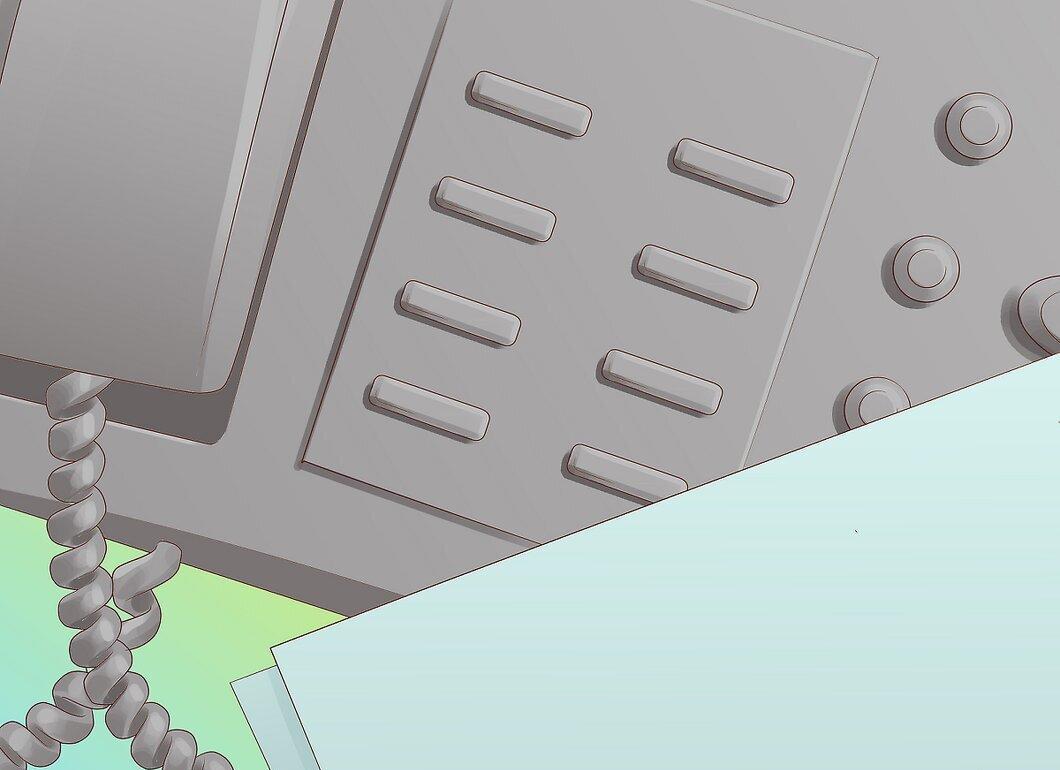
Start by creating a cover letter. Faxes are often used in offices, and anyone might see them. Therefore, a cover letter ensures that the fax reaches the intended recipient.
- Include the recipient's full name, the content of the fax, and the number of pages in the cover letter. Don't forget to include your details — your full name and fax number, so the recipient can easily respond.
Step 2. Dial the Fax Number.
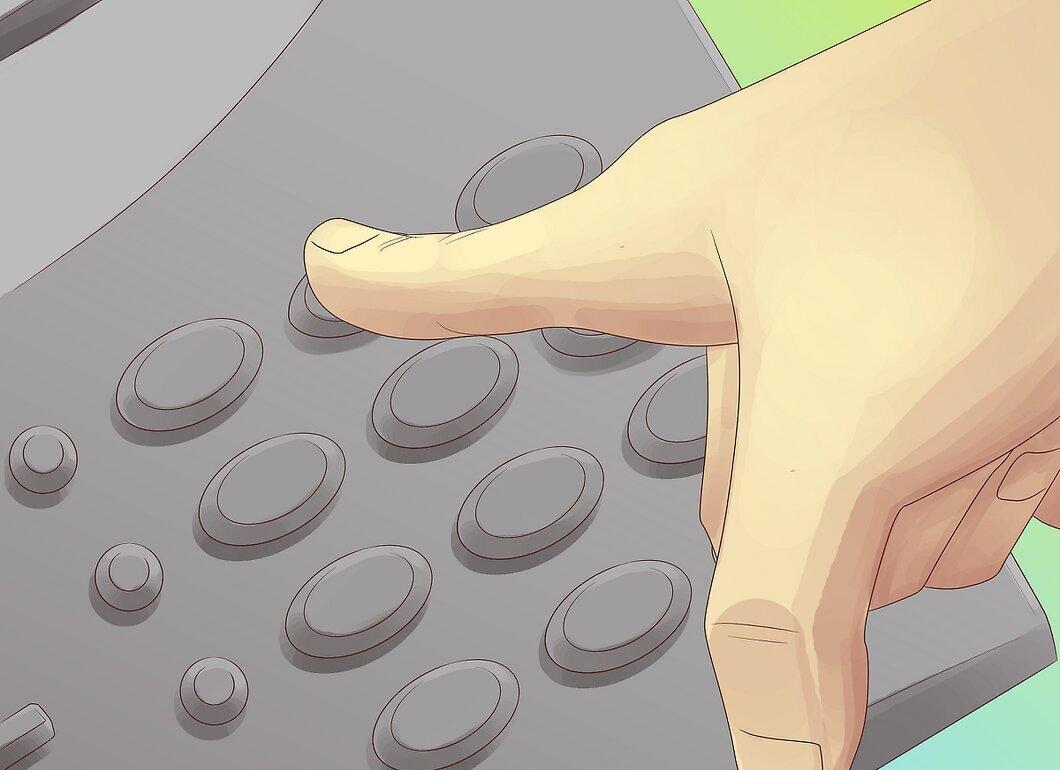
The next step is to enter the fax number. This is done just like dialing a phone number. Modern fax machines typically don't require a code for local calls, but this may be necessary for long-distance calls. Make sure you know whether you need to enter a code for your device.
- The country code (for example, Russia uses "7") may be needed for local calls if it's used with a regional code. For international calls, the country code is almost always required.
- When making long-distance calls within the country, you might need to dial "8". Be sure to check the instructions or ask colleagues about your machine.
- Ensure you’re dialing the fax number and not a phone number. These numbers are often printed close together and can easily be confused.
Step 3. Check the Paper Orientation.
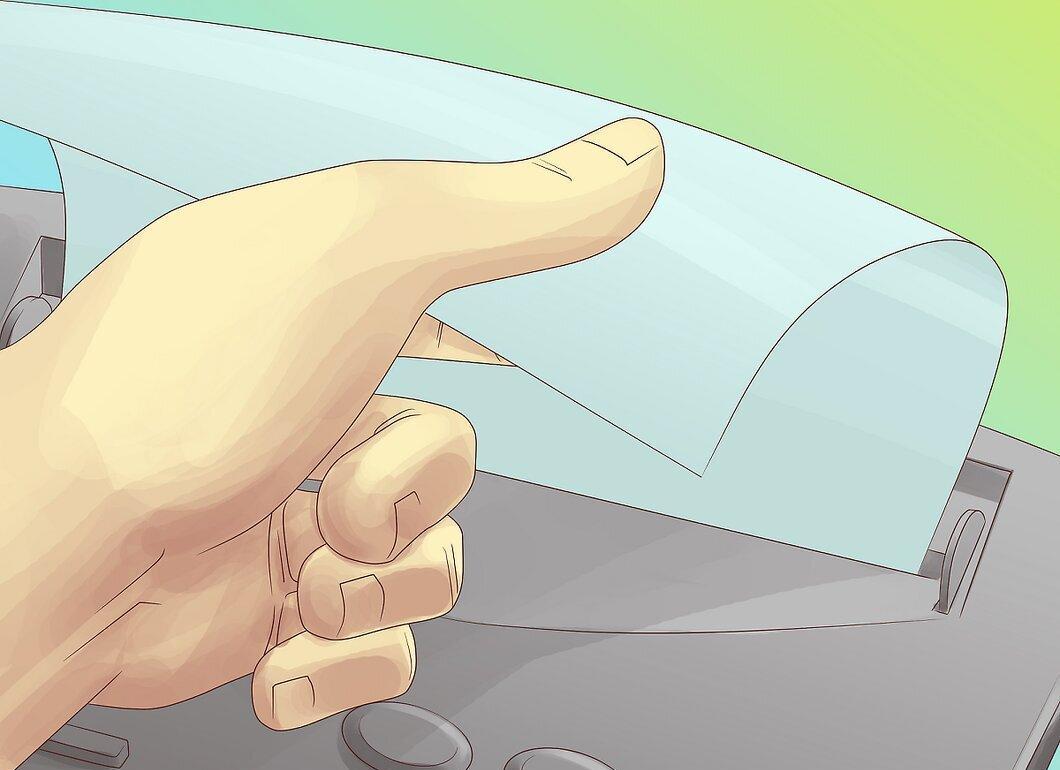
It's important to make sure the paper is inserted correctly in the fax machine. Incorrect placement can lead to sending a blank fax since the device won’t be able to scan the document.
- The paper feeding methods may vary depending on the fax model. Usually, the machines have markings indicating how to insert the paper correctly. Look for a symbol with a paper image and pay attention to the orientation of the lines — this will help you understand how to insert the sheet.
Step 4. Ensure the Document Format is Correct.
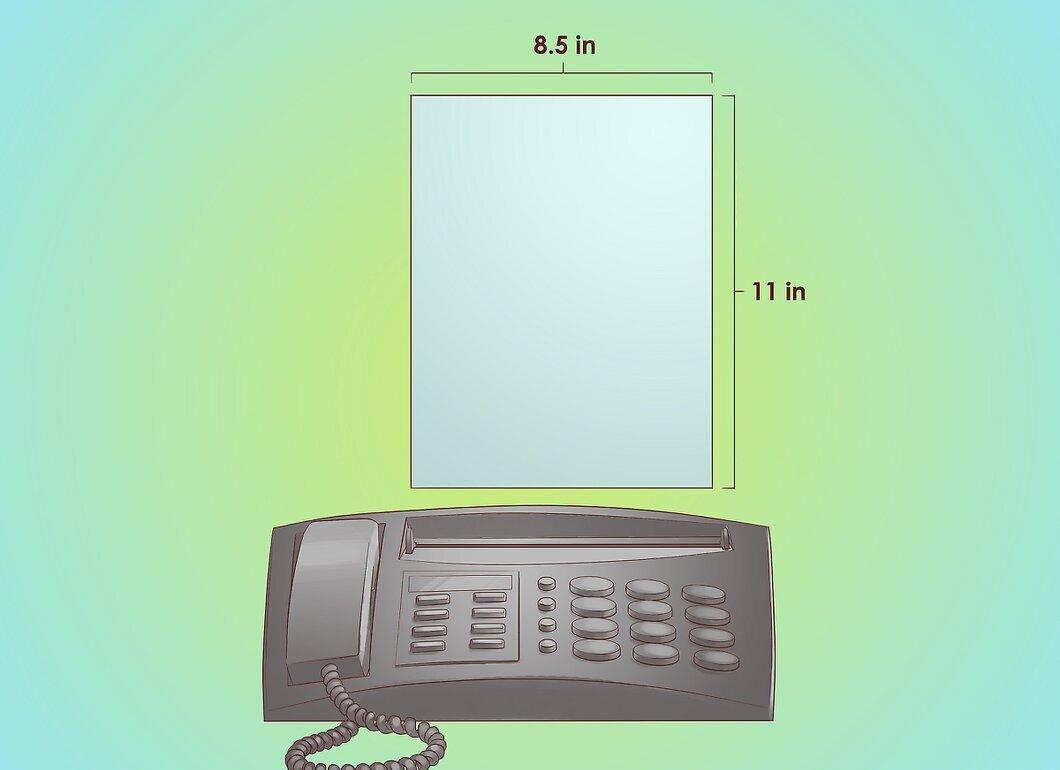
Send documents in standard sizes. If you attempt to send materials in non-standard formats, it may cause paper jams or damage the fax machine. If you need to send a non-standard size document, make a copy on a photocopier and send that instead.
- The most common paper size for faxes is A4.
Sending the Fax
Step 1. Send the Fax from Your Machine.
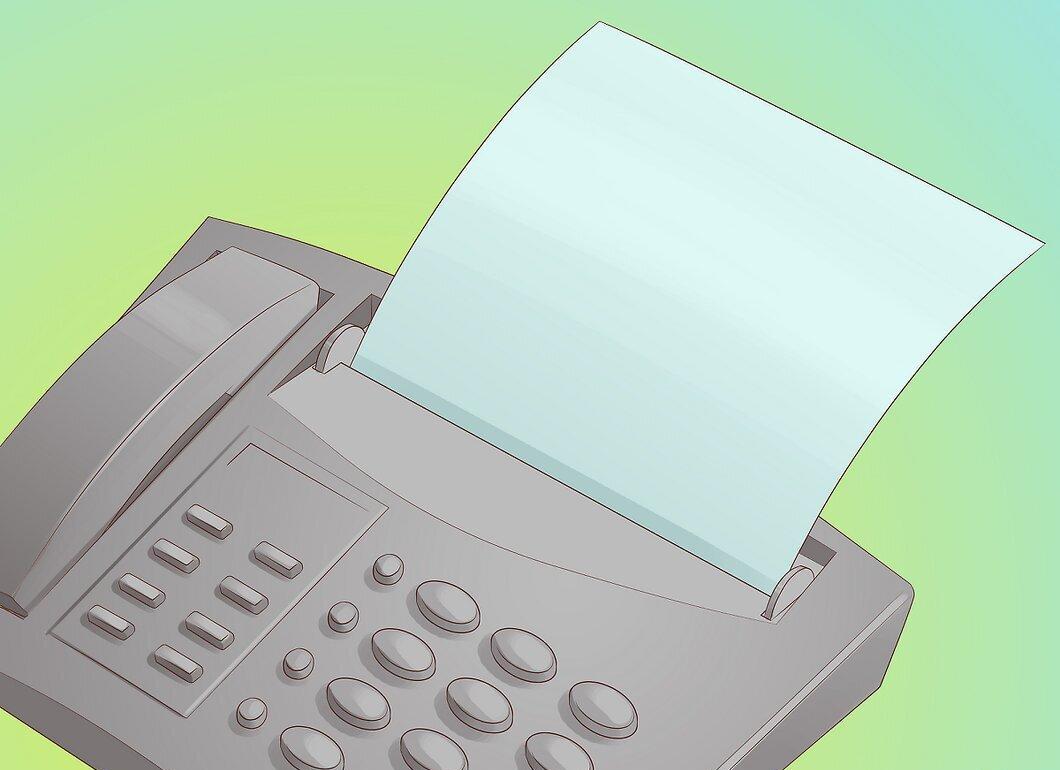
Now that everything is prepared, you can send the fax. Insert the paper correctly, dial the required number, and press the "send" button. This button is usually large and easy to spot. Congratulations, your fax has been sent!
- After pressing the button, you'll hear distinctive sounds confirming the transmission. In a few minutes, you’ll receive a signal confirming successful sending. If something went wrong, you will hear an unpleasant signal — which means you’ll need to check the machine.
Step 2. Sending a Fax via the Internet.
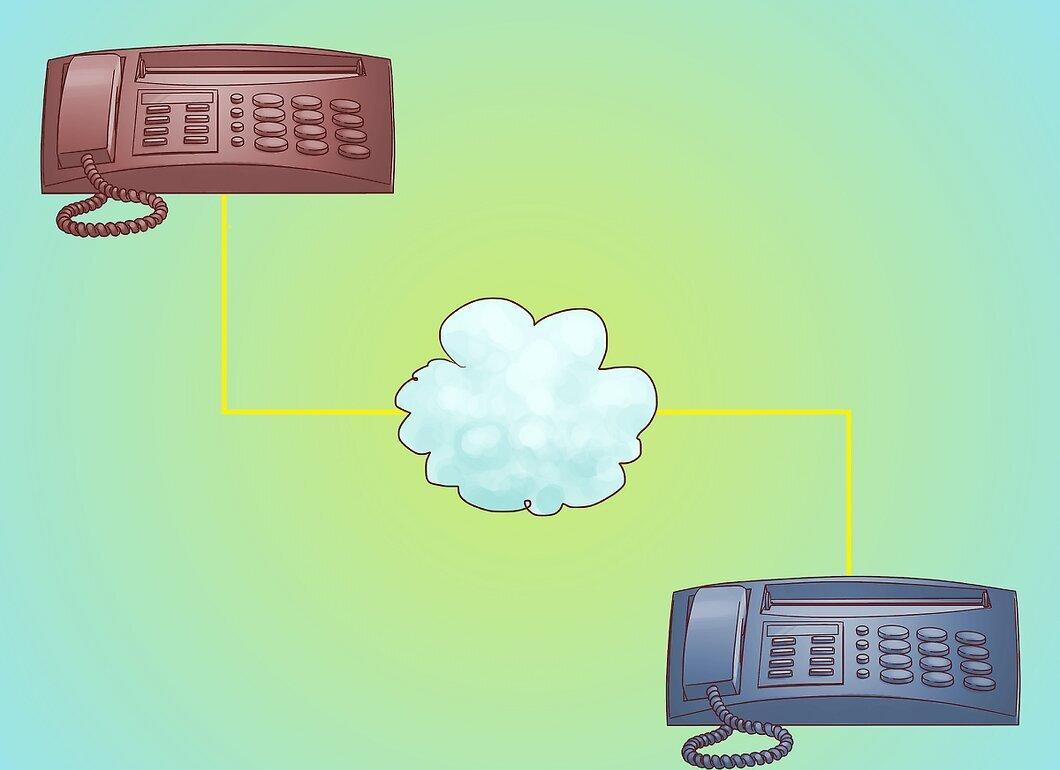
You can also send faxes over the internet. There are numerous online services that offer such services, but they may charge a fee. This can be a great solution if you rarely send faxes and don't want to buy a fax machine.
- PamFax is a good service for sending faxes through Skype, but there is a fee.
- HelloFax integrates well with Google Drive and allows you to send documents from Google Docs. As a trial, you can send a few faxes for free, but a subscription will be required afterward.
Step 3. Sending a Fax via Email.
Depending on the fax number, you may also have the option to send a document for free via email. However, this offer is often limited, and not all fax numbers are suitable for this method.
- Check the possibility of sending faxes via email for a specific number online.
- Use the following template for the address: “remote-printer.First_Last@12345678910.iddd.tpc.int”.
- Replace the fax number (including the country and region codes) and the name with the recipient’s details.
- Remember that you can only send text this way; PDF or other files are not suitable.