Easily Cancel Payments on PayPal
In this article, we will explain how to cancel a recurring payment, subscription, or upcoming transaction on PayPal.
Cancelling a Recurring Payment or Subscription
Step 1. Go to the PayPal Website
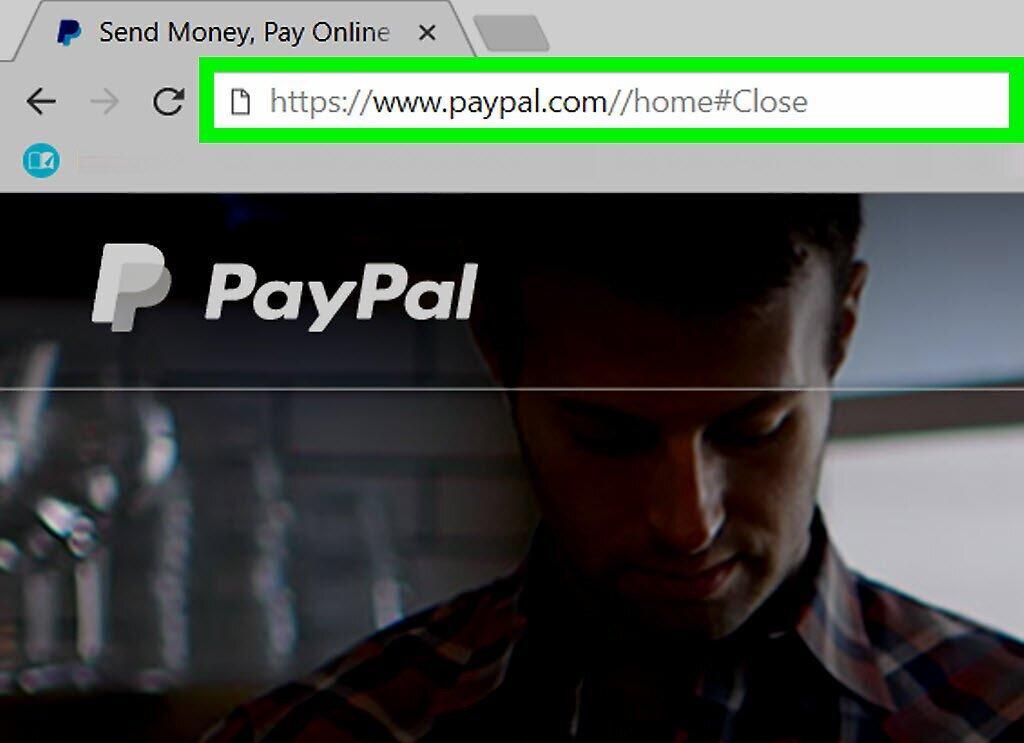
Open your browser and go to https://www.paypal.com. If you're not logged in automatically, click the "Log In" button in the upper right corner and enter your credentials.
Step 2. Open Settings
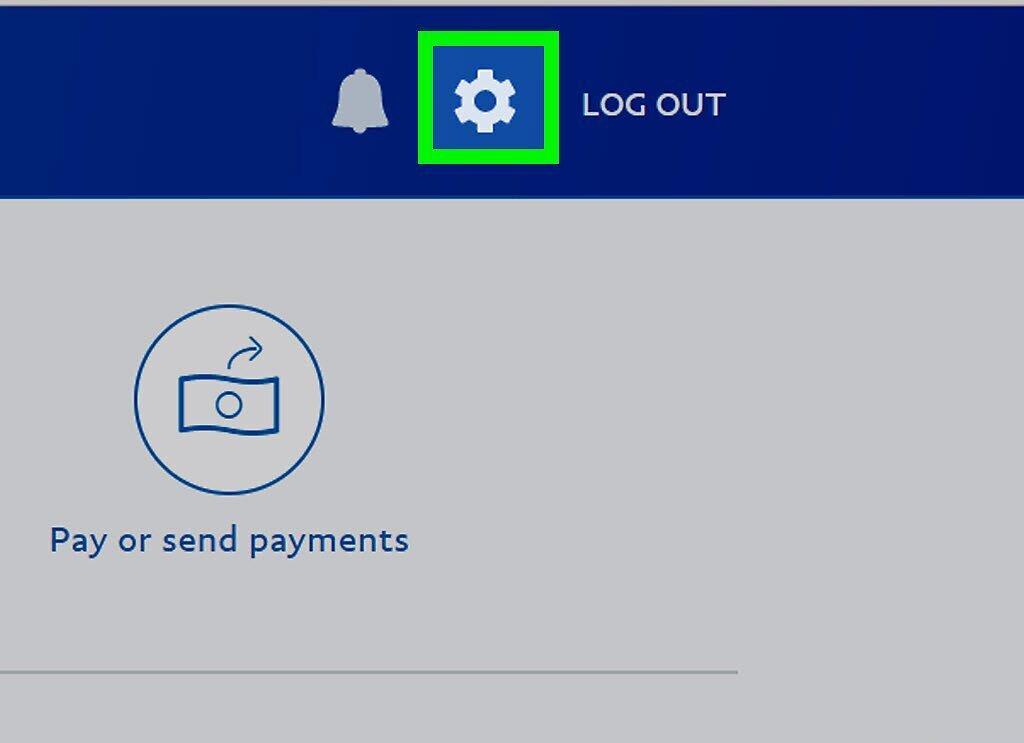
Click on the settings icon in the upper right corner of the screen.
Step 3. Navigate to the Payments Section

Select the Payments tab located near the middle of the top of the page.
Step 4. Manage Pre-approved Payments

Click on the Manage Pre-approved Payments option found in the center of the interface.
Step 5. Find the Payment to Cancel

- If you have many recurring payments, you may need to click on "Next Page" in the bottom right corner to find the payment you want to cancel.
Step 6. Click Cancel

Click the Cancel button next to the status of the selected payment.
Step 7. Confirm Cancellation

Confirm your intention to cancel the recurring payment by clicking the Confirm button.
Cancelling an Upcoming or Unclaimed Payment
Step 1. Go to the PayPal Website

Open your browser and go to https://www.paypal.com. If you're not logged in automatically, click "Log In" and enter your credentials.
Step 2. Go to the History Section

Click on the History tab at the top of the page.
Step 3. Select the Payment to Cancel

Click on the payment you want to cancel, which is located in the "Pending" section of the History tab.
- If the payment is already in the "Completed" section, it means the recipient has already received the funds, and you won't be able to cancel or return it. In this case, you will need to request a refund or contact customer support.
Step 4. Check Payment Status

Make sure the payment has not been accepted yet. At the bottom of the transaction window, there should be a message stating that "[Username] has not yet accepted the payment," next to the Cancel button.
Step 5. Click Cancel

Click the Cancel button.
Step 6. Confirm Payment Cancellation

Select the option to Cancel the payment.
Step 7. Complete the Confirmation Process

Click Confirm to finalize the cancellation of your payment.