PayPal is not only a user-friendly platform for making online purchases, but it’s also a fantastic way to transfer money to your friends and relatives in mere seconds. In this article, you will learn how to effectively use your PayPal account to send money via computer, smartphone, or tablet.
Using the PayPal App on Mobile Devices
Step 1. Open the PayPal App on Your Phone or Tablet.
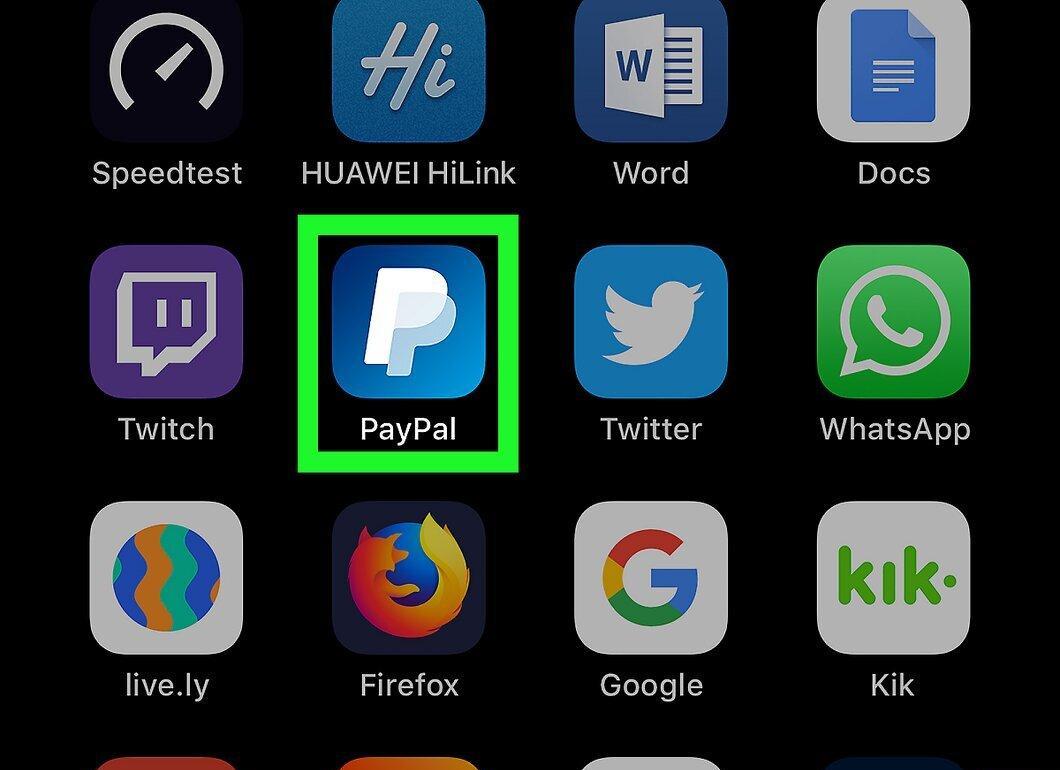
Launch the PayPal app, which features a white letter "P" icon. You should be able to find it on your device's home screen (iPhone, iPad, or Android) or in the app drawer (on Android).
- If you don’t have the PayPal app yet, you can download it for free by following this link: https://www.paypal.com/ru/webapps/mpp/mobile-apps. Depending on your device, click on "Download on the App Store" or "Get it on Google Play".
- If you prefer not to install the app, you can also use the mobile version of the site at https://m.paypal.com.
Step 2. Log into Your PayPal Account.
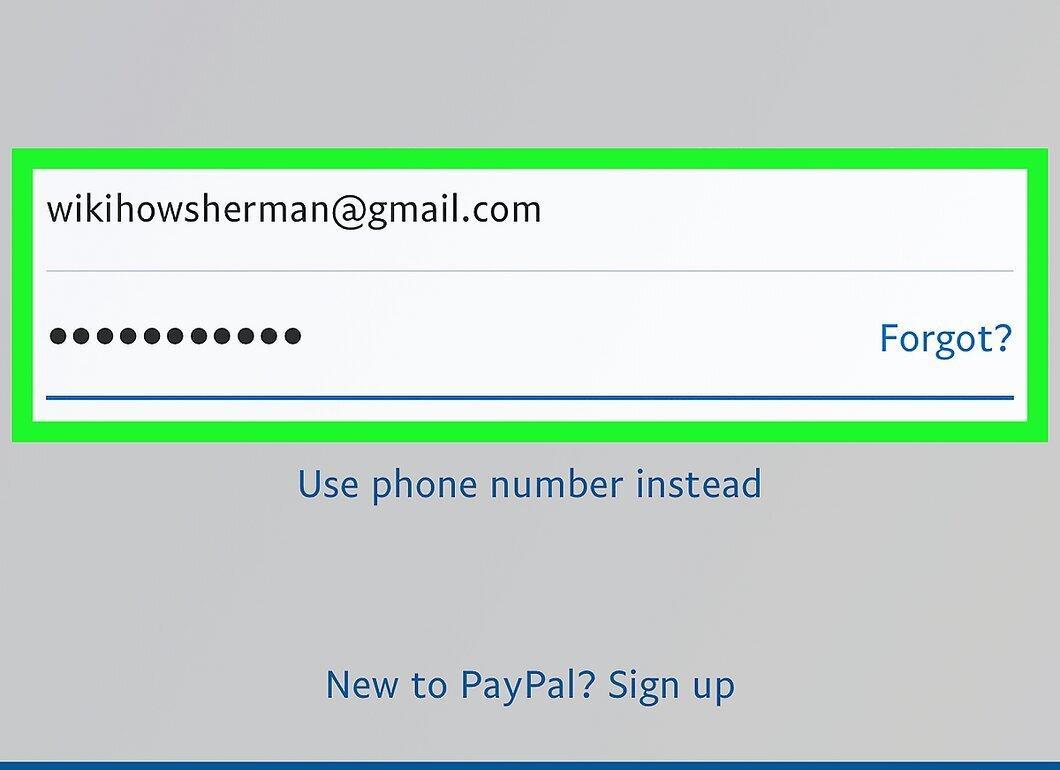
Sign in to your PayPal account. If you’re already registered, enter your password or use biometric authentication (like Touch ID). If you do not have an account, you will need to create one.
- If you’re using PayPal for the first time, you must register and add a payment method before sending money. Click on the "Sign Up" button and follow the on-screen instructions. More information can be found in the article "How to Use PayPal".
- To learn how to link a bank account, debit, or credit card to PayPal, refer to the article "How to Fund Your PayPal Account".
Step 3. Click on the "Send" Button
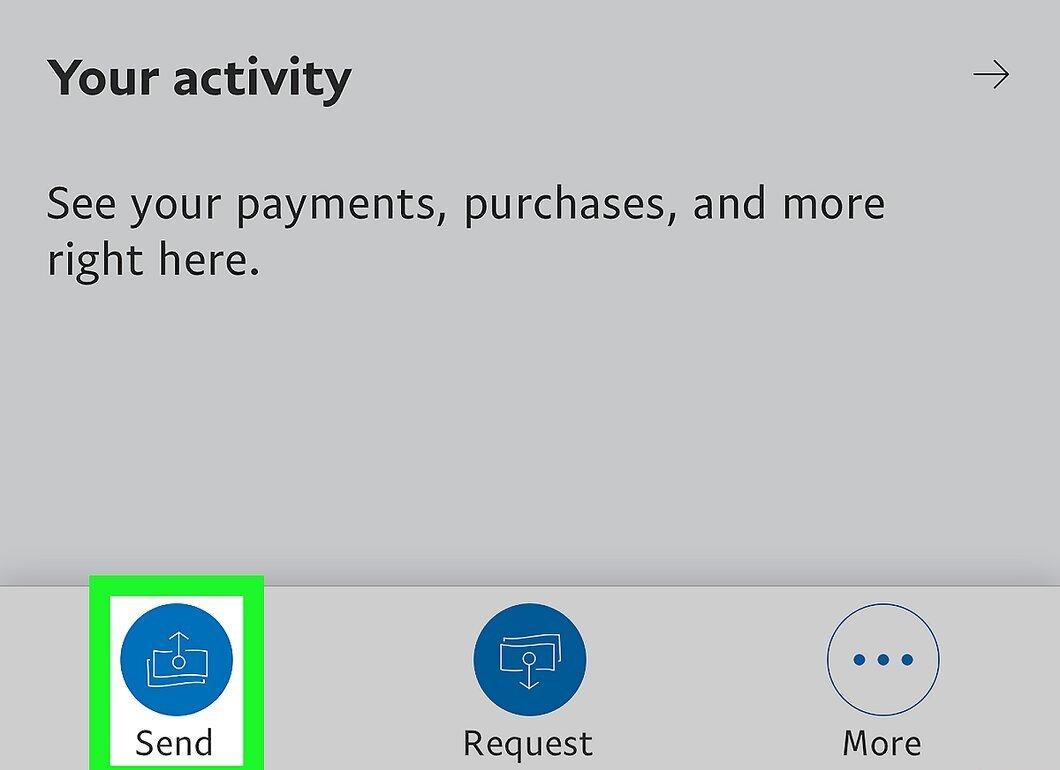
Tap the blue "Send" button, which looks like an icon with cash and an arrow, located in the lower left corner of the PayPal app.
- If you’re using the app for the first time to send money, tap on the "Let’s Get Started!" button that appears at the bottom of the screen.
Step 4. Follow the Instructions to Import Contacts.
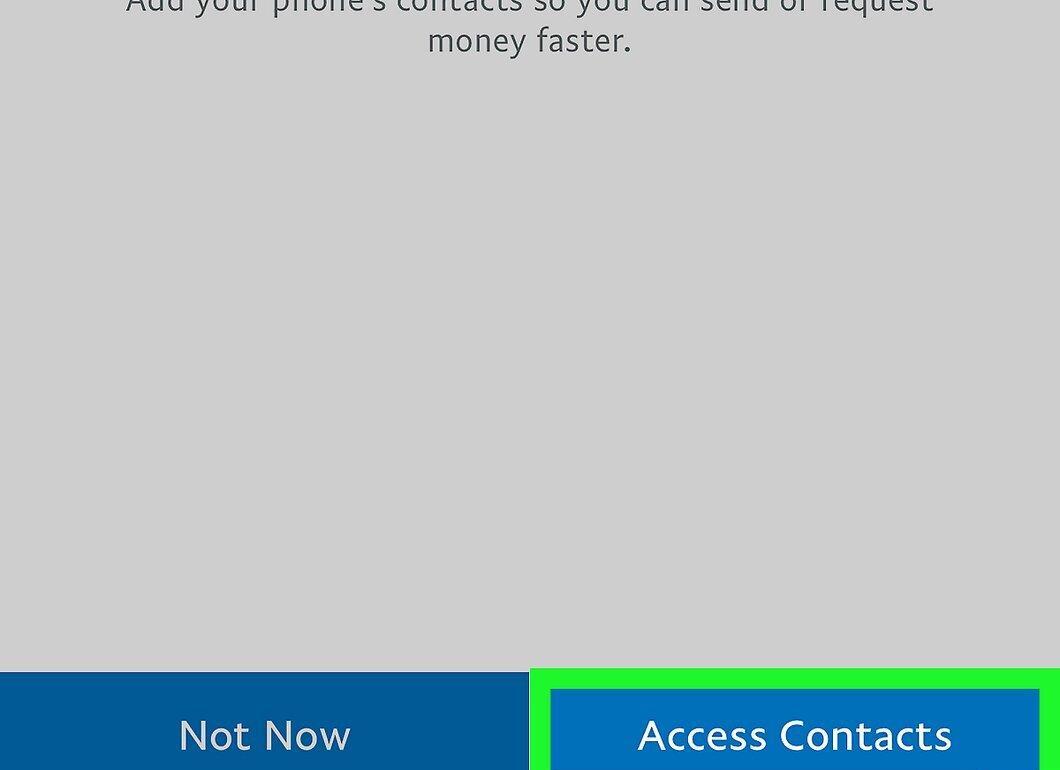
Follow the on-screen instructions to import your contacts. This will help you easily send money to those in your contacts list on your iPhone/iPad or Android. Click "Allow Access to Contacts" and follow the prompts to grant the necessary permissions.
- If you do not want the app to access your device’s contacts, click "Not Now".
Step 5. Select or Enter a Contact.
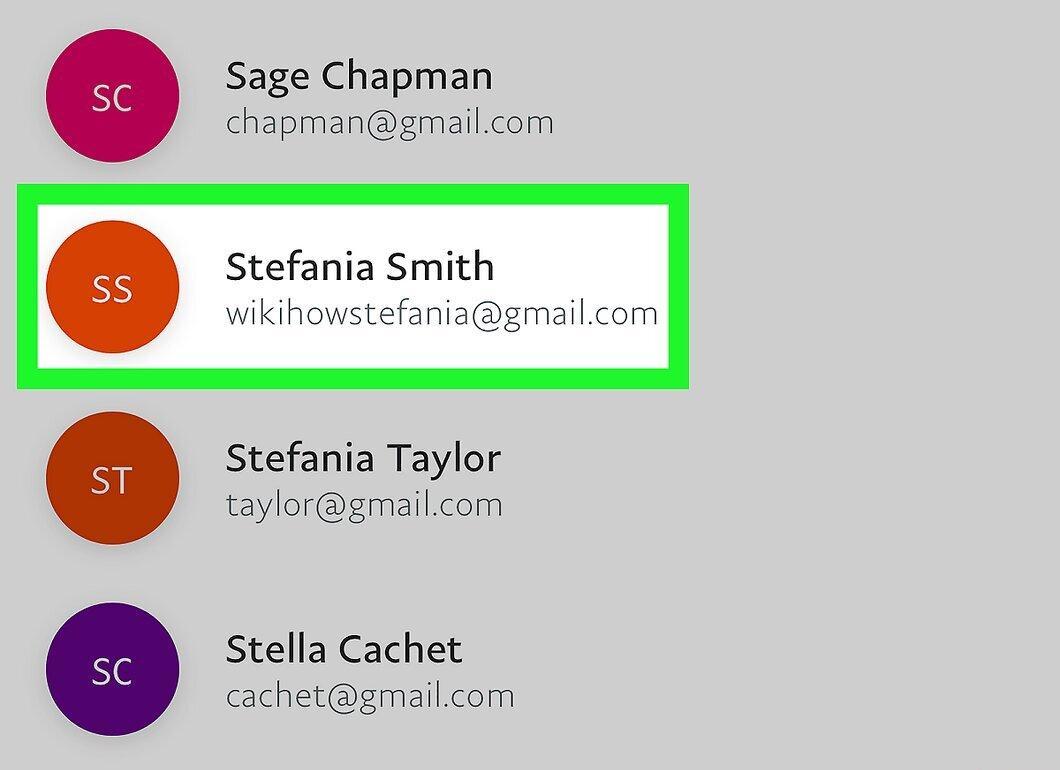
Choose a contact from the list or enter it manually. If the person you want to send money to is in your contacts, scroll down and select their email address or phone number. Otherwise, type the required address or number in the upper field of the screen and tap it to create the payment.
- Before sending, ensure that the email address or phone number is entered correctly to avoid errors in the transfer.
- If you wish to send money to someone abroad, select "Send to Friends or Family Abroad" and follow the further instructions to use Xoom.
Step 6. Enter the Amount You Wish to Send.
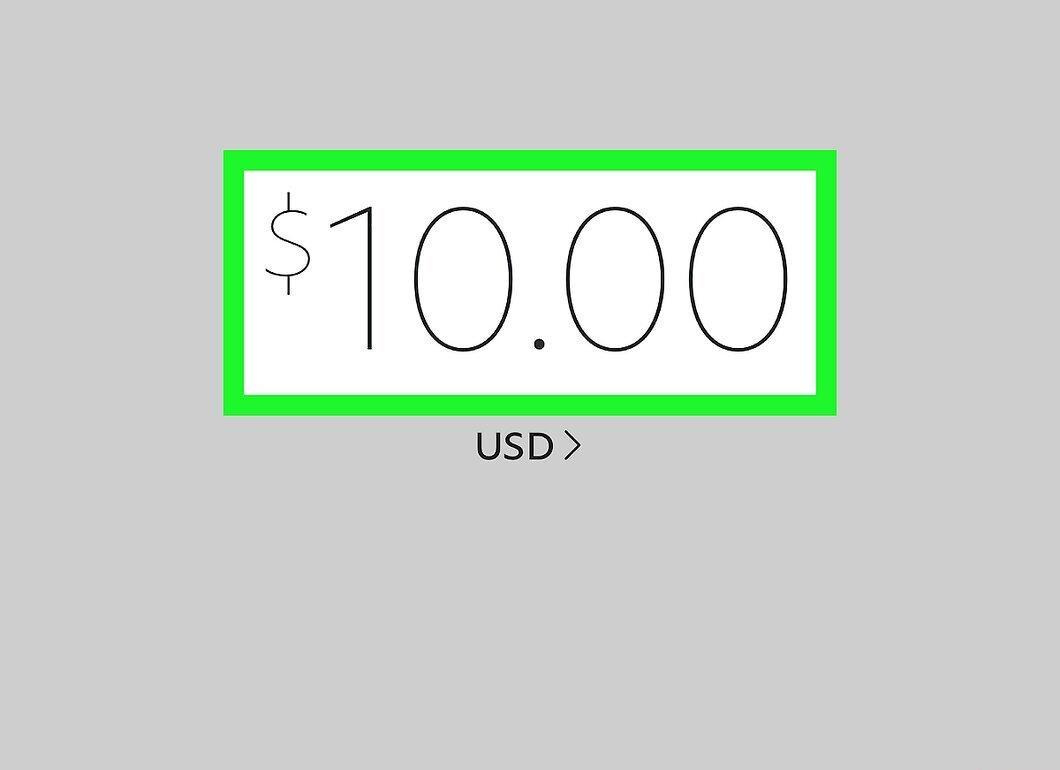
Input the transfer amount using the numeric keypad. If the currency is incorrect (for example, RUB, USD, EUR), change it to the desired one.
Step 7. Click on the Blue "Next" Button
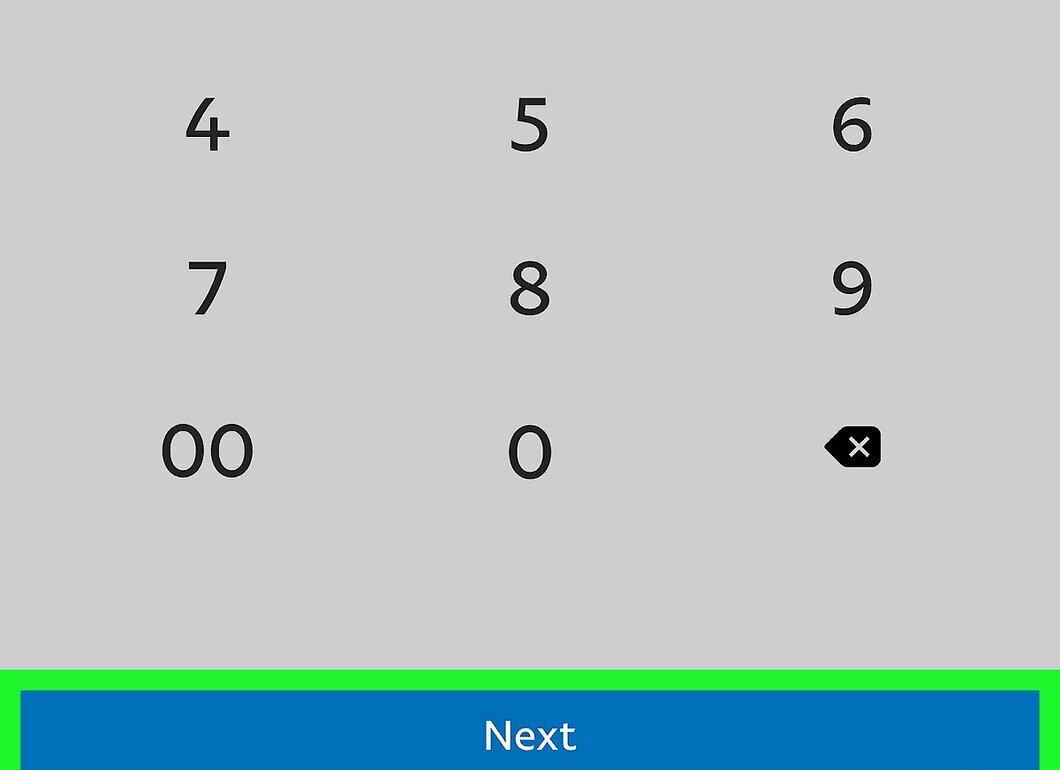
Tap the blue "Next" button located at the bottom of the screen.
Step 8. Choose the Type of Payment.
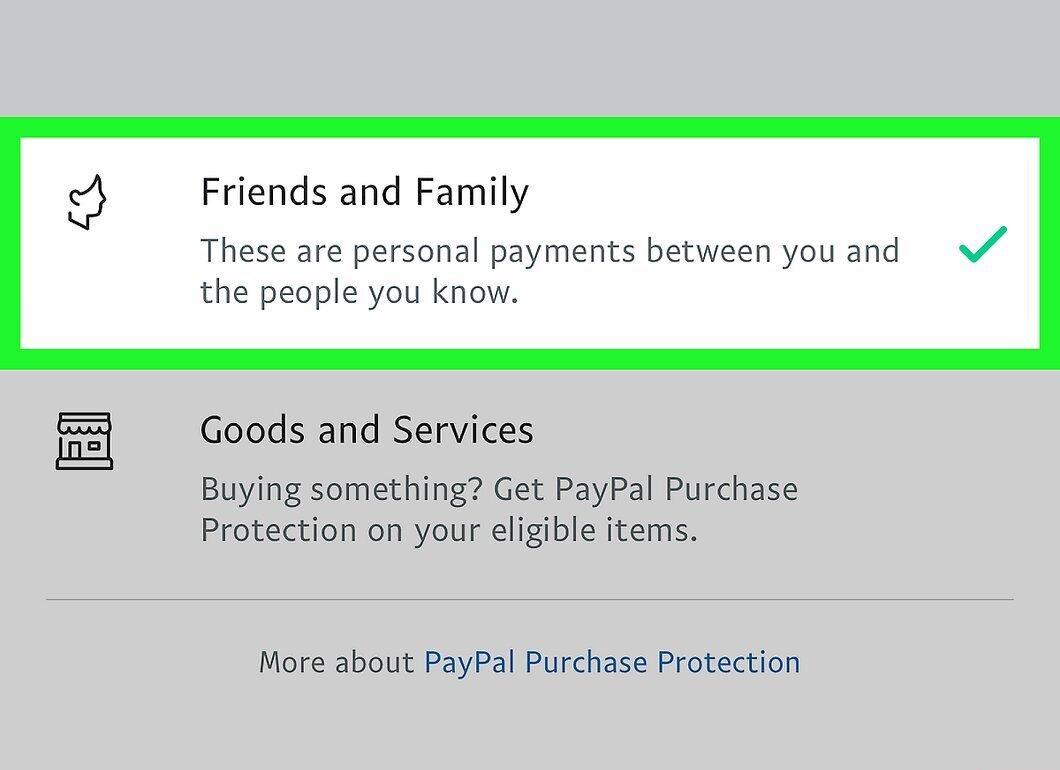
Specify the type of payment. Select "Friends and Family" if you are sending money to acquaintances, or "Goods and Services" if you are paying for a purchase.
- The type of payment affects the fees. No fees are charged for personal transfers, but PayPal does charge a fee for transfers for goods and services according to the buyer protection program.
Step 9. Select a Payment Method and Click "Next"
Choose a payment method and click "Next". All payment methods linked to your account will appear on the screen.
- When using a bank account or PayPal balance, no fees are charged. A fee may apply when paying with a credit card, which will be indicated below the type of payment.
- If your PayPal balance is less than the transfer amount, the funds will be deducted from your account, and the remaining amount will be taken from your linked bank account or card.
Step 10. Review the Details and Click "Send"
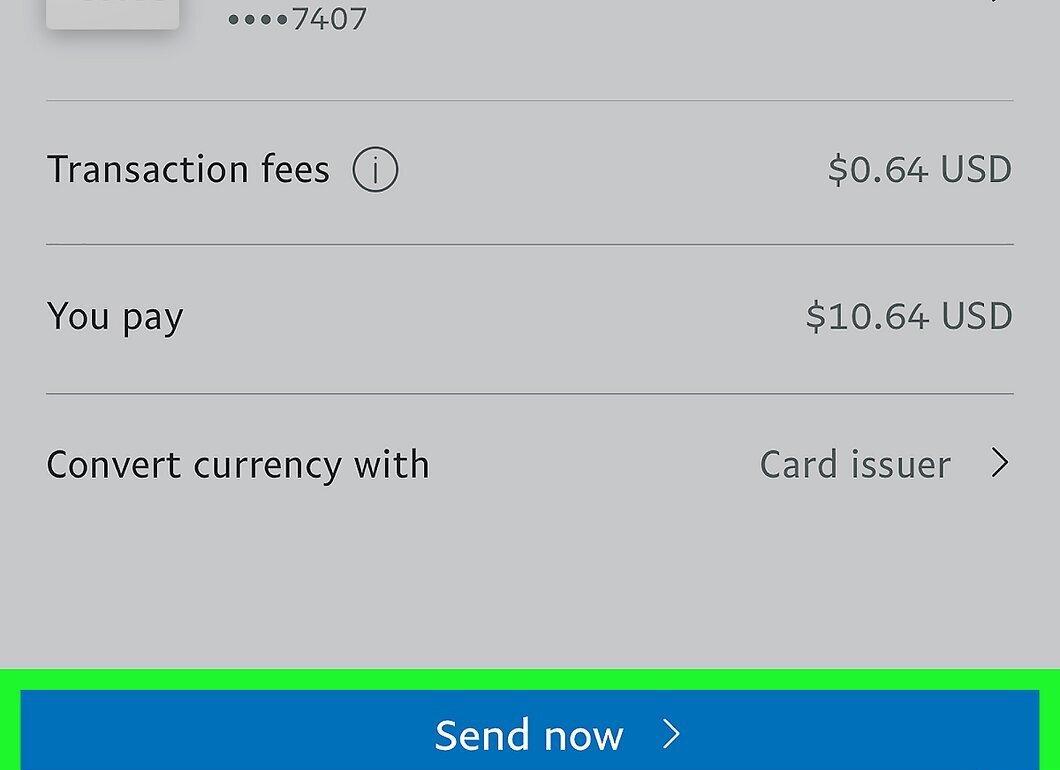
Check the payment details and click "Send". If you wish, you can add a comment to the payment by using the "Add Comment" button below the amount. Once you have confirmed that all information is correct, click the appropriate button at the bottom of the screen to complete the transfer. The recipient will receive an instant notification of the incoming funds.
- If the recipient does not have a PayPal account, they will be prompted to create one.
Sending Money via the PayPal Website on a Computer
Step 1. Go to https://www.paypal.com
Open the website https://www.paypal.com in your web browser. You can use any browser to send money through PayPal.
Step 2. Click "Log In"
Find the "Log In" button at the top right corner of the page and click on it.
Step 3. Log into Your PayPal Account.

Enter your credentials to access your PayPal account. If you already have an account, enter your username and password, then click "Log In".
- If you are using PayPal for the first time, you will need to create an account and add a payment method before sending money. Click on the "Sign Up" button and follow the instructions to create an account. More information can be found in the article "How to Use PayPal".
- Check the guide on linking a bank account, debit, or credit card to your account in the article "How to Fund Your PayPal Account".
Step 4. Go to the "Money Transfers" Tab
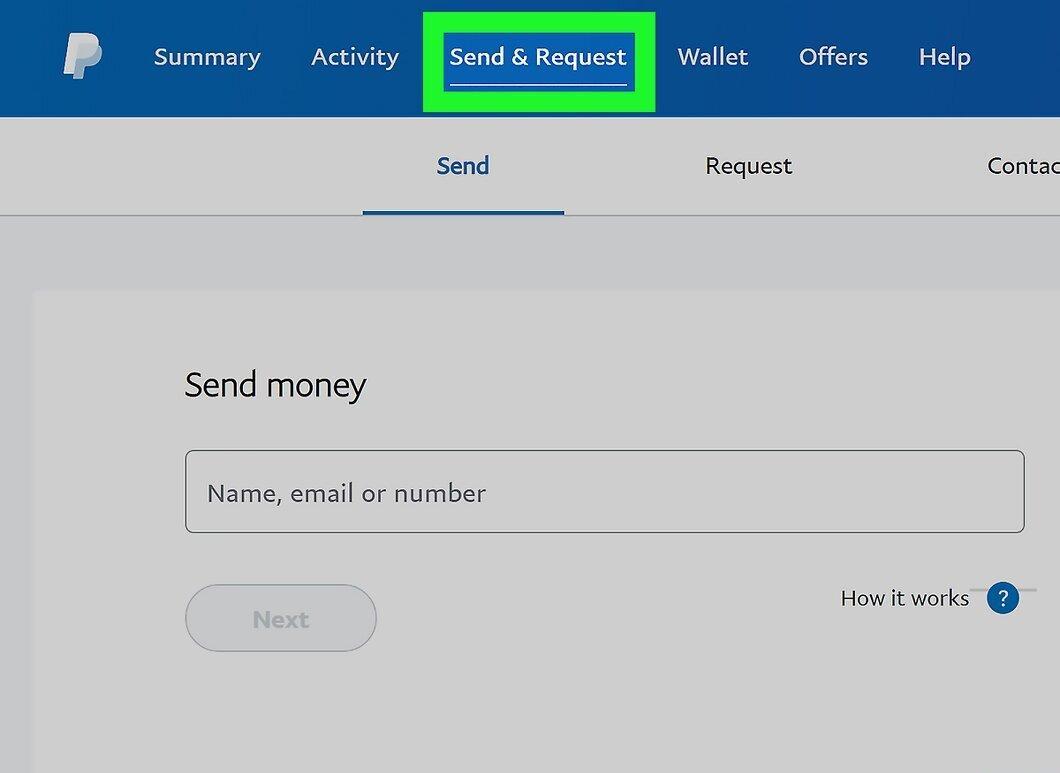
Click on the "Money Transfers" tab located at the top of the page.
Step 5. Choose a Payment Method.

Determine the method of payment. Your choice will affect the processing of the payment and any possible fees.
- If you want to pay for a product or service, click "Pay for Goods and Services". This method is covered under the buyer protection program.
- If you are sending money to friends or family, select "Send to Friends or Family", in which case there will be no fees.
- If you are transferring money to someone abroad, choose "Send to Friends or Family Abroad" — this will utilize the Xoom service.
Step 6. Enter the Recipient's Email Address or Phone Number and Click "Next"

Input the recipient's email address or phone number and click "Next". Make sure the entered information is correct to avoid errors in the transfer.
- If you have previously sent money to this person, simply click on the input field. You will see a dropdown list of contacts to whom you have sent transfers.
Step 7. Enter the Transfer Amount and Click "Continue"

Input the transfer amount and click "Continue". Ensure that the currency is correctly selected. If you want to send money in a different currency, change the settings.
- Comments that you add in the "Add Comment" field will be sent to the recipient.
Step 8. Review the Payment Information.

Check all the payment details. At this stage, you will be able to ensure that all transfer information is correct before sending money.
- If you do not want to use the specified payment method, click "Change Payment Method", select or enter a new method, and confirm the transfer.
- If your PayPal balance has sufficient funds for the transfer, the money will be deducted from it. If not enough funds are available, PayPal will use the balance and add the missing amount from your linked account.
Step 9. Click "Send Payment"

Click the "Send Payment" button. The recipient will immediately receive a notification of your transfer.
- If the recipient does not have a PayPal account, they will be prompted to create one.