Want to know how to access free grants? The easiest way to find information and submit an application is to reach out to government resources. The U.S. Department of Health and Human Services (HHS) website offers extensive resources to discover and apply for numerous grants provided by 26 different federal agencies. Let’s dive into the process! Read on!
Part 1
Step 1. Find Available Programs on Grants.gov
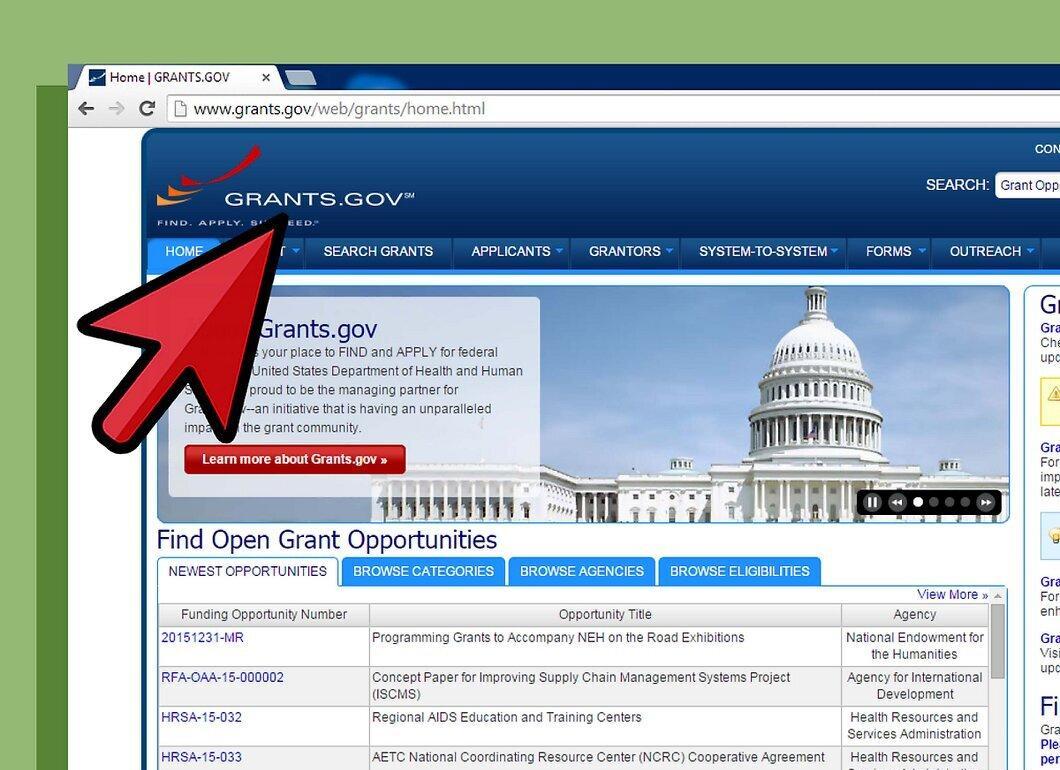
Start by searching for available programs on the Grants.gov platform. Here you will find a list of grants along with information about the agencies that offer them and the application deadlines. You can search in several ways. Note that no registration is required to search for grants, but you will need to register to apply.
- Explore the 26 federal agencies offering grants, including their sub-agencies.
- Search by funding categories.
- Look for opportunities provided under the Recovery Act.
- Use keywords for your search.
- Search using government codes such as Funding Opportunity Number (FON), Catalog of Federal Domestic Assistance (CFDA) number, or Funding Opportunity Competition ID.
Step 2. Review the Grant Summary.
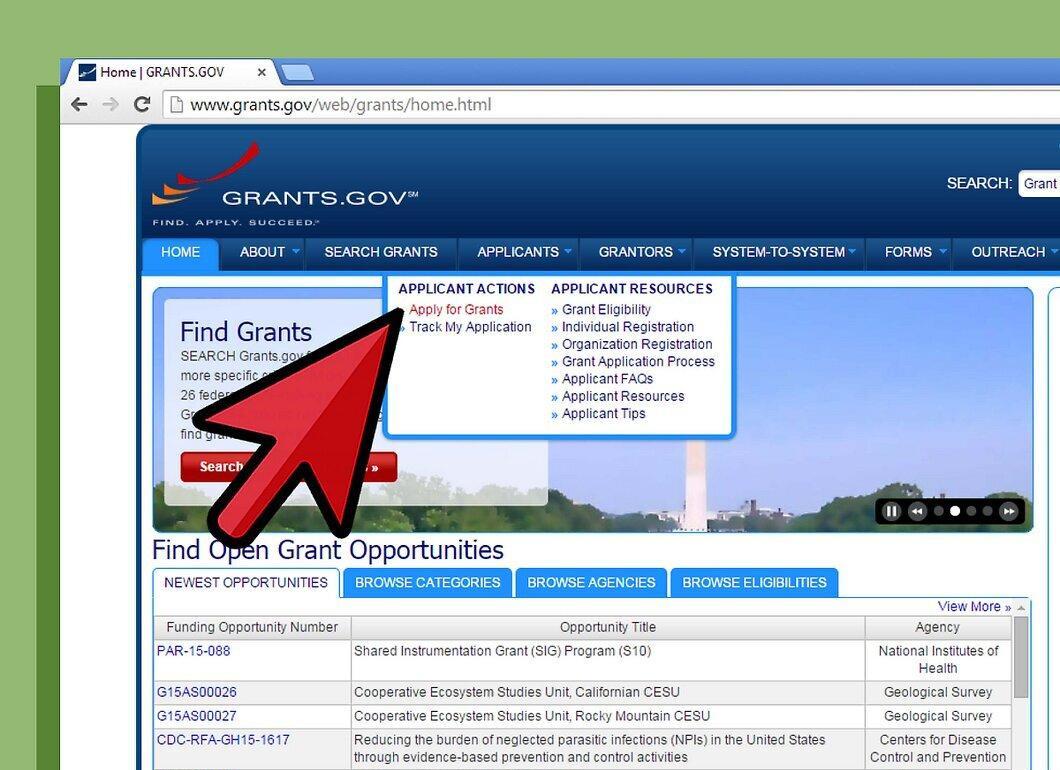
Read the brief overview of the grant opportunities to understand the requirements and ensure it fits your needs. Once you find a suitable option, click the “Application” button.
Step 3. Download Required Application Documents.
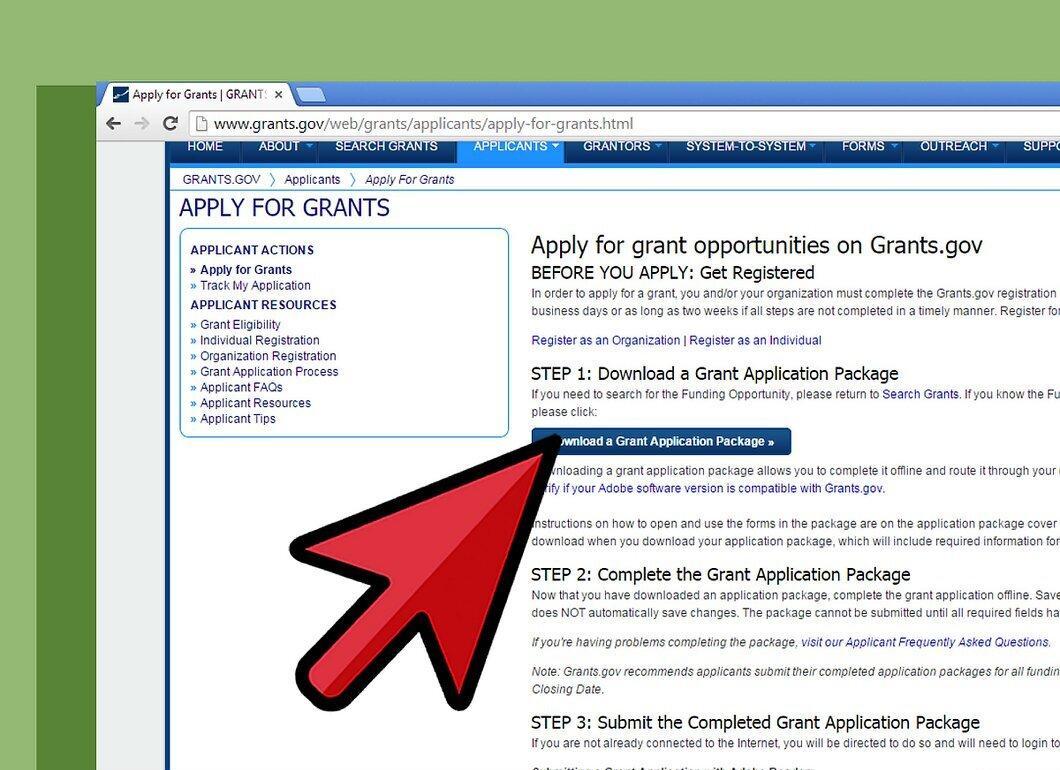
Download the document package needed for your grant application. Each package in PDF format contains specific instructions from the government agency and forms to fill out offline. Note that required fields are highlighted in yellow and marked with an asterisk.
- Make sure you have a version of Adobe Reader that allows you to fill out forms. The Grants.gov website offers a way to test your version of Adobe Reader and a video guide for completing the application. If multiple people in your organization are working on the application, each computer must have a compatible version of Adobe Reader.
- If you need to print the form package, open and print each form separately, as there is no option to print the entire package at once.
- Be aware of character limits in fields. For example, the Authorized Organization Representative (AOR) field has a maximum of 30 characters, while the Organization Name in the R&R Senior/Key Person Form has a limit of 60 characters. If you exceed these limits, your application may hang, but the system will notify you of the issue.
- Special characters such as ampersands (&), dashes (-), asterisks (*), and spaces cannot be used in the fillable fields. Use underscores instead of spaces (e.g., “Applying_Company”).
- You can copy text from a text editor but avoid cutting and pasting from word processing software, as this may lead to errors. First, save the text as a .txt file and then open it for copying.
Step 4. Complete the Forms.
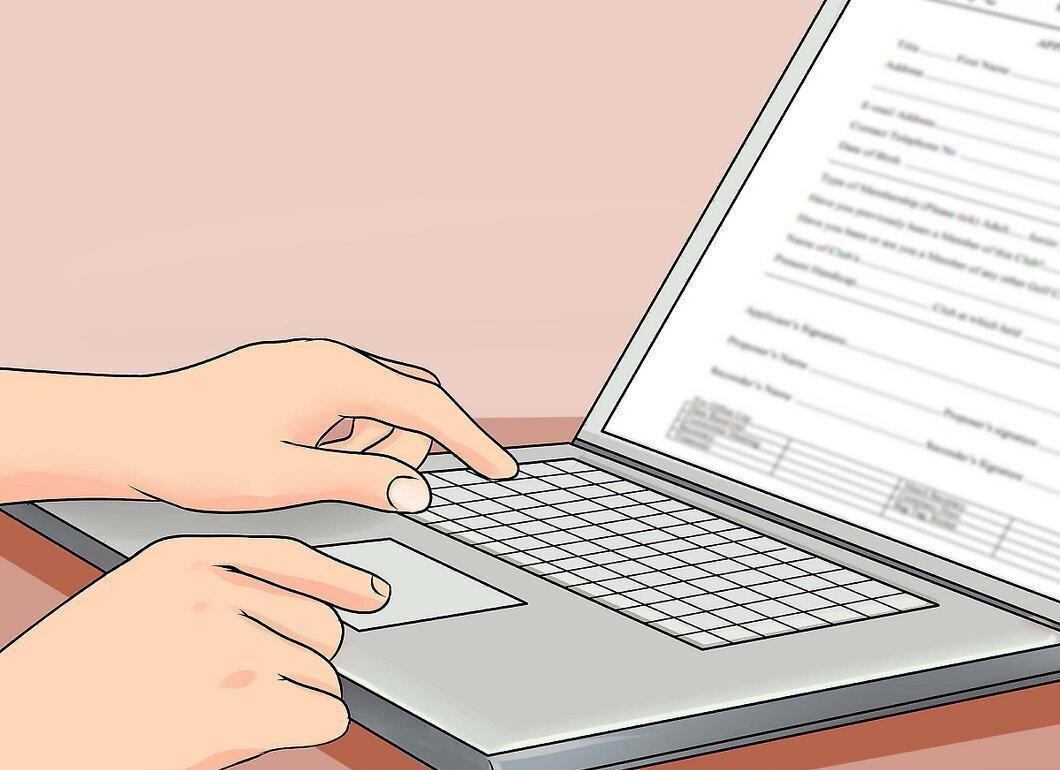
Fill out all the necessary forms. After entering your information, be sure to check for any errors.
- If you have a DUNS number, ensure that it matches the number in the application.
- Check all attached files for viruses before submission.
Step 5. Submit Documents with Attachments.
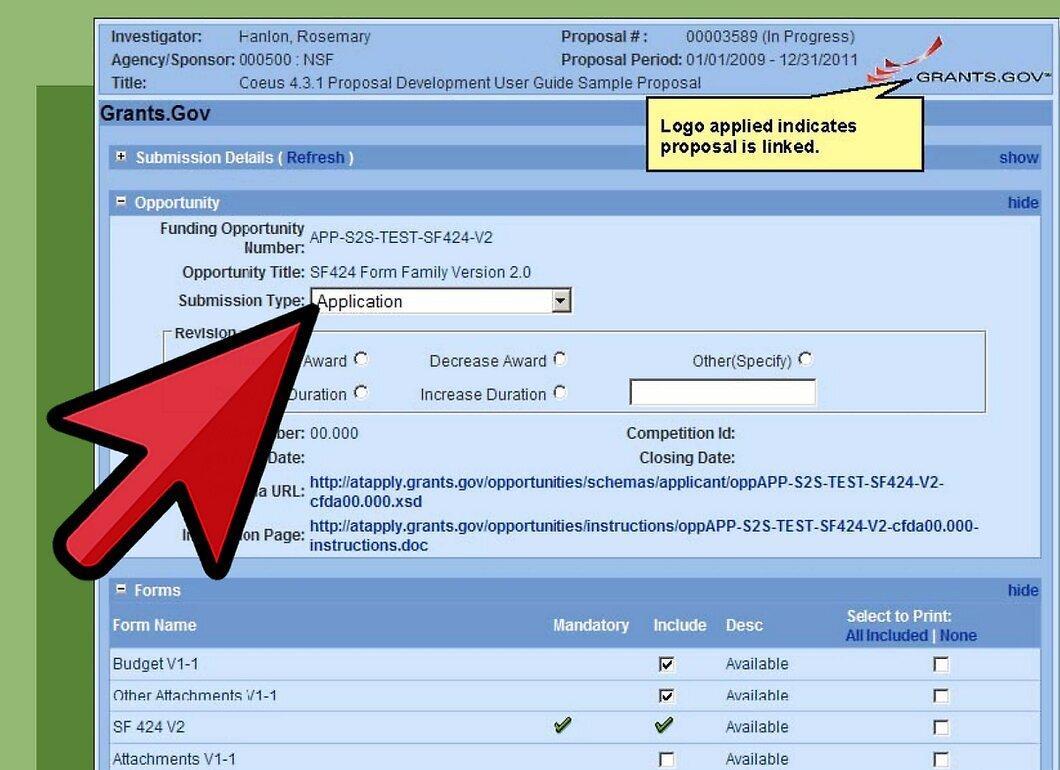
Submit the completed document package with attachments. Connect to the internet, open the cover page, and click “Save & Submit” to upload your documents to Grants.gov. Make sure your files comply with the requirements of the agency managing the grant. The total size of your files should not exceed 200 megabytes, although requirements may vary.
- The names of attached files should not exceed 50 characters and must not contain special characters &, -, *, /, #, or spaces. Use underscores to separate words (e.g., Application_Attachment_File.pdf).
- To speed up processing, you should not have two files with the same name in one package. Rename them if necessary.
- All video (.mpeg, .mov, .avi), image (.gif, .jpg, .tif), and audio (.aif, .au, .wav) files must be compressed before submission in accordance with agency requirements.
- After submitting your application, you will receive confirmation with the submitter’s name and a tracking number. Keep this number for future correspondence with Grants.gov.
Step 6. Track Your Application Status.
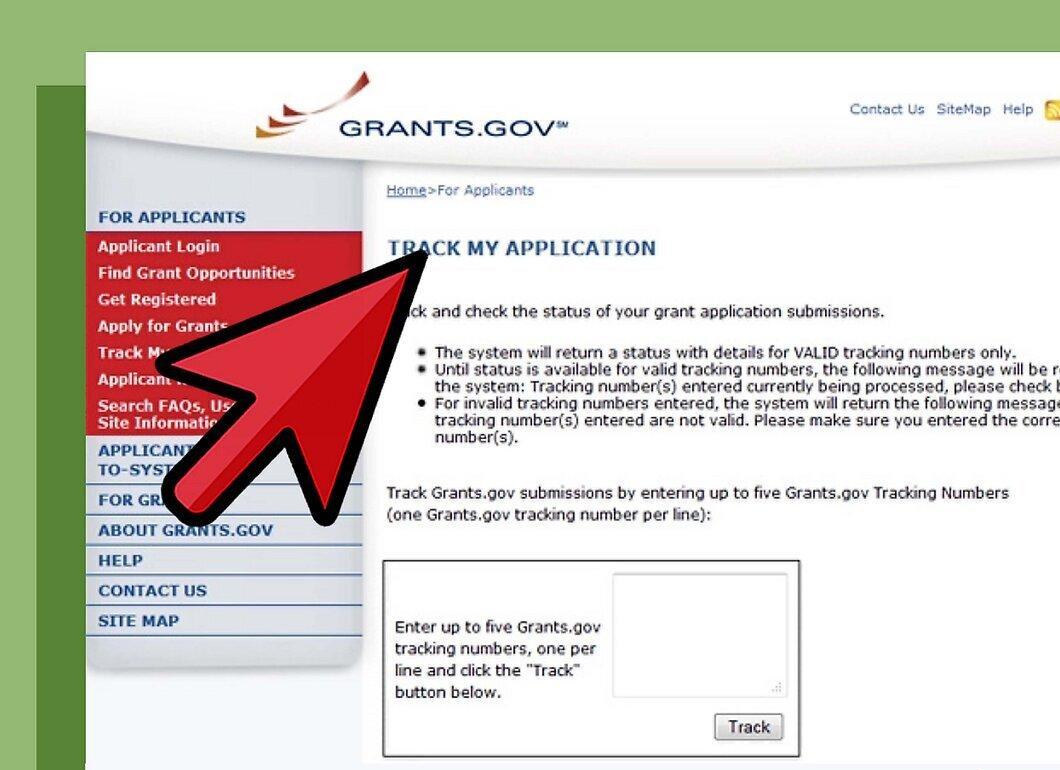
Keep an eye on the status of your application. Within the next two business days, you will receive two email notifications from Grants.gov: one confirming receipt of your request, and the second indicating acceptance or rejection due to errors. If your application is approved, you will receive a notification that the agency has received your application, and possibly another letter with a new tracking number from the agency.
- You can track your application by clicking “Track My Application” on the Grants.gov website and entering your tracking number(s). You can enter up to 5 numbers. To track more applications, use the “Check Application Status” link.
- Direct all status update inquiries after the agency’s response to them. Use the tracking number to contact the agency.
- If you do not receive the second notification within two business days, email support@grants.gov or call 1-800-518-4726, mentioning your tracking number.