CDisplay is one of the most sought-after applications for reading comics on the Windows platform. With its simple and user-friendly interface, users can concentrate on the reading experience without distractions from settings and menus. The software supports comic archiving in formats such as cbr, cbz, cbt, and cba. Although the development of CDisplay has been halted due to the creator's passing, it remains popular among digital comic enthusiasts.
How to Download CDisplay
Step 1. Visit the CDisplay website.
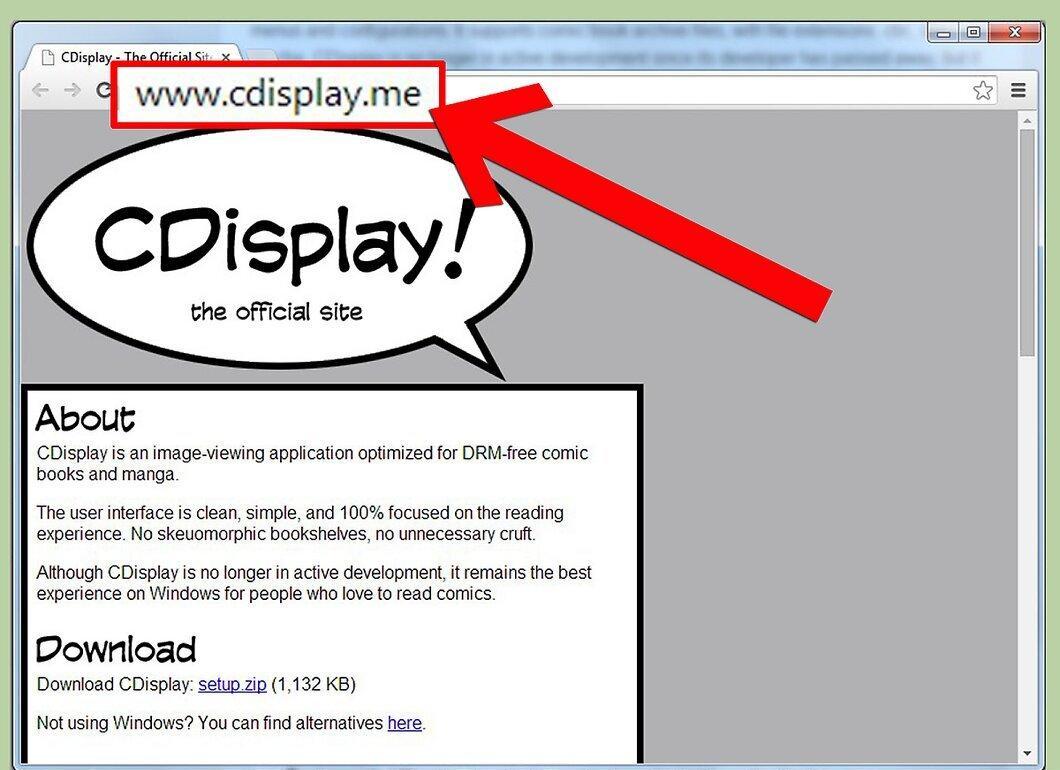
Open the semi-official CDisplay website at http://www.cdisplay.me/ in your browser.
Step 2. Download CDisplay.
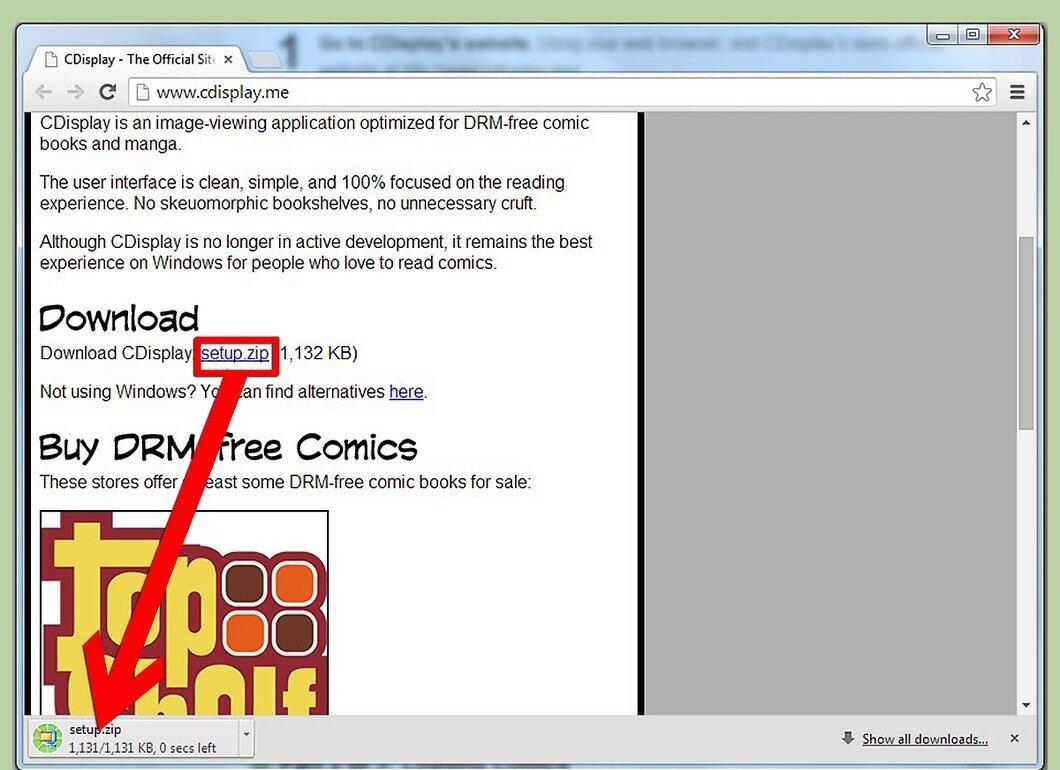
Go to the download section and click the link to start the download. It should begin automatically.
- CDisplay is designed for Windows only, and the installation file is available at http://cdisplay.techknight.com/setup.zip.
Step 3. Install CDisplay.
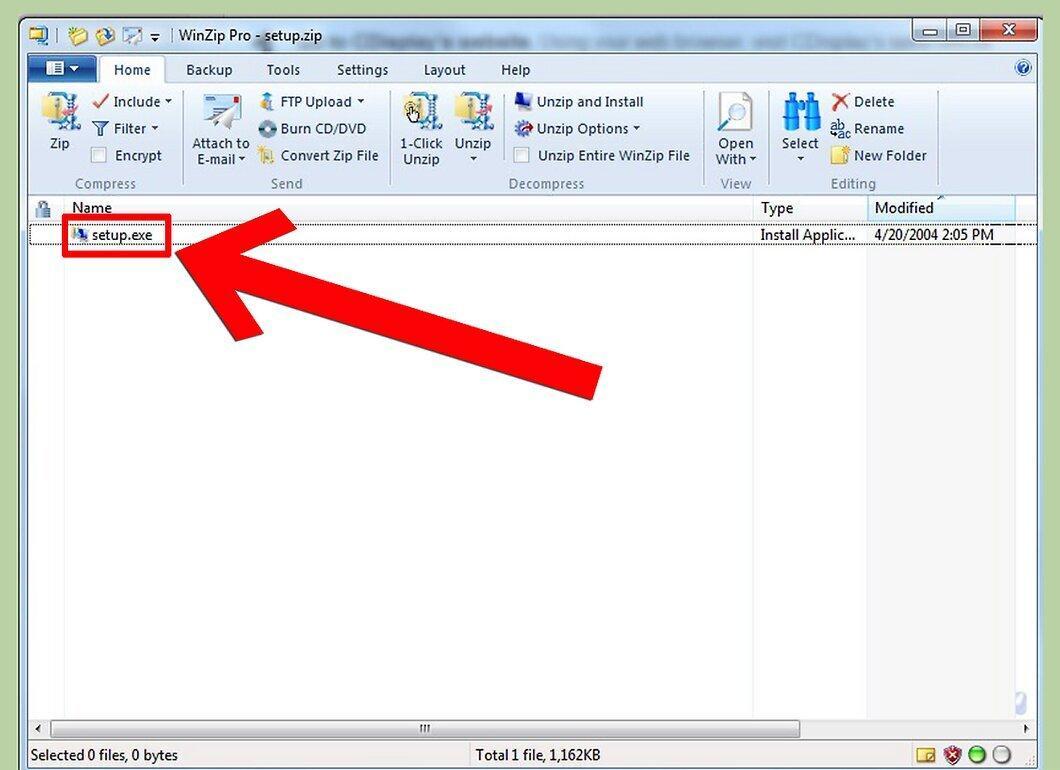
Save the downloaded file on your computer. The file is named setup.zip. Locate it and double-click to start the installation.
Step 4. Launch CDisplay.
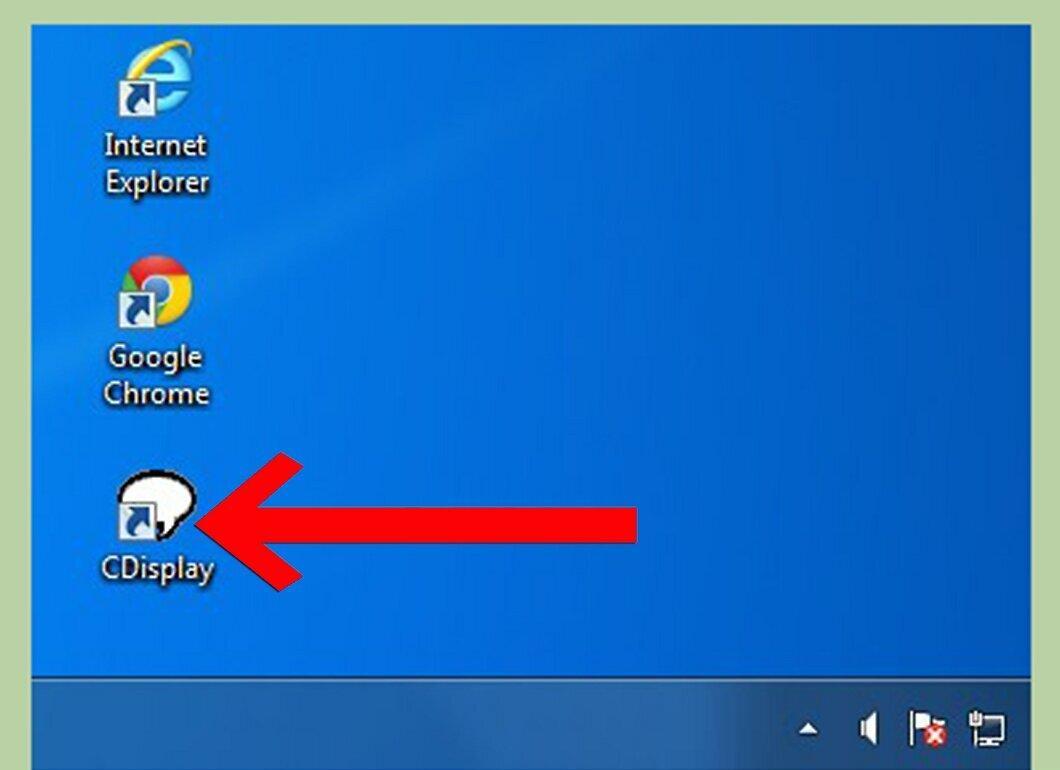
After the installation is complete, pin the application icon to the Start menu, then click it to open the program.
How to Load Comics
Step 1. Open the comic file through the menu.
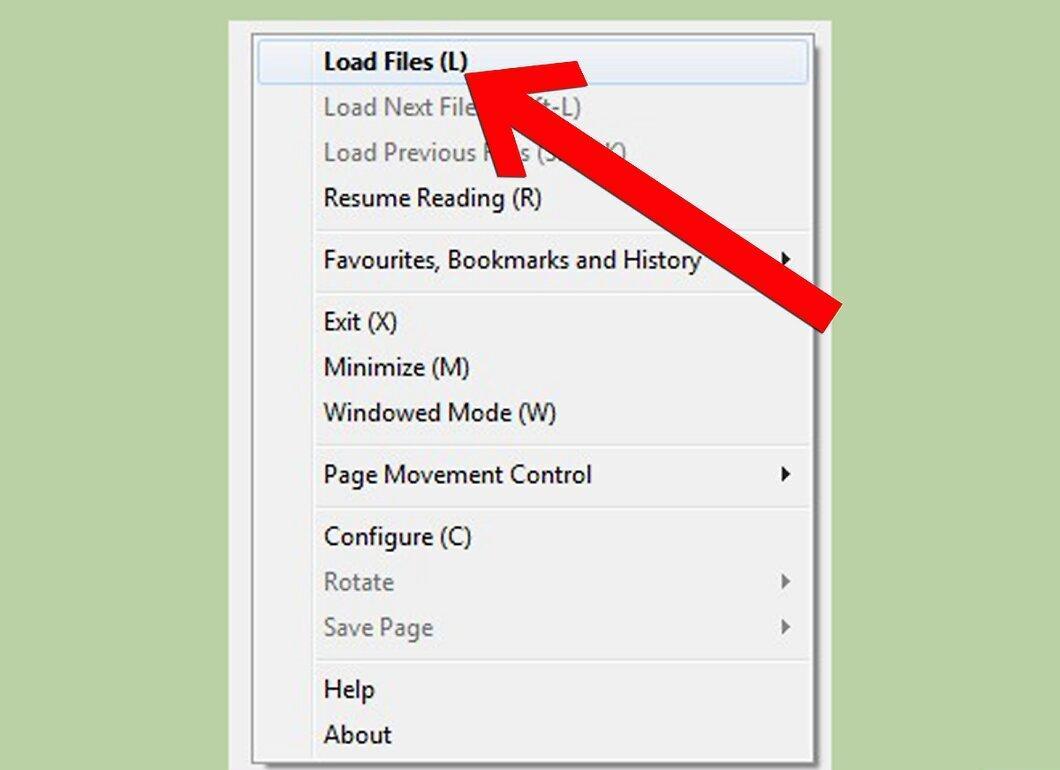
To load comics, use the menu: select "File" and click on "Load Files."
- You can also right-click on the interface and select "Load Files." The shortcut for this is "L."
Step 2. Drag and drop the file into CDisplay.
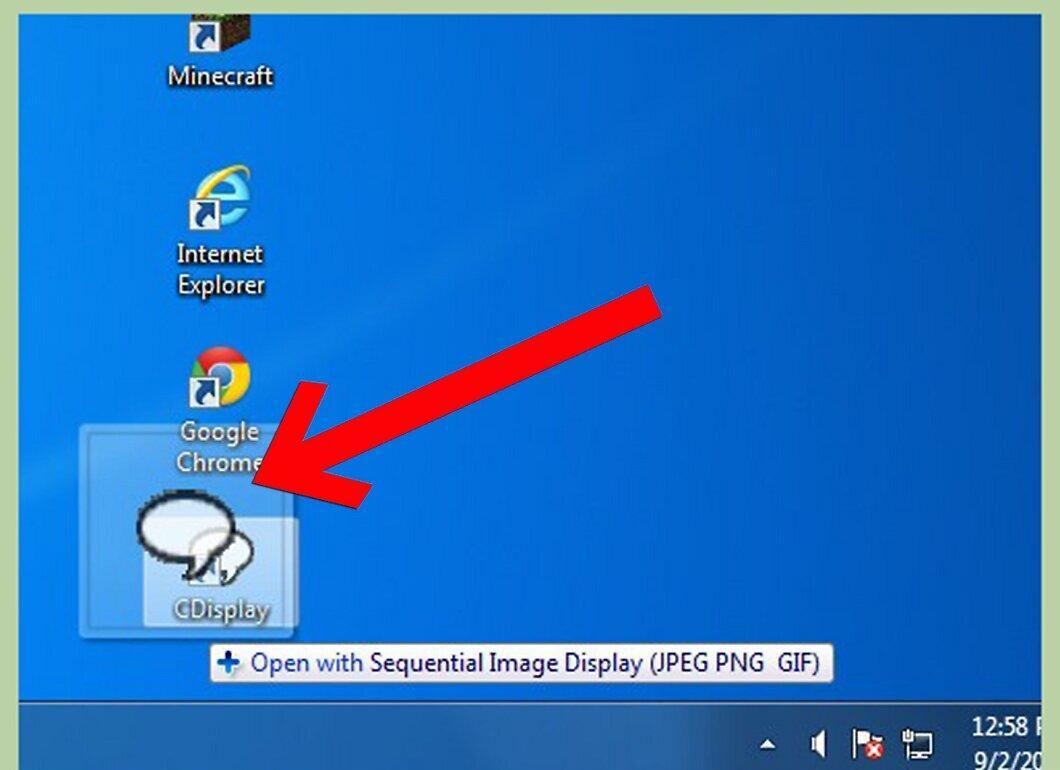
You can simply drag the comic file into the program window. Locate the desired file on your computer, click on it, and drag it into CDisplay. Release the mouse button to load the comic.
Step 3. Double-click the file.
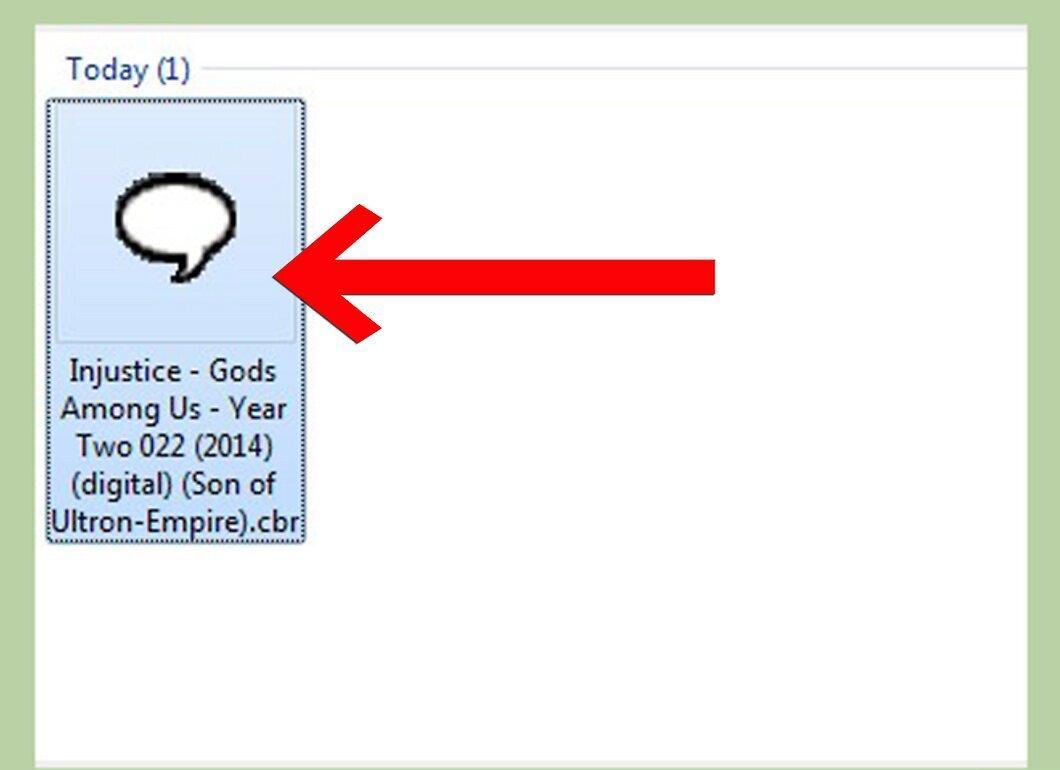
To load a comic, double-click the file, even if CDisplay is not open. Just find the file on your computer and double-click it — the program will open with the comic loaded.
Step 4. Continue reading the last file.
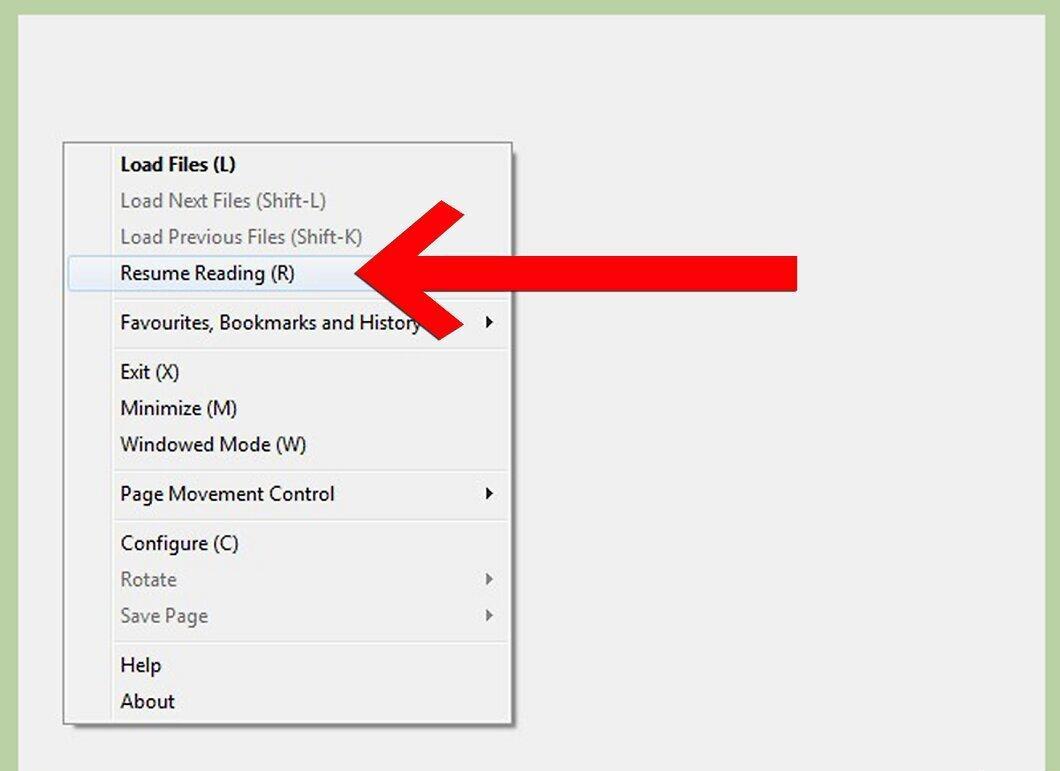
If you want to continue reading a comic that you didn't finish, the program will remember the last opened file and page. Select "File" and click on "Reading Mode."
- You can also right-click anywhere in the interface and select "Reading Mode" or use the shortcut key "R." This will automatically load the last read comic and page.
Step 5. Load a series of comics.
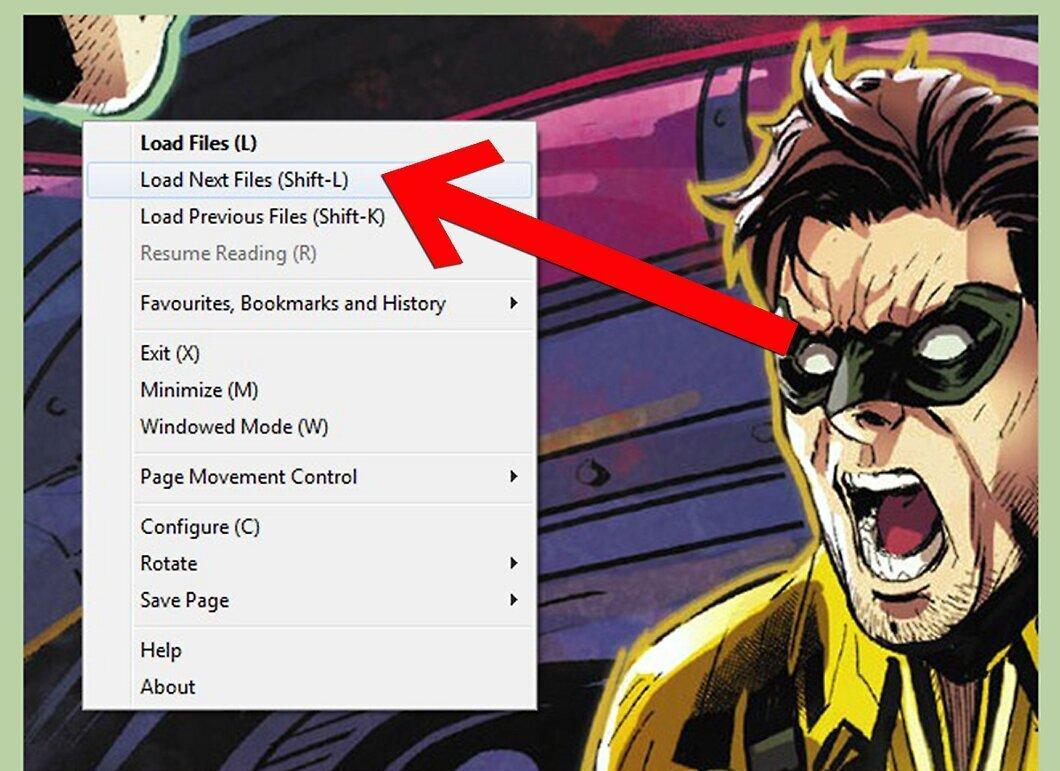
If you are reading a series of comics, you can easily switch to the next issues without closing the reading screen. Select "File" and click on "Load Next Files."
Step 6. Load previous files from the series.
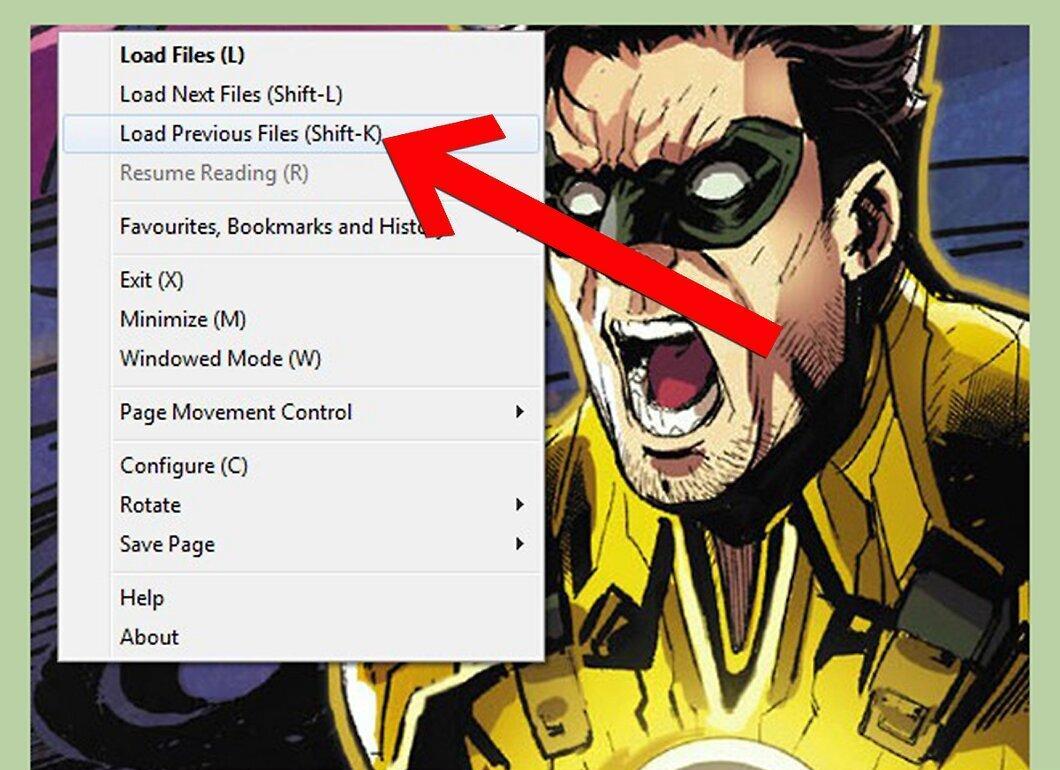
If you want to go back to a previous file without closing the program, select "File" and click on "Load Previous Files." This allows you to open comics located in the same folder.
Reading Comics
Step 1. Use the spacebar for navigation.
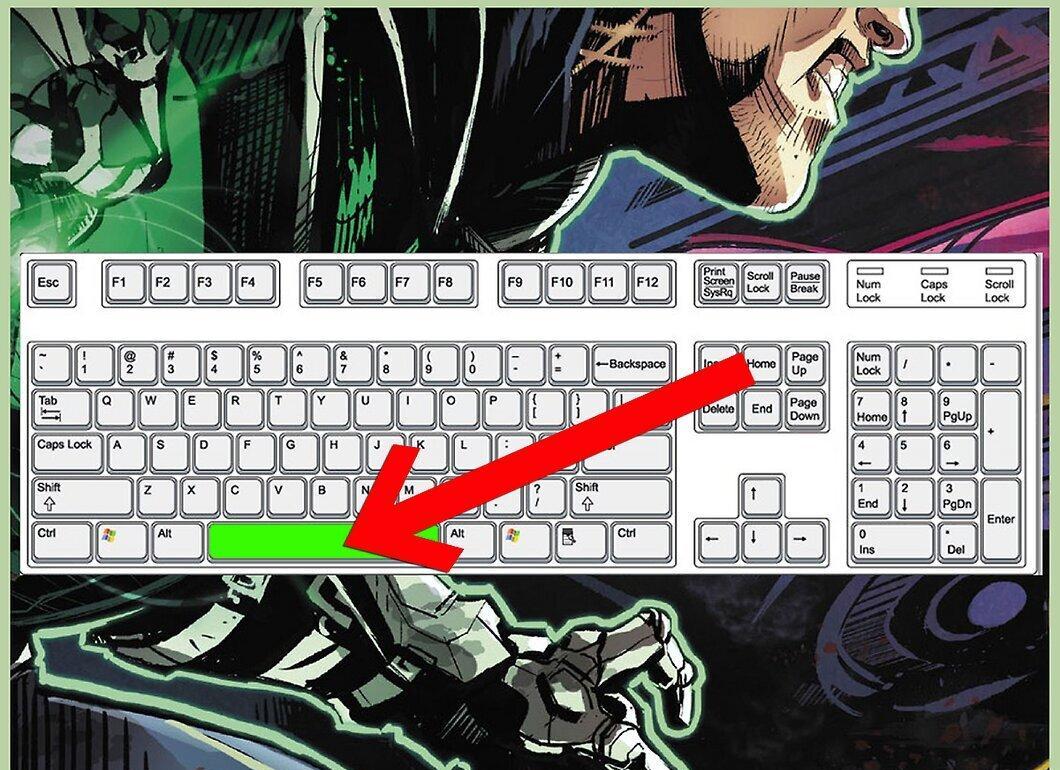
The spacebar is your main tool for reading in CDisplay. Pressing it allows you to scroll through the pages. After viewing a page, press the spacebar to move to the next one.
Step 2. Scroll with the keyboard.
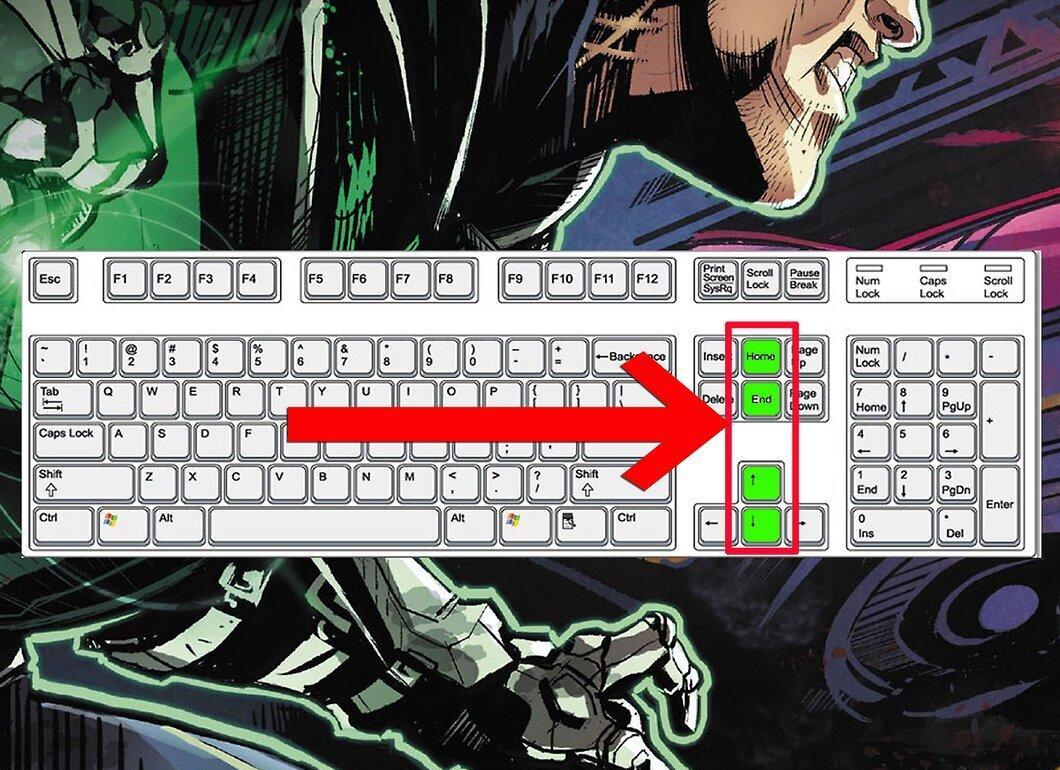
Use the arrow keys on the keyboard to navigate between pages. If you don’t like using the spacebar, the arrow keys work just fine.
- After viewing the current page, press the down or up arrow to go to the next or previous page.
- The Home and End keys allow you to quickly jump to the first or last page of the comic.
Step 3. Use the mouse for navigation.
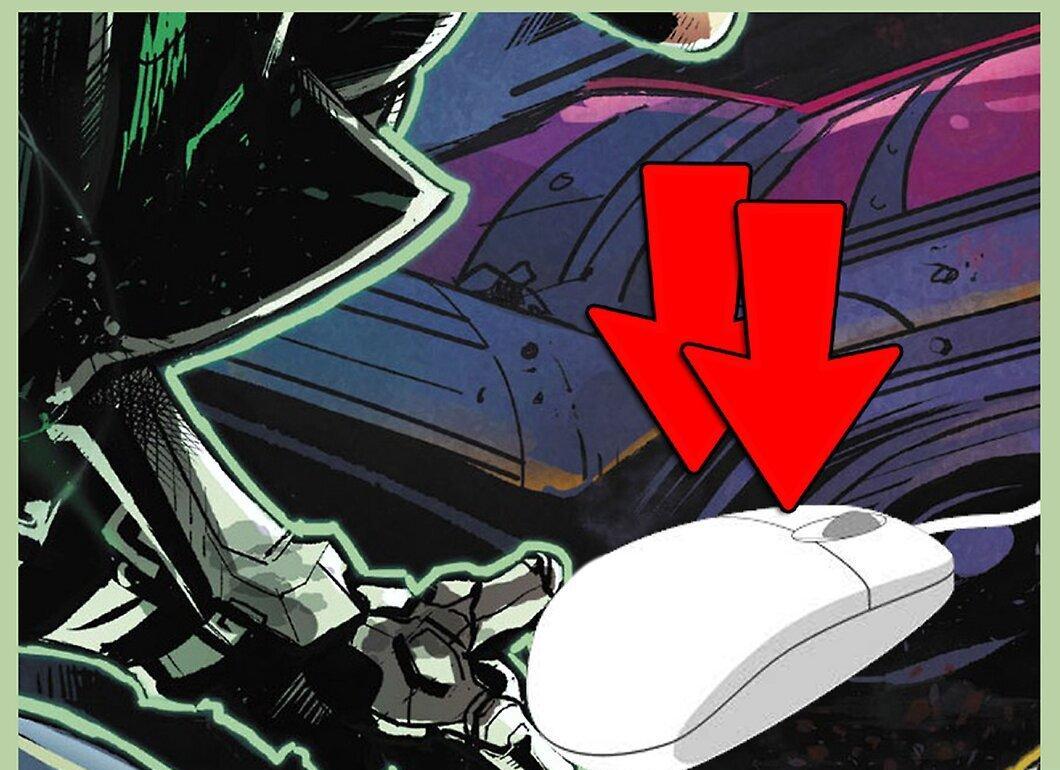
A computer mouse can also be used for reading. Simply click and drag the page to scroll through it.
- Double-click on the right side of the screen to go to the next page, and on the left side to go back to the previous page.
- The mouse wheel is also convenient for scrolling through pages and viewing content.
Step 4. Jump to a specific page.
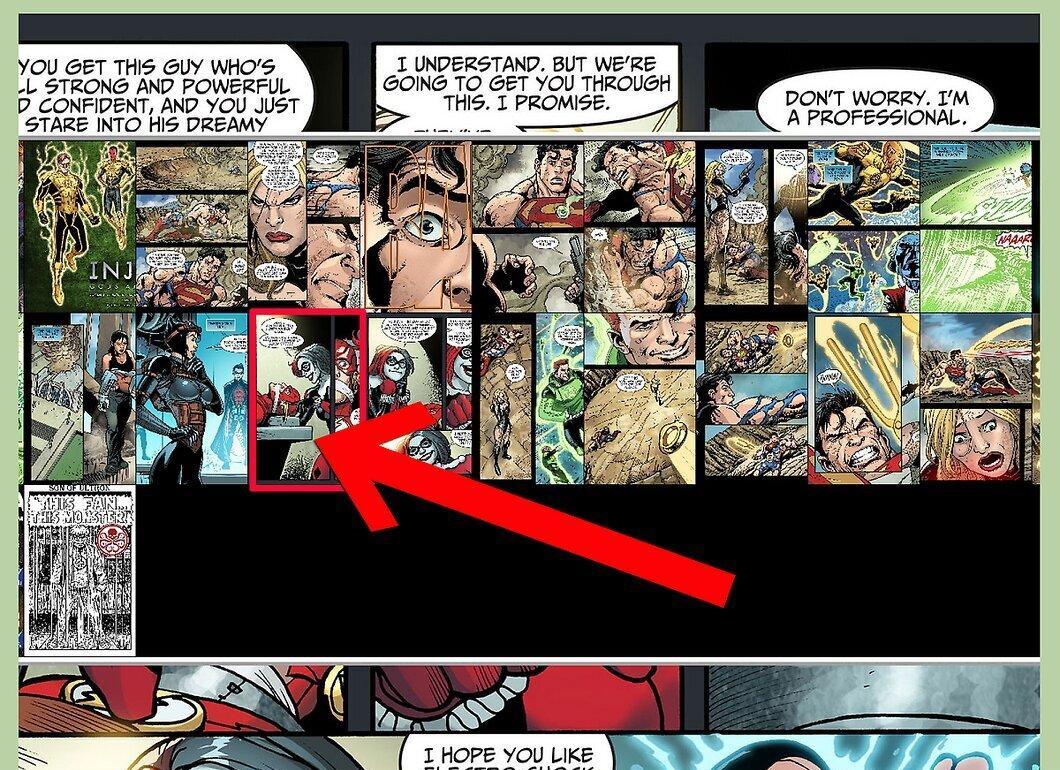
If you need to go to a specific page, press the "P" key on your keyboard to open the page list. Simply select the desired page, and the program will open it.