In this article, you will learn how to withdraw money from your PayPal account to your bank account, as well as how to send funds to other PayPal users. Please note that you cannot transfer funds from your PayPal account to someone else's bank account.
How to Withdraw Money (iPhone/Android)
Step 1. Open the PayPal App.
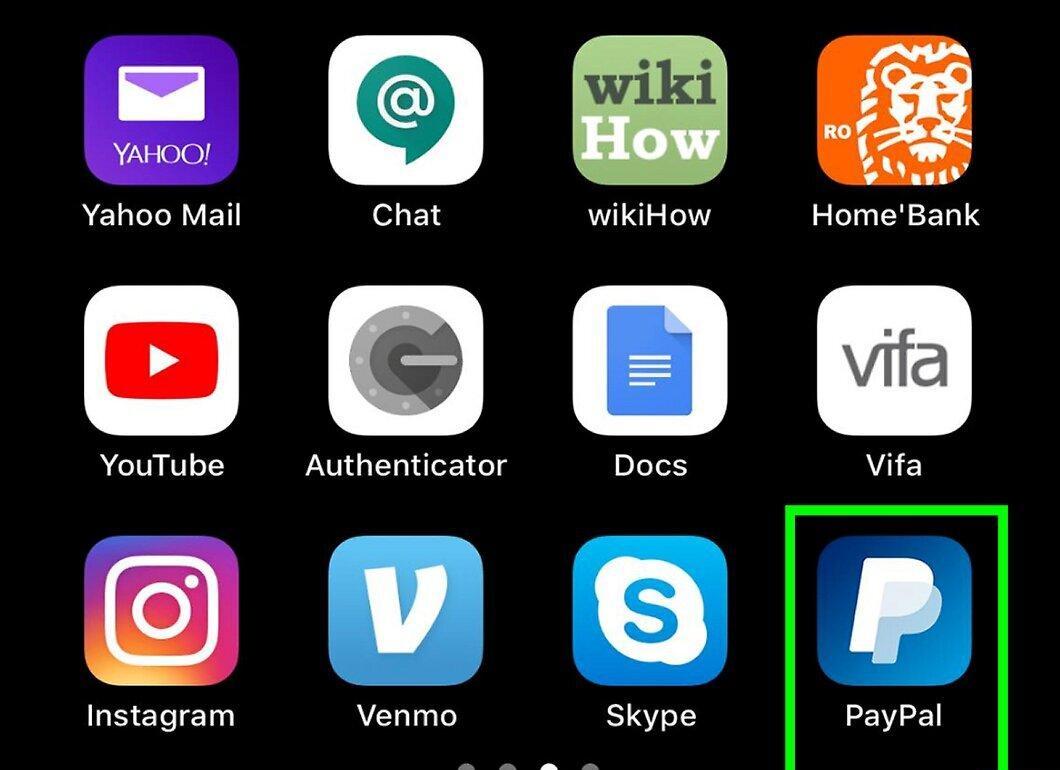
Launch the PayPal app by tapping the icon with the white letter "P" on a blue background.
Step 2. Tap Log In.
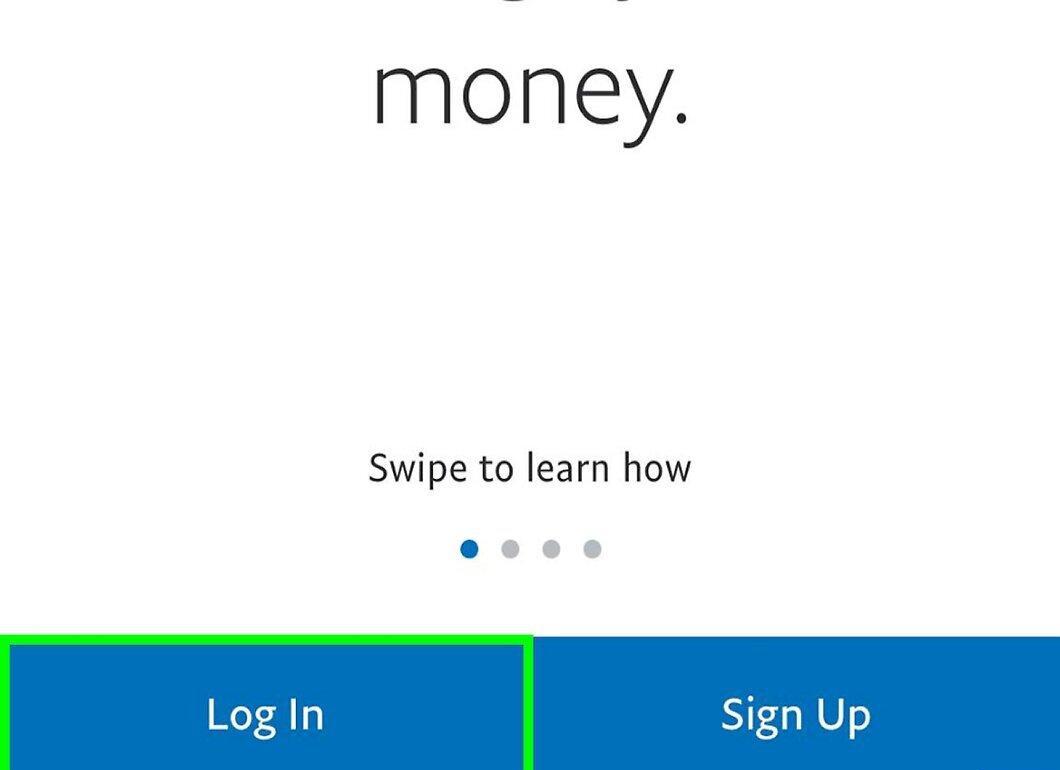
Touch the Log In button located in the bottom left corner.
Step 3. Enter Your Email and Password.
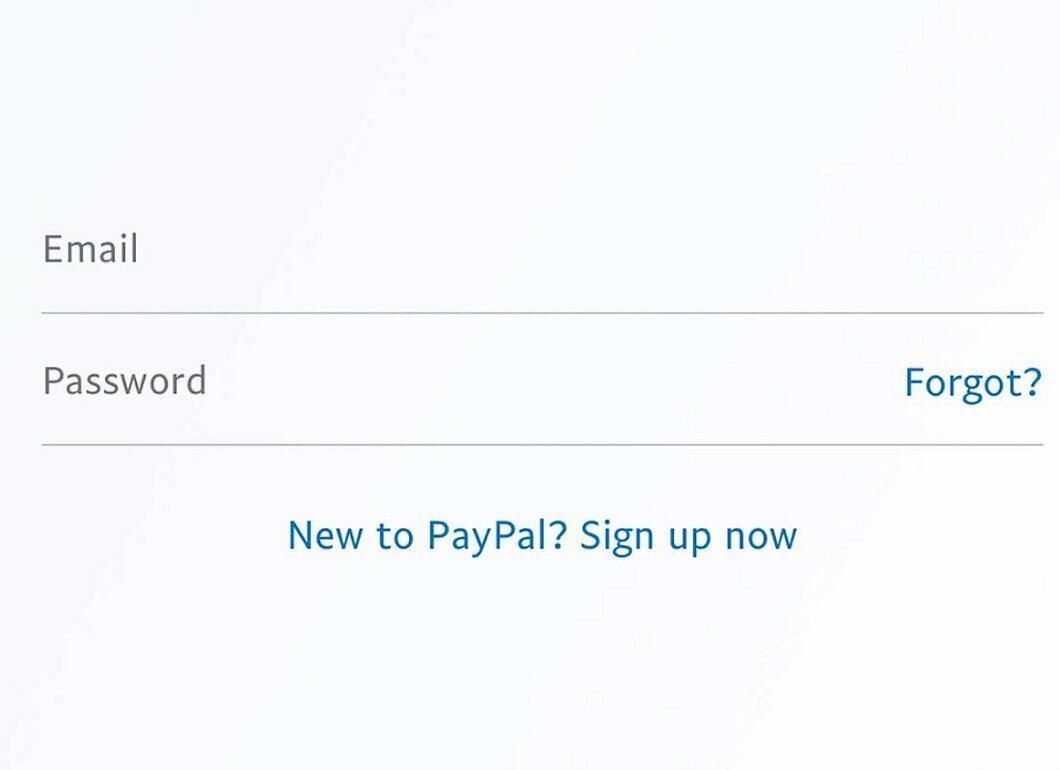
Enter your email and password, then tap "Log In."
- If Touch ID is enabled for PayPal, simply touch the sensor.
Step 4. Select Balance.
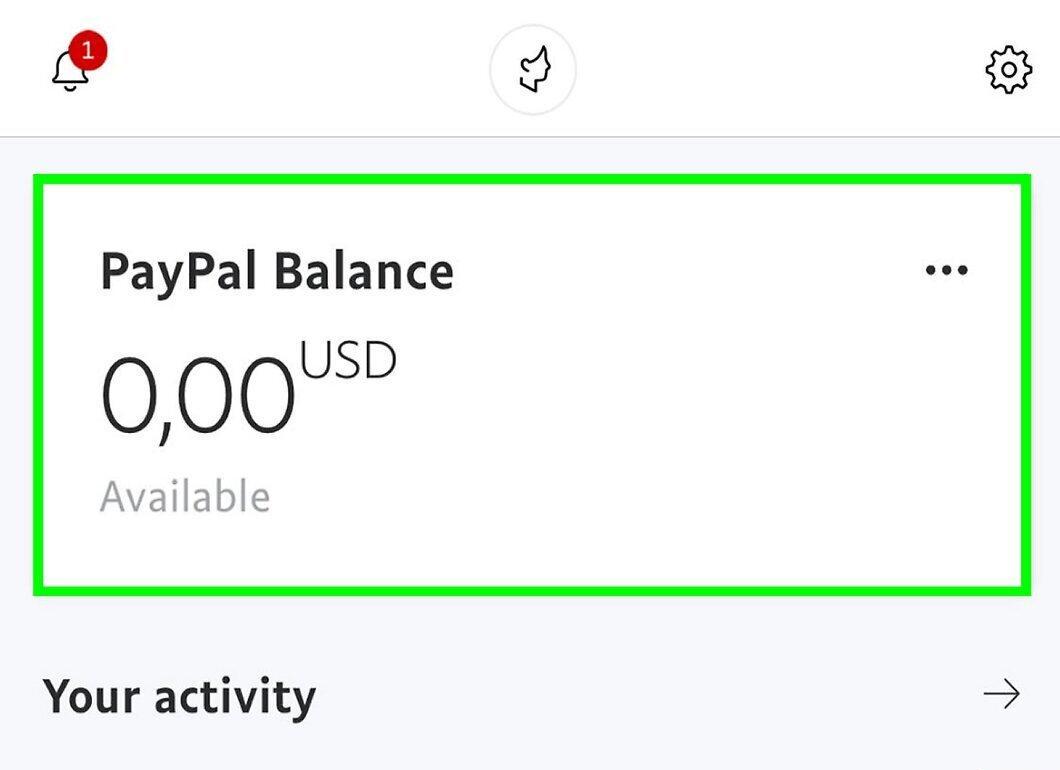
Tap on the Balance tab at the top of the screen to view your current balance.
Step 5. Tap Send.
Tap the Send button located in the bottom right corner.
- There is no minimum withdrawal limit.
Step 6. Choose an Account for Withdrawal.
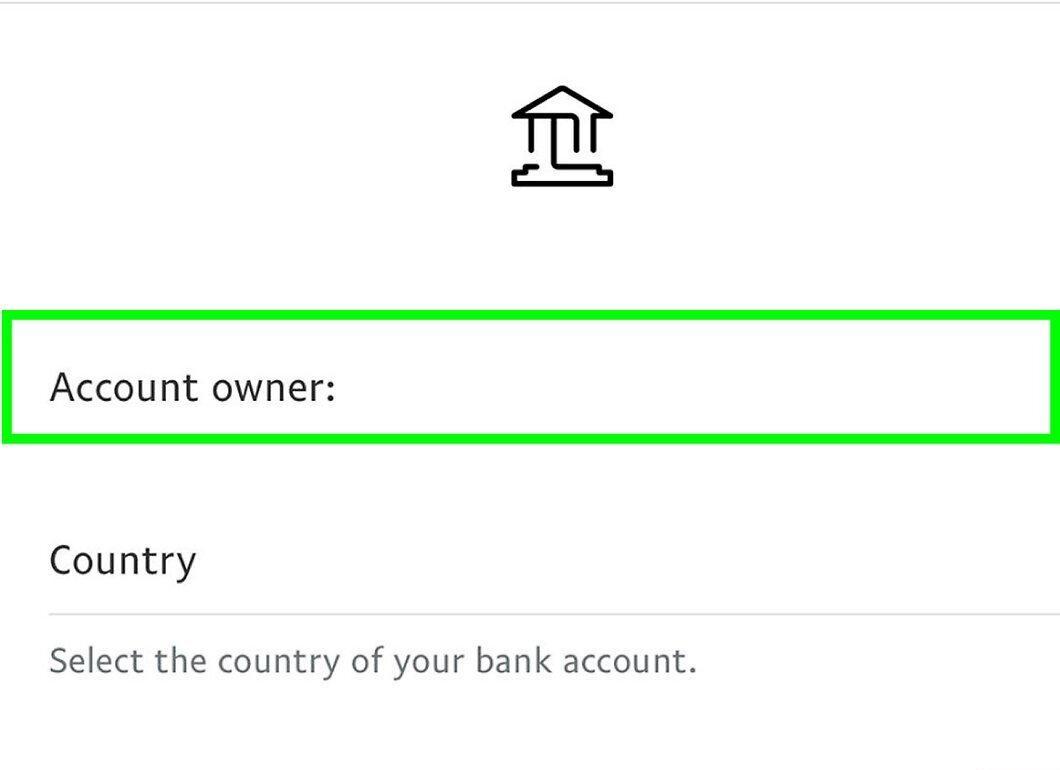
Select which account you want to withdraw money to. If your bank account is linked to PayPal, the withdrawal will be free, and the funds will reach your account within 1-2 business days. If you are using a debit card, there will be a fee of 25 cents (approximately 20 rubles). Tap Next.
- If you are withdrawing funds after 7 PM or on weekends, the process may take longer. Ensure all data is correct, as withdrawals may be verified and halted in case of errors.
Step 7. Enter the Amount to Withdraw.
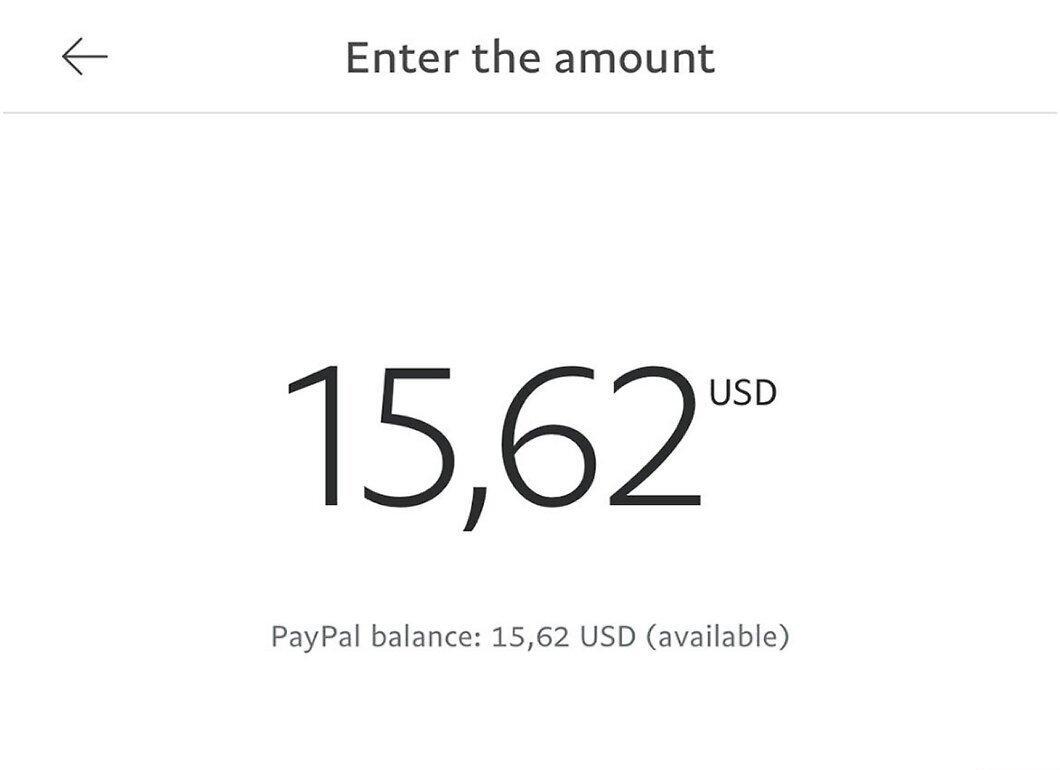
Enter the desired amount. The PayPal keyboard does not have a decimal point button, but you can use the button with two zeros (00) for quick entry.
- For example, to withdraw 30 rubles, enter “3000.” For other currencies, the minimum withdrawal amount is equivalent to 10 dollars (650 rubles).
Step 8. Tap Next.
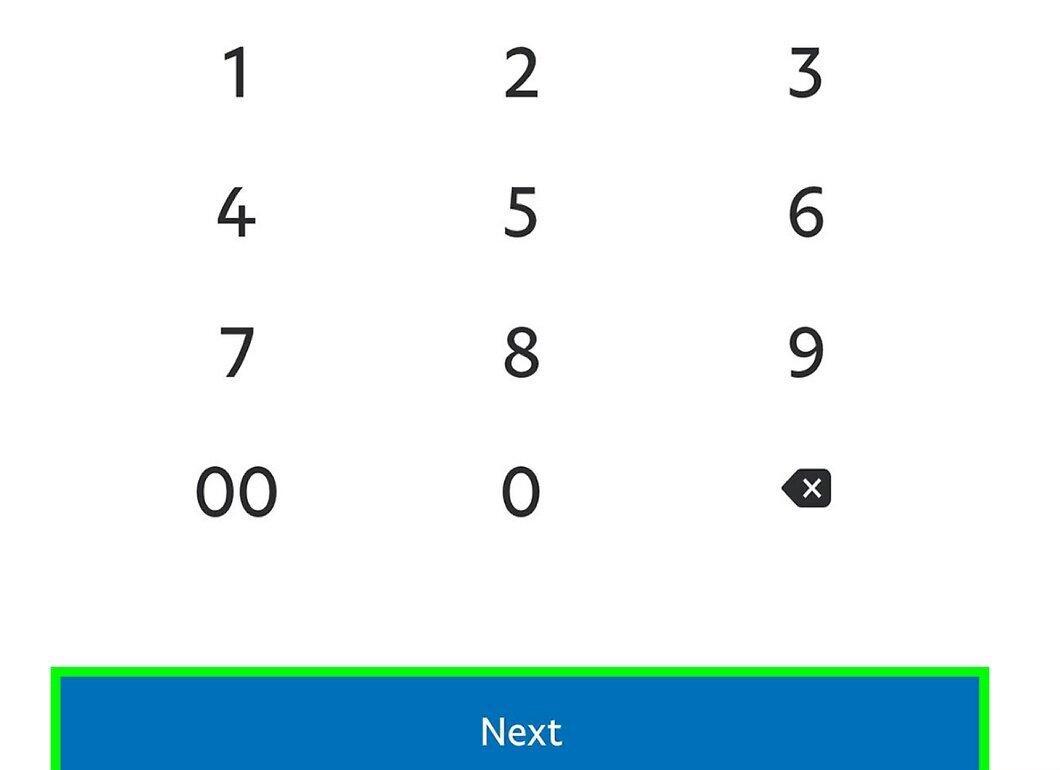
Tap Next at the bottom of the screen.
Step 9. Tap Send.
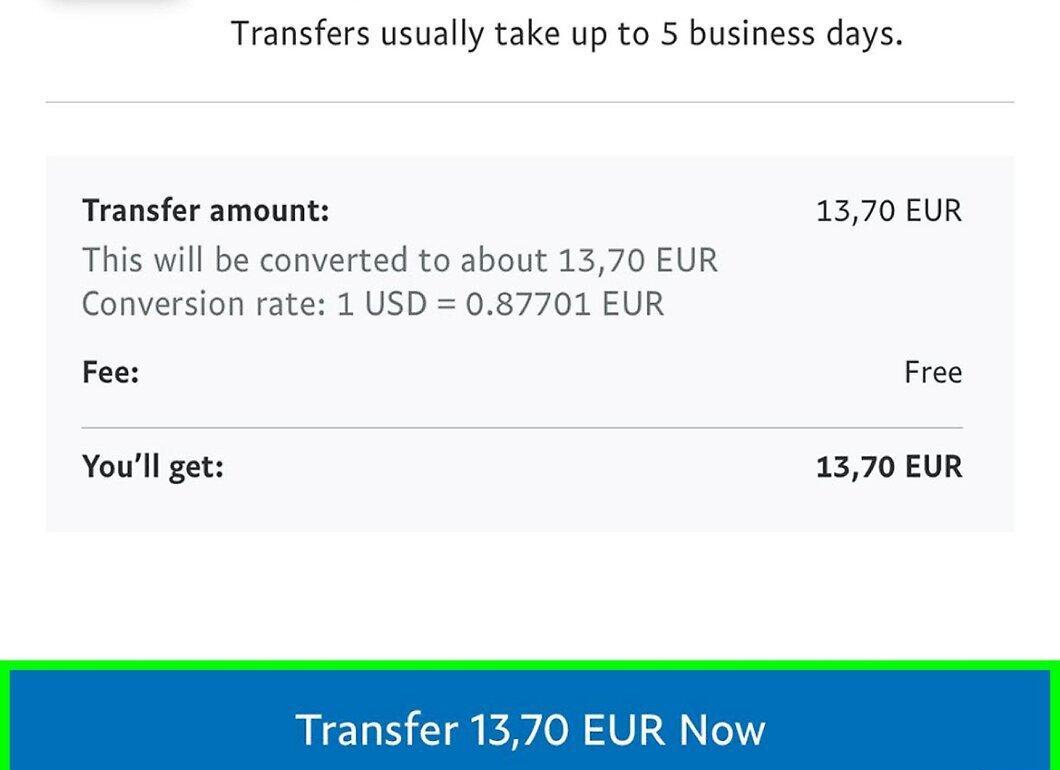
Tap Send to transfer the specified amount from your PayPal account to your bank account.
- Usually, the funds appear in your account the next day (if the transfer was made before 7 PM), but it may take longer on weekends or holidays.[1] X Information Source
How to Withdraw Money (Computer)
Step 1. Go to the PayPal Website.
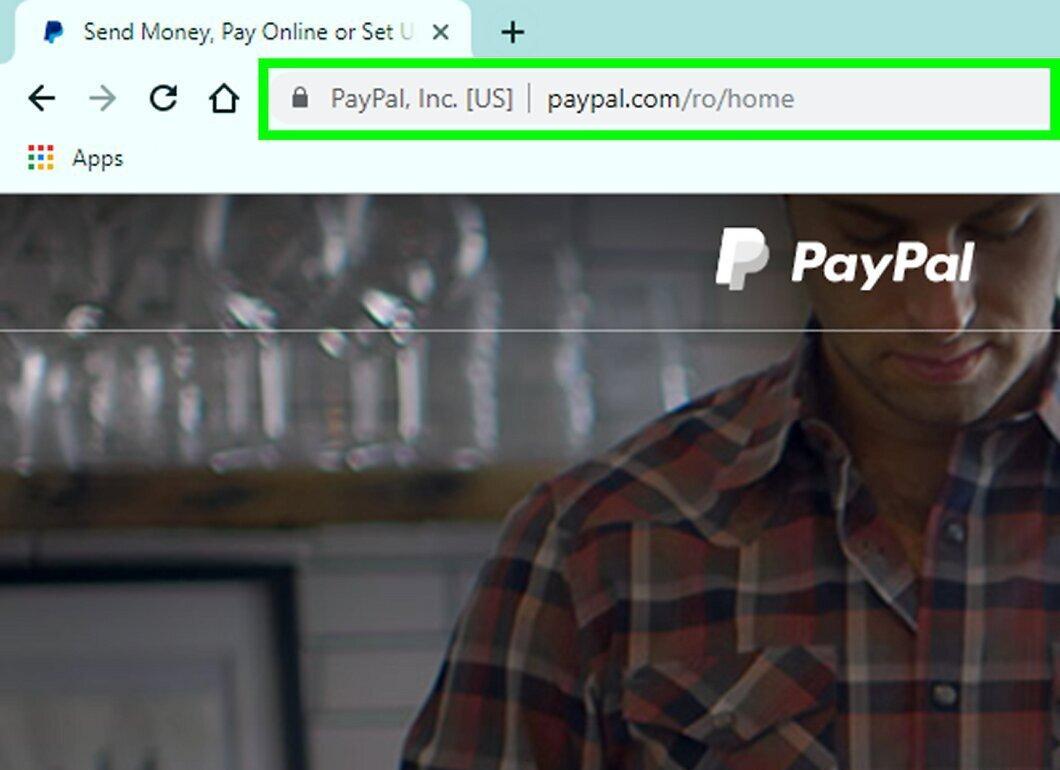
Open the PayPal web page. Since this is a banking service, you’ll need to log into your account.
Step 2. Click Log In.
Click on the Log In button in the top right corner.
Step 3. Enter Your Email and Password.
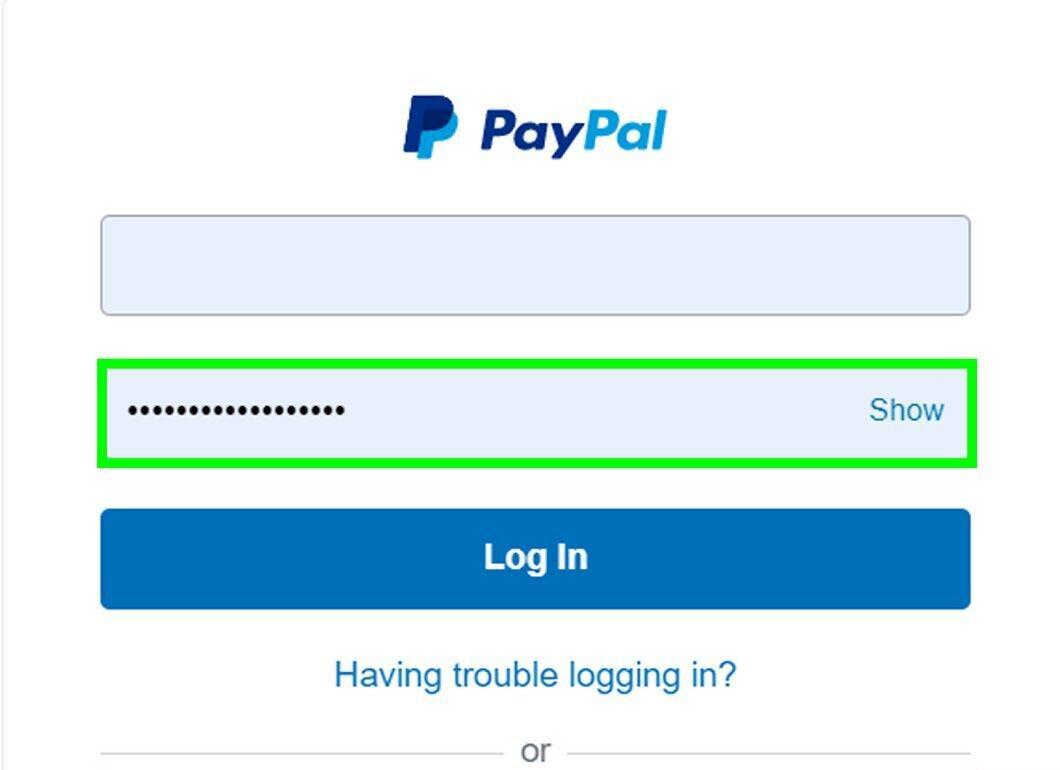
Input your email and password in the respective fields, then click "Log In" below the password field.
Step 4. Click Overview.
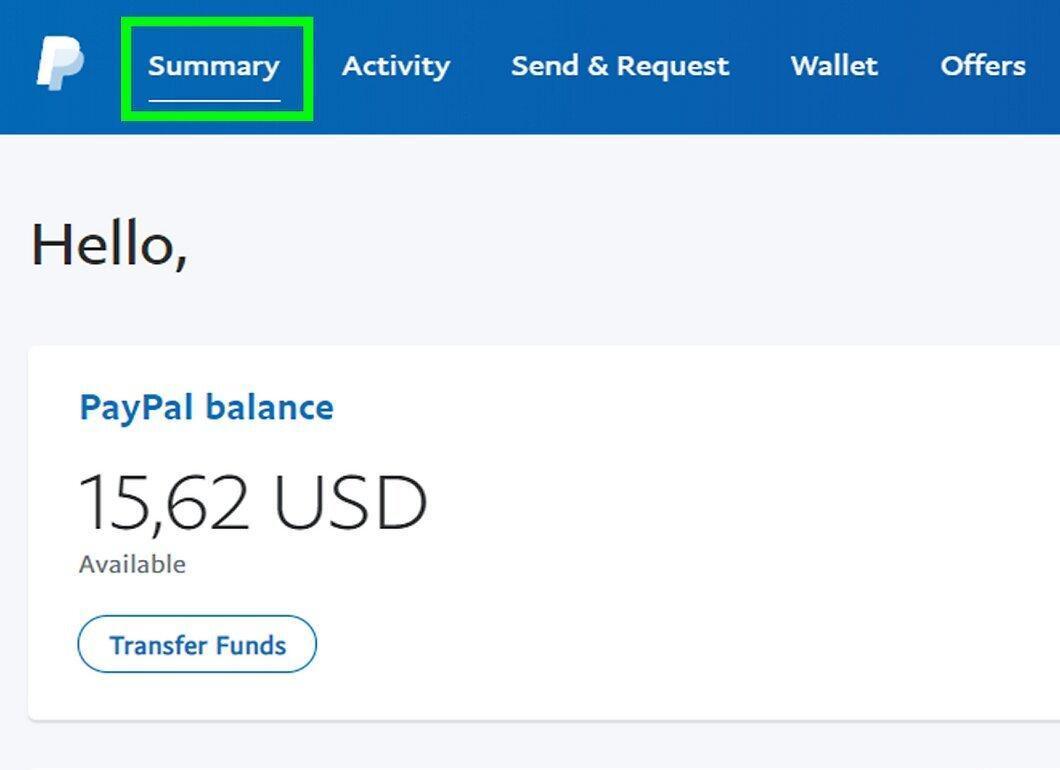
Click on the Overview tab located in the top left of the page to access your account. This step is only needed if you do not see the "Account Overview" button.
Step 5. Click Withdraw Funds.
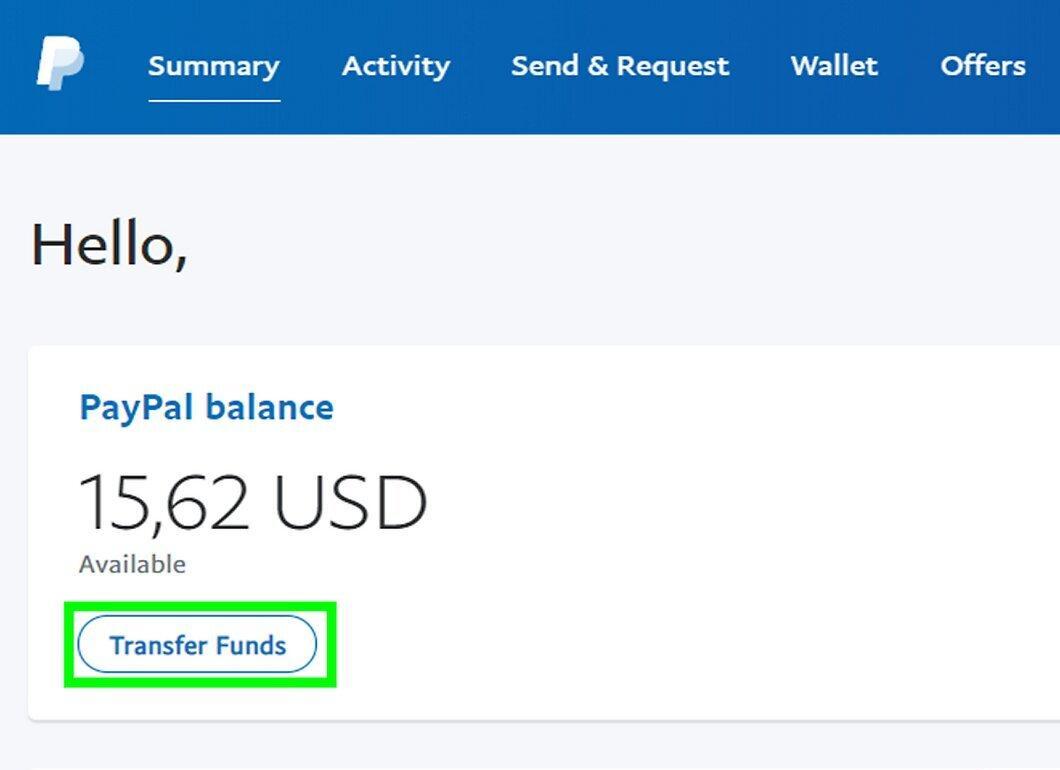
Click Withdraw Funds in the Balance section on the left panel.
Step 6. Choose an Account for Withdrawal.
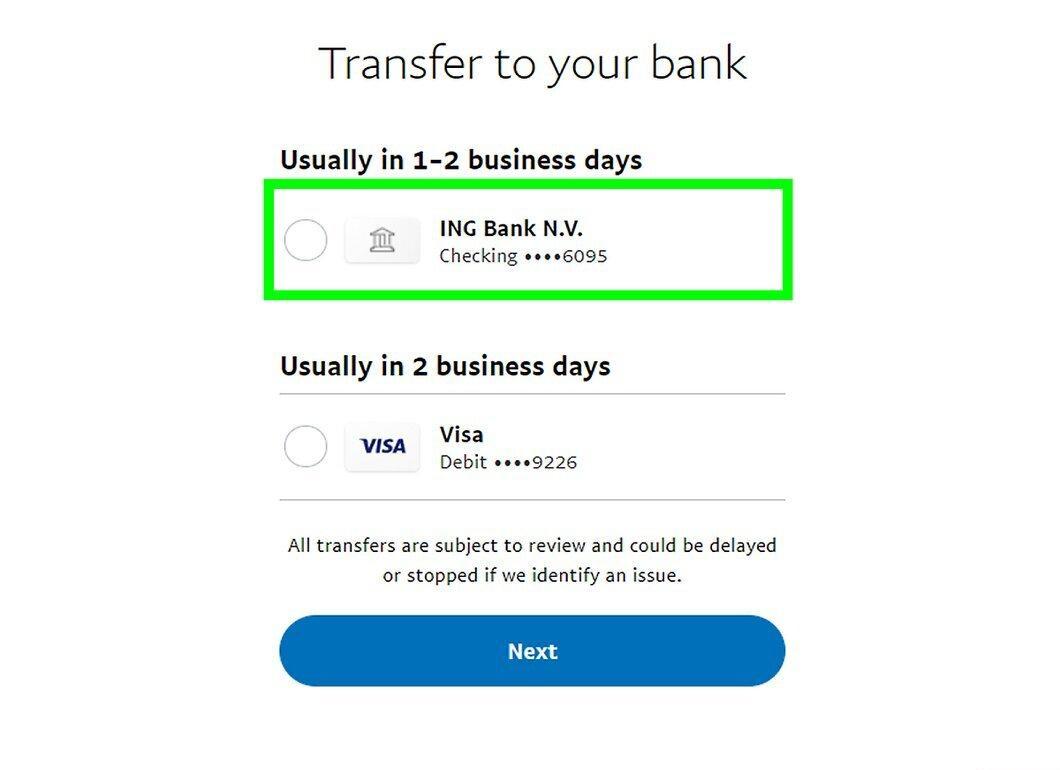
Select which account you want to withdraw funds to. If a bank account is linked, the withdrawal will be free, and the money will arrive within 1-2 days. If a card is used, a fee of 25 cents (about 20 rubles) applies. Click Continue.
- Keep in mind that withdrawals after 7 PM, on weekends, or holidays may take longer. Make sure all data is correct; otherwise, the withdrawal may be suspended.
Step 7. Enter the Amount to Withdraw.
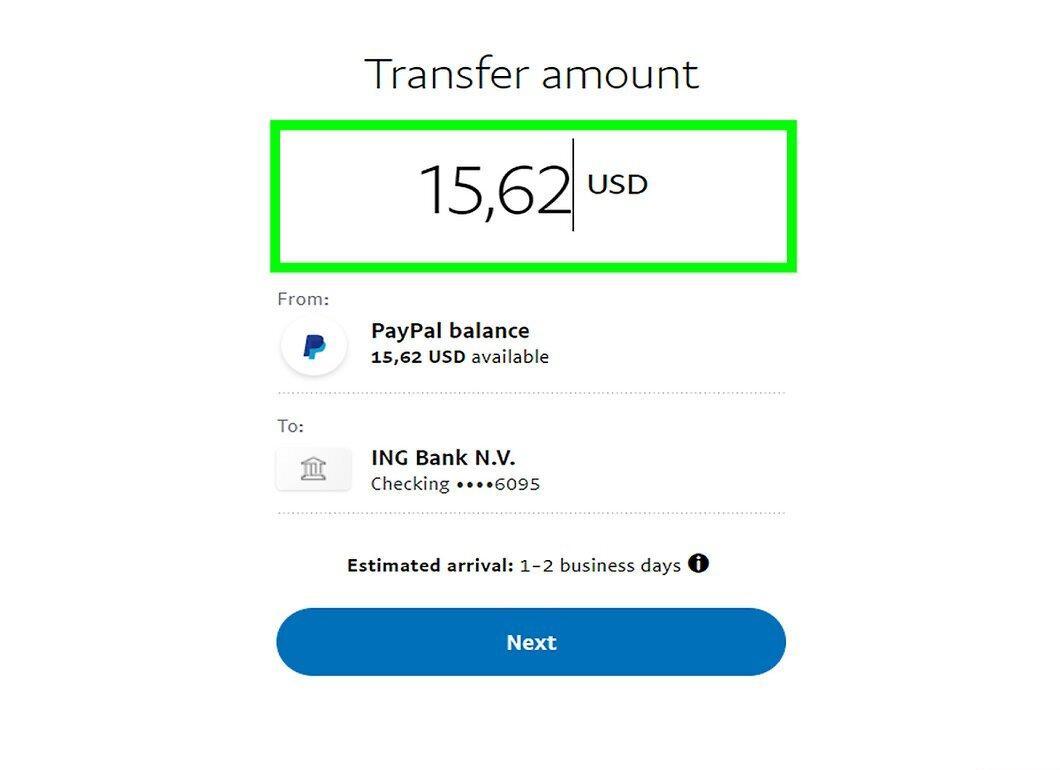
Input the amount you want to withdraw. Use the keyboard to enter rubles and kopecks. The decimal point is not entered as it is already displayed on the screen.
- There is no minimum limit for ruble transfers; for other currencies, it’s the equivalent of 10 dollars (650 rubles).
Step 8. Click Continue.

Click Continue to proceed to the next step.
Step 9. Click Send <amount>.

Click Send <amount> to transfer the selected funds to your bank account.
- Generally, the transfer arrives within a day (if before 7 PM), but on weekends or holidays, it may take longer.[2] X Information Source
How to Send Money (iPhone/Android)
Step 1. Open the PayPal App.

Launch the PayPal app by tapping the icon with the white letter "P" on a blue background.
Step 2. Tap Log In.

Tap the Log In button in the bottom left corner.
Step 3. Enter Your Email and Password.

Enter your email and password, then tap "Log In."
- If Touch ID is enabled, simply touch the sensor.
Step 4. Tap Send.

Tap the Send button in the "Send & Request" section in the center of the screen.
- If you do not have enough funds to send, the money will be deducted from your bank account.
Step 5. Enter the Recipient's Email or Phone Number.

Input the email or phone number of the recipient at the top of the screen.
- If you are sending money for the first time, tap "Let's Get Started!" at the bottom of the screen.
- You can also select a contact name if it appears.
Step 6. Select the Recipient's Name.

Tap on the person's name. If this person has a PayPal account, their name will appear under the search bar.
Step 7. Choose One of the Options.

- Select “Send to a Friend” if you are sending money to family or friends; there are no fees for such a transfer.
- Choose “Pay for Goods or Services” if you are paying for a product or service. In this case, PayPal will charge 2.9% plus about 20 rubles.
Step 8. Enter the Amount to Send.

Enter the amount you wish to send. The PayPal keyboard does not have a decimal point button, so enter two zeros after the desired amount.
Step 9. Tap Next.

Tap Next at the bottom of the screen.
Step 10. Tap Send.

Tap Send to send the funds to the selected recipient.
- At the bottom of the page, you will see from which account the money was sent (PayPal or bank account).
- If you want to add a note to the transfer, tap "Note" at the top of the screen, enter the text, and tap "Done."
How to Send Money (Computer)
Step 1. Go to the PayPal Website.

Open the PayPal web page. You will need to log into your account.
Step 2. Click Log In.

Click the Log In button in the top right corner.
Step 3. Enter Your Email and Password.

Enter your email and password in the respective fields, then click "Log In."
Step 4. Click Overview.

Click on the Overview tab at the top left of the page to access your account.
Step 5. Click Send & Request.

Select the Send & Request option at the top of the screen (under the magnifying glass icon).
Step 6. Choose One of Two Options.

- Select “Pay for Goods or Services” if you are paying for a product or service; PayPal will charge 2.9% plus 20 rubles for this transfer.
- Choose “Send to a Friend” if you are sending money to friends or family; PayPal does not charge a fee for this.
Step 7. Enter the Recipient's Email, Phone Number, or Name.

Input the recipient's email, phone number, or name in the search bar at the top of the page.
- You can also choose a contact name if it appears in the list.
Step 8. Click Continue.

Click Continue if you entered the details manually.
- If you selected a contact name, this step can be skipped.
Step 9. Enter the Amount You Wish to Send.

Enter the amount you wish to send in the appropriate field.
- You can also add a note by clicking on the "Add a Note" field.
- If you want to change the currency, click on the field below the entered amount and select the desired currency.
Step 10. Click Continue.

Click Continue at the bottom of the page.
Step 11. Click Send Funds.

Click Send Funds. The specified amount will be sent to the person you have selected, who must confirm their consent to receive the funds before they are deducted from your account.