A laser cutter is a powerful device capable of cutting and engraving using a laser beam. These machines are not only used in factories but also in small businesses and home crafts. To master the skills of working with a laser cutter, you will need some practice. In our guide, you will learn how to use it correctly.
Part 1
Step 1. Purchase a Laser Cutter.
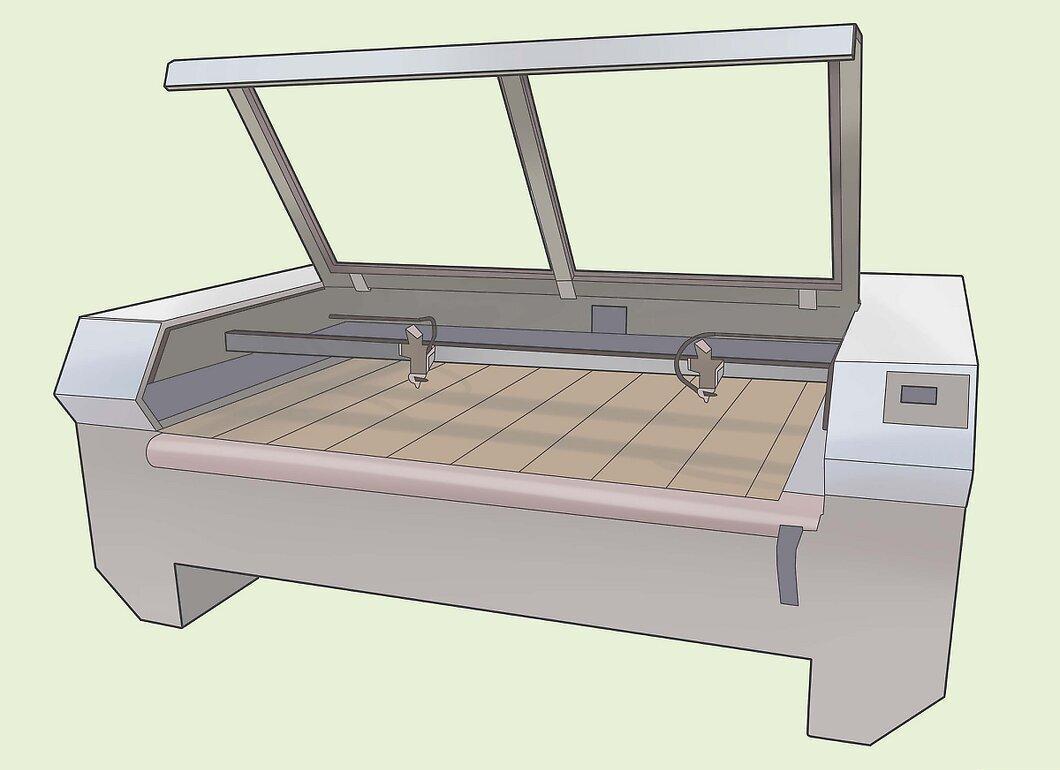
- You can buy a laser cutter, but keep in mind that its cost can be quite high. If purchasing isn't in your plans, consider renting one. Also, don't forget to look for good deals online.
Step 2. Choose an Image for Engraving or Cutting.

- Select an image you want to create. It can be a photograph or a drawing that you'll need to upload to the laser cutter's computer. Typically, these computers have CorelDRAW installed, but your device may have different software.
Step 3. Determine the Material for Engraving.
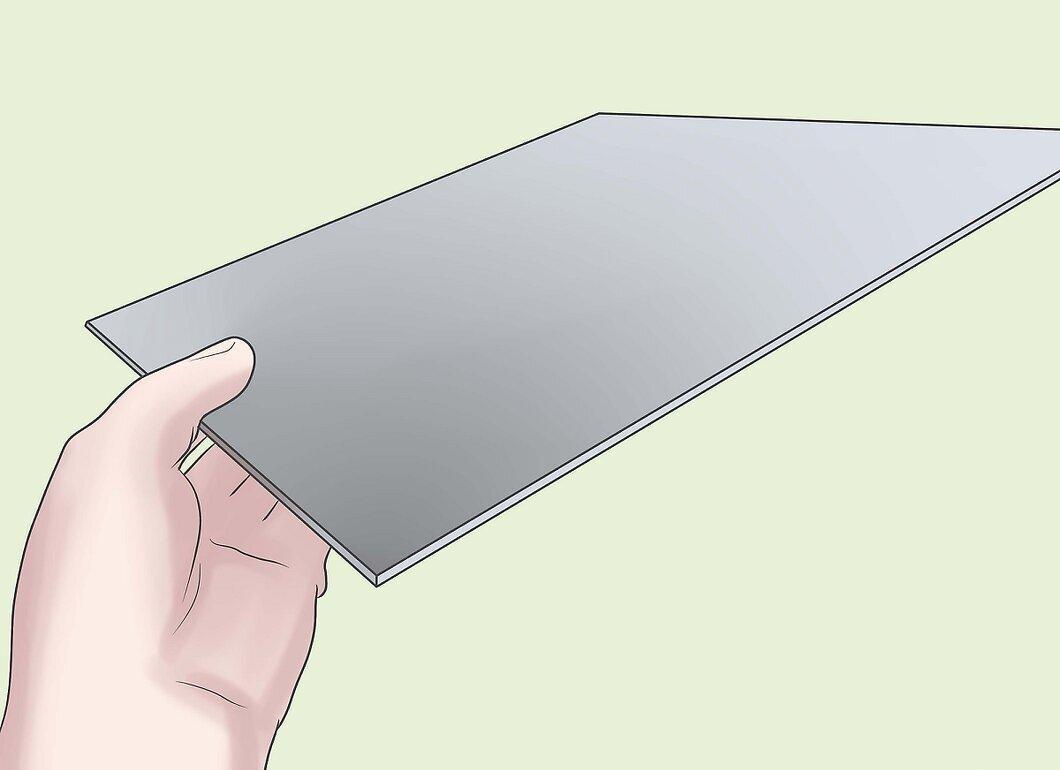
- The laser cutter is compatible with various materials. You can use wood, certain types of plastic, aluminum, and even glass.
Step 4. Check the Cleanliness of the Machine's Lenses.
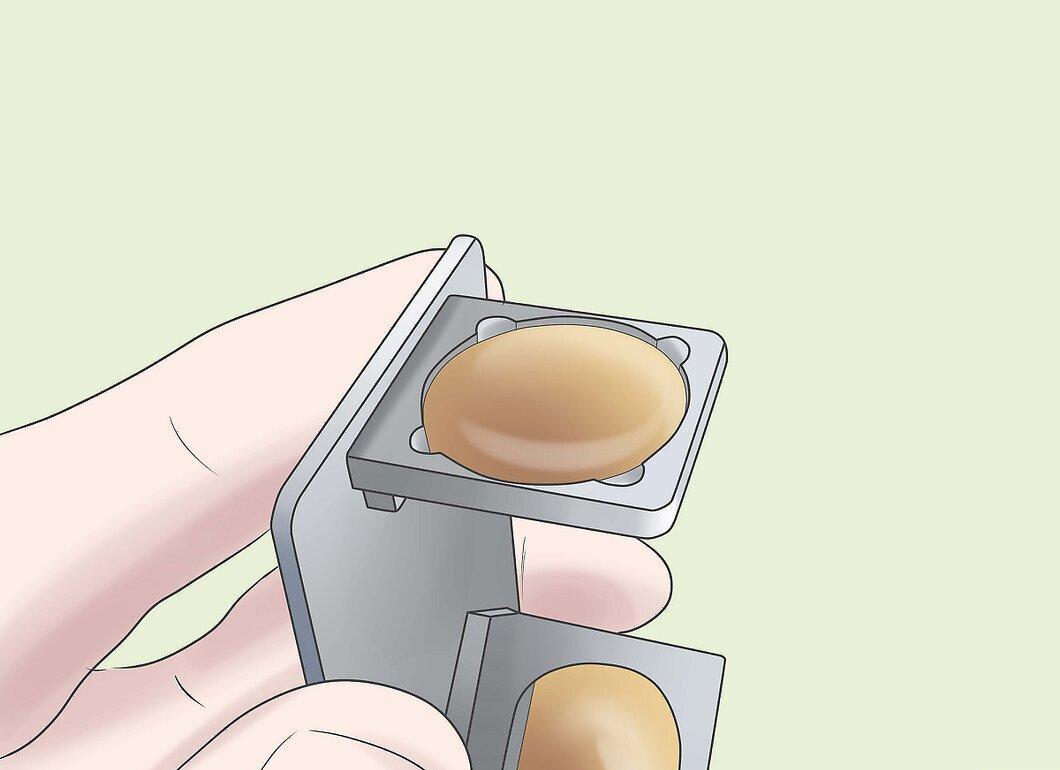
- Before starting work, ensure the lenses are clean; otherwise, the quality of engraving or cutting may deteriorate. To check, you will need to unscrew a few screws. Use cotton swabs and technical alcohol to clean the lenses.
Step 5. Turn on the Machine.
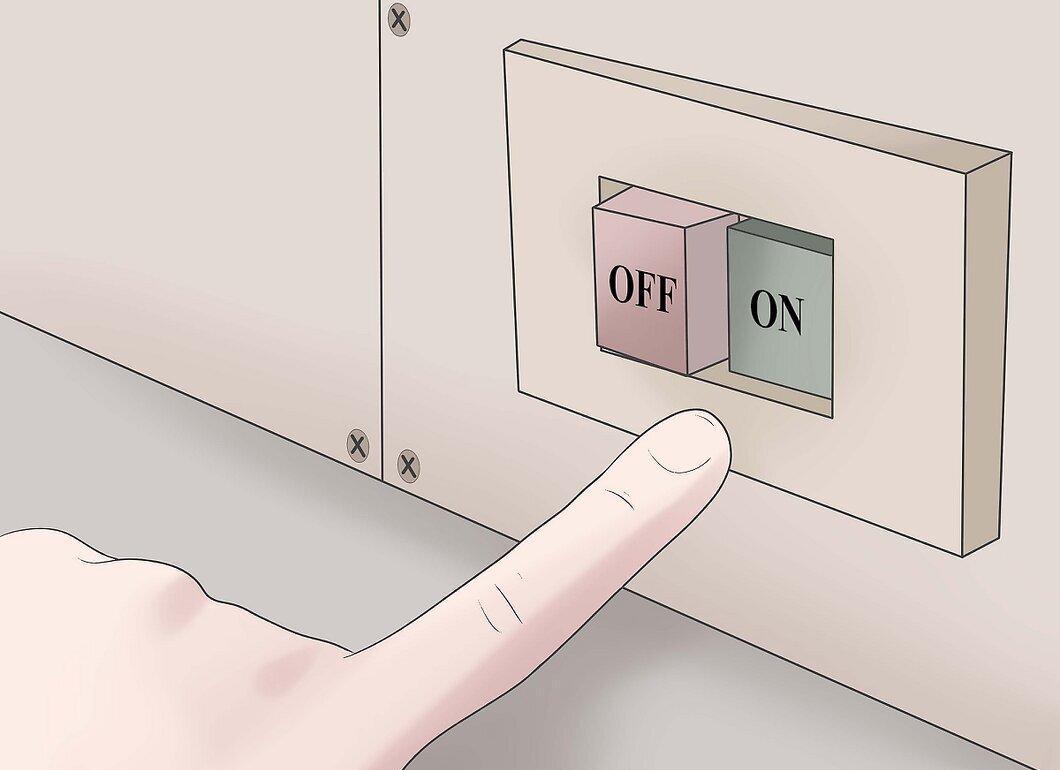
- Start the machine and wait for it to warm up. Then approach the computer, select the desired image file, and click "Print." A settings menu will appear where you need to choose the cutting method. Most models have two options: "Raster" and "Vector." Choose "Raster" for engraving and "Vector" for cutting.
Step 6. Adjust the Line Width and Cutting Speed.
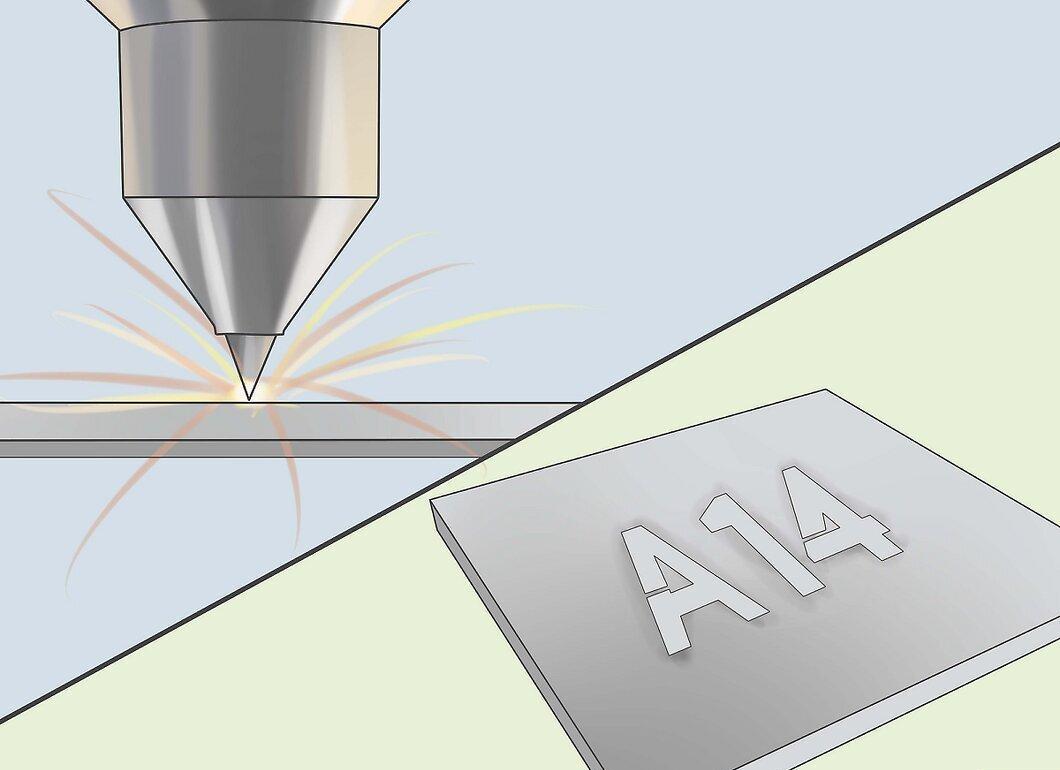
- First, set the cutting line width based on the material you are using. Keep in mind that the wider the line, the longer the cutting will take, and there is a chance that the cut will be uneven. The cutting speed should also match the material and depend on whether you want to completely cut through it or just engrave it. Once all parameters are set, you can start working.