PayPal is one of the most popular and secure platforms for online financial transactions. By creating an account, you can send money, shop online, and receive transfers from friends or employers.
Getting Started with PayPal
Step 1. Open an account on the PayPal website.
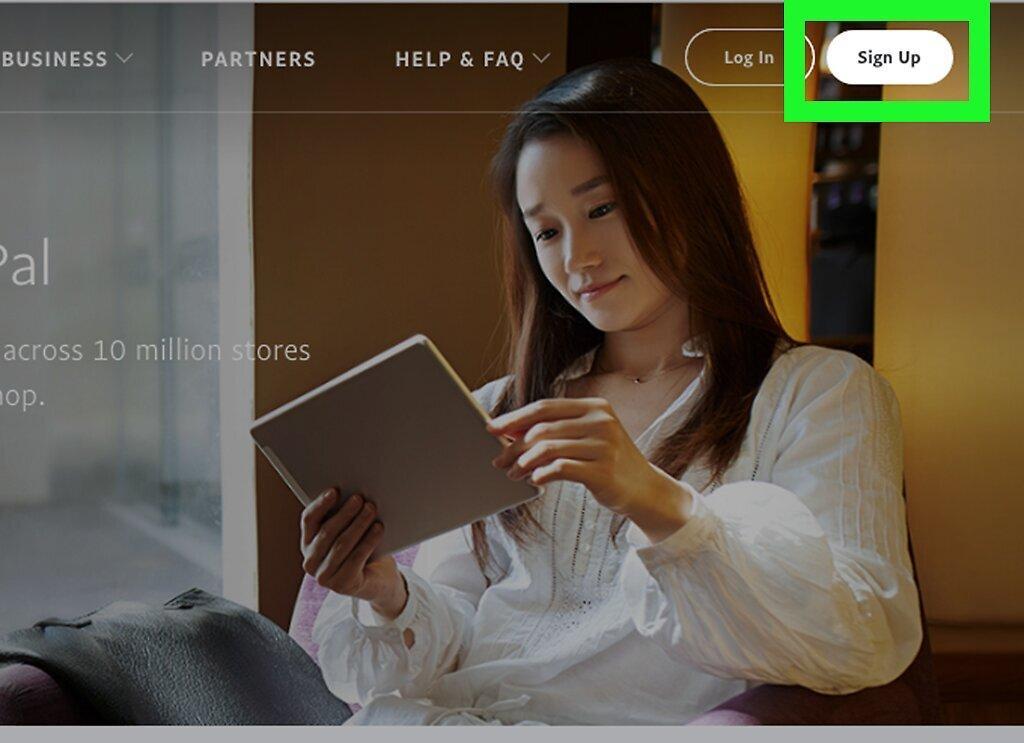
To create an account, visit the official PayPal website and click the "Sign Up" button located in the top right corner.
- The PayPal homepage is available at: https://www.paypal.com/en/home
Step 2. Choose your account type: personal or business.
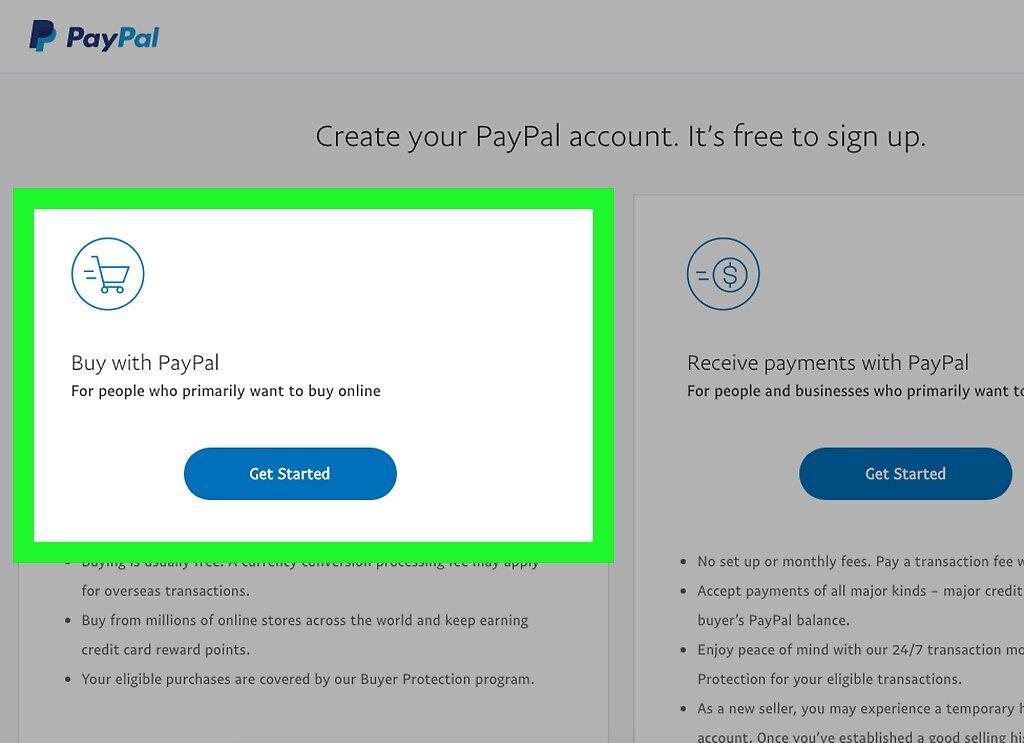
During registration, you will be prompted to choose between a personal or business account. A personal account is perfect for online purchases and sending money to friends. A business account is better suited for receiving payments for professional services, especially if it is created for a group of people from the same company.
Step 3. Enter your email address and create a password.
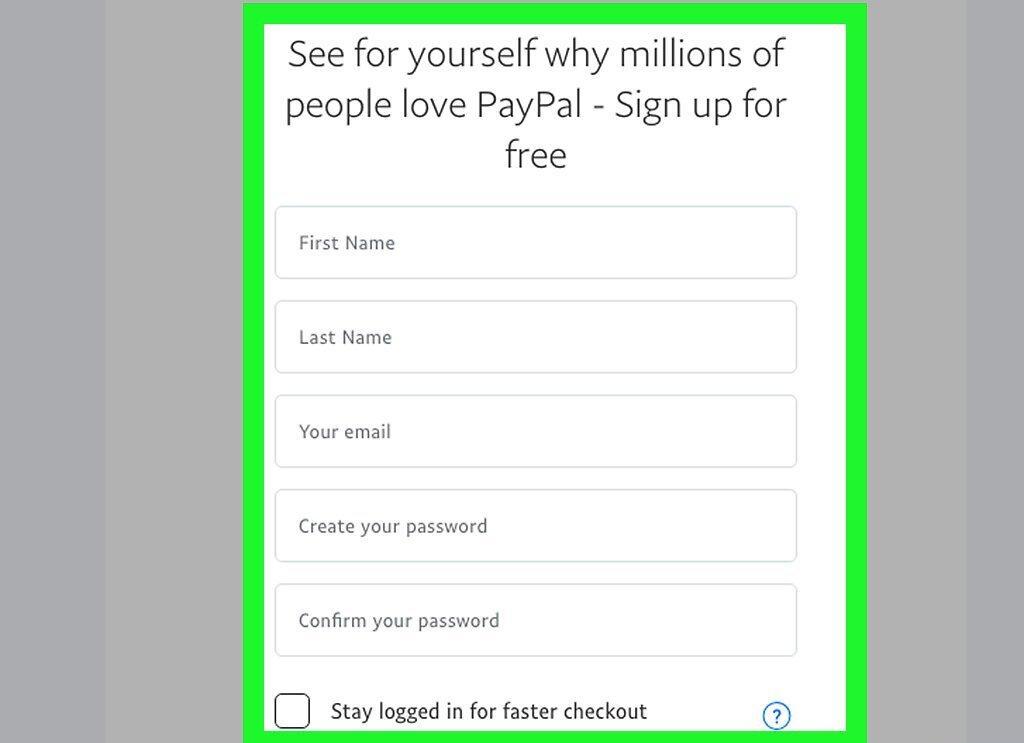
Provide your email address and create a strong password. Choosing a username is not required, but this email address will be linked to your account, so make sure it's one you use regularly.
- Create a strong password using a mix of letters and numbers. It’s better to use a random string of characters (e.g., 13bE56sT89) than simple words (e.g., Hello123).
Step 4. Fill in your personal information.
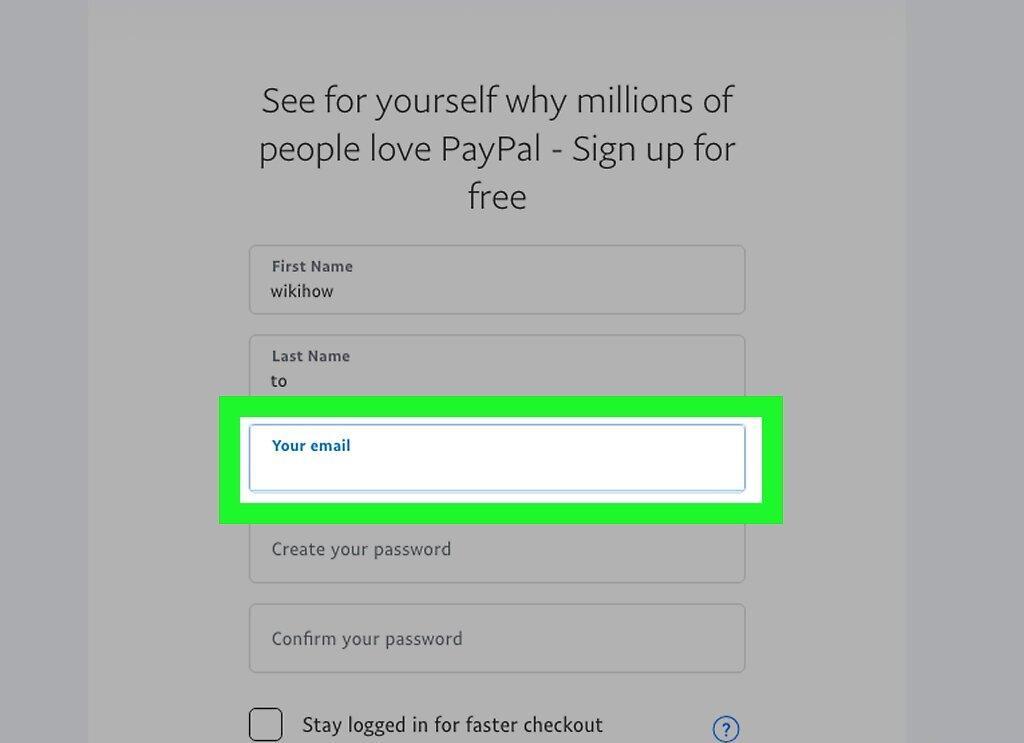
After setting your password, you will be asked to enter some basic information: your name, birth date, address, identification number, and phone number.
Step 5. Link your bank account or card.
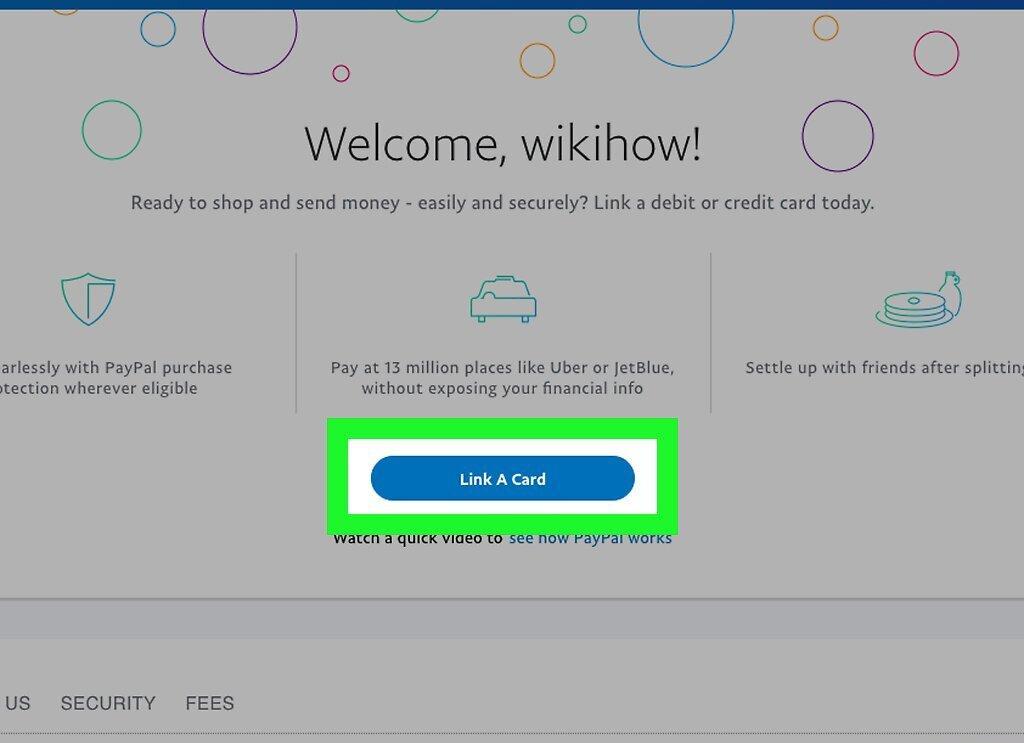
Go to the "Wallet" section and select "Link a Bank Account" or "Link a Card." Choose whether you want to enter debit or credit card details, or link a bank account.
Step 6. Confirm your bank account or card.
Sometimes, PayPal may require you to confirm your card or account for security purposes. Go to the "Wallet" section, select the card or account you need to confirm, and click "Confirm." PayPal may temporarily hold a small amount for verification, which will then be refunded.
- If you need to enter a four-digit code, check the statement for your card or account. The code will be listed in the transaction description, such as PayPal*1234 CODE.
- Log into your account, click on the appropriate card or account in the "Wallet" tab, and enter the four-digit code for confirmation.
Troubleshooting Your PayPal Account
Step 1. Contact PayPal if your account is locked.
If you encounter an account lock, reach out to PayPal via phone or email. To speed up the process, log into your account and be prepared to provide your contact information.
- In Russia, the contact number for PayPal is 8-800-333-2676; for international calls: +353 1 536 4800.
- To send a message to customer support, follow this link and log into your account: https://www.paypal.com/en/selfhelp/contact/email
Step 2. Check card details if a payment is declined.
Ensure that your card has not expired and that the details provided are correct. If necessary, update your information through your account. Also, check the "Wallet" tab for a link saying "Confirm Card" and follow the instructions.
- If there are no issues with the card, ensure that the recipient has confirmed their PayPal account.
- If nothing helps, contact your bank to find out why the payment was declined.
Step 3. Reset your password if forgotten.
If you forget your password, click on the "Having trouble logging in?" link. Enter the email address associated with your account, click "Next," and choose a method for password recovery (SMS, email, etc.).
- Follow the further instructions from PayPal to regain access.
- If you encounter difficulties, call 8-800-333-2676 (Russia) or +353 1 536 4800 (international).
Step 4. Change your password through account settings.
Go to your profile settings and select the "Security" tab. On the right side of the "Password" section, click the edit button and enter your current and new password.
- You can also change your security questions in the "Security" tab.
Step 5. Beware of scammers.
If you are selling something online, beware of buyers who promise payment but do not follow through. If you have suspicions, cease communication with them. Watch out for the following signs:
- Refusal to meet in person or talk on the phone;
- Offering to pay more than you ask;
- Requesting to send goods or money through courier services.
Step 6. Learn how to spot fake emails from PayPal.
If you receive an email that resembles official communications from PayPal, verify it before clicking on any links. If the email mentions a payment, check your PayPal account for confirmation.
- Suspicious emails may not address you by name or may mention a payment block.
Step 7. Seek help in the "Resolution Center" or "Help".
If you have questions, check the "Help" or "Resolution Center" for answers. You can also contact customer support via phone or email.
- To access help, follow this link: https://www.paypal.com/en/selfhelp/home/
- If you speak English, you can find answers to many questions in the PayPal USA Community: https://www.paypal-community.com/t5/PayPal-USA-Community/ct-p/US
- Call PayPal from Russia at 8-800-333-2676 or from abroad at +353 1 536 4800. Russian-speaking support is available from 10:00 AM to 8:30 PM Moscow time.
- To send an electronic message to PayPal, follow this link: https://www.paypal.com/en/selfhelp/contact/email
Receiving Money in Your PayPal Account
Step 1. Share the email address linked to your PayPal account.
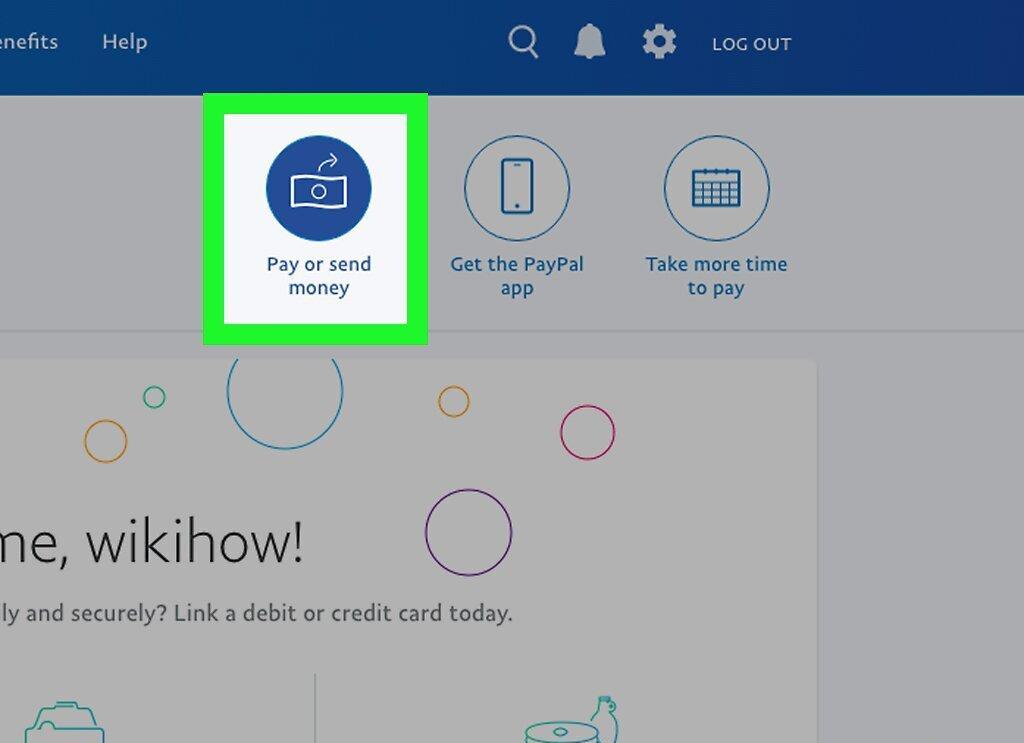
To receive money via PayPal, share your email address linked to your account with others. Make sure you provide the correct address.
Step 2. Request money through PayPal.
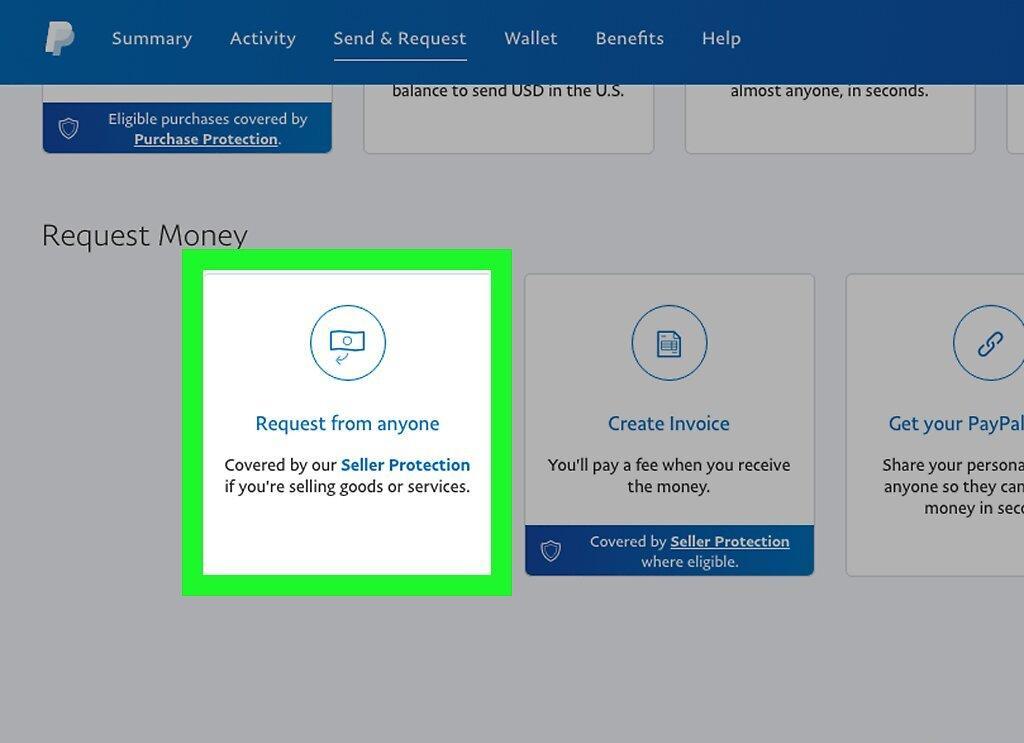
Through your account, you can send money requests. Go to the "Money Transfers" section and select "Request Money from Friends and Customers." Specify the amount and the email address or name of the person you want to receive funds from.
- This is a great way to remind someone about a debt, such as if a friend borrowed money from you.
Step 3. Send invoices through PayPal.
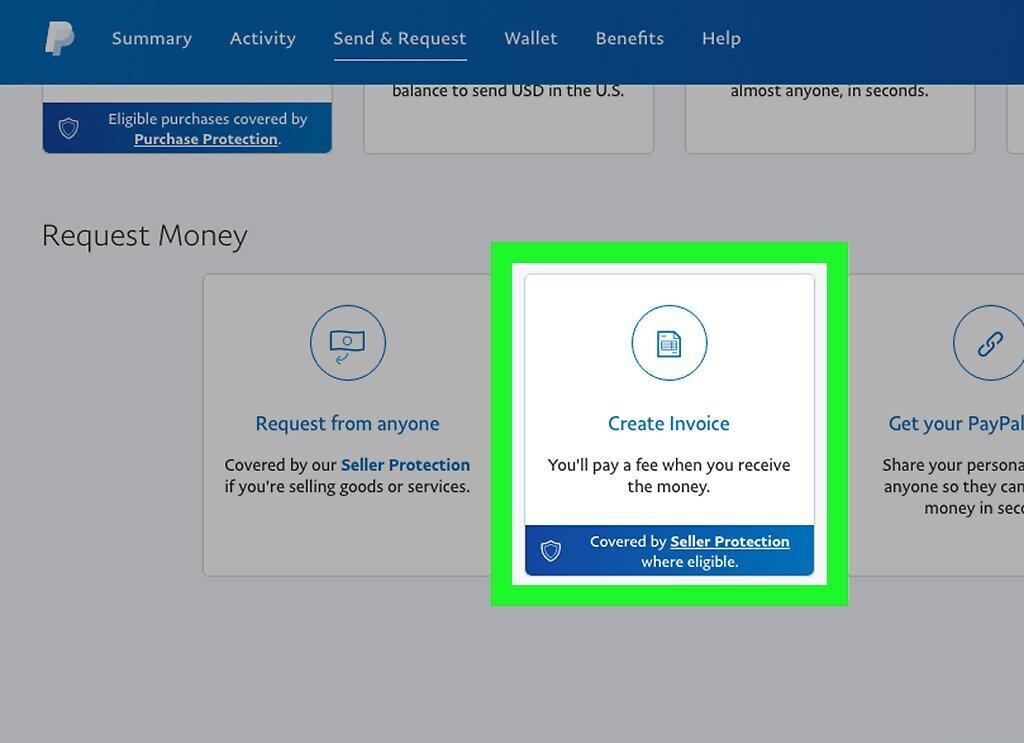
If you are a freelancer, you can easily send invoices for your services. Go to the "Money Transfers" section and select "Create an Invoice." Specify the services provided, the hours worked, the hourly rate, and the total amount.
Step 4. Link PayPal to eBay or another trading platform.
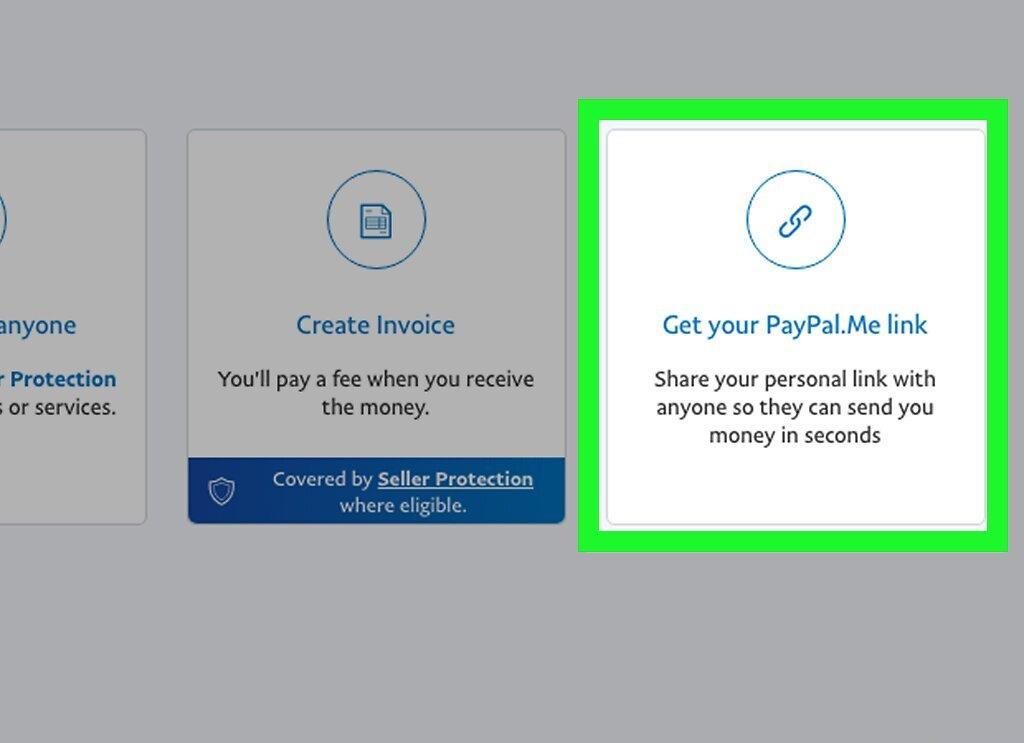
If you sell items on platforms like eBay, link your PayPal account to them. This will simplify the process of receiving funds from buyers, as money will be automatically transferred to your PayPal account.
Using Funds from Your PayPal Account
Step 1. Add funds to your balance.
If your PayPal account balance is low, you can top it up directly from a bank account or card. You can also deposit cash at "Euroset" and "Svyaznoy" outlets without a fee. It’s important to remember that in Russia, you cannot top up your account for purchases using a card.
Step 2. Send money through PayPal.
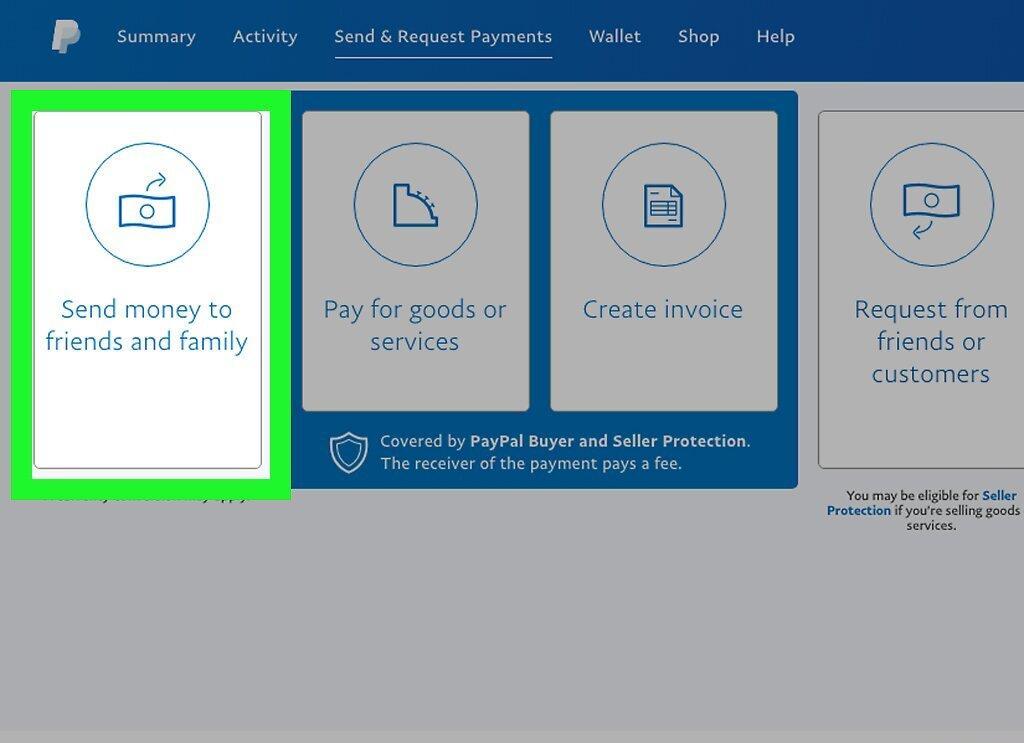
If you need to transfer money, simply go to the "Money Transfers" section and select "Send Money to Friends and Family." Enter the email address or name of the recipient and the amount, then click "Continue" and follow the instructions.
- Double-check the entered email address; it must be linked to the recipient's PayPal account.
Step 3. Make online purchases using PayPal.
When shopping on many websites, you can select PayPal as a payment method. Usually, all you need to do is provide your email address, which is much quicker than entering card details.
Step 4. Withdraw funds to your bank account.
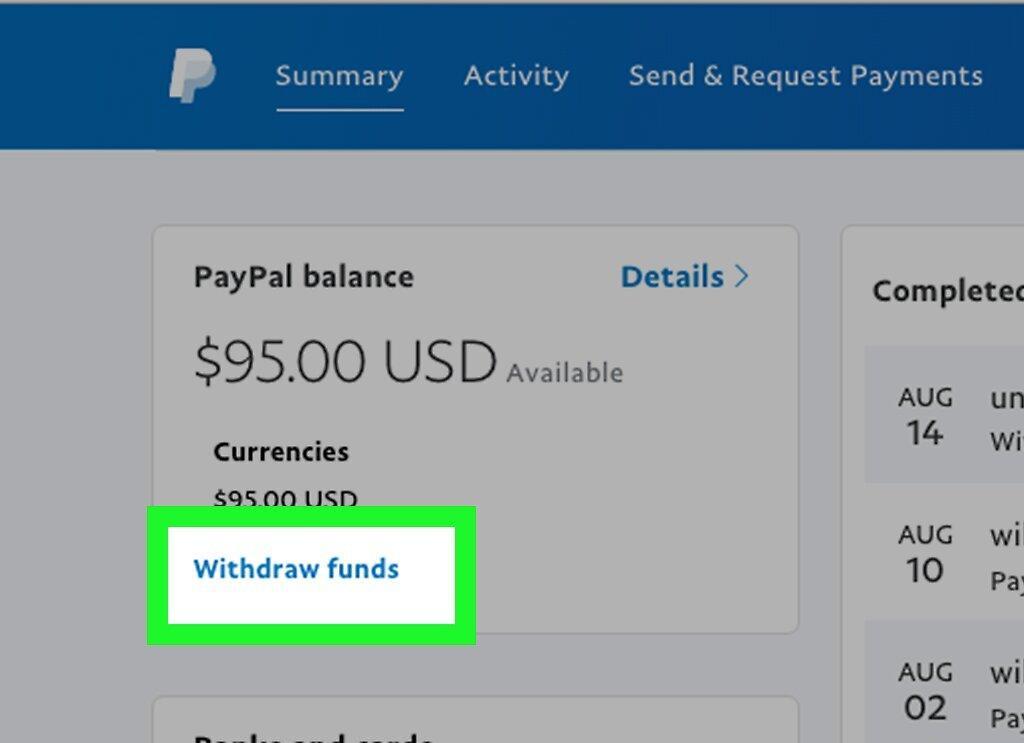
You can transfer funds from your PayPal balance to your linked bank account at any time. Just click "Withdraw Funds" on the main page of your account and specify the amount. The processing of the transfer may take several business days.
Step 5. Get a PayPal debit card if you use the service frequently.
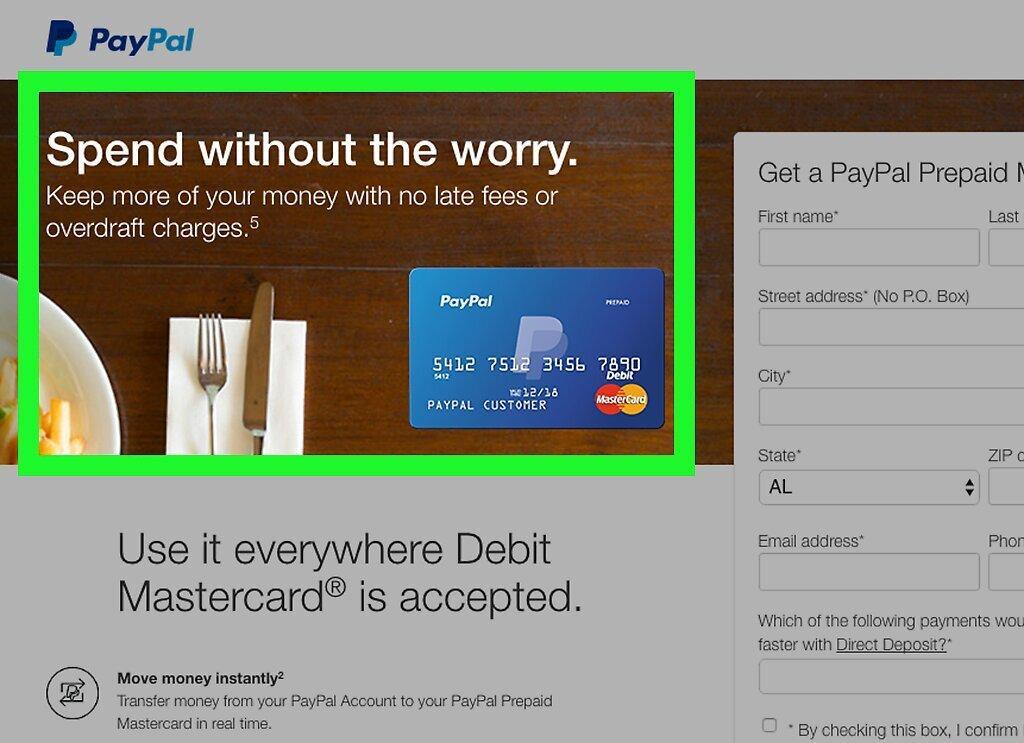
A special PayPal debit card allows you to use funds directly from your account. It is accepted everywhere cards are accepted and can be used at most ATMs with a cash withdrawal limit set.
Step 6. Cancel a PayPal transfer if it has not been accepted yet.
If you made a mistake while sending a payment, go to the "Overview" section in your account and find the payment that has not yet been accepted. Click on "Cancel" and confirm the action.
- If the payment has already been accepted, contact the recipient for a refund.