
You will discover how to update your graphics driver to significantly improve performance in gaming and while watching HD movies.
Windows
Step 1. Click the Start button.
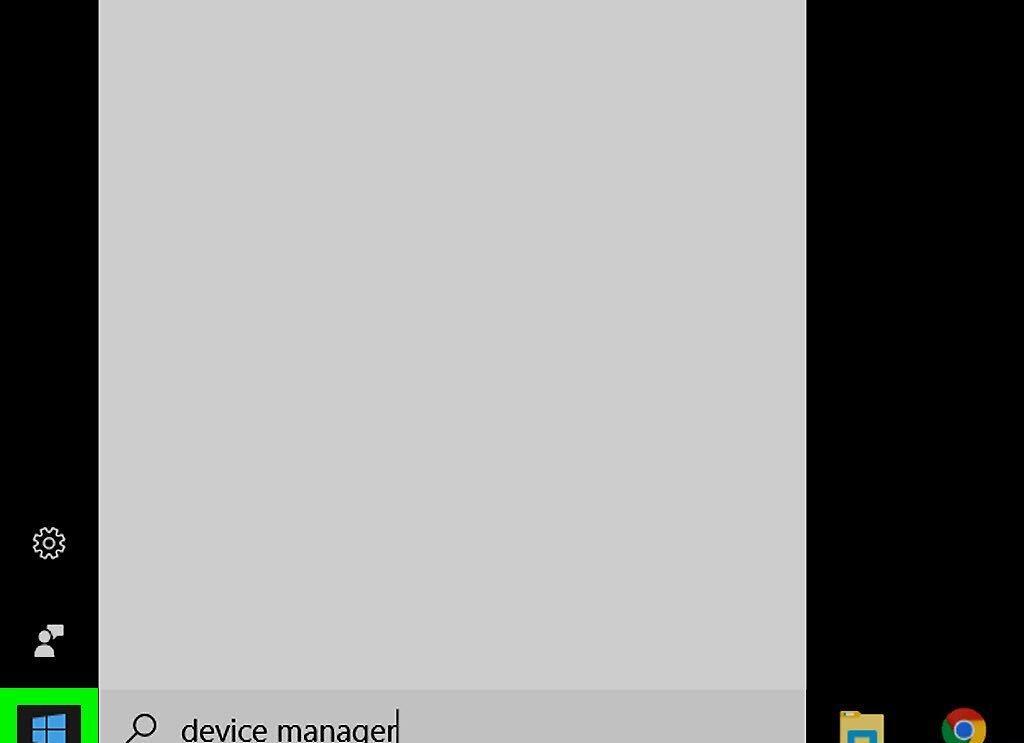
Click the Start button located in the bottom left corner of your screen, adorned with the Windows logo.
Step 2. Type "Device Manager" and press ↵ Enter
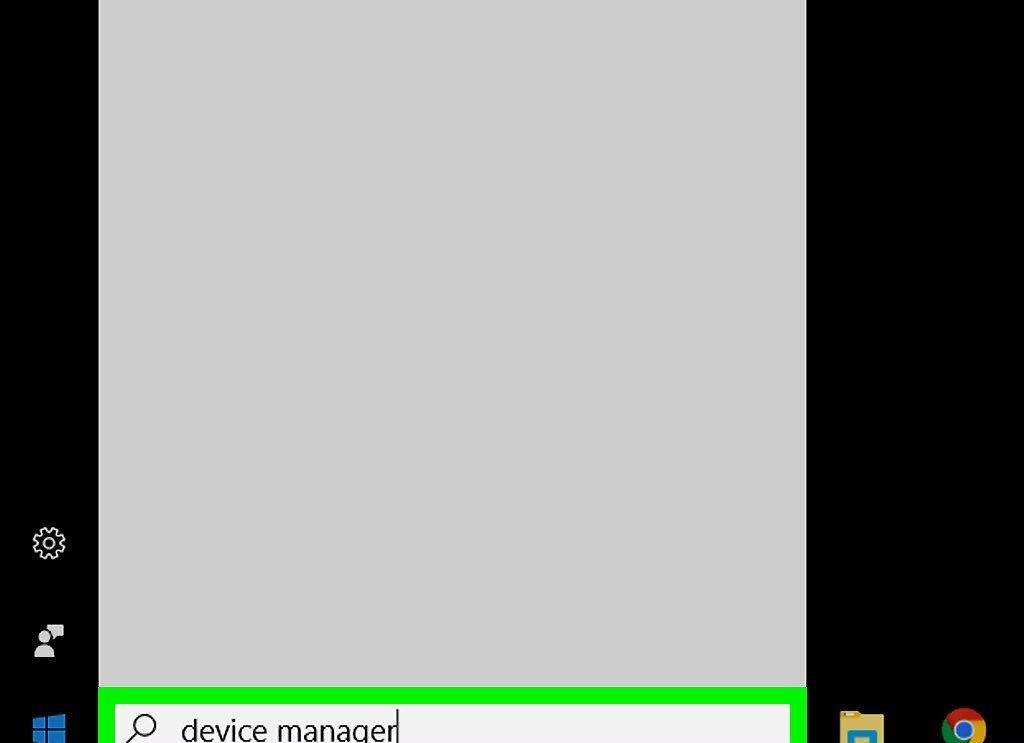
In the search bar, type "Device Manager" and hit the ↵ Enter key. A window with device settings will open.
Step 3. Locate the "Display Adapters" section.
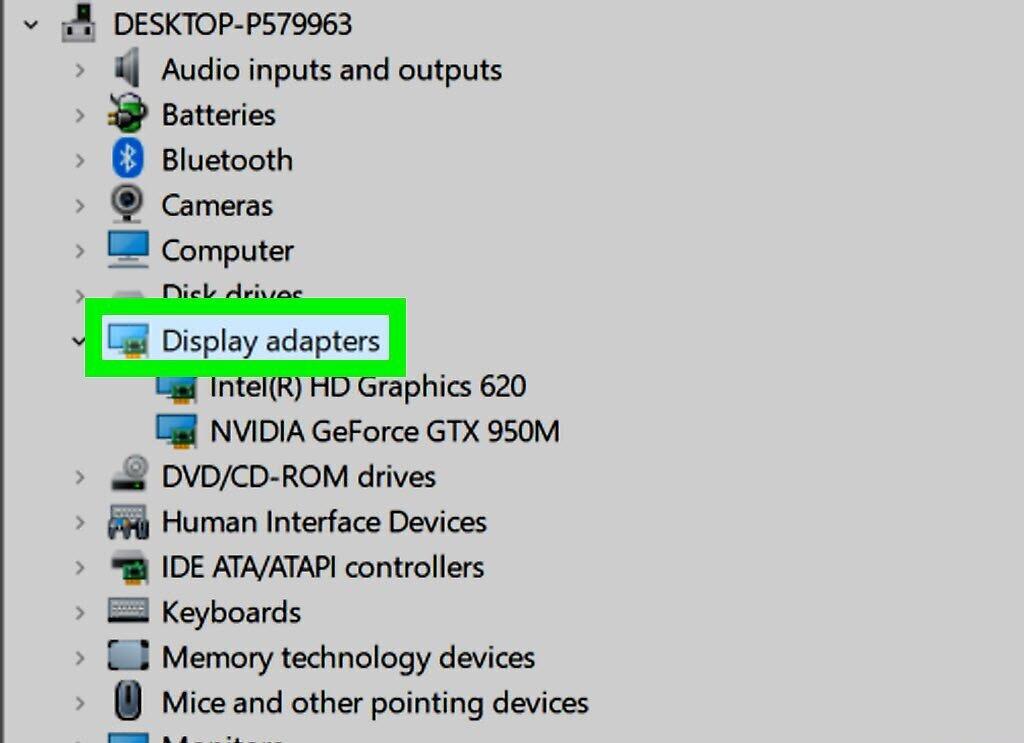
Step 4. Identify your graphics card manufacturer.
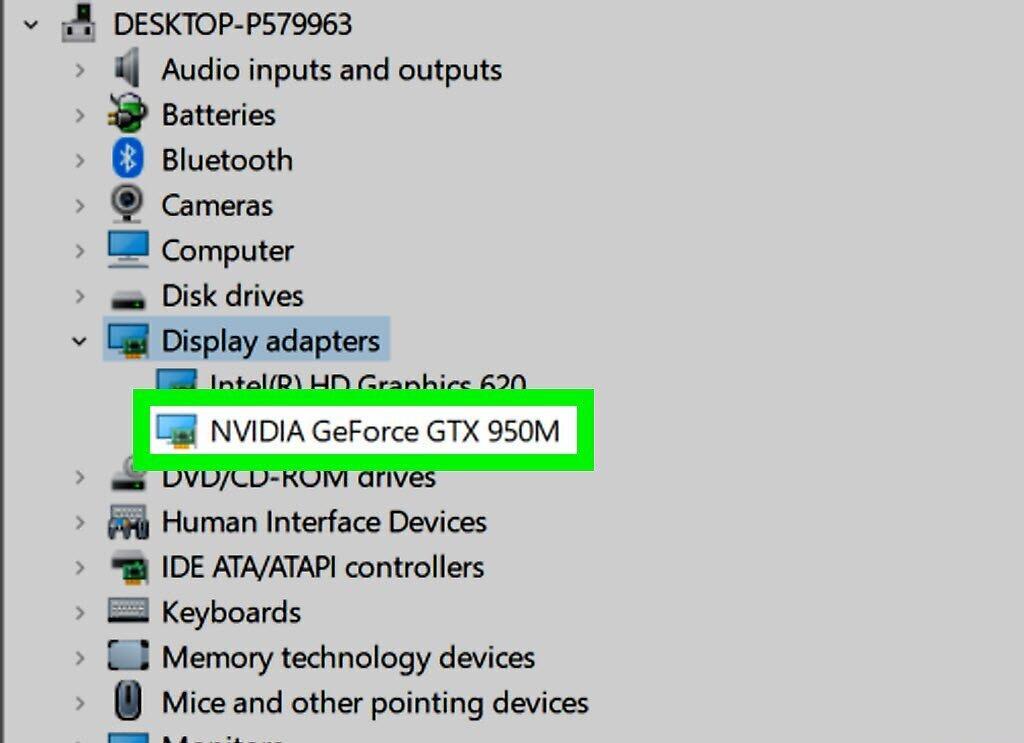
Find out who manufactures your graphics card. In most cases, it is one of three companies: NVIDIA, AMD/ATI, or Intel.
- If both Intel and NVIDIA are present, it means your system uses two graphics cards or NVIDIA is installed alongside Intel's integrated graphics. In any case, you should update the NVIDIA driver.
Step 5. Note your graphics card model.
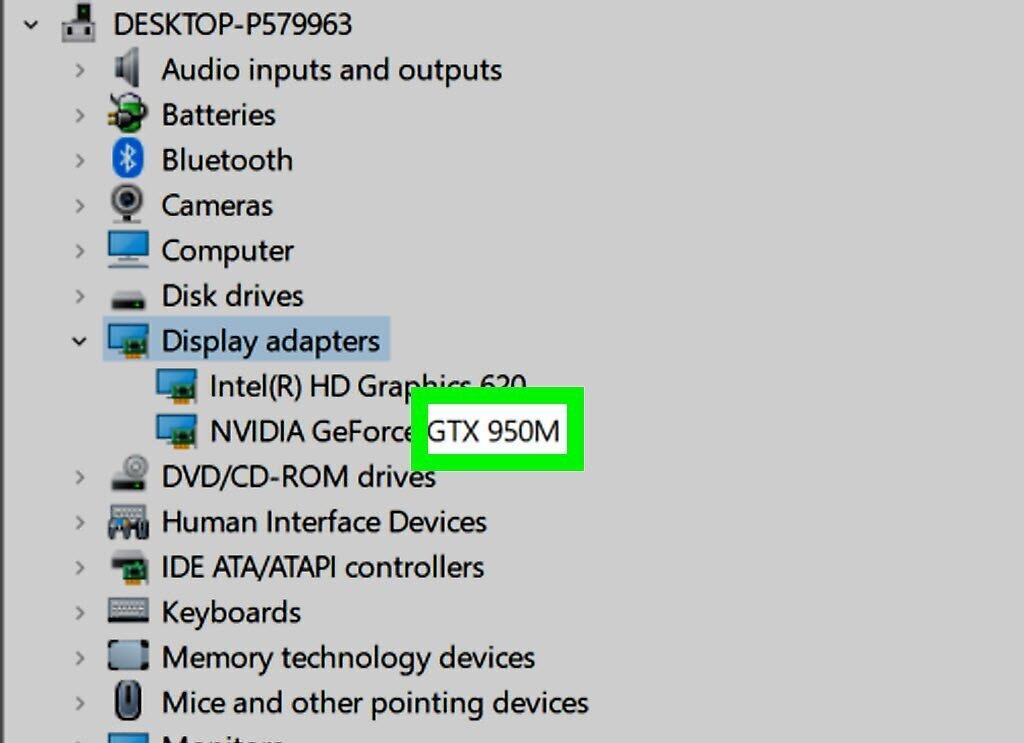
Take note of the graphics card model. You need to know the model and number to find the correct drivers. This information is usually displayed right after the manufacturer’s name.
- For example, if the graphics card is listed as "NVIDIA GeForce GTX 670", the manufacturer is NVIDIA, the model is GeForce, and the model number is GTX 670.
Step 6. Open your web browser.
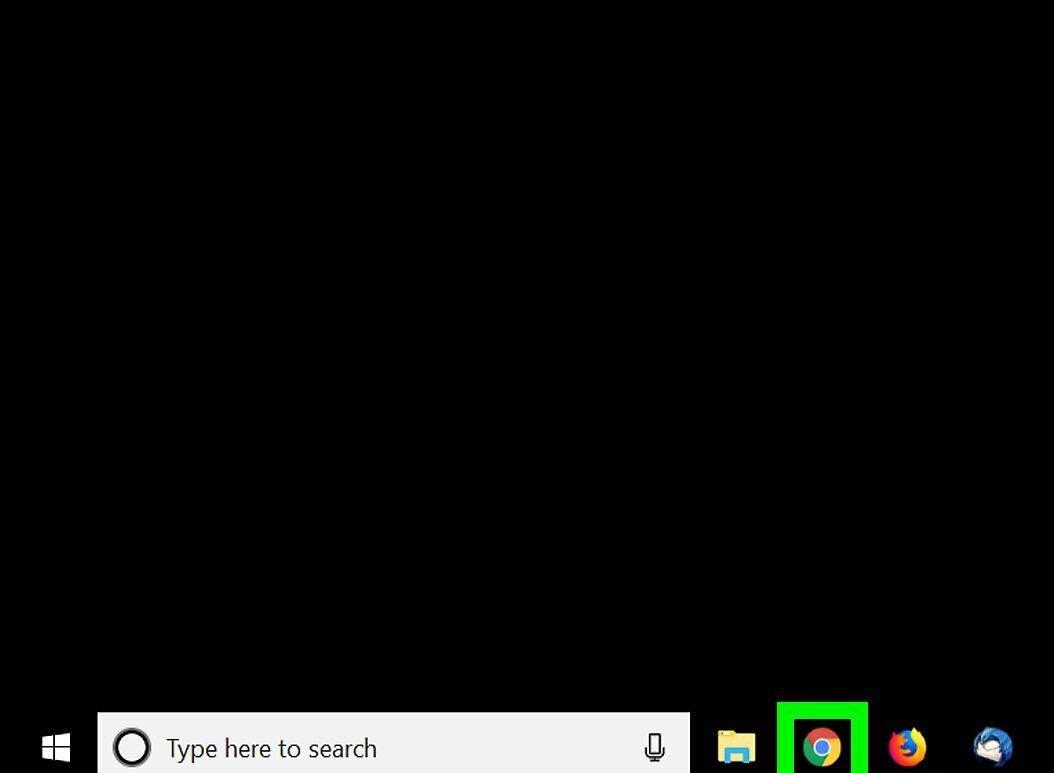
Launch your browser to download the driver from the official manufacturer’s website.
Step 7. Go to the driver download page.
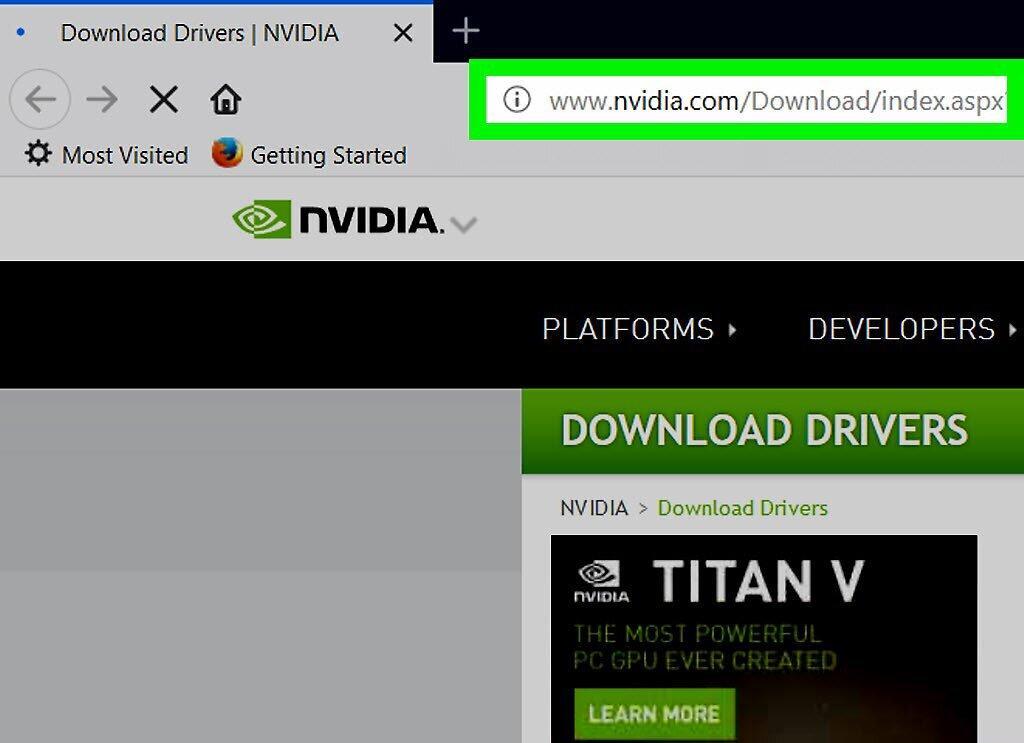
Visit the graphics card manufacturer’s website and find the section for drivers. You can find the necessary video drivers on all of these sites:
- NVIDIA
Step 8. Locate your graphics card on the website.
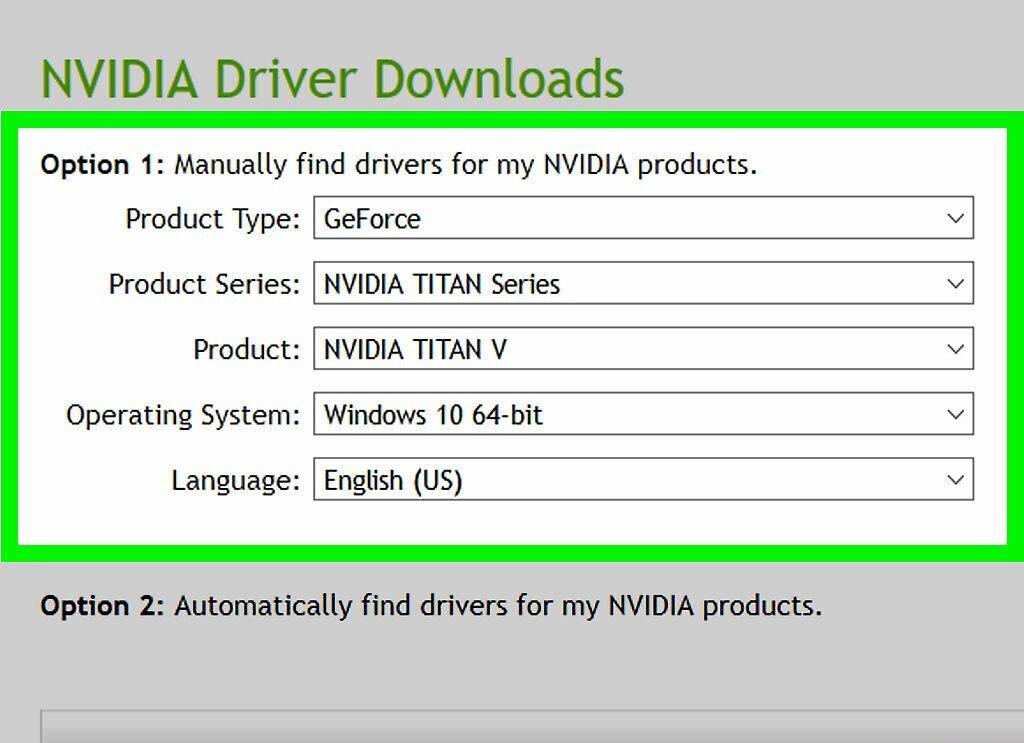
To find your graphics card, enter its model and number in the search bar or select them from a dropdown menu. All three websites have an auto-detection feature that can help identify your graphics card. You may need to agree to some security prompts before using this option.
- If your graphics card is older than four to five years, the manufacturer may no longer support it and new drivers may not be available.
Step 9. Download the driver.
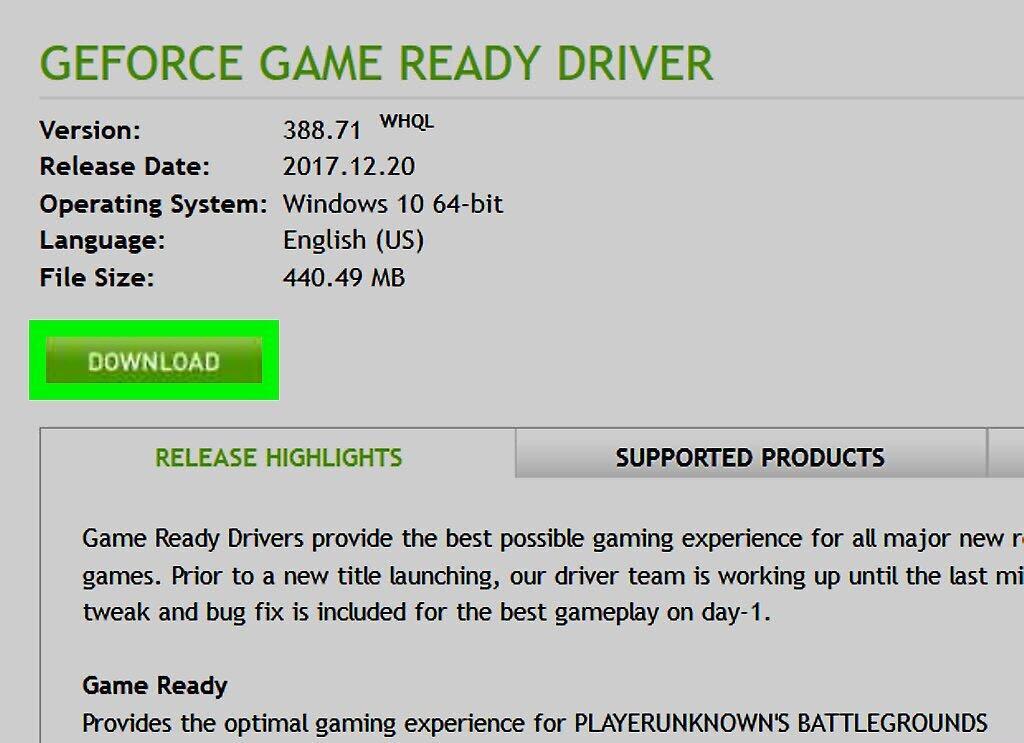
Click the link or button to download the driver. Keep in mind that the driver may be quite large, so the download might take some time.
Step 10. Click on the downloaded file to install.
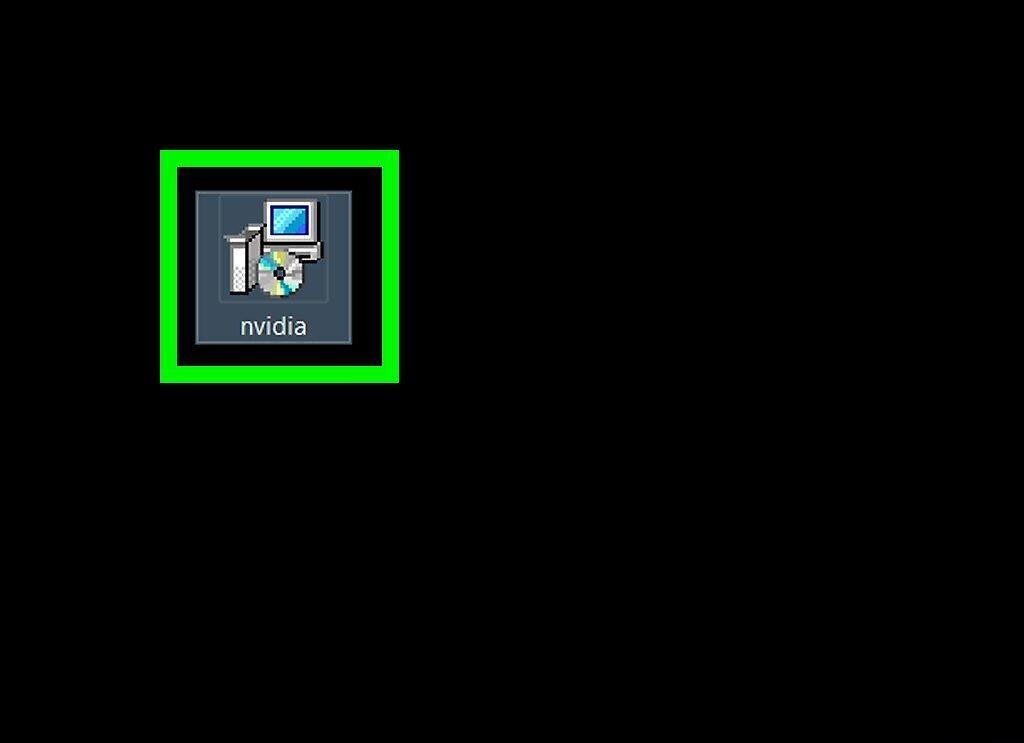
Click on the downloaded file to initiate the driver installation. You can find it at the bottom of your browser window or in your "Downloads" folder.
Step 11. Follow the on-screen instructions.
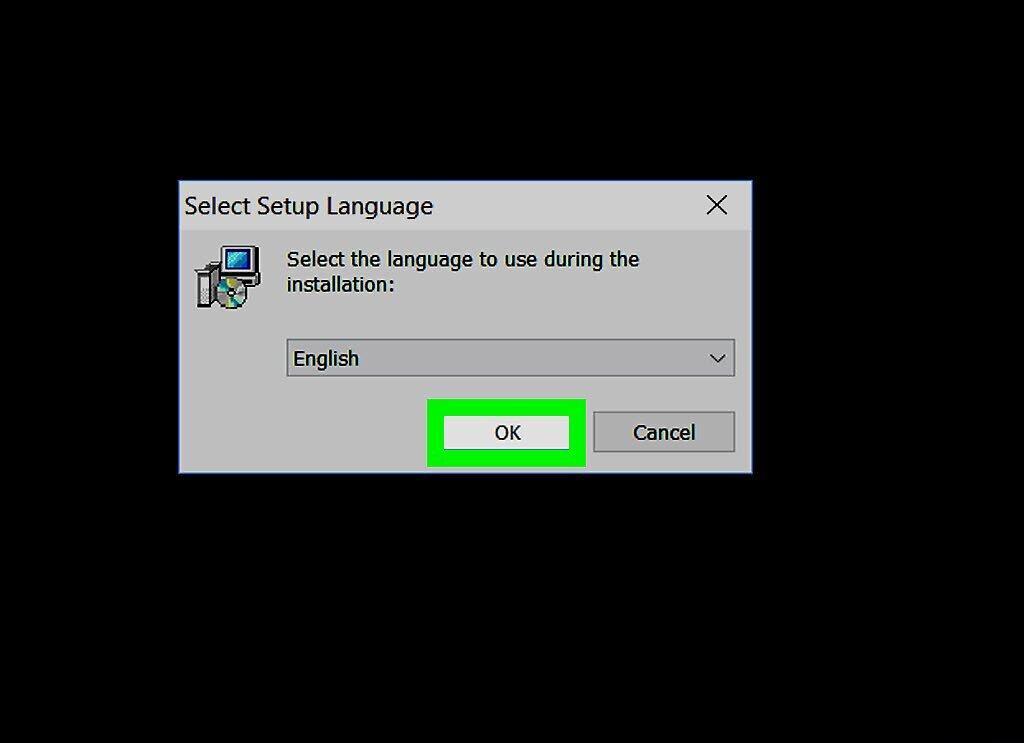
Follow the on-screen prompts. They may vary depending on the manufacturer, but typically the default settings can be left unchanged.
- During the driver installation, your screen may flicker or temporarily turn off.
Mac OS X
Step 1. Open the Apple menu.
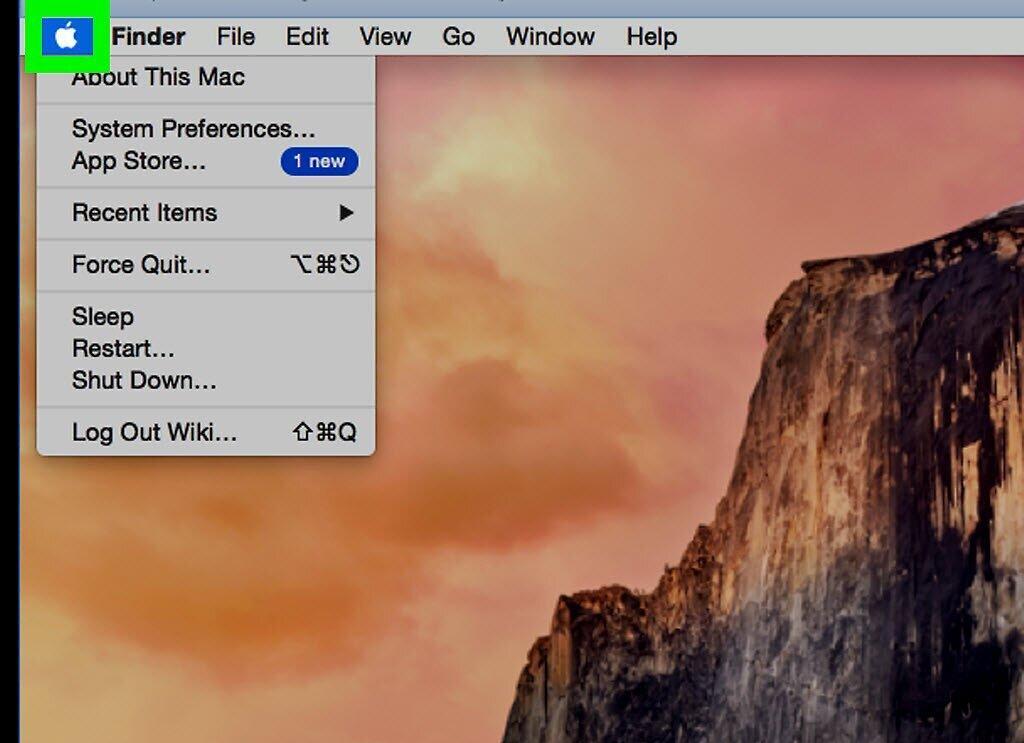
Open the Apple menu located in the top left corner of the screen.
Step 2. Select App Store.
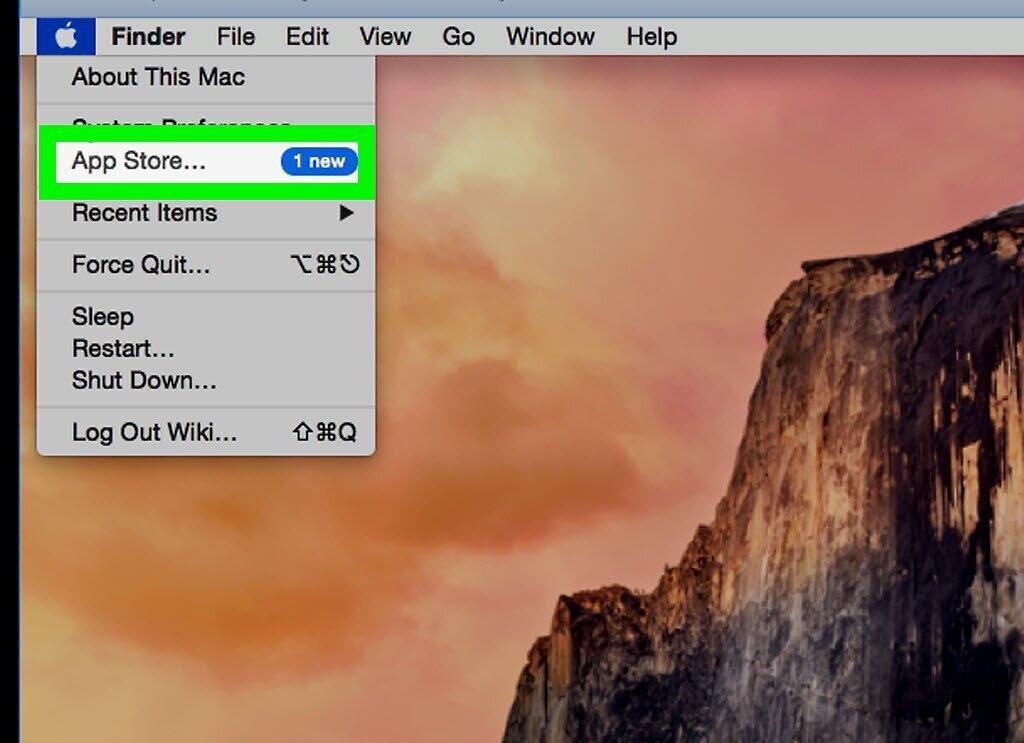
Click on "App Store". On older Mac models, select "Software Update" instead.
Step 3. Go to the "Updates" tab.
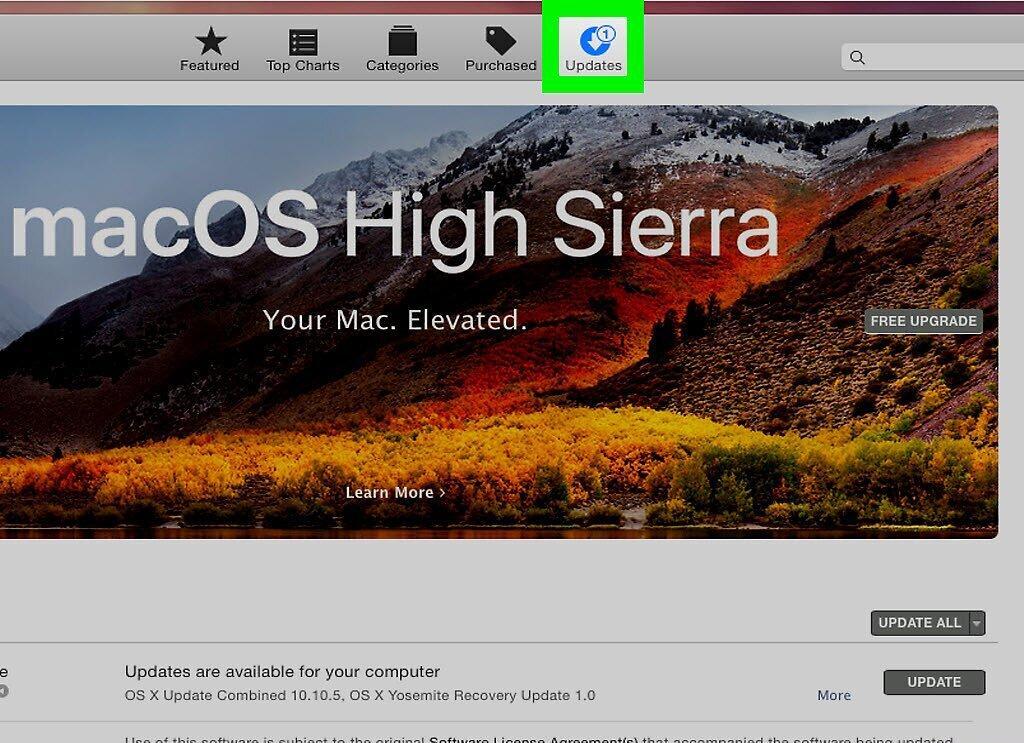
Select the "Updates" tab located at the bottom of the App Store window.
Step 4. Click the "Update All" button.
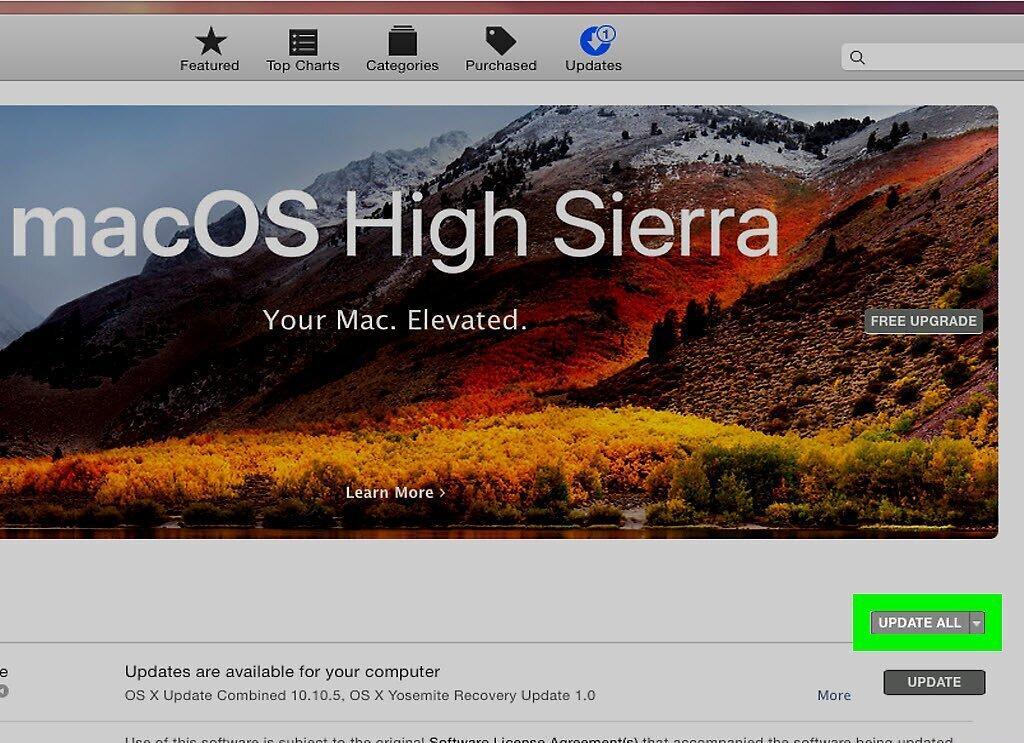
Click the "Update All" button to install all available updates, including graphics drivers.
Step 5. Wait for the updates to install.
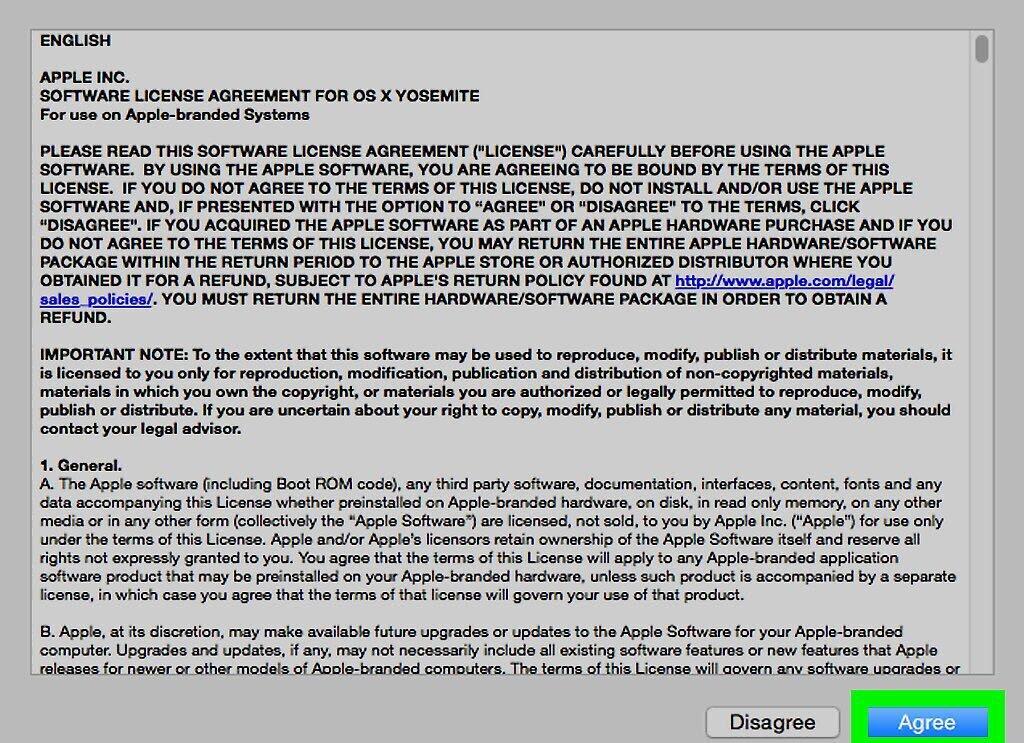
Wait for the updates to install successfully. After that, all you need to do is restart your computer.


