
In most browsers, you can access the XPath of elements on a website through developer tools. In Firefox, the Firebug extension allows you to copy the XPath directly to your clipboard. In other browsers, while XPath is also accessible, you will need to format it manually.
Using Firebug in Firefox
Step 1. Install Firebug.
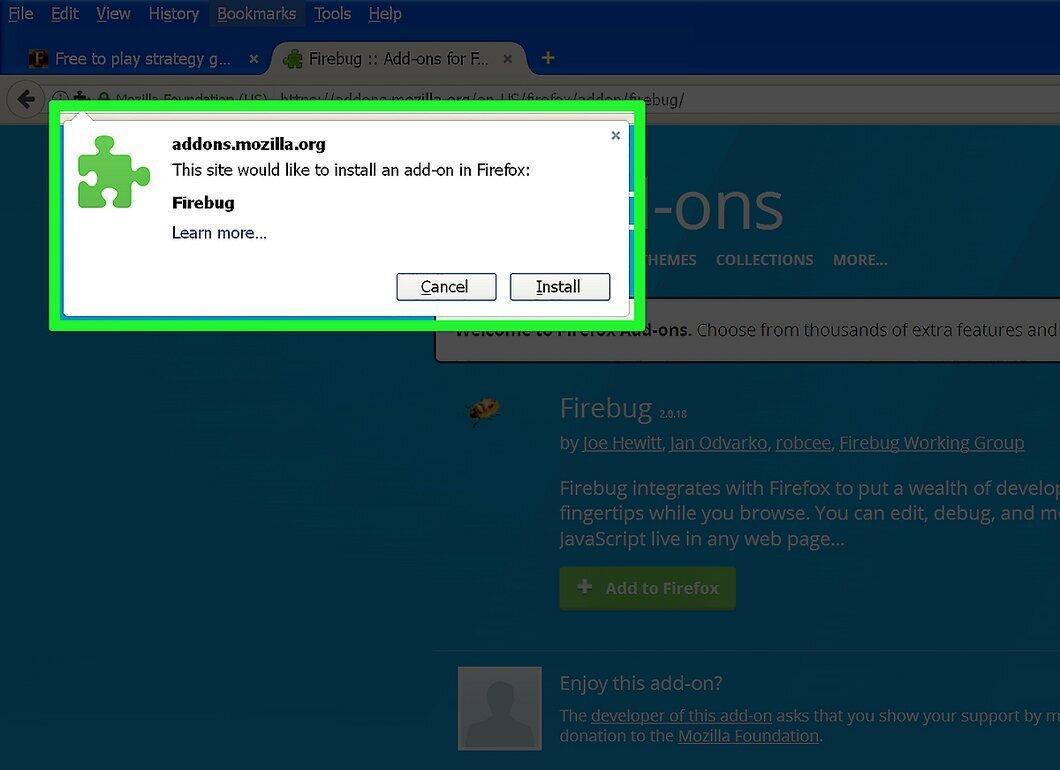
First, install Firebug, the web inspection extension for Firefox.
- Open the Firefox menu (☰) and go to the “Add-ons” section.
- Click on “Get Add-ons” and select “See More Add-ons”.
- Search for Firebug and click “Add to Firefox”.
- Confirm the installation and restart your browser if necessary.
Step 2. Go to the desired website.
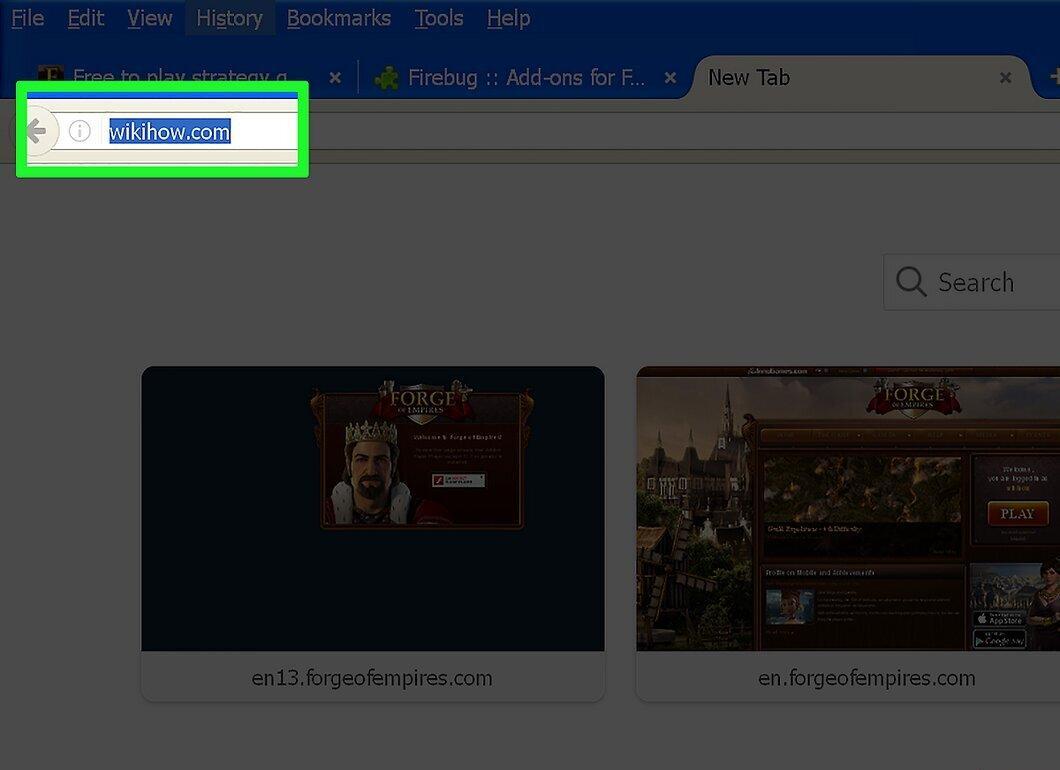
Open the website whose elements you want to access. Firebug can be used to find the XPath of any elements.
Step 3. Activate Firebug.
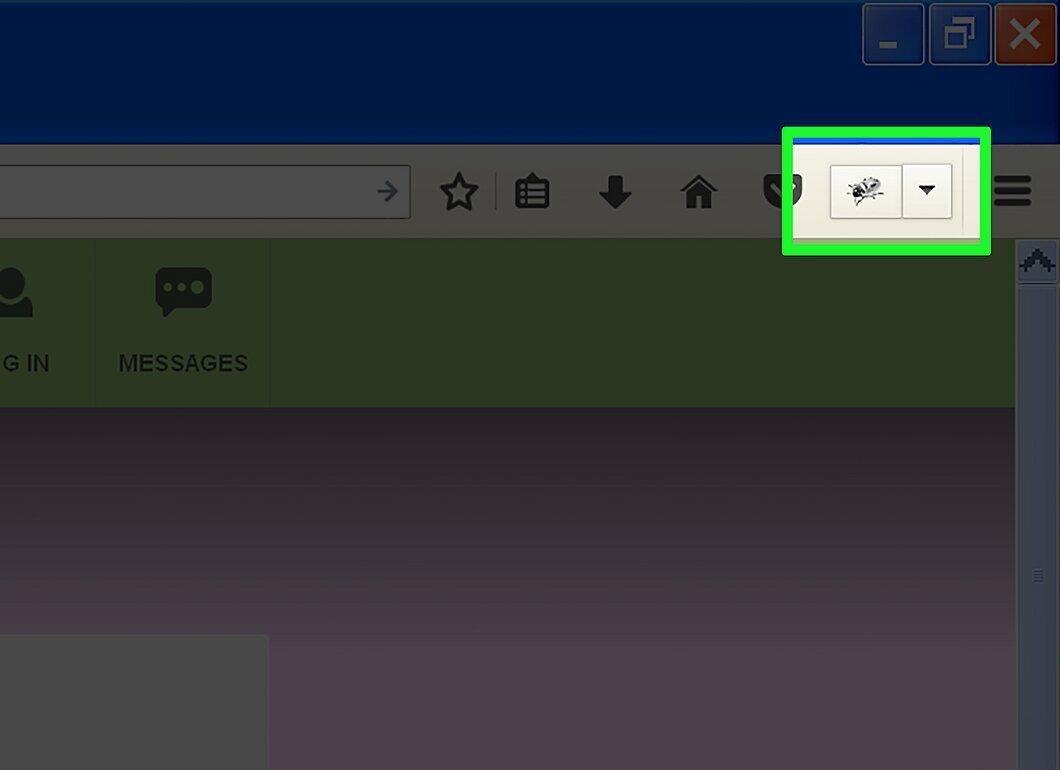
Click on the Firebug button located in the upper right corner of your browser. The Firebug panel will open at the bottom.
Step 4. Select the Element Inspector.
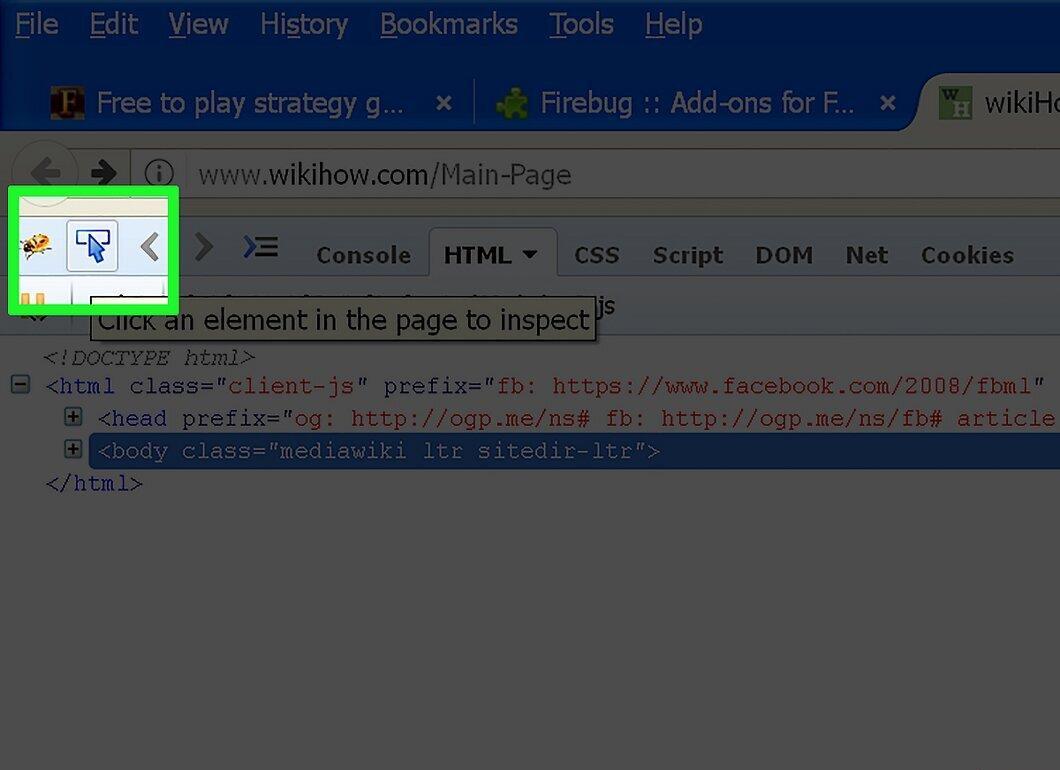
Click on the element inspector button on the Firebug top panel (to the right of the “Firebug Options” button). Its icon is a rectangle with a cursor.
Step 5. Click on the desired element on the page.
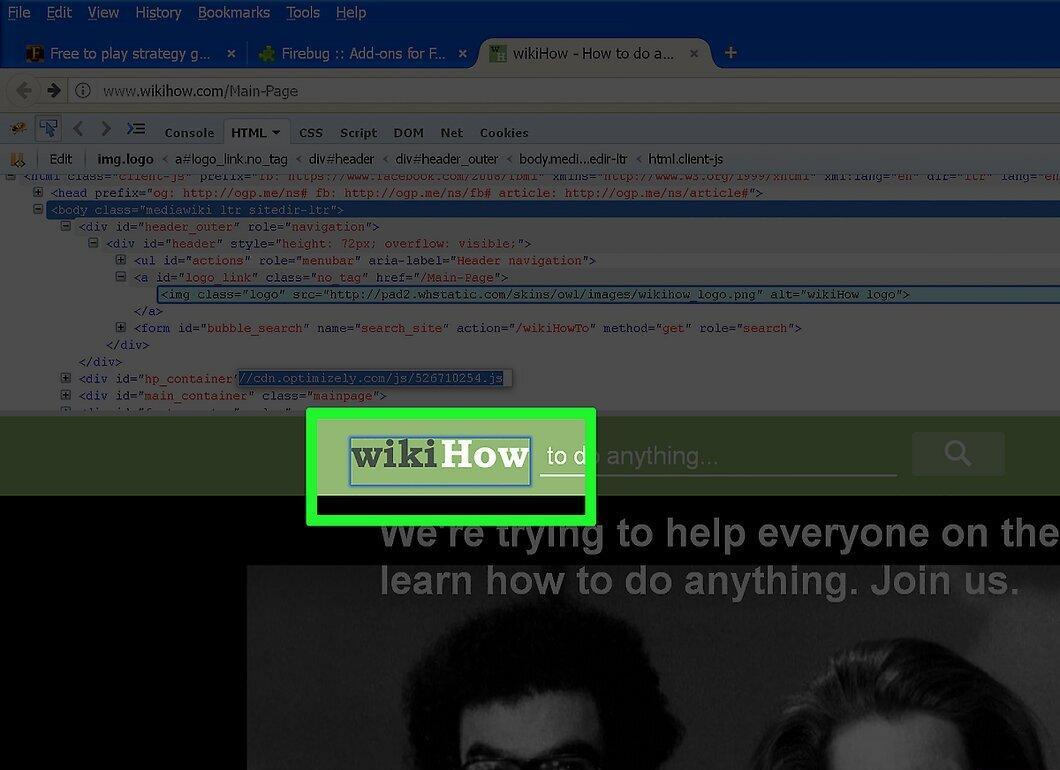
Hover over the page and click on the element for which you want to know the XPath. The related elements will be highlighted in the Firebug panel.
Step 6. Right-click on the highlighted code.
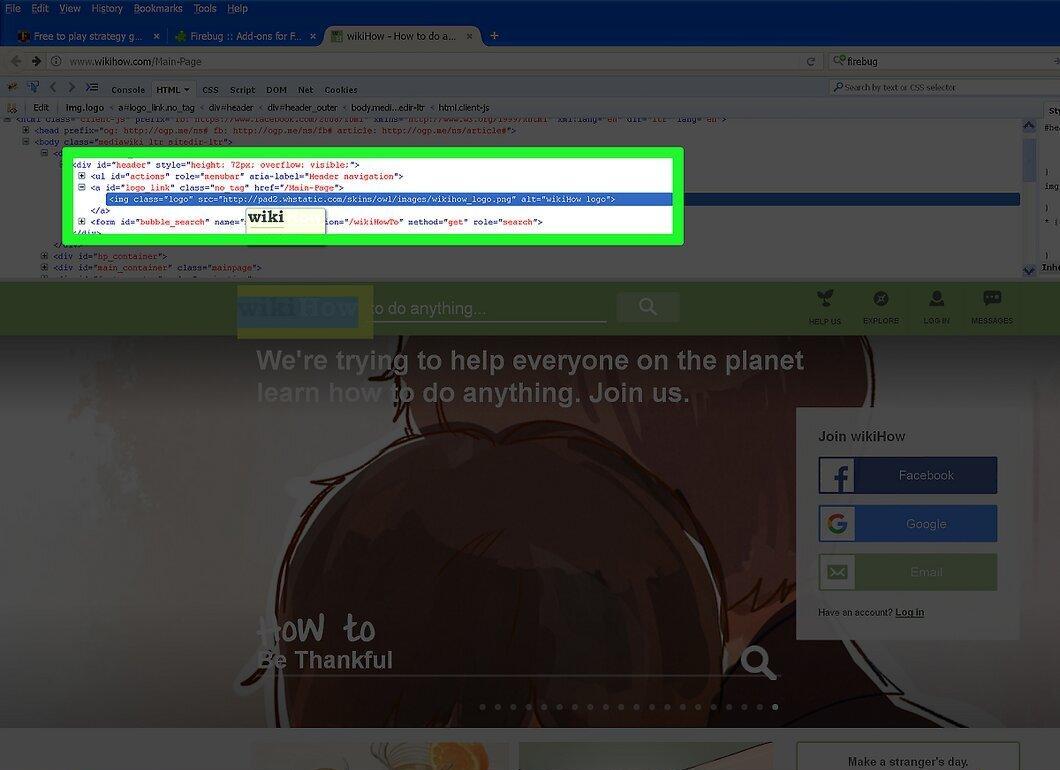
Right-click on the highlighted element code in the Firebug panel. This code corresponds to the selected element on the page.
Step 7. Select “Copy XPath”.
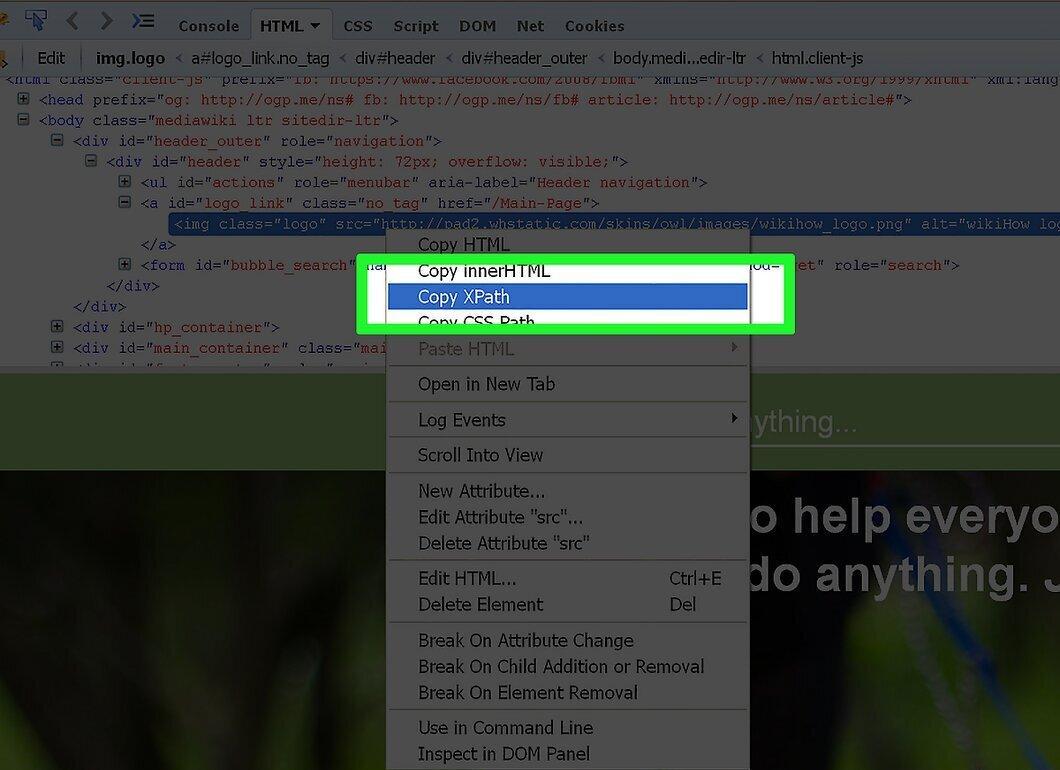
In the menu that appears, choose the “Copy XPath” option. The XPath will now be copied to your clipboard.
- If you select “Copy Mini XPath,” only a shortened version of the path will be copied.
Step 8. Paste the copied XPath.
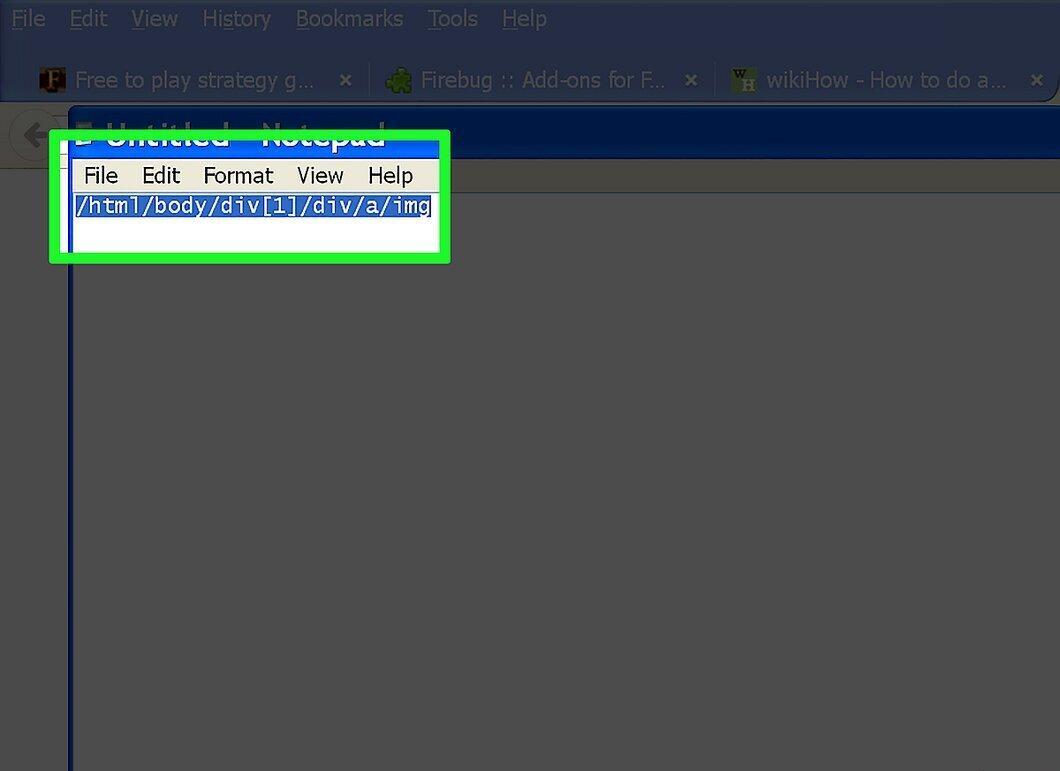
Now paste the copied XPath where needed. Right-click and select “Paste”.
Finding XPath in Chrome
Step 1. Go to the desired website.
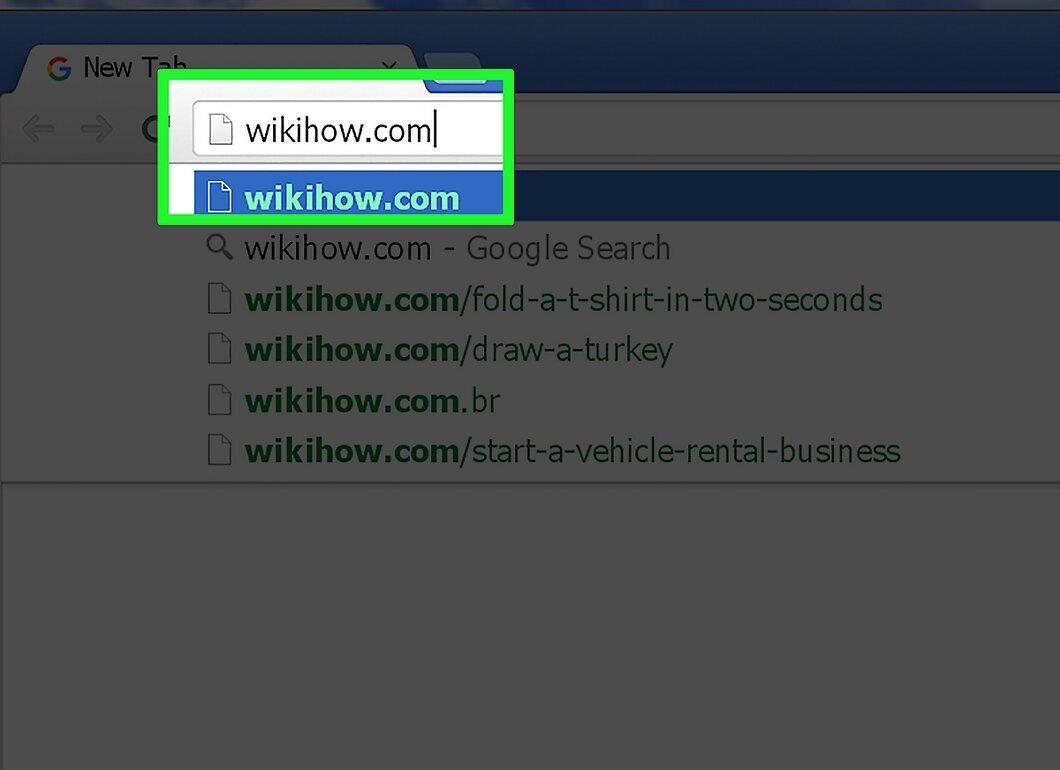
Open the website whose elements you need to access. No additional extensions are required in Chrome.
Step 2. Open Developer Tools.
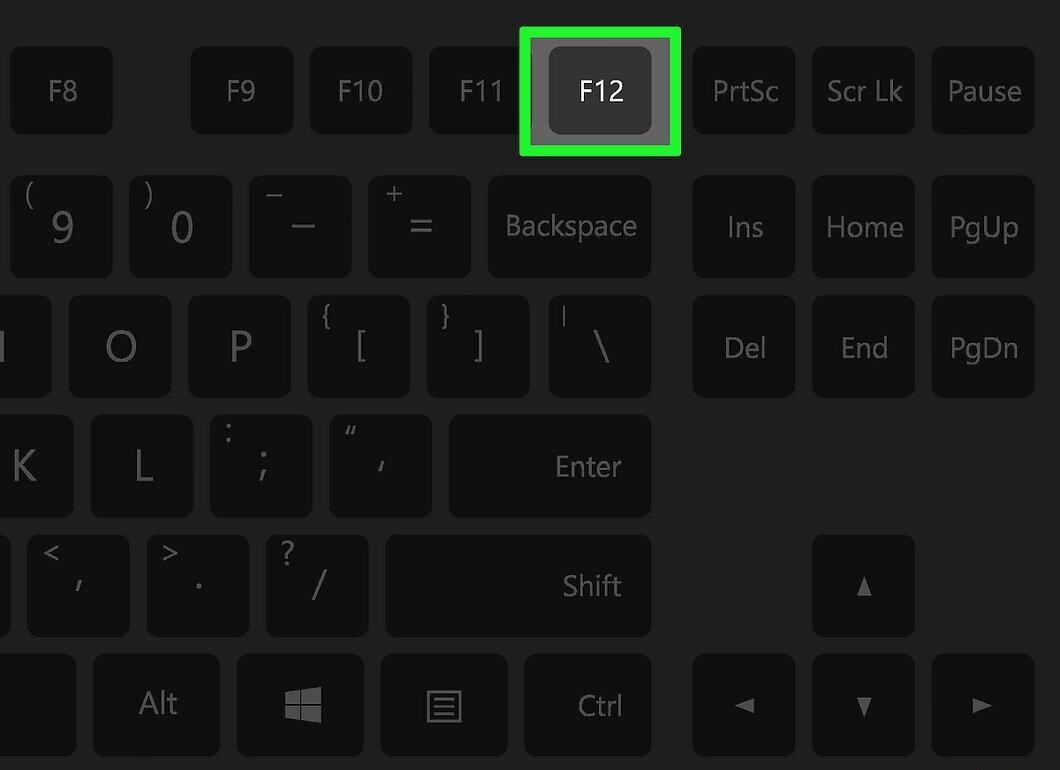
Press F12 to open the web inspector tools, which will appear on the right.
Step 3. Activate the Element Inspector.
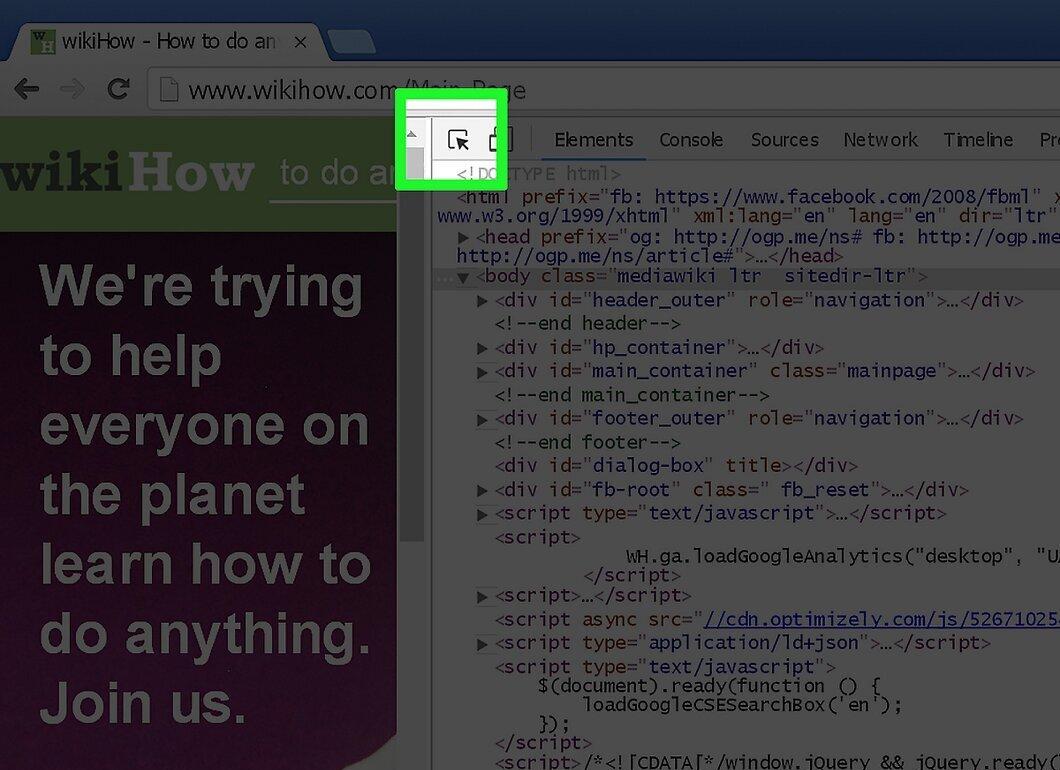
Click on the element inspector located in the upper left corner of the panel. The button icon is a rectangle with a cursor.
Step 4. Select an element on the page.
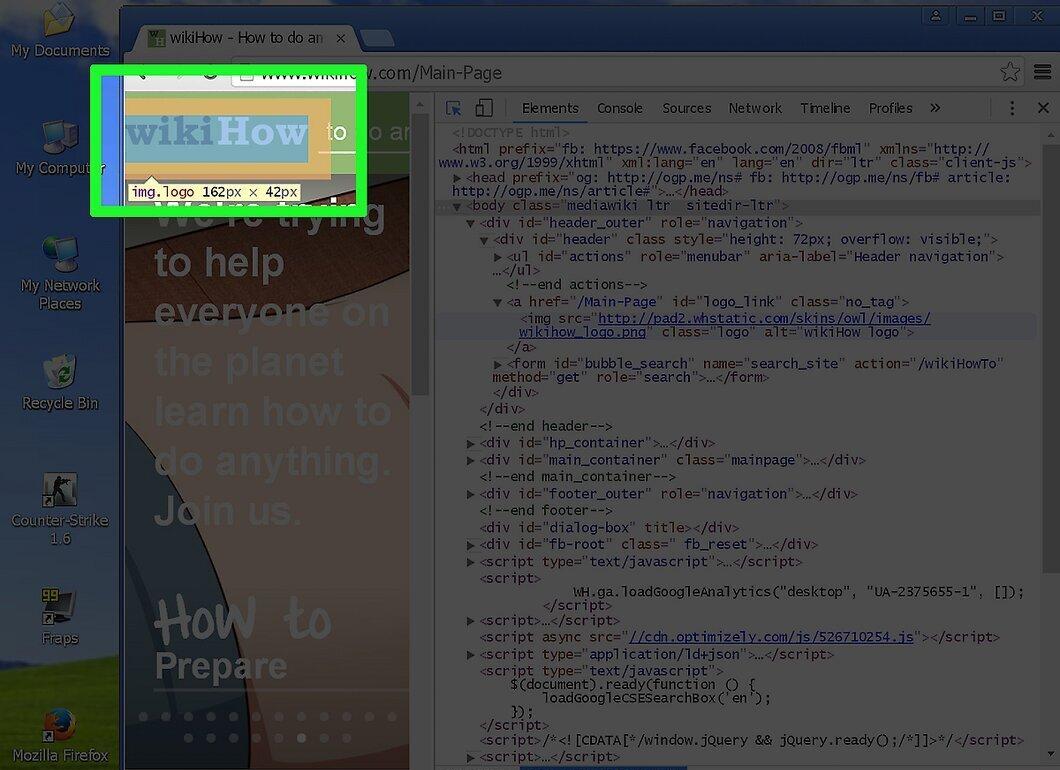
Click on the element for which you want to get the XPath. Elements will be highlighted as you hover over them.
Step 5. Right-click on the highlighted code.
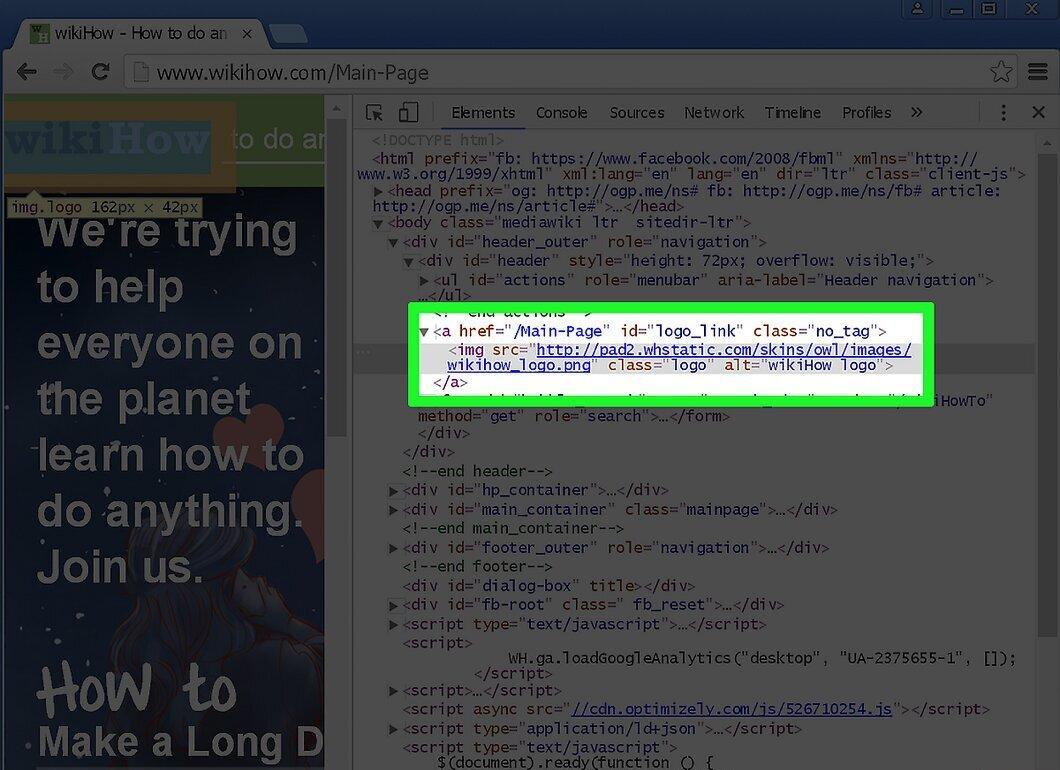
In the inspector panel, right-click on the highlighted code. This selection corresponds to the selected element on the page.
Step 6. Choose “Copy” – “Copy XPath”.
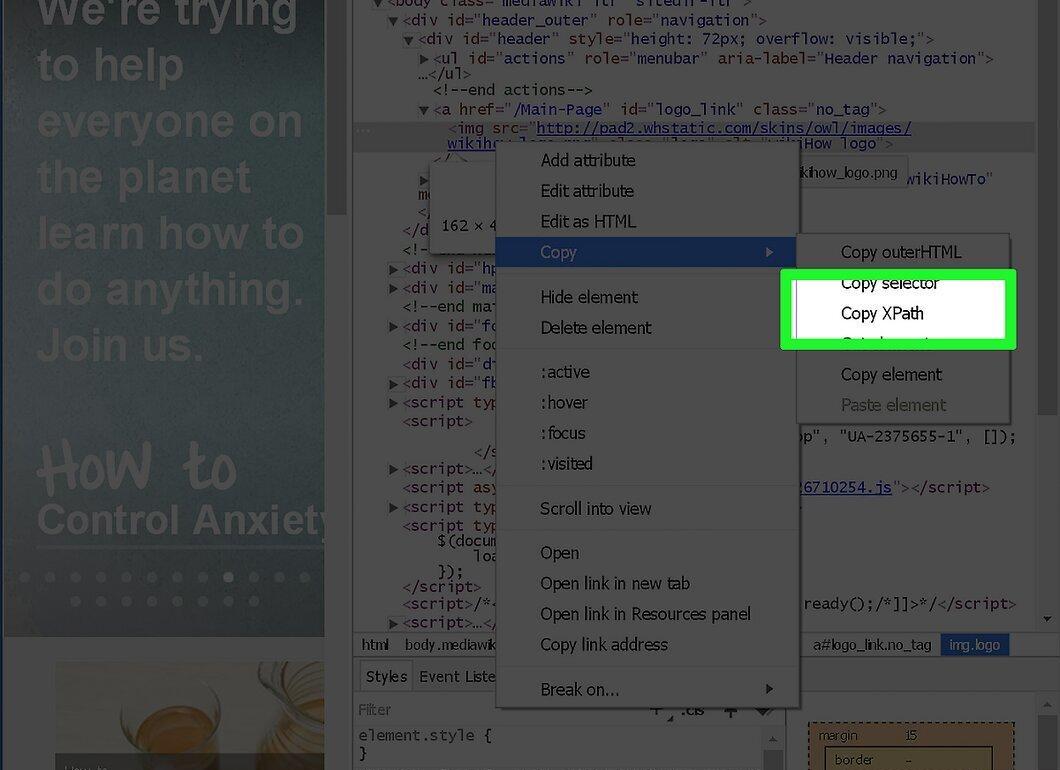
Select “Copy” from the menu, then “Copy XPath”. The path is now copied to your clipboard.
- Note that this will be a shortened version of the XPath. For a more complex path, you will need to use the Firebug extension in Firefox.
Step 7. Paste the copied XPath.
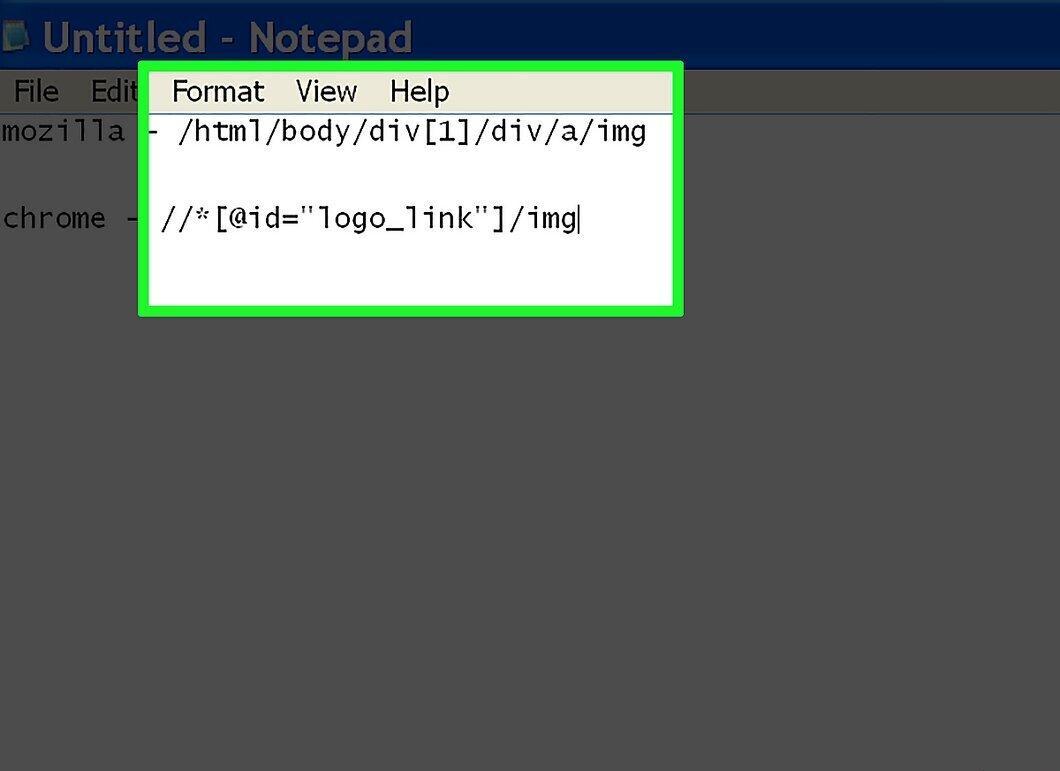
Paste the copied XPath by right-clicking and selecting “Paste”. This can be done anywhere.
Getting XPath in Safari
Step 1. Open Safari Preferences.
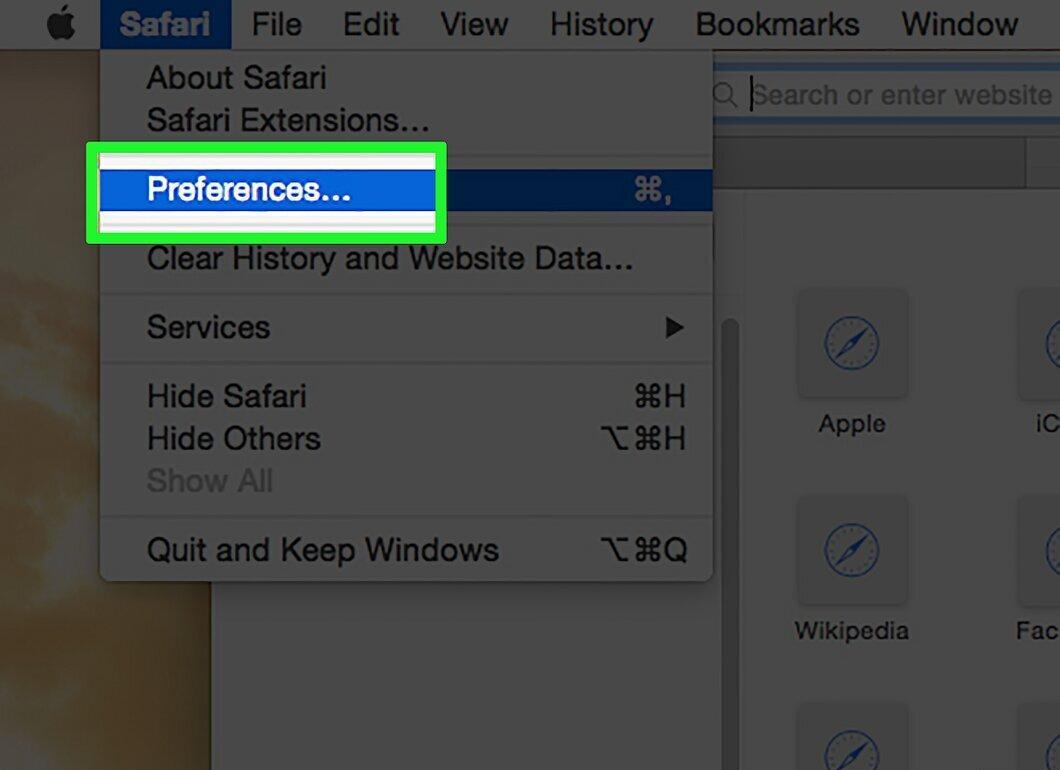
You need to open Safari Preferences to enable the web inspector.
Step 2. Go to the “Advanced” tab.
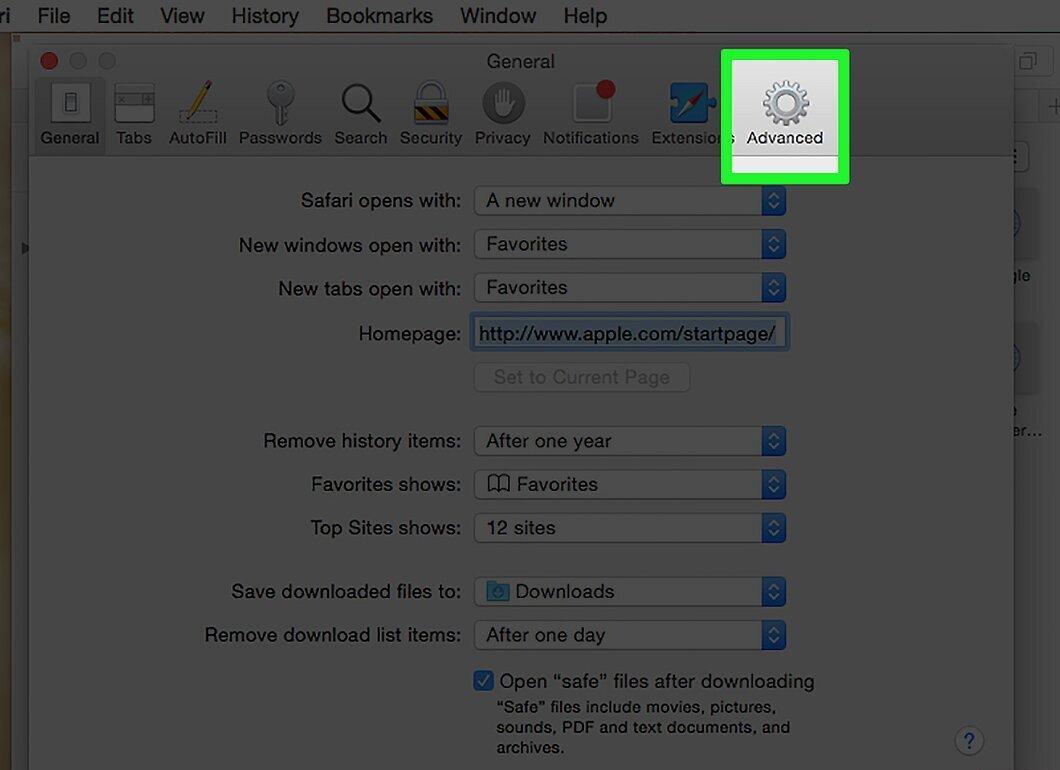
Select the “Advanced” tab where the browser's advanced settings are located.
Step 3. Enable the Develop menu.

Check the option “Show Develop menu in menu bar” to enable its display.
Step 4. Open the desired website.

Close Preferences and go to the website whose elements you need access to.
Step 5. Select “Show Web Inspector”.

Open the Develop menu and select “Show Web Inspector” to open the panel at the bottom of the window.
Step 6. Find the element.

Click on “Run Element Search” to activate the search feature. The button icon is in the shape of a cross.
Step 7. Click on the website element.

Select the desired element, and its code will be highlighted in the web inspector panel.
Step 8. Note the XPath path.

Find the XPath path at the top of the panel. Although it cannot be copied, it will be displayed above the code. Each tab represents a path formula.
Getting XPath in Internet Explorer (IE)
Step 1. Open the desired website.

Go to the website whose elements you want to access. No additional extensions are required in IE.
Step 2. Open Developer Tools.

Press F12 to open the developer tools panel at the bottom of the window.
Step 3. Select the element.

Click on the “Select Element” button located in the upper left corner of the panel. This will allow you to highlight the desired element.
Step 4. Click on the desired element on the page.

Click on the element you need, and its code will be highlighted in the tool panel.
Step 5. Find the XPath at the bottom of the panel.

Note the XPath path displayed at the bottom of the panel. Each tab shows the path formula to the selected element. Keep in mind that you cannot copy the XPath without the Firebug extension in Firefox.


