
In Adobe Acrobat 6 Professional, you have the option to set display preferences for opened PDF documents. For instance, you can configure it so that the third page opens at 50% zoom, and even and odd pages are displayed side by side, as if in a book.
Part 1
Step 1. Open the PDF document in Acrobat.
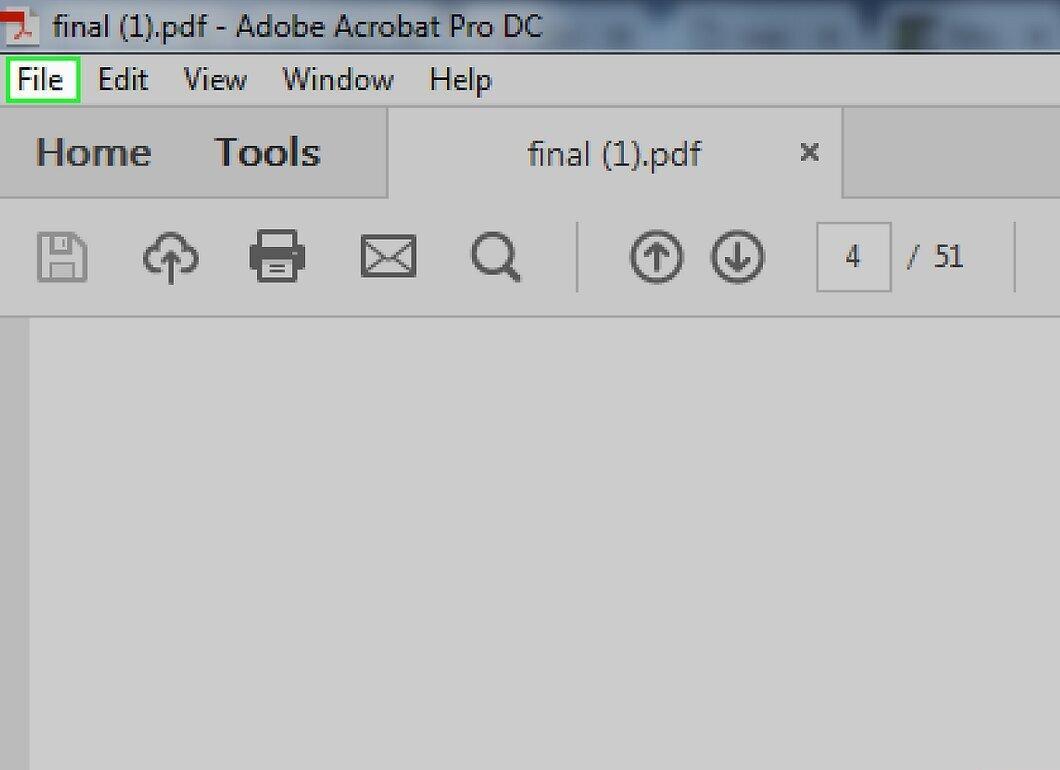
Launch the PDF document in Acrobat. Then select "File" > "Properties". This will open a window with the document settings.
Step 2. Go to the "Initial View" tab.
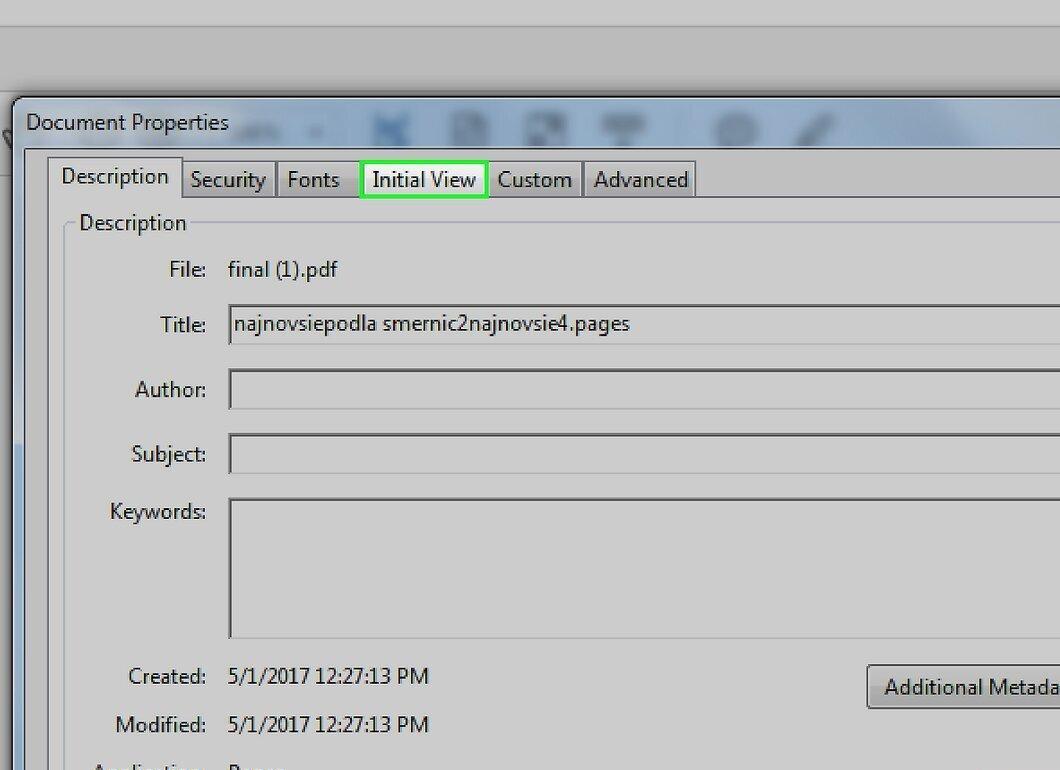
Step 3. Select panels in the "Navigation Tab" menu.
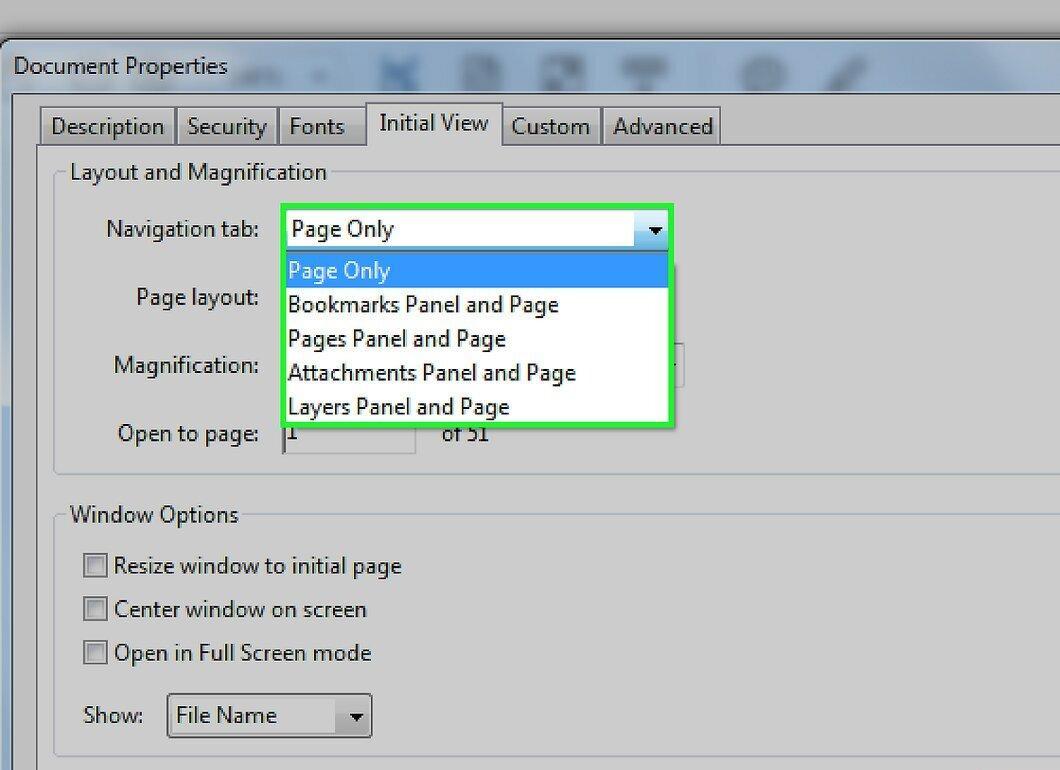
In the "Layout and Magnification" section, choose which panels will be displayed when the document is opened. Options include: "No Panels", "Bookmarks", "Pages", and "Layers".
Step 4. Define the document view mode.
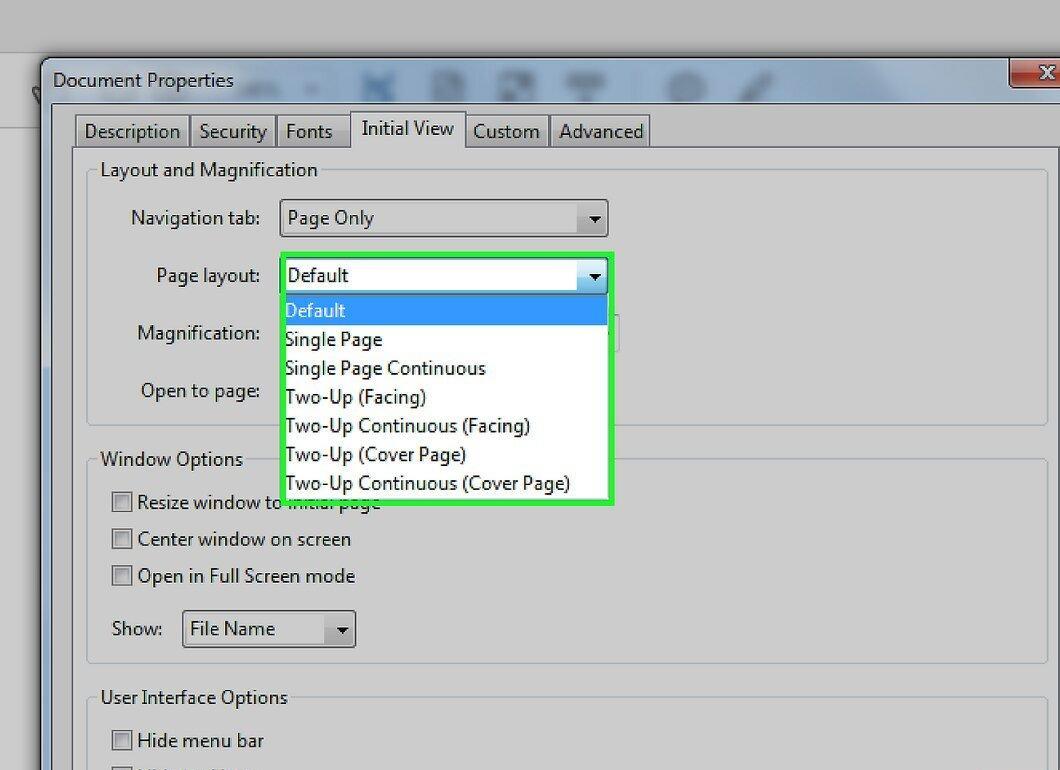
In the "Layout and Magnification" section, select the view mode. The "Single Page" option shows one page, "Facing" displays pages side by side, and "Continuous" provides a continuous flow of pages.
Step 5. Set the page zoom level.
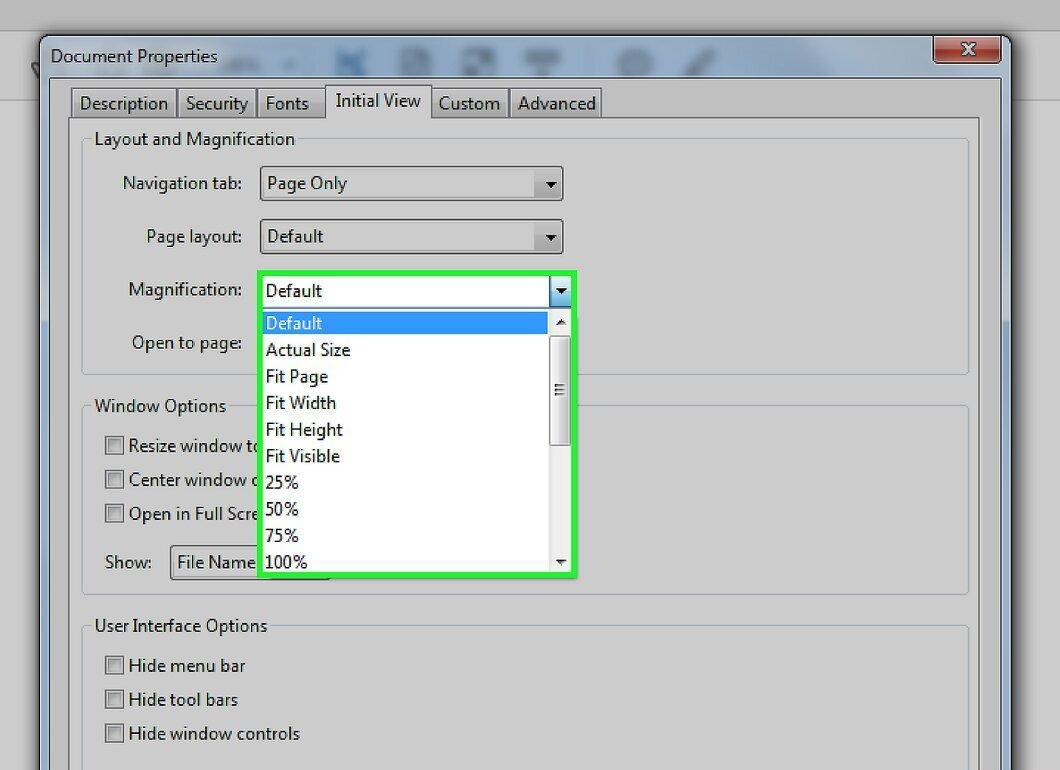
In the "Magnification" section, set the desired zoom level. The "Fit Page" option adjusts the document to fill the entire screen, "Fit Width" fits it to the screen width, and "Fit Content" removes margins around the text.
Step 6. Enter the page number to open.
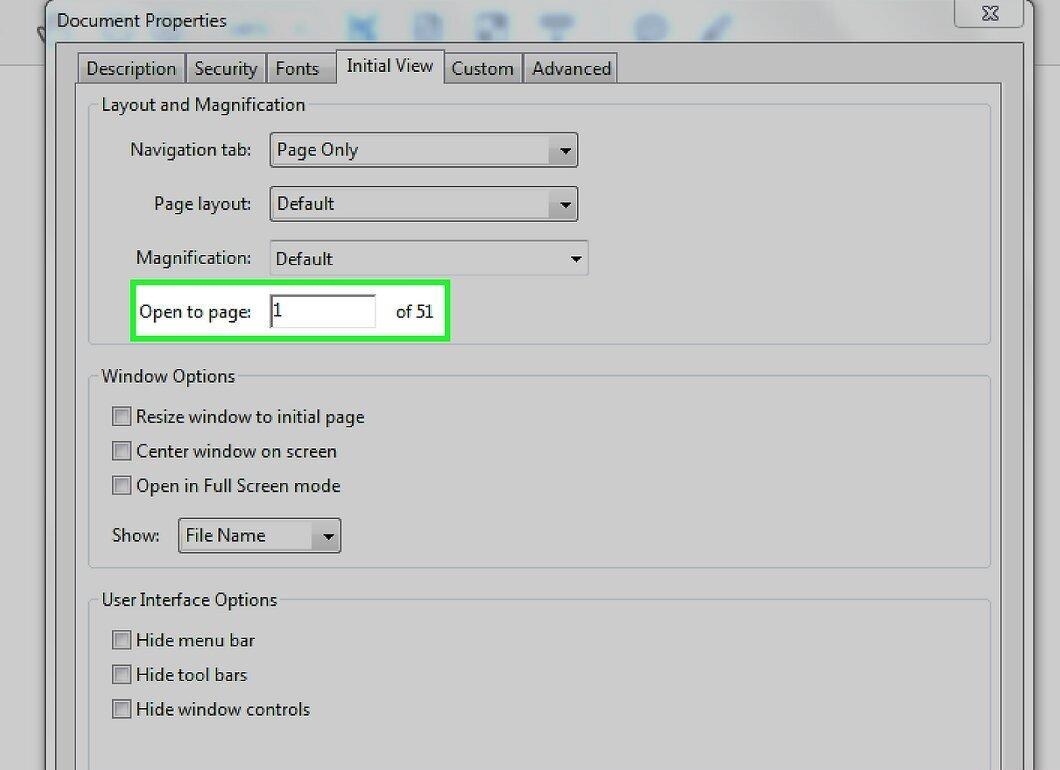
Step 7. Configure window settings.
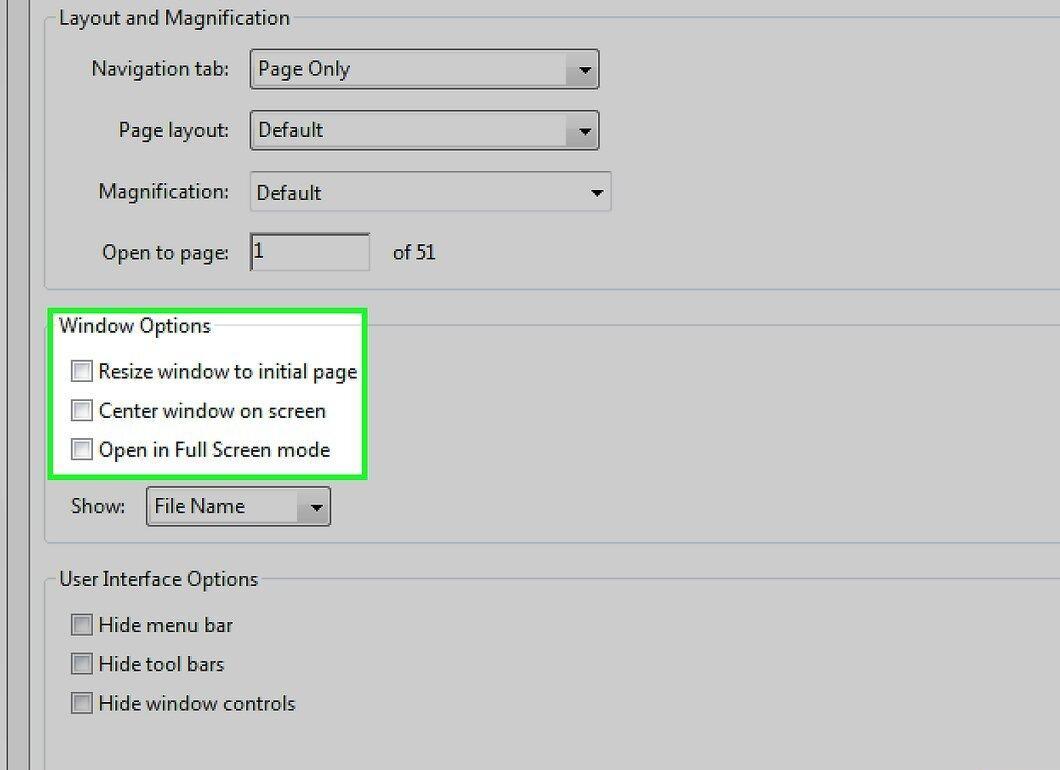
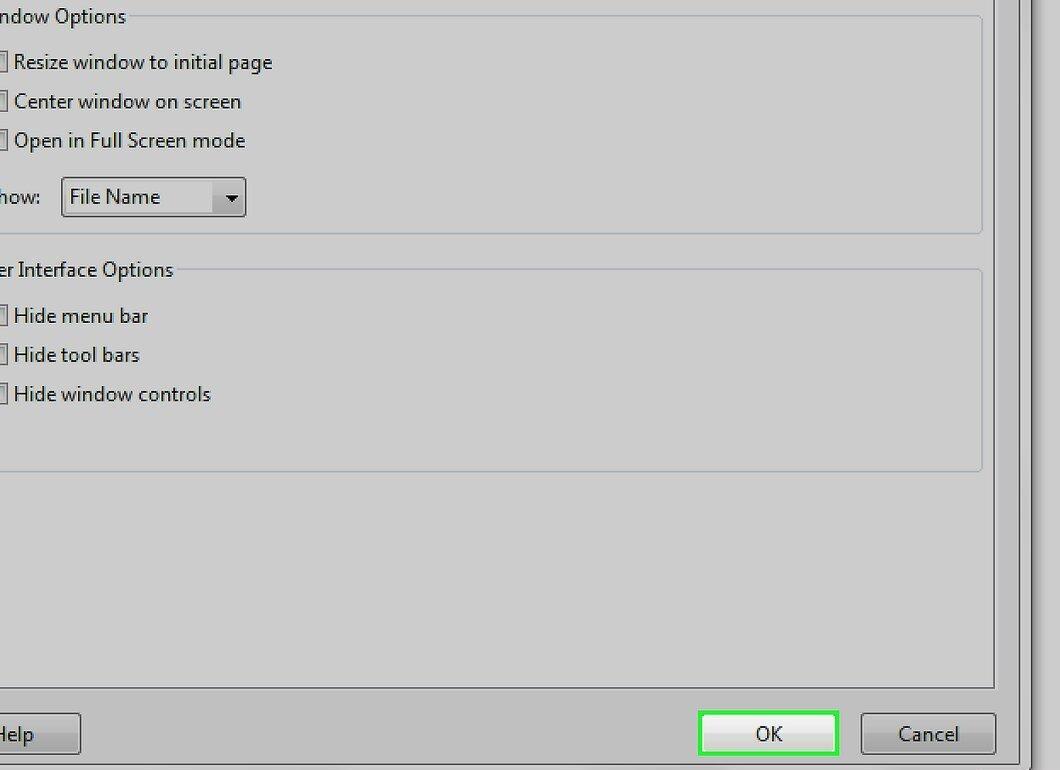
Adjust the document window through the settings in the "Window Options" section. Choose options like "Window Size to Fit Initial Page" to match the window size to the first page, or "Center Window on Screen" for centering. There’s also an option to "Open in Full Screen Mode" for full-screen viewing. In the "Show" menu, you can select whether to display the title or filename at the top of the window.
Step 8. Hide interface elements.
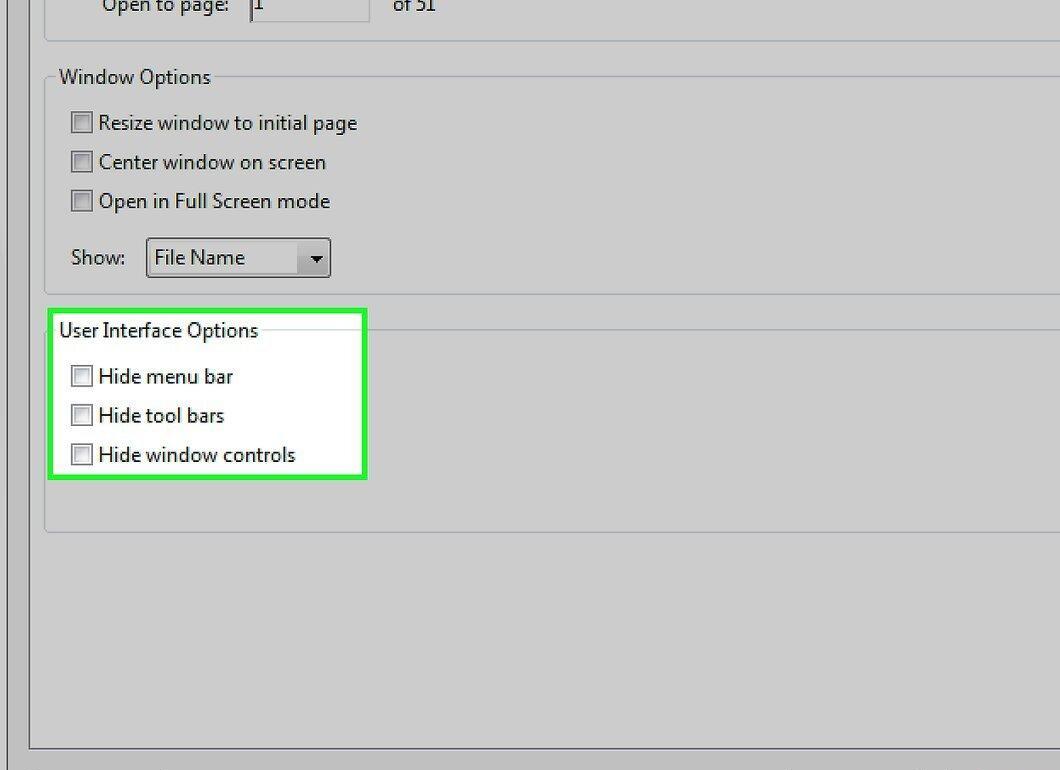
If desired, hide the menu bar, toolbars, and window controls. This can be done in the "User Interface Options" section. Keep in mind that hiding these elements may make it harder for document readers to access Acrobat or Reader functions.
Step 9. Confirm changes.
Step 10. Save changes.
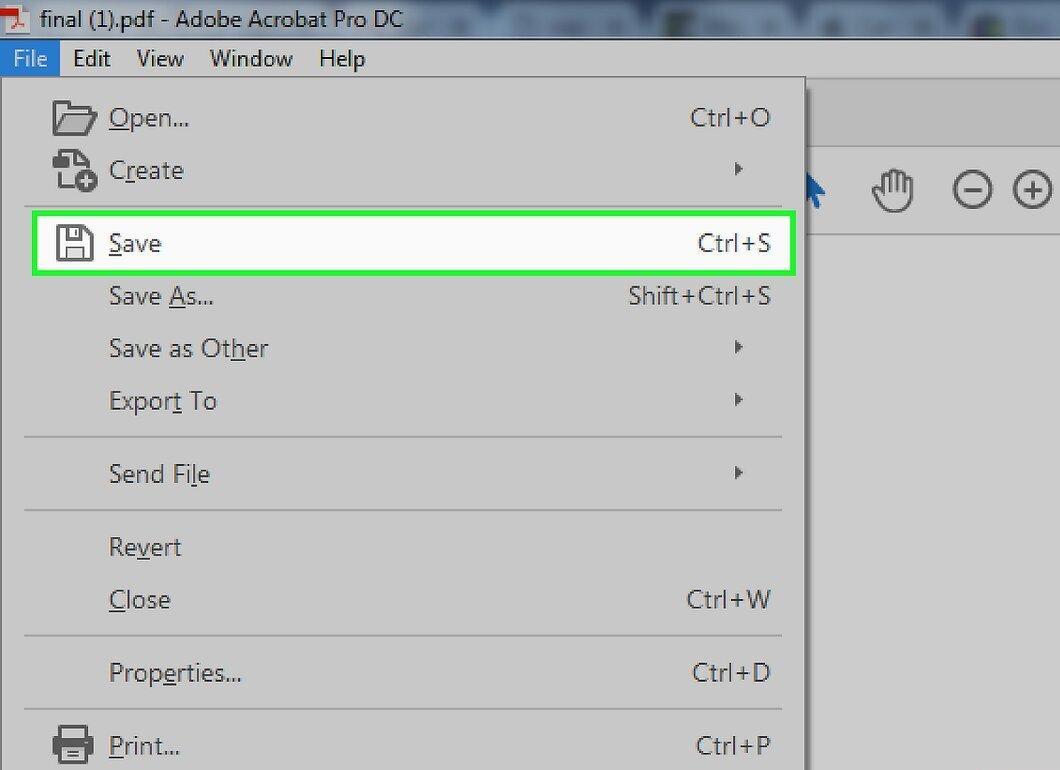
Don't forget to select "File" > "Save" to save your changes. They will be applied the next time the document is opened.


