
How to Quickly Find Your Phone Using GPS
In this article, we will share useful methods for locating your lost device using GPS on iPhone or Android, and explain how to track someone else's phone through third-party apps.
Finding a Lost iPhone
Step 1. Go to the iCloud website.
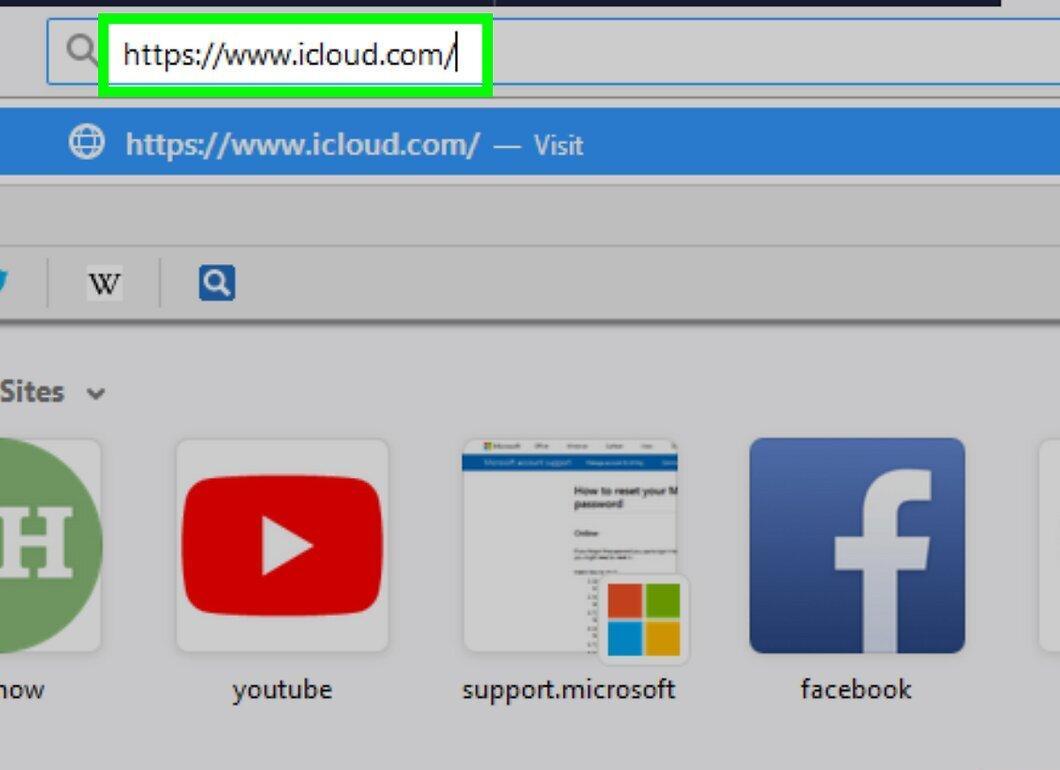
Open your browser and navigate to https://www.icloud.com/. To use this feature, the "Find My iPhone" option must be enabled on your iPhone.
Step 2. Sign in to iCloud.
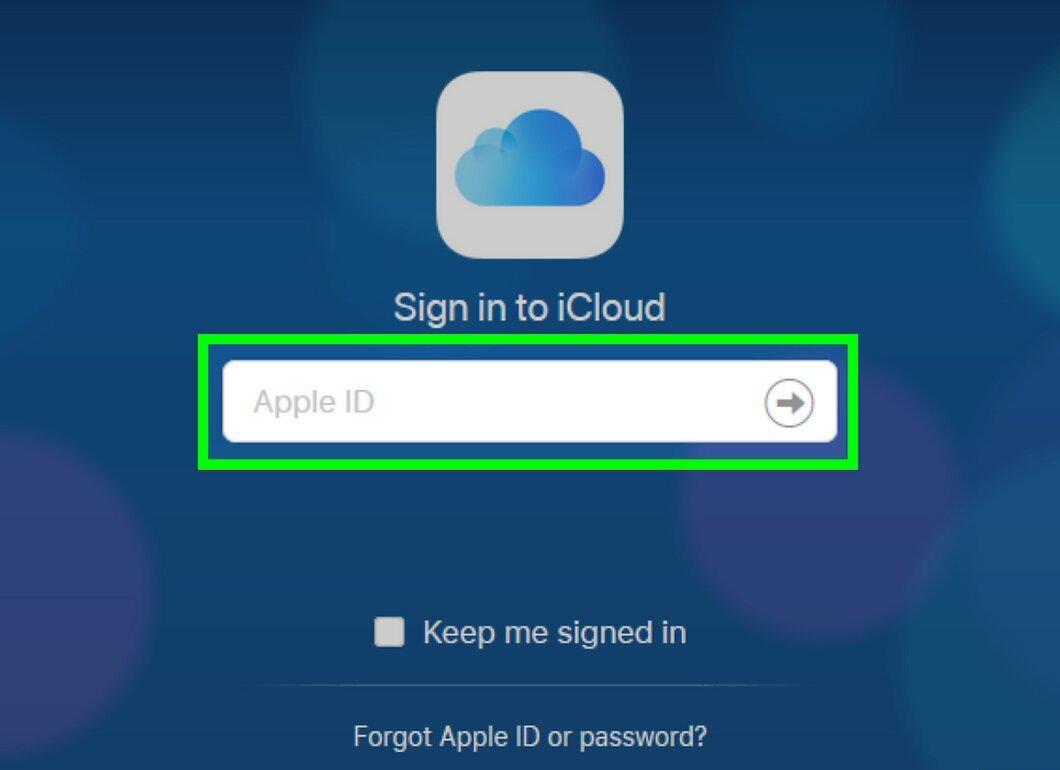
Enter your Apple ID and password on the sign-in page, then click "→". This will take you to the iCloud homepage.
- If you are already signed in, you can skip this step.
Step 3. Select "Find iPhone".
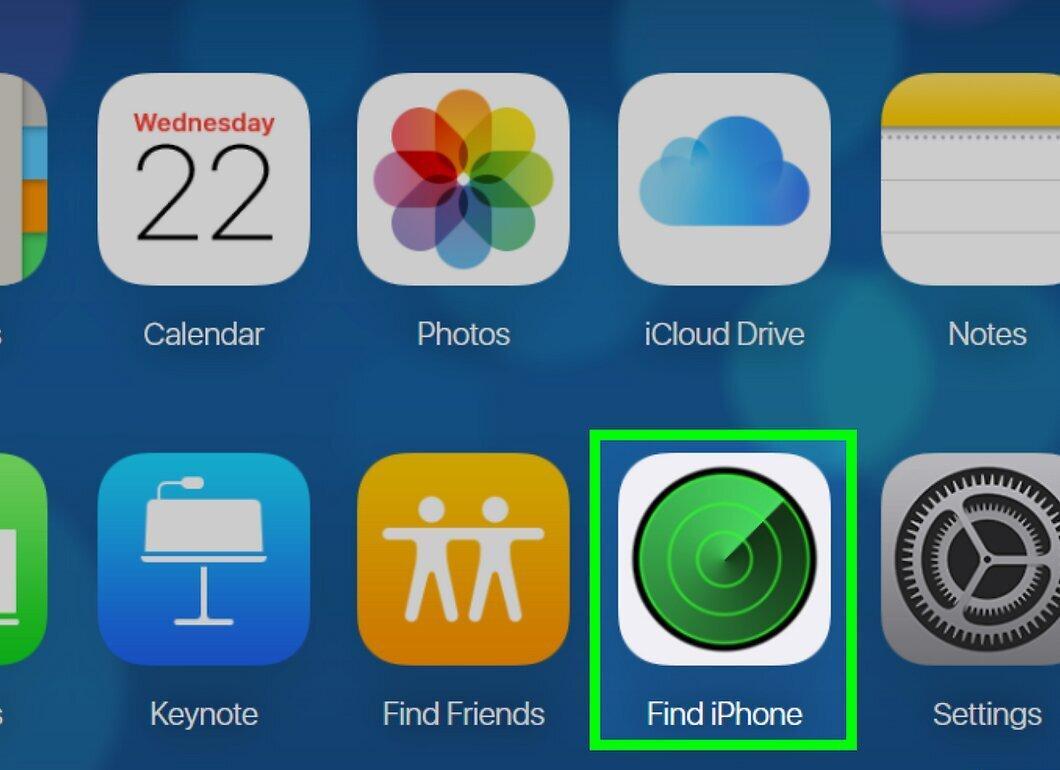
Click on the "Find iPhone" icon, which looks like a radar, on the right side of the screen.
Step 4. Re-enter your password.
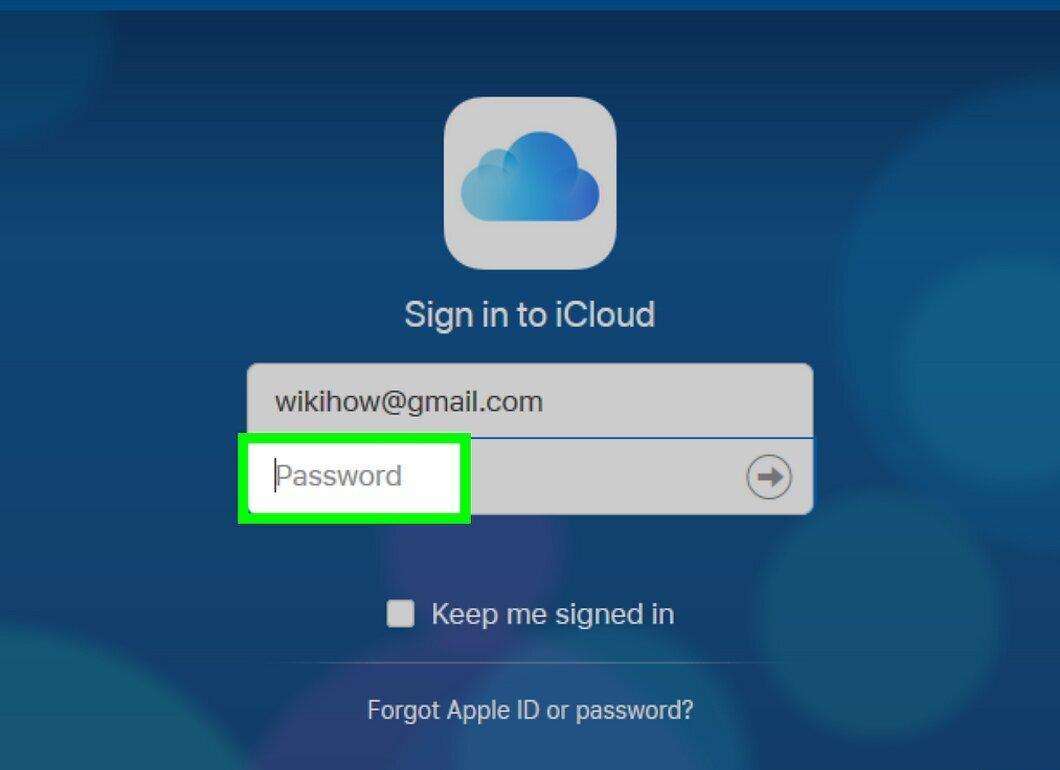
Enter your password again in the pop-up text field.
Step 5. Click on "All Devices".
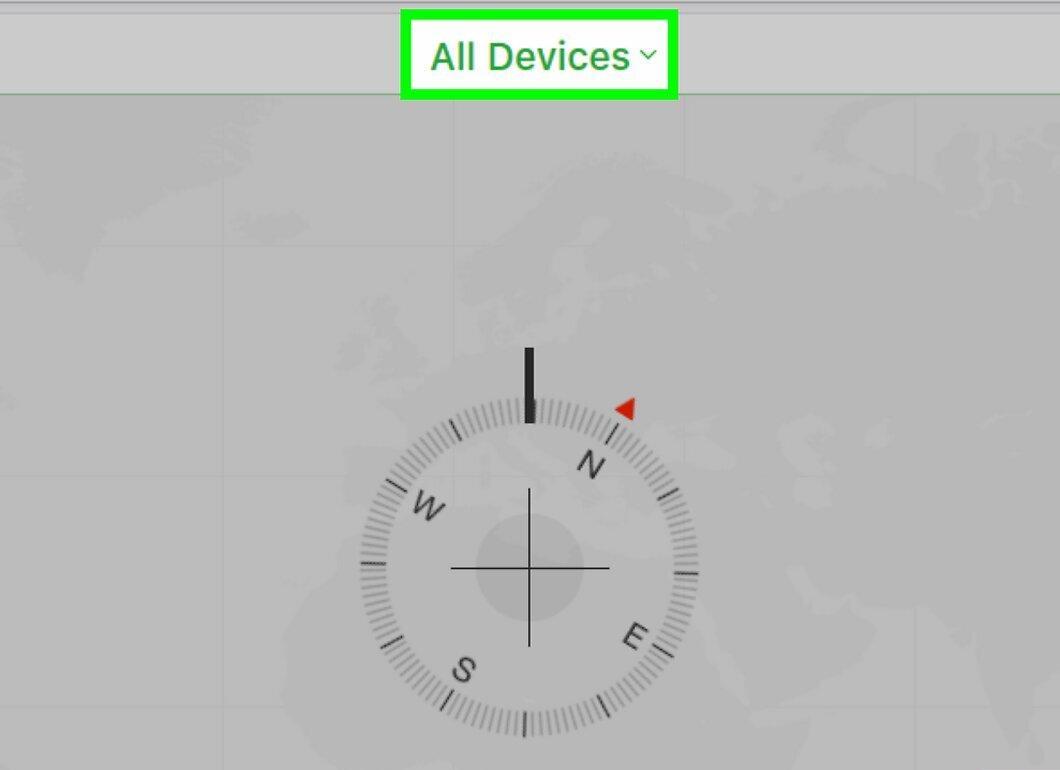
Click on the "All Devices" tab at the top of the page to open the drop-down menu.
Step 6. Find your iPhone.
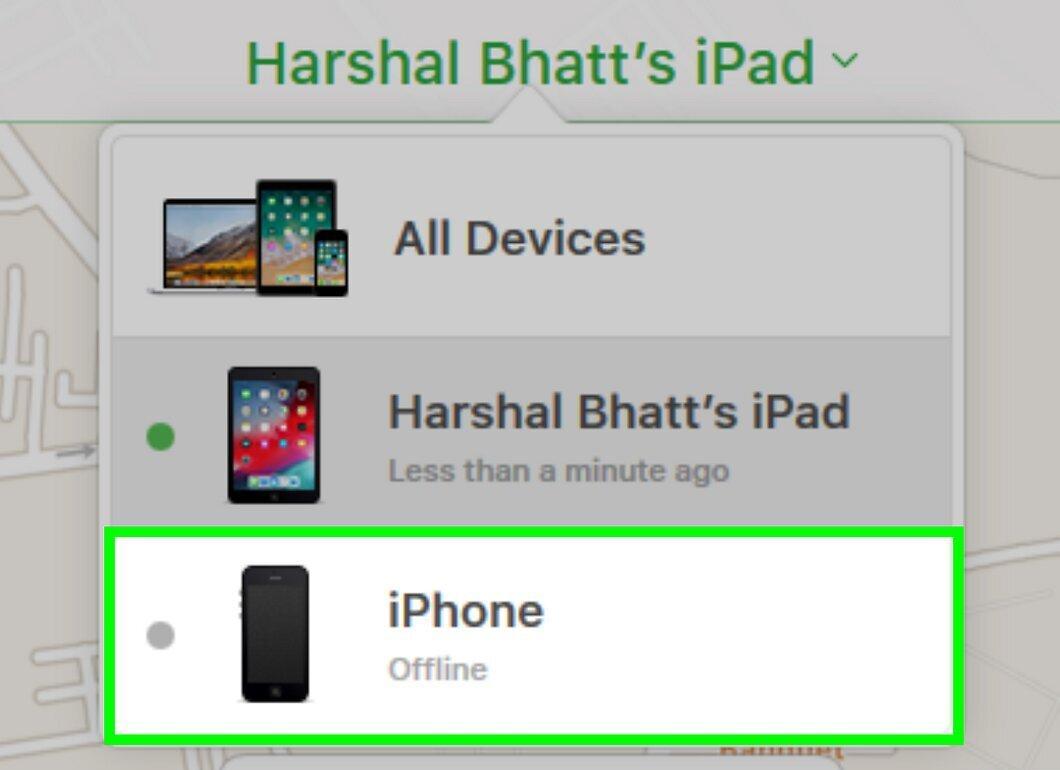
Select your iPhone from the list of devices.
Step 7. Check your iPhone's location.
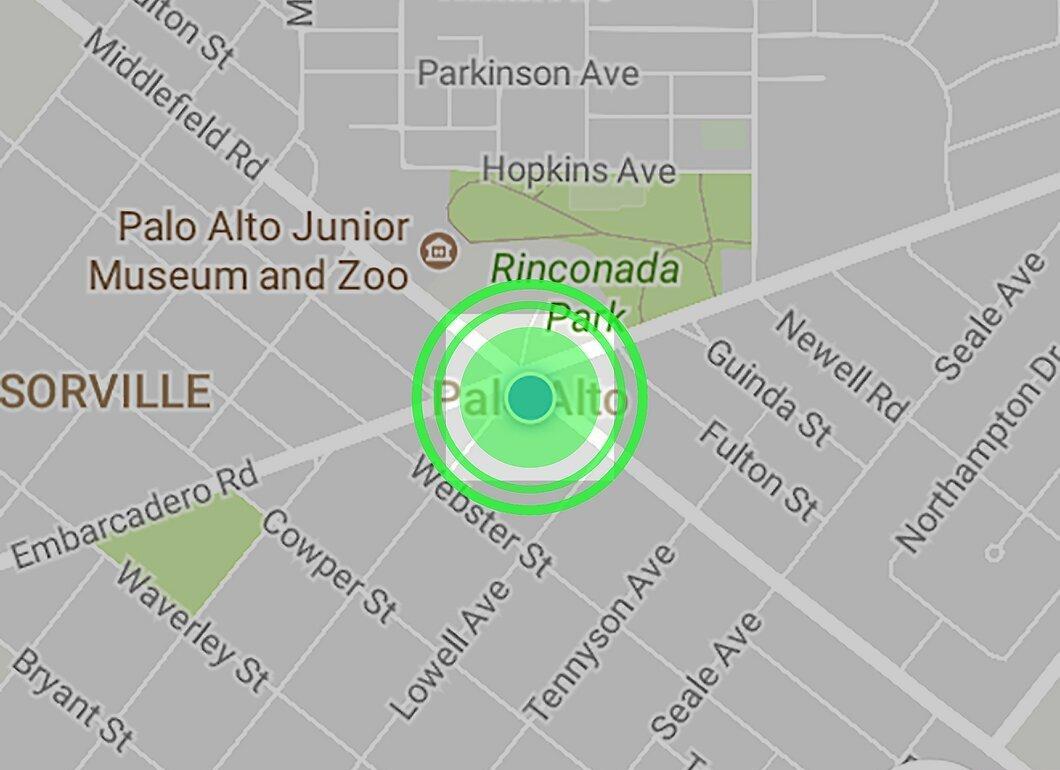
Once Apple locates your iPhone, you will be able to see its current location and available features:
- Play Sound: the device will emit a sound.
- Lost Mode: your iPhone and Apple Pay will be locked, and you can add a message to display on the screen.
- Erase iPhone: all data on the device will be deleted. This action is irreversible, so ensure you have a backup.
Finding a Lost Android Device
Step 1. Go to the Find My Device website.
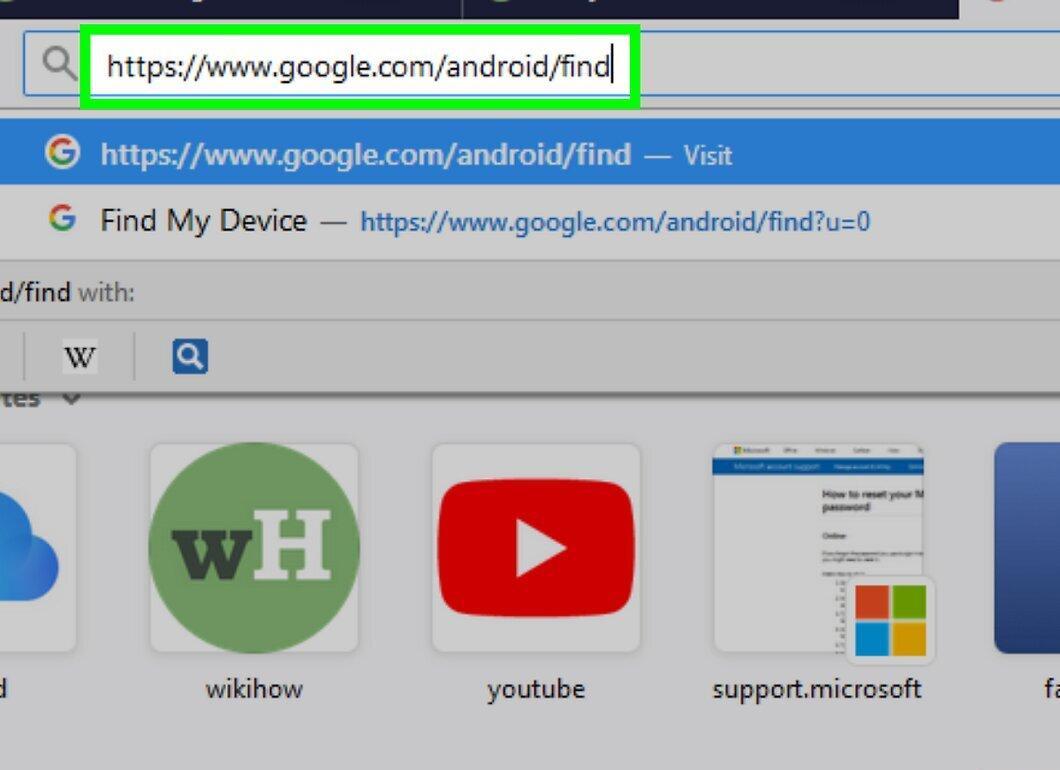
Open your browser and navigate to https://www.google.com/android/find.
- To use this method, the "Find My Device" app must be installed on your device.
Step 2. Enter your email and password.
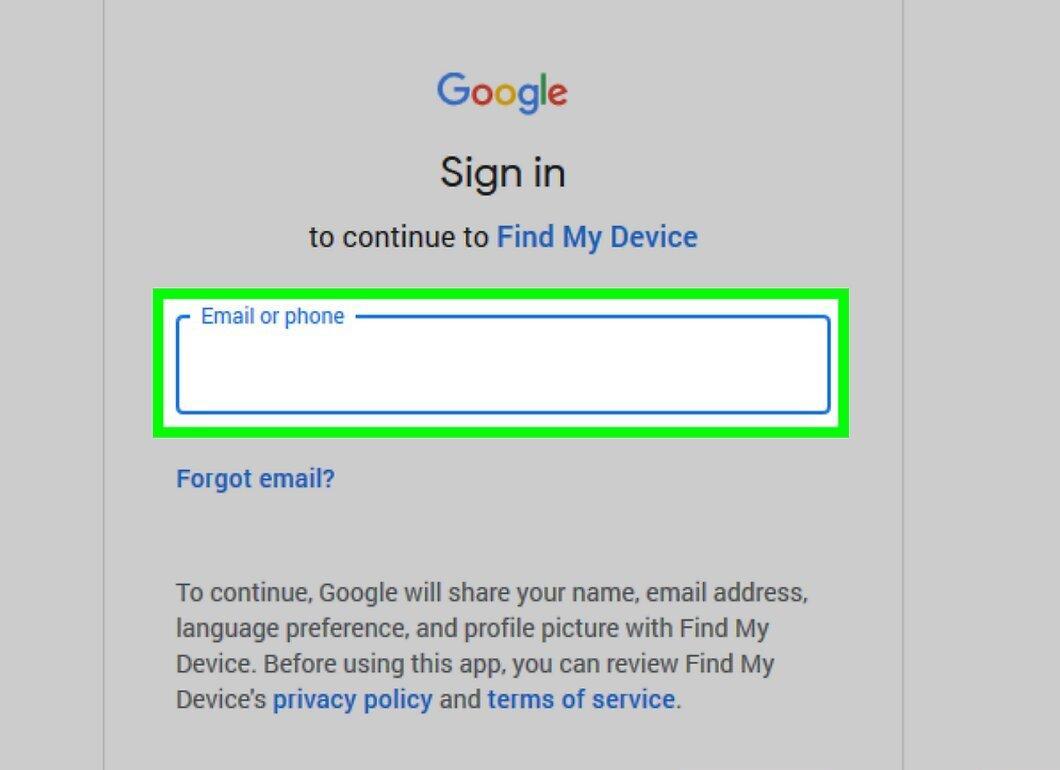
Enter your email address and Google account password, then click "Continue".
- If you are already logged in, you will still need to enter your password.
Step 3. Confirm consent.
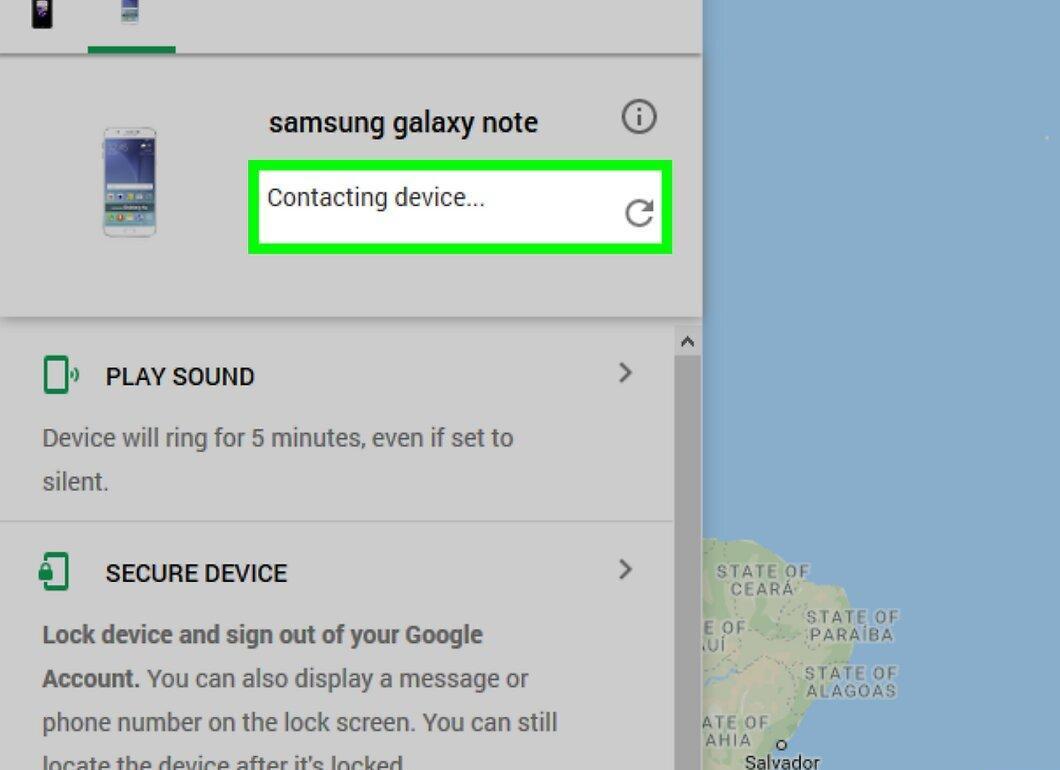
When prompted, click "Accept" to start searching for your Android device.
Step 4. Check the device's location.
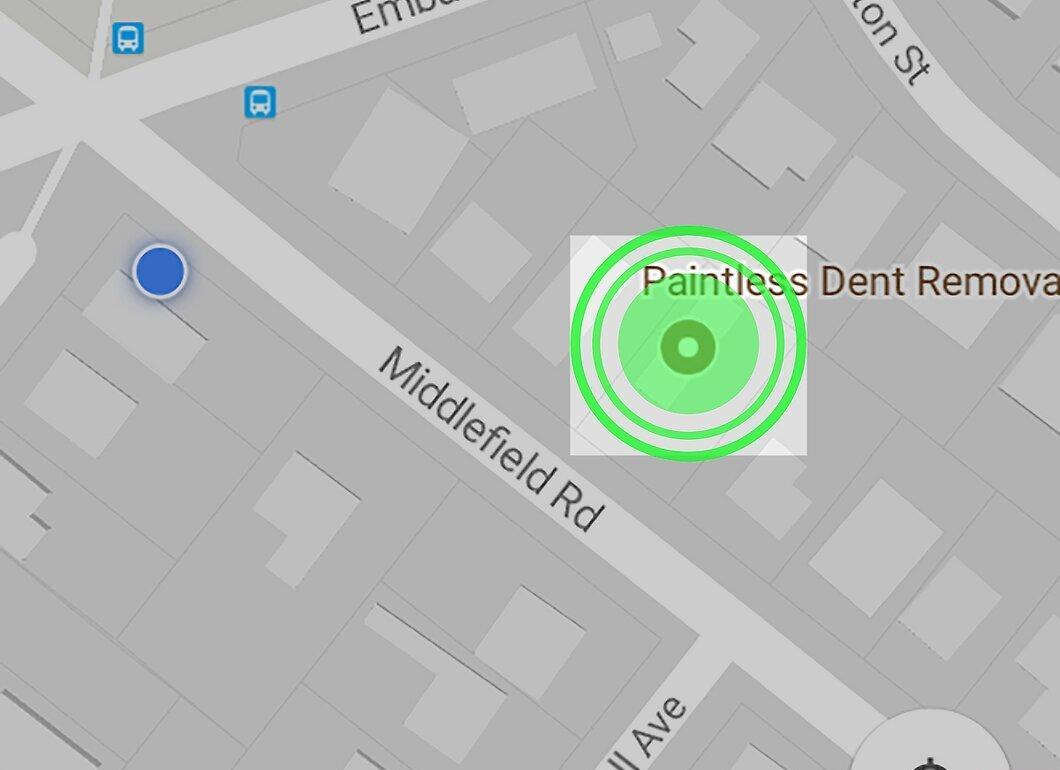
Once the device is found, you will see its location and several available options:
- Ring: the device will ring for five minutes, even if it is on silent.
- Lock: the smartphone will be locked with a passcode.
- Erase: all data on the device will be deleted, and the ability to use the "Find My Device" app will be disabled.
Finding a Lost Samsung Smartphone
Step 1. Go to Samsung's Find My Mobile website.
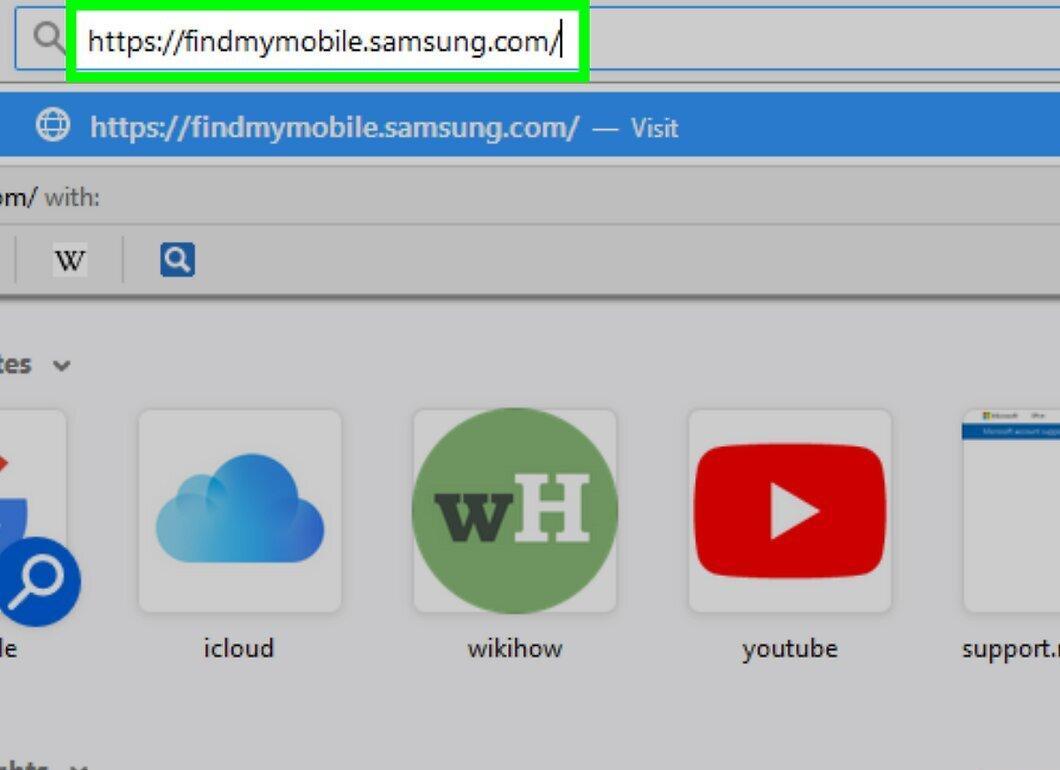
Open your browser and navigate to https://findmymobile.samsung.com/.
- To use this method, you need to sign in to your Samsung account on your device.
Step 2. Click "Sign In".
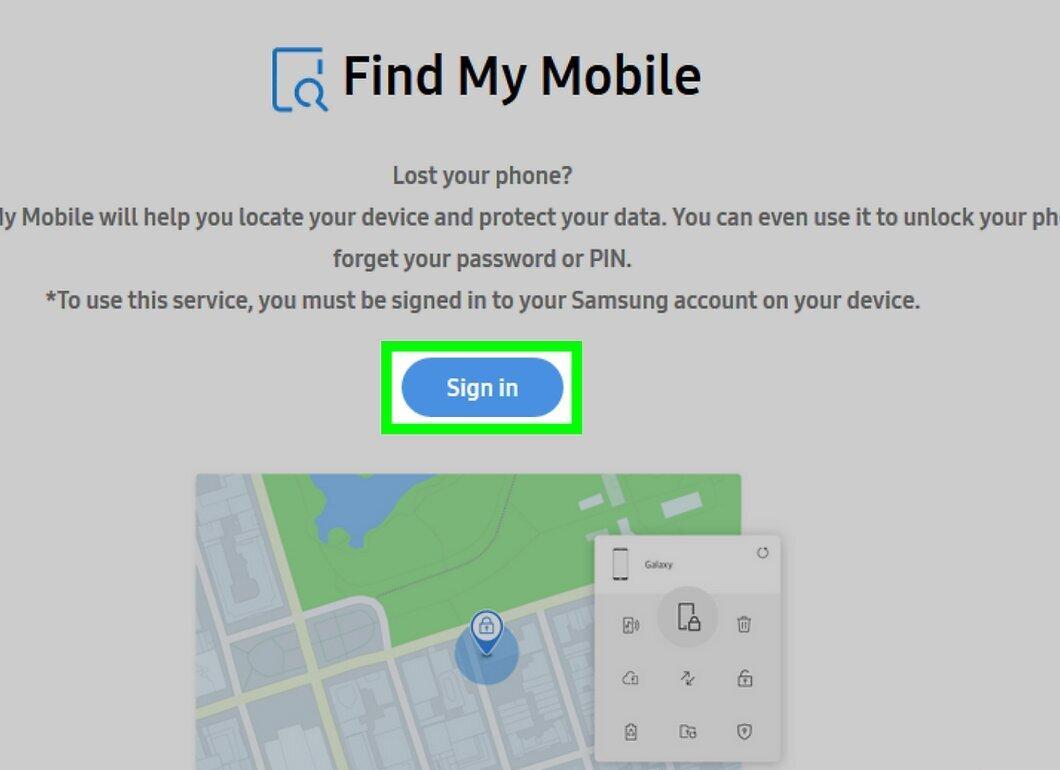
Click the "Sign In" button in the center of the page.
- If you are already signed in, you can skip this step.
Step 3. Enter your credentials.
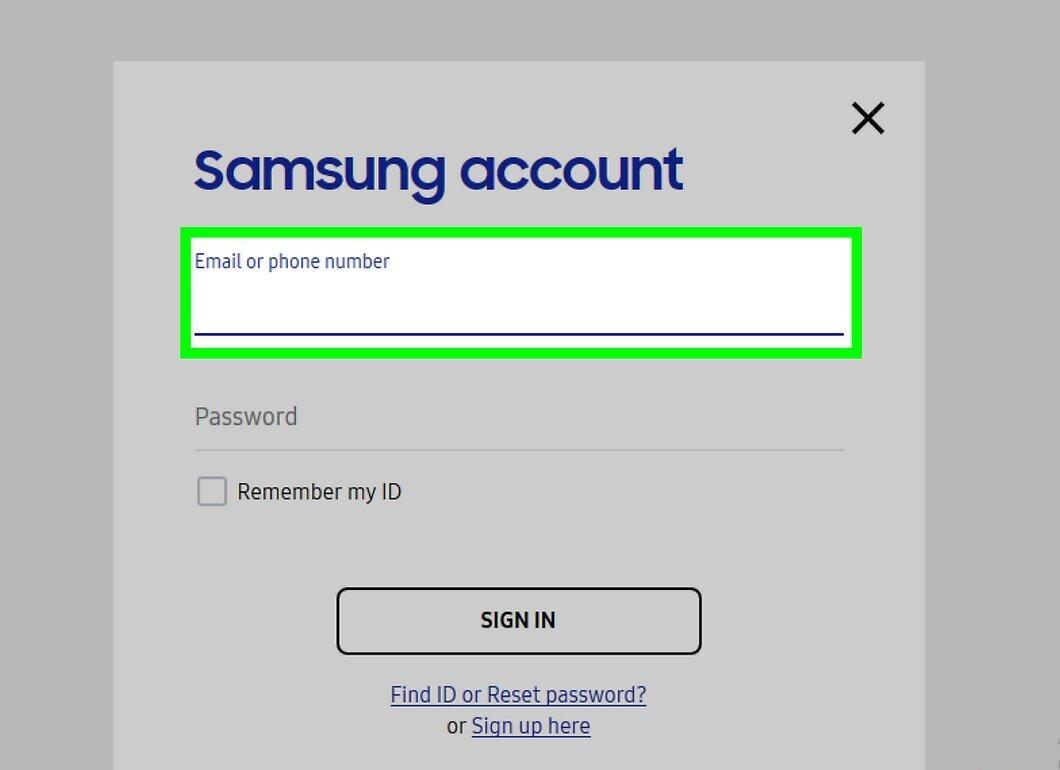
Enter your email and password, then click "Sign In" to access the service.
Step 4. Locate your smartphone.
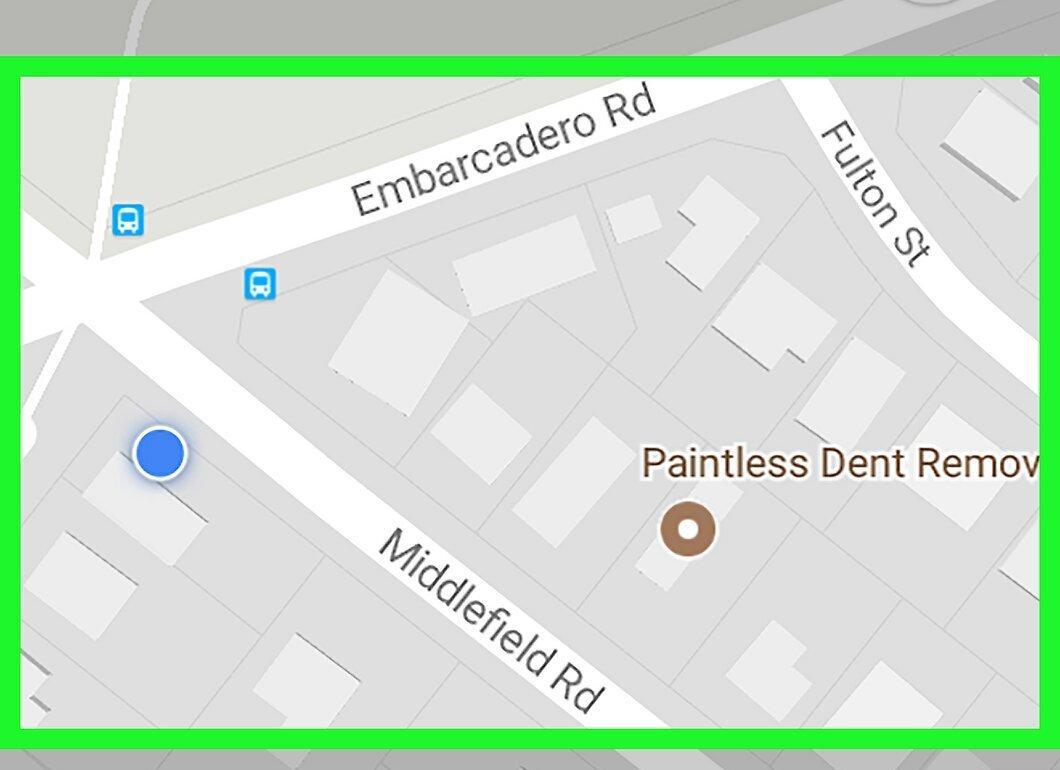
Once logged in, the service will start searching for your device. As soon as the smartphone is found, you will see its last known location and available features:
- Ring: the device will start ringing.
- Lock: the device will be locked with a password.
- Erase: all data on the smartphone will be deleted. Confirm the action by entering your password.
- You may need to click "Find Device" first to determine the location.
How to Track Someone Else's Smartphone
Step 1. Install a GPS Tracker App.
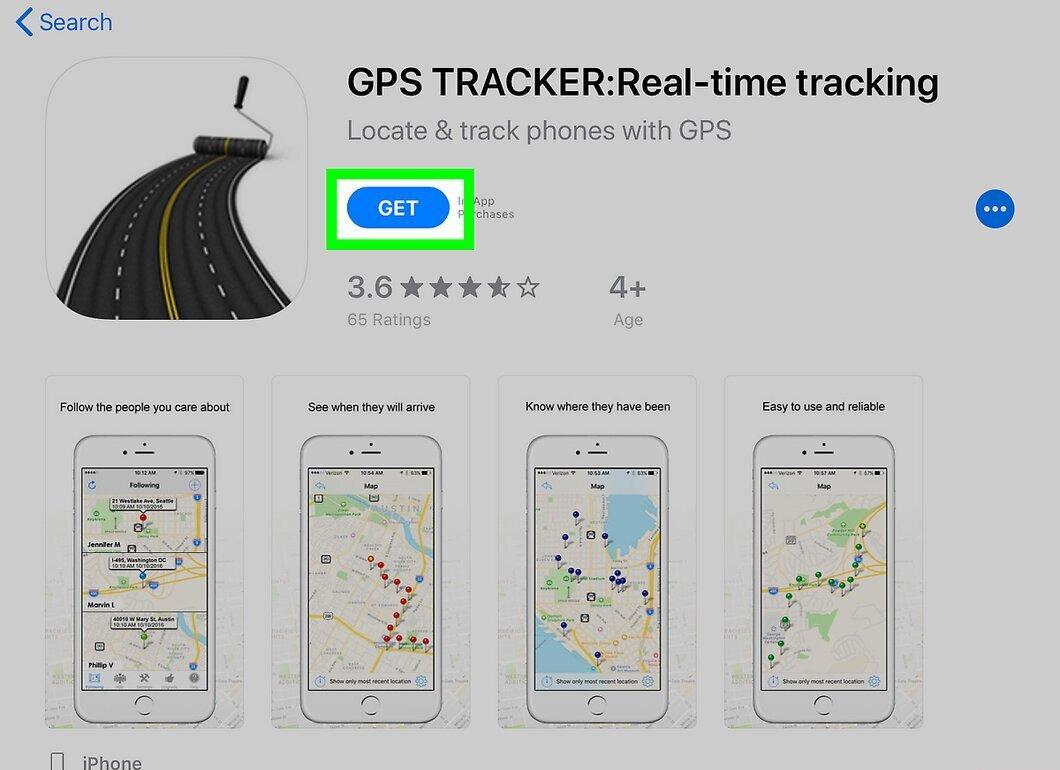
Download and install the "GPS Tracker" app on your smartphone. For iPhone, it is the app called "GPS Tracker," and for Android, it is "Phonetracker with Friendmapper":
- On iPhone, open the App Store, select "Search," and find the app.
- On Android, open the Play Store, tap the search bar, and enter the app name.
Step 2. Launch the app.
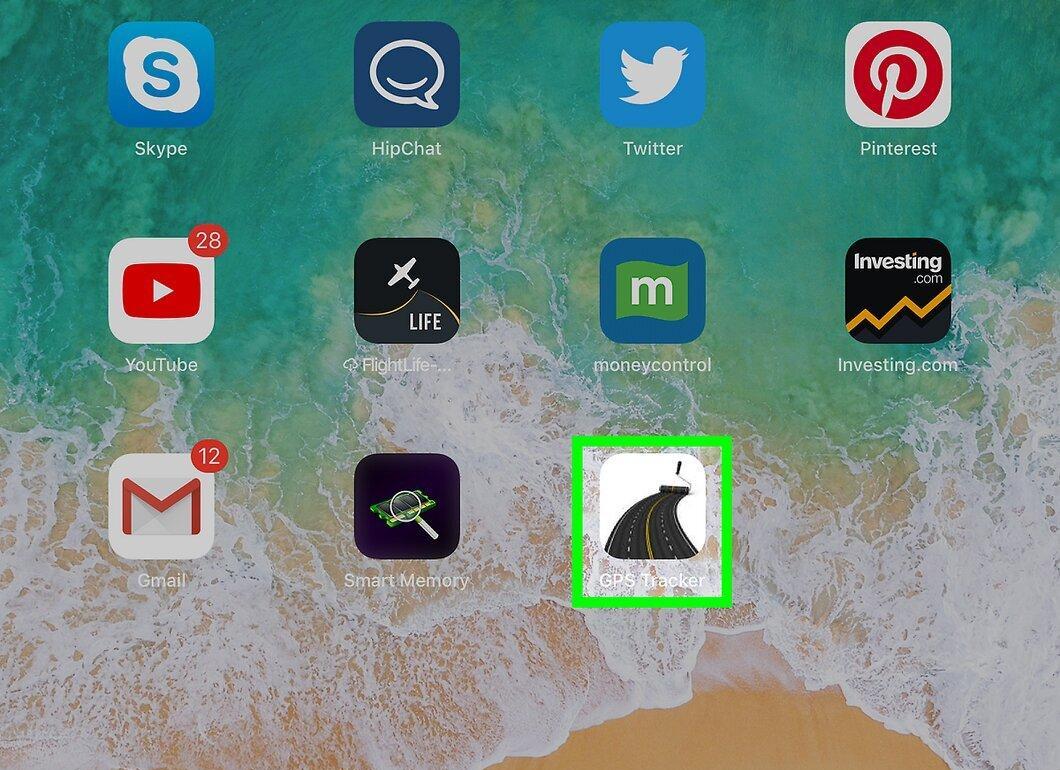
Tap "Open" in the app store or select the app icon on your smartphone.
- If the app requests location access, grant it.
Step 3. Swipe right.
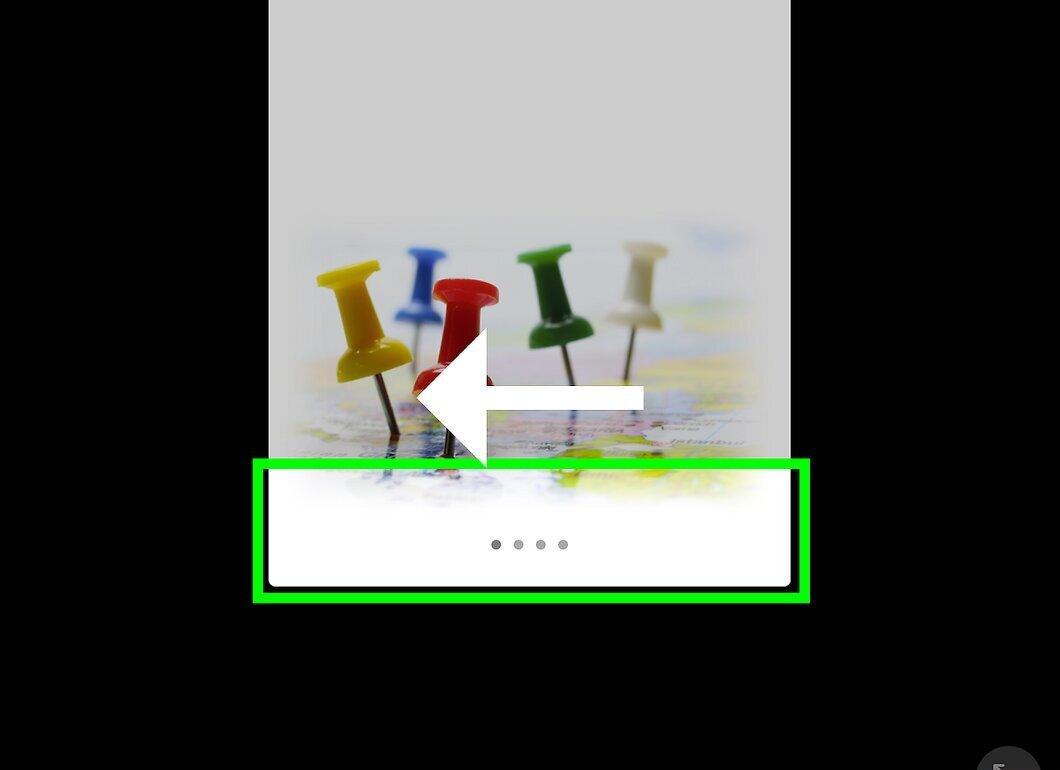
Swipe right four times to proceed to account creation.
Step 4. Click "Create Account".
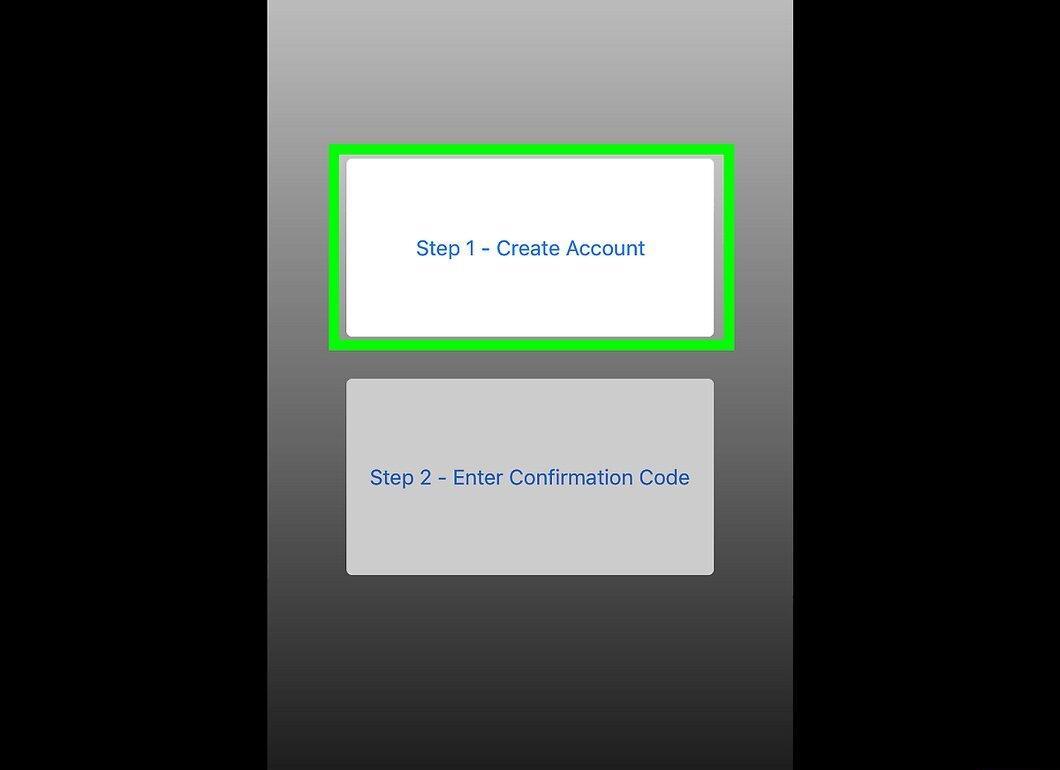
Select the "Create Account" option at the top of the screen.
Step 5. Fill in your details.
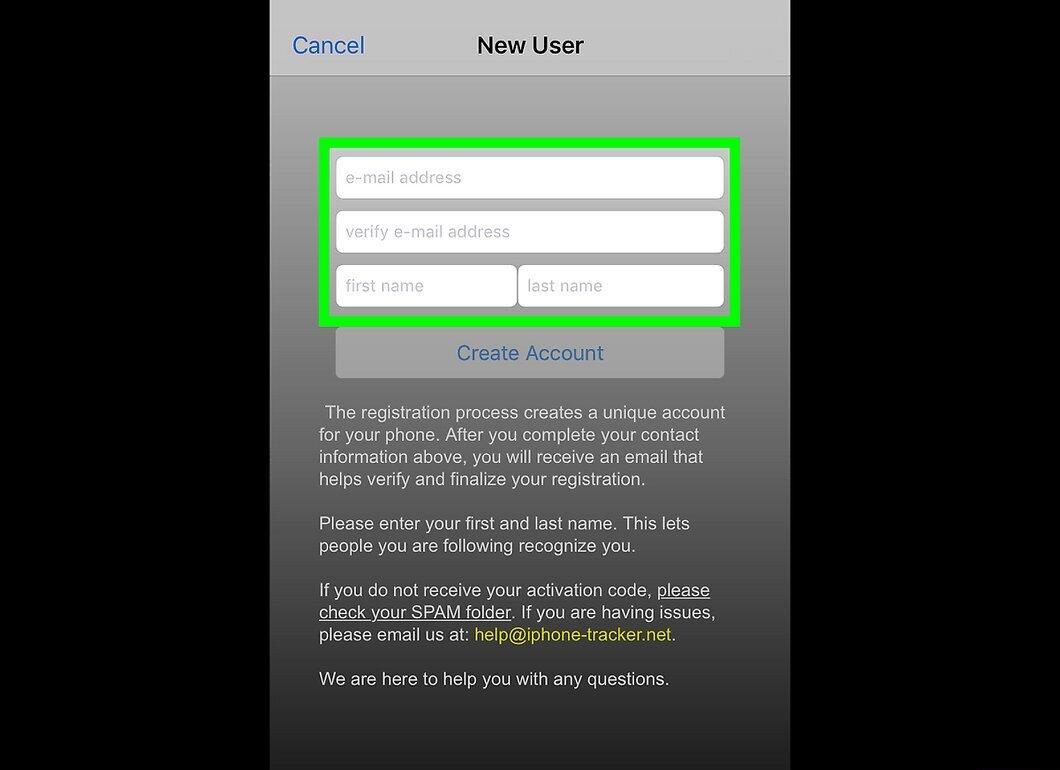
Enter the following information:
- email address;
- confirm email address;
- first name;
- last name.
- On Android, enter first and last name, then input the email address.
Step 6. Click "Create Account".
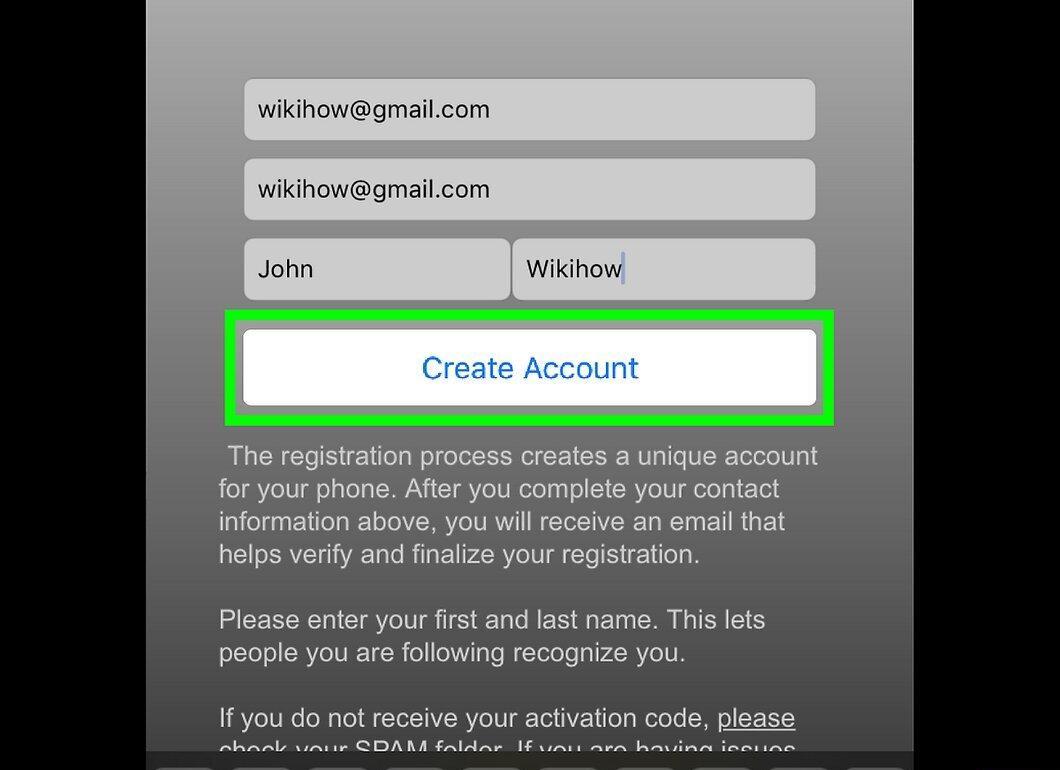
Select the "Create Account" option at the bottom of the screen.
Step 7. Confirm the action.
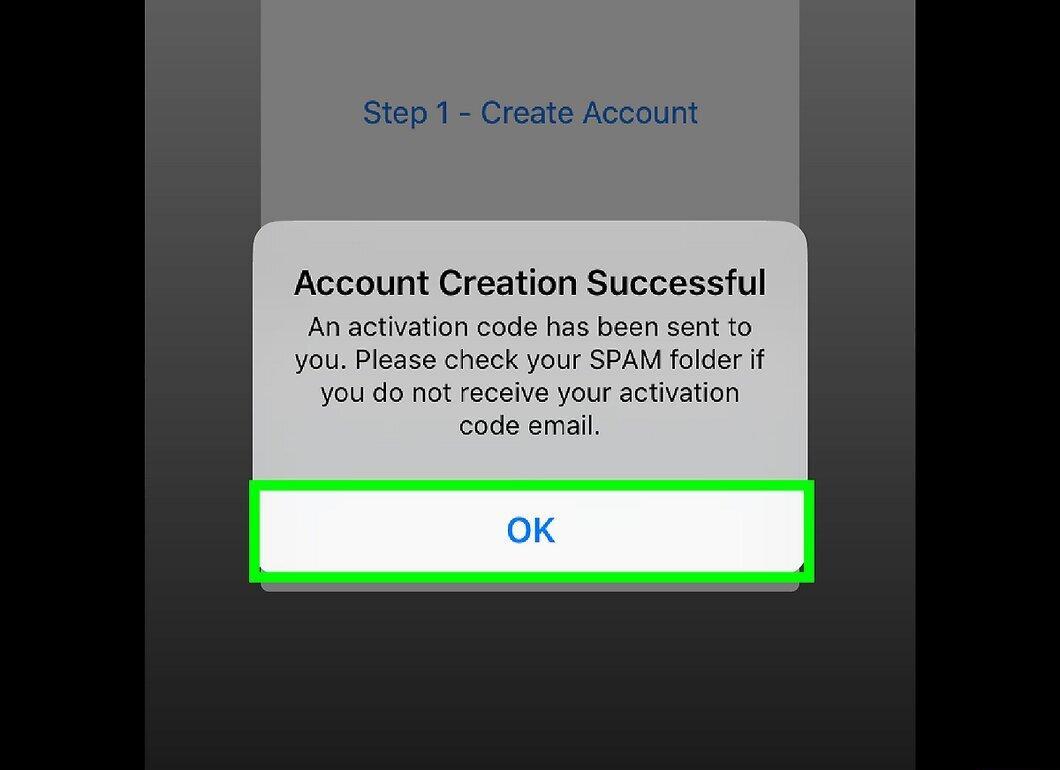
Click "OK" when prompted. You will return to the account creation homepage.
Step 8. Enter the confirmation code.

Select the "Enter confirmation code" option in the center of the page.
Step 9. Find the confirmation code.

Check your email, find the message from "Registration" with the subject "Registration Code," and open it to find the code.
- If the email is not in your inbox, check your spam folder.
Step 10. Enter the code.

Input the received code in the appropriate field of the "GPS Tracker" or "Phonetracker with Friendmapper" app.
Step 11. Confirm the code.

Click "Verify confirmation code" to confirm your email address and create an account on your smartphone.
- On Android, press "Activate."
Step 12. Install the same app on another smartphone.

Install a similar app on the other person's phone, create an account, and confirm the email address.
- The "GPS Tracker" app allows tracking devices across different platforms.
Step 13. Click "+".

Click on the "+" sign in the top corner of the app screen.
Step 14. Send an invitation.

Select the "Send Invitation" option at the top of the page.
- If the app requests access to contacts, grant it.
- To track someone else, add their email address to your contacts.
- On Android, select "Add email address" in the top right corner.
Step 15. Select the person.

Click on the name of the person whose smartphone you want to track.
Step 16. Send the request.

Click "Send" in the top right corner of the screen.
- On Android, tap the mail icon, then the paper icon in the top right corner.
Step 17. Ask them to accept the invitation.

Have the other person open the email used for registration, find the code, and enter it in the "GPS Tracker" app.
Step 18. Find the location.

The app updates the other person's location every ten minutes. You will be able to track where their smartphone is on the main page of the "GPS Tracker" app.


