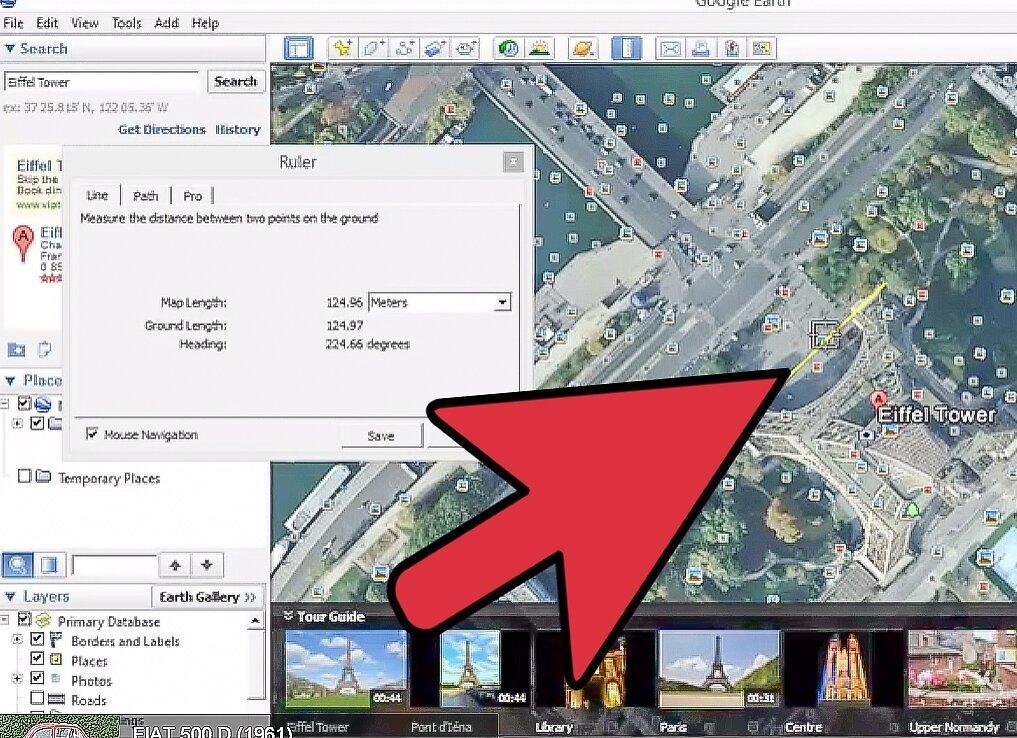
Space. The final frontier. That’s exactly what you feel when you launch Google Earth. Against the backdrop of endless night skies, the entire world sparkles before you, illuminated with lights. You can observe the terrain of continents and oceans, as well as the borders of countries.
Install Google Earth
Step 1. Let’s start with the basics.
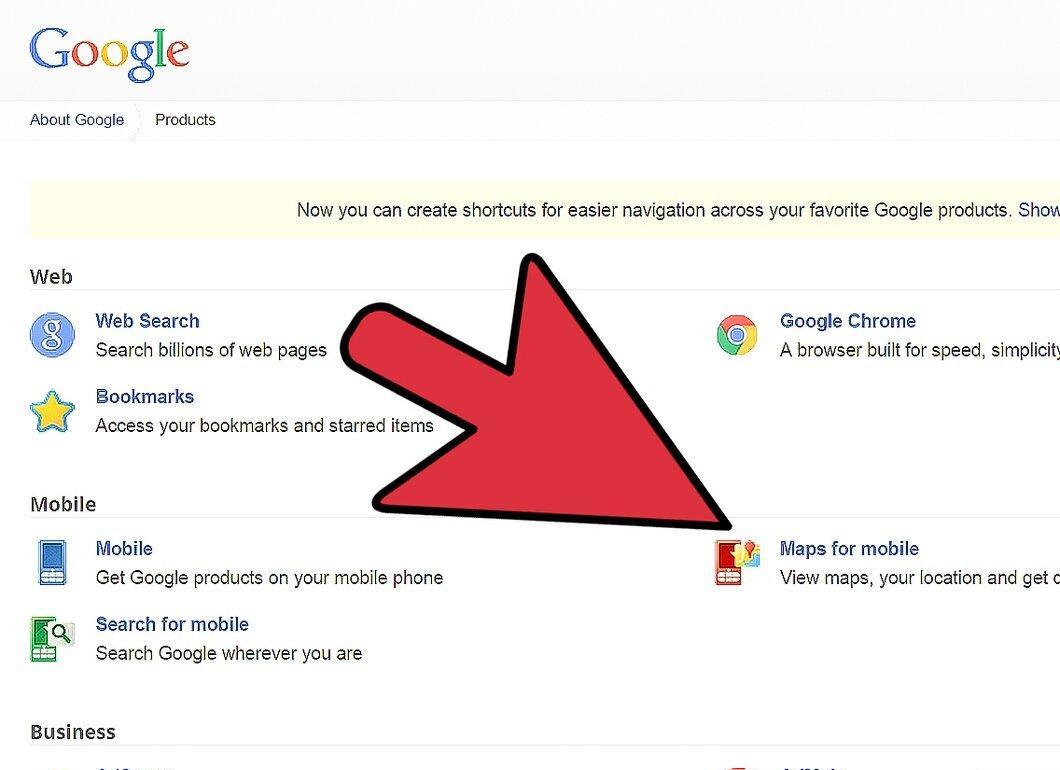
First, make sure you have Google Earth installed. You can download it from: https://www.google.com/intl/en/earth/
- Follow the installation instructions, and after the process is complete, find the Google Earth icon on your desktop and launch the application.
Step 2. Find your home.
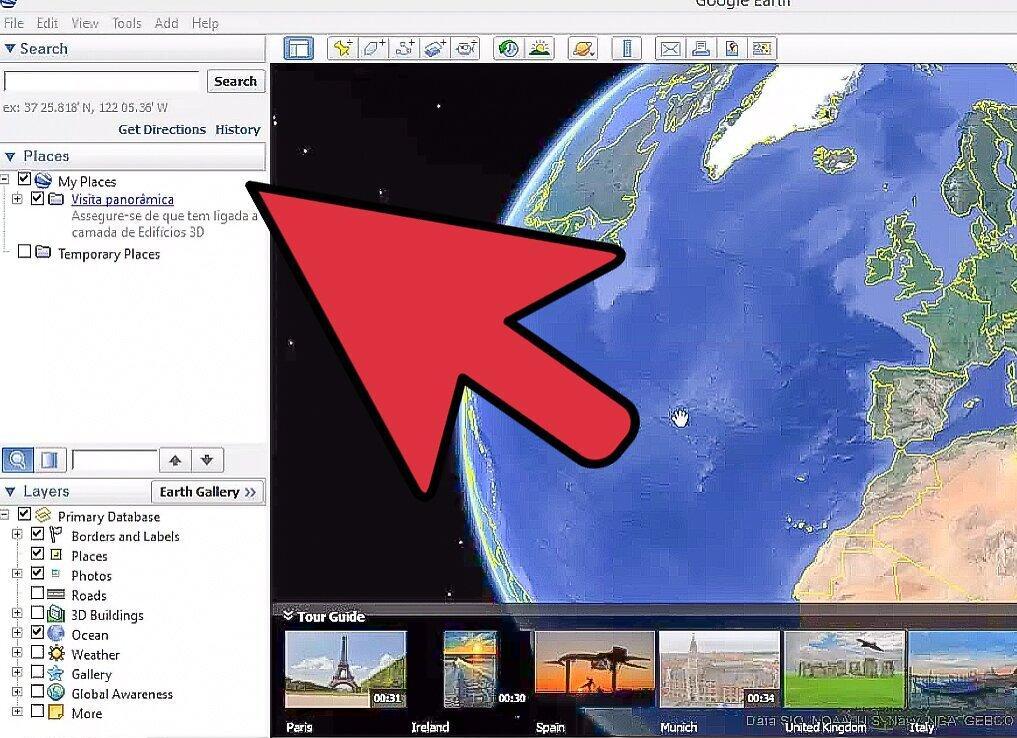
Now comes the fun part – it’s time to search for your home!
Simple Search Method
Step 1. Enter your address.
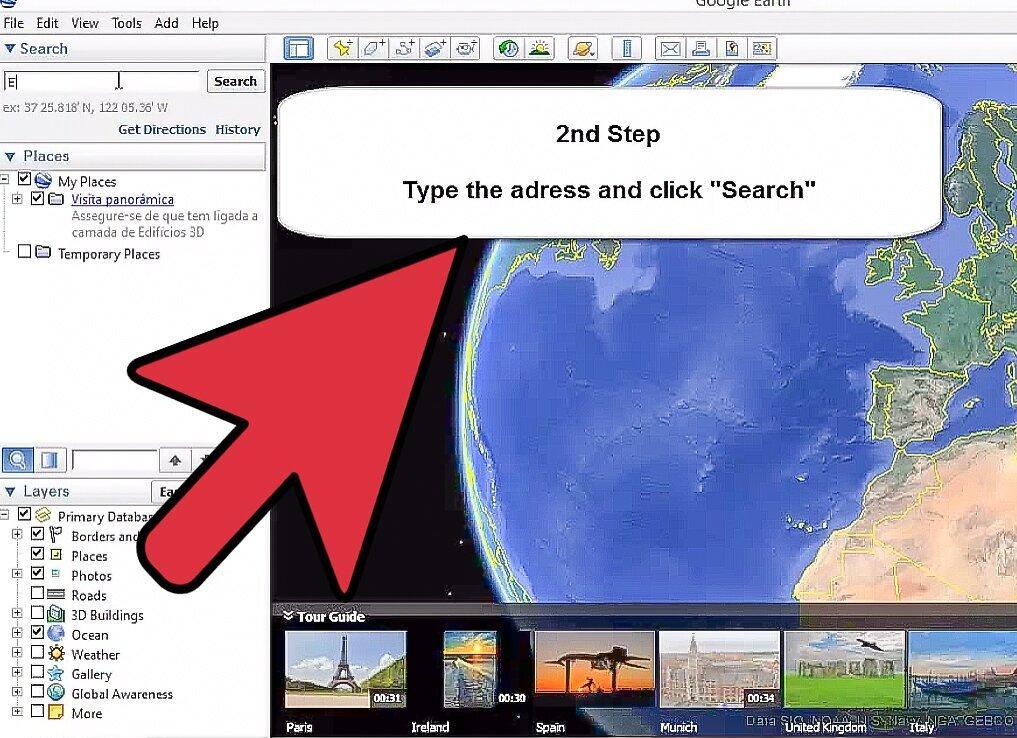
In the upper left corner, find the search bar. After clicking on it, you will see three buttons: Fly to, Show suggestions, and Get Directions. Choose Fly to.
- Enter your address and click the magnifying glass icon. The map will start rotating (depending on your address) and quickly zoom in on the location, bringing you within just a few hundred meters. A gray crosshair will appear at your home’s location.
Step 2. Zoom in on the map.
Now you need to zoom in even closer. Double-click next to the gray crosshair to zoom in further.
- Each double-click halves the distance between you and the ground.
- Keep clicking until you get really close. Usually, a few clicks are sufficient.
- Note that the image may appear a bit blurry. This is because the cameras are several kilometers above the ground. Nevertheless, they do an amazing job, even if you might have expected more clarity.
Step 3. Move the pointer to the right side of the screen.
Move the pointer to the right side of the screen, and you will see the camera controls – two virtual joysticks: one with a hand icon and the other with an eye icon. If Google has analyzed your area, you will see an orange person icon. Drag it to your house and release it. The camera will move to your street!
Step 4. Explore the surroundings.
Take a look at the surrounding area. You can rotate the map to explore the neighborhood and even click on the road to move forward!
Let the system work for you
Step 1. Check the controls.
In the upper left corner of the Google Earth window, you will find several controls. Use them following these simple tips:
Step 2. Find your country.
If you are not in North America, rotate the Earth image using the joystick.
- Click the left arrow to turn towards Asia, the right arrow for Europe, the up arrow for the North Pole, or the down arrow for Australia.
- Alternatively, just click and hold the mouse button to rotate the Earth image in any direction.
Step 3. Visit Paris, France for a warm-up.
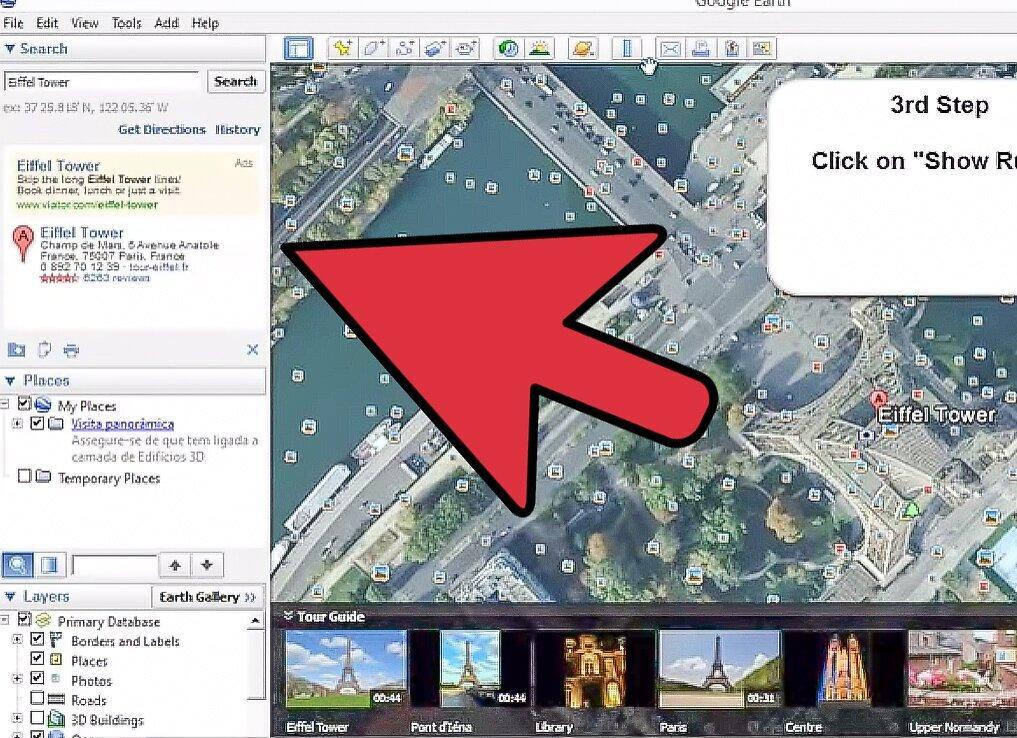
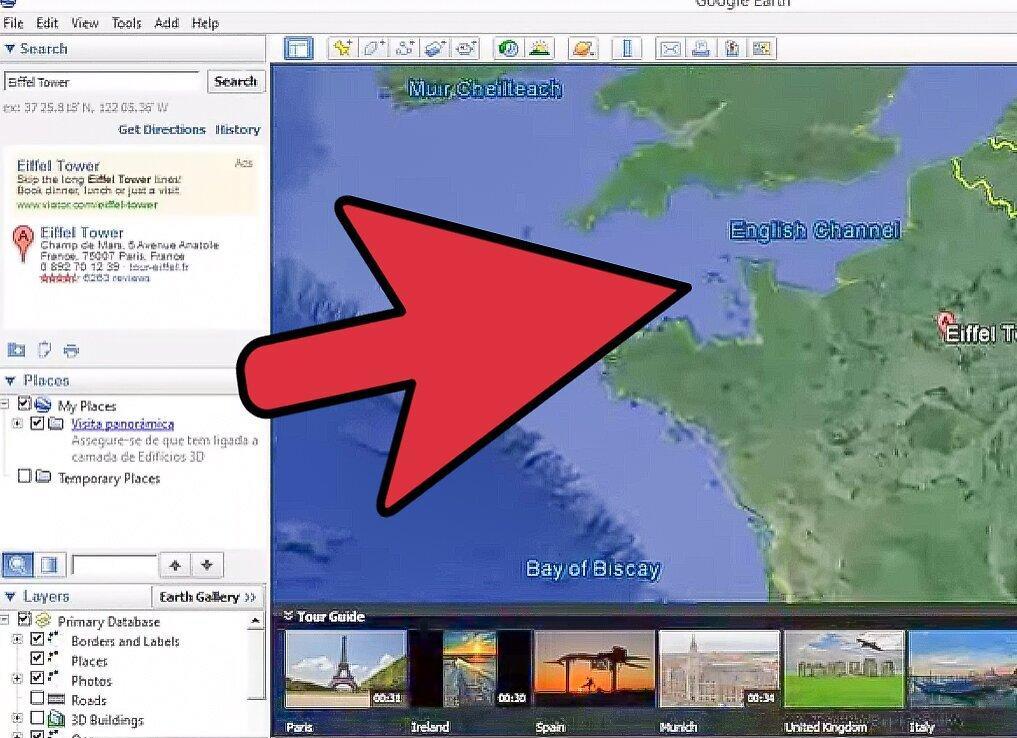
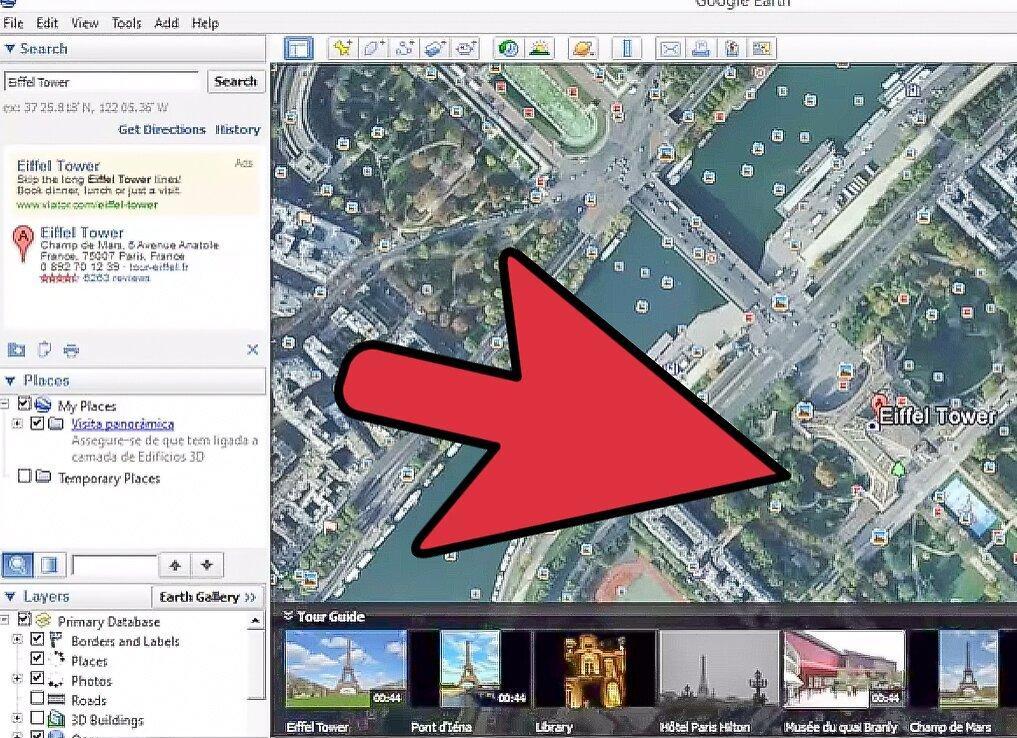
Rotate the Earth to the east (for instance, if you started from North America). Use the arrows to rotate the Earth until France appears on the screen. If it's not centered, use the joystick arrows to position it in the center. Use the outer ring of the joystick to turn the map to the desired orientation.
- Once France is centered, double-click on it.
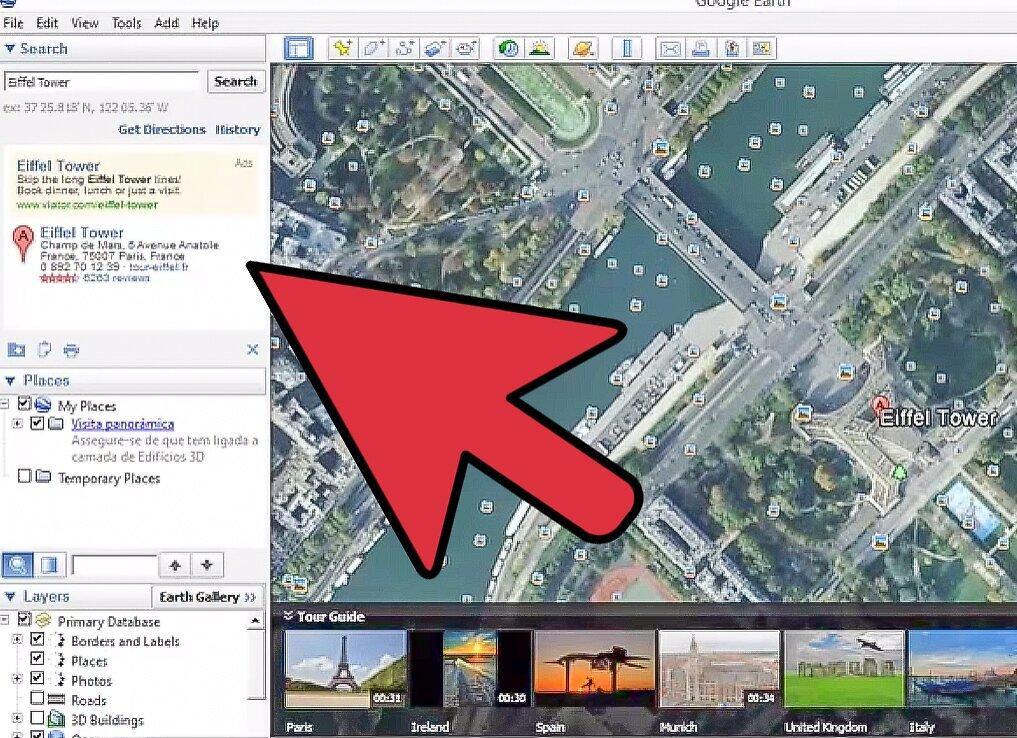
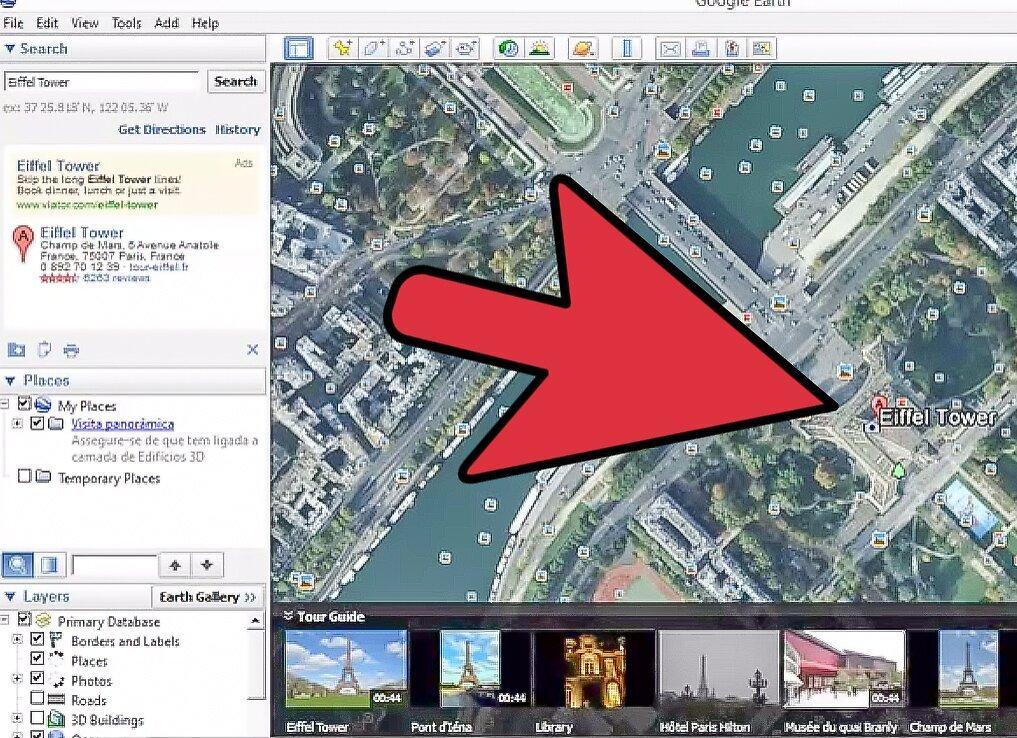
- With the first clicks, France will be centered, and you will see the names of neighboring European countries. Paris is located in the northern part of the country. Double-click on it. After this quick navigation, you’ll be able to zoom in to about 600 meters.
- Click the up arrow on the joystick to see the landscapes of France. You will be looking at it from above and then slightly at an angle. Use the outer ring of the joystick to turn the map from north to south. Now you will be facing the city.
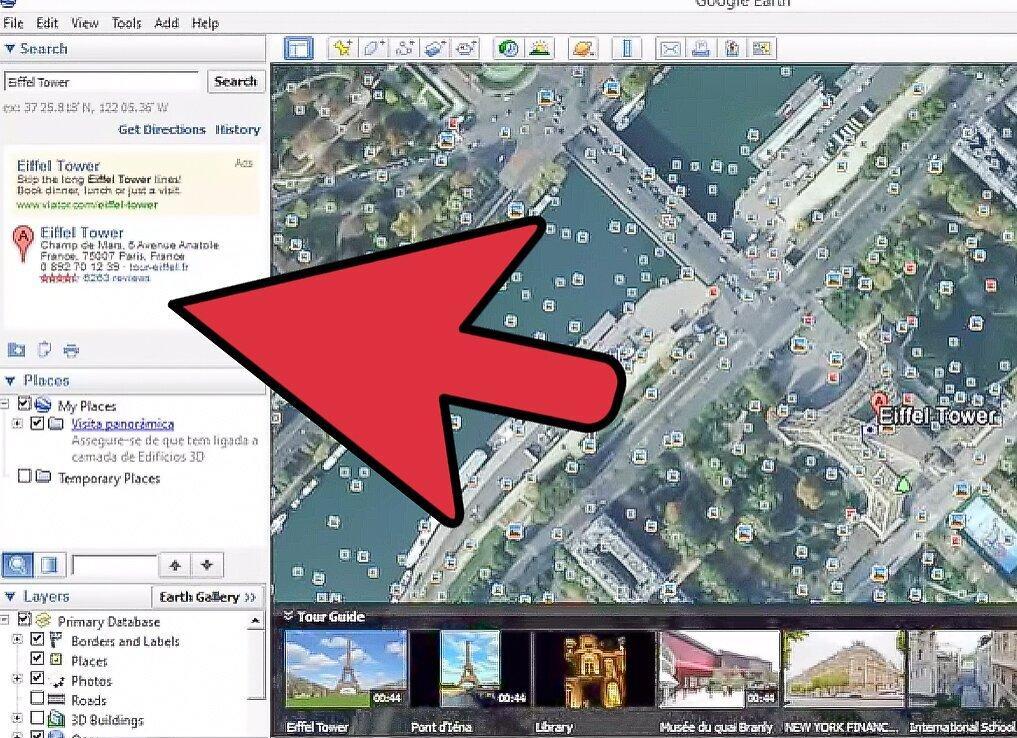
- Use zoom tools to get a closer view of the map. Once you find the area you want, drag the orange person icon onto the street to explore the surroundings.
Step 4. Take a stroll.
Now you’re in street view mode and can use the keyboard arrows to “walk” through the streets of Paris, your hometown, or anywhere else in the world.
Additional Fun
Step 1. Look at the Sun.
When you’re not in street view mode, select the Sun option from the View menu.
- If it’s currently night in your location, you won’t see much. However, rotate the Earth towards the side where the sun is still shining to observe the transition between light and shadow – the line where night turns into day. This process occurs in real-time, and you’ll be able to see how night gradually falls or day begins in other continents.
Step 2. Check out the Moon.
Why not explore the Moon? In the View/Explore menu, select the Moon.
- Visit locations where astronauts from Earth have been during various space missions. And yes, street view mode is also available on the Moon!
Step 3. Keep exploring!
Don’t stop there! Explore the craters on Mars or other celestial objects. Although the NGC5458 object doesn’t have street view – even Google can’t do everything – it’s still space… the final frontier.
Step 4. Enjoy!