
Revamp the app icons on your device for a more appealing home screen, especially if the default icons don’t suit your style. You can achieve this on both Android and iOS using third-party apps, while on Windows and macOS, it can be done through settings.
Android
Step 1. Open the Play Store.
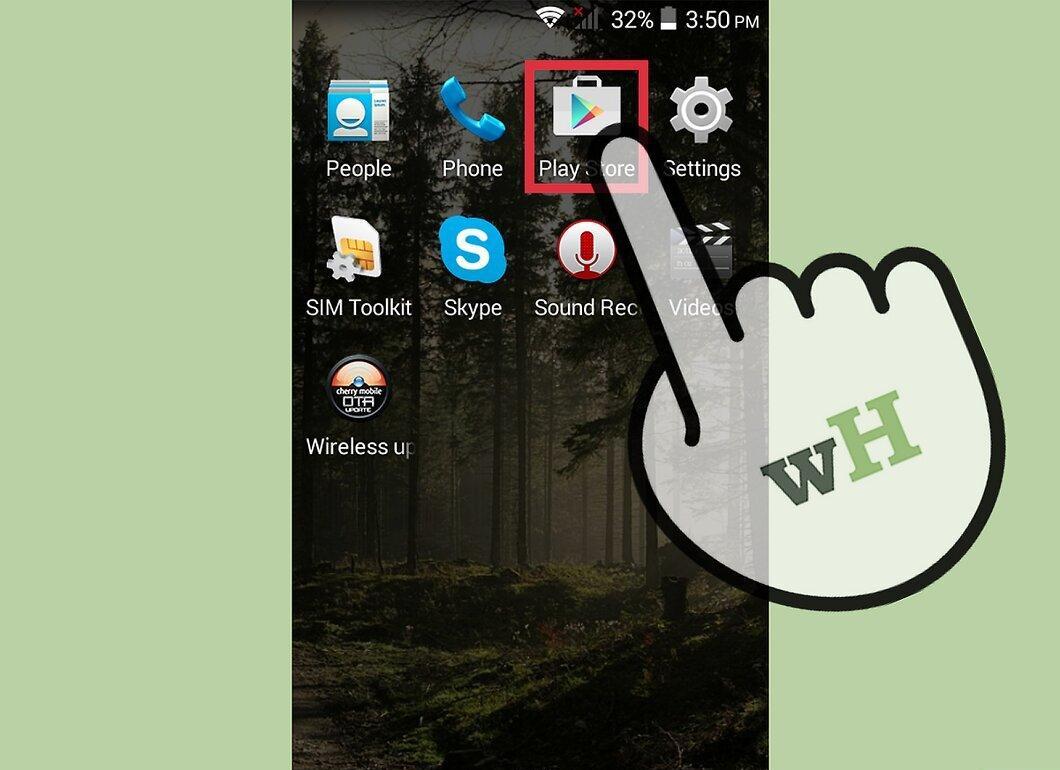
Launch the Play Store, where you can find various apps for changing icons.
Step 2. Use the search feature to find the right app.
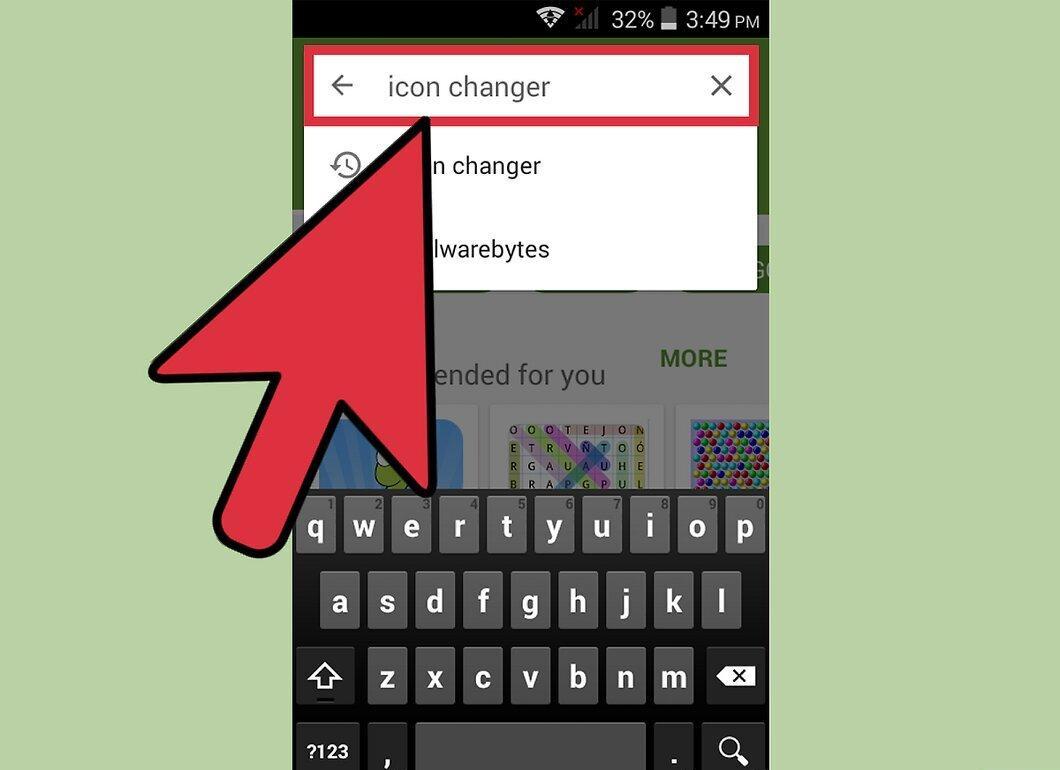
Type phrases like "change icons" or "customize icons" in the search bar to find suitable apps.
Step 3. Browse the search results.
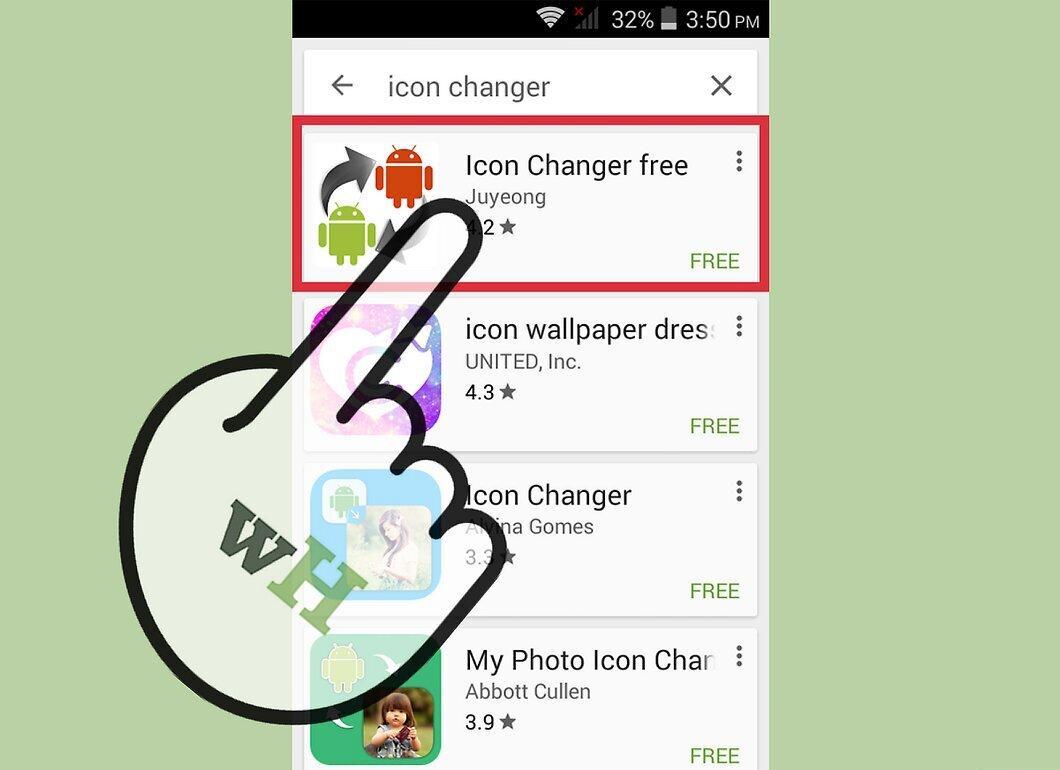
Select any app from the results to learn about its features. Recommended options include Icon Changer by Juyeong, CocoPPA by United Inc., and Icon Changer by Alvina Gomes.
Step 4. Install the chosen app.

Step 5. Follow the prompts to complete the installation.
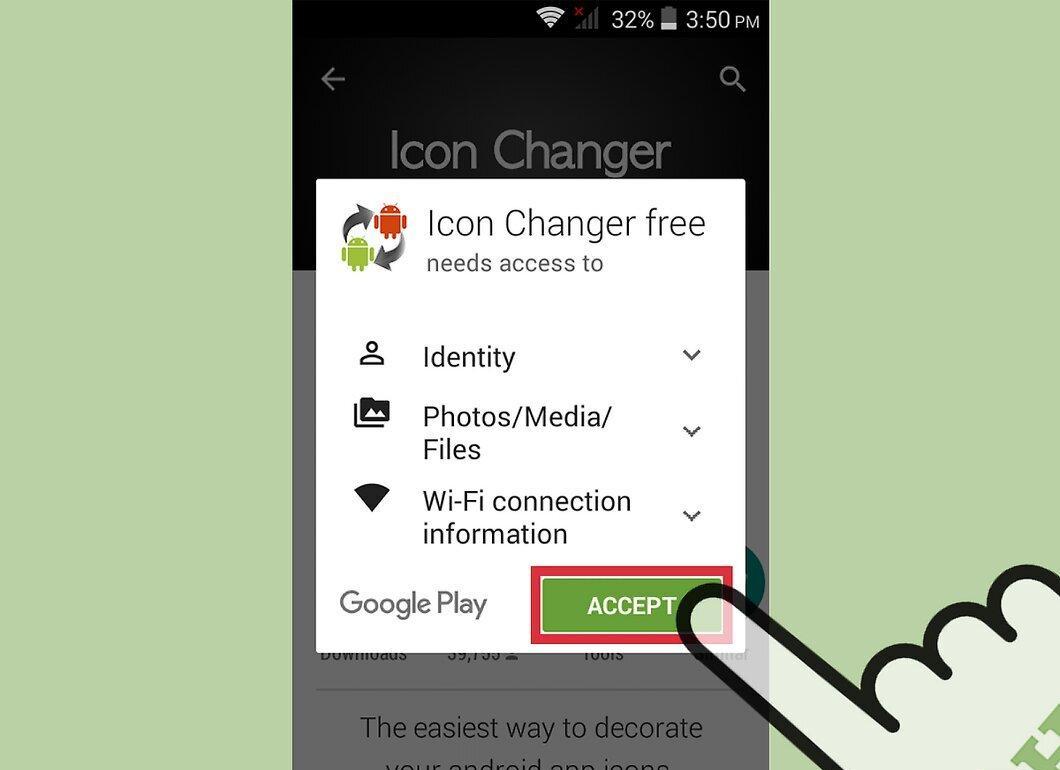
Follow the on-screen instructions for a successful app installation. Its icon will appear on your home screen or in the app drawer.
Step 6. Open the app and customize the icons.
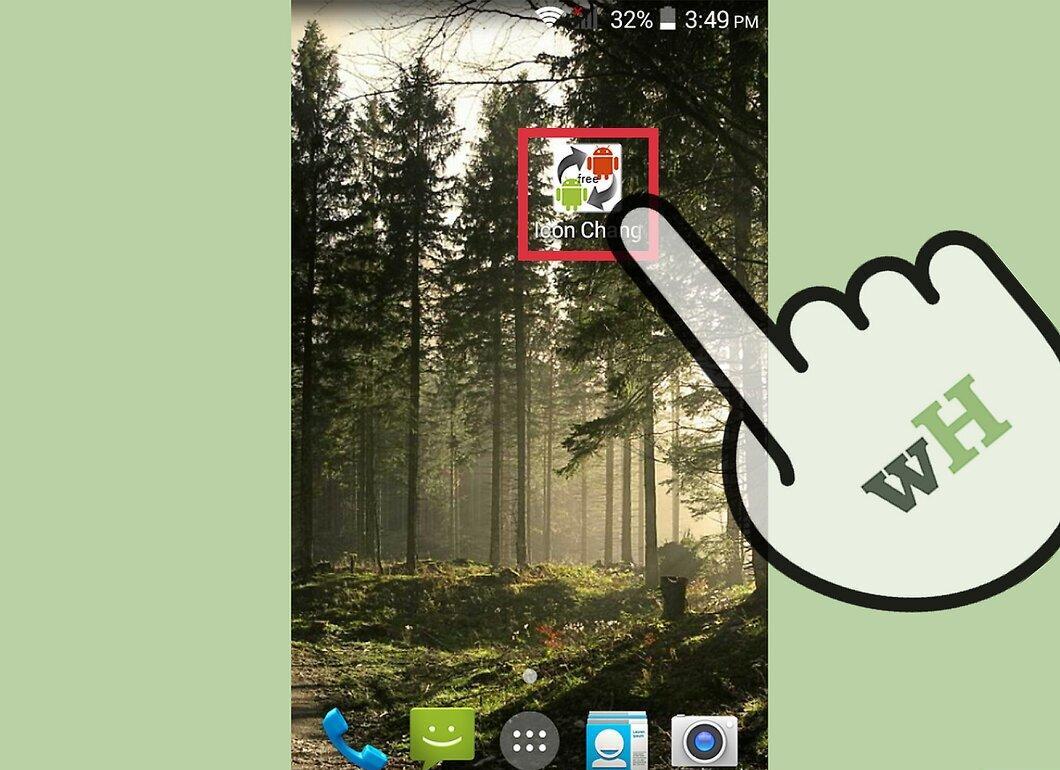
Launch the installed app and follow the instructions to replace the original icons. Choose new icons, use themes, or upload your own images.
iOS
Step 1. Open the App Store.
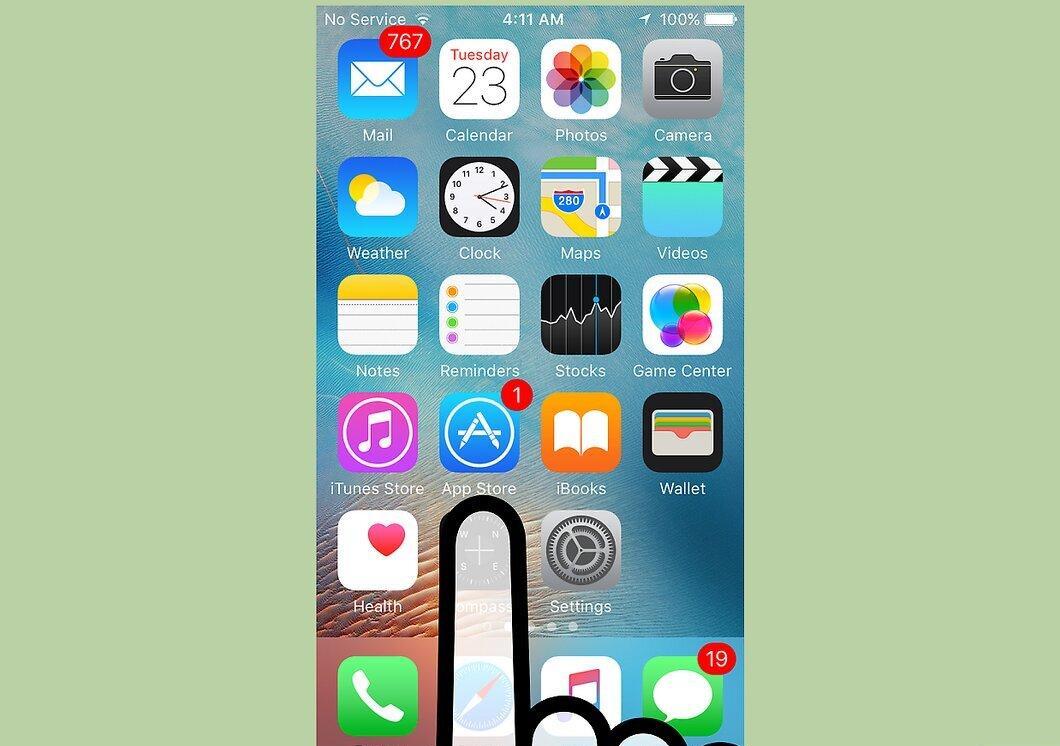
Go to the App Store, which has a plethora of apps for changing icons.
Step 2. Search for the necessary apps.
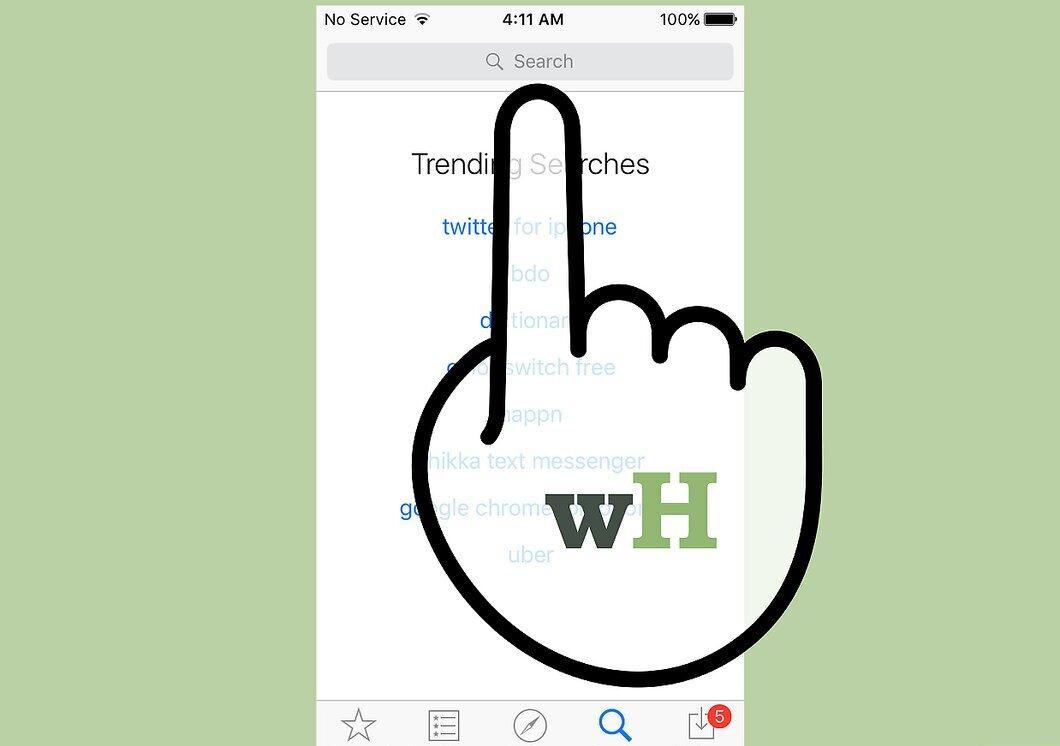
Enter queries like "change icons" or "customize icons" in the search bar.
Step 3. Select an app for installation.
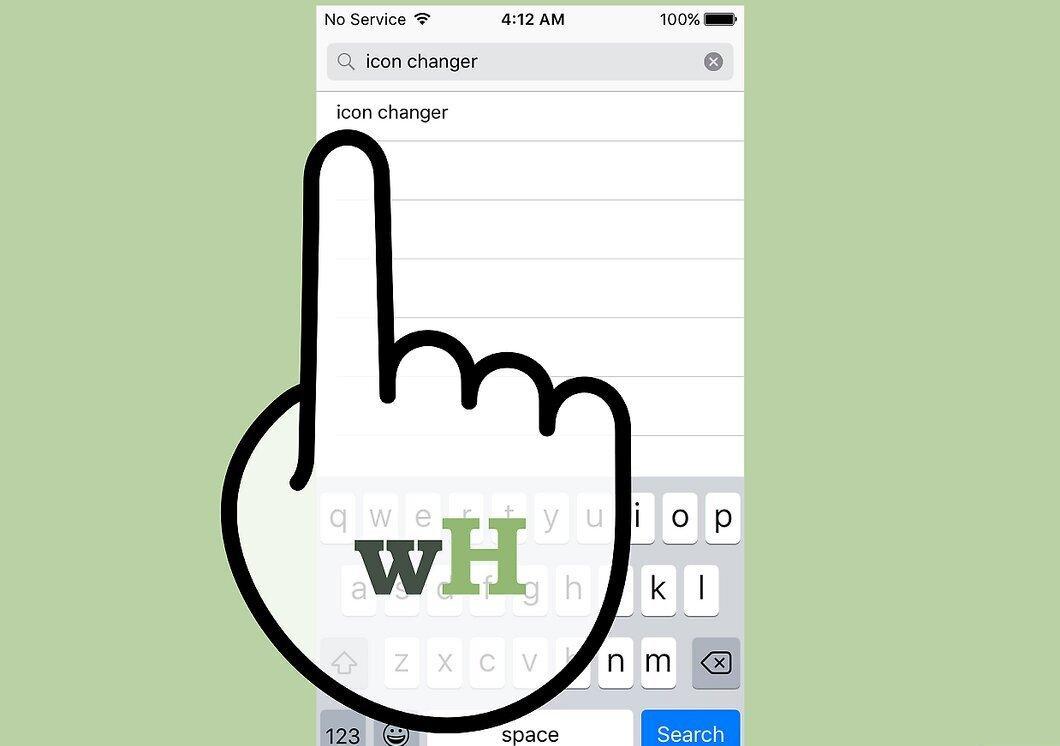
Tap on any app from the list to explore its features. Popular choices include App Icons+ by Happio Workshop, CocoPPa by United Inc., and App Icons by Apalon Apps.
Step 4. Install the app on your device.
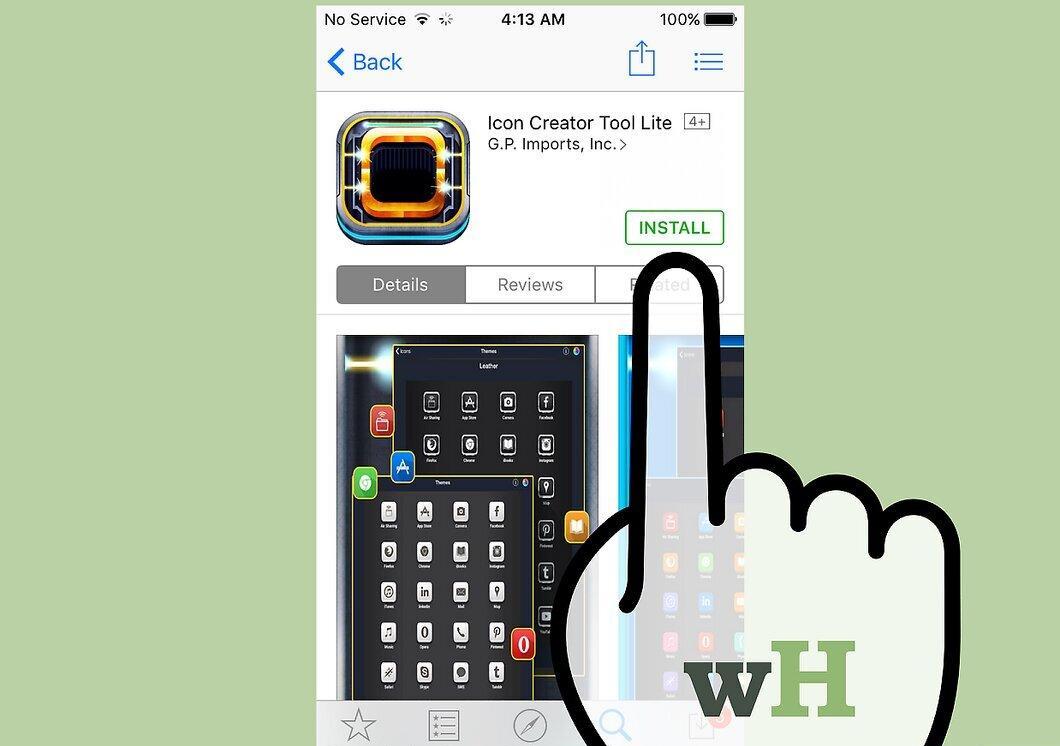
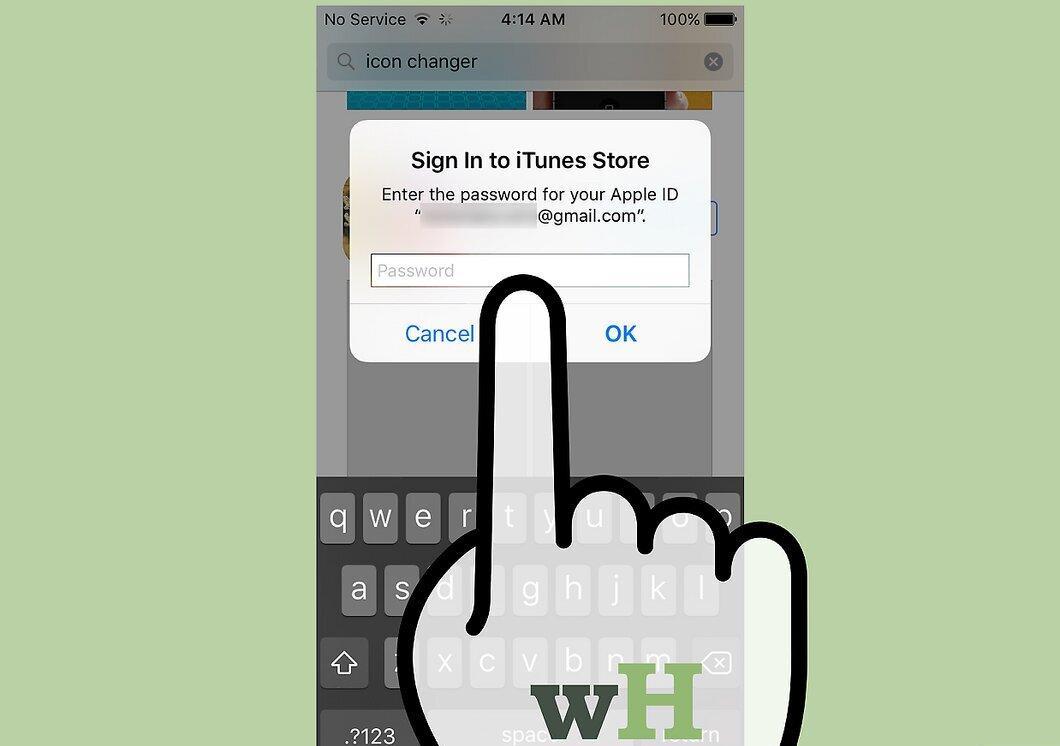
Step 5. Enter your Apple ID to complete the installation.
Step 6. Follow the prompts for installation.
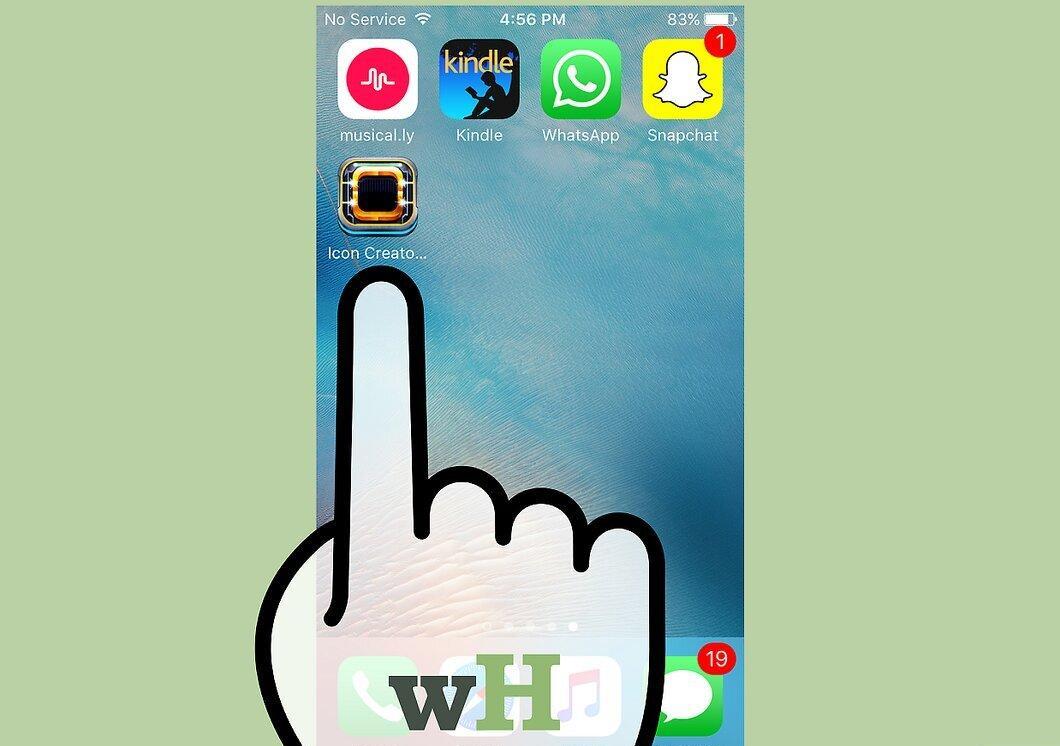
Follow the on-screen instructions to finish the app installation. Its icon will appear on the app panel.
Step 7. Open the app and change the icons.

Launch the app and follow the instructions to replace the original icons. Choose themes or upload your own images.
Windows
Step 1. Right-click on the app icon.

Right-click on the icon you want to change. If you’re using a mobile Windows device, press and hold the desired icon.
Step 2. Open the icon properties.
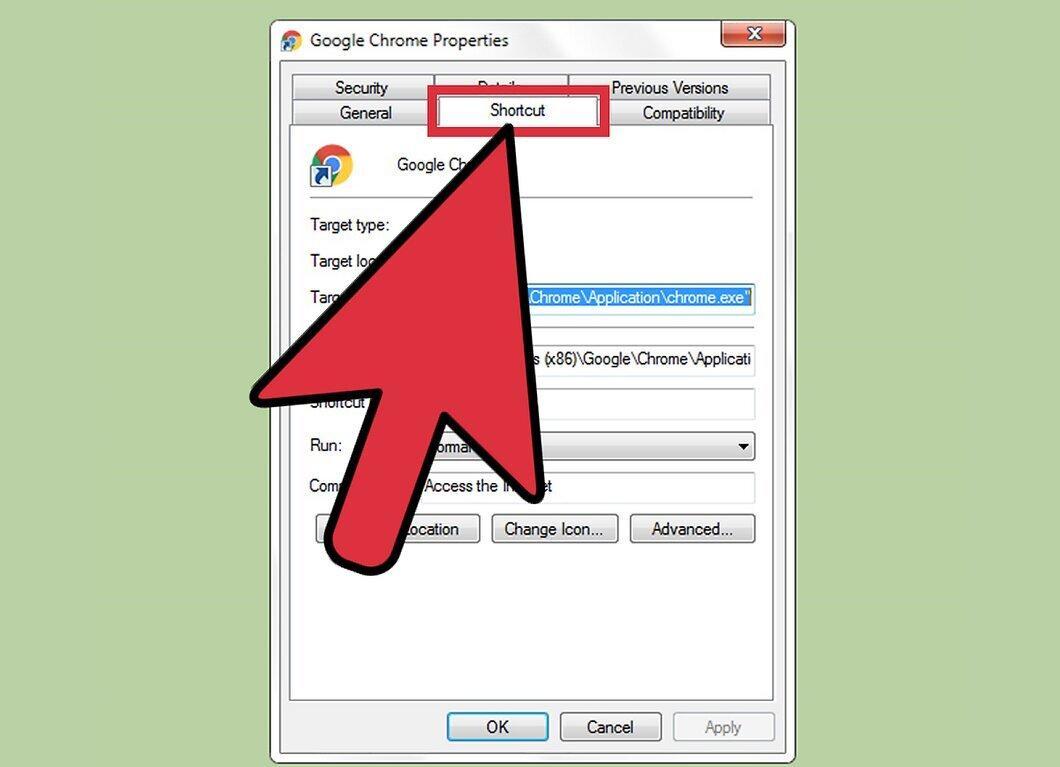
Step 3. Select the option to change the icon.
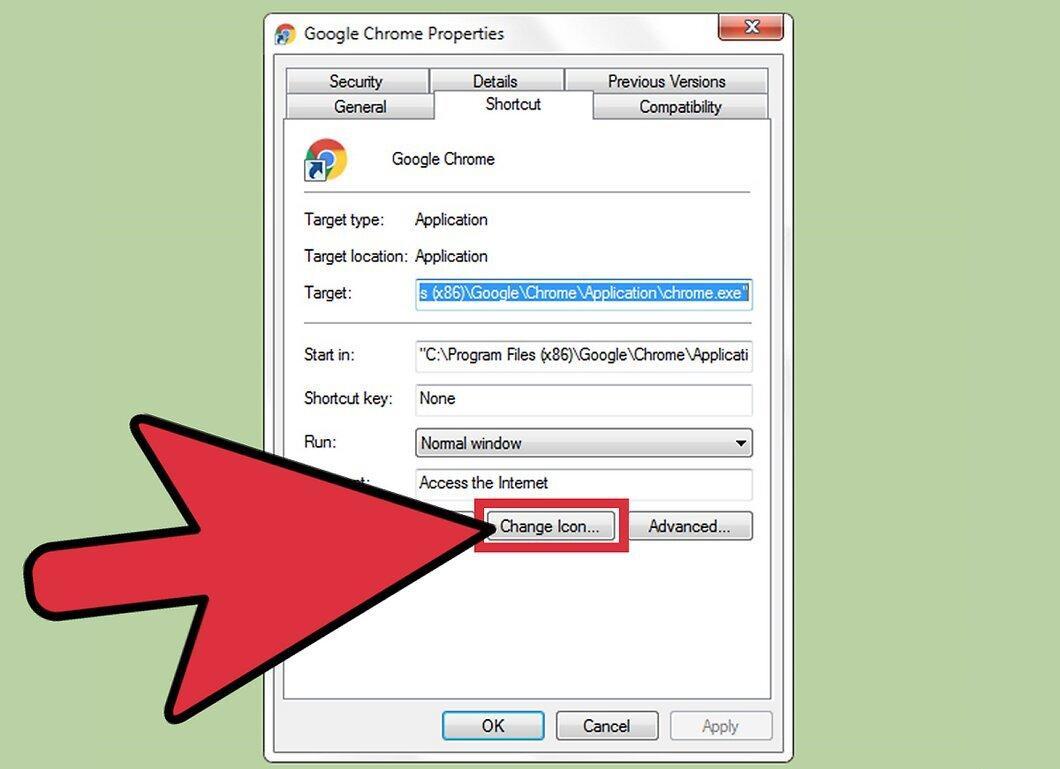
Click on "Change Icon" to open a list of available icons.
Step 4. Choose a new icon.
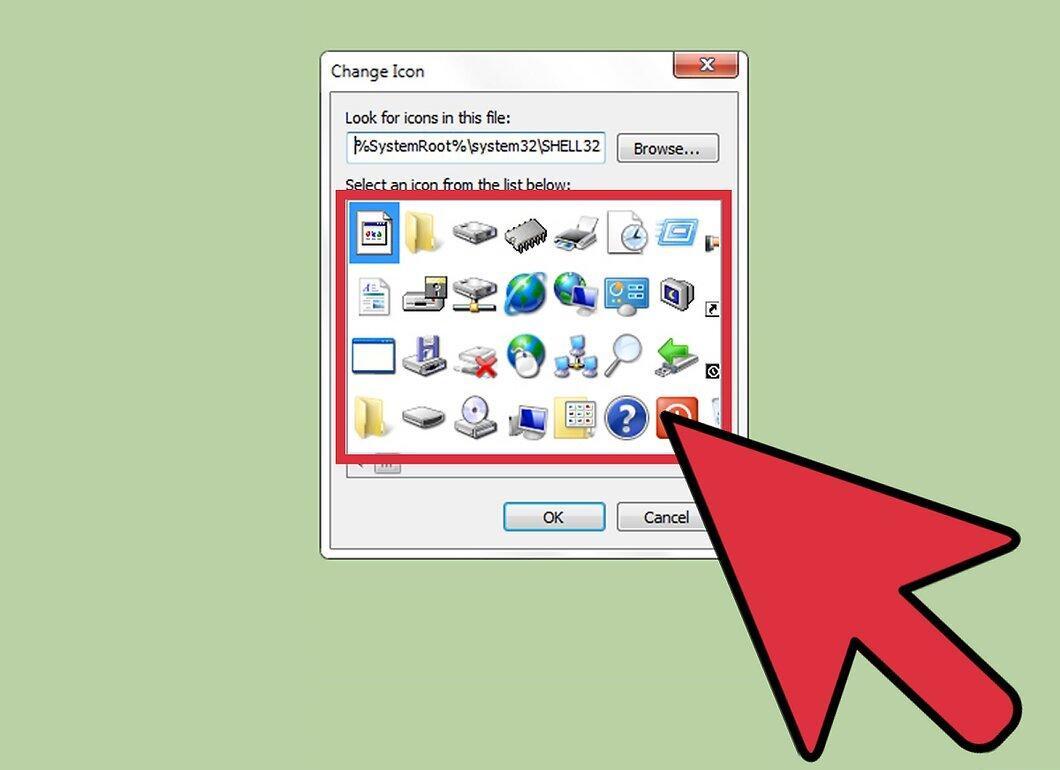
Select an icon from the suggested list, or click "Browse" to find an icon in your collection.
- Your icon collection should include files in the "ico" format. If not, use free online converters like Convertico.com or ICOConverter.com to convert images to ICO format.
Step 5. Confirm the icon change.
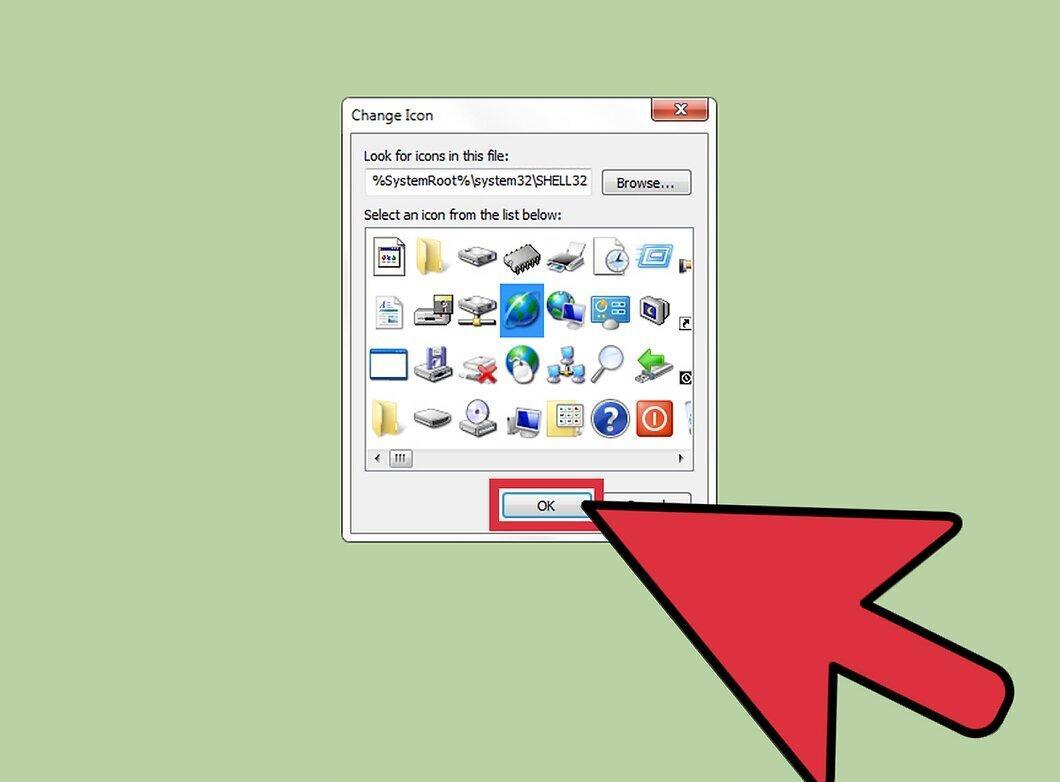
Click "OK" twice to confirm the changes. The app icon will be replaced with your selected one.
macOS
Step 1. Ensure the icons have the "icns" extension.
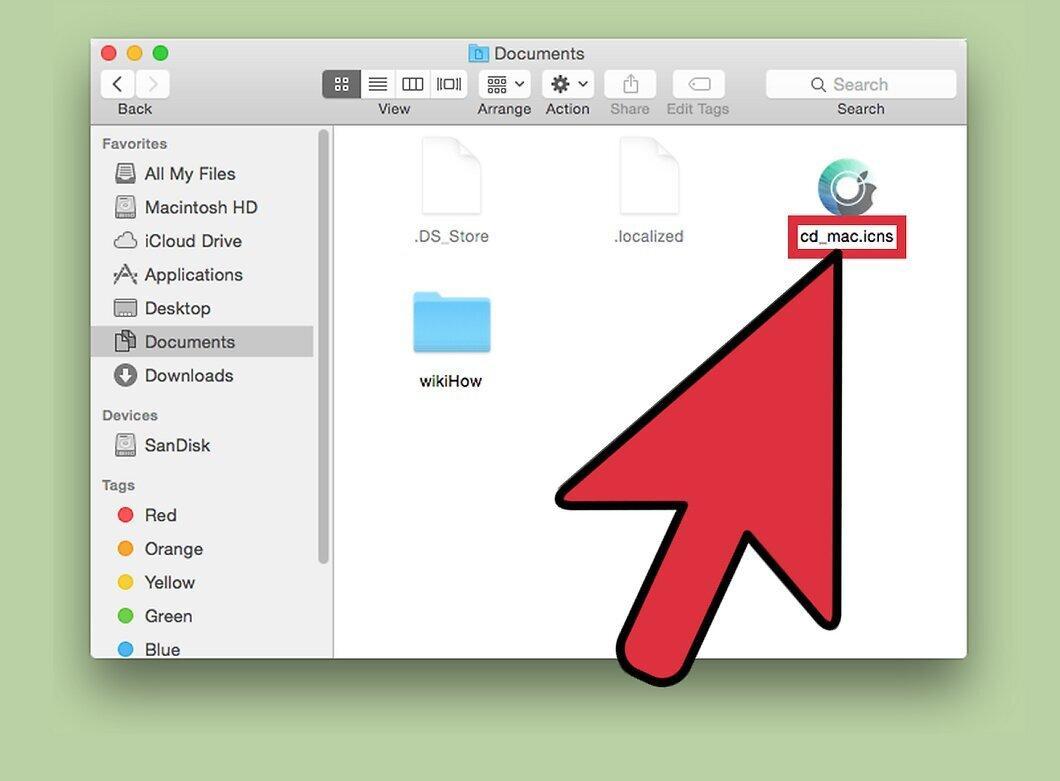
Make sure the icons you want to install have the "icns" extension. This format is ideal for macOS as it automatically scales images to the required size. To set a family photo as an icon, convert it to ICNS format without resizing.
- Use free online services like CloudConvert.com or iConvertIcons.com to convert images to ICNS format.
Step 2. Locate the icon in the Applications folder.
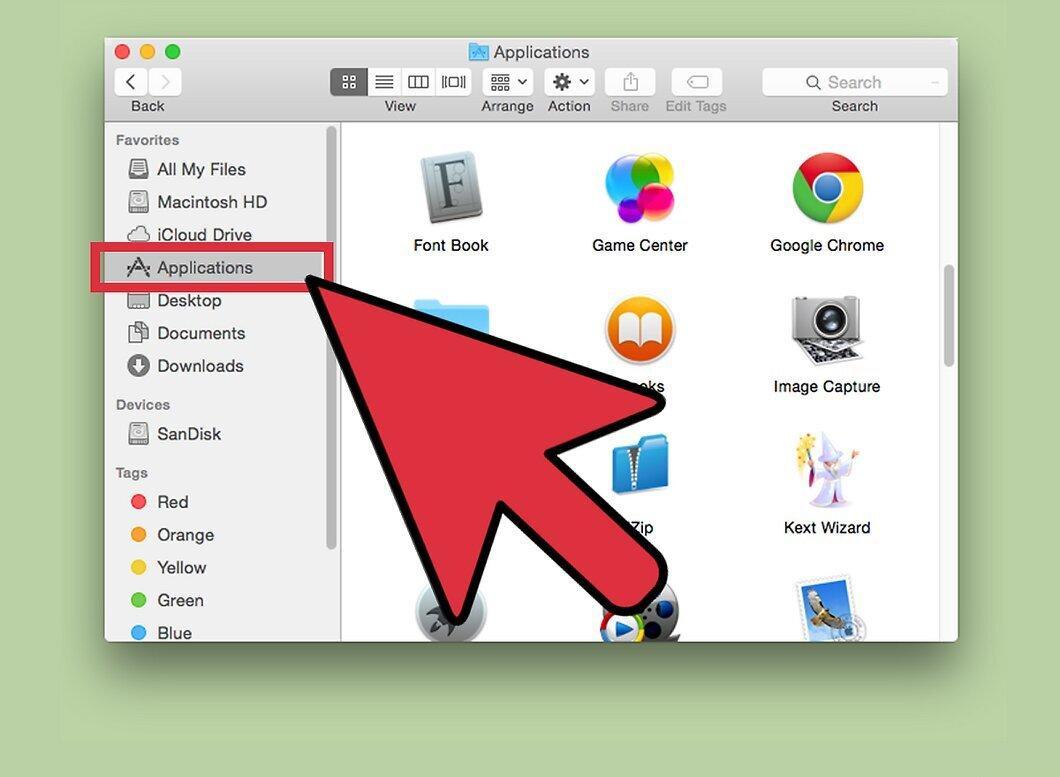
Step 3. Open the icon properties.
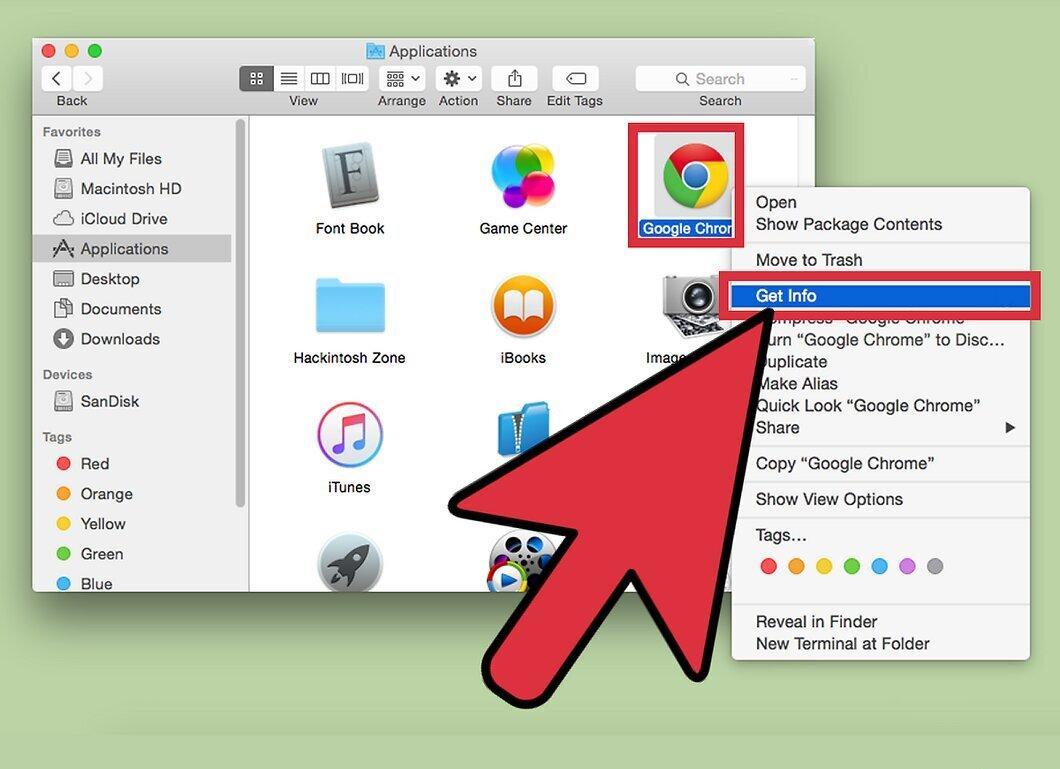
Right-click on the icon and select "Get Info." A window with program settings will open.
Step 4. Find the new icon for replacement.
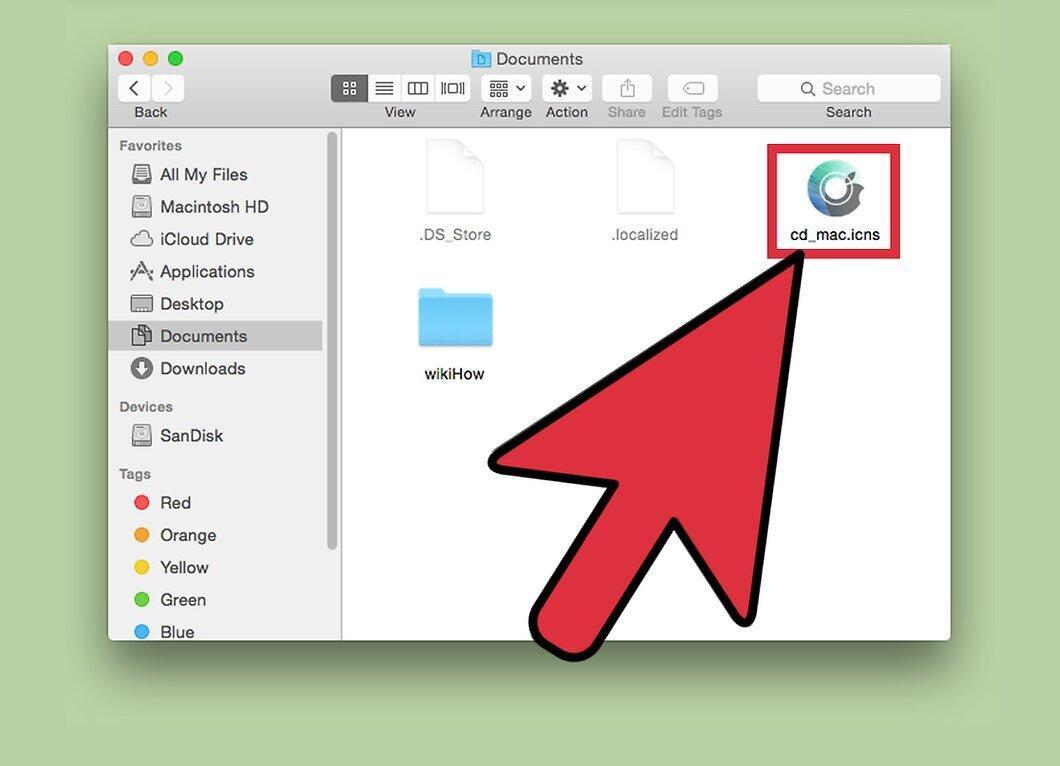
Step 5. Copy the new icon.
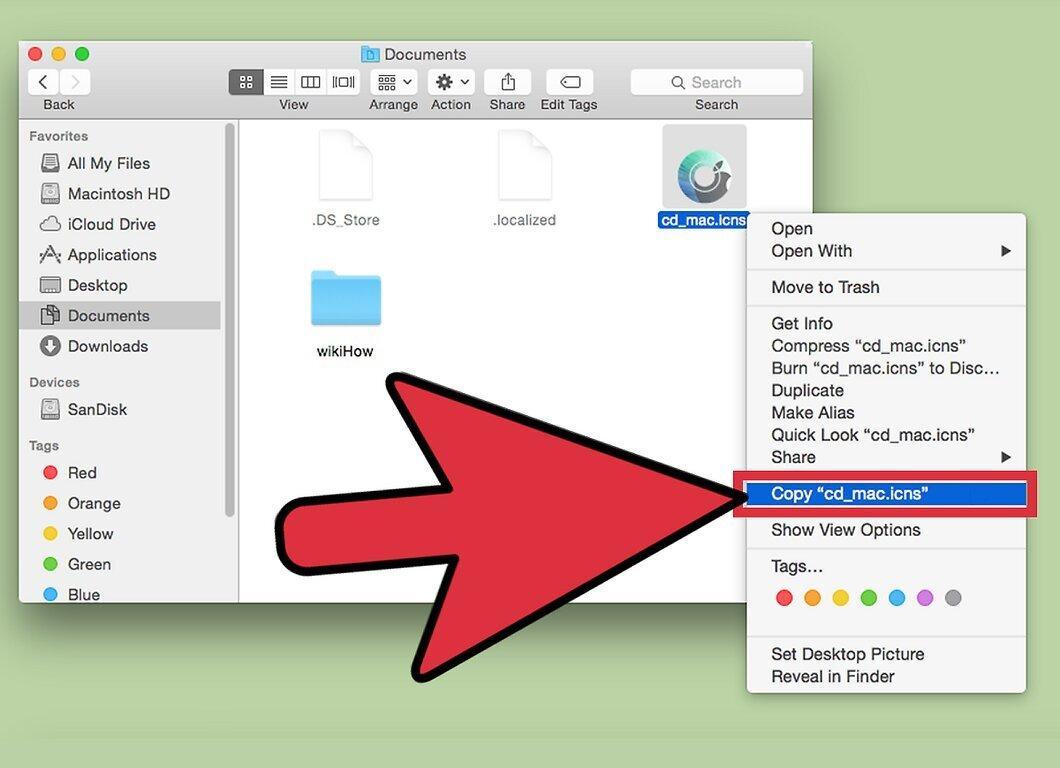
Step 6. Return to the properties window and highlight the original icon.
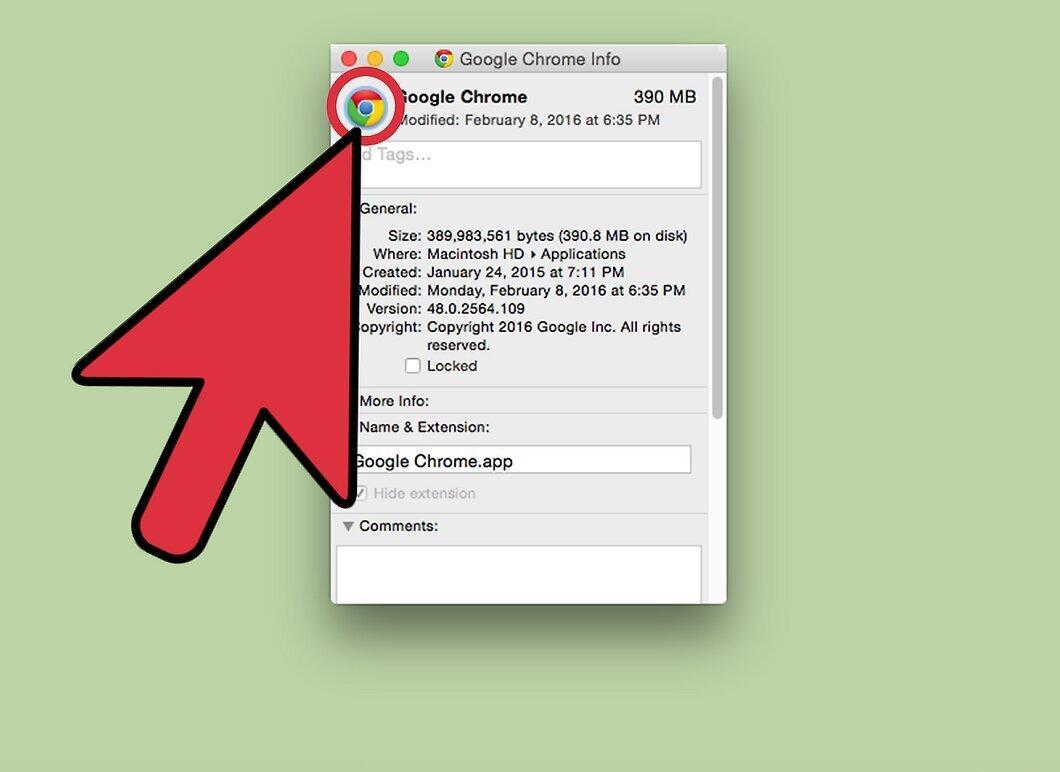
Go back to the properties window and highlight the original icon displayed in the upper left corner.
Step 7. Paste the new icon.
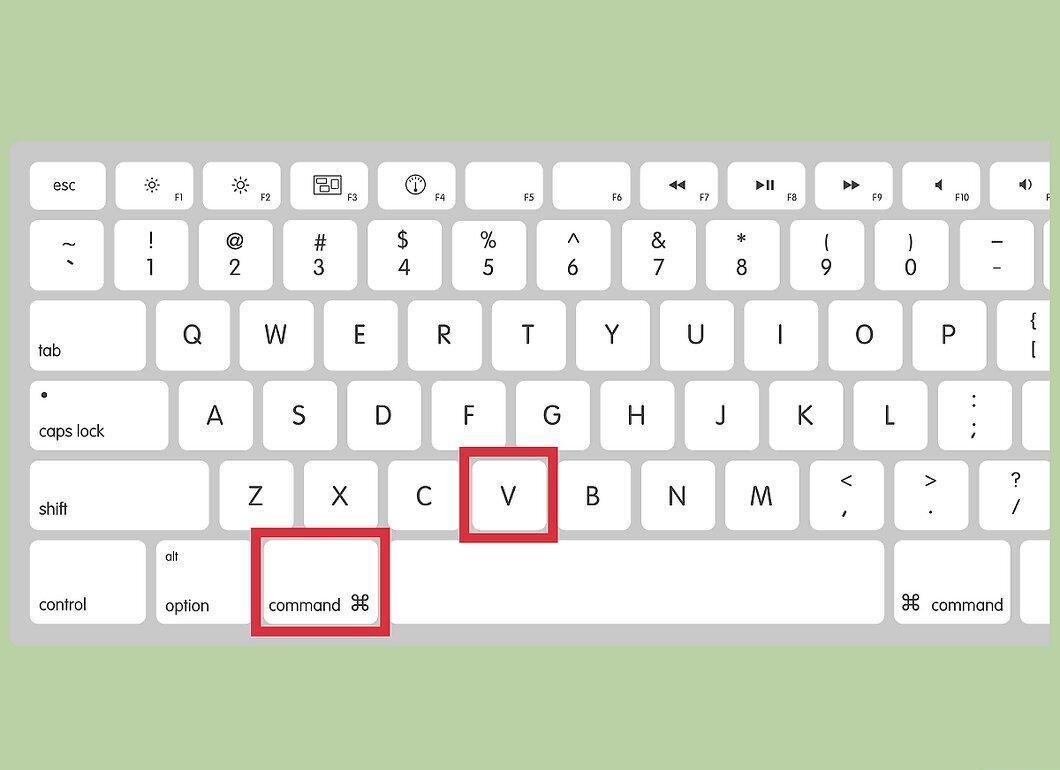
Use the "Command" + "V" shortcut to paste the new icon in place of the original. You may need to enter your administrator password.
Step 8. Navigate to the Applications folder and open "Utilities."
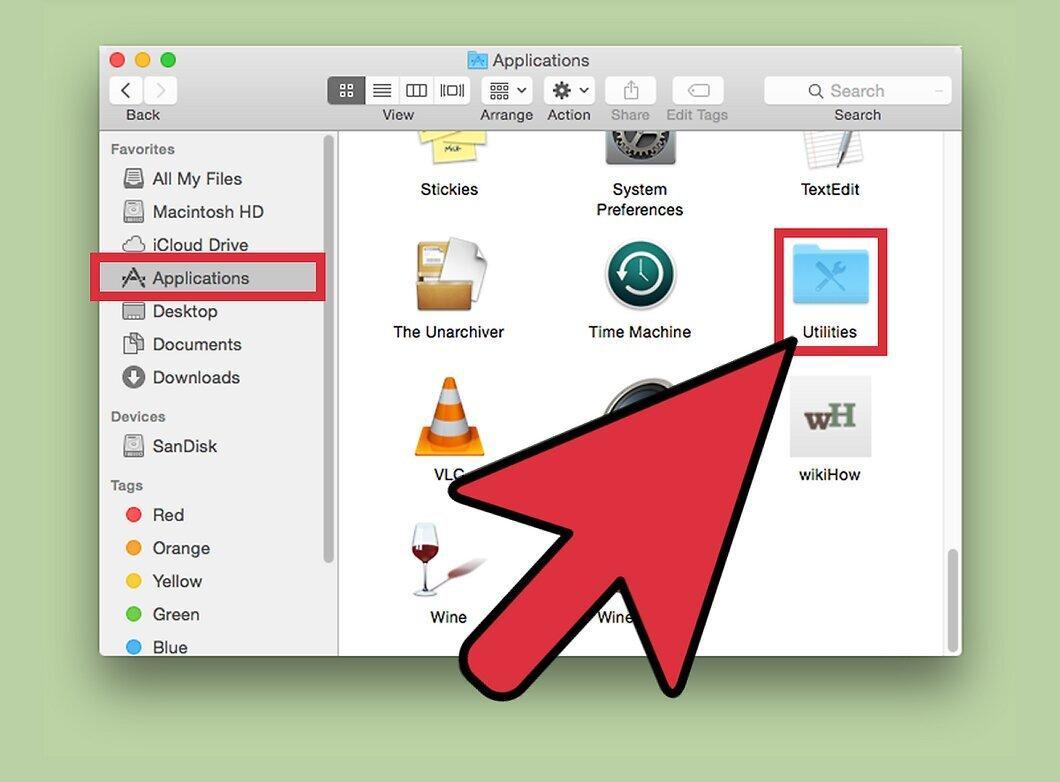
Step 9. Launch "Terminal" and refresh the icons.
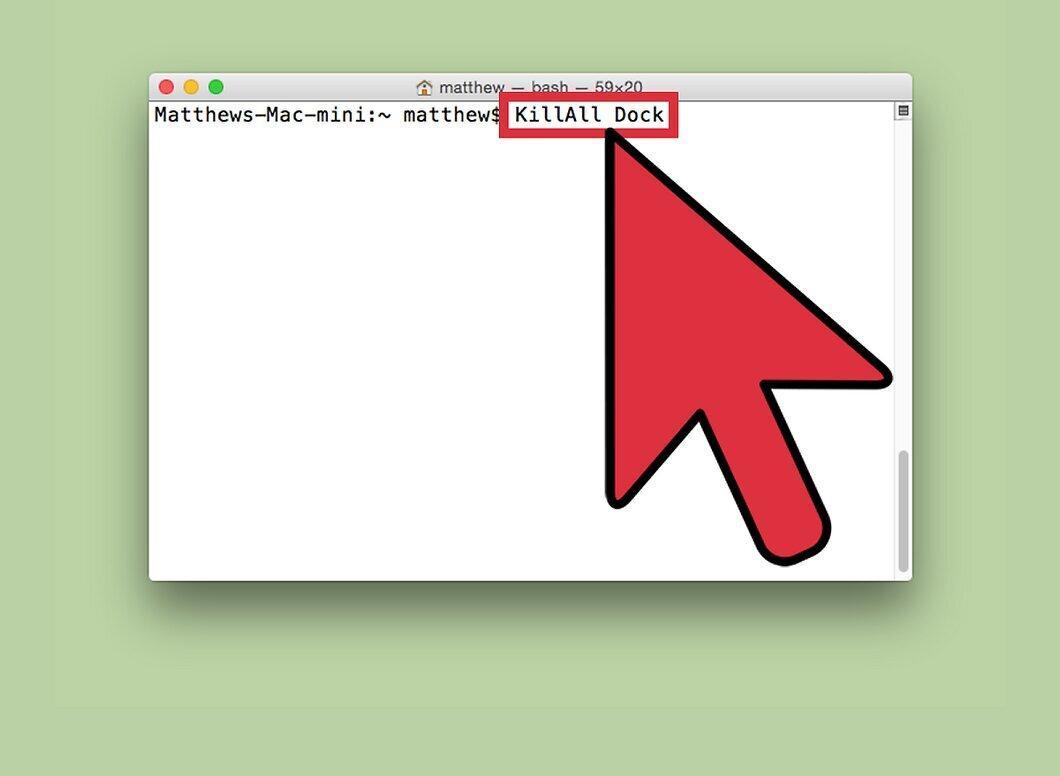
In "Terminal," type the command "killall Dock" to refresh the display of icons in the dock.
Step 10. Complete the process.
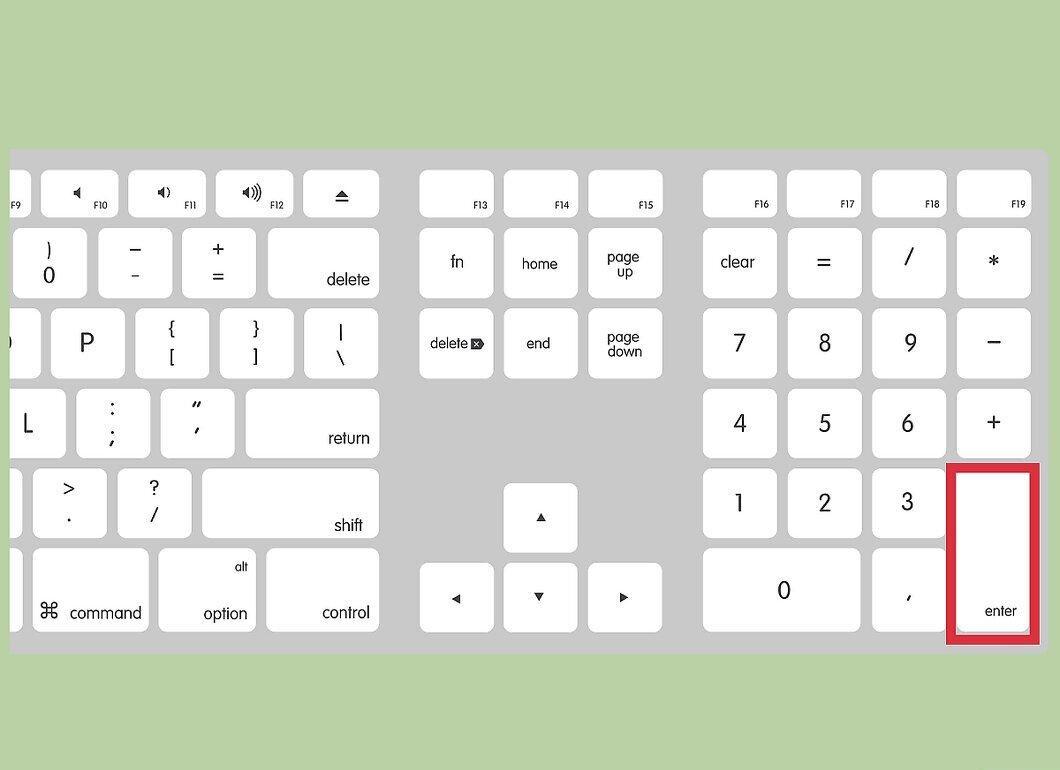
Press "Enter" on your keyboard, and the original icon will be replaced with the new one.


