
In this article, you will find a step-by-step guide on how to open and edit PHP files on your computer, whether it's Windows or Mac OS X.
Windows
Step 1. Install Notepad++.
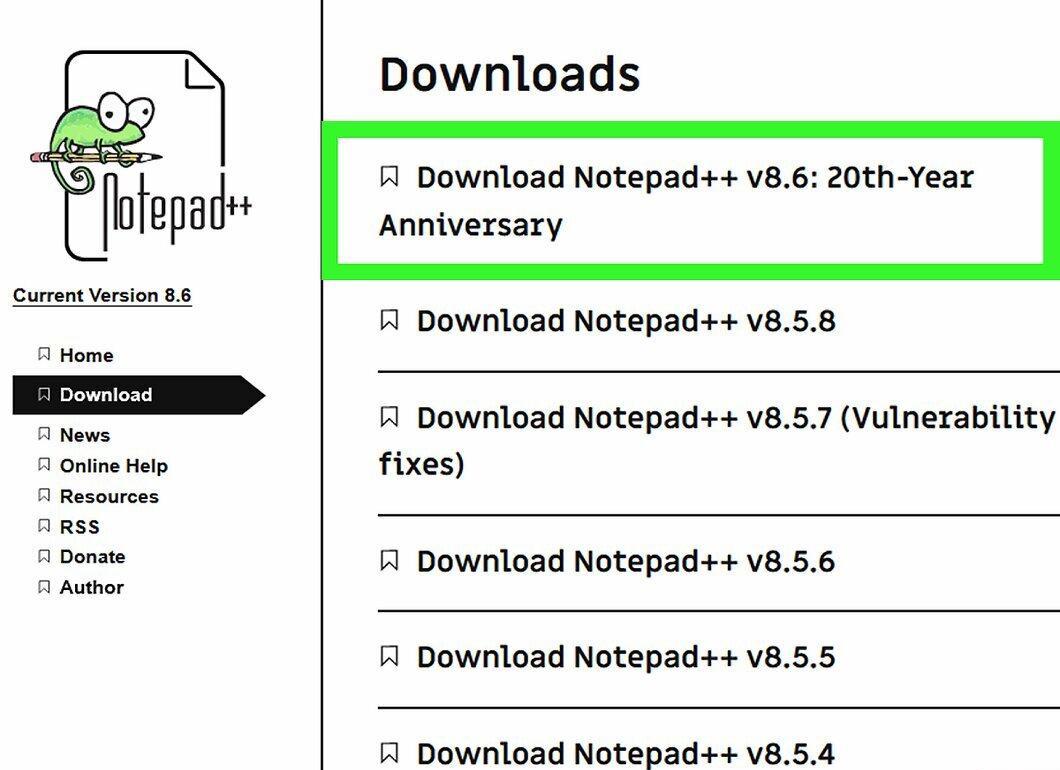
First, download and install Notepad++. This free text editor is perfect for working with PHP files. To install the program:
- Open the website https://notepad-plus-plus.org/download/v7.5.8.html in your browser;
- Click the green "Download" button;
- Double-click the downloaded file;
- Follow the on-screen instructions.
Step 2. Launch Notepad++.
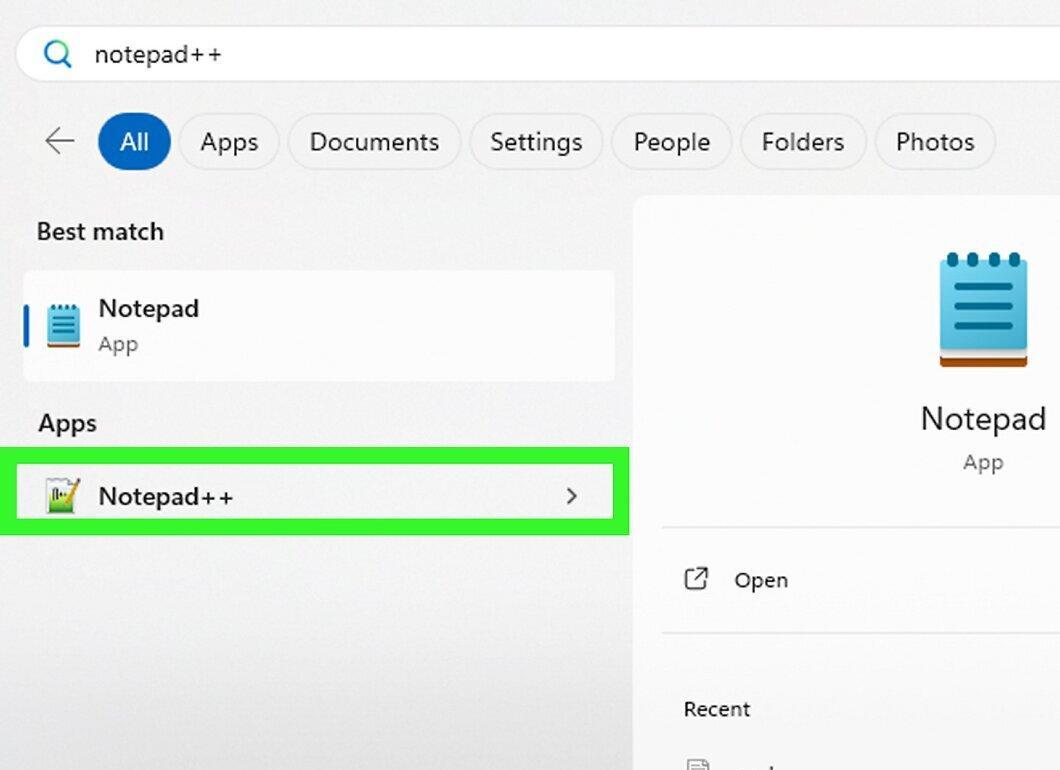
Open Notepad++. If the program doesn't start automatically, click the "Start" button, type notepad++, and select it from the list.
Step 3. Select File
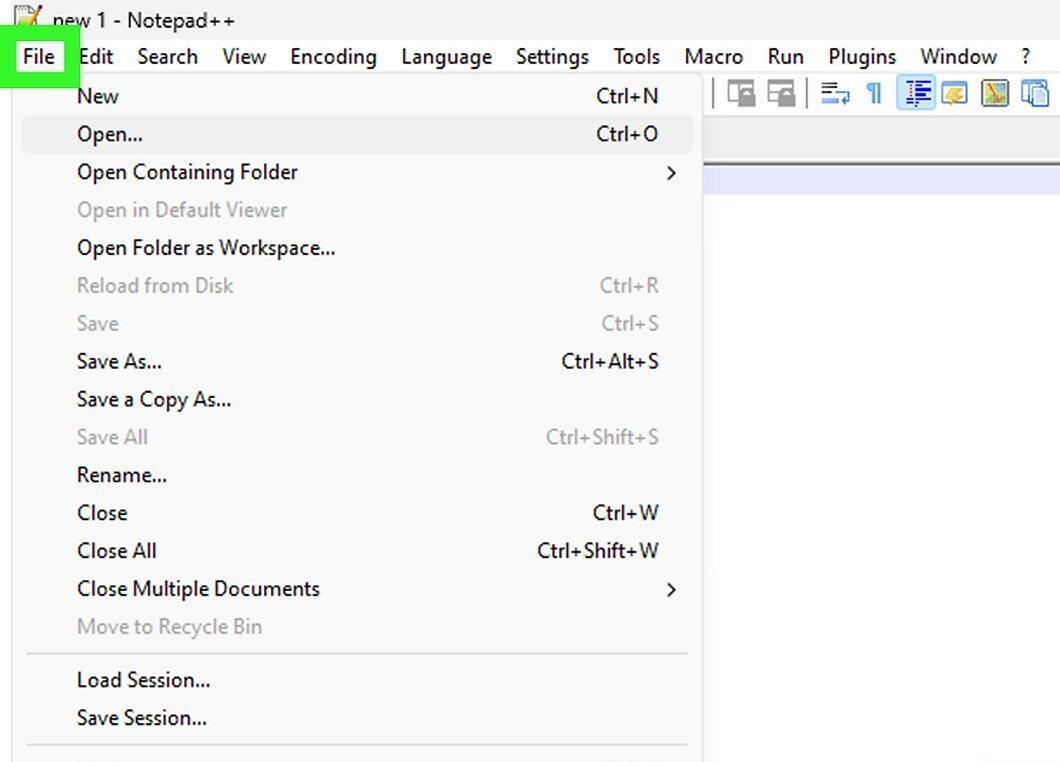
Click on the File section located in the top left corner of the Notepad++ window. The menu will open.
Step 4. Choose Open
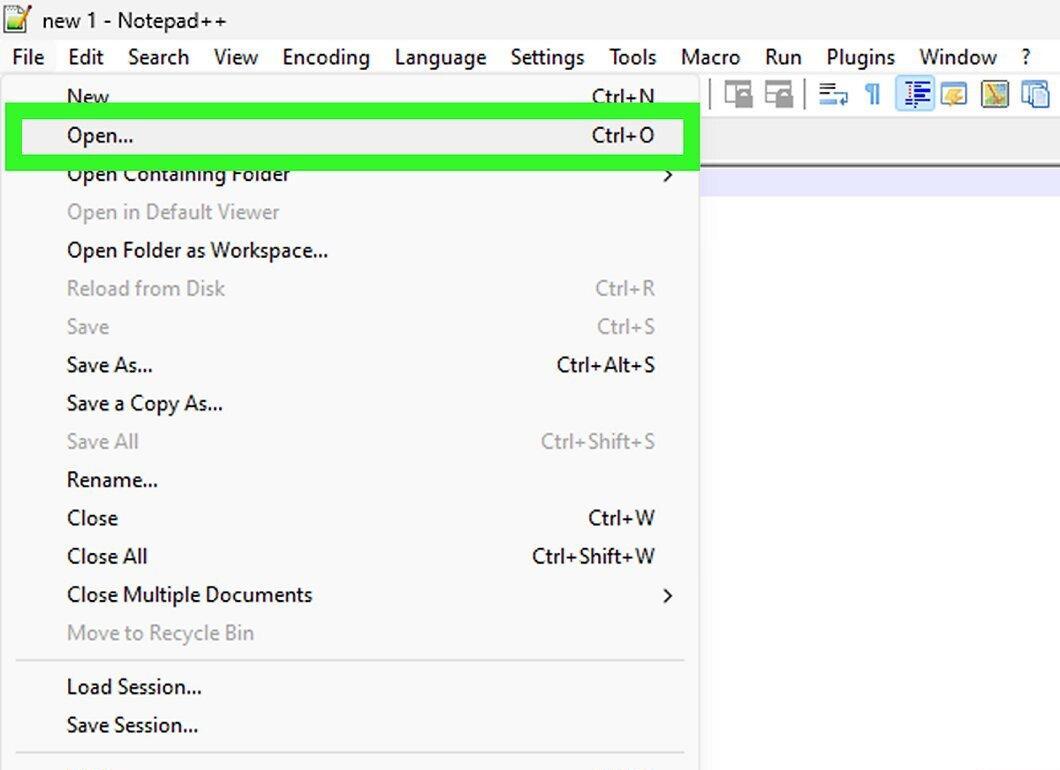
Select the Open option from the menu. This will open a file explorer window.
Step 5. Locate the PHP File.
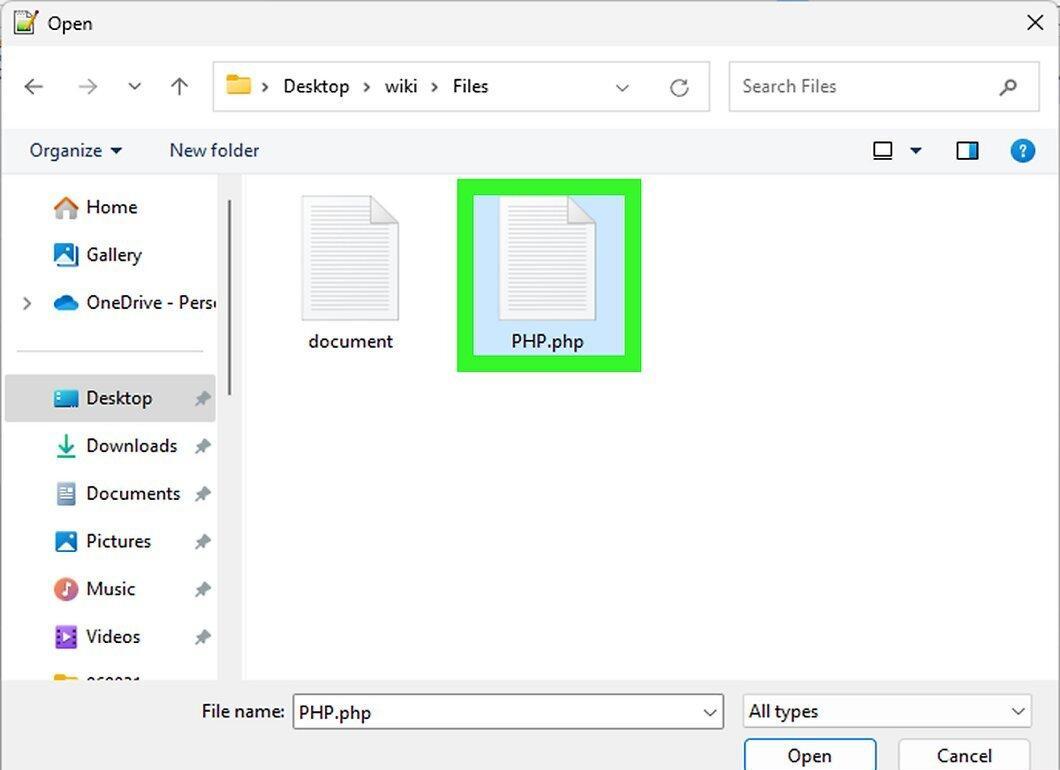
Navigate to the folder containing your PHP file and select it by clicking on the file name.
Step 6. Click Open
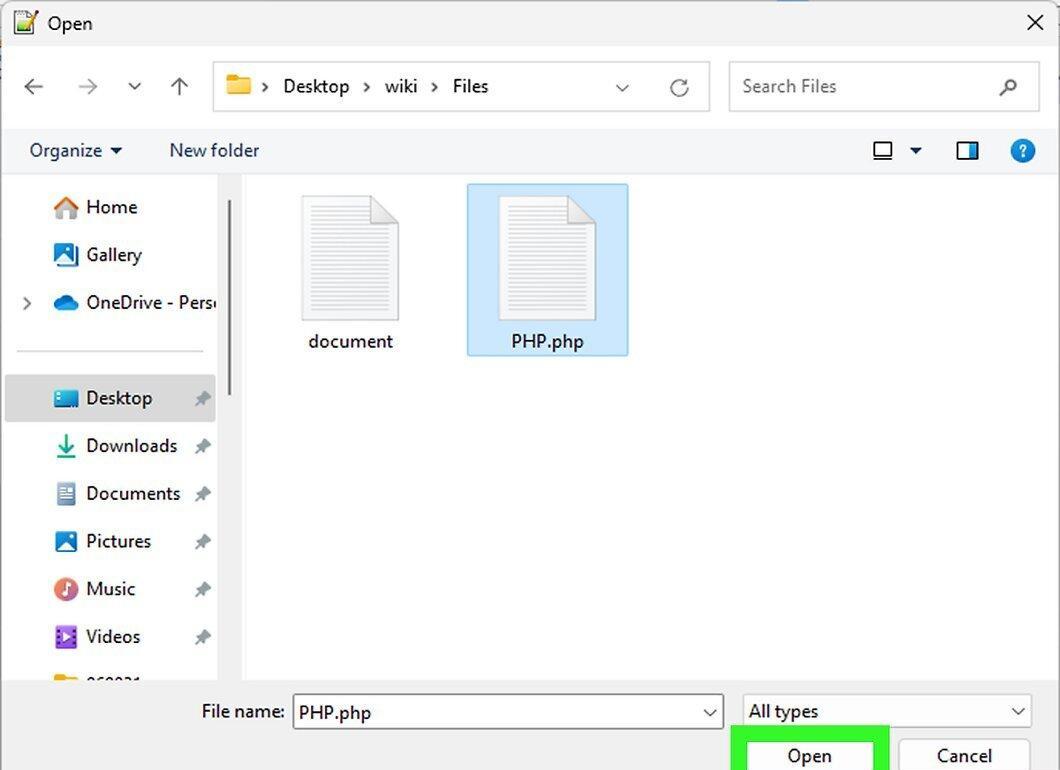
Click the Open button located in the bottom right corner of the window. Your PHP file will now open in Notepad++, allowing you to view and edit its content.
- If you made any changes, remember to save the file by pressing Ctrl+S before closing Notepad++.
Mac OS X
Step 1. Install BBEdit.
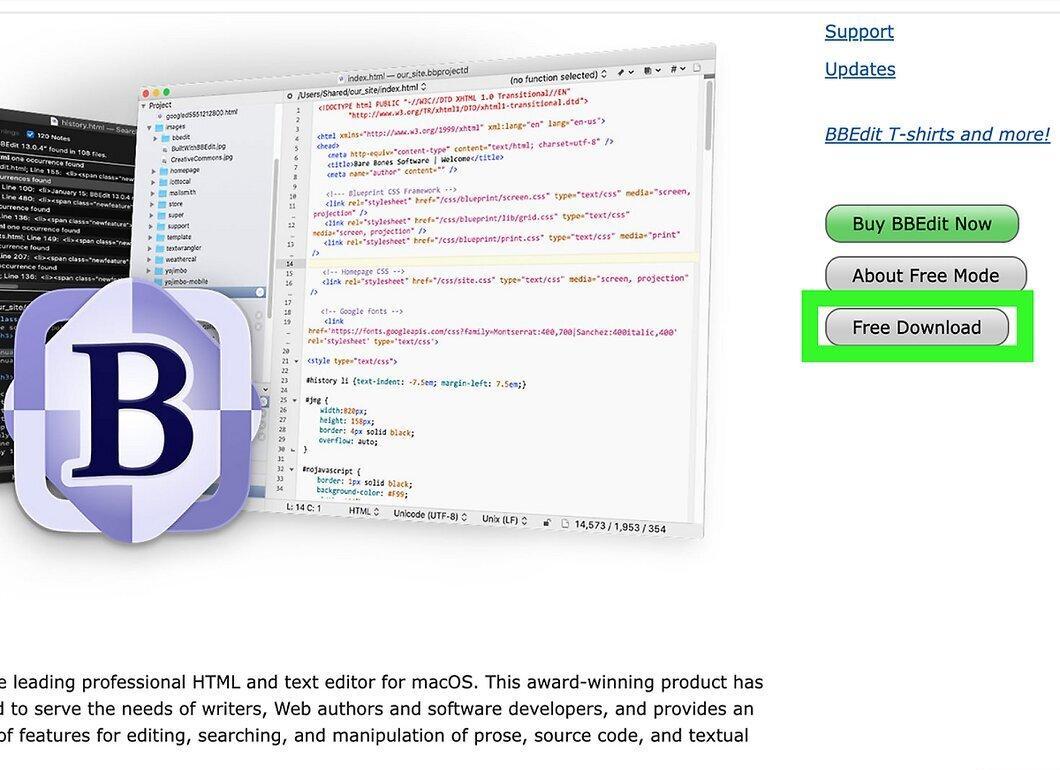
Download and install BBEdit — a free program that supports multiple file formats, including PHP. To install:
- Visit the website https://www.barebones.com/products/bbedit/ in your browser;
- Click on "Free Download" at the top right of the page;
- Double-click the downloaded DMG file;
- If prompted, allow the installation of software from unidentified developers;
- Drag the BBEdit icon to the Applications folder;
- Follow the on-screen instructions.
Step 2. Open Spotlight.
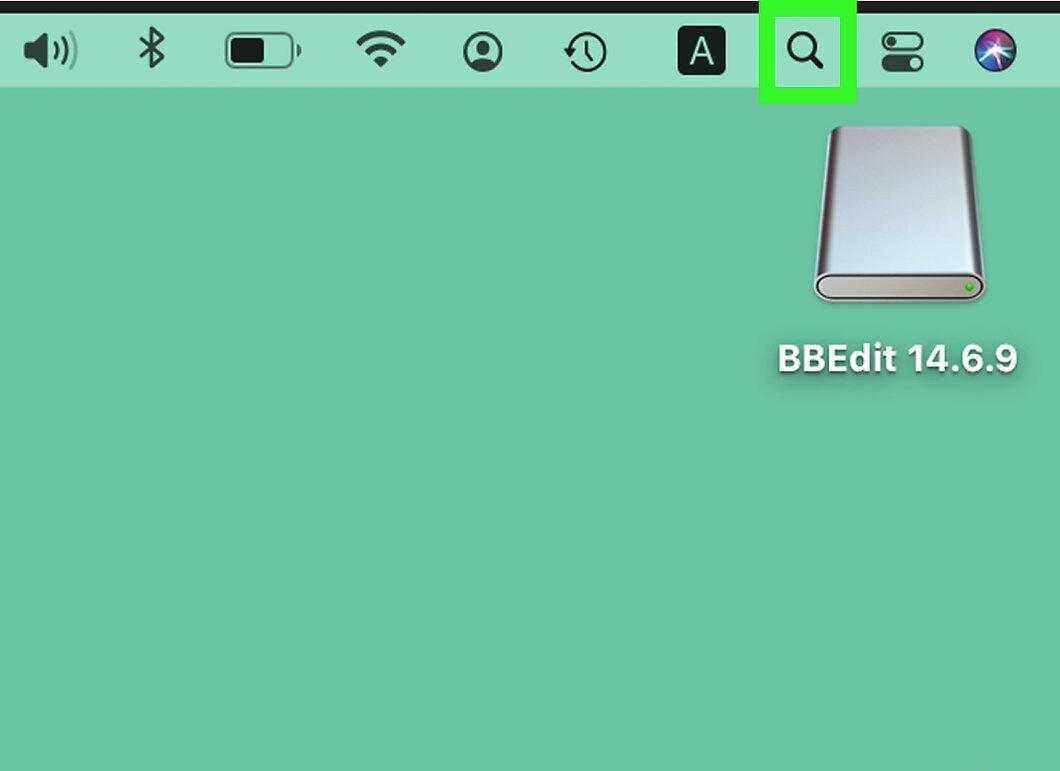
Launch Spotlight by clicking the magnifying glass icon in the top right corner of the screen.
Step 3. Launch BBEdit.
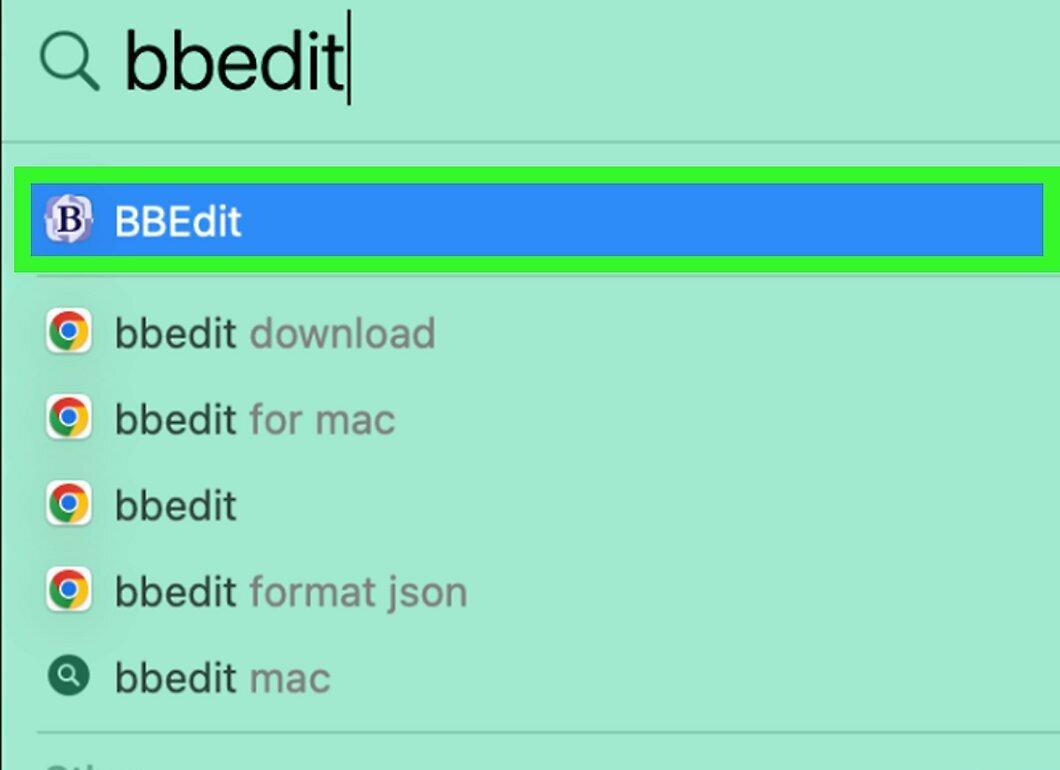
Type bbedit in the search bar and double-click on "BBEdit" in the results list.
- If you're launching BBEdit for the first time, click "Open" when prompted, then select "Continue" to activate the 30-day trial version.
Step 4. Go to File
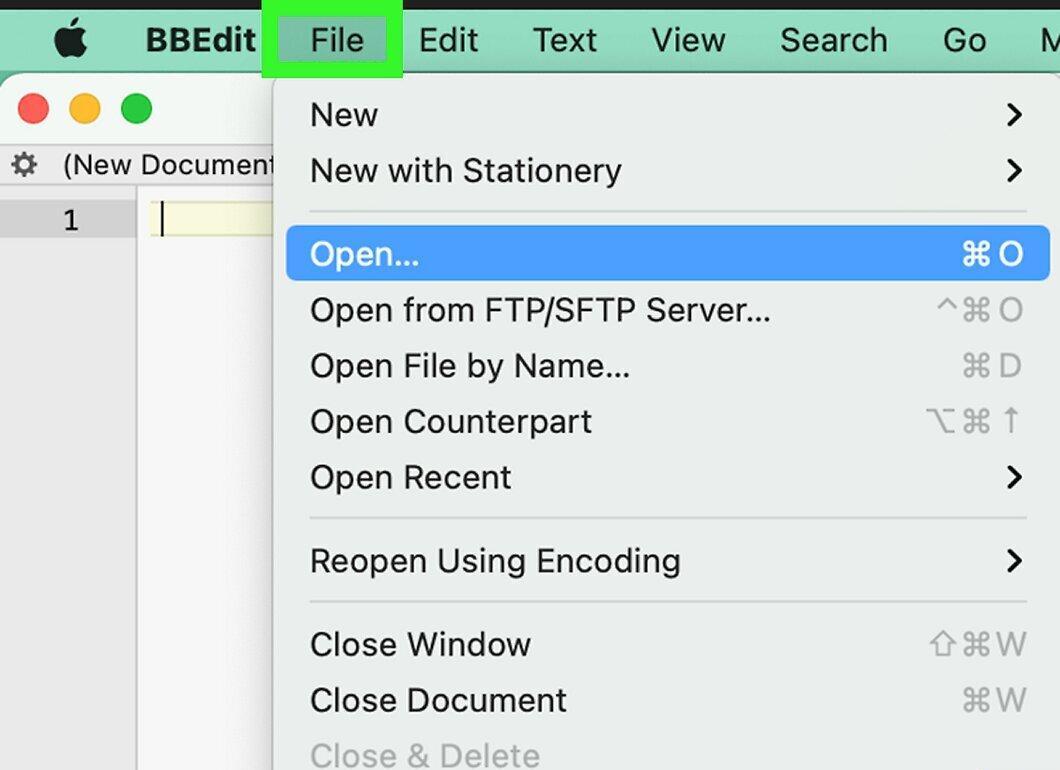
Select File in the top left corner of the screen. The menu will open.
Step 5. Choose Open
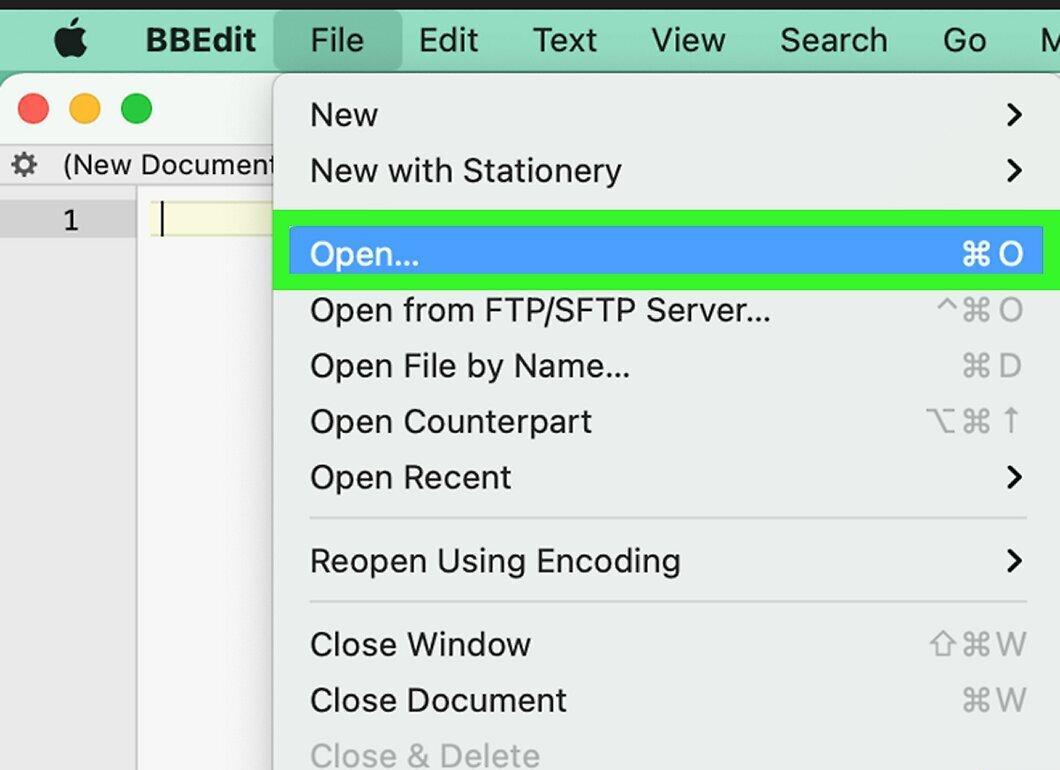
Click Open in the File menu. A Finder window will open.
Step 6. Find Your PHP File.
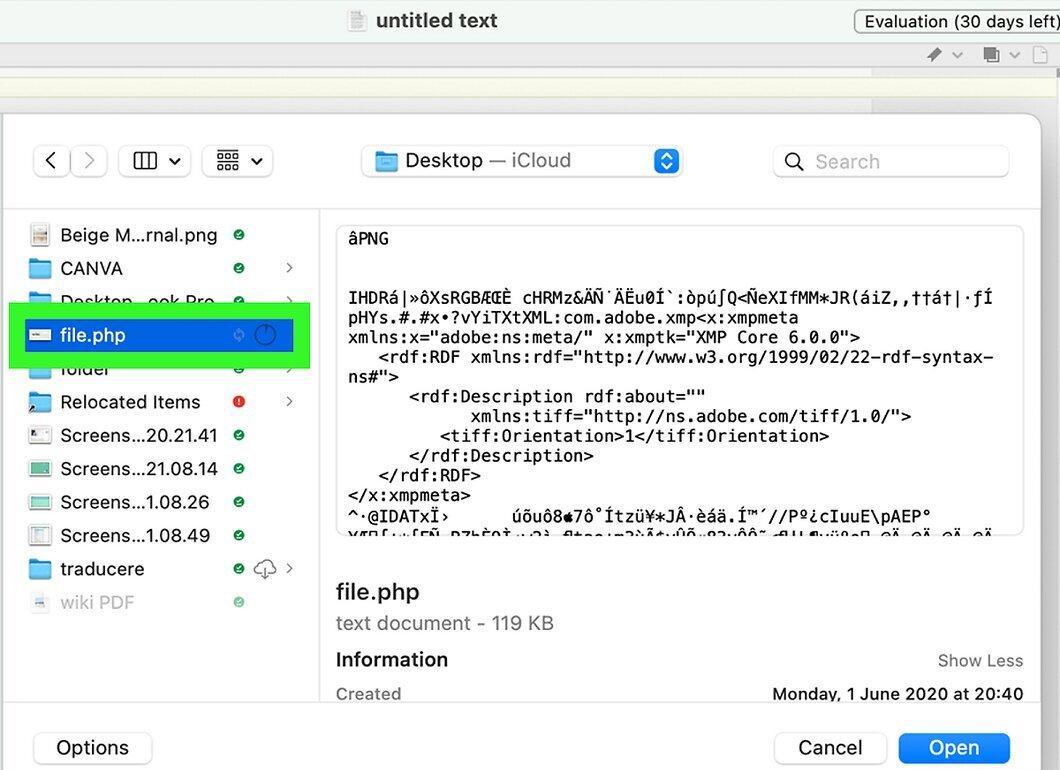
Navigate to the folder with your desired PHP file and select it by clicking on its name.
Step 7. Click Open
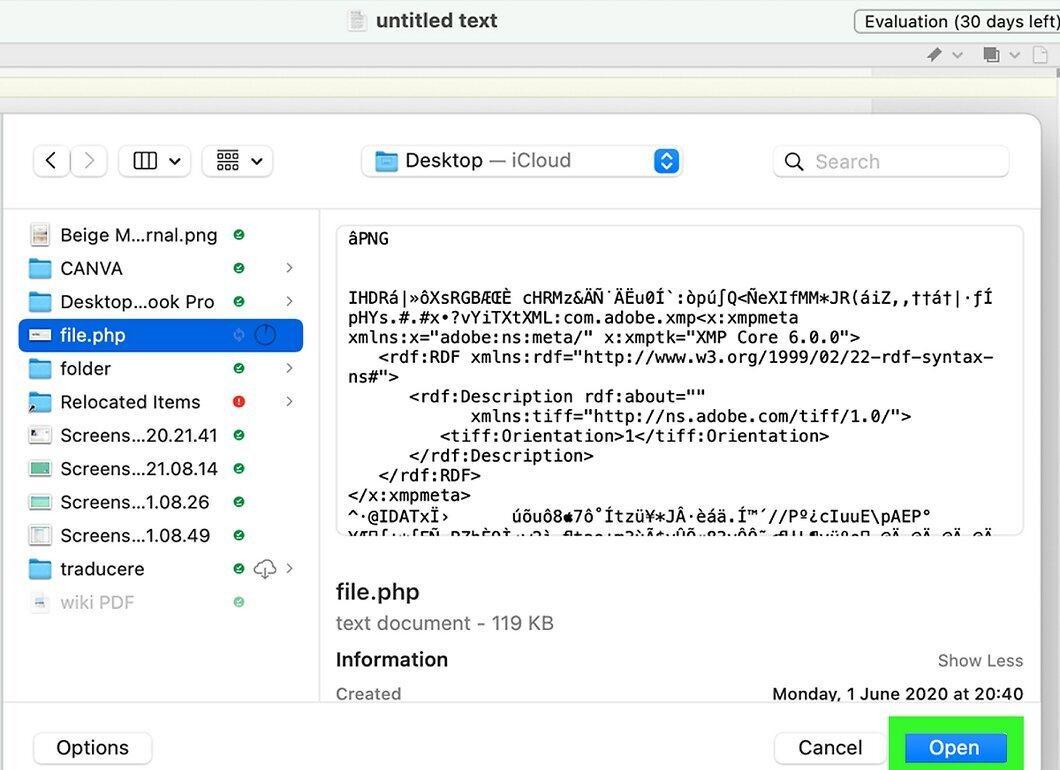
Click Open located in the bottom right corner of the window. Your PHP file will now open in BBEdit, allowing you to review its content.
- You can also click "Choose".
- Remember to save your changes by pressing ⌘ Command+S if you've modified the PHP file.


