
In this article, you'll discover how to easily copy and paste text or files on your Mac. You can accomplish this using the menu bar or by using keyboard shortcuts and the trackpad.
Using the Menu Bar
Step 1: Locate the Text or File to Copy.

Navigate to the text or file you want to copy. You can copy text to paste into another document or text field, or copy one or multiple files to move them to another folder.
Step 2: Select the Text or File.
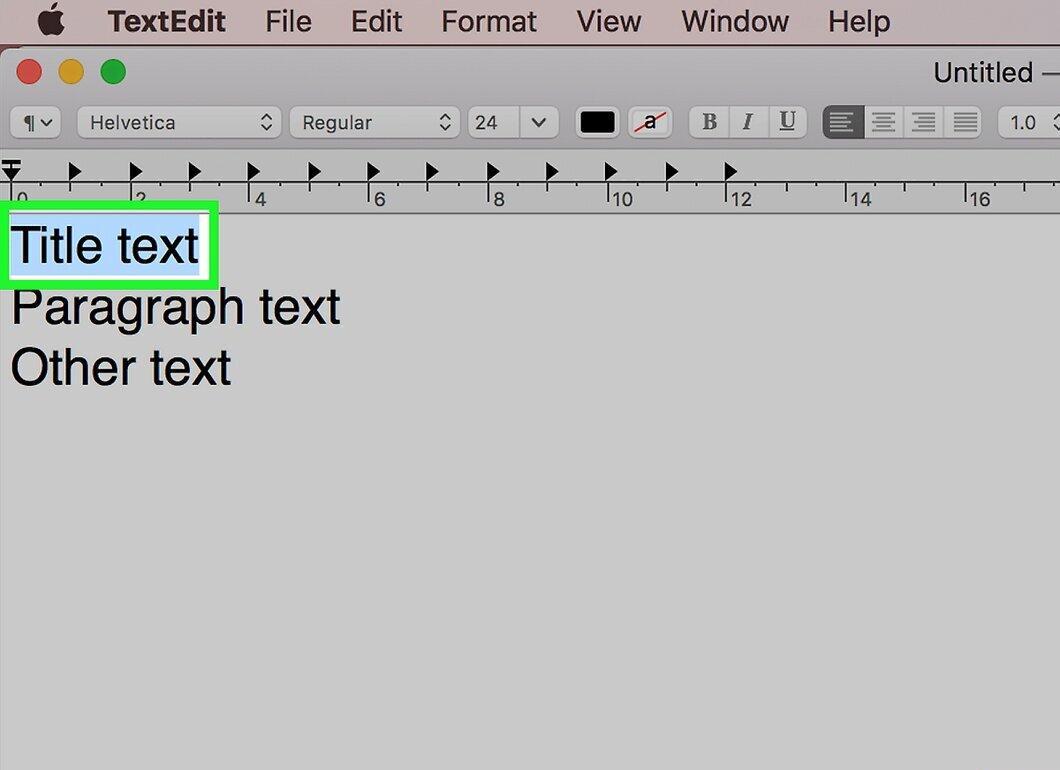
Highlight the text or file you need. To select text, hold down the left mouse button and drag the cursor over the text. To select a file, simply click on it.
- To select multiple files, hold down the ⌘ Command key while clicking on each file you want to include.
Step 3: Open the Edit Menu
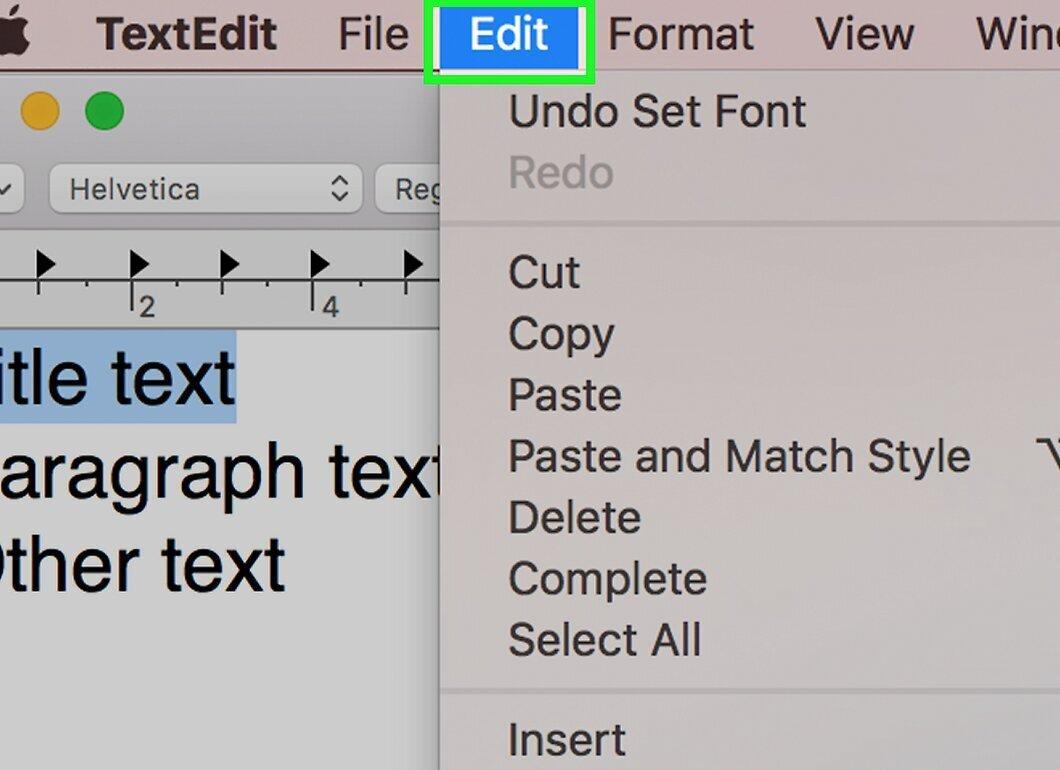
Click on the “Edit” option in the menu bar at the top of the screen. The corresponding menu will open.
Step 4: Choose Copy
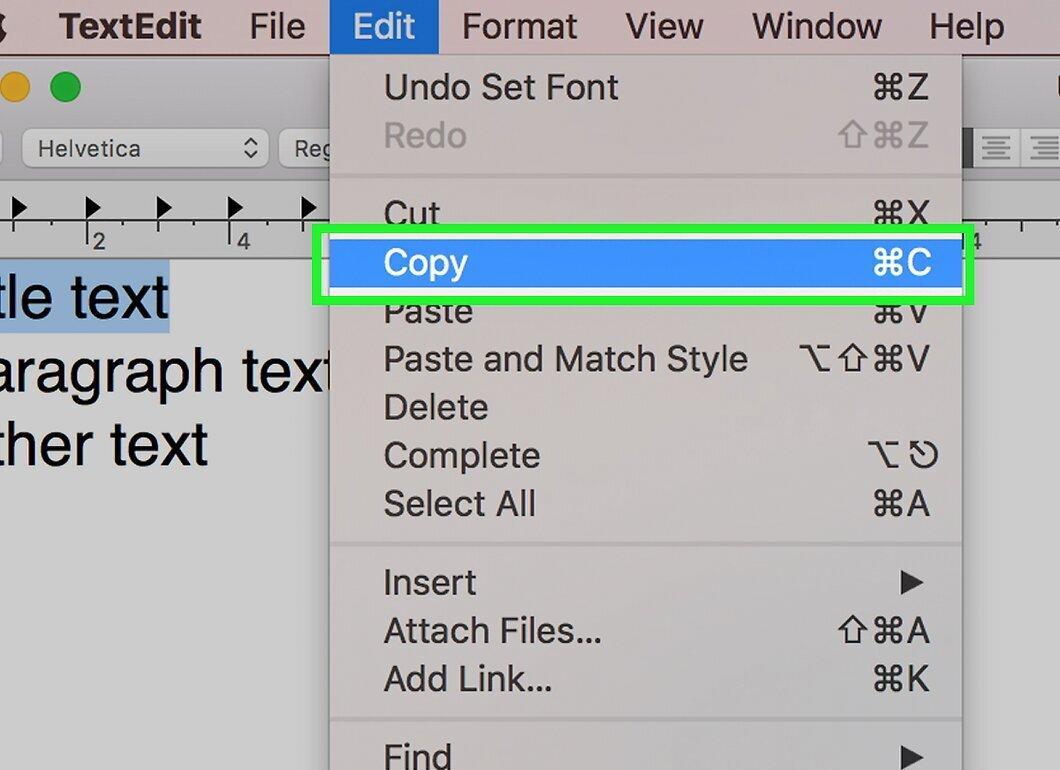
Click on the “Copy” option in the Edit menu. The selected text or file will be saved to the clipboard.
- If you are copying a single file, its name will appear next to the word “Copy.”
- The copied items will not appear on the screen.
Step 5: Go to the Paste Location
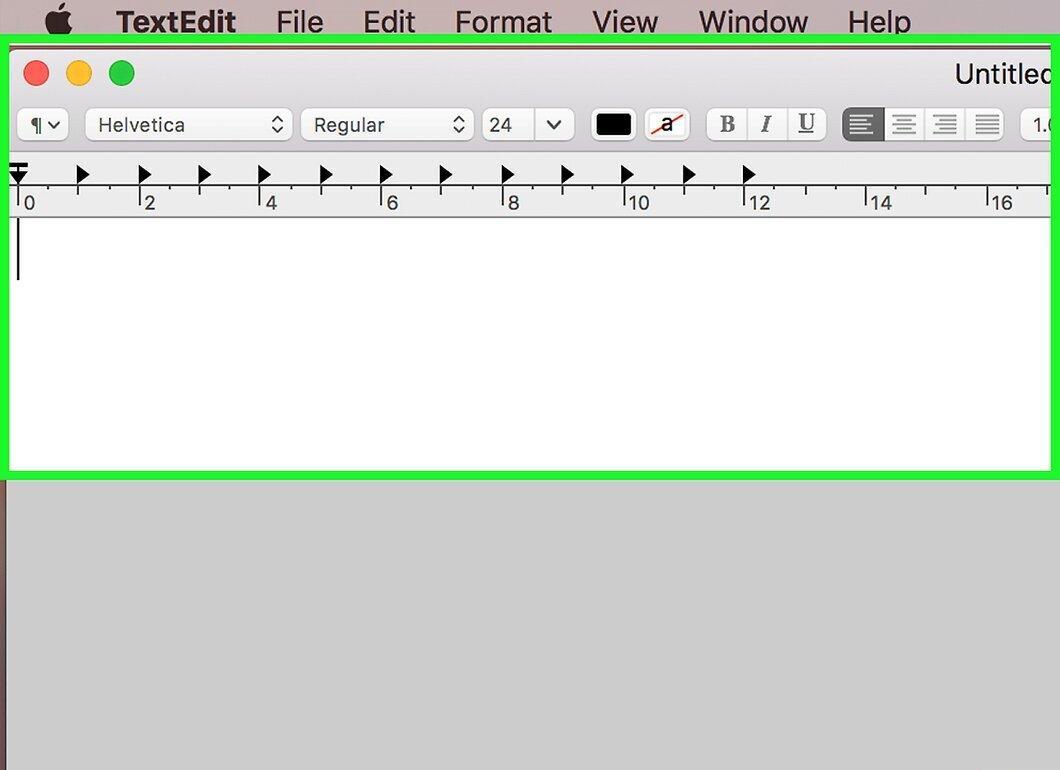
Move to where you want to paste the text or file. Text can be pasted into a text field or document, and files can be pasted into another folder.
- If you are pasting text, first click on the text field.
Step 6: Open the Edit Menu Again
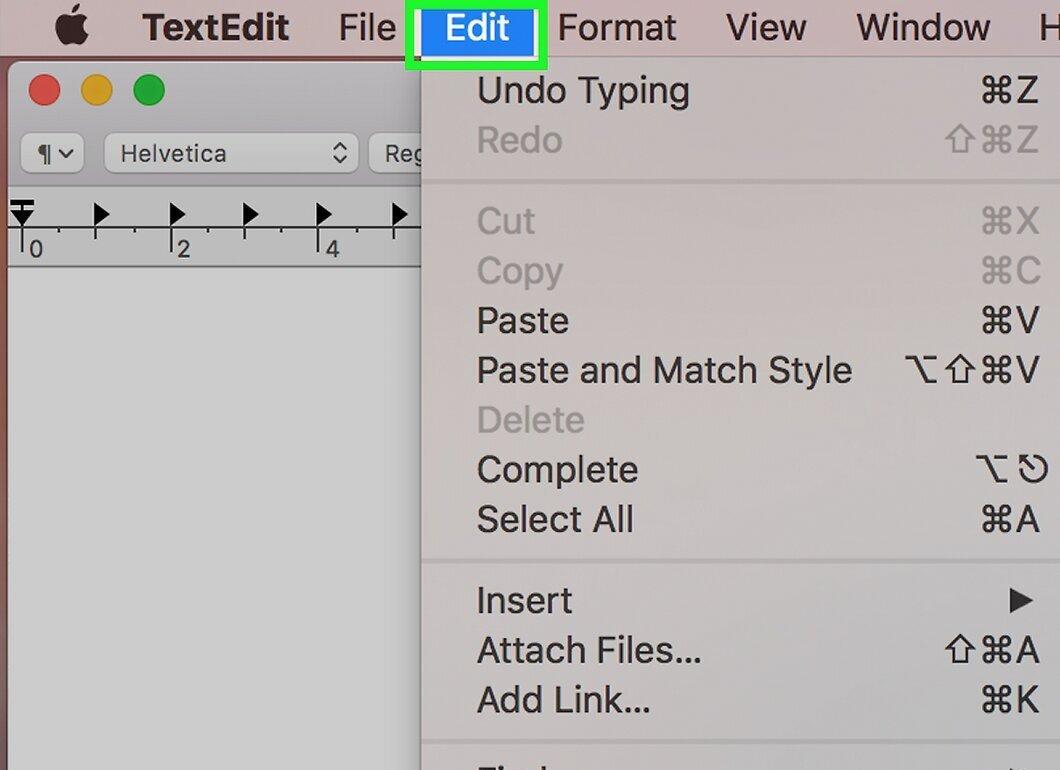
Click on “Edit” in the menu bar again to open the menu.
Step 7: Choose Paste
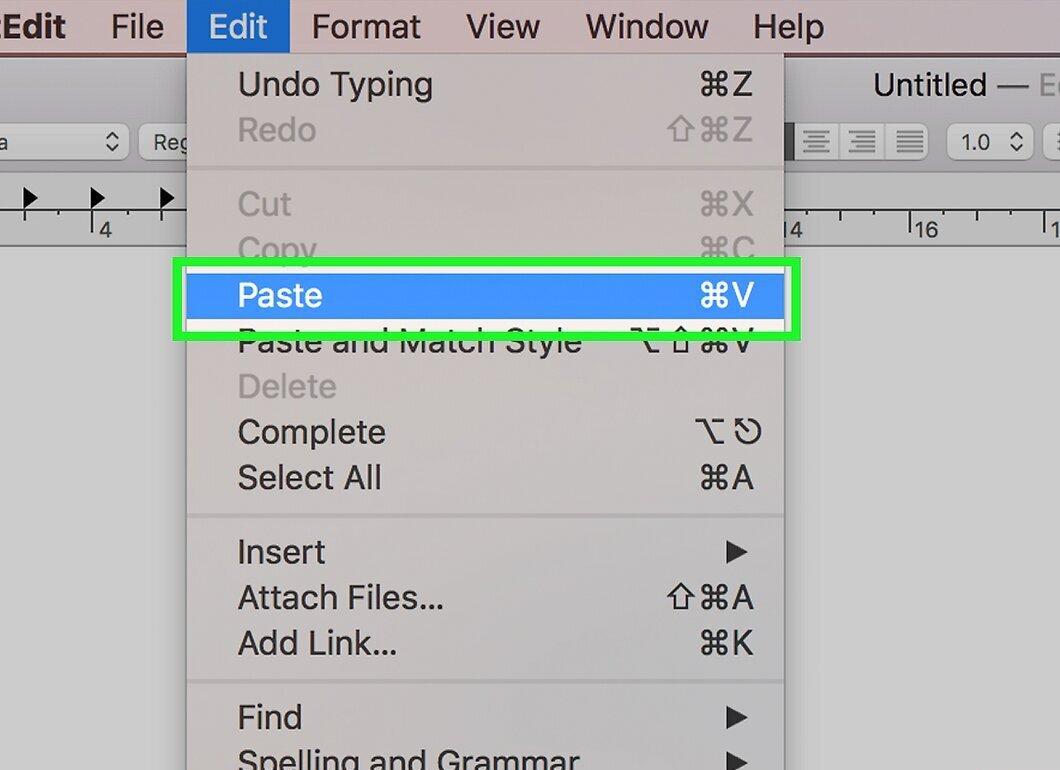
Click on the “Paste” option in the menu. The text will appear in the text field or document, and the files will be placed in the designated folder.
- If you copied multiple files, you will see the option “Paste Items.”
- If only one file was copied, you will see the option “Paste [filename]” (e.g., “Paste ‘Screenshot 1’”).
Using the Keyboard and Trackpad
Step 1: Use Keyboard Shortcuts.
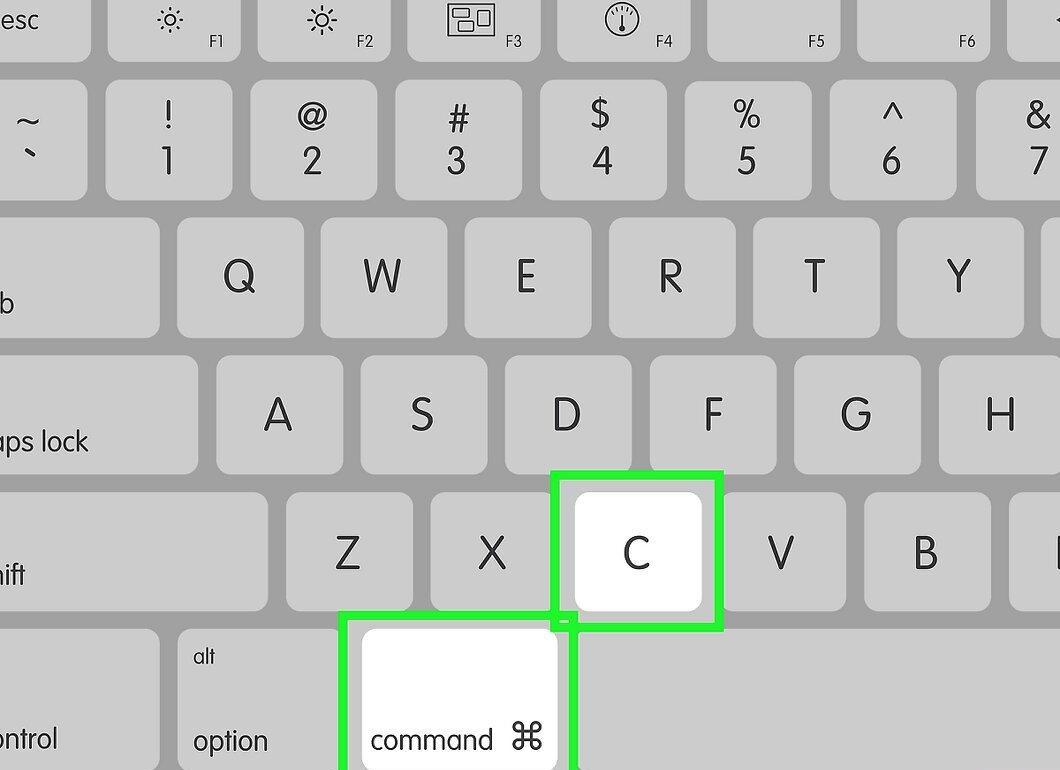
Utilize keyboard shortcuts for quick access to functions:
- Hold down Control and click on the item to open the context menu with “Copy” and “Paste” options.
- Highlight the text or file and press ⌘ Command+C to copy.
- Press ⌘ Command+V to paste the copied text or file.
Step 2: Open the Apple Menu
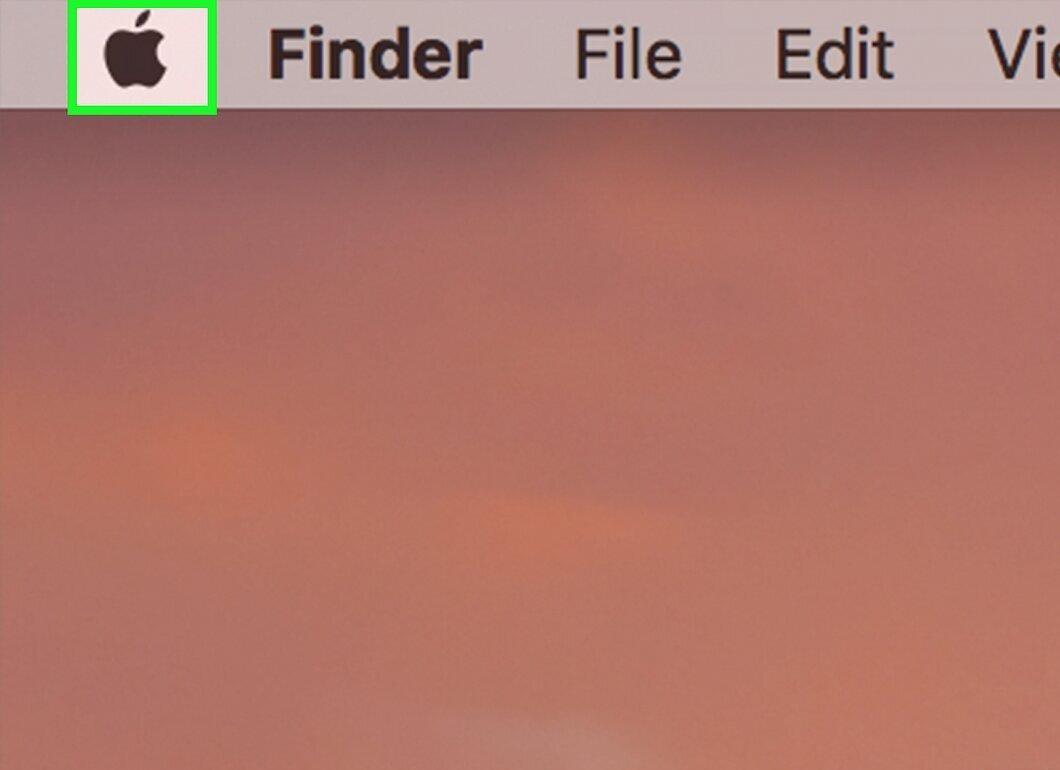
Click on the Apple logo in the top left corner of your screen to open the menu.
Step 3: Select System Preferences
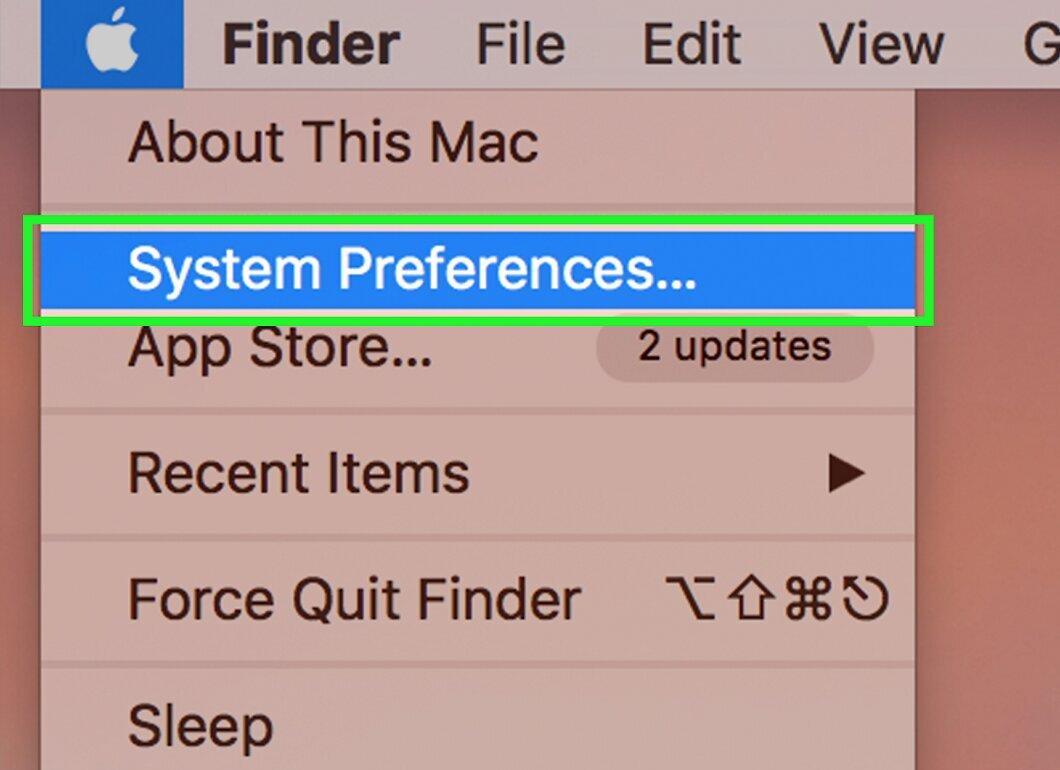
Click on “System Preferences” in the menu to open the corresponding window.
Step 4: Click on Trackpad
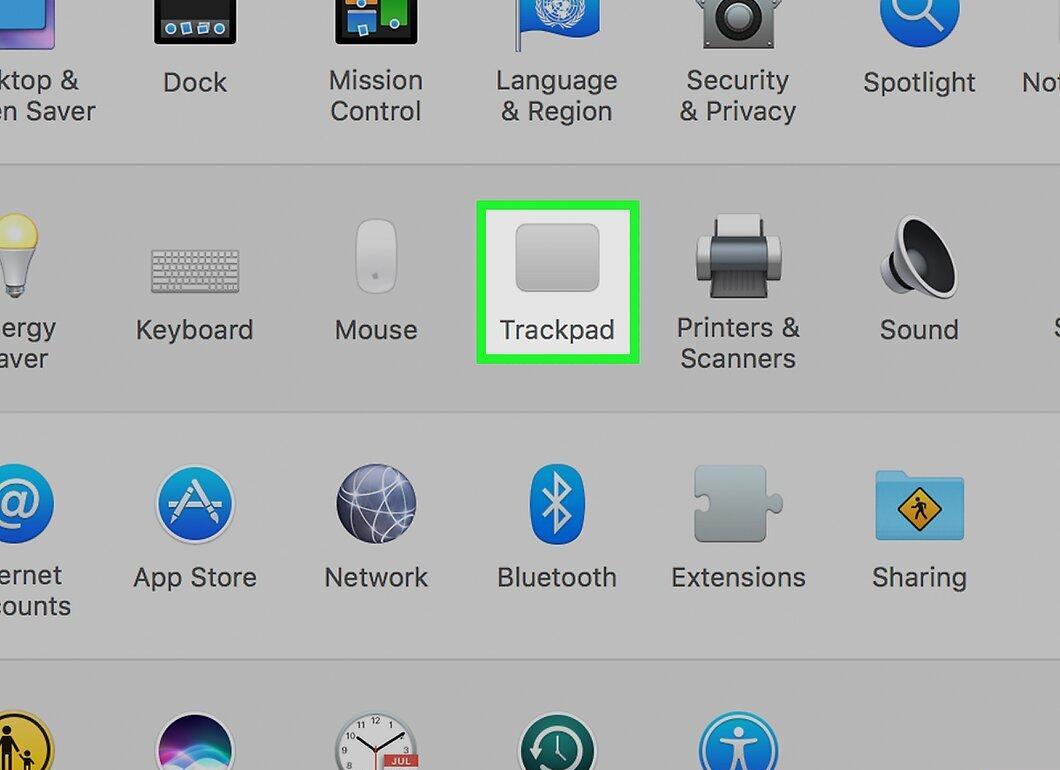
In the top section of the System Preferences window, select the “Trackpad” option. A new window with settings will appear.
Step 5: Go to the Pointing & Clicking Tab
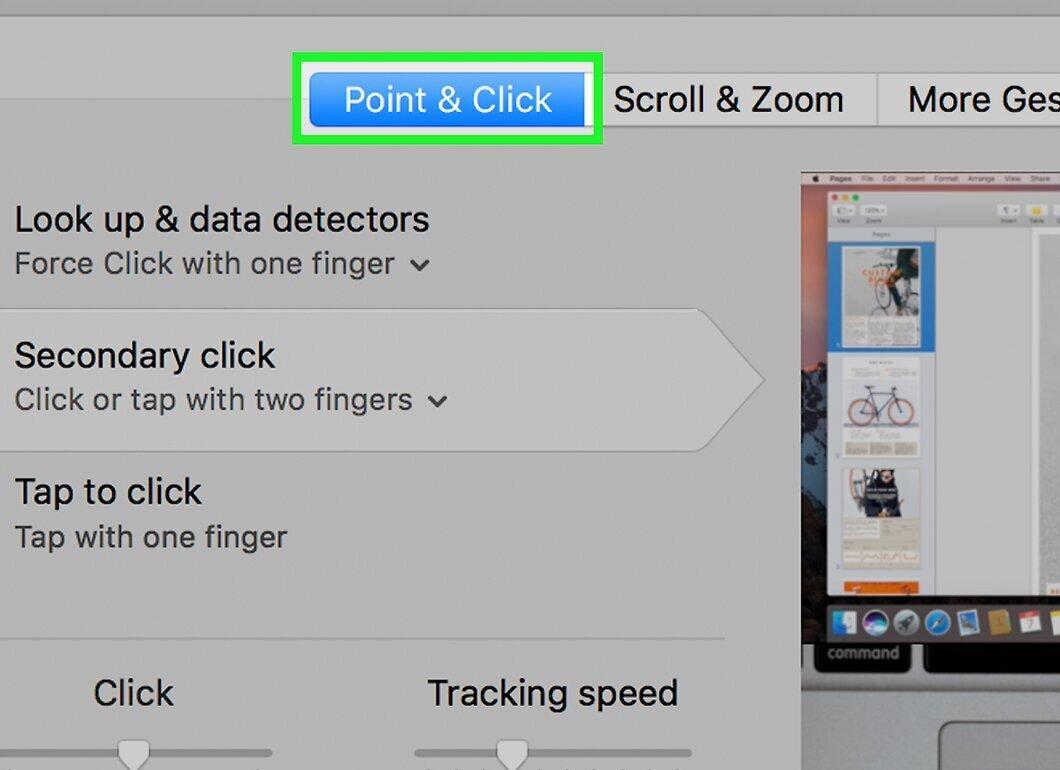
Navigate to the “Pointing & Clicking” tab at the top of the window.
Step 6: Enable Secondary Click
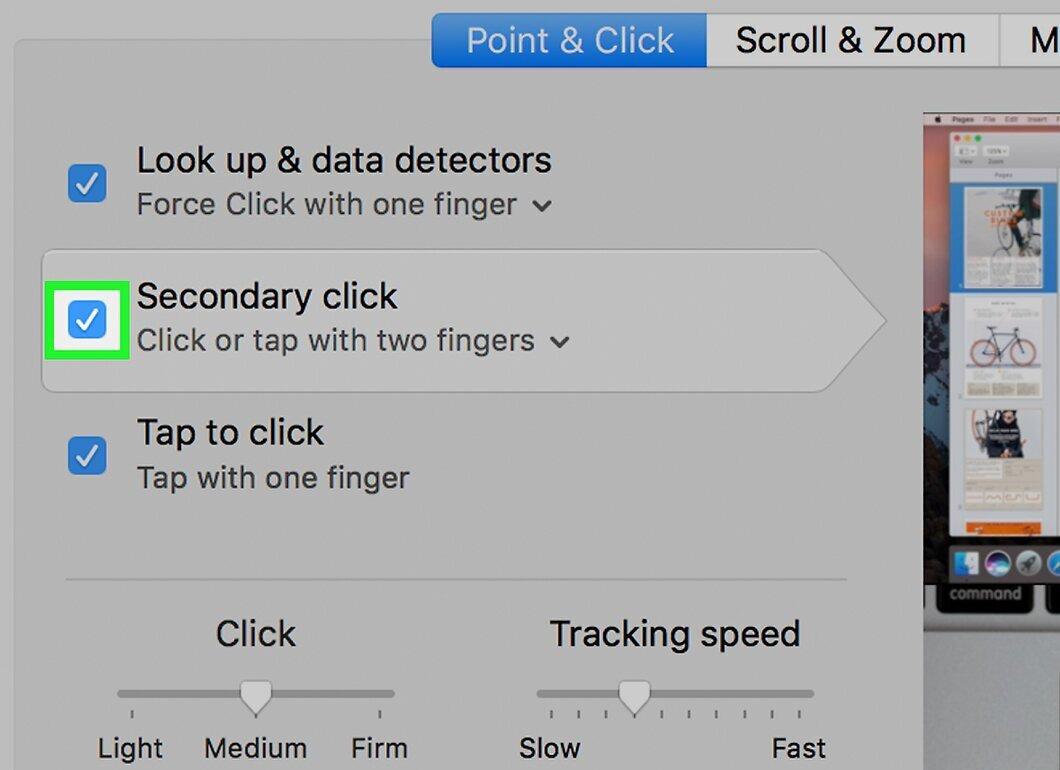
Check the box next to “Secondary click.” This will allow you to click with two fingers on the trackpad to bring up the context menu.
- If the box is already checked, the secondary click feature is enabled.
Step 7: Locate the Text or File to Copy.
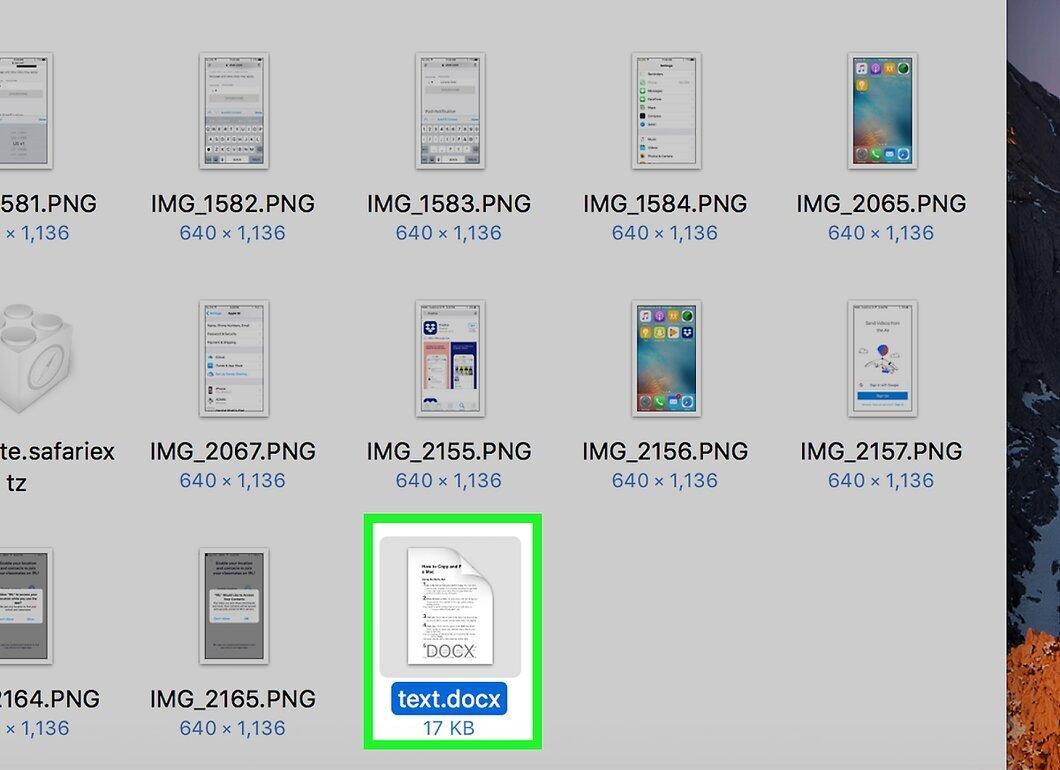
Go to the document or folder containing the text or file you need.
Step 8: Select the Text or File.
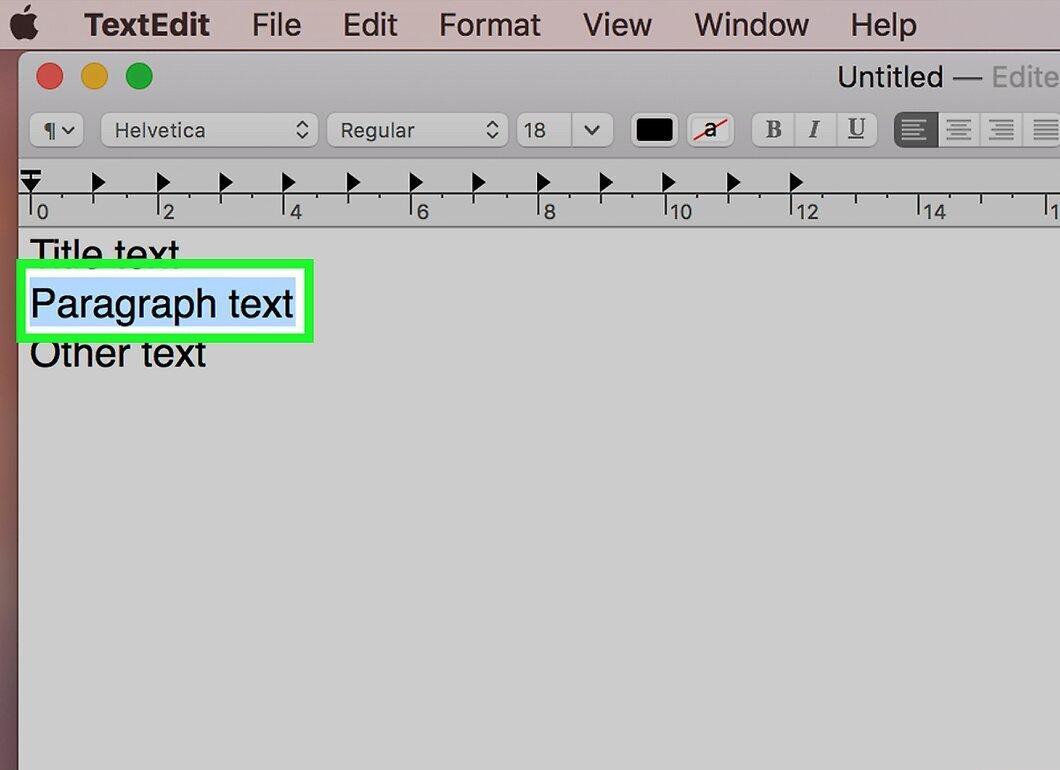
Highlight the text or file you need. You can do this by holding down the left mouse button and dragging the cursor, or by clicking on the file.
- To select multiple files, hold down the ⌘ Command key and click on each one.
Step 9: Click with Two Fingers on the Selected Item.
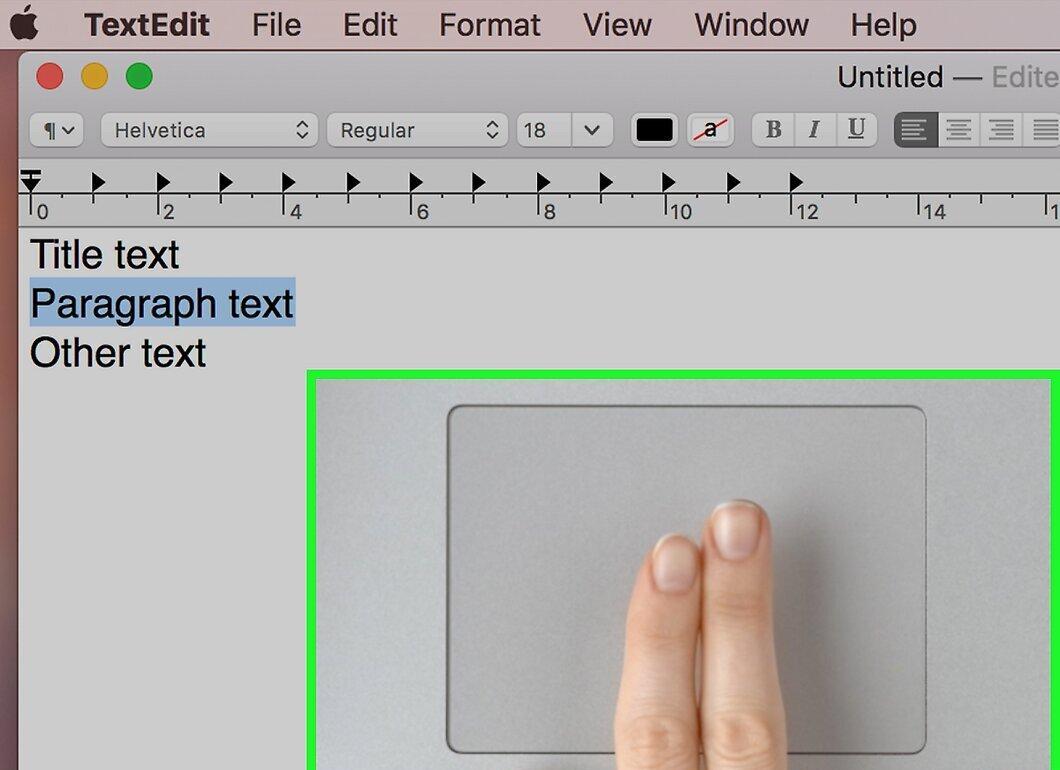
Place the cursor over the highlighted text or file and click the trackpad with two fingers. A context menu will appear.
- If you highlighted multiple files, you can click with two fingers on any of them.
Step 10: Click Copy
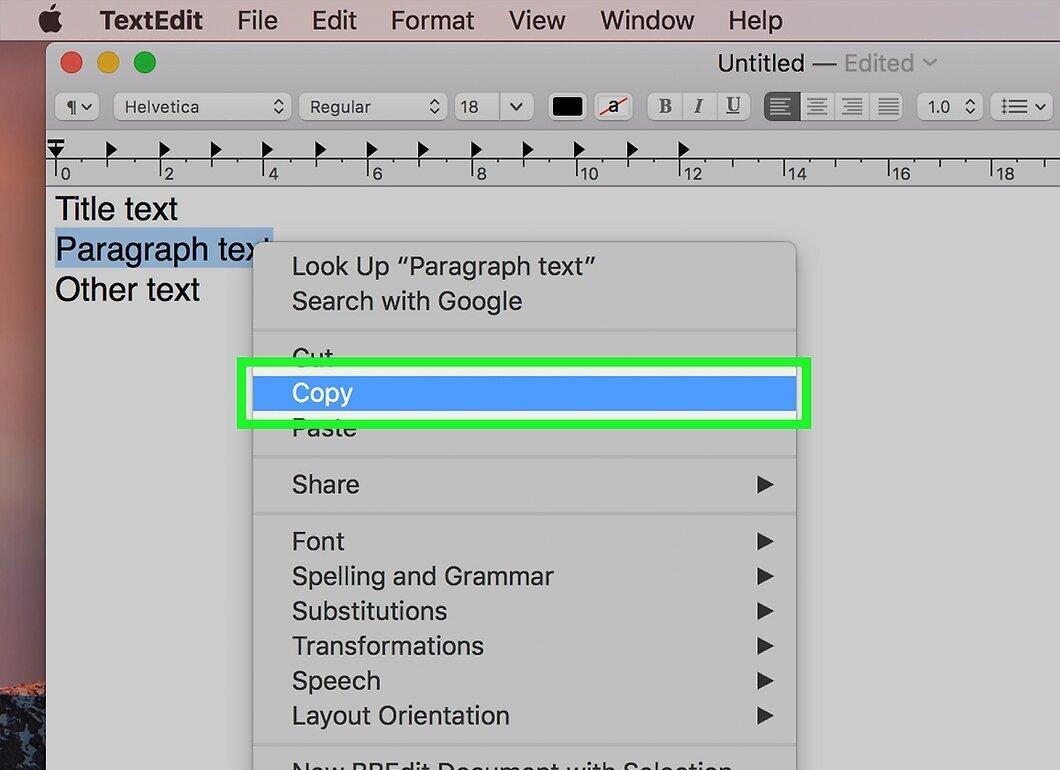
Select the “Copy” option in the context menu. The highlighted text or file will be copied to the clipboard.
- The copied items will not appear on the screen.
- If a single file is being copied, its name will be shown next to the “Copy” option.
Step 11: Go to the Paste Location
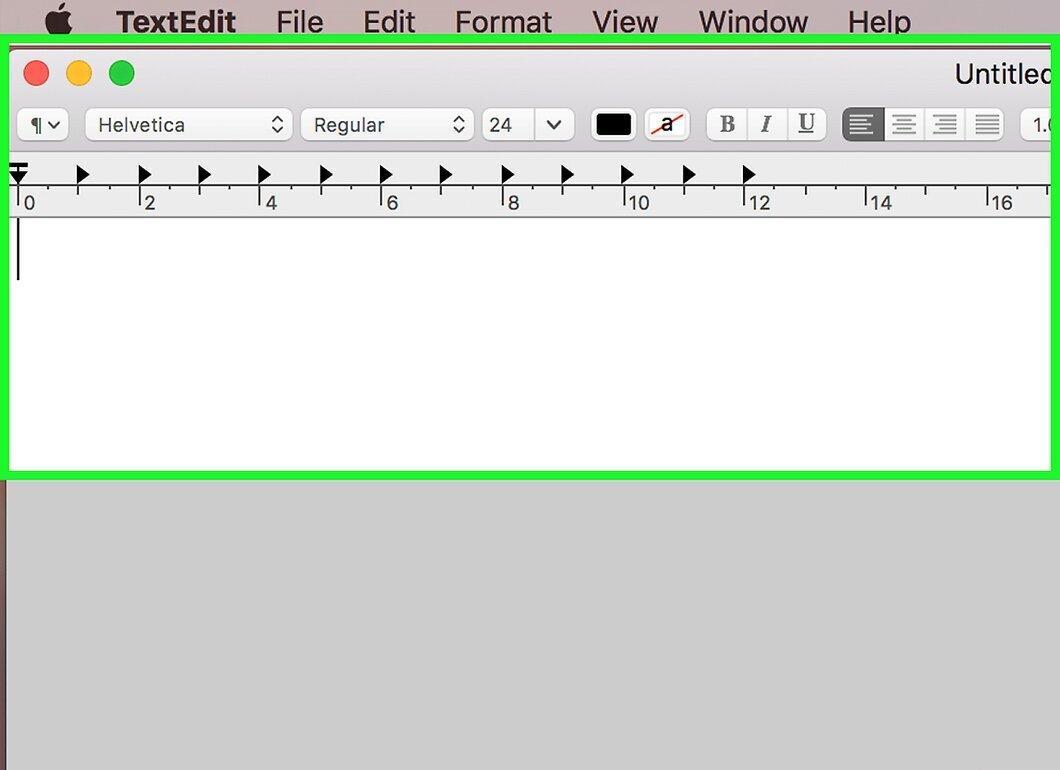
Move to where you want to paste the text or file. Text can be pasted into a document or text field, and files can be pasted into another folder.
Step 12: Click with Two Fingers on the Text Field or Empty Area of the Folder.
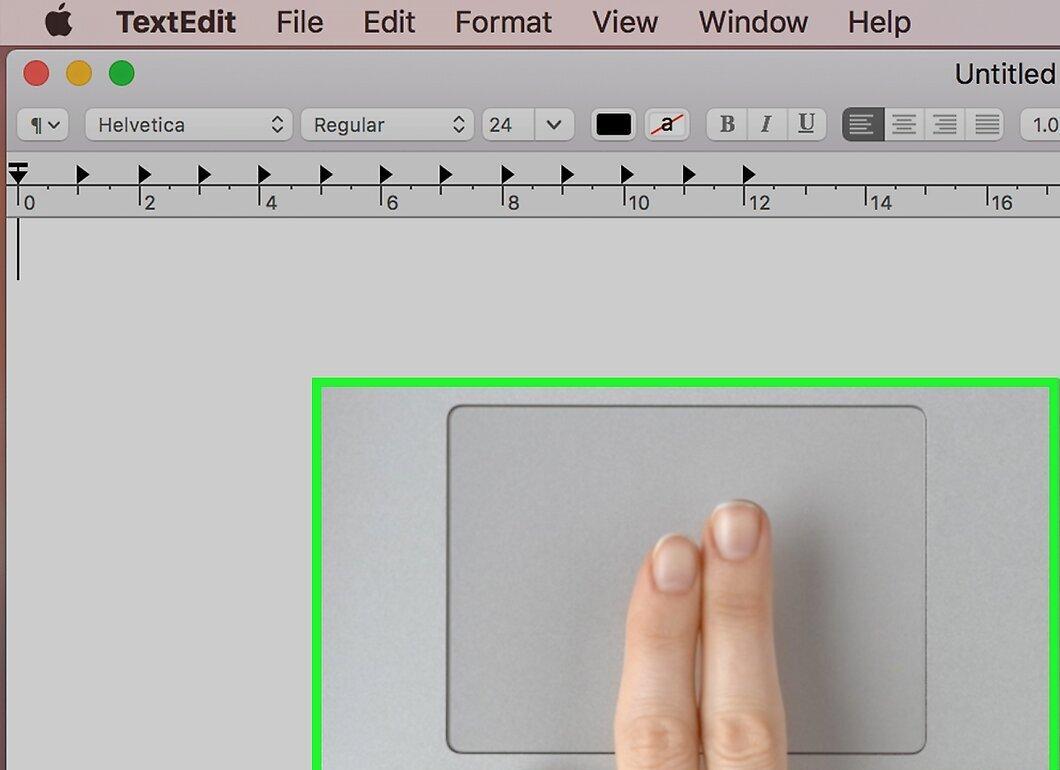
Place the cursor in the text field or in an empty space within the folder and click with two fingers. A menu will pop up.
Step 13: Select Paste
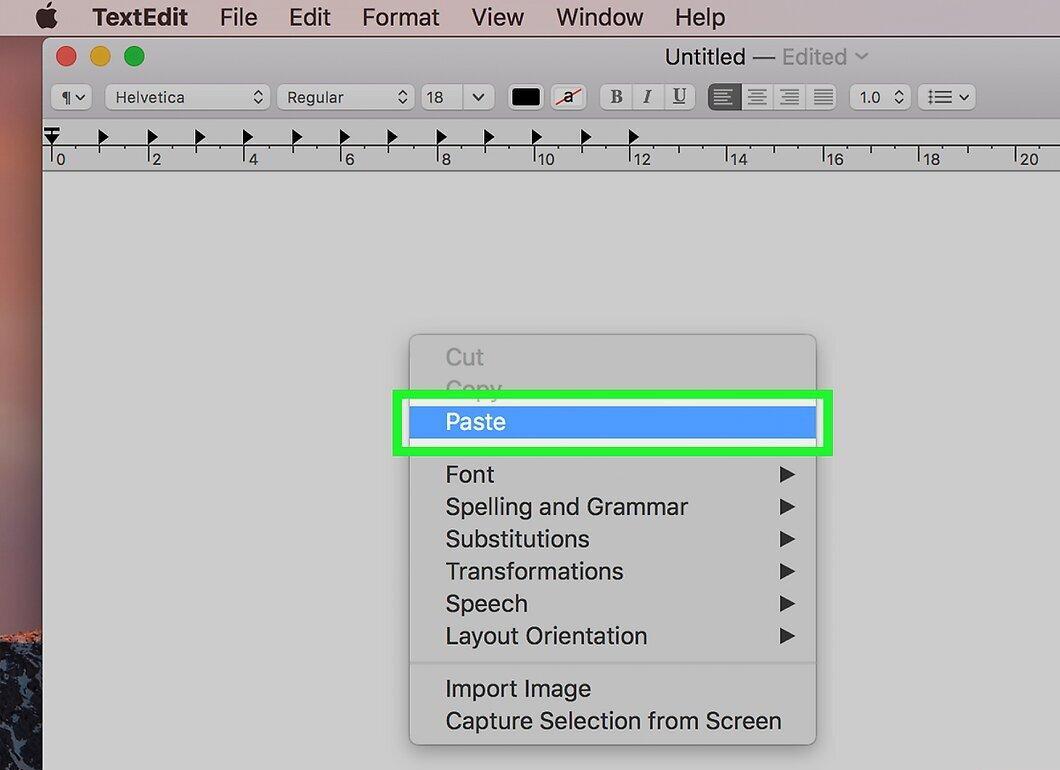
Click on the “Paste” option in the menu. The copied text will appear in the text field or document, and the files will be placed in the folder.
- If you copied multiple files, select “Paste Items.”
- If only one file was copied, you will see “Paste [filename]” (e.g., “Paste ‘Screenshot 1’”).


