
This article guides you through the quick and easy steps to install the latest iOS version on your Apple device.
Updating via iPhone or iPad
Step 1. Open "Settings".
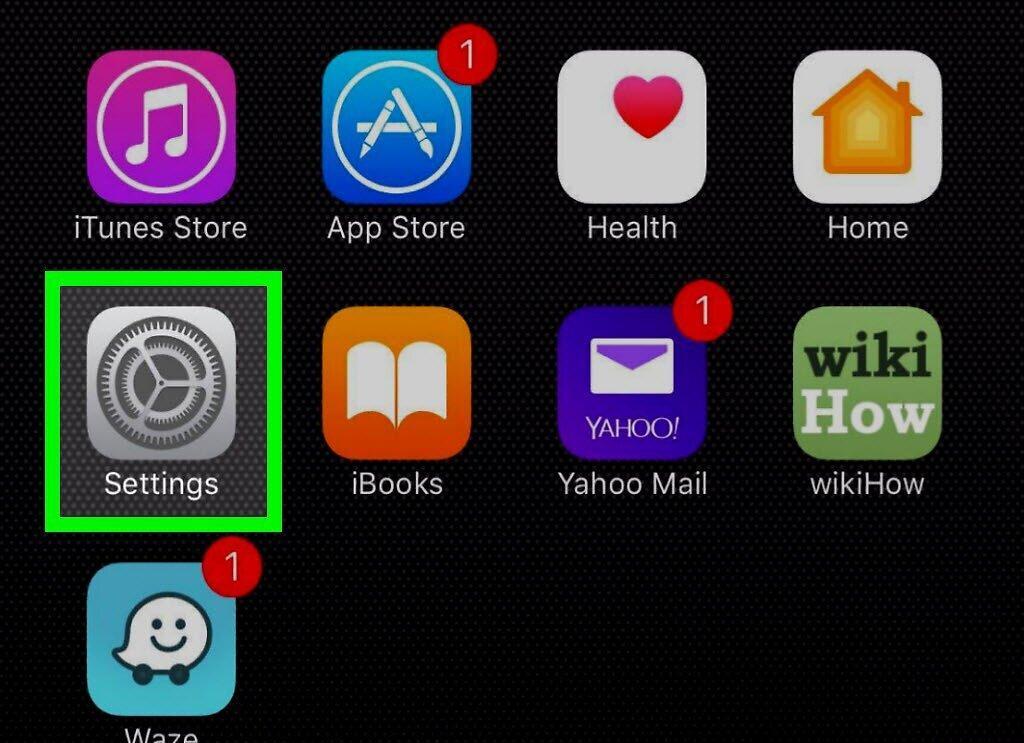
Launch the "Settings" app. The icon looks like a gray gear (⚙️) and is usually found on your device's home screen.
Step 2. Scroll down and select "General".
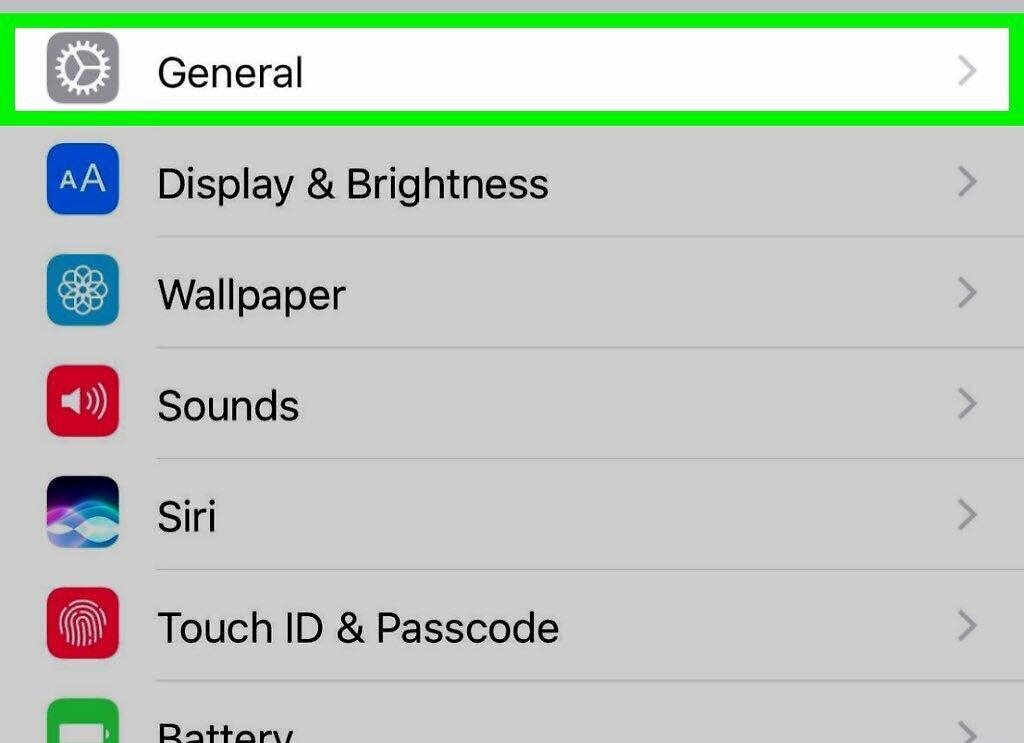
Scroll down and choose "General". This option is located near the top of the menu, next to the gear icon (⚙️).
Step 3. Tap on "Software Update".
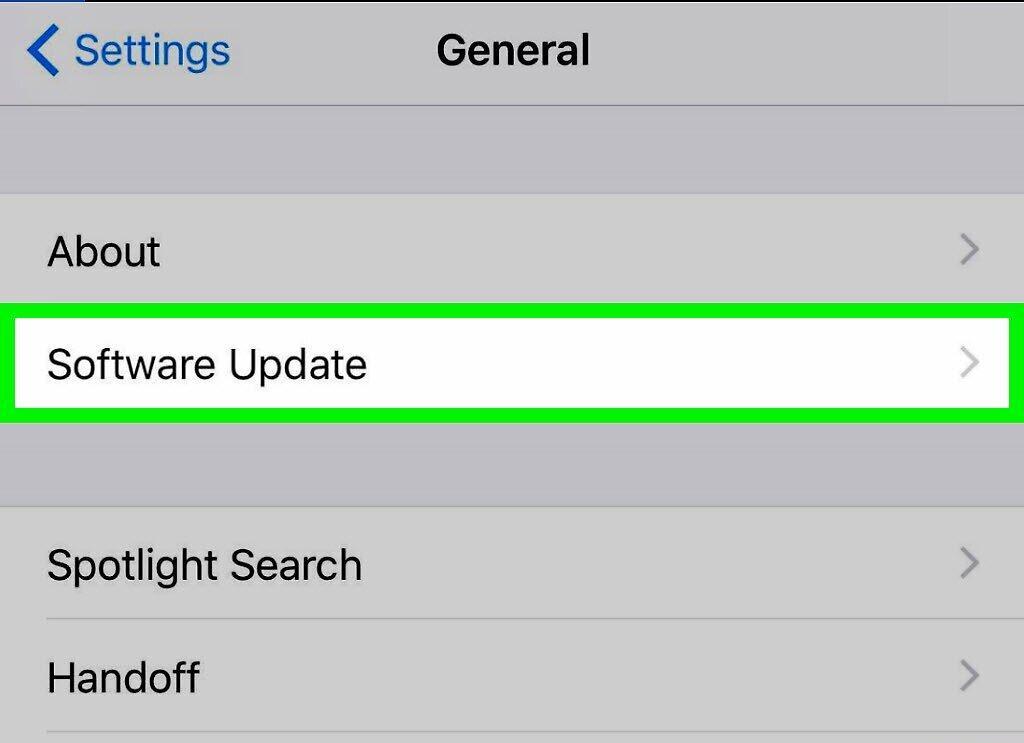
Select "Software Update". It is located at the top of the screen.
Step 4. Click on "Download and Install".
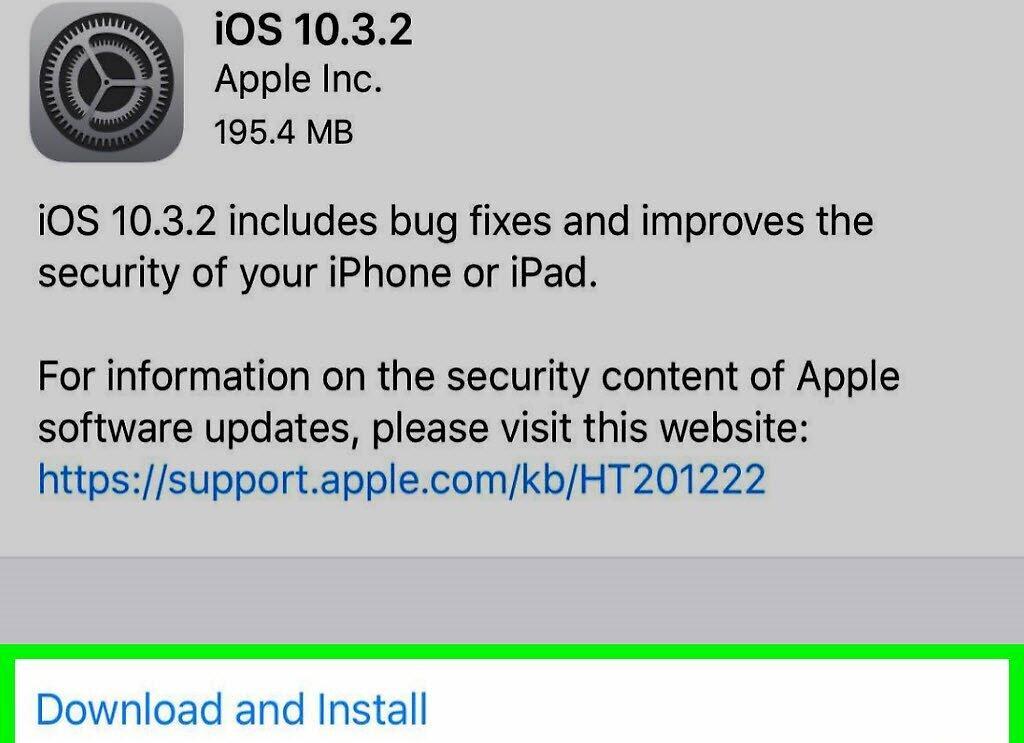
Press "Download and Install". If an update is available, you will see this button below the update description.
Step 5. Enter your passcode.
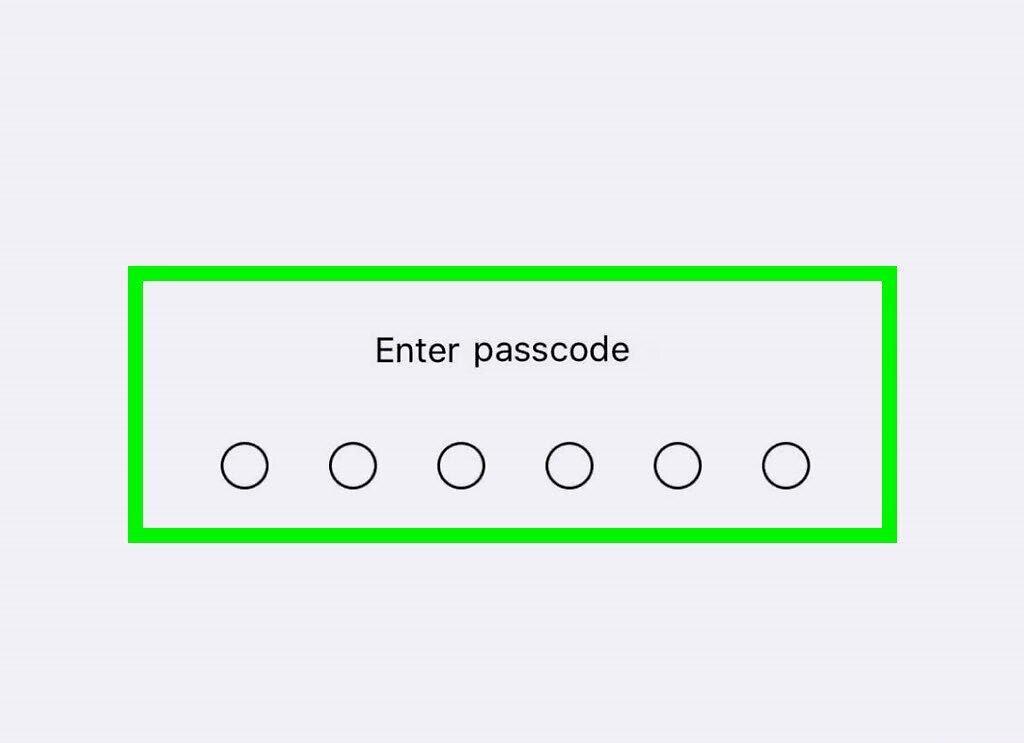
Input the passcode you use to unlock your device.
- The update process will begin.
- In some cases, you may need to set up your device again, but your apps and data will remain intact.
Updating via iTunes
Step 1. Connect your iPhone or iPad to your computer.
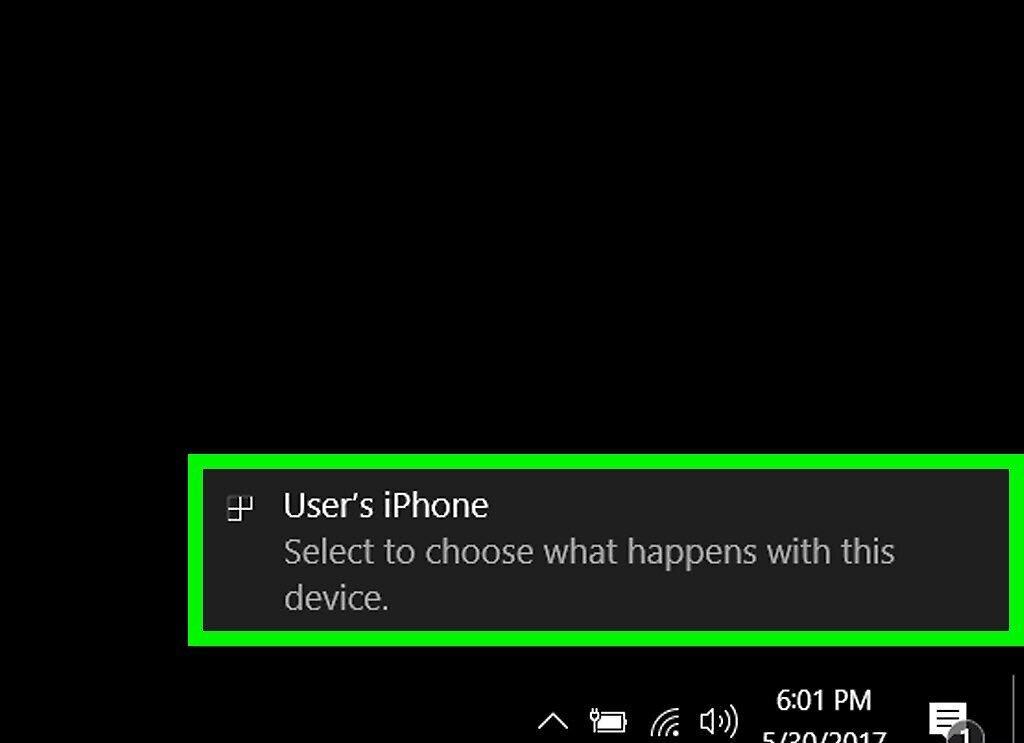
Connect your device to your computer using the original USB cable that came with it.
- A prompt will appear on your phone asking you to trust this computer—tap "Trust".
Step 2. Launch iTunes.

Open iTunes. The program usually launches automatically when you connect your device.
Step 3. Click on your device icon at the top of the window.
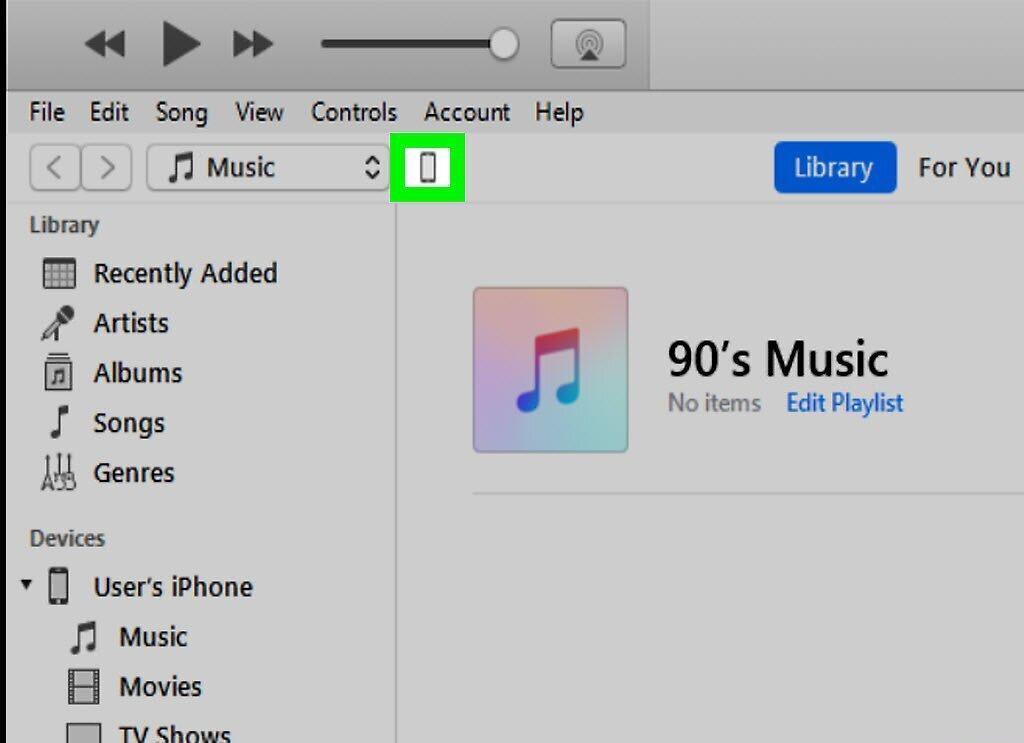
Click on your device icon at the top of the app window. In some cases, the icon may not appear immediately.
Step 4. Create a backup.
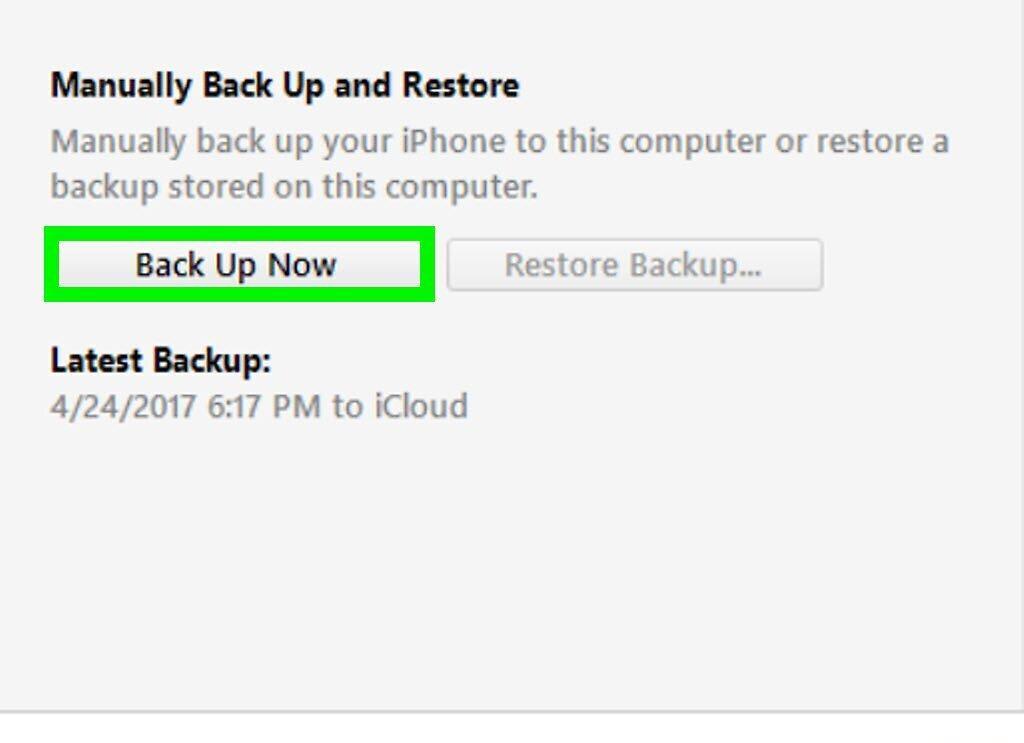
Click on "Back Up Now". It is advisable to back up before updating, so you can restore your data in case something goes wrong. This process takes just one or two minutes.
Step 5. Click on "Check for Updates".
Click the "Check for Updates" button. You will find it on the "Summary" page after selecting your iOS device.
- When you first open iTunes with your device connected, you may be prompted for an automatic update. This message will appear if your OS is already updated to the latest version.
Step 6. Choose "Download and Update".
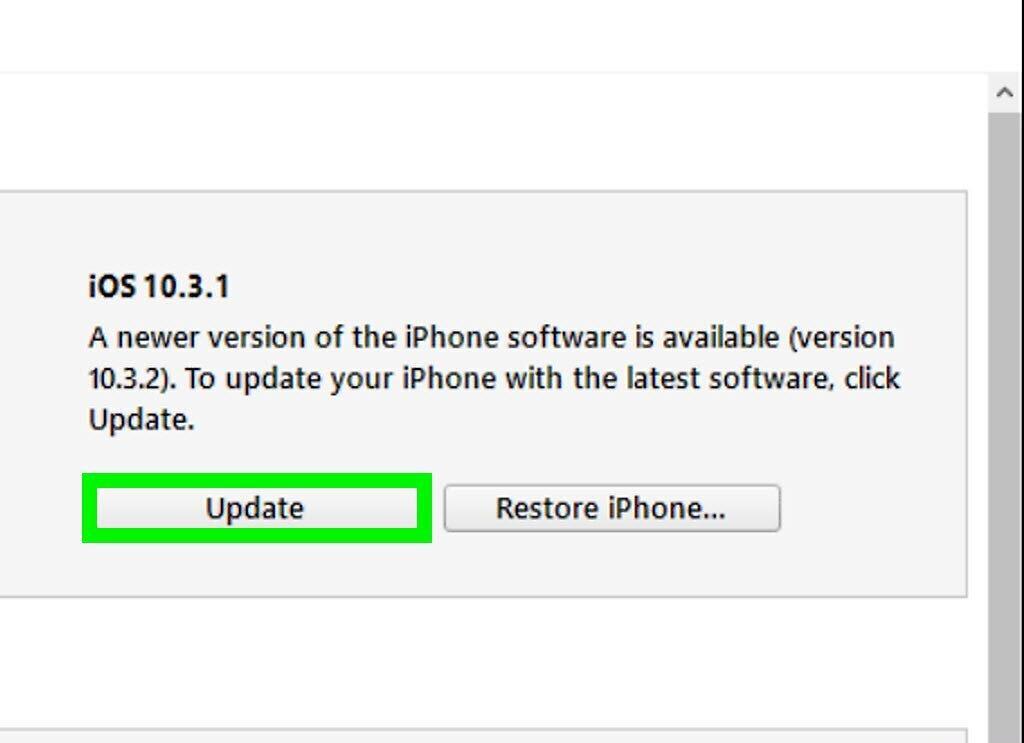
Click on "Download and Update". This action will download the updates to your computer and install them on your iOS device. The entire process may take some time, and you can monitor it on your device's screen.
Step 7. Complete the update.
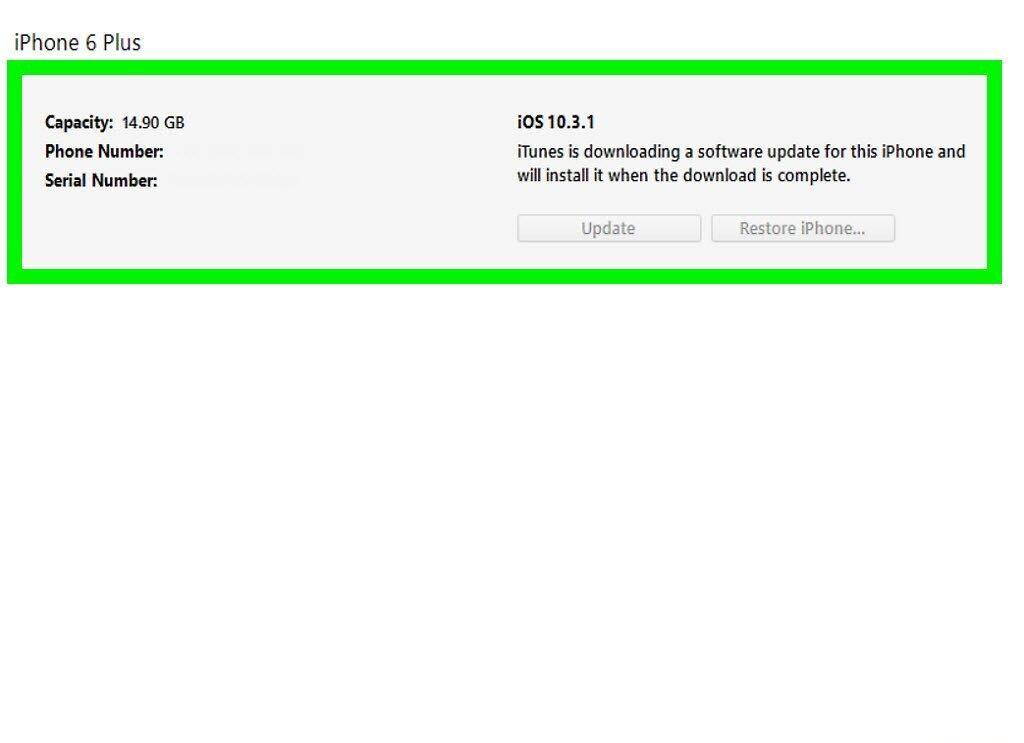
Finish the update process. After the update is installed on your iPhone, iPad, or iPod, you may need to enter your password or sign in with your Apple ID.
- If you are updating to a major version, you will be prompted to review a summary of the new features.


