
This article will guide you through the process of repairing a stuck pixel on your LCD monitor that has stopped changing colors. A pixel usually gets 'stuck' on a color other than black or white, and the issue can often be resolved using a few different methods. However, if the pixel turns out to be dead rather than stuck, it will be impossible to fix. Similarly, although there is a chance to fix a stuck pixel, there is no guarantee that you will be successful.
Preparing to Work
Step 1. Verify that the pixel is indeed stuck and not dead.
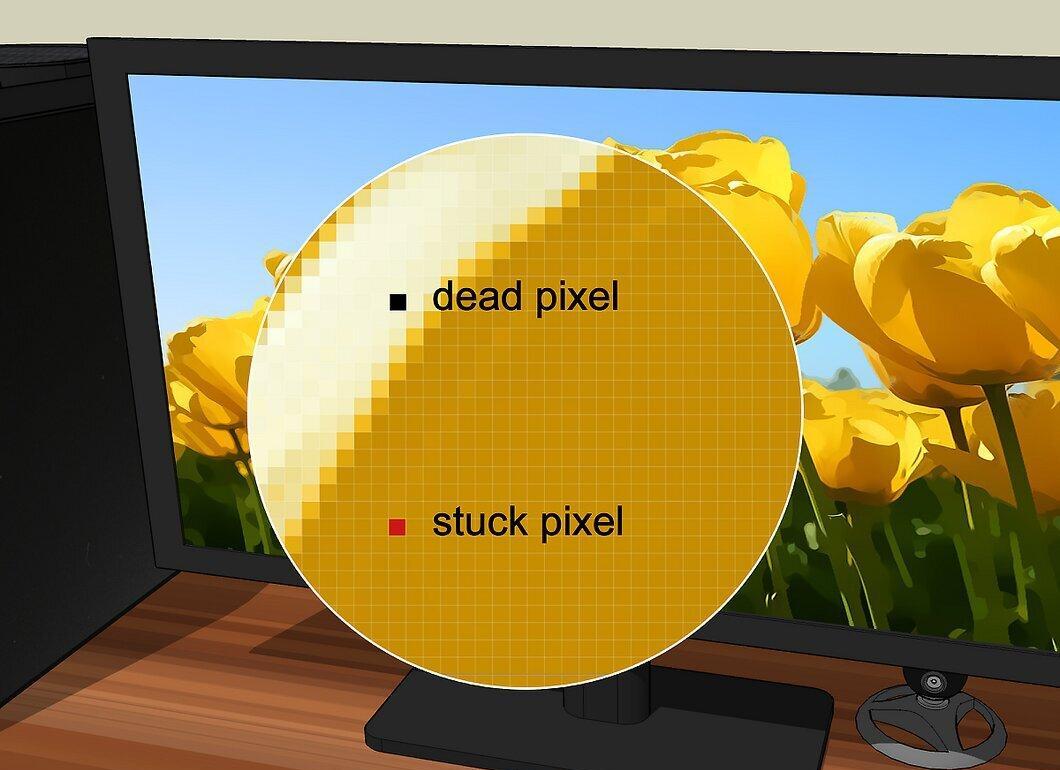
Make sure that the pixel is indeed stuck and not dead. While the terms "dead" and "stuck" pixels are often used interchangeably, stuck pixels can be fixed, whereas dead pixels cannot. If the pixel displays a certain color other than black or fails to change color depending on the background color, it's likely just stuck.
- Dead pixels usually remain white or black regardless of what’s happening on the screen. While sometimes white dead pixels are referred to as "hot", fundamentally they are no different from black dead pixels.
- If you find a dead pixel on your monitor, you will need to either have it repaired or replace the screen. Sometimes (but not always) dead pixels are covered under the manufacturer's warranty for device or screen replacement.
Step 2. Understand how pixels work.
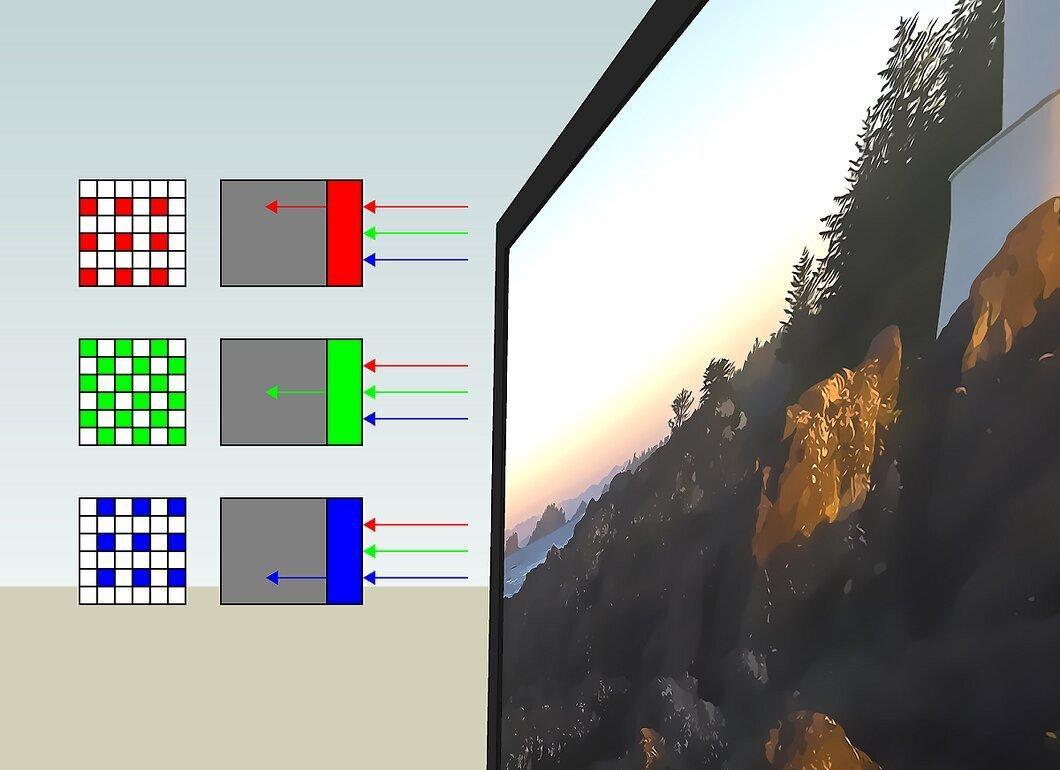
Understand how pixels work. Pixels reflect combinations of red, green, and blue colors depending on what’s displayed on the screen. A pixel can get stuck for a variety of reasons, including prolonged use of the monitor or after displaying overly saturated colors for an extended period. When a pixel is stuck, it displays only one color, which may slightly change depending on the surrounding pixels’ colors.
- Again, a dead pixel never changes its color regardless of the state of surrounding pixels.
Step 3. Check the warranty conditions for your LCD monitor.
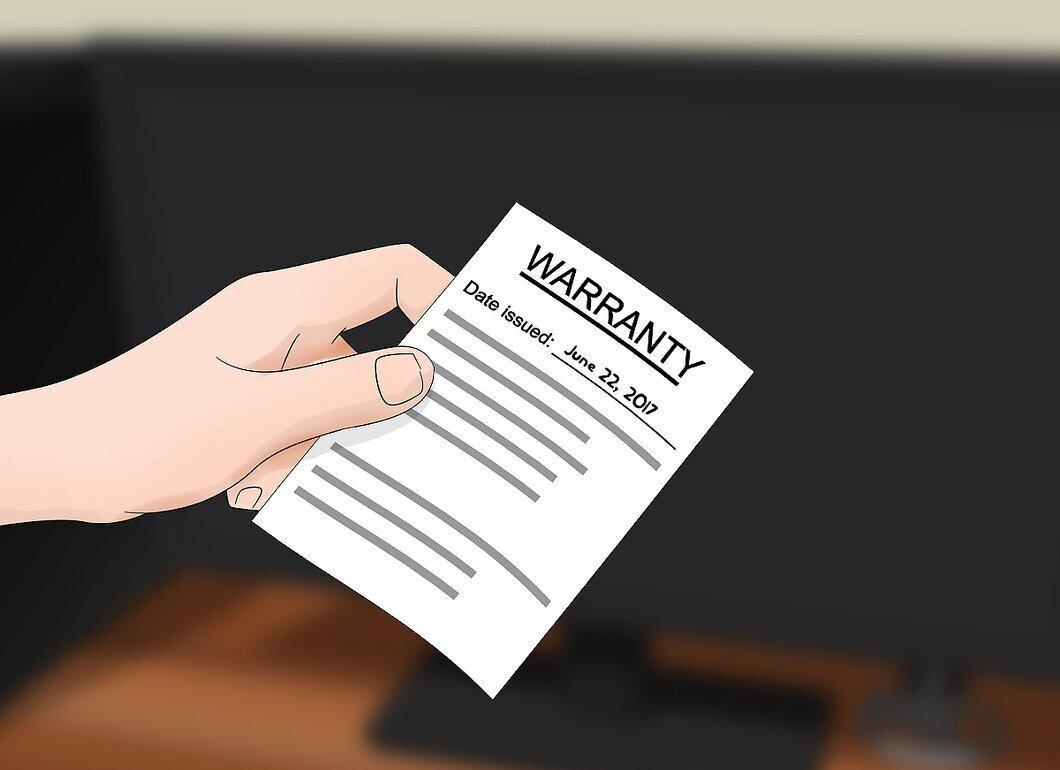
Check the warranty conditions for your LCD monitor. Manufacturers often replace monitors when a certain number of stuck or dead pixels are observed. If your monitor is still under warranty, it’s best to take advantage of the warranty replacement rather than trying to fix the problem yourself.
- However, in this case, you might try using software as it’s a non-invasive method to tackle the issue.
Step 4. Disconnect the monitor for 24 hours.
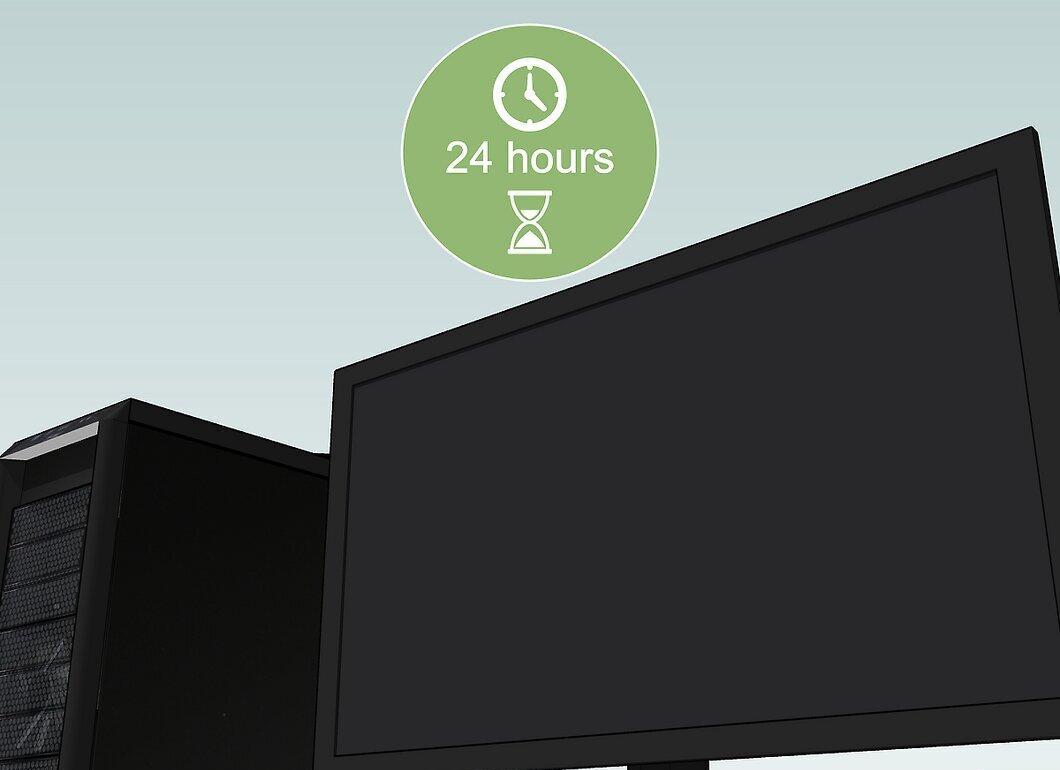
Disconnect the monitor for 24 hours. If the pixel has recently become stuck, the issue may resolve itself — simply disconnecting the monitor for a day might help. There’s no guarantee this will fix the monitor, but having a stuck pixel often indicates that the monitor has been used for too long and should be turned off for a while to prevent further damage.
- Completely unplug the monitor from the power source.
Step 5. Consider taking the monitor for repair.
Consider taking the monitor for repair. Even if the warranty has expired, paying for professional repair might be cheaper than buying a new monitor due to accidental damage from DIY repairs.
Step 6. Know that the pixel might fix itself.
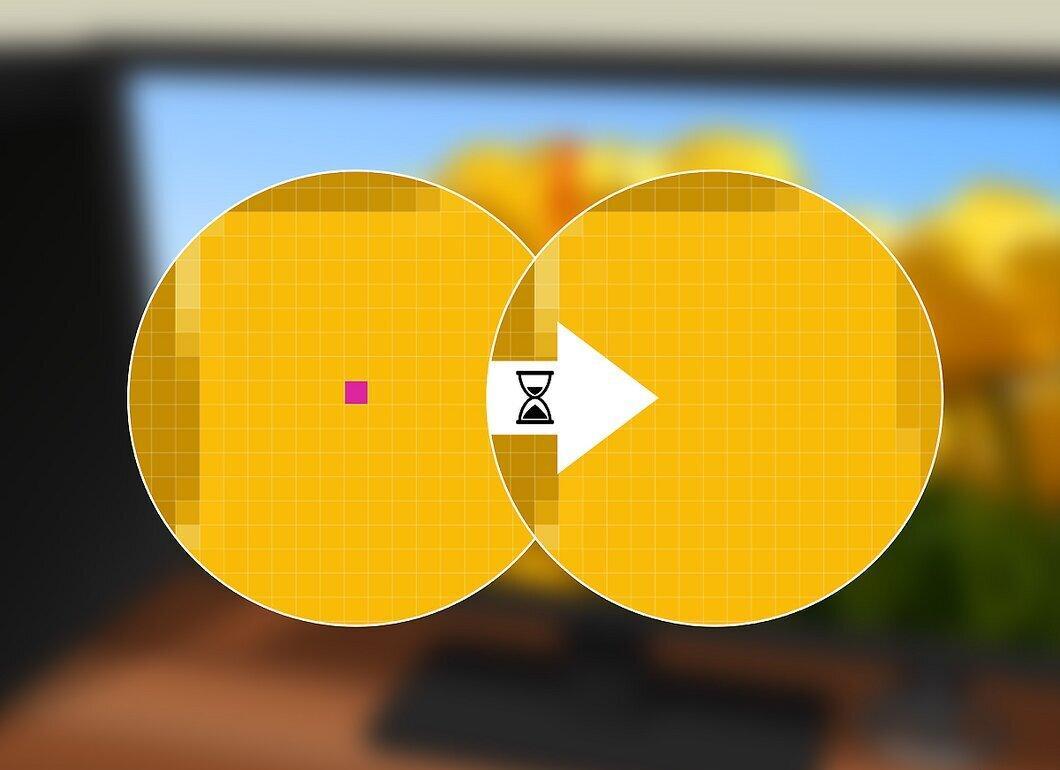
Know that the pixel might fix itself. Often, stuck pixels disappear after some time, but this period can vary from a few days to several years. If you have a high-end monitor with just one stuck pixel, it’s best to refrain from tapping, rubbing, or applying any physical force to the monitor in an attempt to fix the pixel.
Using Software to Fix Screen Issues
Step 1. Understand how this method works.
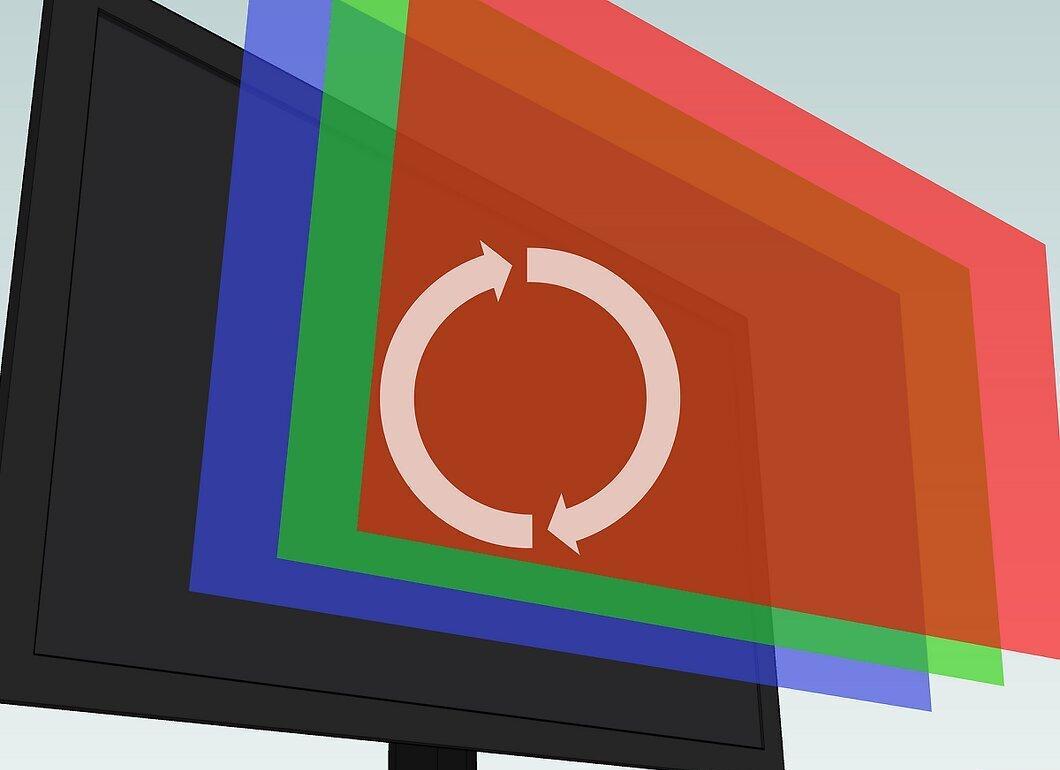
Understand how this method works. Screen repair software displays random combinations of red, green, and blue shades at a rate of up to 60 flashes per second to return the pixel to its normal working cycle.
- There’s no guarantee that screen repair software will successfully resolve the issue, but it is effective in more than half of the cases.
- There are both paid and free programs for restoring monitor screens. Free programs can be just as effective in repairing pixels that can actually be fixed.
Step 2. Avoid using stuck pixel repair software if you have epilepsy.
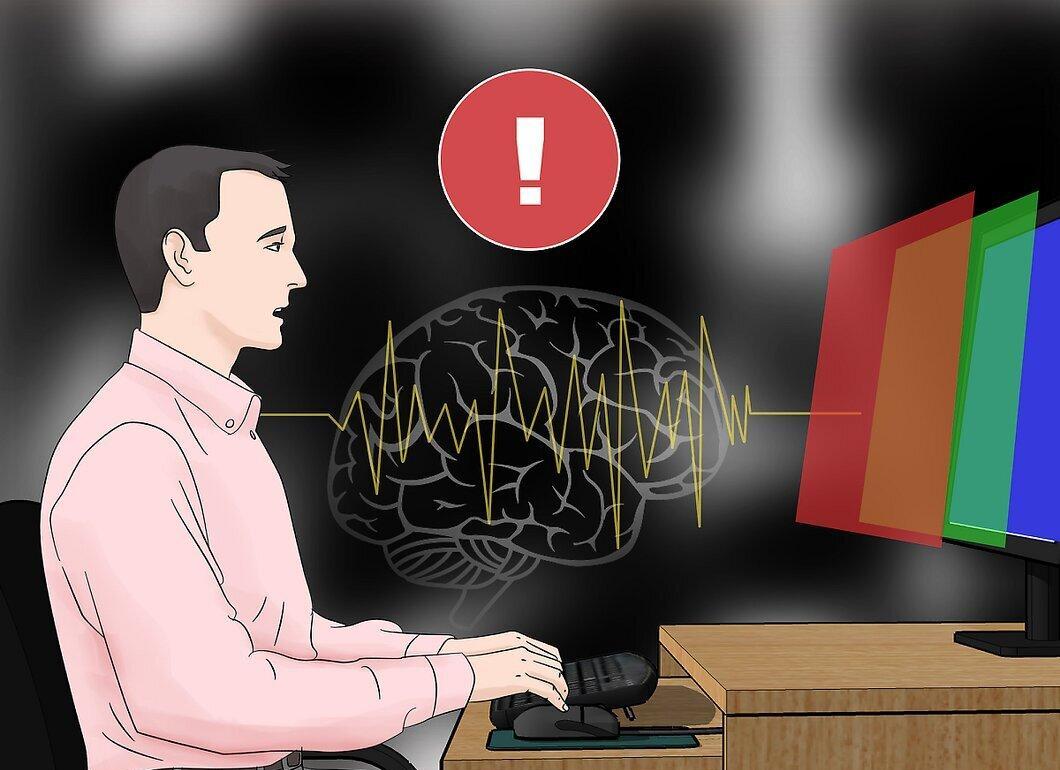
Avoid using stuck pixel repair software if you have epilepsy. Since such software displays random flashes of rapidly changing colors on the screen, it’s best to refrain from using it if you (or any family members) experience epileptic seizures.
Step 3. Visit the JScreenFix website.
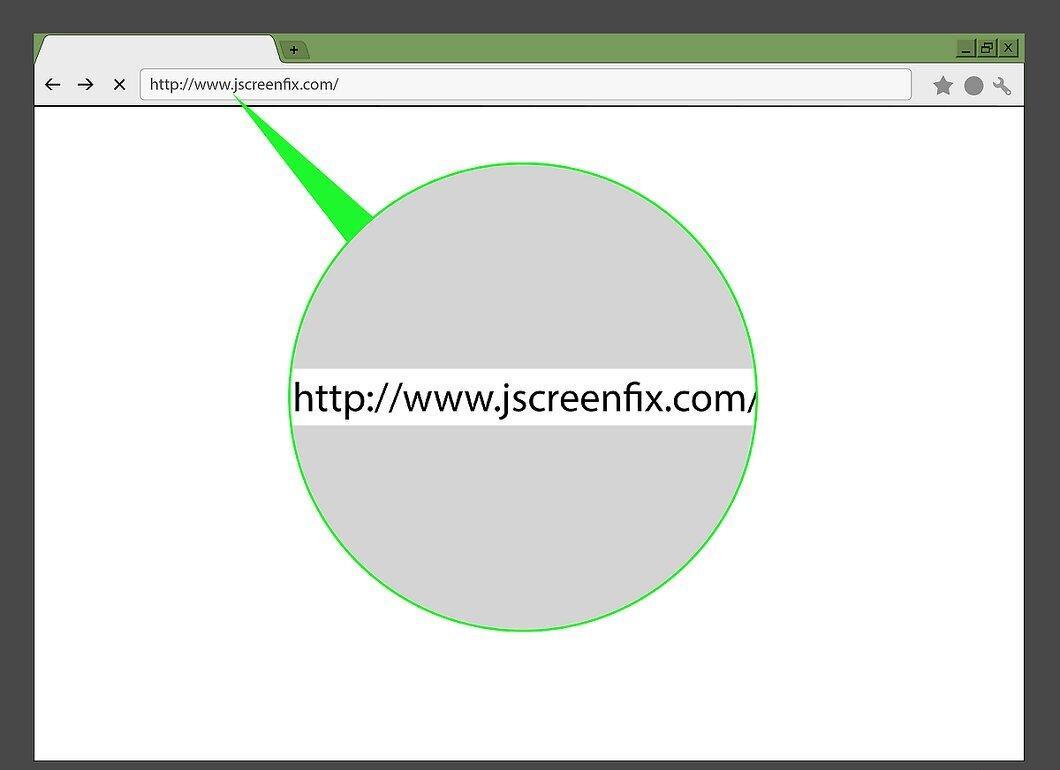
Visit the JScreenFix website. Open your browser and go to http://www.jscreenfix.com/. JScreenFix is a free online tool that can fix stuck pixels.
Step 4. Scroll down and click the Launch JScreenFix button.
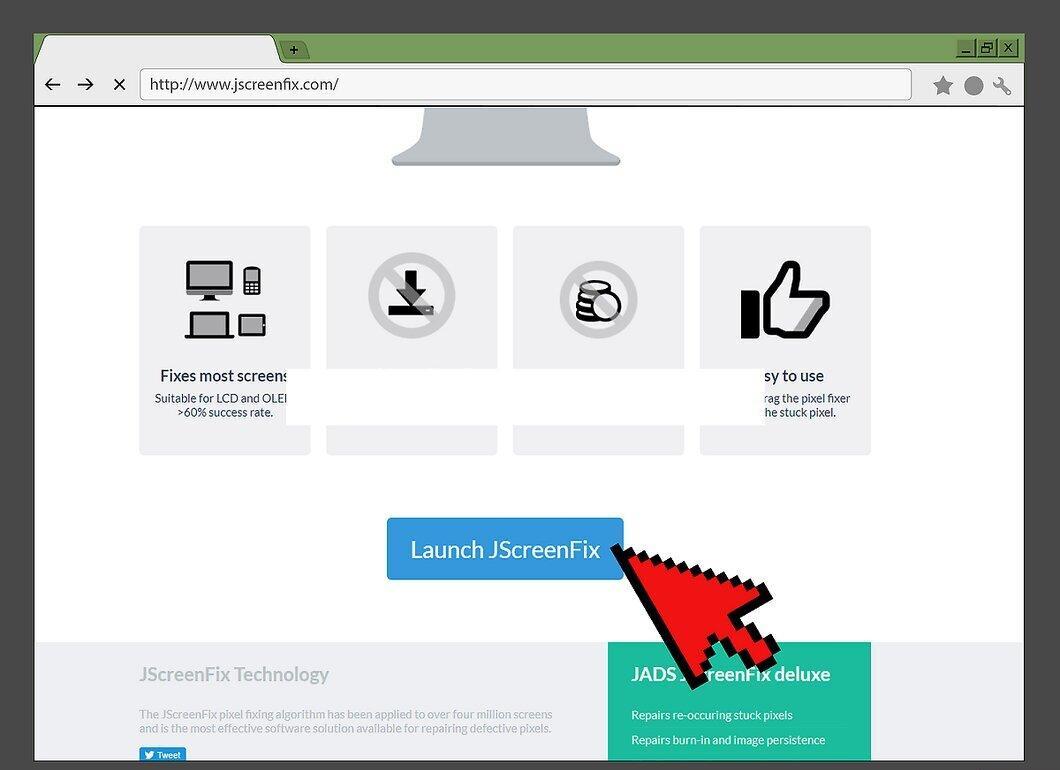
Scroll down and click the Launch JScreenFix button to start the application. This button is blue and located at the bottom of the page. It allows you to open JScreenFix in your browser.
Step 5. Locate the stuck pixel.
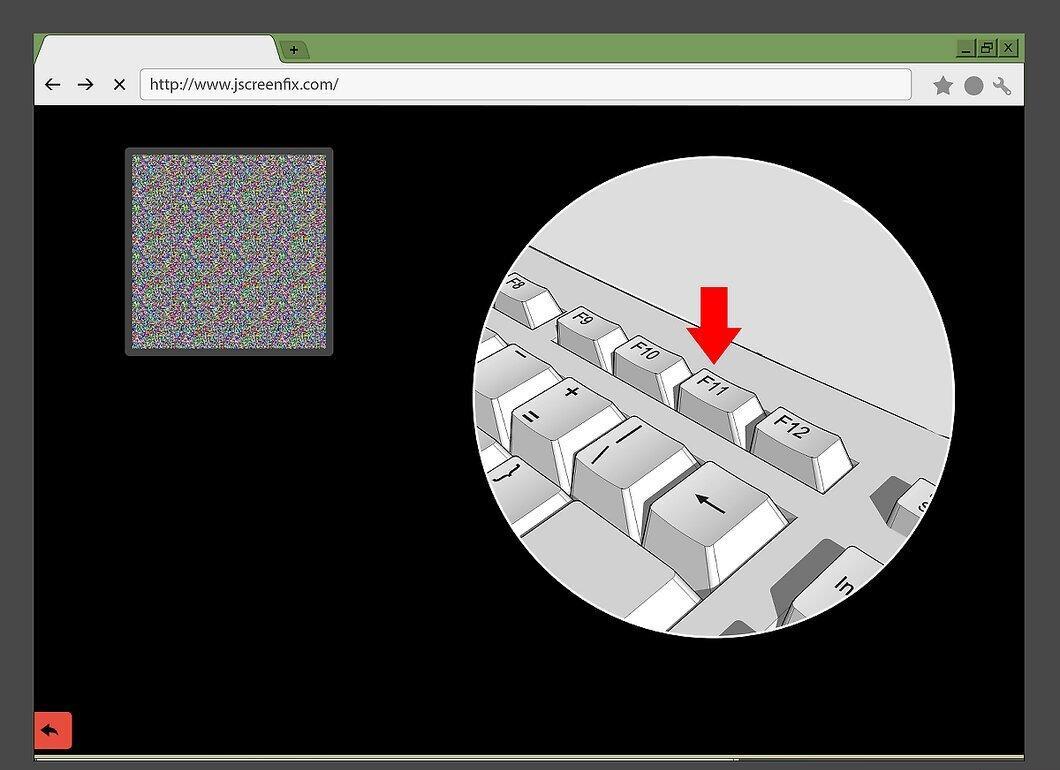
Locate the stuck pixel. The main part of the screen will be black, making it easy to find the stuck pixel.
- If the pixel is not located in the black area of the application window, press F11 to enter full-screen mode. You may need to hold the Fn key while pressing F11 if the browser does not switch to full-screen mode by simply pressing F11.
Step 6. Move the flashing repair block over the stuck pixel.
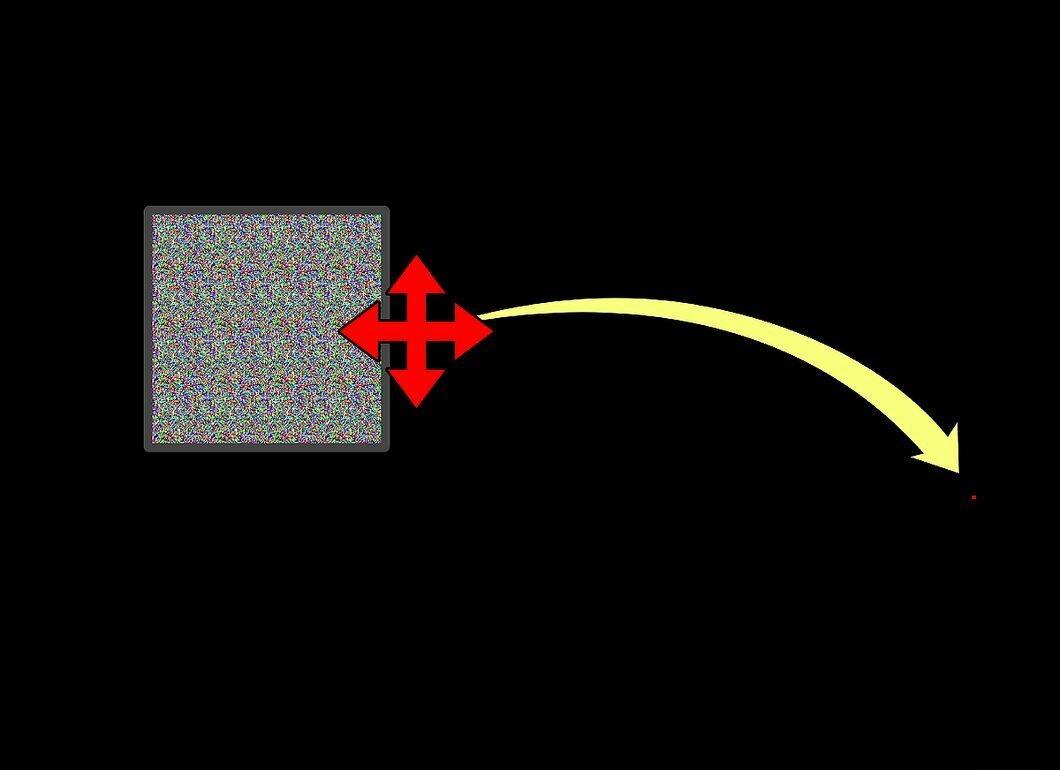
Move the flashing repair block of the application over the stuck pixel. Click and drag the flashing block to the problematic pixel, then release.
Step 7. Let the application run for at least 10 minutes.
Let the application run for at least 10 minutes. Do not minimize the window, move the repair block, or turn off the monitor during this time.
- If possible, let the application run for a full hour.
Step 8. Check the status of the pixel.
Check the status of the pixel. After the required time has passed, close the application window to check the pixel. If the pixel is restored, the problem is solved.
- If the pixel is still stuck, try disconnecting the monitor for a day and then attempt this method again. You can also try to restore the pixel using heat and pressure, but this is not recommended.
Applying Pressure and Heat to the Problematic Pixel
Step 1. Understand the risks associated with this method.
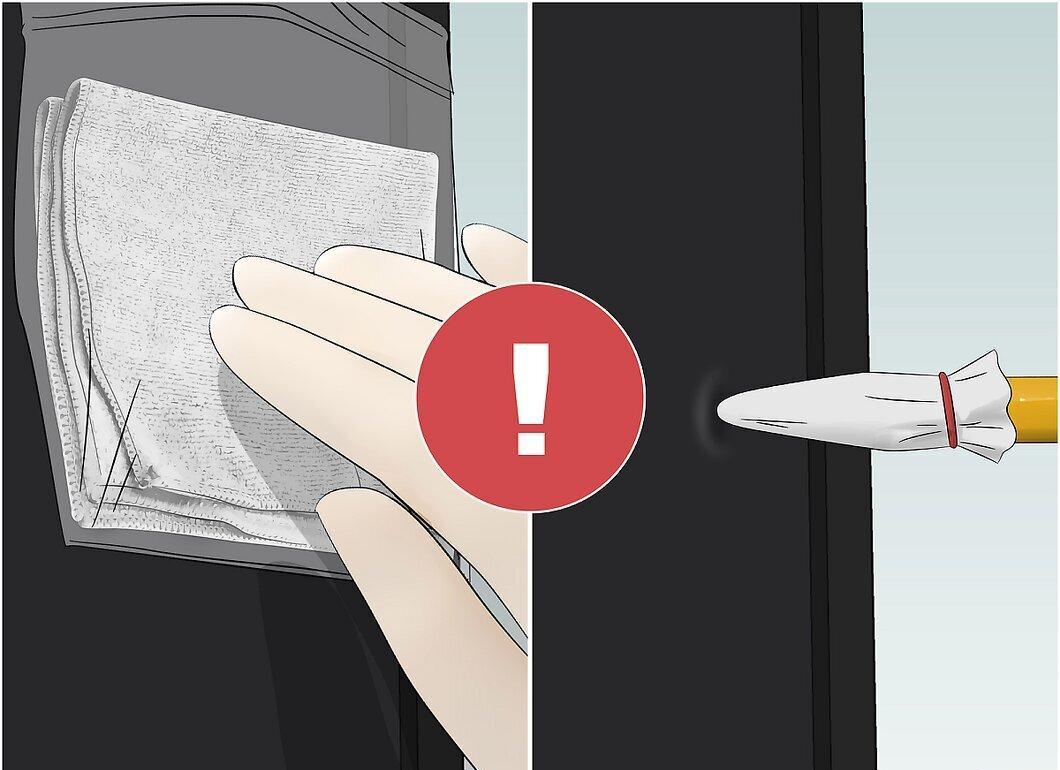
Understand the risks associated with this method. While some people have had success fixing stuck pixels with pressure or heat, using this method is more likely to damage your monitor's screen than to fix it.
- Another issue with this method is that it voids your warranty.
Step 2. Power on your computer and LCD monitor.
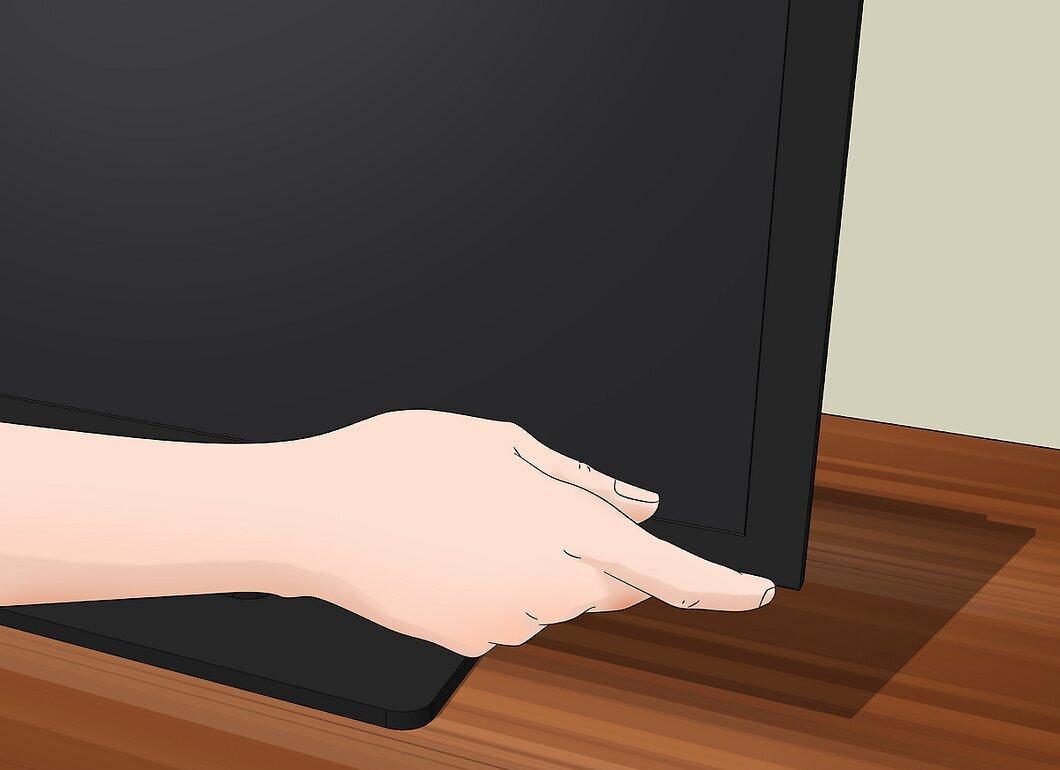
Power on your computer and LCD monitor. For this method to work, the monitor must be turned on.
Step 3. Open a black image.
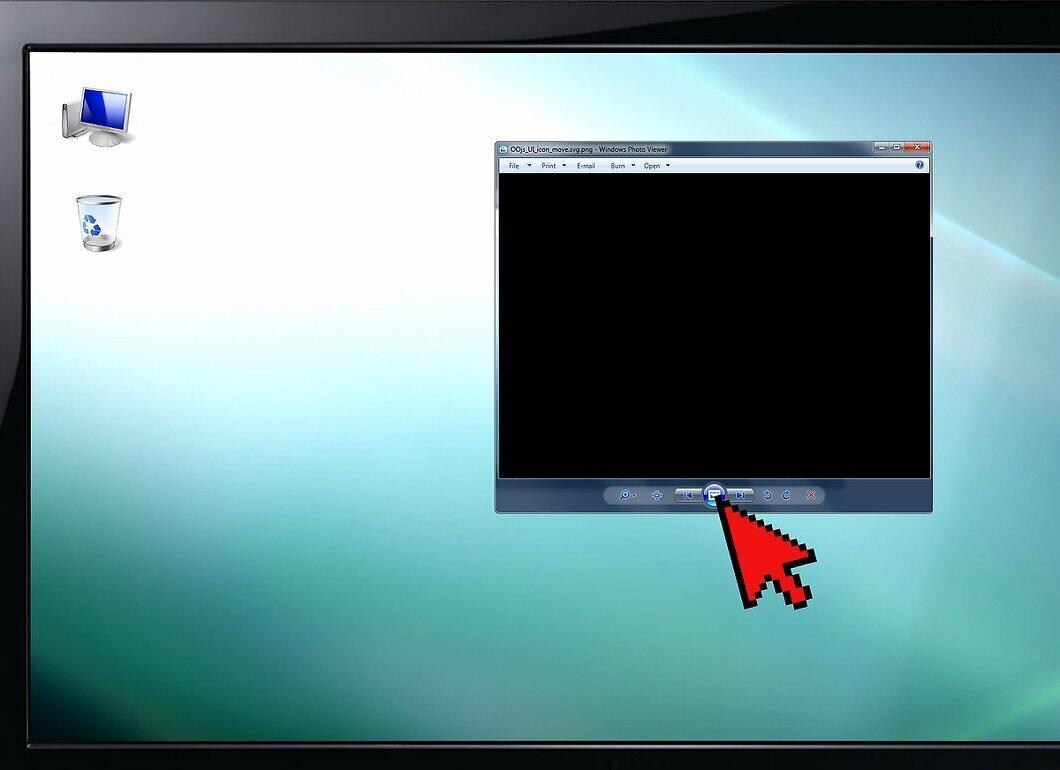
Open a black image. It is crucial that the screen actually displays a black image rather than being in a no signal state, as you need the internal backlighting of the LCD monitor to be functioning.
Step 4. Find a thin object with a blunt end.
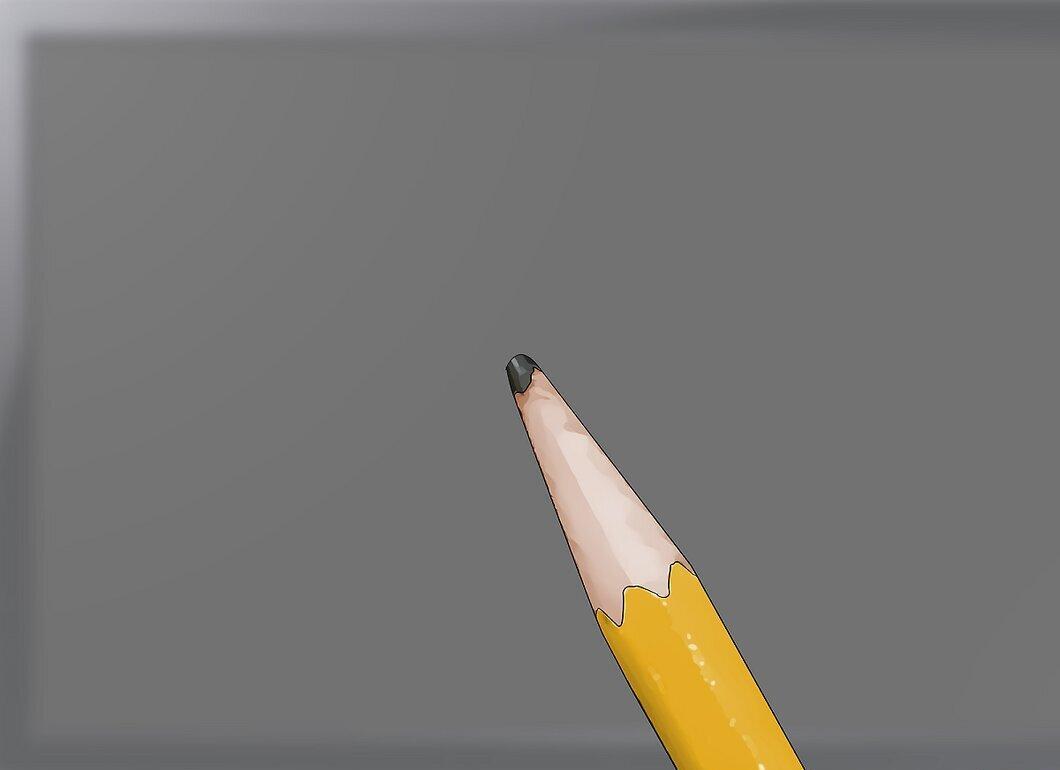
Find a thin object with a blunt end. A marker or pen with a rounded cap, a very blunt pencil, a plastic stylus, or the back end of a makeup brush will do.
- Before proceeding, review the warnings at the end of this article. Physical friction may worsen the condition of the monitor screen.
Step 5. Wrap the end of the chosen object with a cloth.
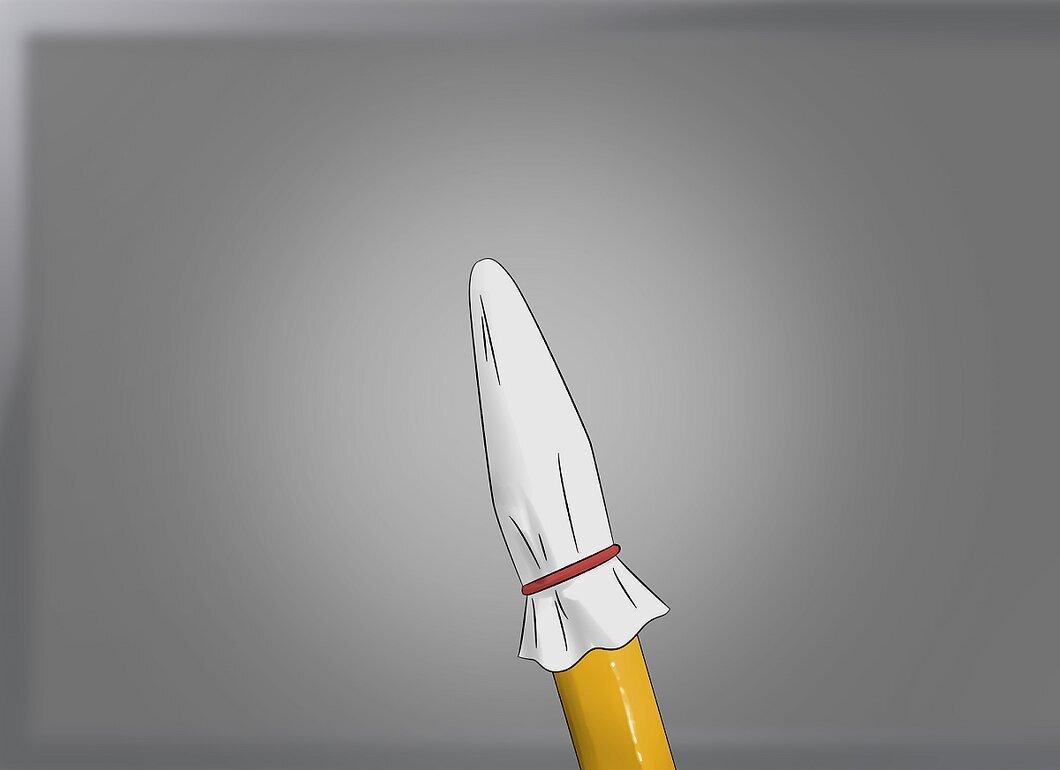
Wrap the end of the chosen object with a cloth. This will prevent scratches on the monitor.
- If the object can poke through the cloth, it’s too sharp. Find something else.
Step 6. Use the rounded end of the object to gently press on the stuck pixel.
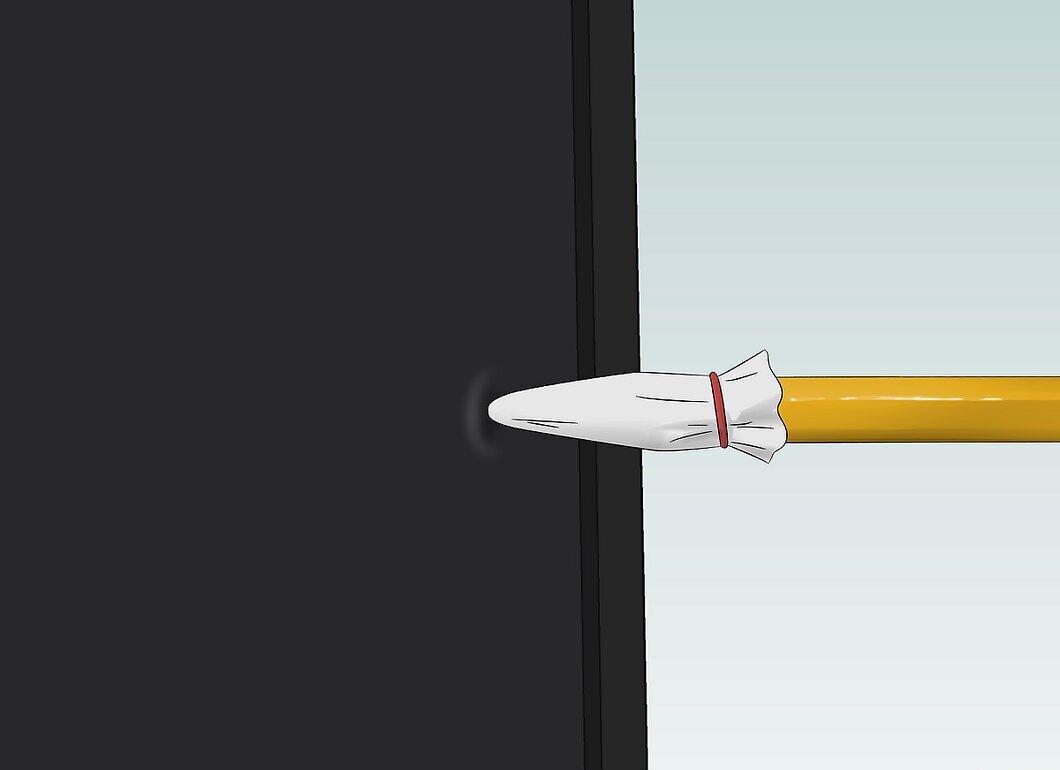
Use the rounded end of the object to gently press on the stuck pixel. You should see a white ripple effect around the contact point.
- Try to press directly on the stuck pixel without affecting the surrounding area.
Step 7. Remove the object after a few seconds.
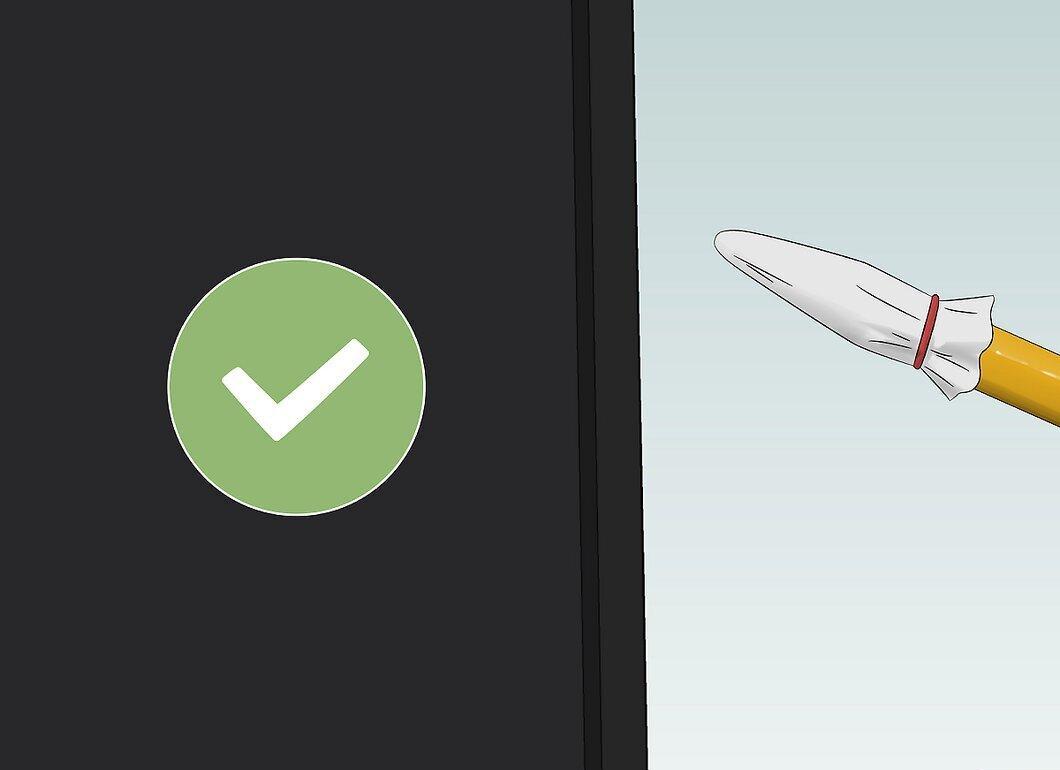
Remove the object after a few seconds. If the pixel remains stuck, you can repeat this method or proceed to using heat. However, if the issue is resolved, immediately turn off the monitor and do not turn it back on for at least one hour.
Step 8. Soak a cloth in hot water.
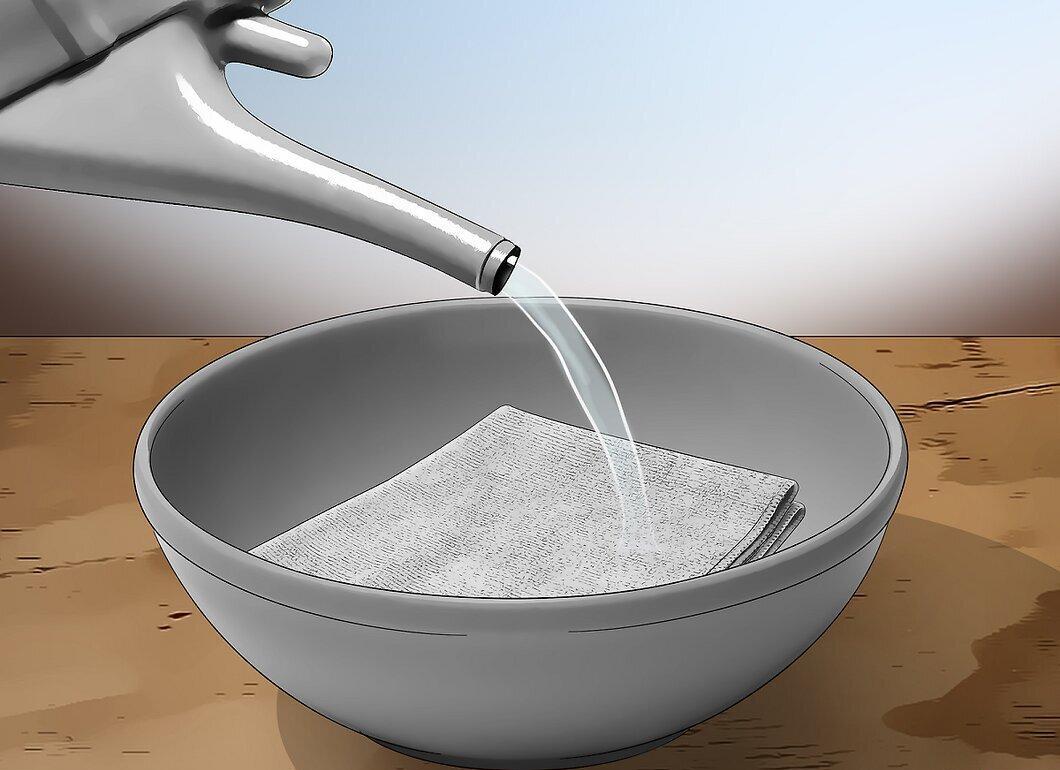
Soak a cloth in hot water. If possible, heat the water on the stove until you see the first signs of bubbles at the bottom of the container (about 88 °C), then immerse the cloth and saturate it with hot water.
Step 9. Protect your hands.
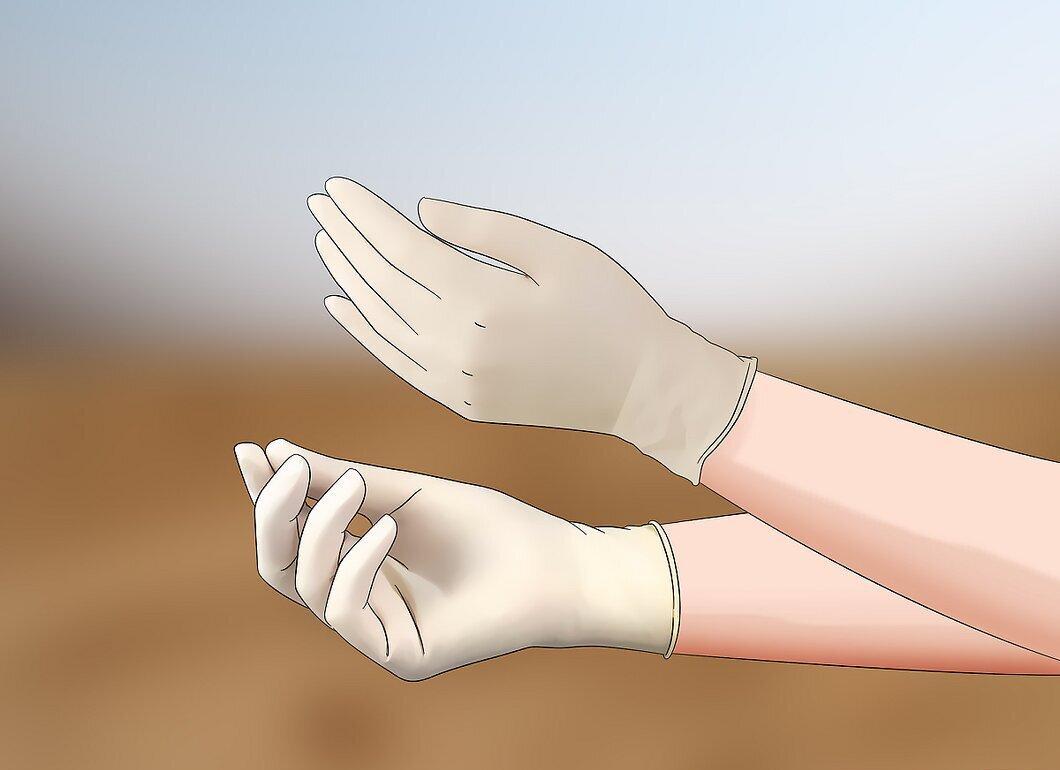
Protect your hands. To avoid burning your fingers in the following steps, use an oven mitt or thick cloth.
Step 10. Seal the hot cloth in a zip-lock bag.
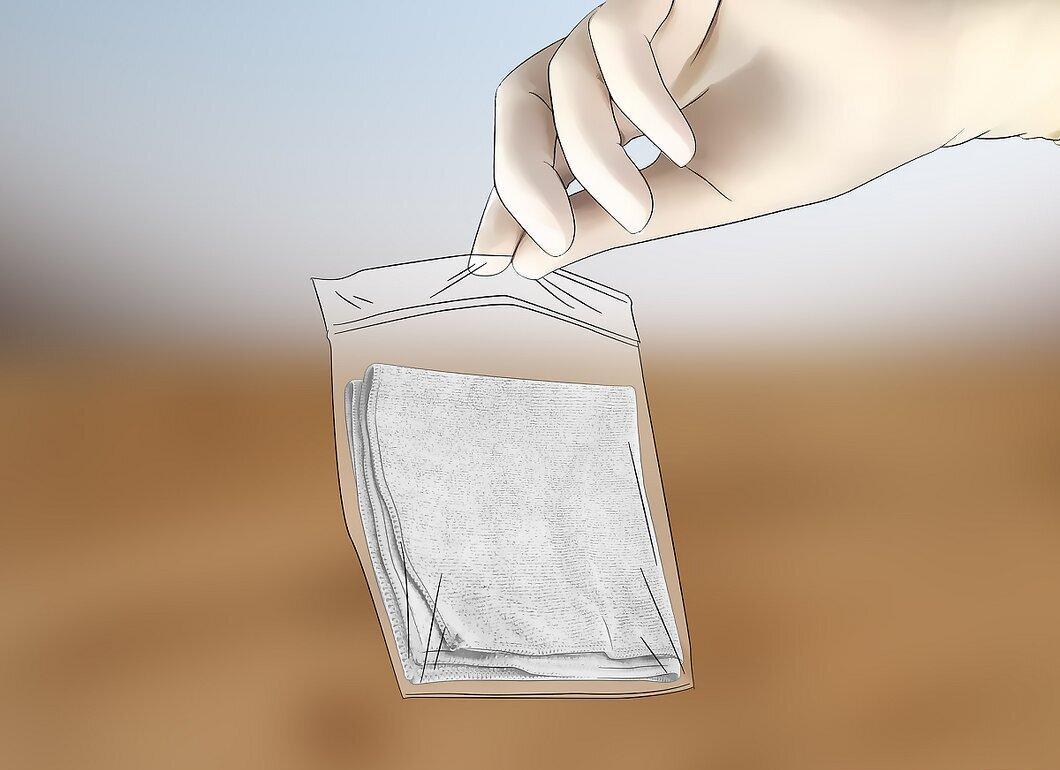
Seal the hot cloth in a zip-lock bag. This will protect the monitor from moisture. Ensure the bag is securely closed.
Step 11. Apply the bag with the cloth to the stuck pixel.
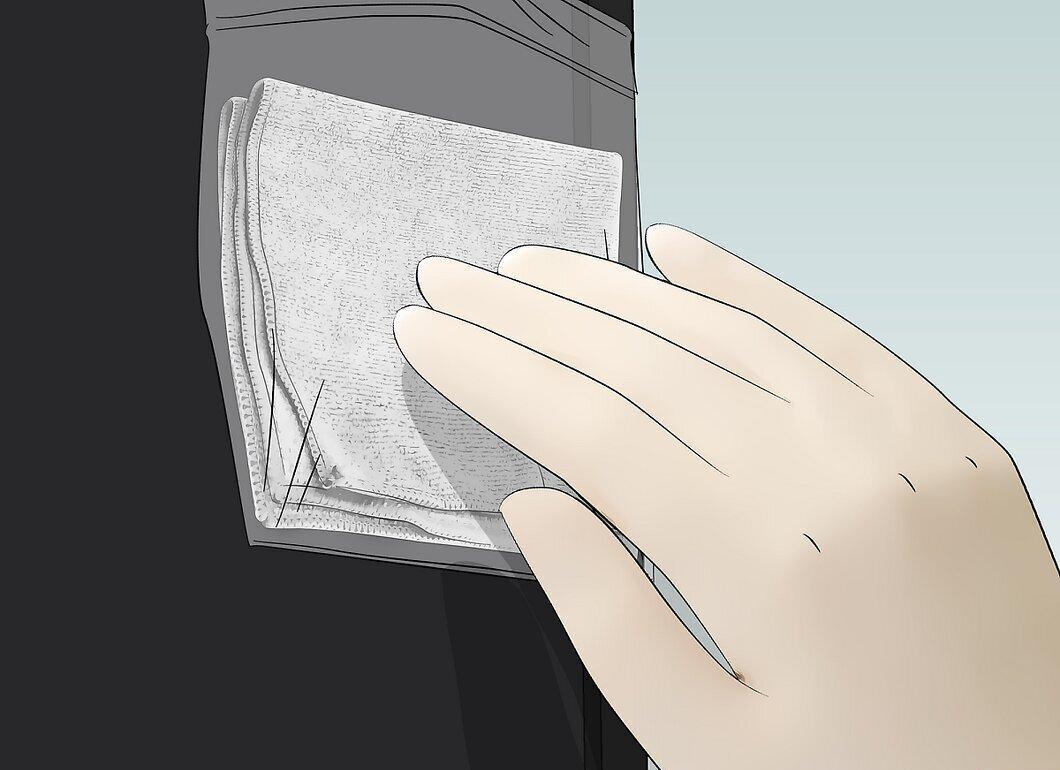
Apply the bag with the cloth to the stuck pixel. Gentle pressure through the cloth should help release the contents of the pixel, potentially assisting in its repair.
- Do not apply the bag to the pixel for more than a few seconds at a time.
Step 12. Check the status of the pixel.
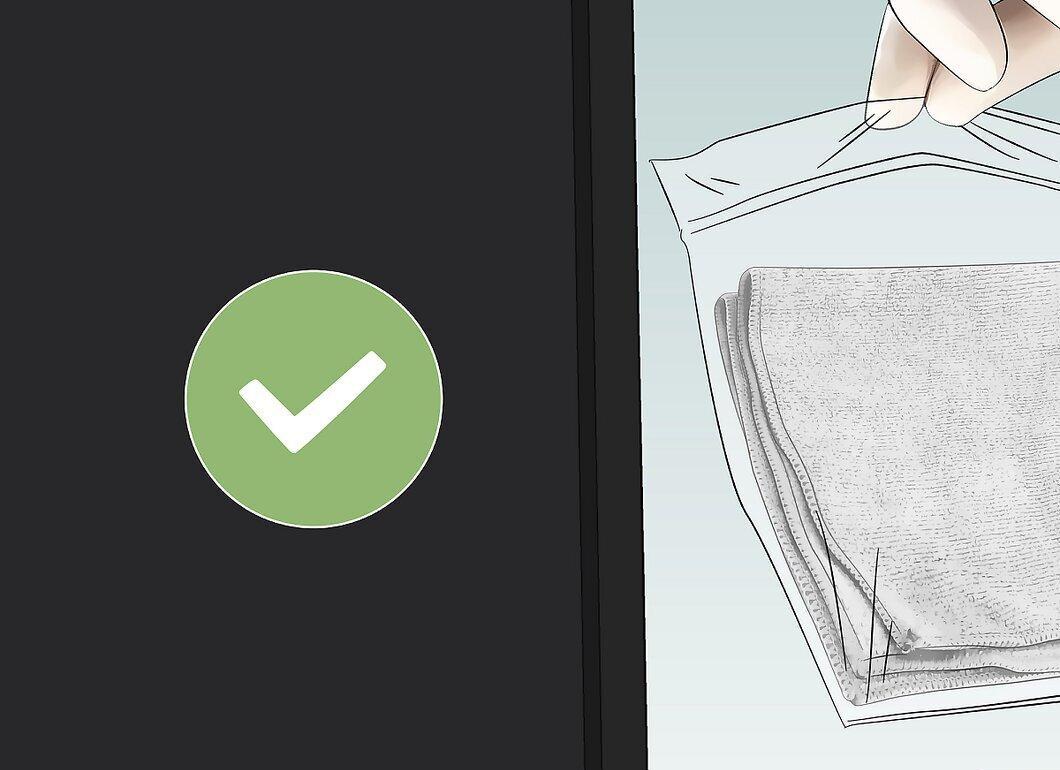
Check the status of the pixel. If the pixel is restored, your work is done. If not, your only option is to seek help from a professional service center. Therefore, either take the monitor for repair or allow the pixel to recover on its own over time.
- You can also try using special software again to restore the pixel.


