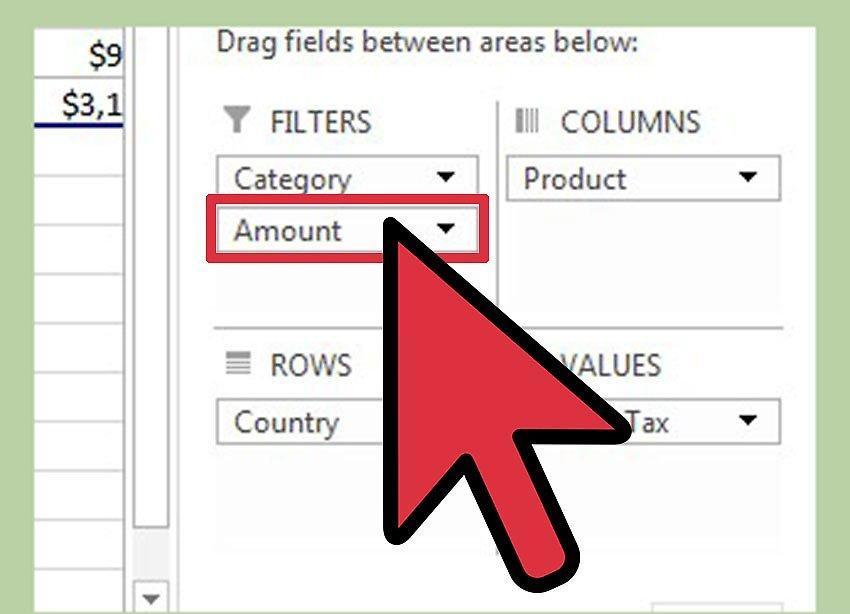
There are times when you need to add extra information to a pivot table beyond what it was initially designed for, but altering the source data isn't practical. In these rare cases, adding custom calculated fields to your pivot table can be very useful. Such custom fields can be used to display averages, percentages, discrepancies, or even the minimum or maximum value of a field. Follow these instructions to add custom fields to your pivot table, so you can get the information you need with ease.
Part 1
Step 1. Open the Excel workbook containing the source data and the pivot table you'll be working with.
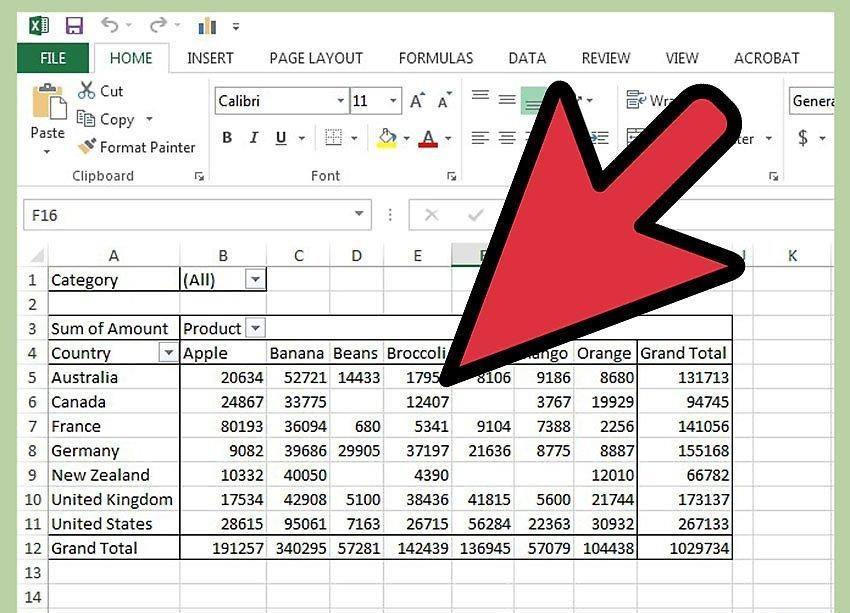
Step 2. Select the sheet that contains the pivot table and make it active by simply clicking on it.
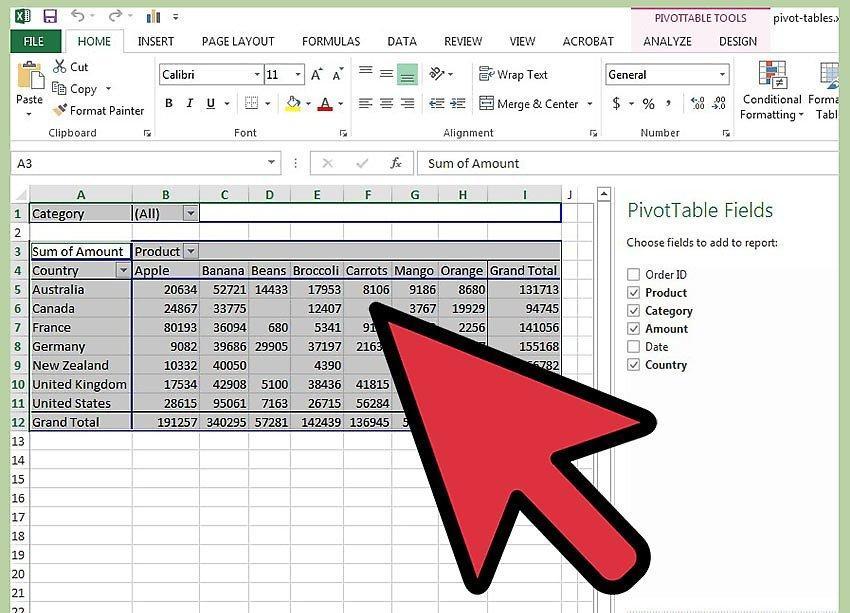
Step 3. Determine what custom field you need and which other fields it will reference to achieve the desired result.
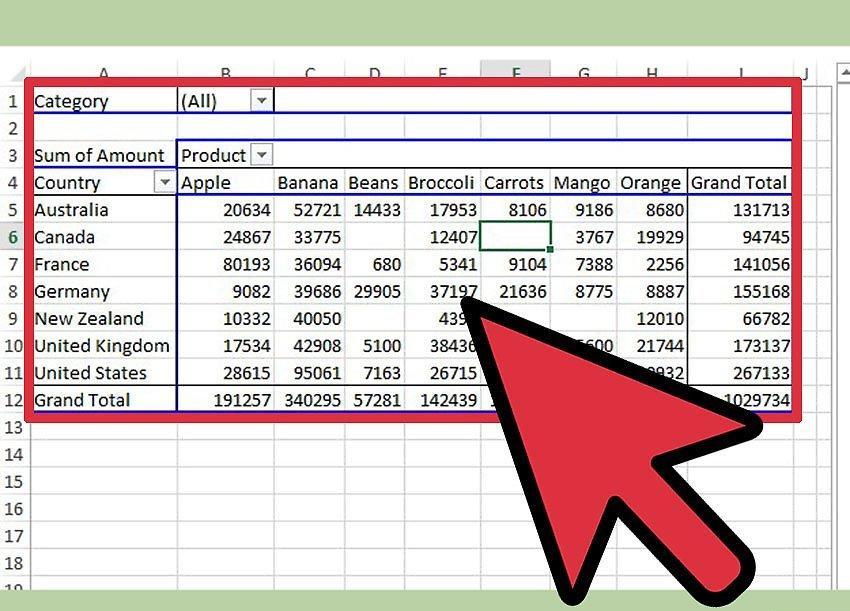
Step 4. Display the "PivotTable Tools" menu by clicking anywhere within the pivot table.
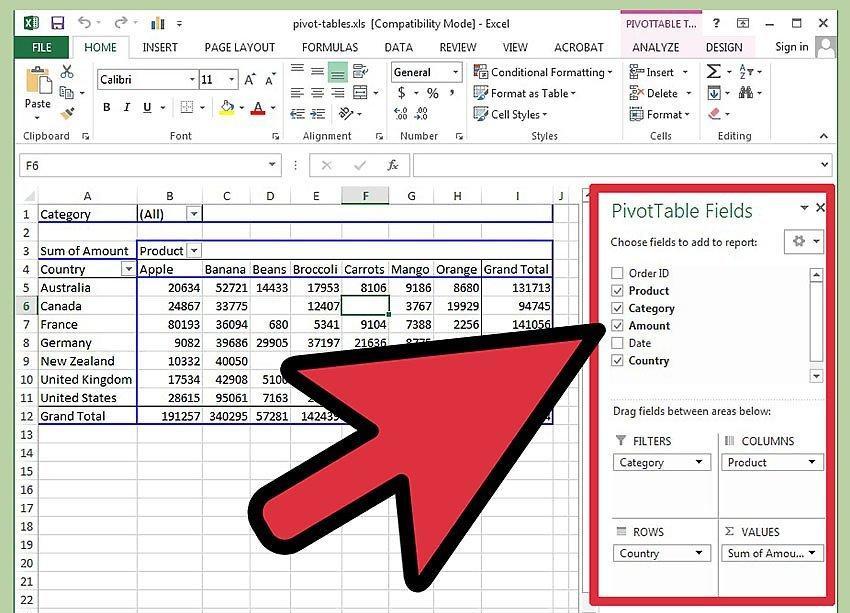
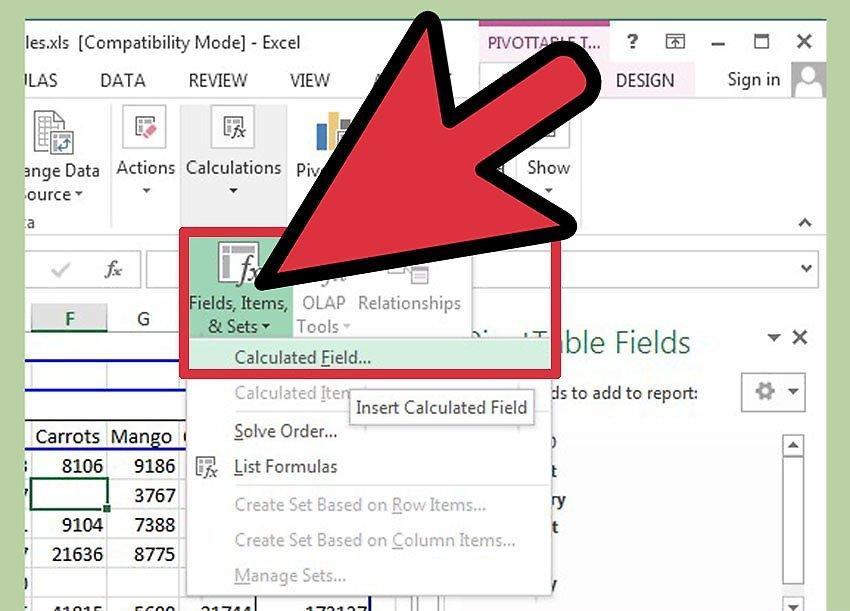
Step 5. Select the "Options" tab and then choose "Calculated Field" from the "Formulas" menu.
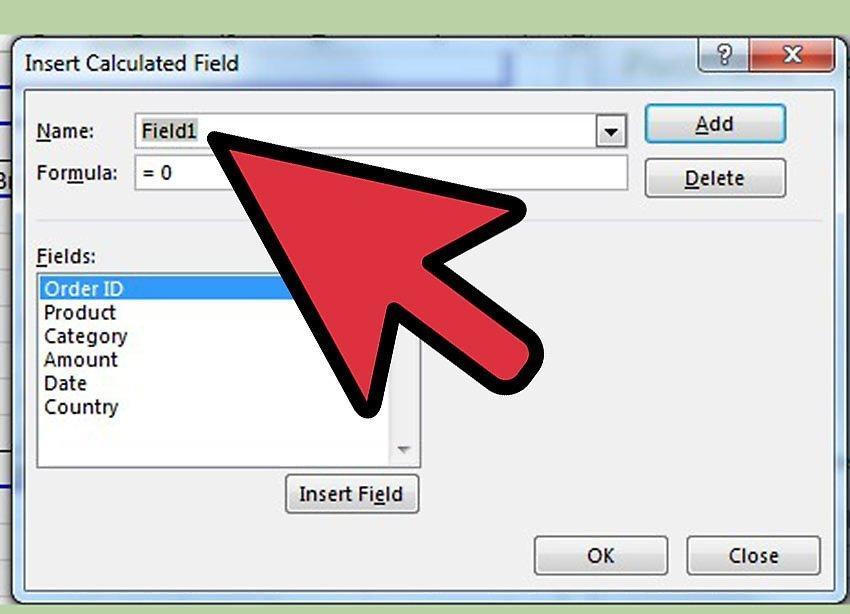
Step 6. In the popup window, enter the name of your custom field.
Step 7. In the "Formula" text box of the dialog, enter the formula for calculating the value of the custom field.
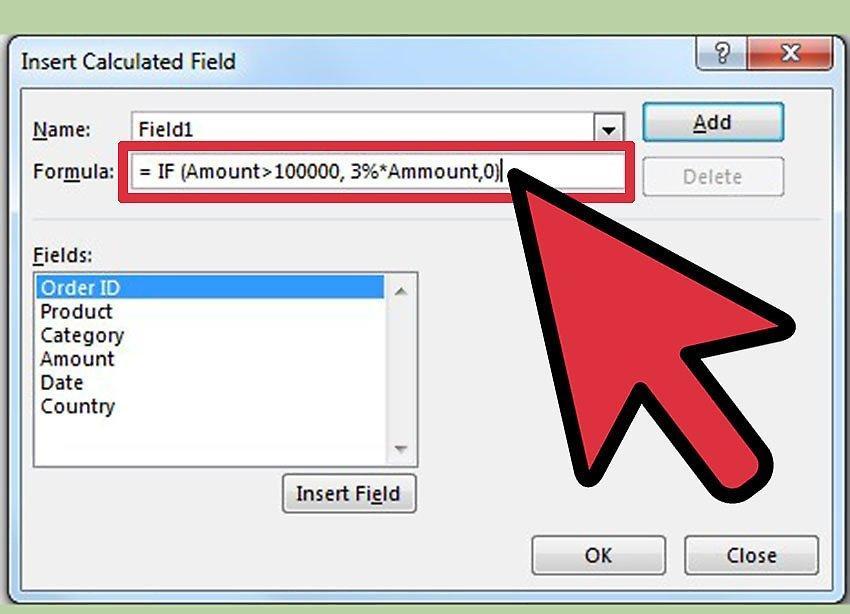
- Calculated fields in pivot table formulas do not support ranges. Therefore, in formulas, you should use the name of the corresponding column instead of a range. Click inside the "Formula" text box and select the field used in your calculation from the suggested list.
- Click "Insert Field" to insert the correct column name into your formula. Complete the formula by adding the necessary calculations.
- For example, if you want to calculate a 6% sales tax in a pivot table showing product sales across different regions, the column name "Region" is found under the "Columns" section, "Sales" under the "Values" section, and "Product" under the "Rows" section.
- Name your field "Tax" and create the formula "=Sales * 0.06" (without quotes), leaving a space between the field name and the mathematical operators. Click "Add" and then "OK" to close the window.
Step 8. Ensure that your calculated field appears in the "Values" section of the pivot table wizard.
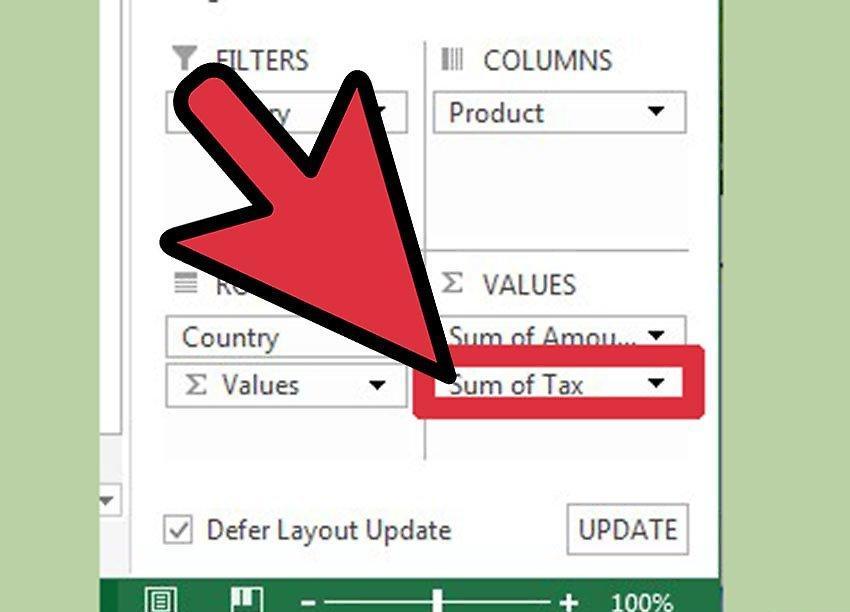
- If it does not appear, check everything again step by step and try again.
Step 9. If you wish, you can change the order of the fields in the "Values" section.