
Apple TV is a fantastic option for watching movies and videos on your television that you've downloaded or imported from Apple iTunes. Since the movies viewed through Apple TV are stored in iTunes, you first need to download or move the movies to your iTunes profile. You can also import movies and videos created with iMovie into iTunes. Check out this article to learn about other ways to add movies to iTunes while ensuring compatibility with your Apple TV device.
Purchase and Download Movies from iTunes
Step 1. Go to the Apple iTunes Movies link provided in the Sources and Links section.
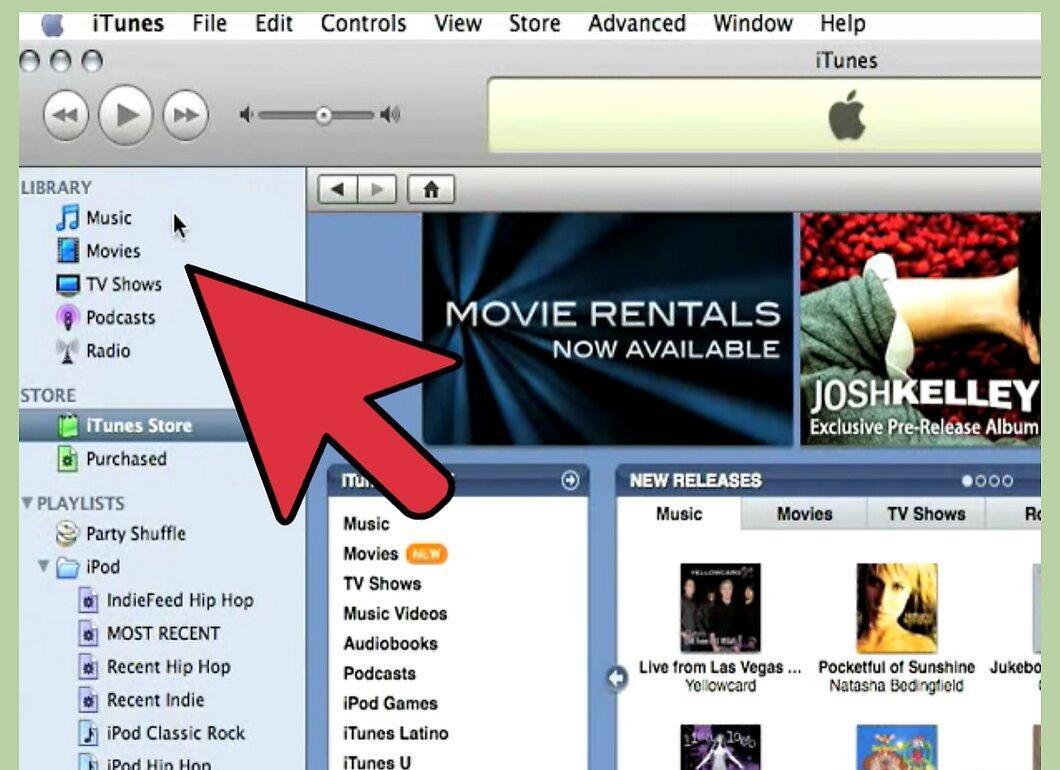
Step 2. Browse the list of available movies displayed on the landing page.
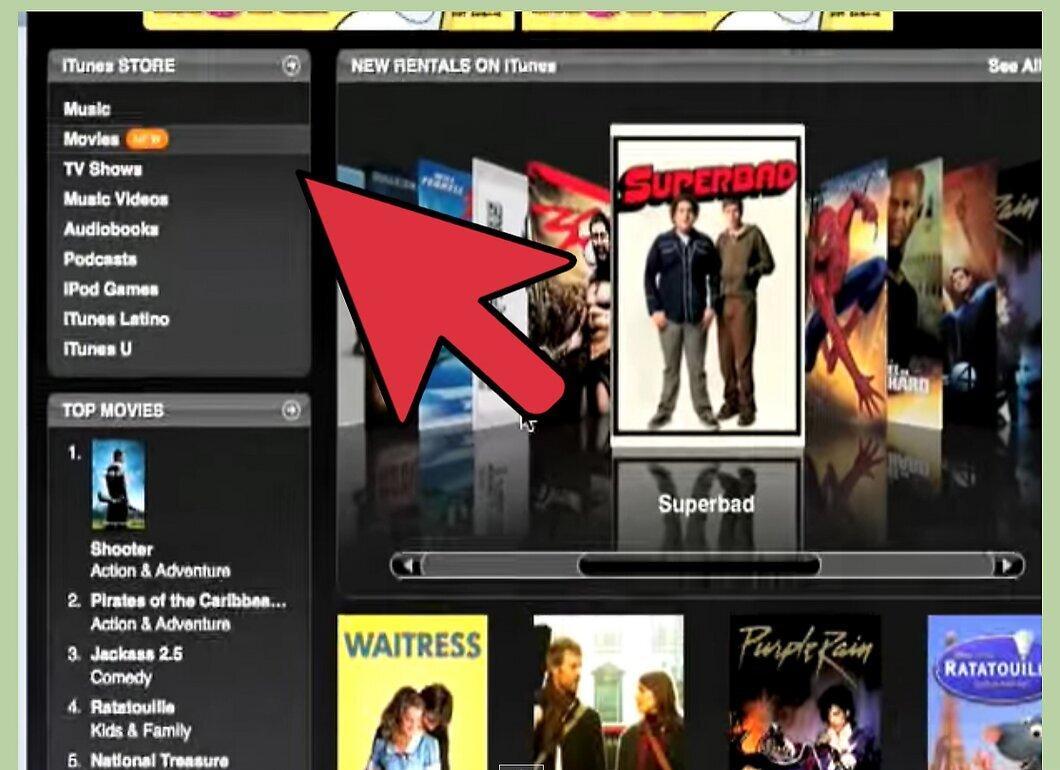
Browse the list of available movies displayed on the landing page. If you don't find the movie you're looking for, you can use the search bar in the upper right corner.
Step 3. Click on the link for the movie you want to download to iTunes.
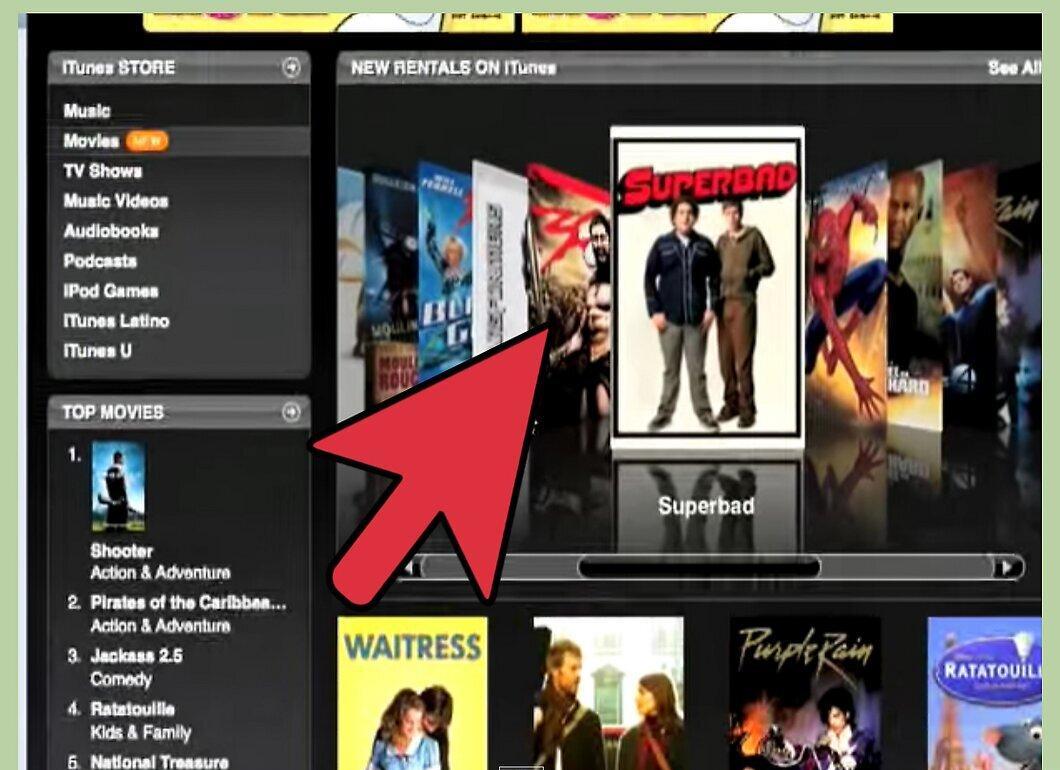
Click on the link for the movie you want to download to iTunes. A preview screen will open with additional information about the specific movie.
Step 4. Click the "View in iTunes" button next to the movie description.

Click the "View in iTunes" button next to the movie description. A message will appear in your browser indicating that the iTunes application will be launched on your computer. Once iTunes opens, it will display options for purchasing the selected movie.
Step 5. Choose your preferred option for acquiring the movie in the iTunes app.
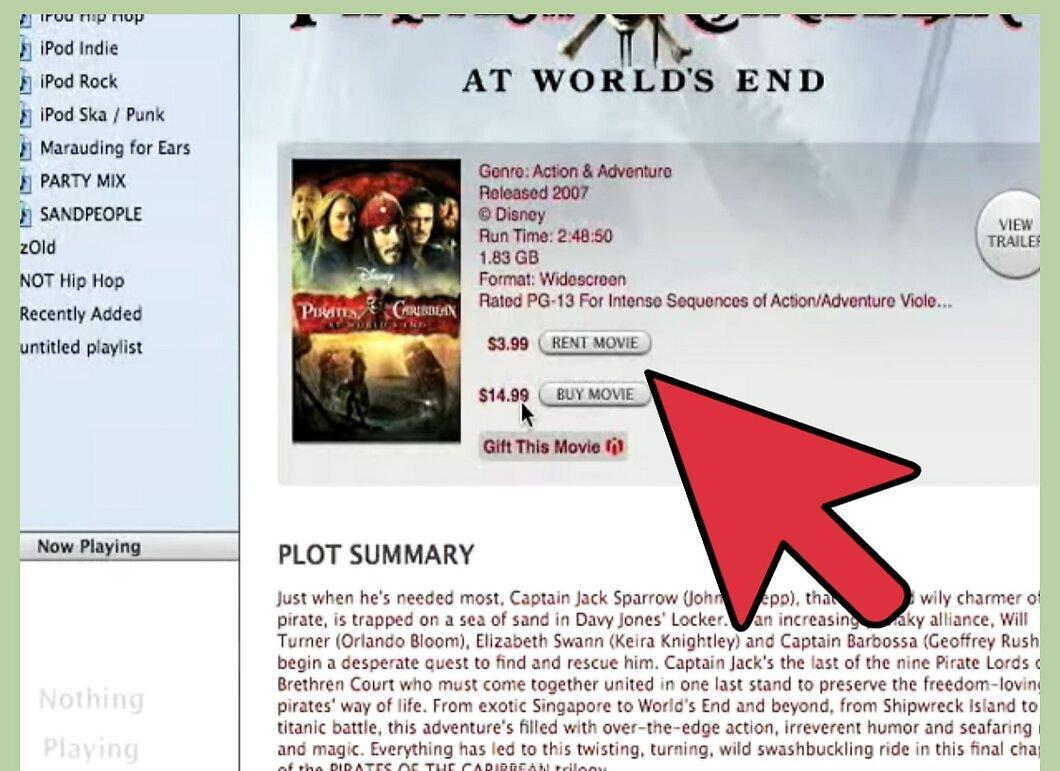
Choose your preferred option for acquiring the movie in the iTunes app. Most movies are available for purchase or rental.
Step 6. Enter your Apple ID and password in the appropriate fields to log into the iTunes store and complete your purchase.
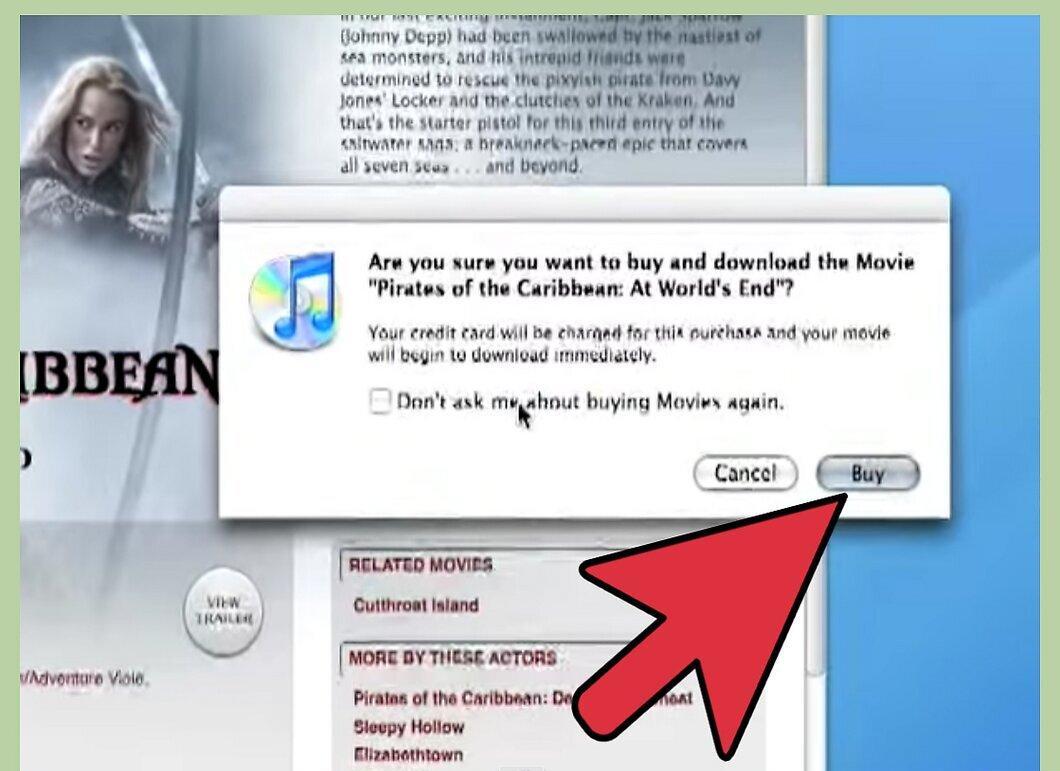
Enter your Apple ID and password in the appropriate fields to log into the iTunes store and complete your purchase. The selected movie will be downloaded directly to your iTunes and will be available for syncing and viewing with Apple TV.
Import Movies and Videos into iTunes
Step 1. Locate the movie you wish to import into iTunes for viewing on Apple TV from your computer's storage.
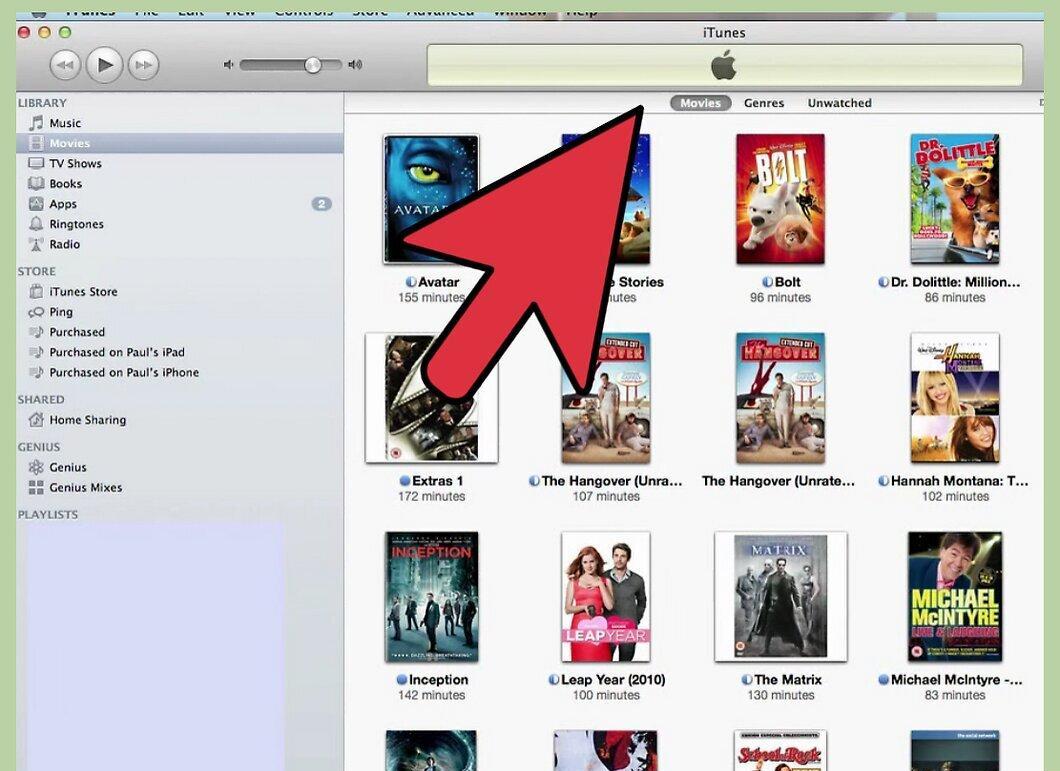
Step 2. Check the movie's format compatibility with Apple TV.
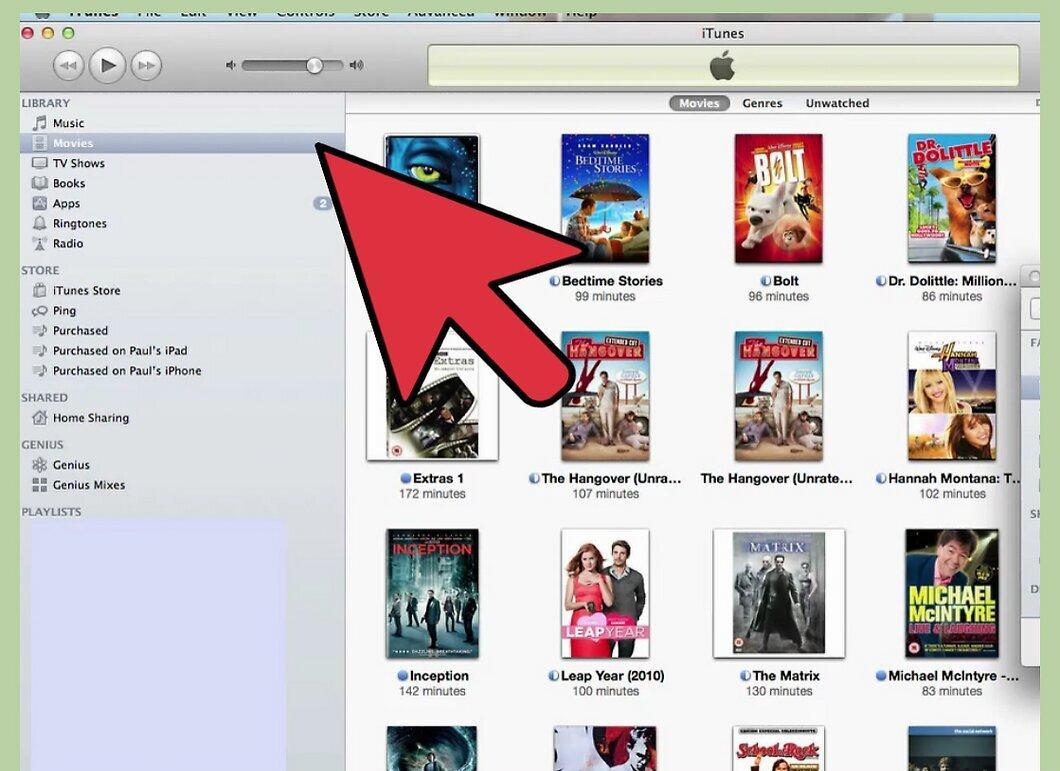
Check the movie's format compatibility with Apple TV. The device supports movies in .m4v, .mp4, and .mov formats; however, movies and videos in .avi and .wmv formats will not play on Apple TV.
- Go to the Apple Support link (ending in "HT1532#") in the Sources and Links section to view the complete list of supported video formats.
Step 3. Launch the iTunes application on your computer.
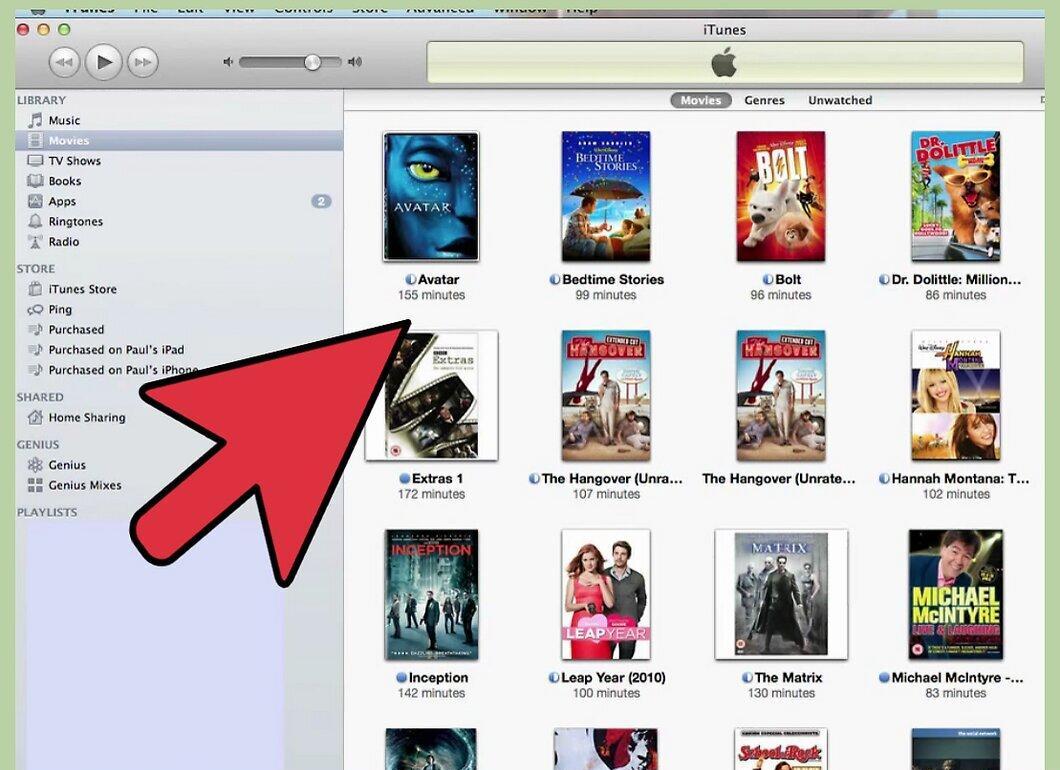
Step 4. Click and drag the movie file from your hard drive into iTunes.
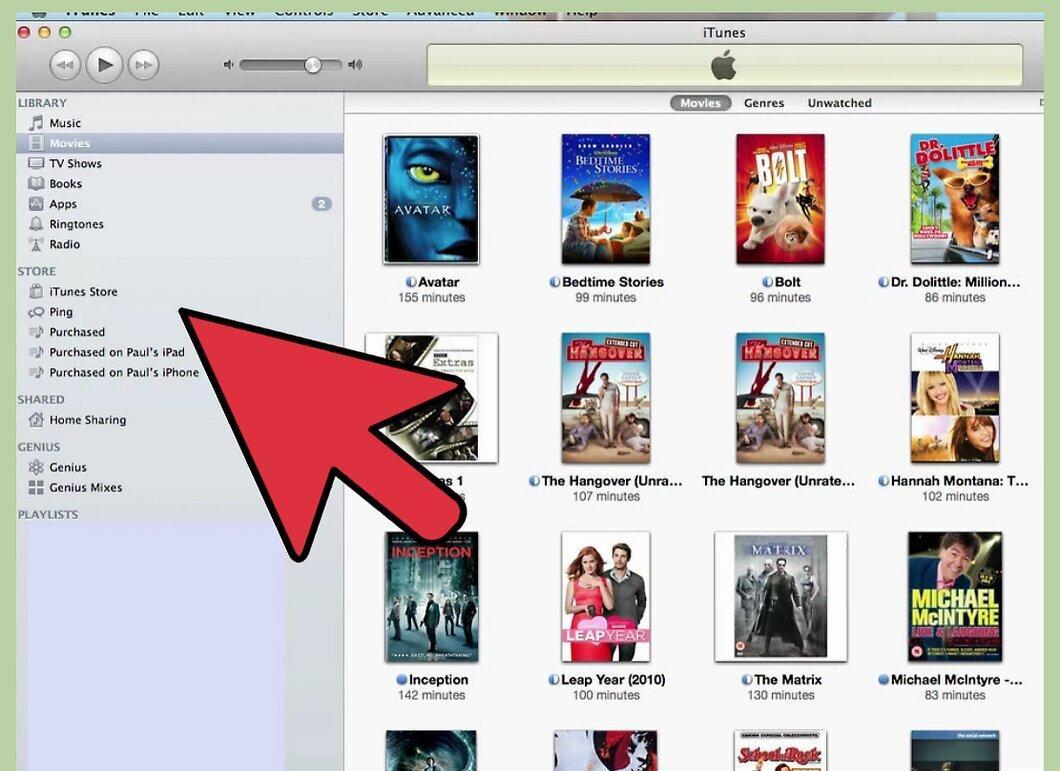
Click and drag the movie file from your hard drive into iTunes. You can now select this movie from the iTunes library in the "Movies" folder and sync it with Apple TV.
Export iMovie Videos to iTunes for Apple TV
Step 1. Launch the iMovie application and navigate to the video you want to add to Apple TV.
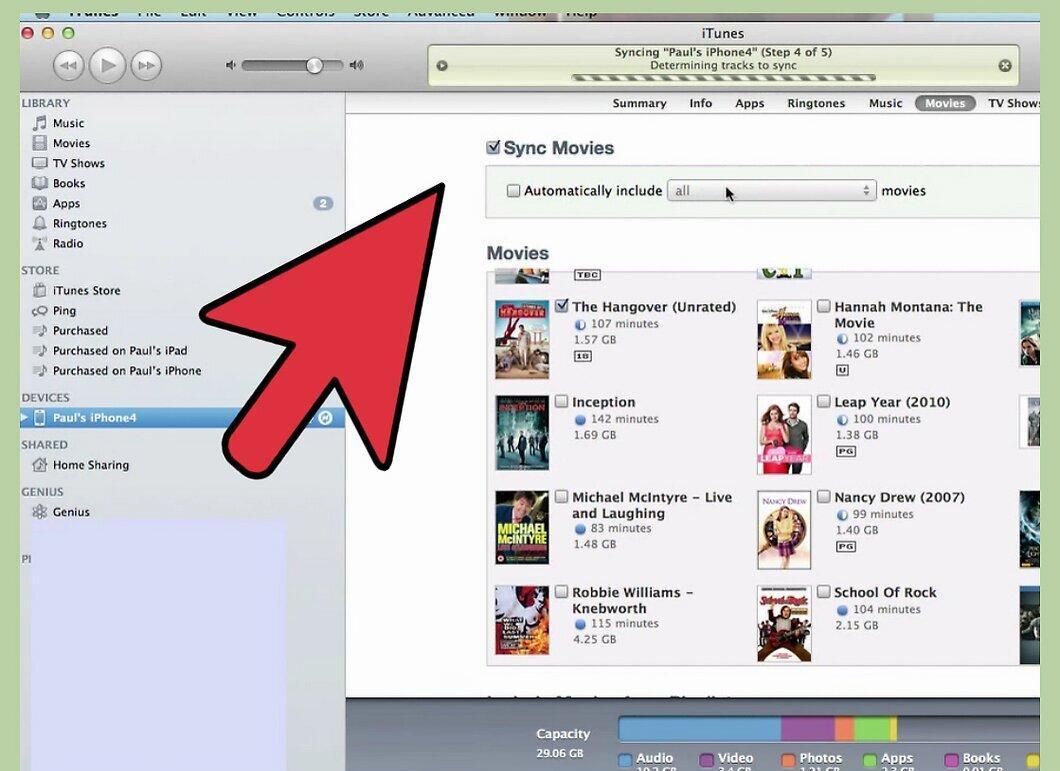
Step 2. Click the "Share" button, then choose "QuickTime".
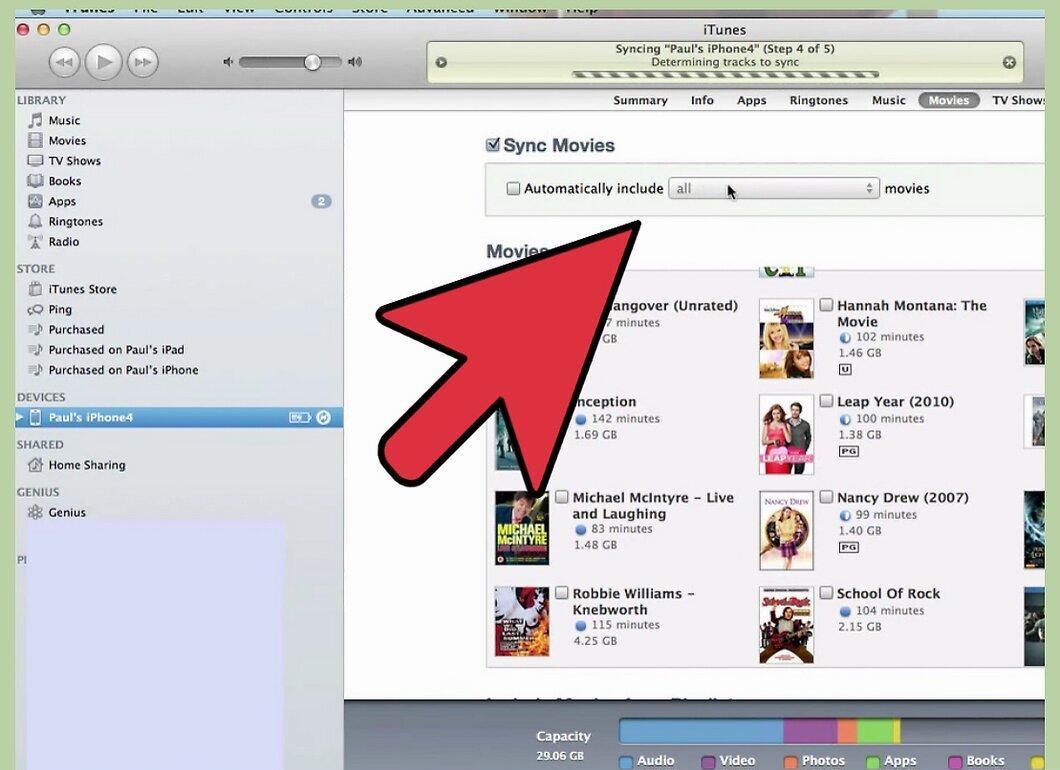
Step 3. Select the compression option for the video, then choose "Expert Settings" from the dropdown menu.
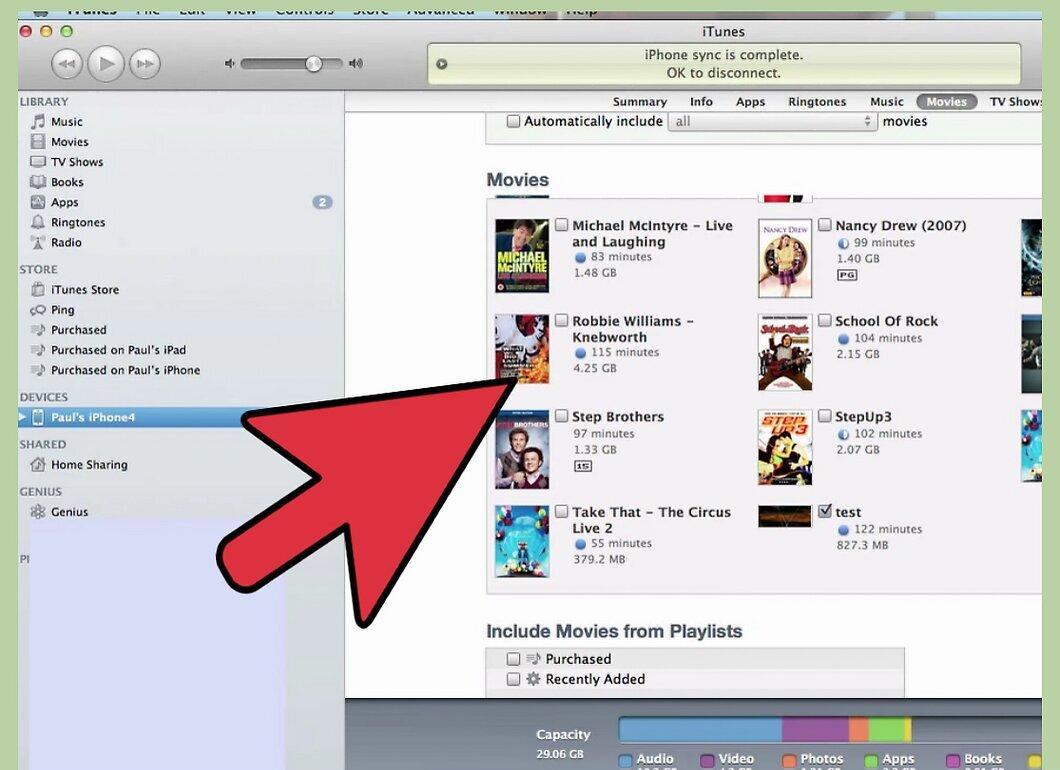
Step 4. Click the "Share" button again, then enter the file parameters.
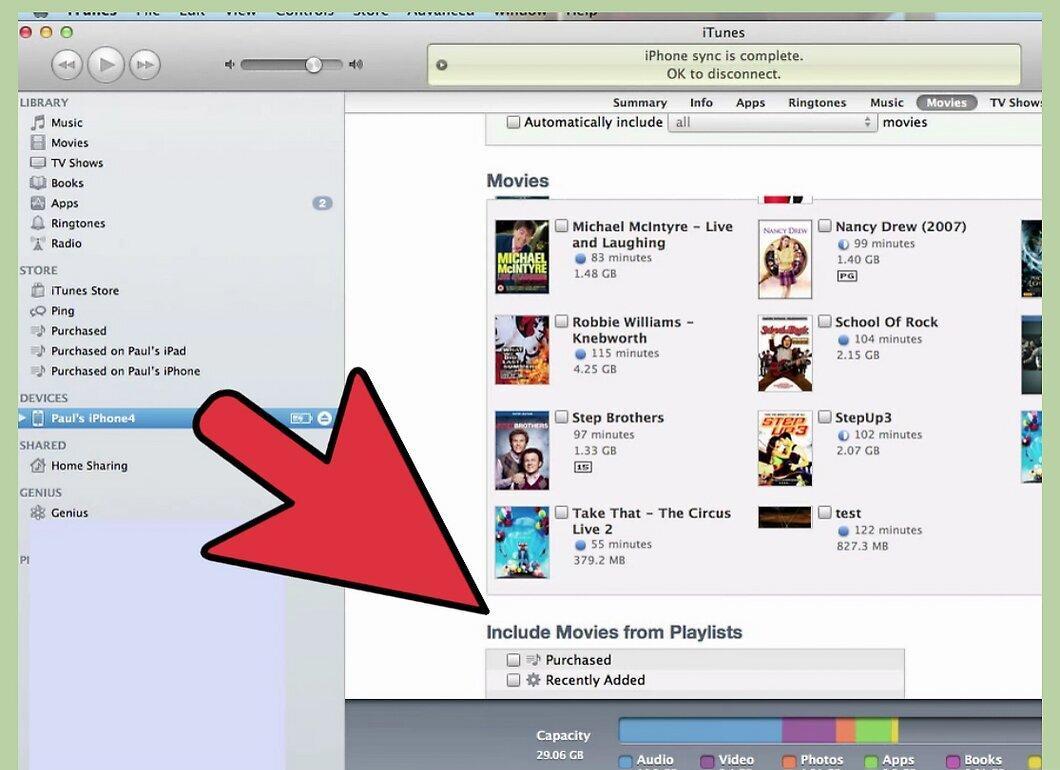
Click the "Share" button again, then enter the file parameters. You will be able to enter the file name and choose the destination.
Step 5. Choose "Movie to Apple TV" from the dropdown menu, then click "Save".
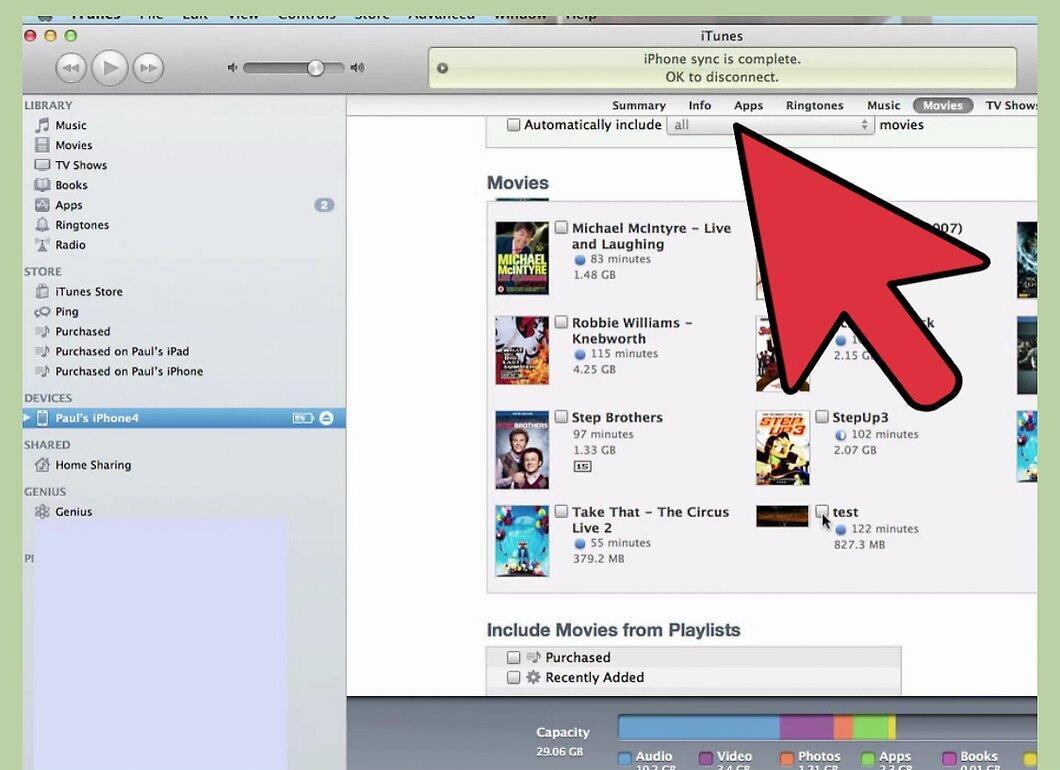
Choose "Movie to Apple TV" from the dropdown menu, then click "Save". Your iMovie video will be saved in a format compatible with Apple TV.
Step 6. Open the iTunes application on your computer.
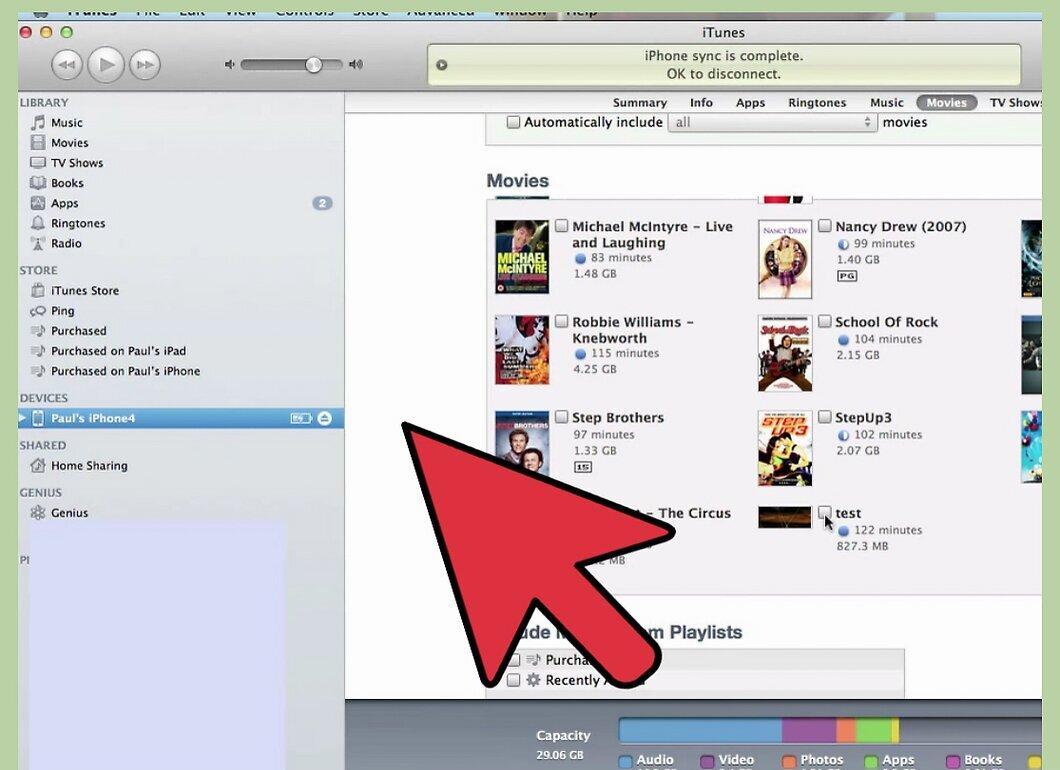
Step 7. Navigate to the last saved iMovie file, click on it, and drag it into iTunes.
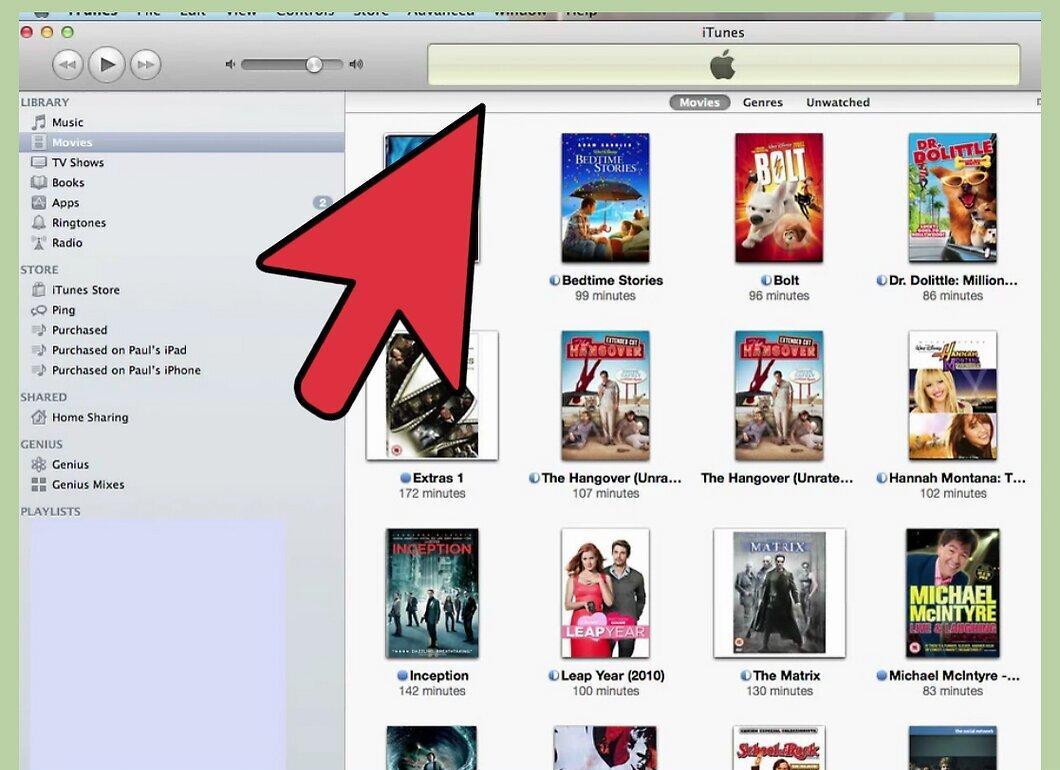
Navigate to the last saved iMovie file, click on it, and drag it into iTunes. You can now sync the video in iTunes for Apple TV.
Converting Incompatible Files
Step 1. Find out which video formats are supported by Apple TV.
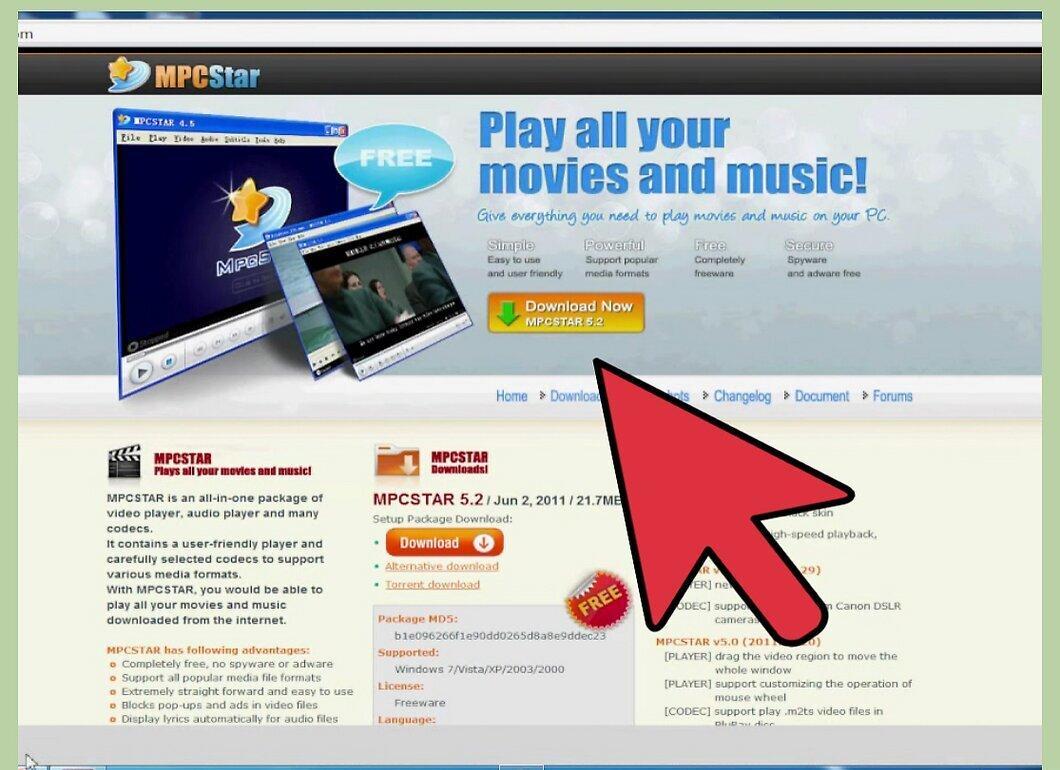
Find out which video formats are supported by Apple TV. The Apple TV device is excellent for watching most movies, but not all. Some formats are incompatible with Apple TV and cannot be played. Knowing all the formats that Apple TV supports in advance can save you a lot of time:
- Generally, there are no issues with formats like mp4, m4v, and mov.
- However, mkv, wmv, webm, and avi can be challenging to convert, or they may not be supported at all.
Step 2. Use a free application to convert movies to mp4 format.
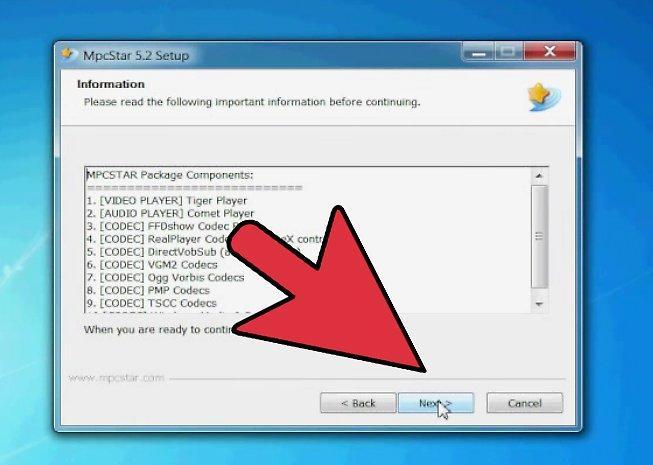
Use a free application to convert movies to mp4 format. Files with the .mp4 extension play easily on Apple TV, so by converting an incompatible file from its original format to mp4, you can watch it on the device. Fortunately, several free applications for conversion are available online—just find, download, and install the software, then convert your file to mp4 (or another supported format).
- Some programs even have a special profile for Apple TV for convenient conversion.
- Here’s a list of popular video conversion software: MPEG Streamclip, Handbrake, Format Factory (Windows only), Freemake Video Converter (Windows only).
Step 3. Import the new mp4 files into iTunes as usual.
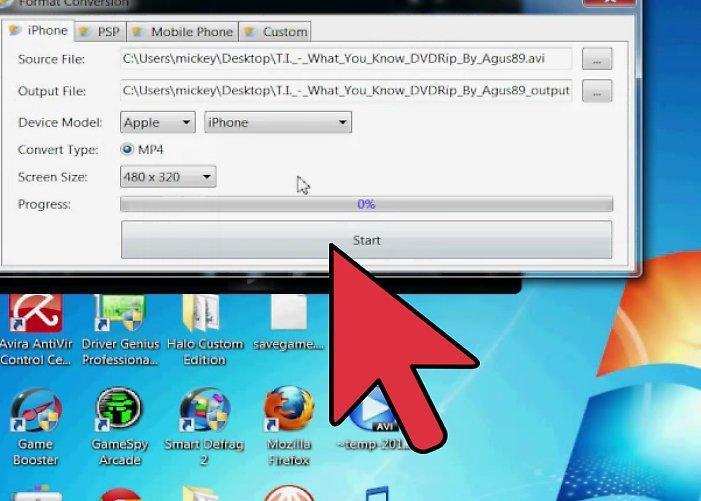
Import the new mp4 files into iTunes as usual. With a bit of luck, your files should work fine.
Step 4. If necessary, adjust the settings for problematic files.
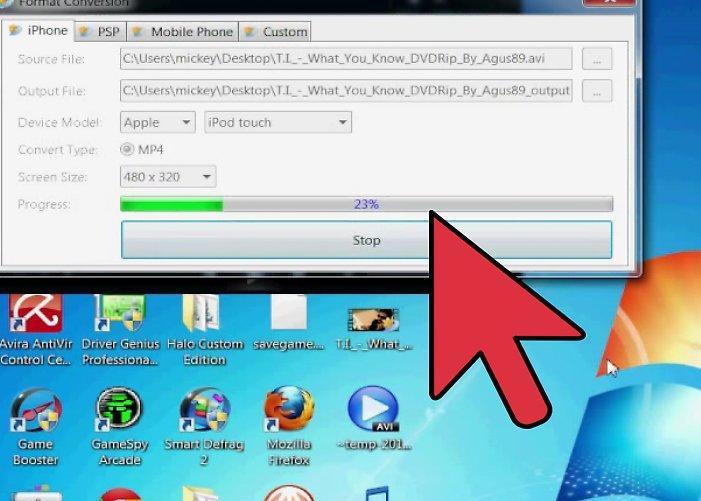
If necessary, adjust the settings for problematic files. In rare cases, issues may arise with playing the file on Apple TV even after converting it to a supported format like mp4. Sometimes, you may also need to adjust the video file settings for it to play. Below are some compatibility settings for various formats supported by Apple TV:
- H.264 video up to 1080p, 30 frames per second, High or Main profile level 4.0 or lower, Baseline profile level 3.0 or lower with AAC-LC audio up to 160 Kbps per channel, 48kHz, stereo audio in .m4v, .mp4, and .mov formats.
- MPEG-4 video up to 2.5 Mbps, 640 by 480 pixels, 30 frames per second, Simple profile with AAC-LC audio up to 160 Kbps, 48kHz, stereo audio in .m4v, .mp4, and .mov formats.
- Motion JPEG (M-JPEG) up to 35 Mbps, 1280 by 720 pixels, 30 frames per second, ulaw audio, PCM stereo audio in .avi format.


