
This article will guide you on how to add music to your iPod using the desktop version of iTunes or the mobile iTunes Store app.
How to Copy Music Using iTunes
Step 1: Open iTunes on Your Computer.
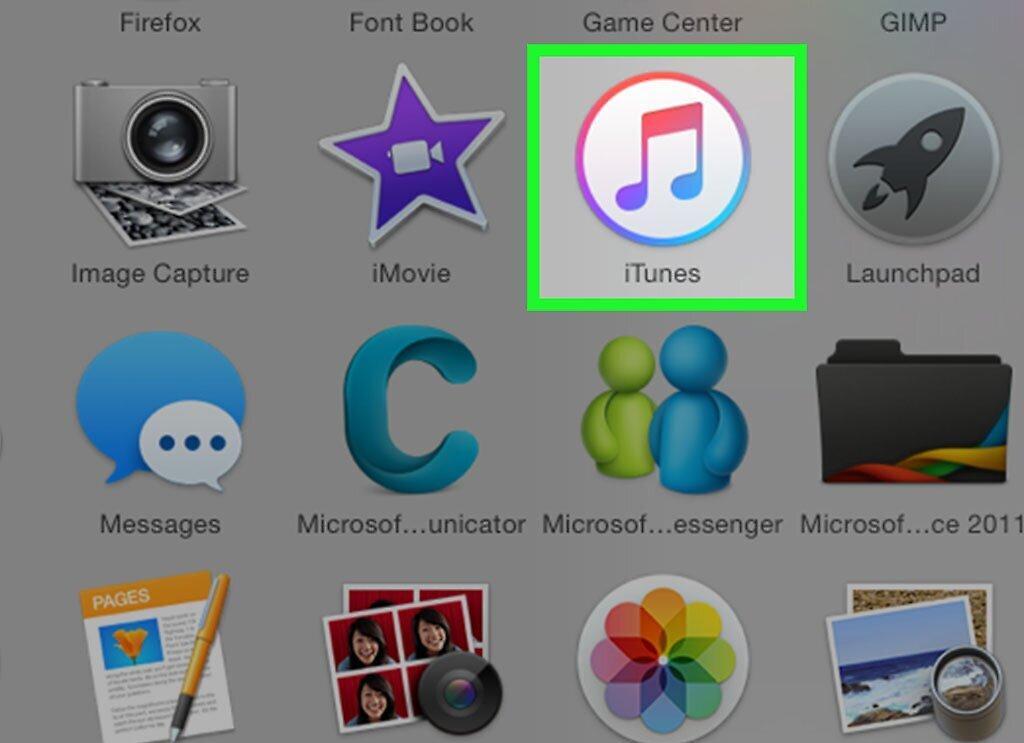
Launch iTunes on your computer. The app icon features a colorful musical note on a white background.
- If you need to update iTunes, do so now.
Step 2: Connect Your iPod to the Computer.
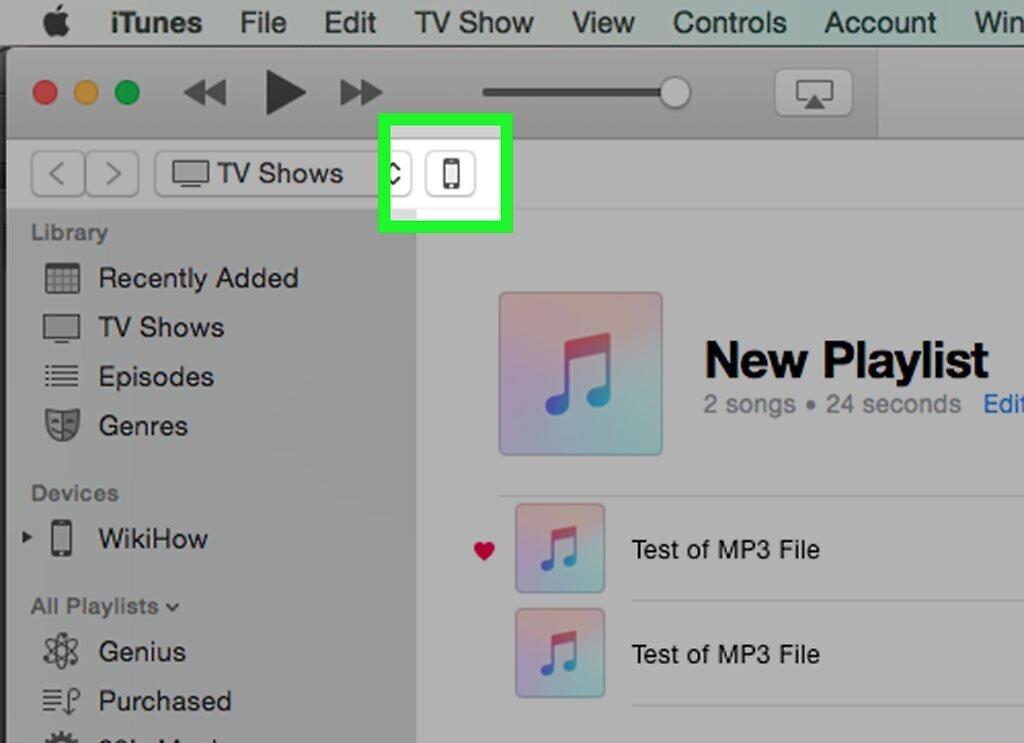
Connect your iPod to the computer using the cable that came with the device. Plug one end of the cable into a USB port on your computer and the other end into the charging port of your iPod.
- If content auto-sync is enabled in iTunes, just launch iTunes and turn on your iPod to transfer new music files to the device.
Step 3: Open the Dropdown Menu.
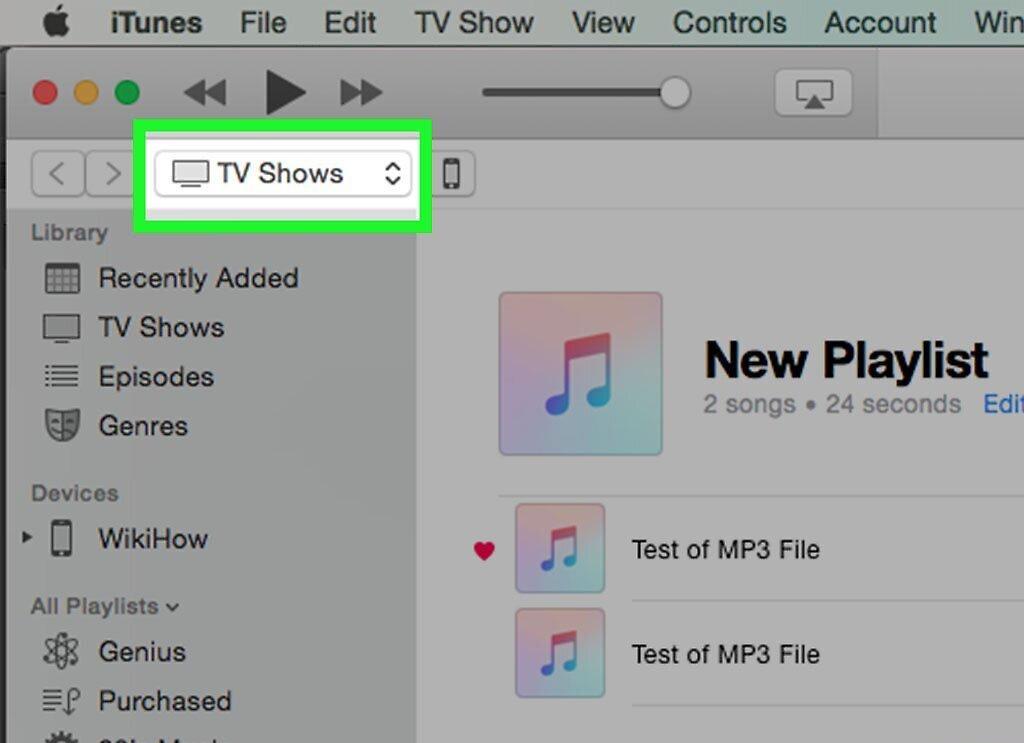
Open the dropdown menu located in the top left corner of the screen next to the iPod icon.
Step 4: Click on Music
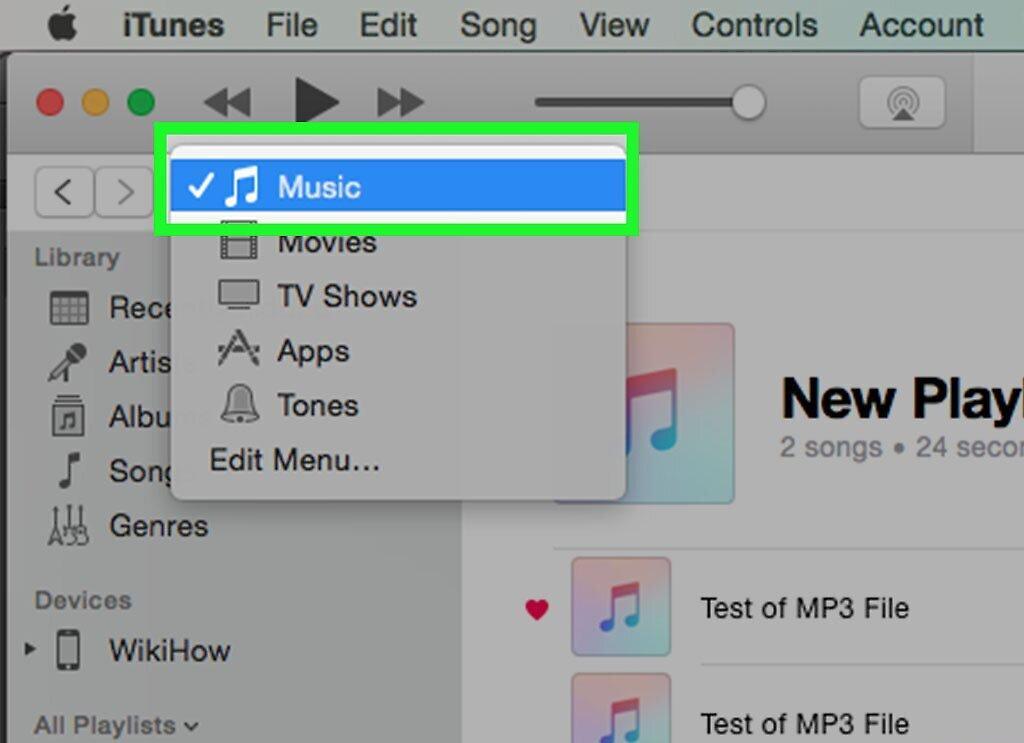
Click on Music. This is the first option in the menu.
Step 5: Click on Library.
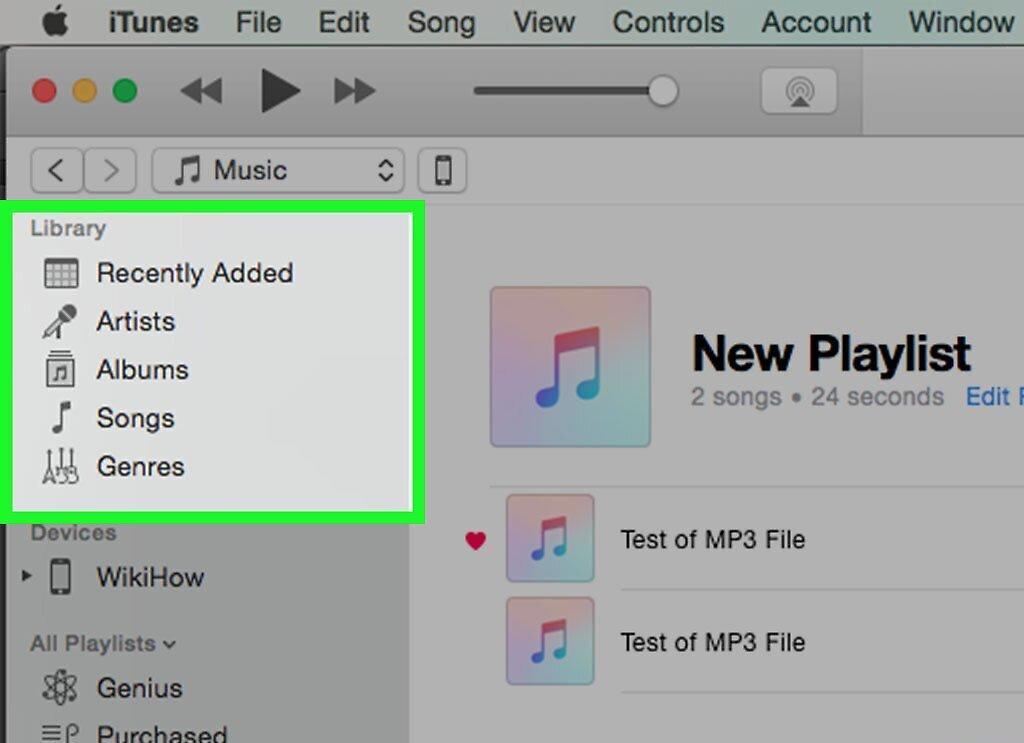
Click on Library. In the Library section (on the left panel of the iTunes window), you can browse music files by the following categories:
- Recently Added;
- Artists;
- Albums;
- Songs;
- Genres.
Step 6: Drag the Item to Your iPod.
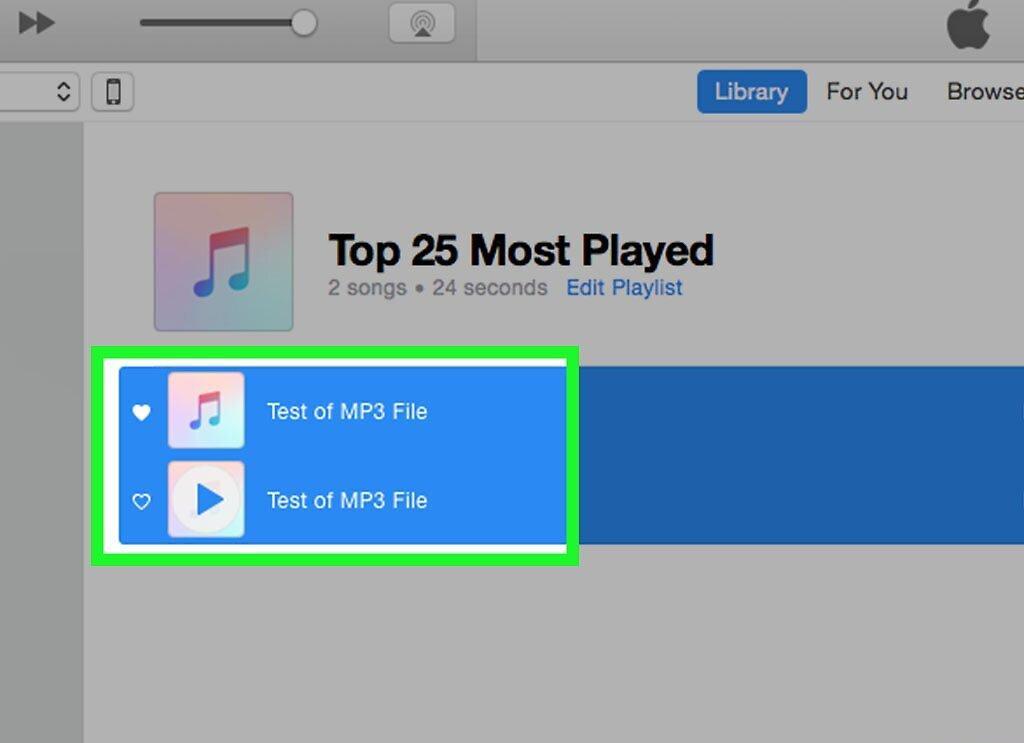
Drag the item to your iPod. Drag the song or album from the library (on the right side of the window) onto the iPod icon (on the left panel under the Devices section).
- A blue rectangle will appear around your iPod icon.
- To select multiple items, click on them while holding down the Ctrl key (Windows) or ⌘ Command key (Mac OS X).
Step 7: Copy the Song(s) to Your iPod.
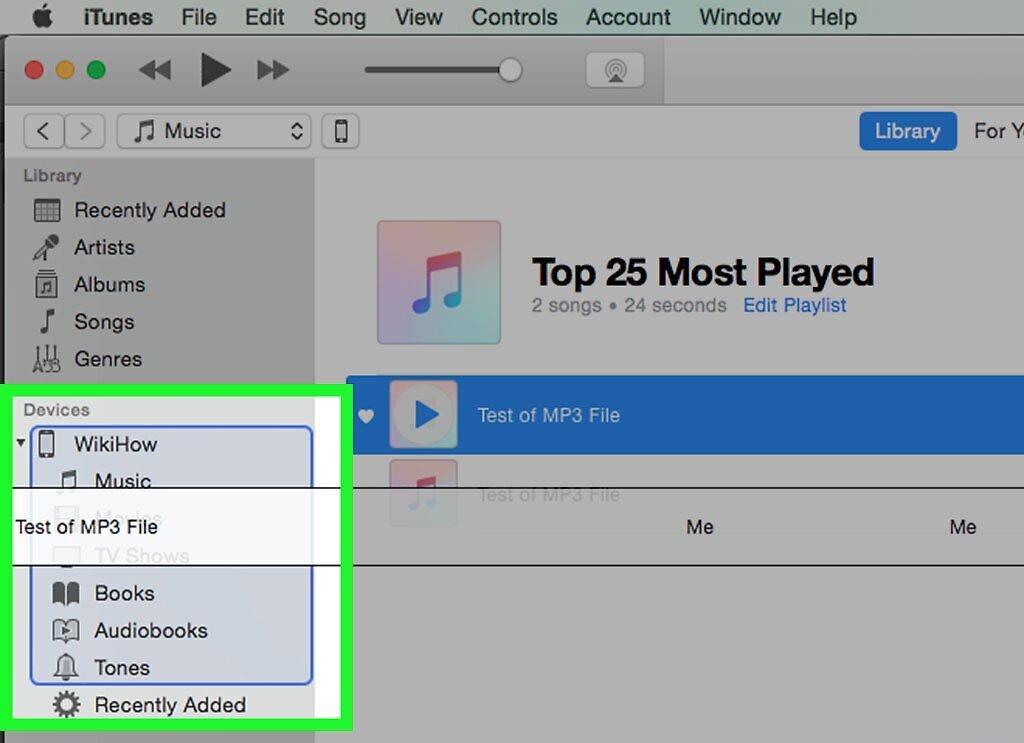
Copy the song(s) to your iPod. To do this, release the mouse or trackpad button; the process of copying music files to the device’s memory will begin.
Step 8: Wait for All Audio Files to Transfer.
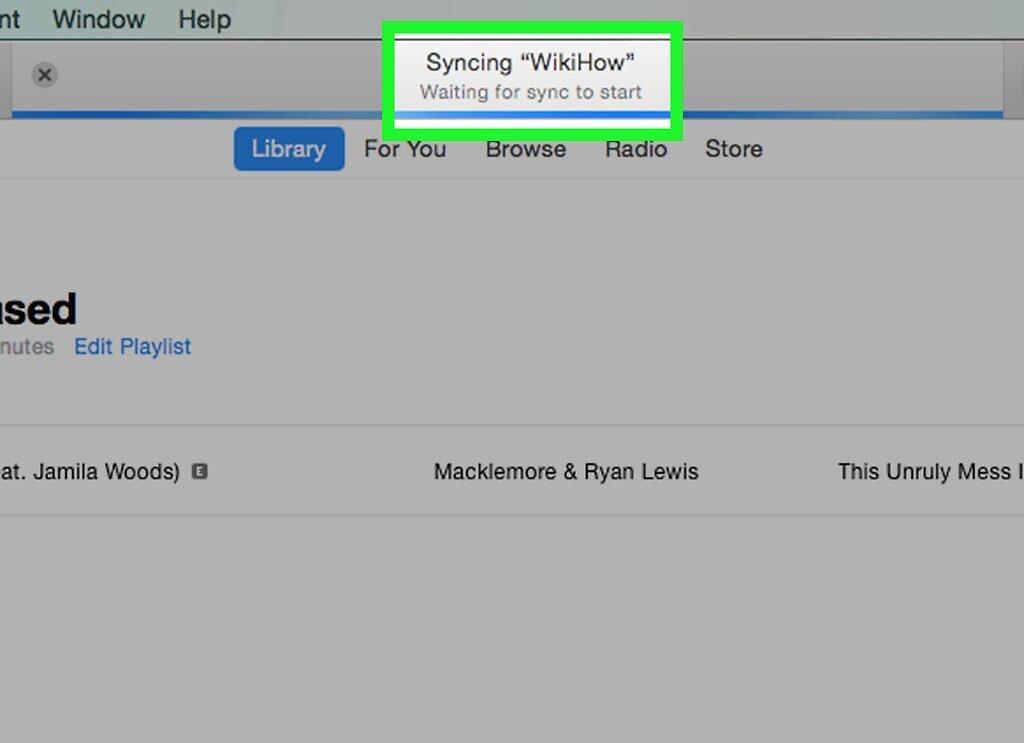
Wait for all audio files to transfer. Now disconnect your iPod from the computer.
- You can find the copied music files in the Music app under the Downloaded Music tab in your library.
How to Buy Music in the iTunes Store
Step 1: Open the iTunes Store App.
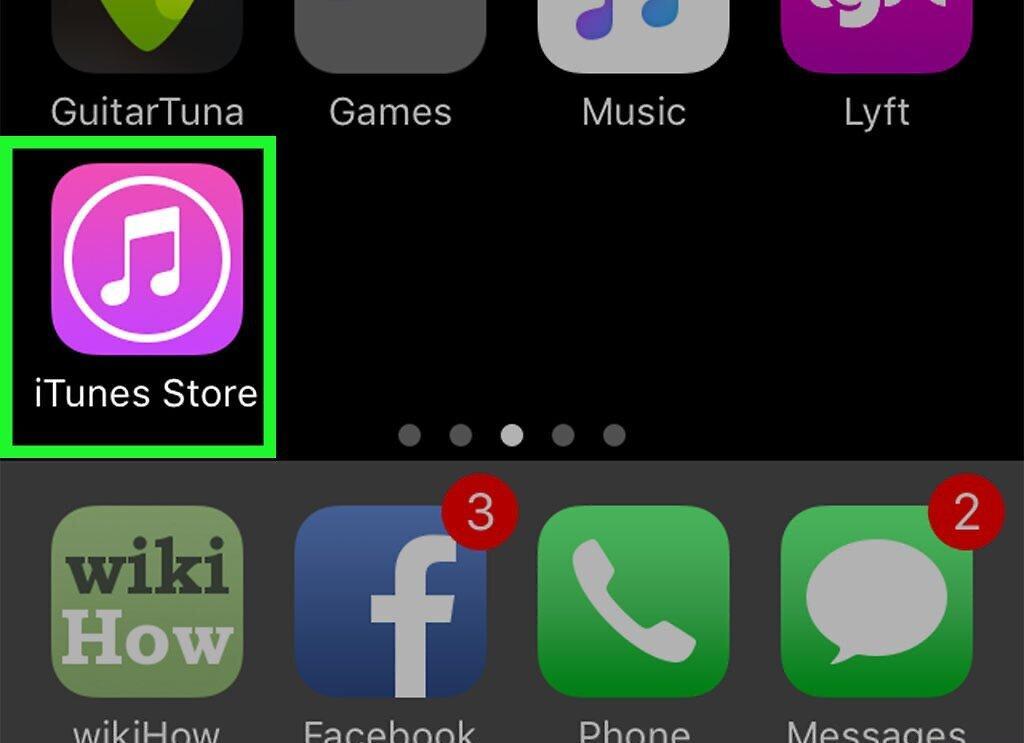
Open the iTunes Store app. The app icon looks like a white musical note on a purple background.
- To use this method, connect to a wireless network.
Step 2: Search for Music.
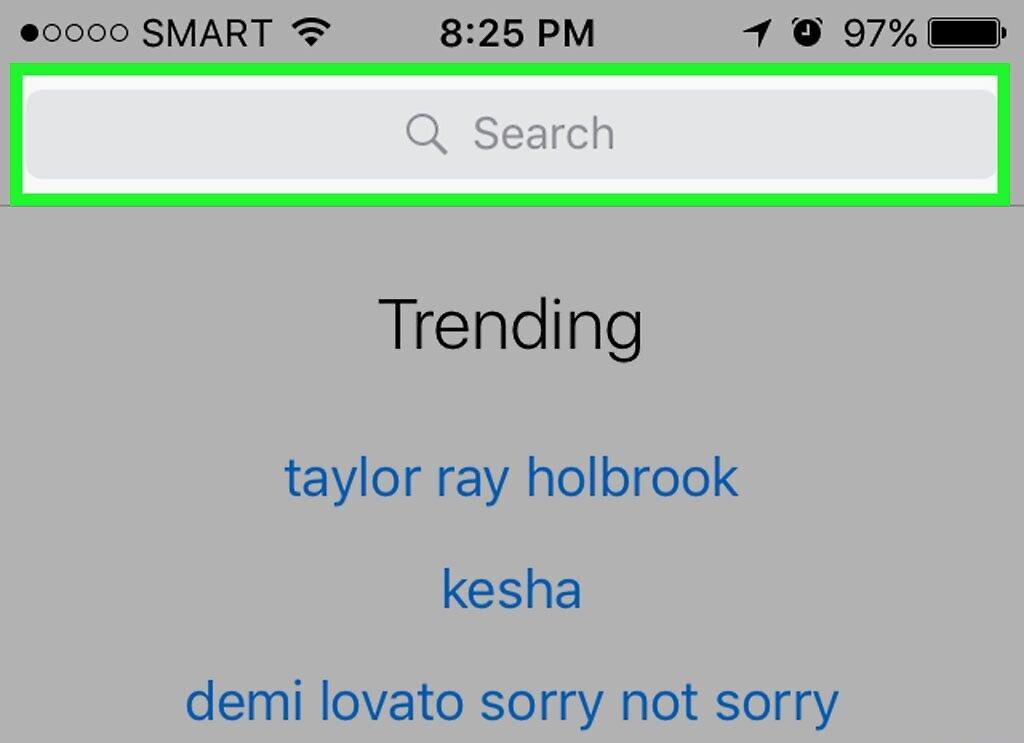
Find music. You can do this in several ways:
- Tap Search. This is the magnifying glass icon located in the bottom right corner of the screen.
- If you are looking for a specific song, artist, or genre, tap on the search bar at the top of the screen; type in the song title, artist name, or keyword, and then tap the desired search result.
- Tap Music. This is the musical note icon in the bottom left corner of the screen, allowing you to browse lists of songs, albums, artists, ringtones, and genres in the iTunes Store.
Step 3: Click on the Price.
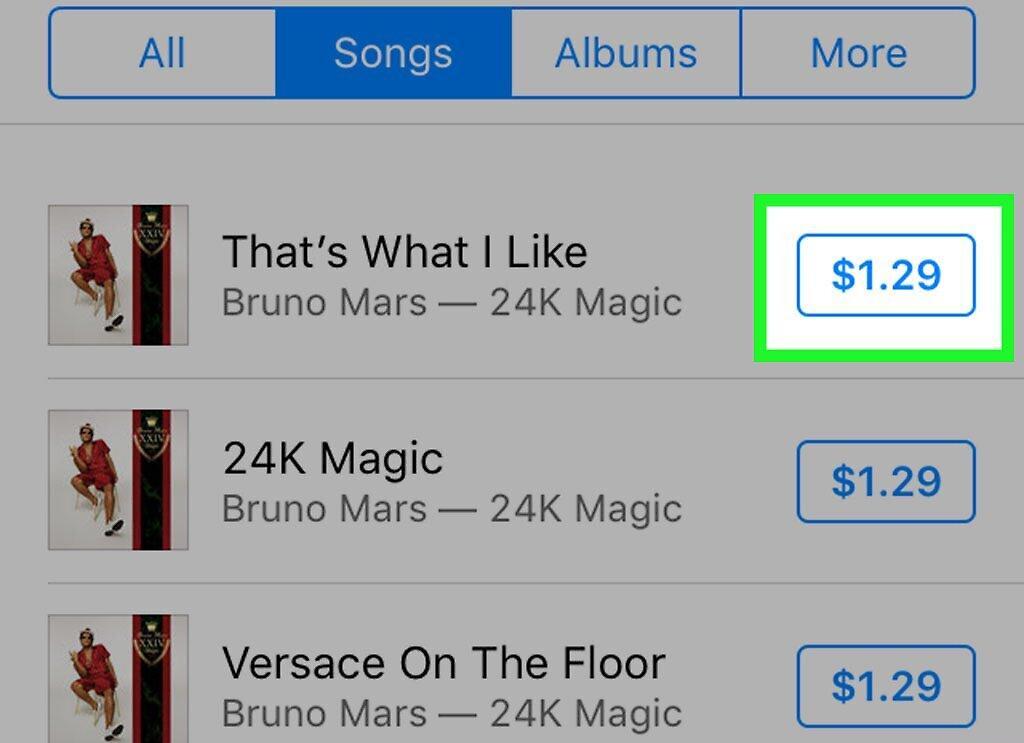
Click on the price. To download a song or album, click on the price next to the title.
Step 4: Tap Buy
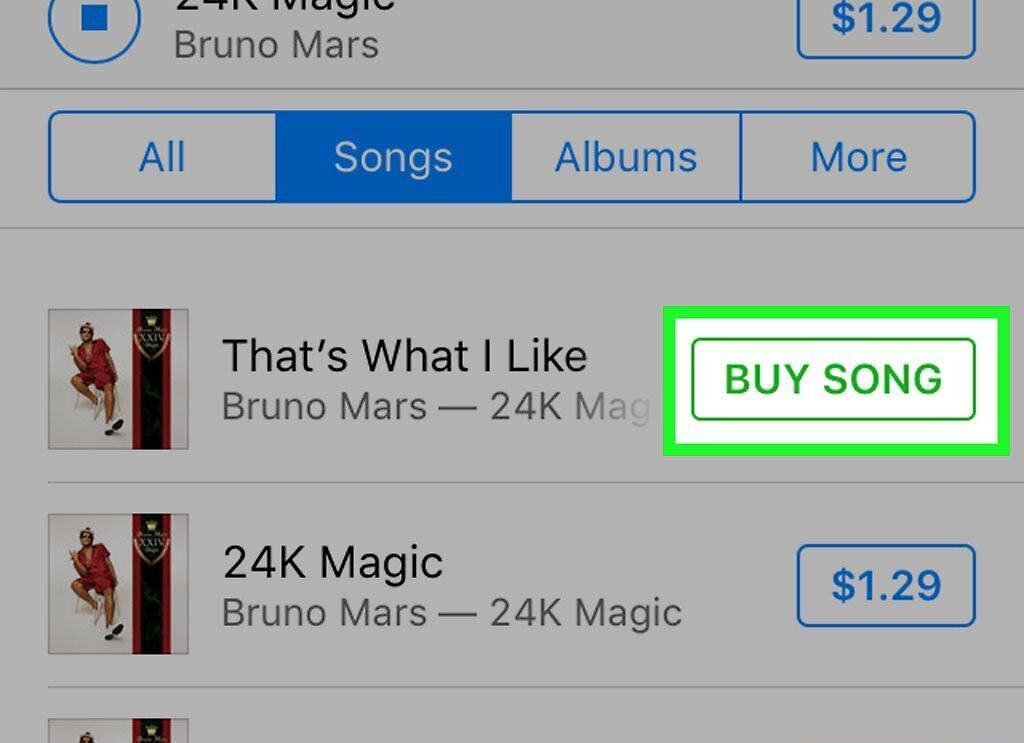
Tap Buy. This button will appear instead of the price button. By tapping this button, you confirm the purchase. The media file will be downloaded to your iPod’s memory.
- You can find the purchased music files in the Music app under the Downloaded Music tab in your library.
How to Download Previously Purchased Music
Step 1: Open the iTunes Store App.
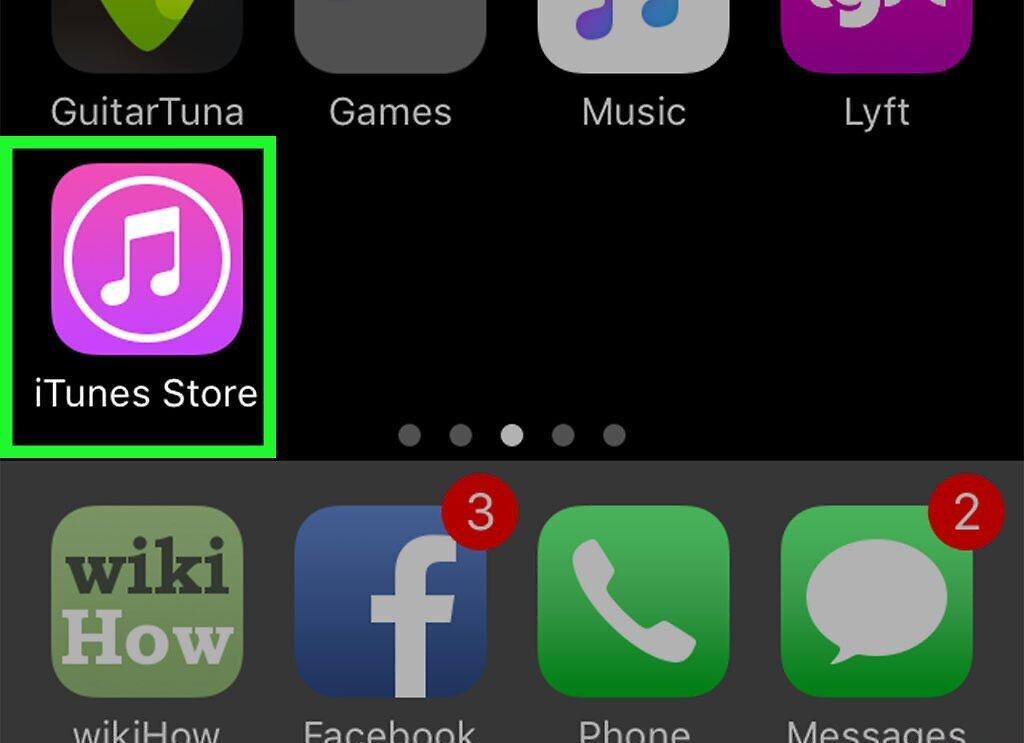
Open the iTunes Store app. The app icon looks like a white musical note on a purple background.
- To use this method, connect to a wireless network.
Step 2: Tap More
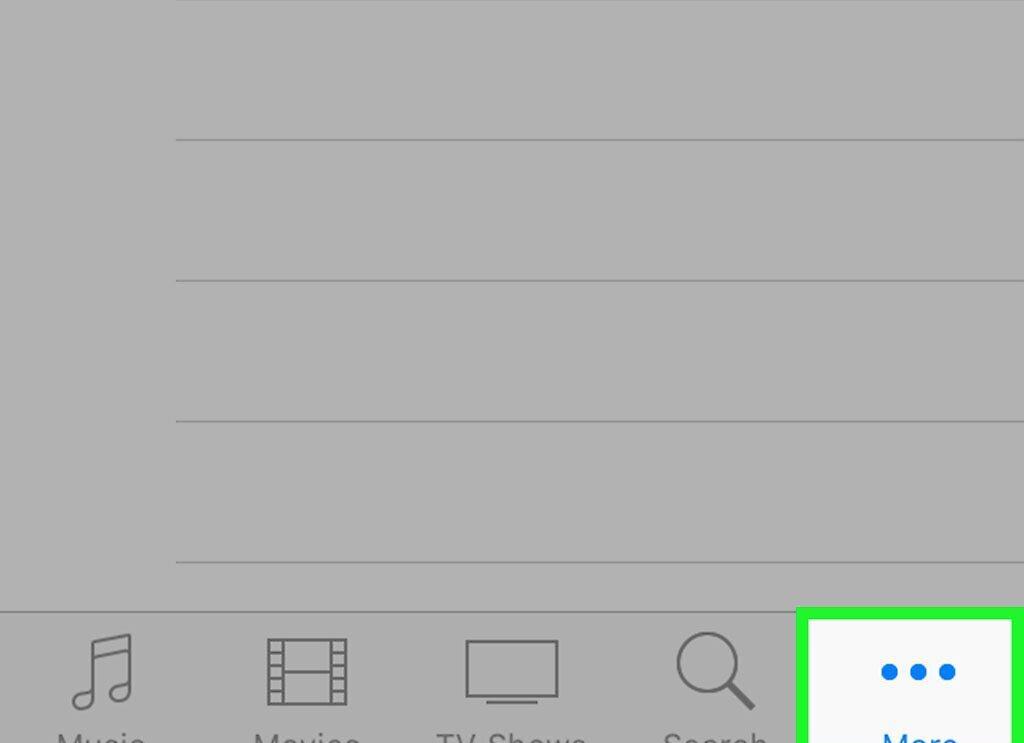
Tap More. This is the three dots icon in the bottom right corner of the screen.
Step 3: Tap Purchased
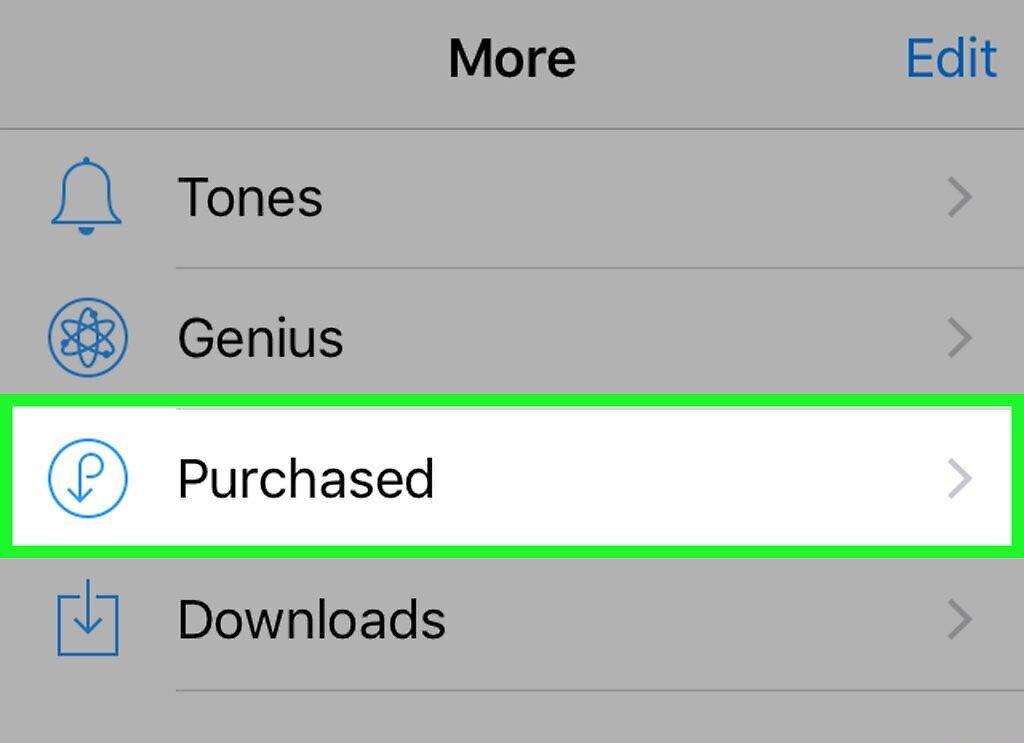
Tap Purchased.
Step 4: Tap Music
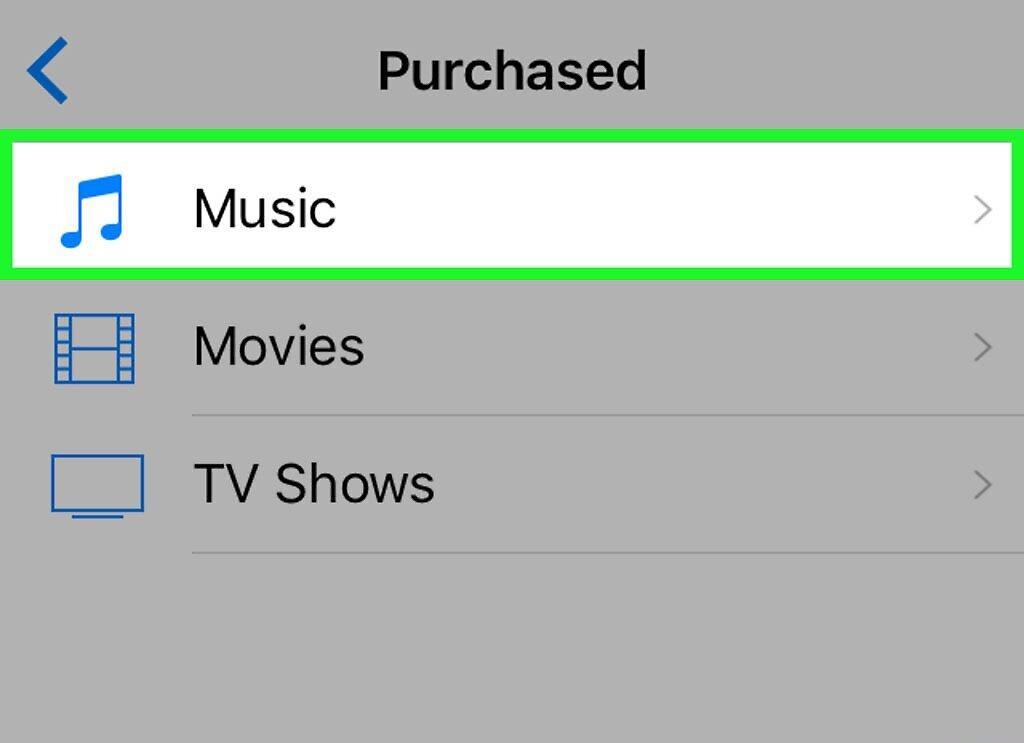
Tap Music.
Step 5: Tap Not on This iPod
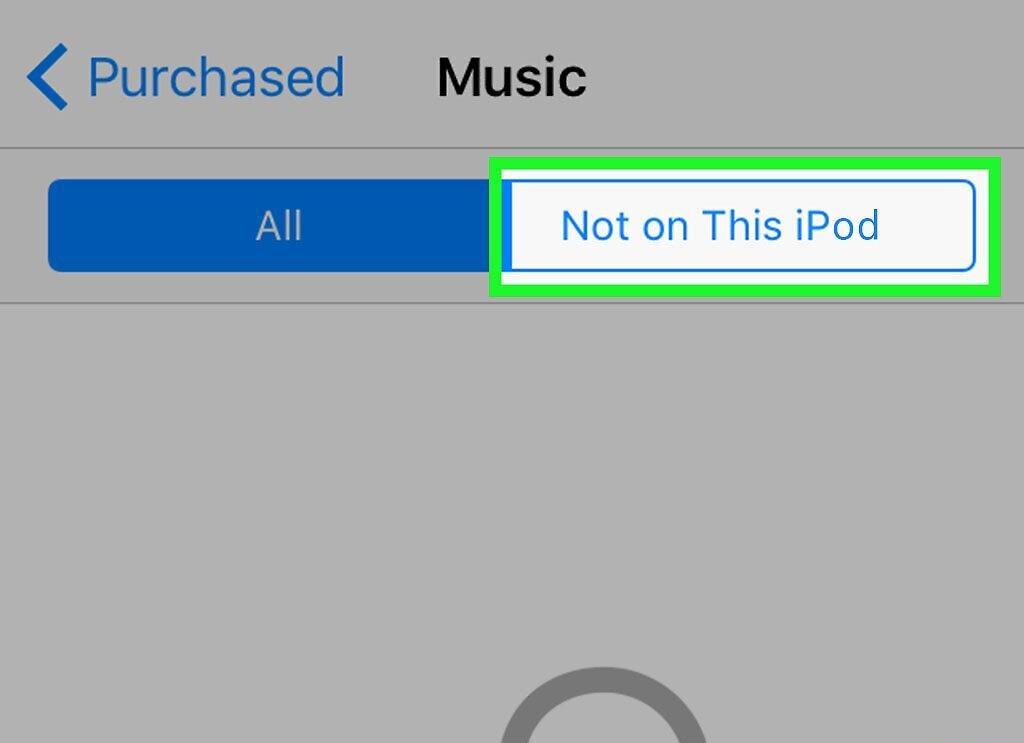
Tap Not on This iPod. This option is located in the top right corner of the screen.
Step 6: Click on the Artist Name or Song Title.
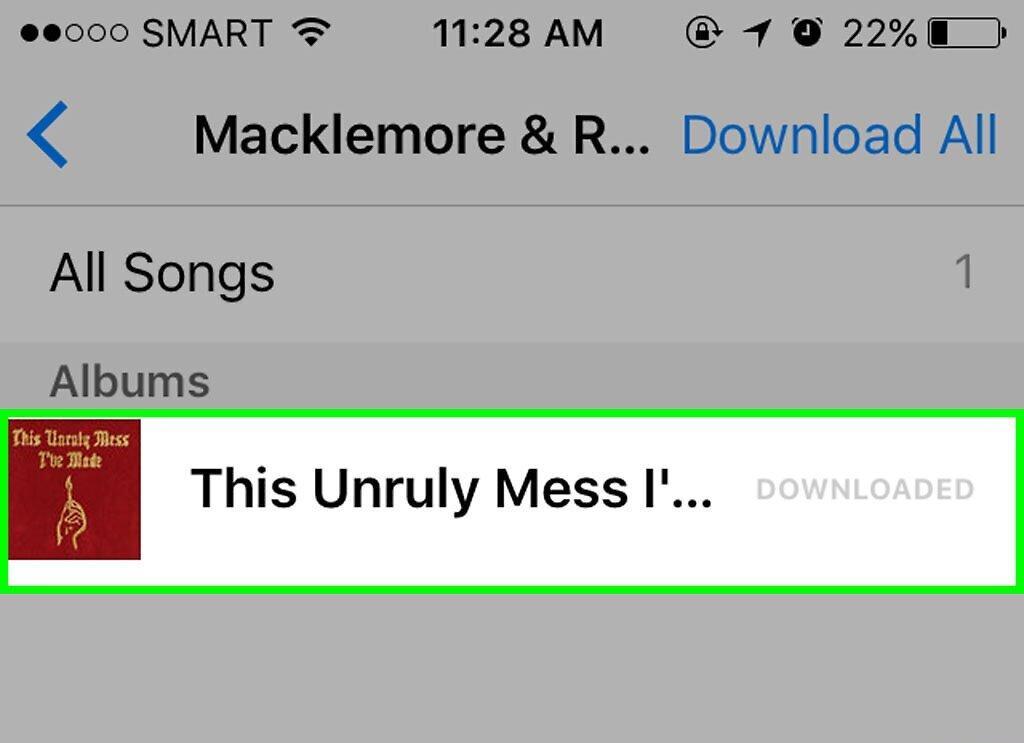
Click on the artist name or song title. The music files are sorted alphabetically by artist name.
Step 7: Click the Download Icon.
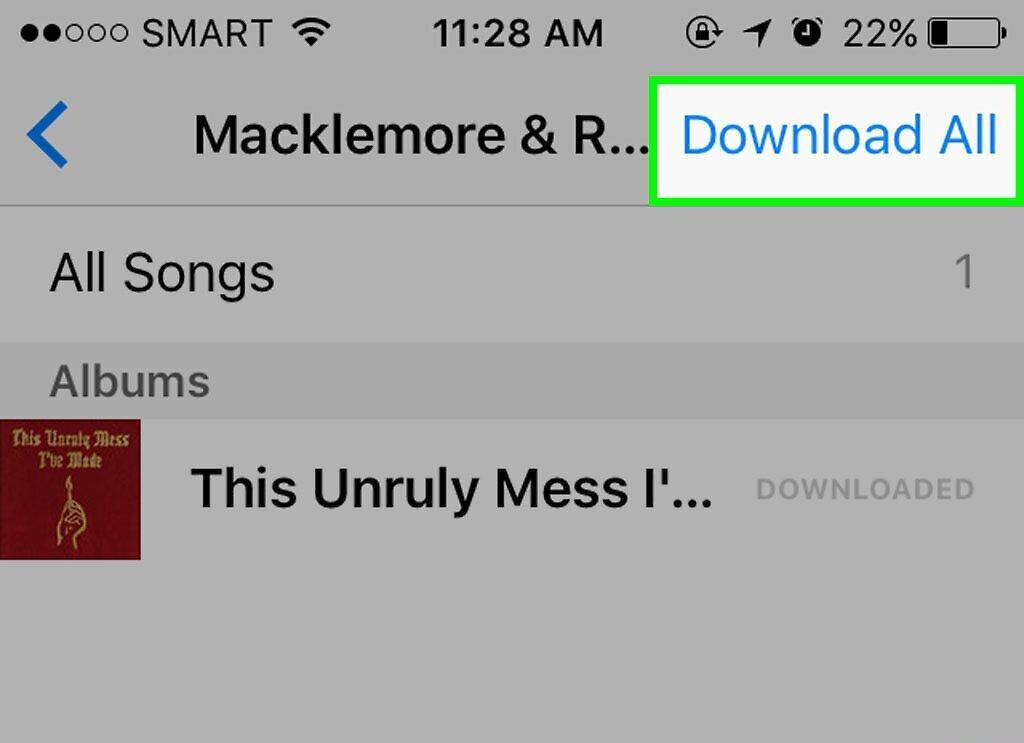
Click the download icon. It is located to the right of the title of the song or album you have previously purchased and want to download.
- The process of downloading the music or video to your iPod will begin.
- You can find the downloaded music files in the Music app under the Downloaded Music tab in your library.


