
Want to add videos to your iPod? You can do this if you have an iPod Touch, iPod Classic, or iPod Nano 3rd generation and above. Depending on the video you want to add, its format, and quality, the methods may vary slightly, so make sure to choose the right method for your situation.
Buying from iTunes
Step 1. Visit the iTunes Store.
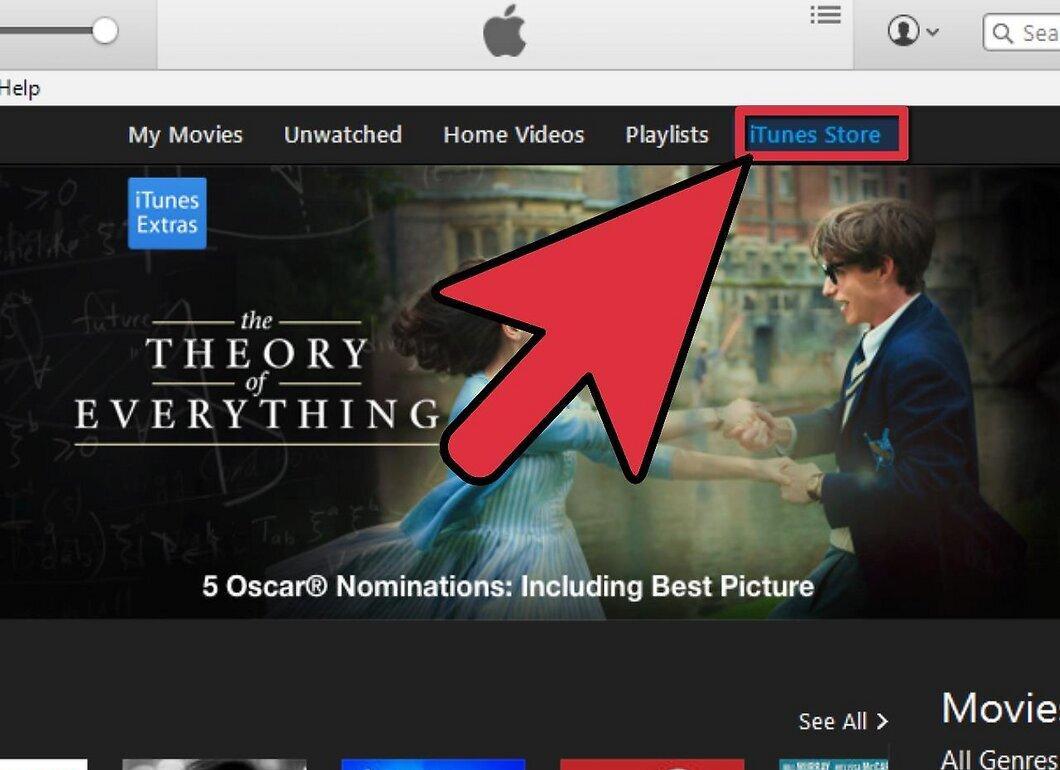
Visit the iTunes Store. Any video purchased from the iTunes Store will play on your iPod.
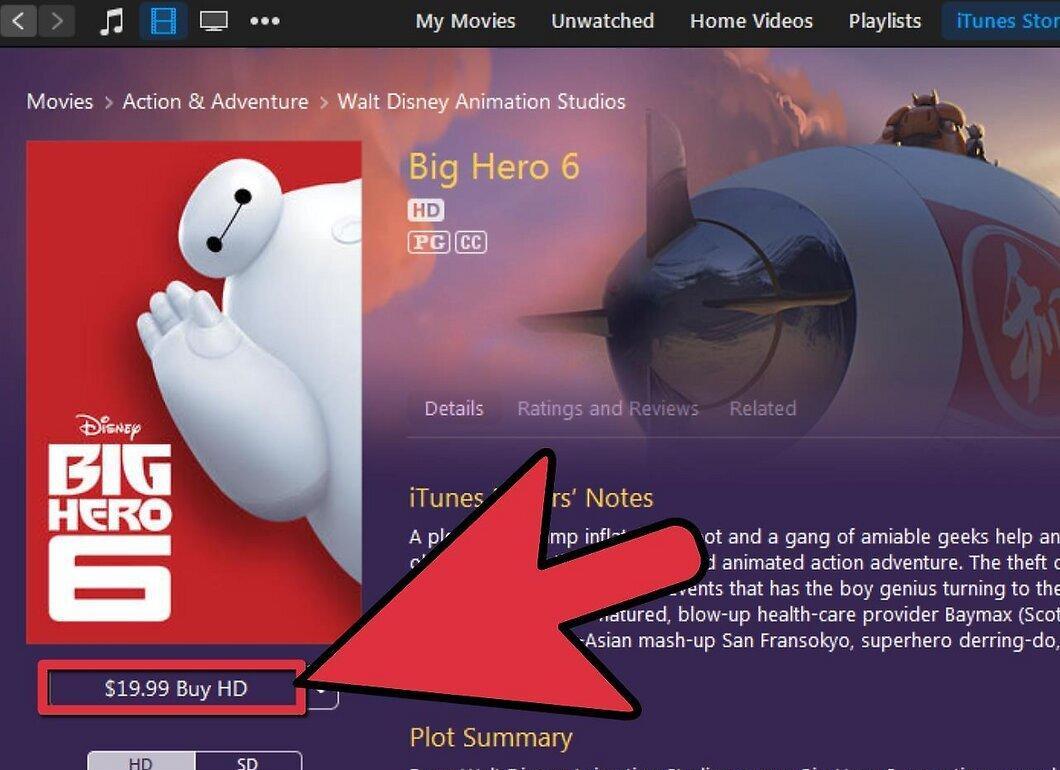
Step 2. Pay for the video and download it.
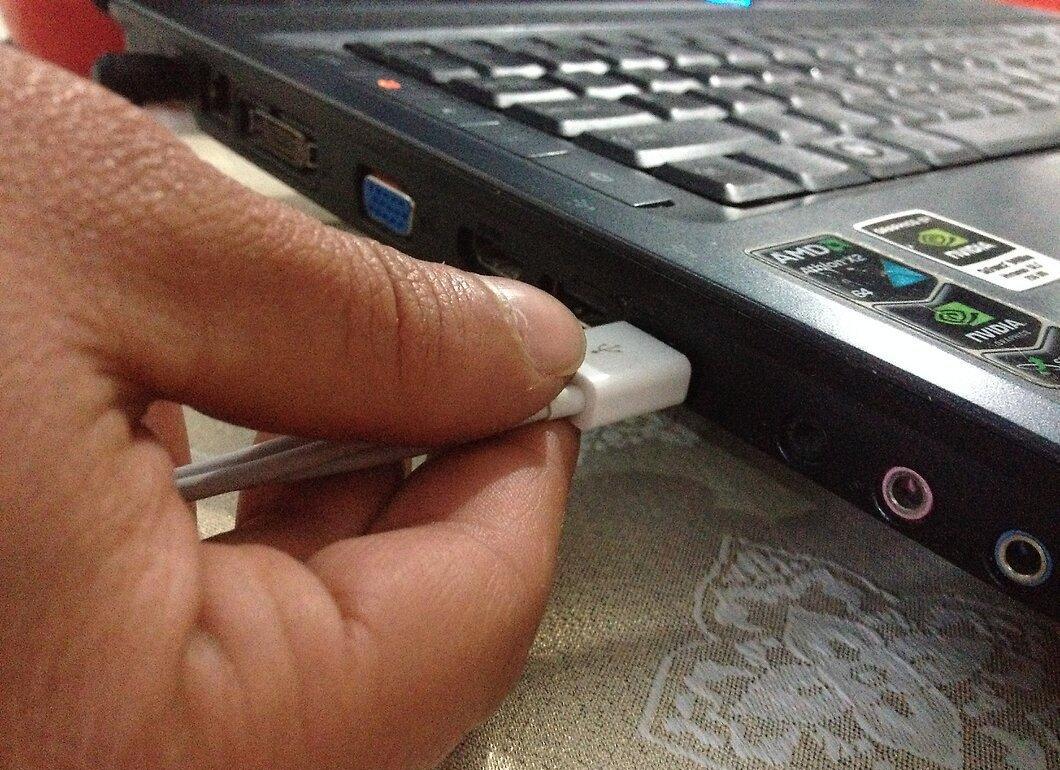
Step 3. Connect your iPod to iTunes.
Step 4. Select the video for your iPod.
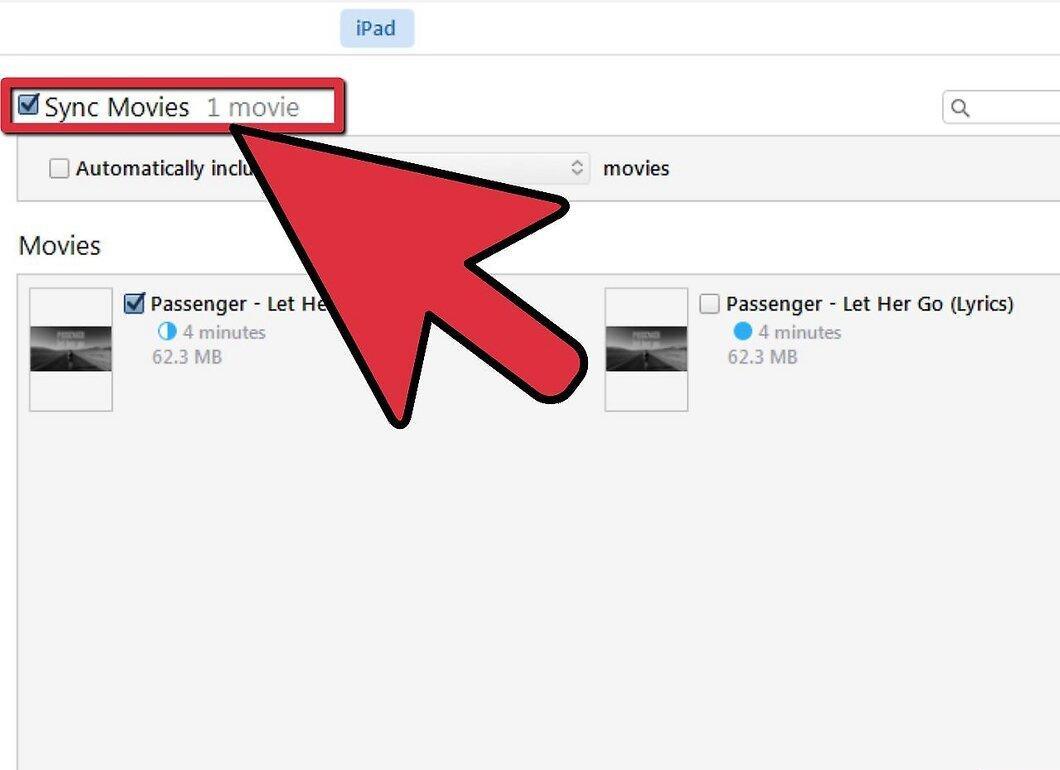
Step 5. Sync your iPod.
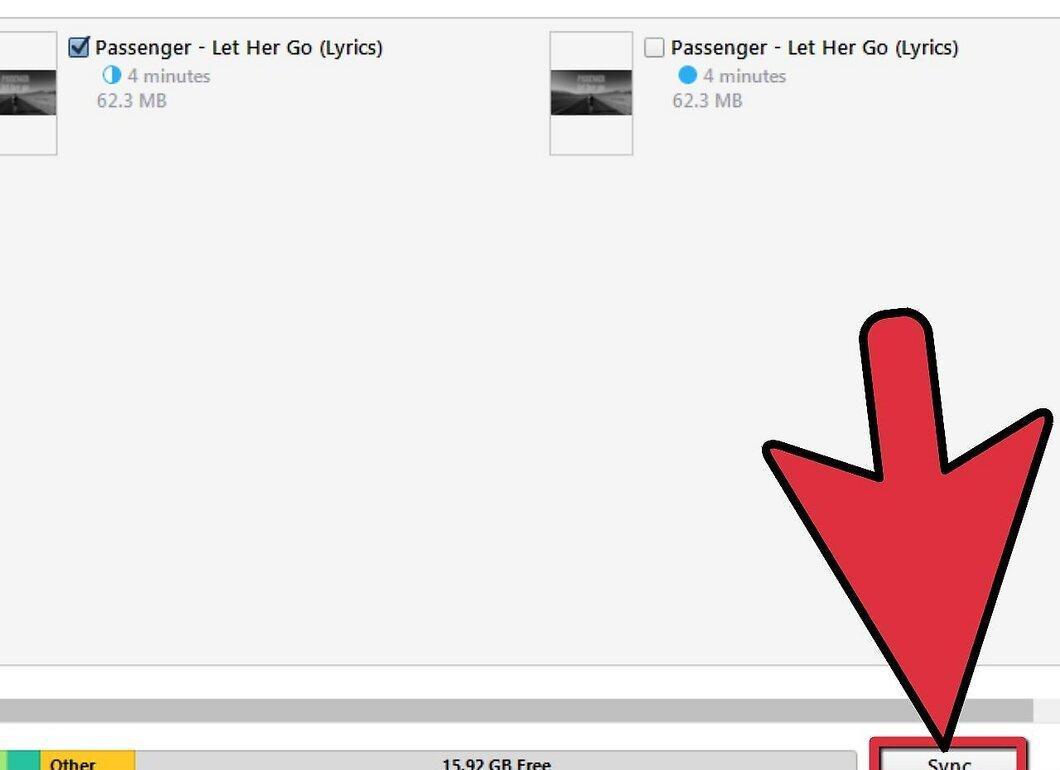
Converting Files for iTunes
Step 1. Decide on the format.
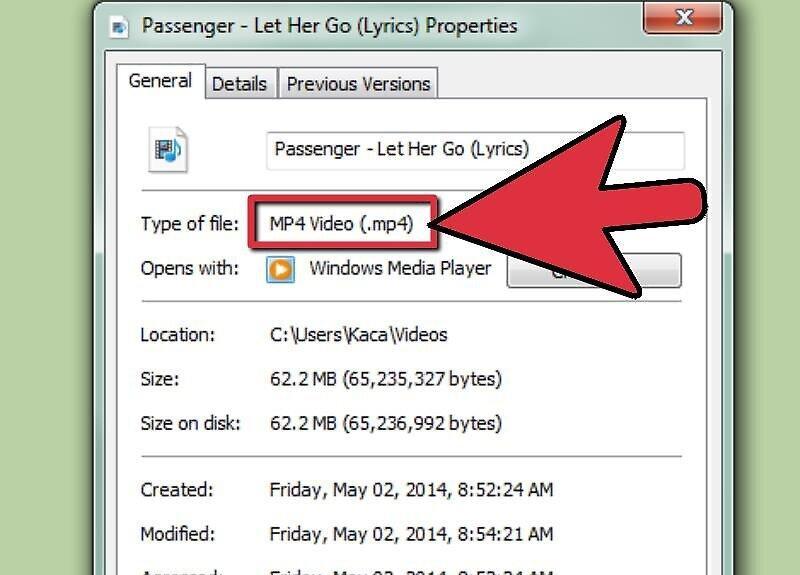
Decide on the format. Your iPod can only play files in .m4v, .mp4, or .mov formats. If your video is not in .mov format, you will need to convert it. If it is suitable, simply add it to iTunes and sync your iPod.
Step 2. Convert using Apple applications.
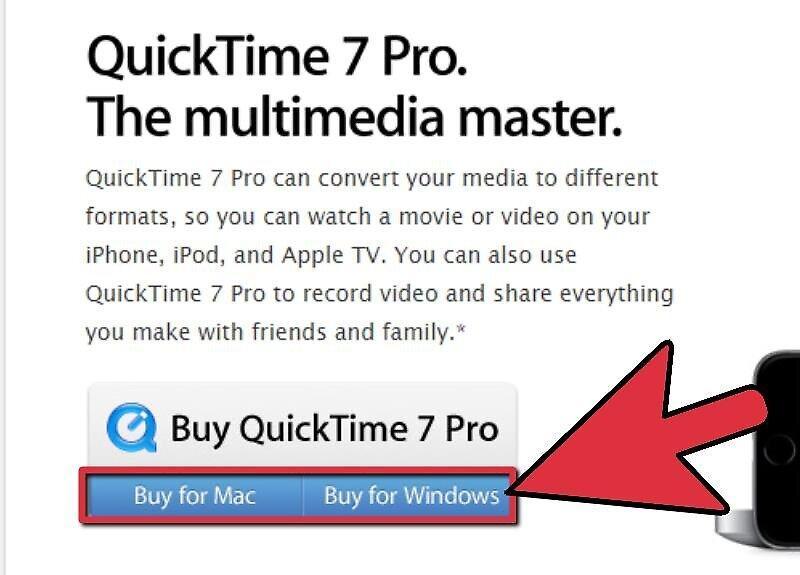
Convert using Apple applications. If you have a Mac, use QuickTime Pro to convert your file to a format supported by the iPod.
- Download and install QuickTime Player Pro 7.0.3.
- Select and import your video file.
- Click File -> Export.
- From the dropdown menu, select Movie for iPod.
- A new file will be created on your desktop. Add it to iTunes and sync your iPod.
Step 3. Convert using third-party applications.
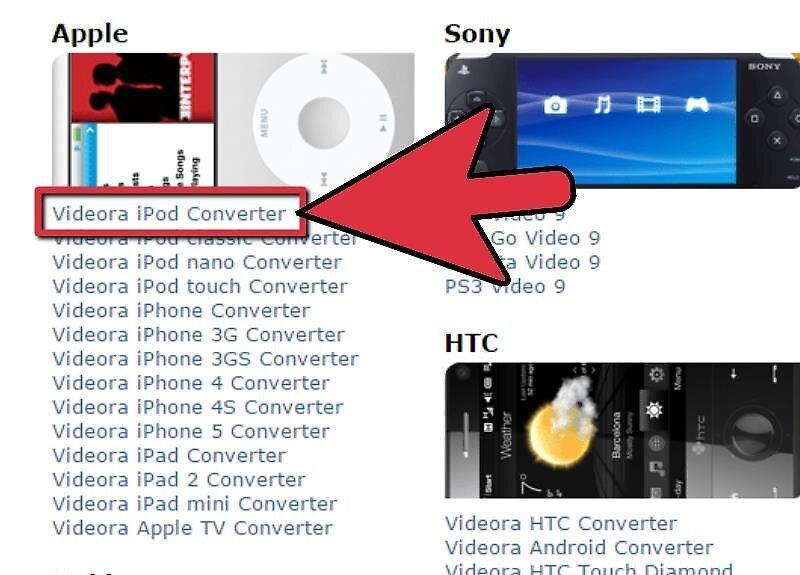
Convert using third-party applications. There are several third-party converter applications available for download online.
- For Windows, consider Videora, PQDVD, 3GP Convert, Leawo Free iPod Converter, Any Video Converter, or Handbrake.
- For Mac, you can use Handbrake or VideoMonkey.
- If you have trouble using a program, search for information on forums by typing "[program name] forum" in your search engine.
Importing Videos with the Right Format
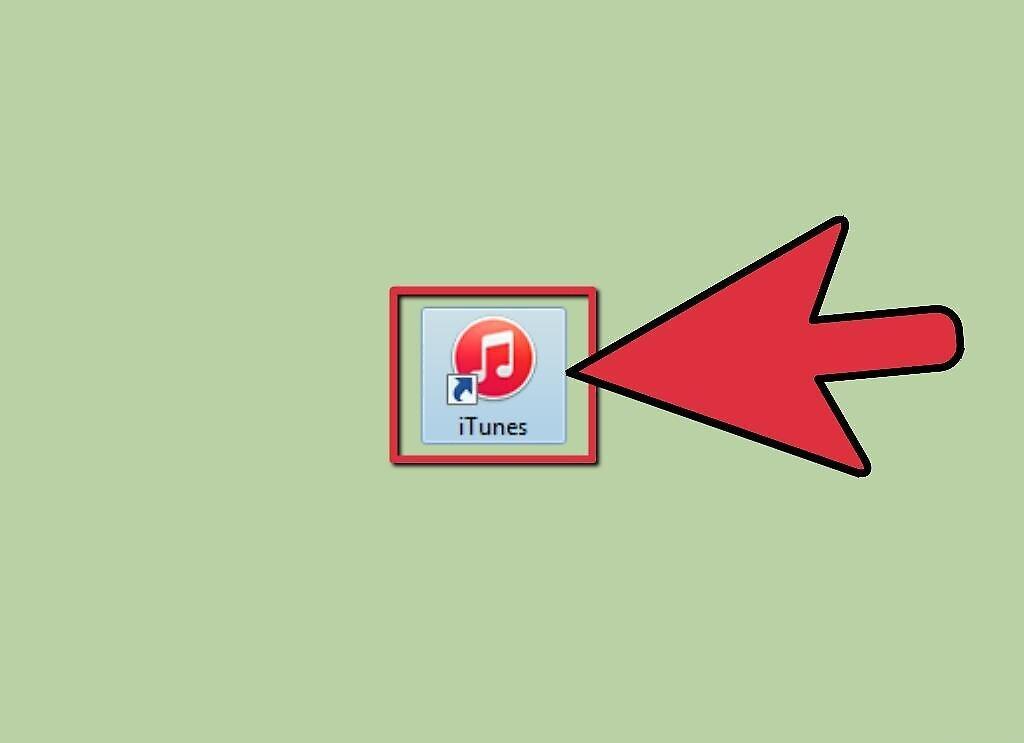
Step 1. Open iTunes.
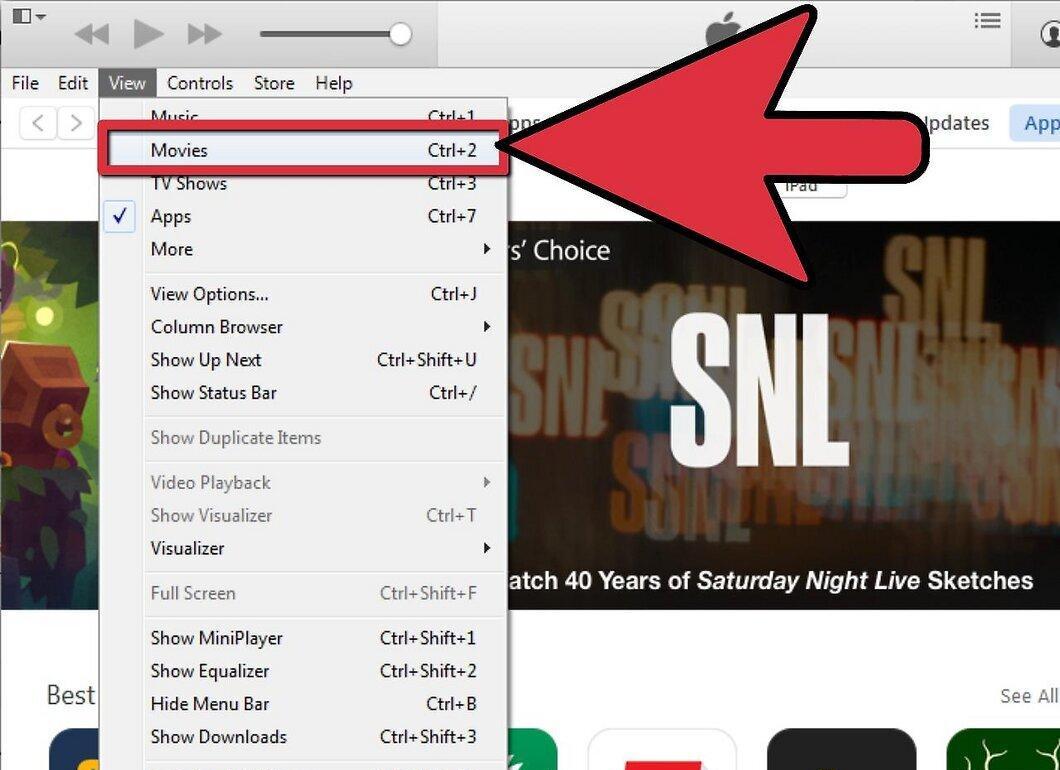
Step 2. Select Movies.
Step 3. Choose File -> Import.
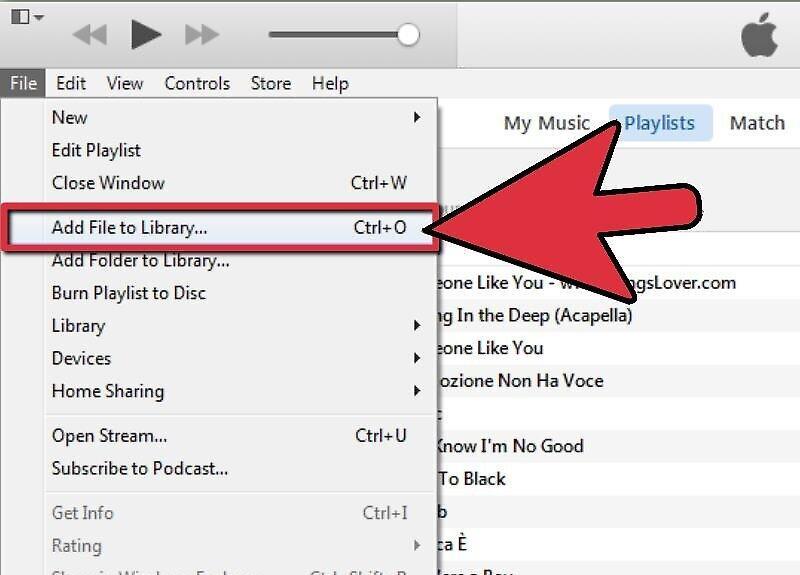
Select File -> Import. The video will be added to iTunes.
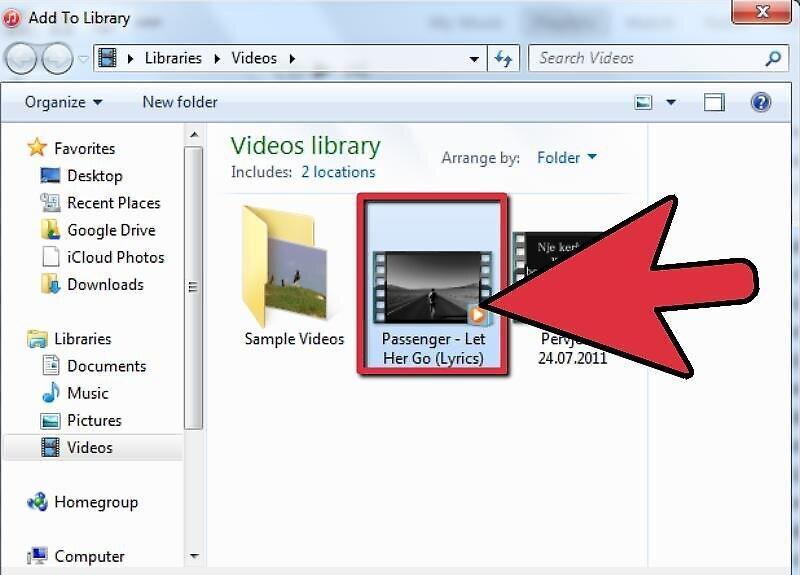
Step 4. Highlight the desired video.
Step 5. Choose Advanced -> Convert for iPod.
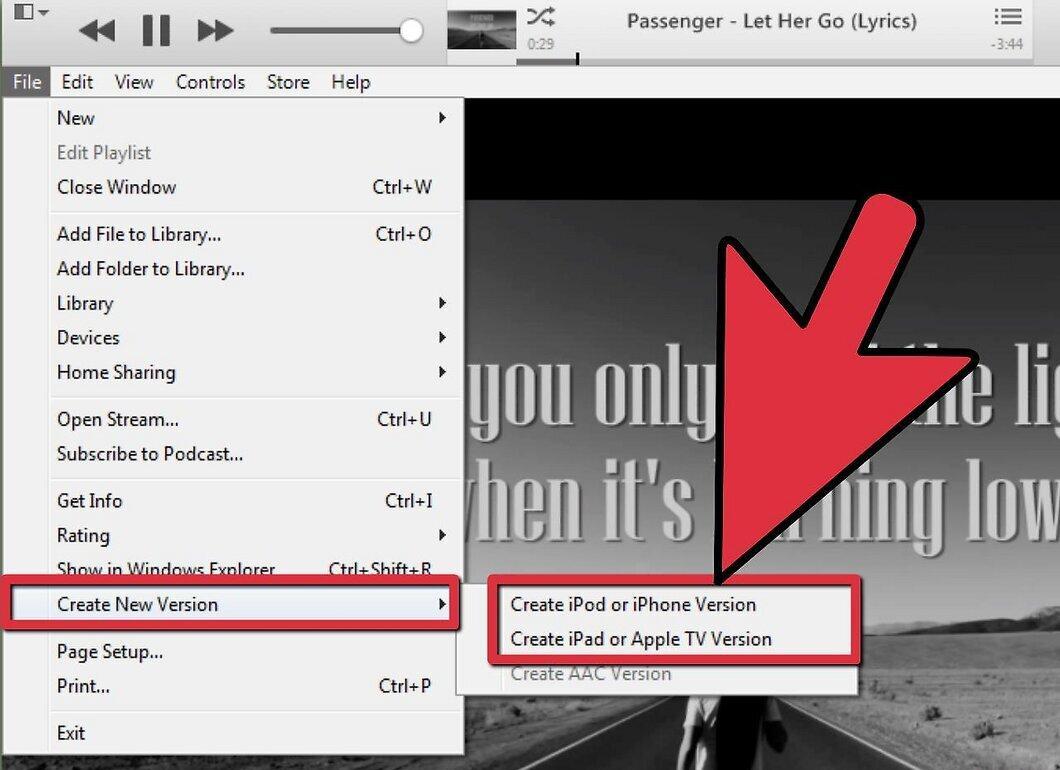
Step 6. You can also right-click on the video and select this option.
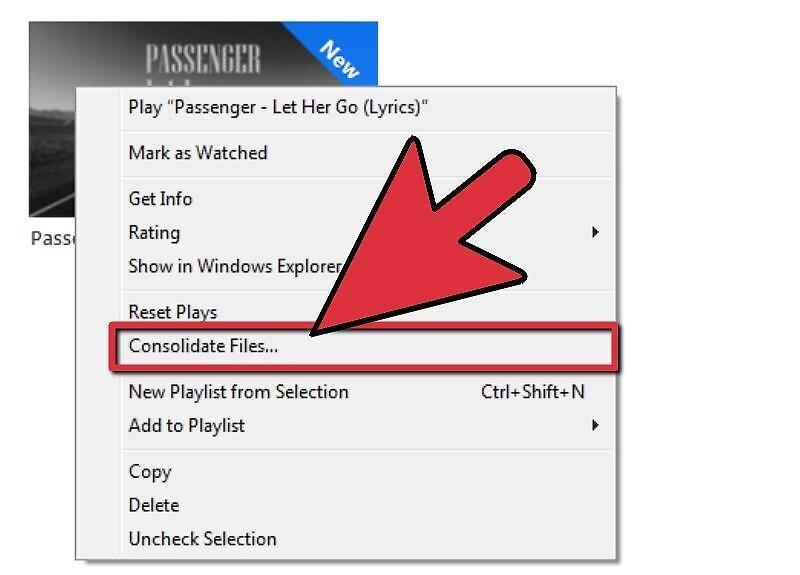
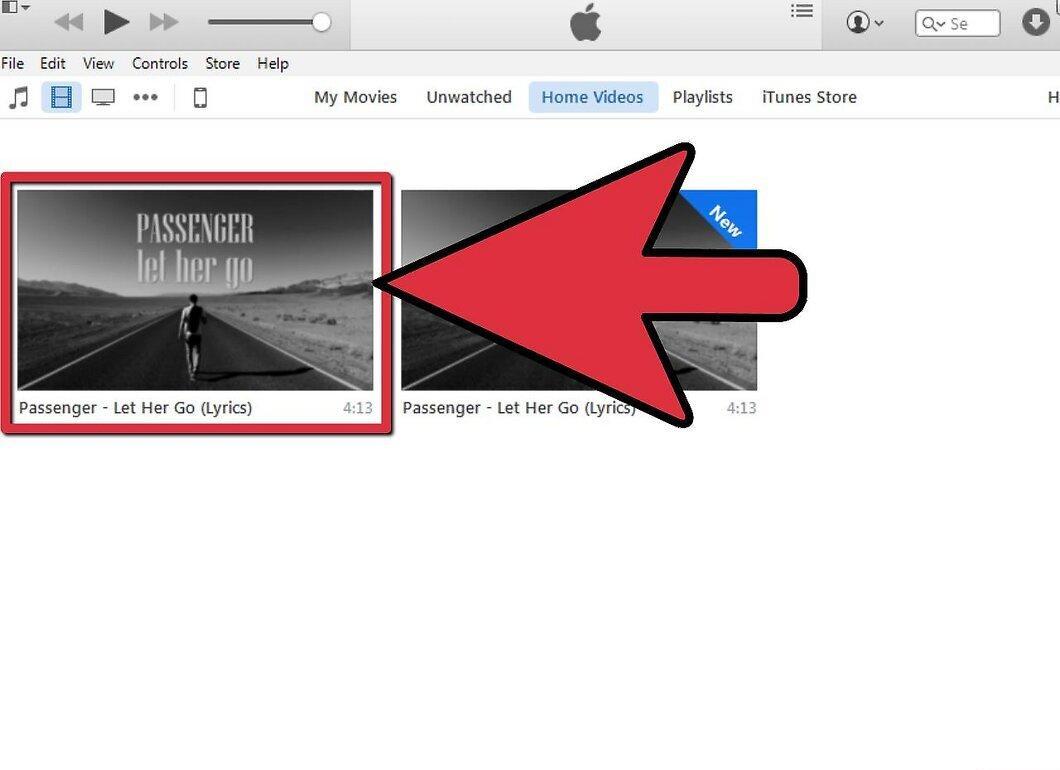
Step 7. Mark the newly created file for synchronization.
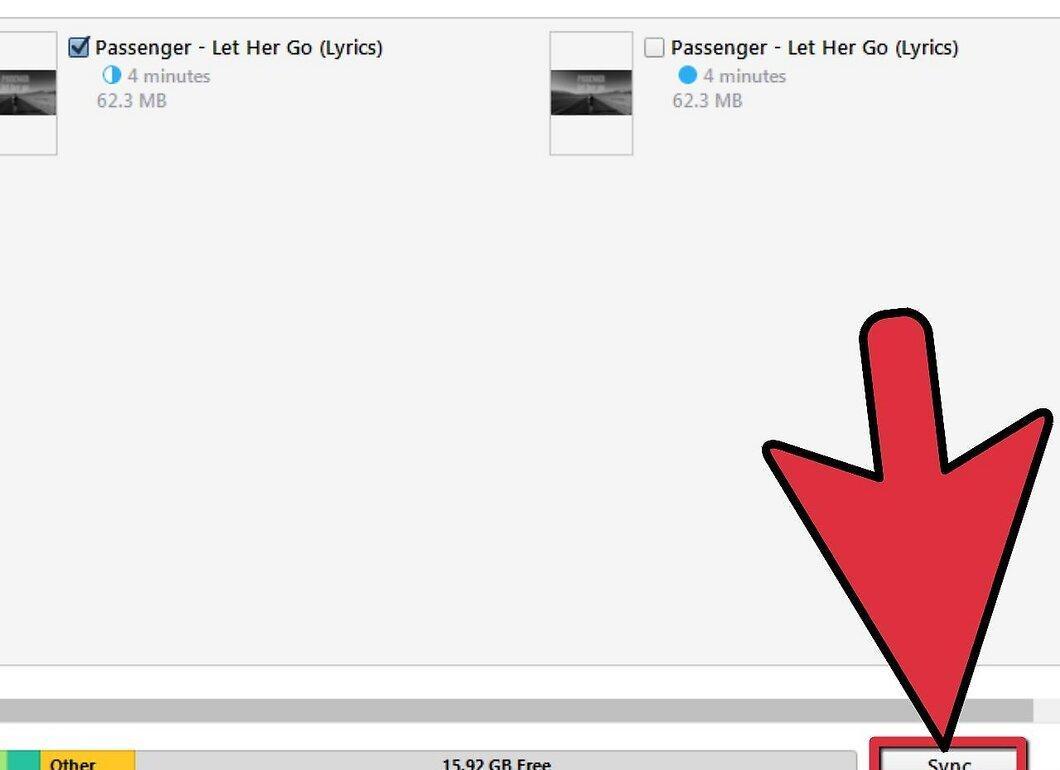
Step 8. Sync your iPod with iTunes.
Potential Issues
Step 1. Check if everything works.
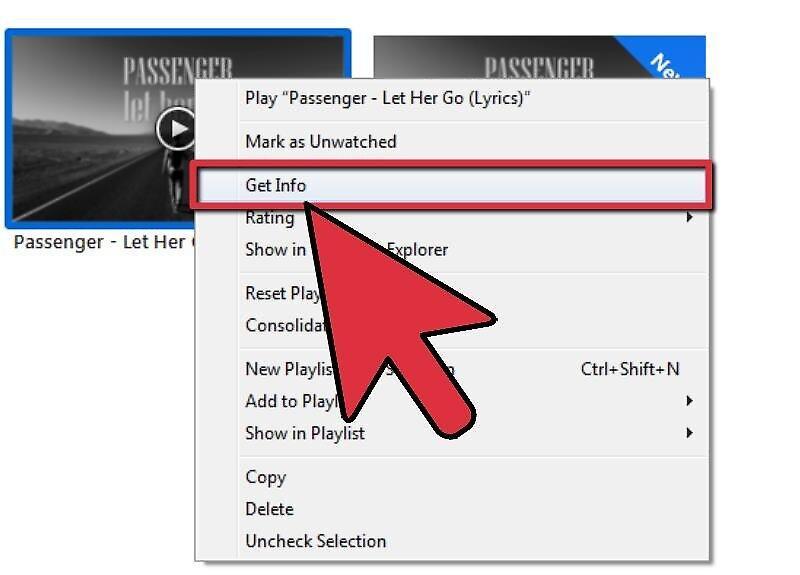
Check if everything works. If the video plays, but there is no sound, it means that your file is multiplexed or has an incompatible format. If the file is multiplexed, it means that the audio and video tracks are not separated but mixed. This issue can be resolved as follows:
- Open the original video in QuickTime Player.
- From the Window menu, select Show Movie Inspector.
- In the Movie Inspector window, click More Info.
- Note the information in the Format field.
- If it shows "MPEG1 Muxed" or "MPEG2 Muxed", the audio track of your video file is incompatible with your iPod, iTunes, and QuickTime. You will not be able to do anything about this except download a third-party application and convert the video again.


