
Running out of space in your Lotus Notes email? Not ready to delete old messages? Consider archiving your emails. Archiving means copying messages to another location on your computer. In this article, you will learn how to archive Lotus Notes emails to free up space in your account while keeping your mail data intact. It also helps your computer and software run more efficiently.
Part 1
Step 1. Set a file size limit for your mail.
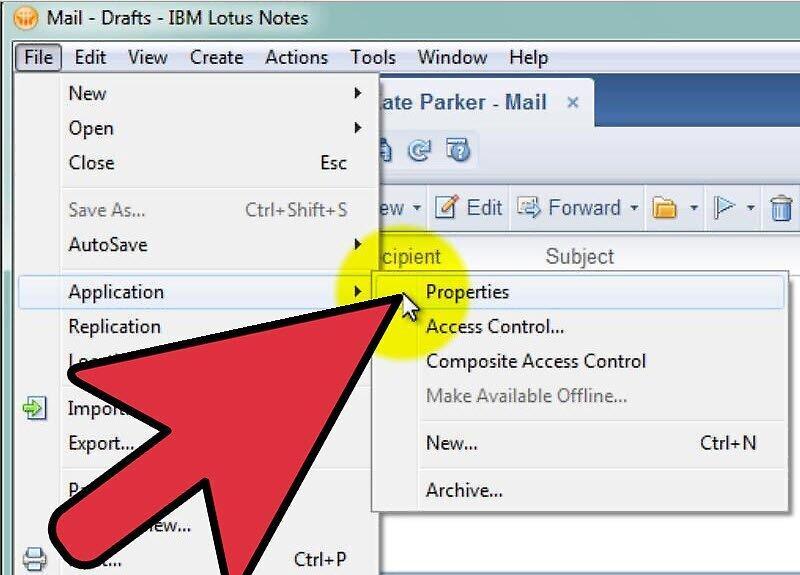
Set a file size limit for your mail. Limit your mail file size to no more than 500 MB. (In some organizations, a smaller limit may be used, such as 200 MB.)
- Check your data size in File, Database, Properties. In Lotus 8, go to File, Applications, Properties.
- Click on the "i" tab. The number next to "Disk Space" indicates your data size in Lotus Notes.
Step 2. Learn your organization's required settings.
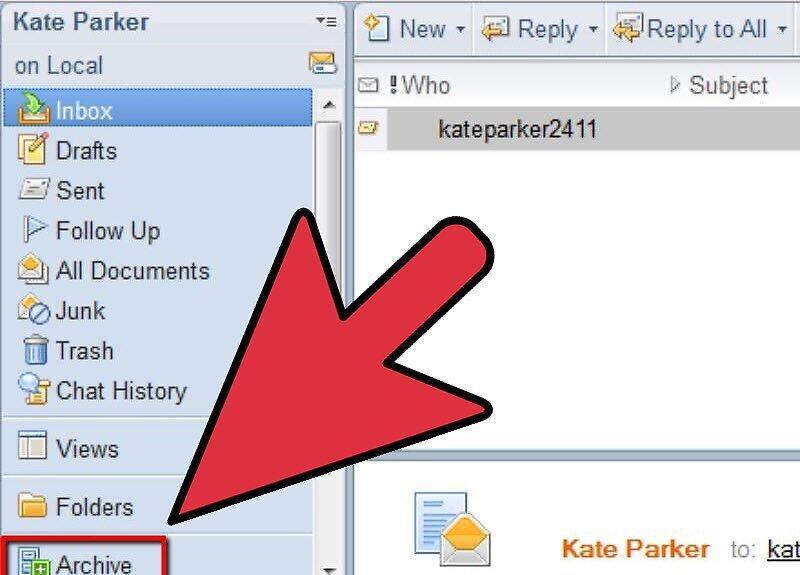
Learn about your organization's required settings. If you use Lotus Notes for school or work, archiving may already be set up. This helps organizations manage the number of emails per user and the overall performance of computers within the organization. If archiving is already set up, discuss with IT staff whether you can modify the settings.
Step 3. Determine your desired archiving options.
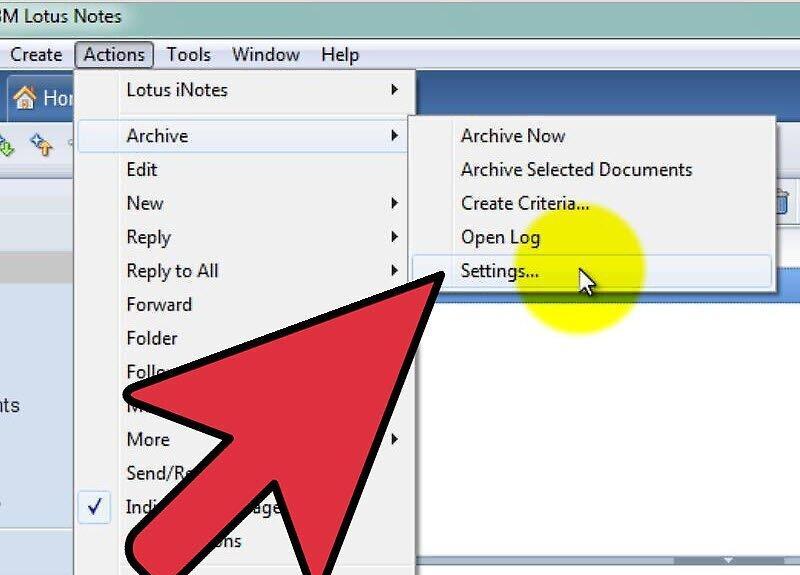
Determine your desired archiving options. You can choose to archive all Lotus Notes emails or selected ones. Additionally, consider how often Lotus Notes should be archived.
- Open the appropriate application (Mail).
- Go to Actions, Archive, Settings.
- Open the Criteria tab and ensure that the "Default for last modified" option is selected.
- Click "OK" to save changes.
- Make sure Criteria is enabled.
Step 4. Create a schedule for automatic archiving.
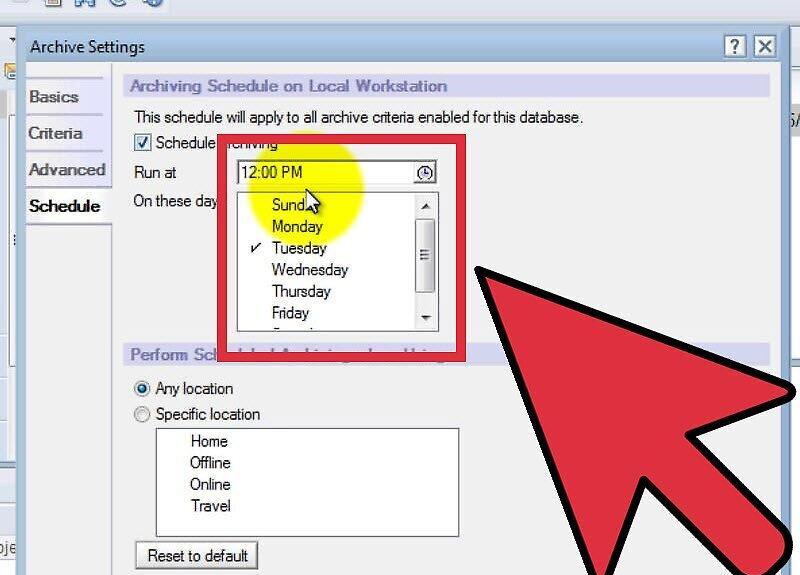
Create a schedule for automatic archiving. An automatic archiving schedule ensures that you perform this operation regularly and consistently, saving you time.
- Open the appropriate application (Mail).
- Go to Actions, Archive, Settings.
- Open the Schedule tab. Ensure that the "Schedule archiving" option is selected.
- Choose the desired time and day for the archiving to occur.
Step 5. Manually archive Lotus Notes emails.
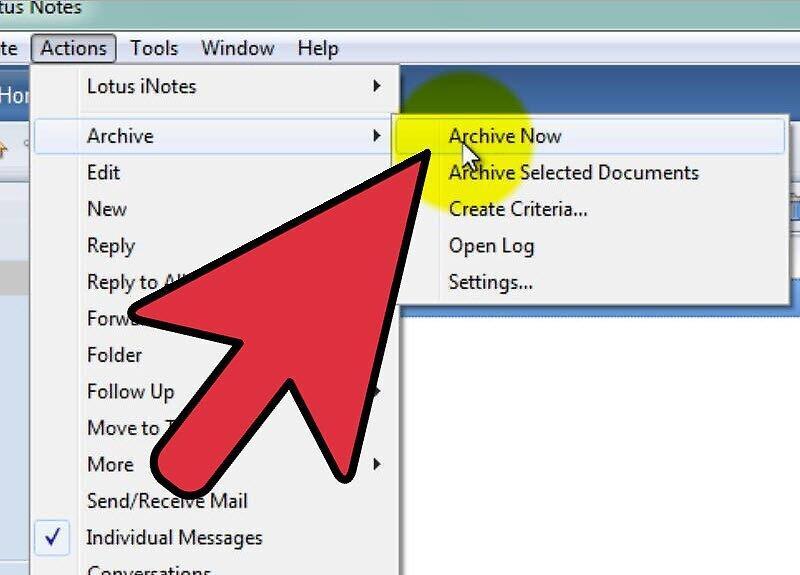
Manually archive Lotus Notes emails. Even if you have created an automatic archiving schedule, you can still perform manual archiving whenever needed.
- Open the appropriate application (Mail).
- Open the email or folder you wish to archive.
- Go to Actions, Archive, Archive Now.
- Click Yes to archive with your selected settings.
Step 6. Archive using the drag-and-drop method.
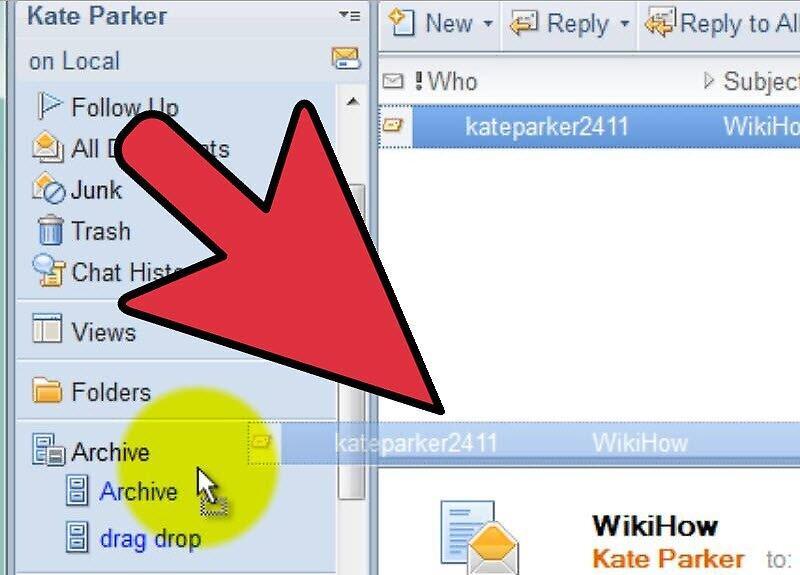
Use the drag-and-drop method to archive. Essentially, this is another manual way to archive Lotus Notes emails.
- Open the appropriate application (Mail).
- Open the email or folder you wish to archive.
- Select the desired message(s).
- Drag the message(s) to the Archive folder in your navigation pane.
Step 7. View archived messages.
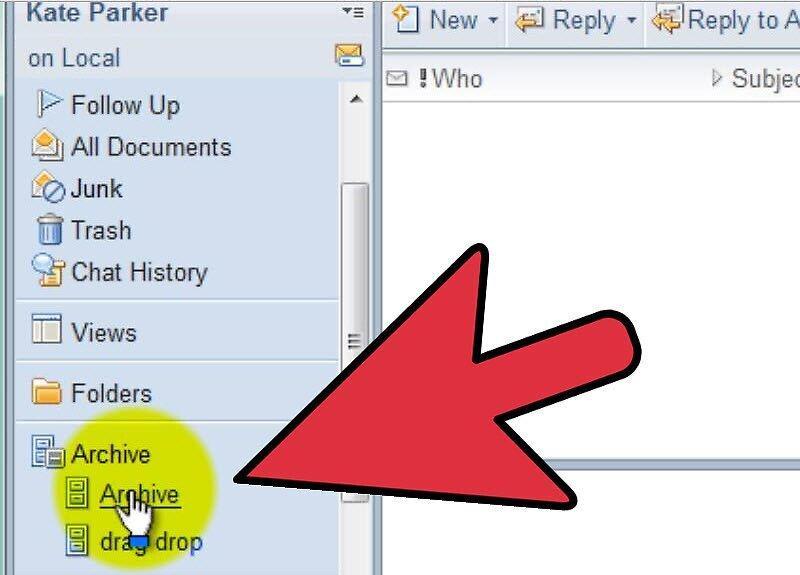
View archived messages. Although you have archived your emails, you can still view them whenever you want. The archive file fully mimics the structure of the folders you selected for archiving in Lotus Notes. Everything remains in a familiar style.
- Open the appropriate application (Mail).
- Click on Archive in the Navigation Pane.
- Select the relevant archive (e.g., Default with Last Modified).


