
Online advertising is becoming increasingly intrusive. However, you can block it if you're using the Opera browser. To do this, you'll need to install an extension that will block ads on the web pages you visit. If you constantly see pop-ups with ads on your computer, it's likely infected with adware, which needs to be removed.
How to Block Ads and Pop-ups
Step 1. Open the Opera menu and select 'Get Extensions'.
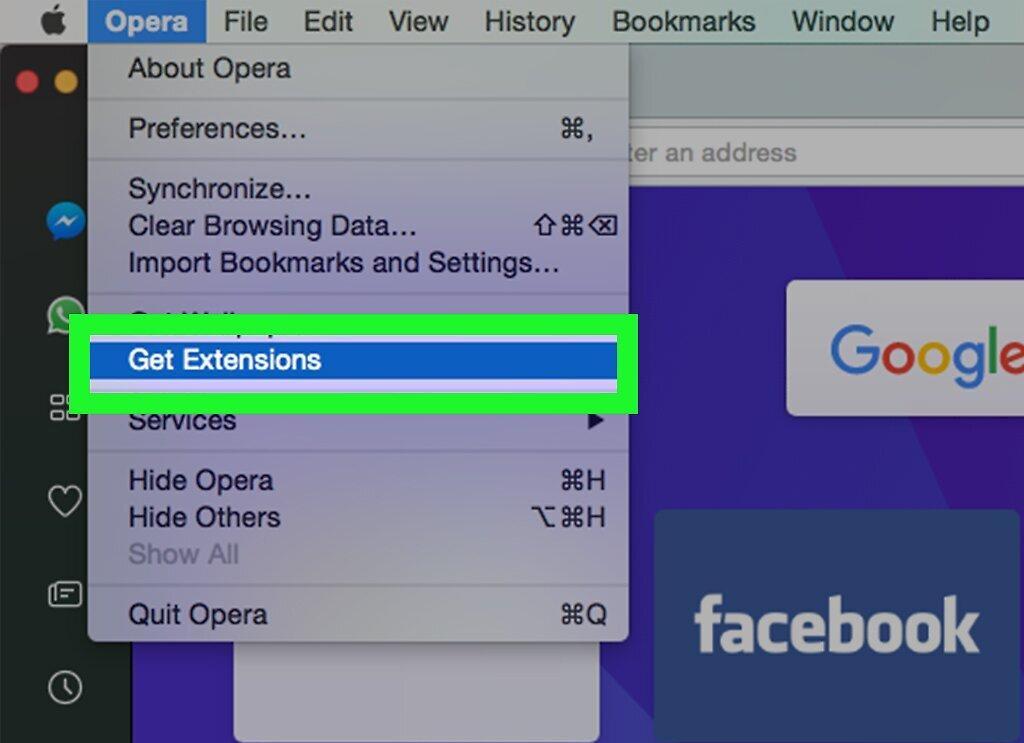
Open the Opera menu and select 'Get Extensions'. A new tab will open. By default, Opera blocks some pop-ups. However, if you install an extension, it will block all ads.
- Blocking ads on the mobile version of Opera is a bit more complicated. You'll need to install the Adblock Plus app and configure network settings. Read this article to learn how to install this app.
Step 2. Type 'adblock' or 'ad blocker' in the search bar.
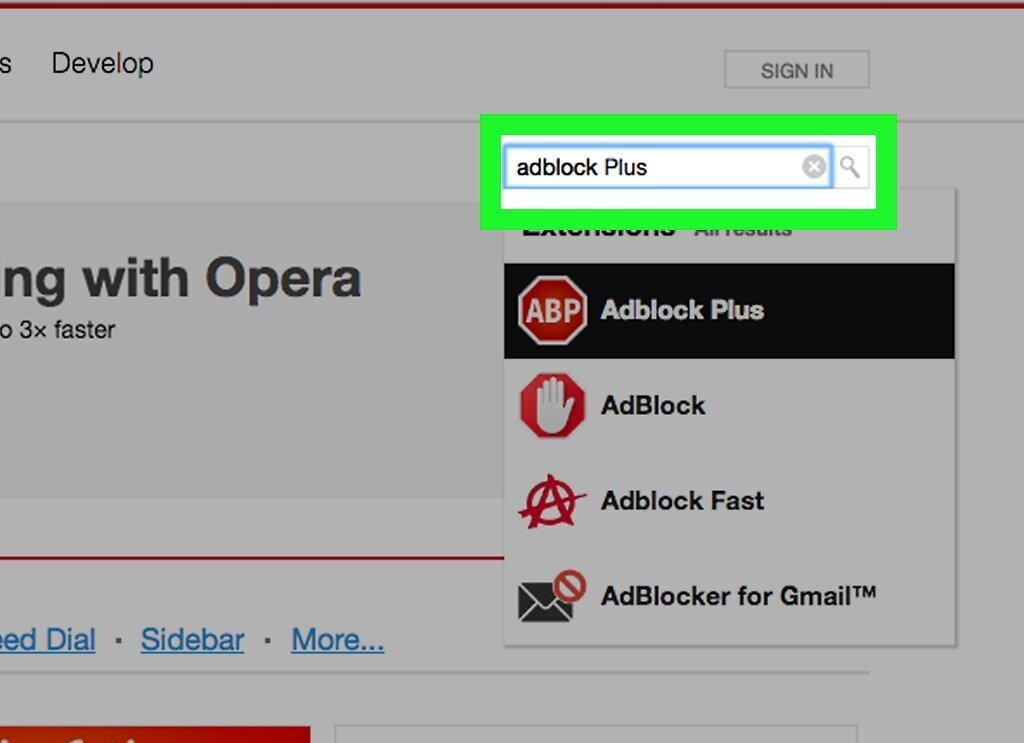
In the search bar, type 'adblock' or 'ad blocker'. Do this to find an ad-blocking extension. A list of search results will appear on the screen.
Step 3. Choose a popular ad blocker.
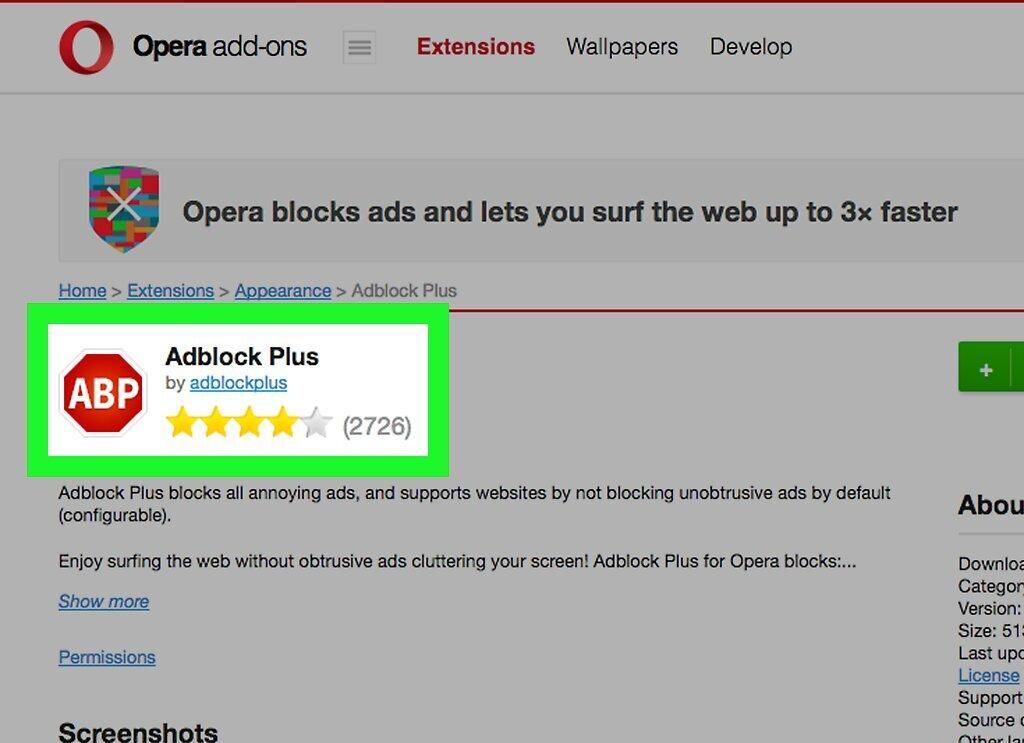
Select a popular ad blocker. Some extensions have many more ratings than others — these are the most reliable ones. Choose a suitable extension and install it (you only need one ad blocker). Popular extensions include:
- Adblock Plus;
- AdBlock;
- Adguard.
Step 4. Click 'Add to Opera' on the extension page.
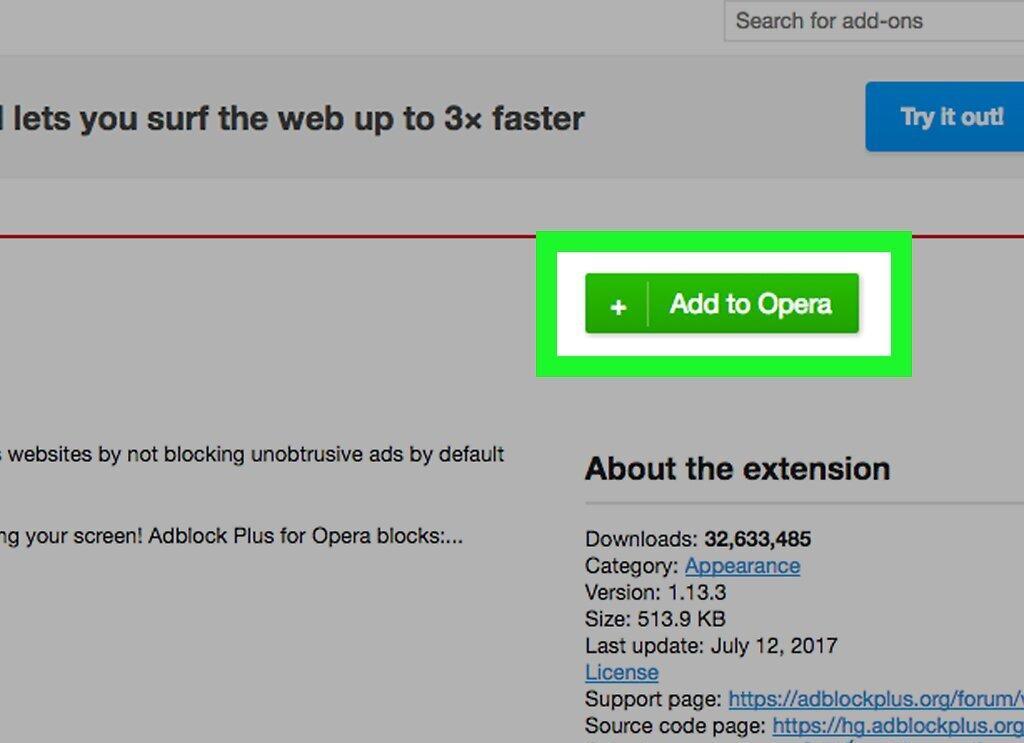
Click 'Add to Opera' on the extension page. After a few seconds, an icon will appear on the Opera toolbar. You will be notified when the installation is complete.
- Once the ad blocker is installed, you can browse the internet without seeing ads.
Step 5. Click the ad blocker icon and select 'Options' to change settings.
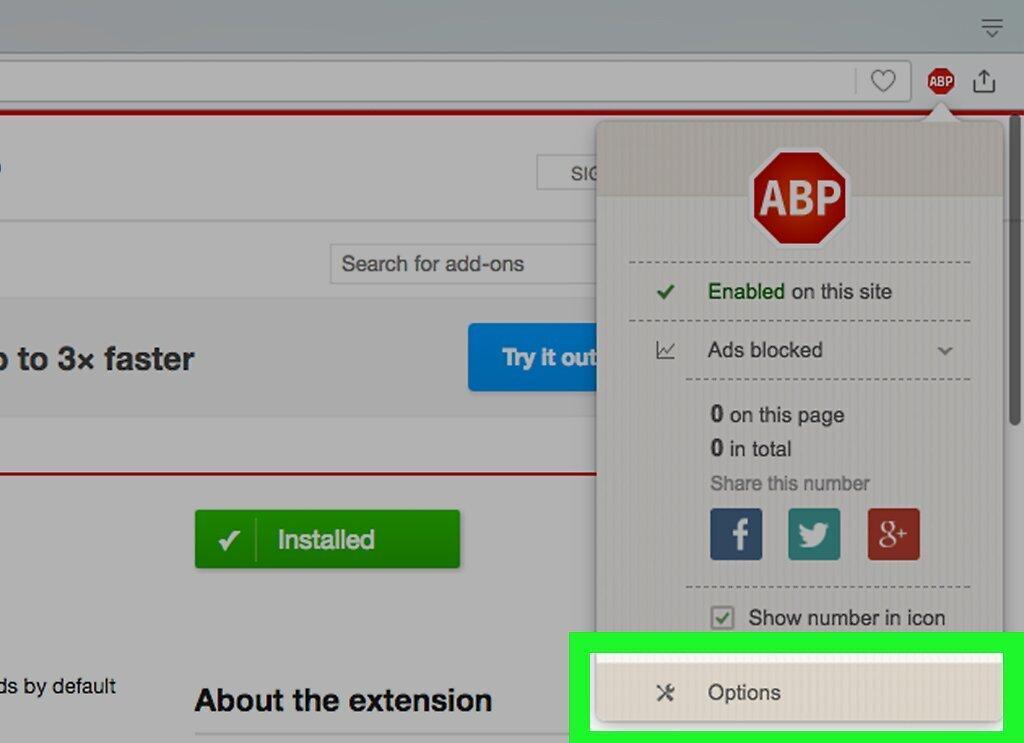
Click the ad blocker icon and select 'Options' to change the settings. A new tab will open where you can configure the ad blocker.
- Some extensions, like AdBlock, do not block certain ads. If you want to block all ads, you may need to adjust the extension's settings accordingly.
Step 6. Allow ads on specific websites.
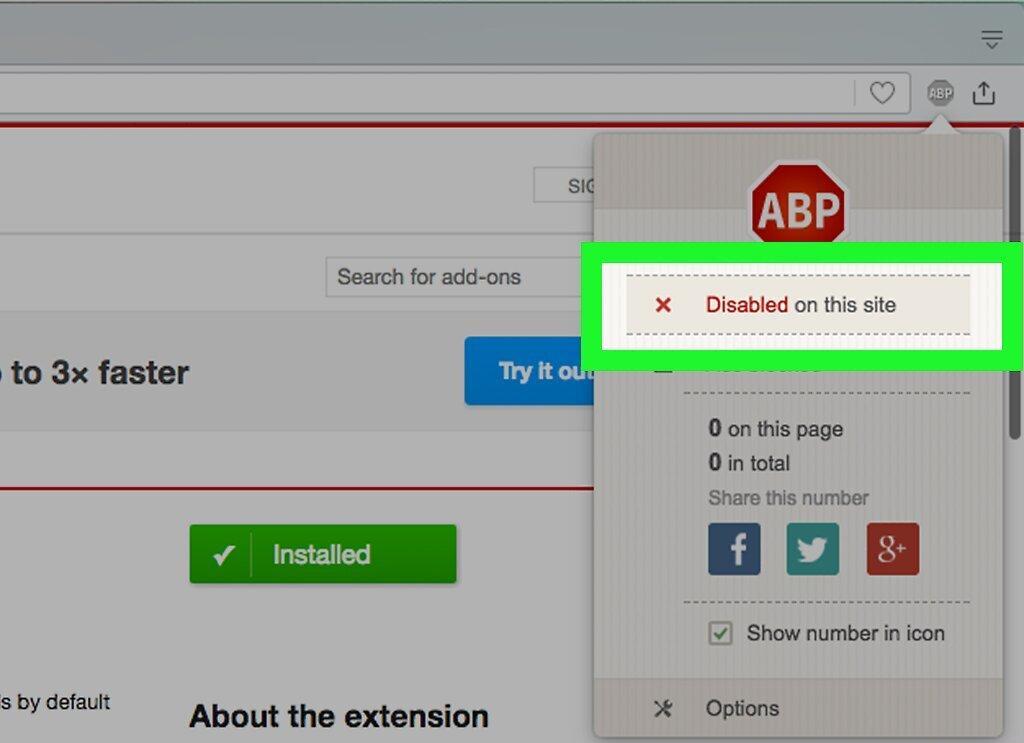
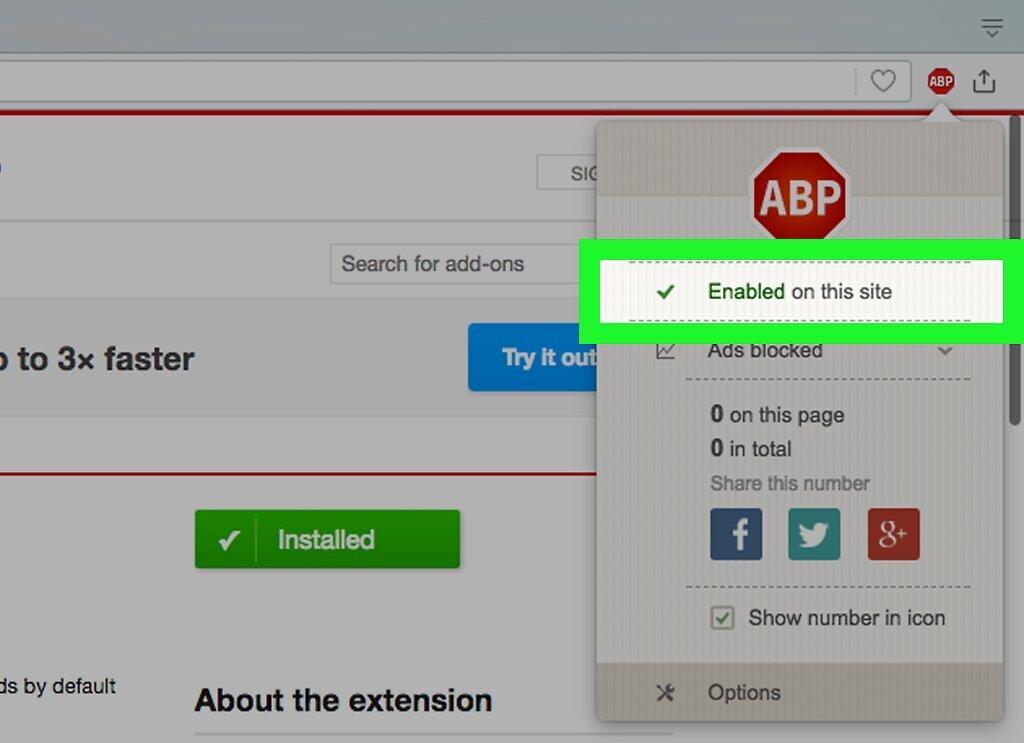
Allow ads on specific websites. Many sites rely on advertising for revenue. You may want to disable ad blocking on certain sites so their owners can earn from ads.
- Click the ad blocker icon and select 'Disable on this page'. In this case, the ad blocker will work on all sites except those where you've disabled it.
How to Remove Adware
Step 1. Remove the adware.
Remove the adware. Do this if pop-ups keep appearing in Opera (even if an ad blocker is enabled) or if you are redirected to unknown search engines. Adware can sneak onto your computer if you install software without reading the information in its installer window.
Step 2. Open the Control Panel.
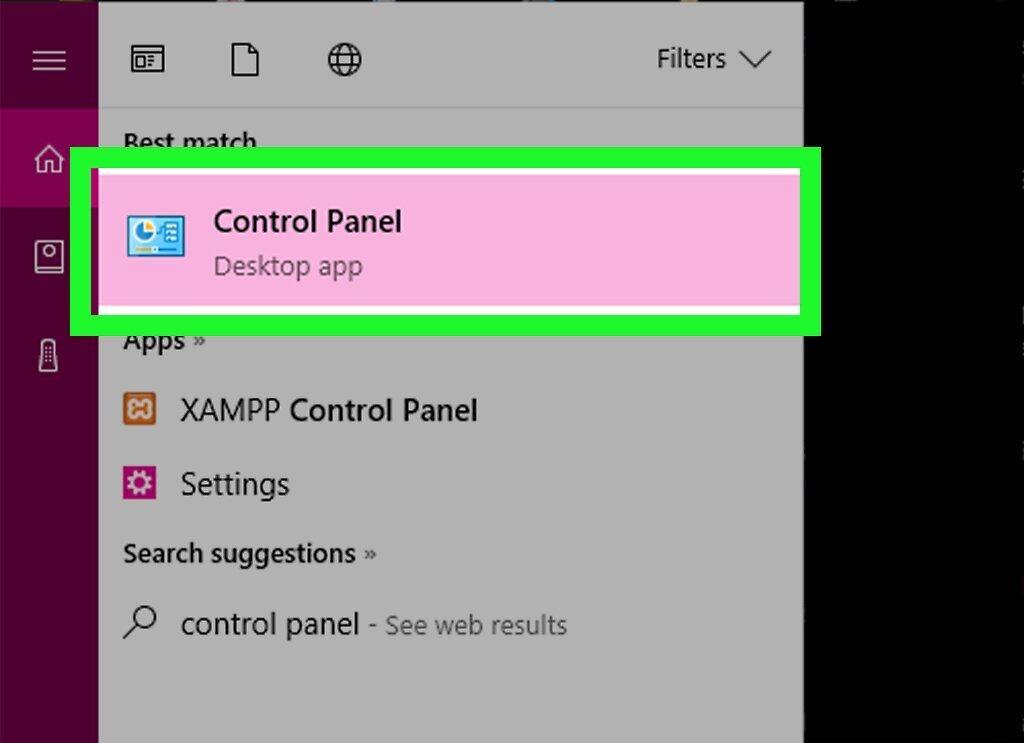
Open the Control Panel. You need to remove all adware programs installed on your computer. This can be done through the Control Panel.
- For Windows 10, 8.1, and 8 — right-click the 'Start' button and select 'Control Panel' from the menu.
- For Windows 7, Vista, and XP — open the 'Start' menu and click 'Control Panel'.
Step 3. Click on 'Uninstall a program' or 'Programs and Features'.
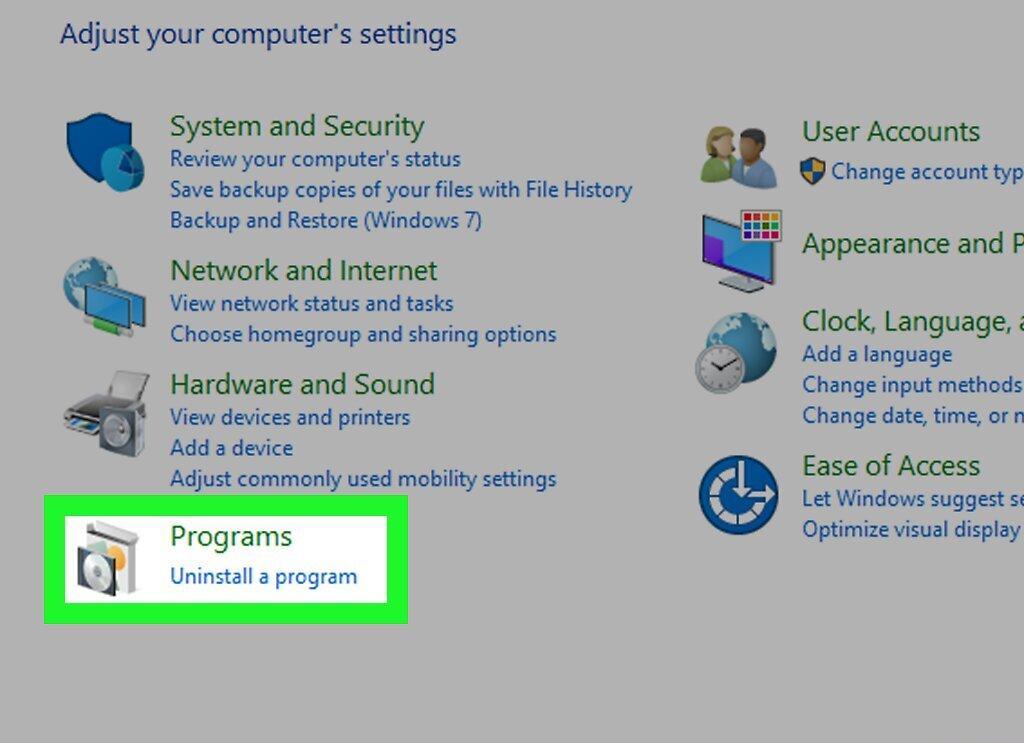
Click on 'Uninstall a program' or 'Programs and Features'. A list of all installed programs will open.
Step 4. Click the 'Installed On' column to sort programs by installation date.
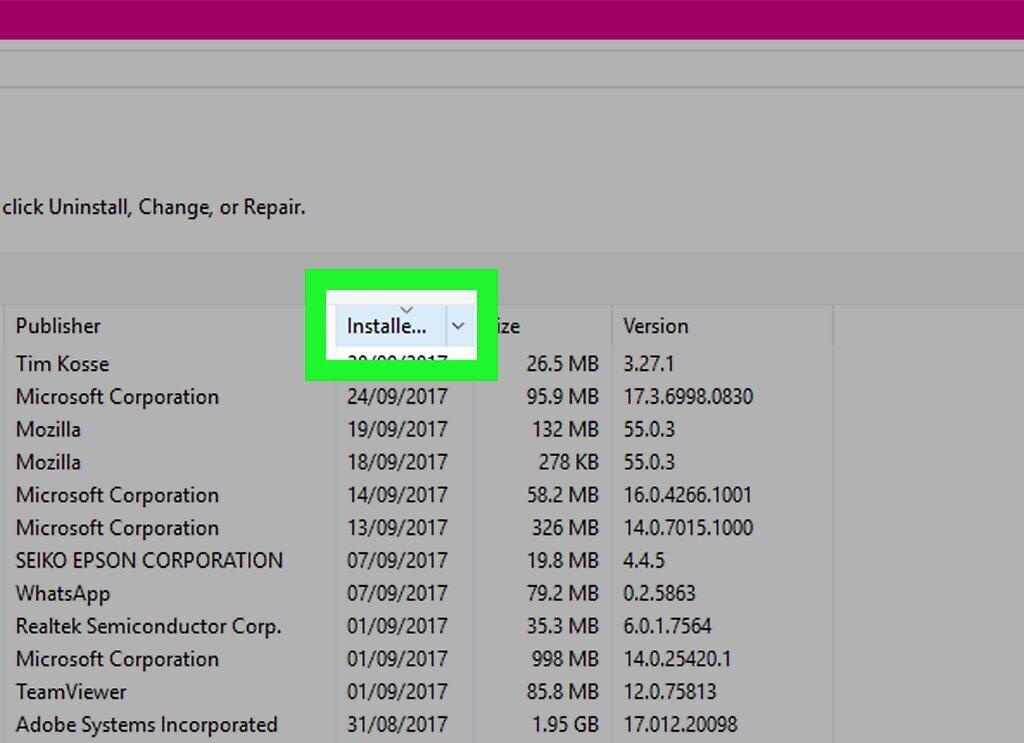
Click the 'Installed On' column to sort programs by installation date. Do this to find recently installed software.
Step 5. Select an unknown program and click 'Uninstall'.
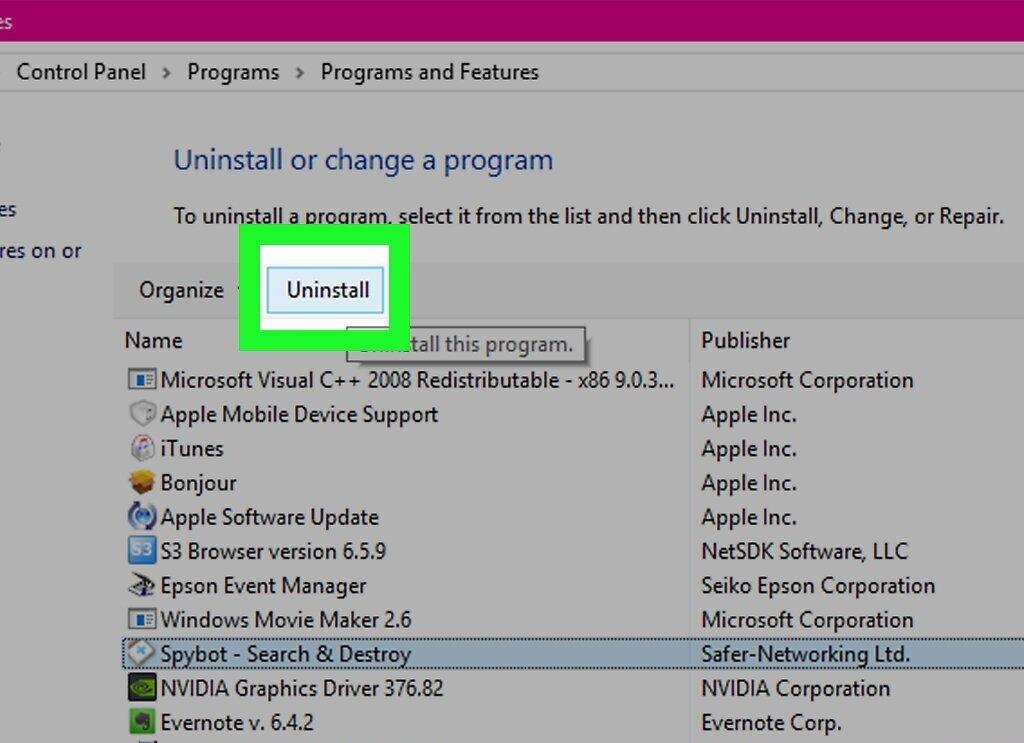
Select an unknown program and click 'Uninstall'. If you're unsure what a program is for, search for information about it online. Repeat the process for any unfamiliar programs.
Step 6. Reset Internet Explorer settings.
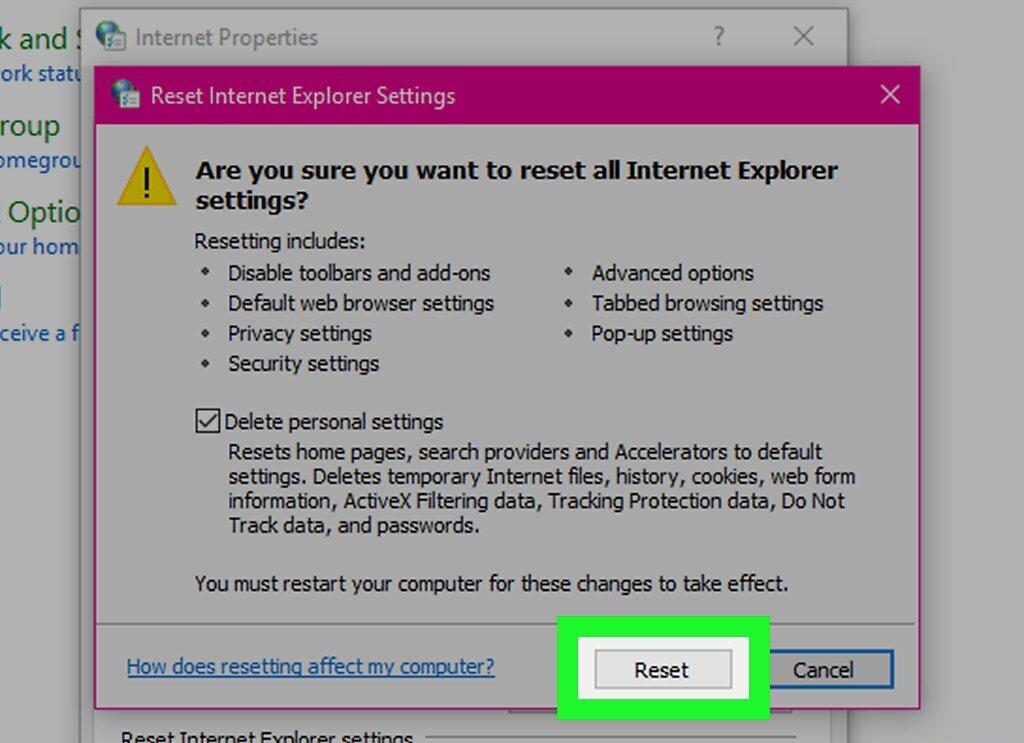
Reset Internet Explorer settings. Even if you only use Opera, reset Internet Explorer settings as it is closely tied to Windows.
- Click 'Tools' in Internet Explorer and select 'Internet Options' from the menu.
- Open the 'Advanced' tab and click 'Reset'.
- Check 'Delete personal settings' and click 'Reset'.
Step 7. Reset Opera settings.
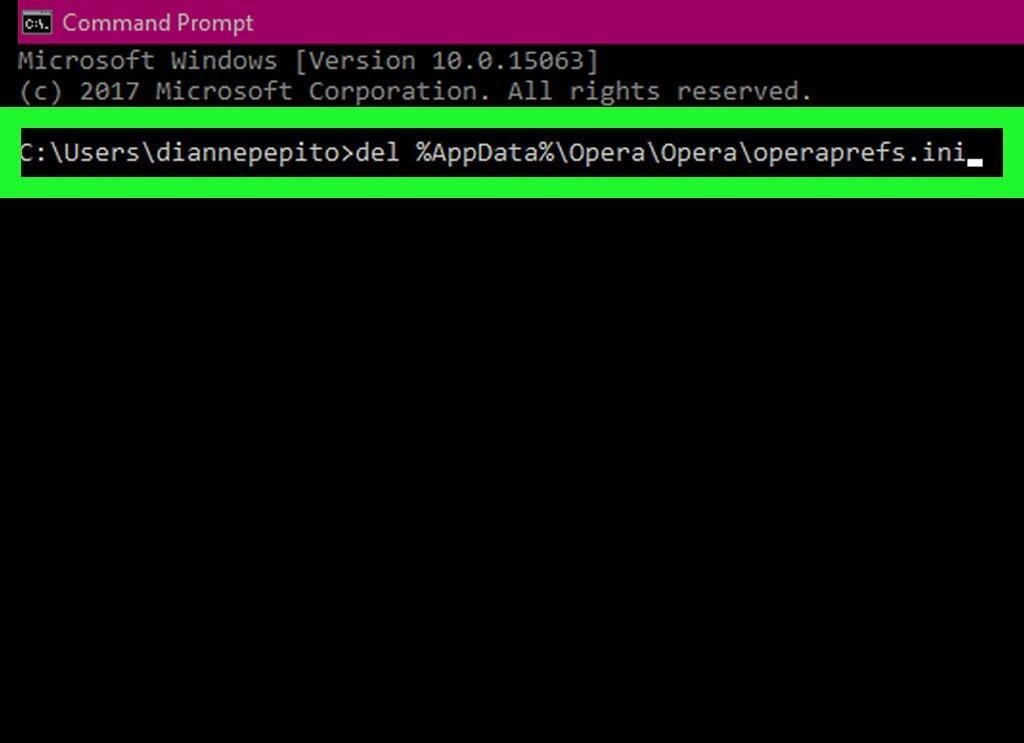
Reset Opera settings. This will remove extensions, reset the homepage, and search settings. After this, you will need to reinstall the ad blocker.
- Close Opera and open the command prompt from the 'Start' menu.
- Type del %AppData%\Opera\Opera\operaprefs.ini and press ↵ Enter. Opera settings will be reset to default.
Step 8. Download and run AdwCleaner.
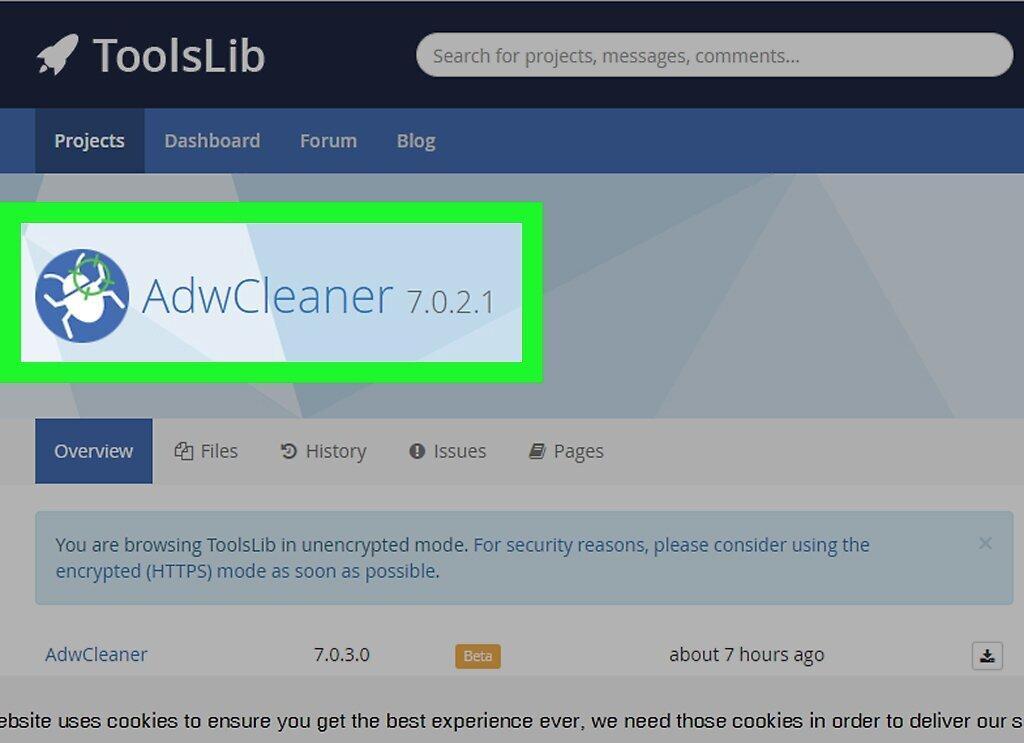
Download and run AdwCleaner. This free program finds and removes adware.
- Download AdwCleaner from toolslib.net/downloads/viewdownload/1-adwcleaner/.
- Run the downloaded program and click 'Scan'. The process will take about 15–20 minutes.
- Click 'Clean' when the scan is complete to remove all found adware.
Step 9. Download and run Malwarebytes Antimalware.
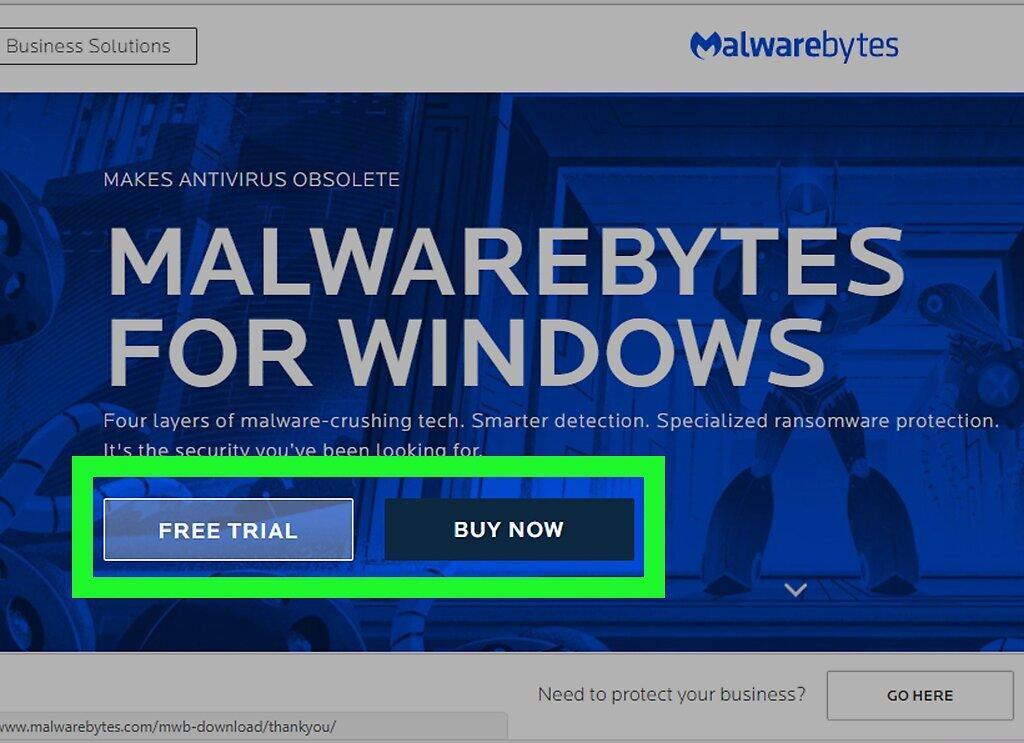
Download and run Malwarebytes Antimalware. The free version of this program will scan your computer and find malware missed by AdwCleaner.
- Download and install Antimalware from malwarebytes.org.
- Run Antimalware and install all available updates.
- Start a scan of your computer. This will take about 20–30 minutes.
- Click 'Quarantine' when the scan is complete. All found malware will be removed.
Step 10. Download and run the Shortcut Cleaner tool from BleepingComputer.
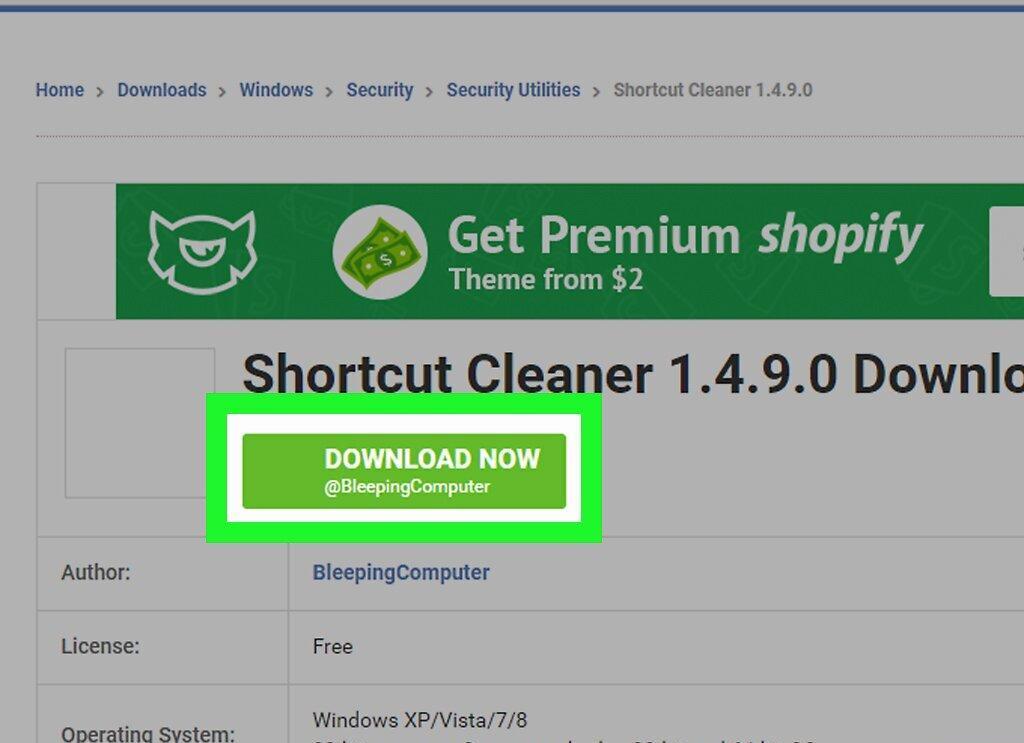
Download and run the Shortcut Cleaner tool from BleepingComputer. Sometimes adware changes the Opera shortcut to alter the browser's homepage. This free tool, developed by the malware removal community, will fix the shortcuts.
- Download the tool from http://www.bleepingcomputer.com/download/shortcut-cleaner/.
- Run the file sc-cleaner.exe and click 'Yes' in the prompt.
- Check the log created on your desktop to see which shortcuts have been fixed.


