
WhatsApp is a cross-platform messaging app that allows users to send messages over the internet (a free alternative to SMS). This article will guide you on how to change the font size in this app. If you are using iOS, you'll need to adjust the iOS settings, while Android users can change the font size directly in the app.
iOS
Step 1. Open the Settings app.
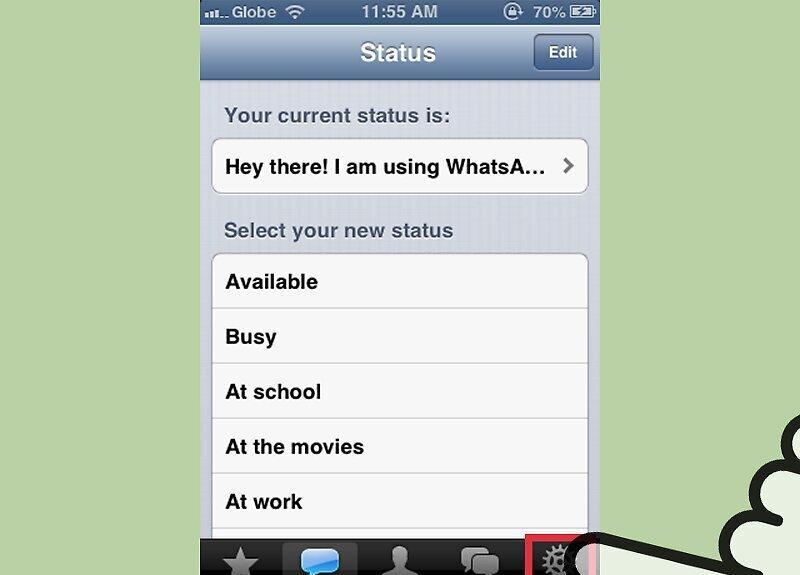
Open the Settings app. In this system, you cannot change the text size in the WhatsApp app directly. Instead, you'll need to change the system settings.
Step 2. Tap on Chat Settings.
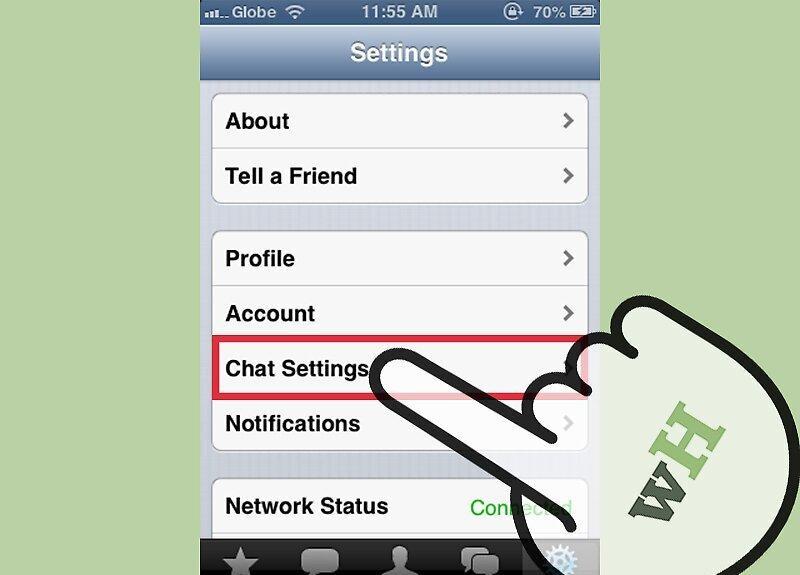
Tap on Chat Settings. In iOS 7, tap on General.
Step 3. Tap on Font Size.
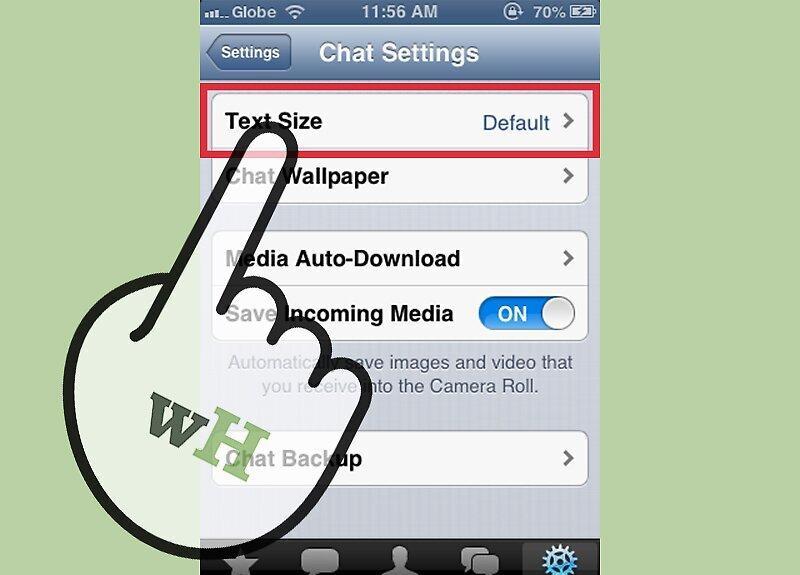
Step 4. Move the slider left to decrease the font size or right to increase it.
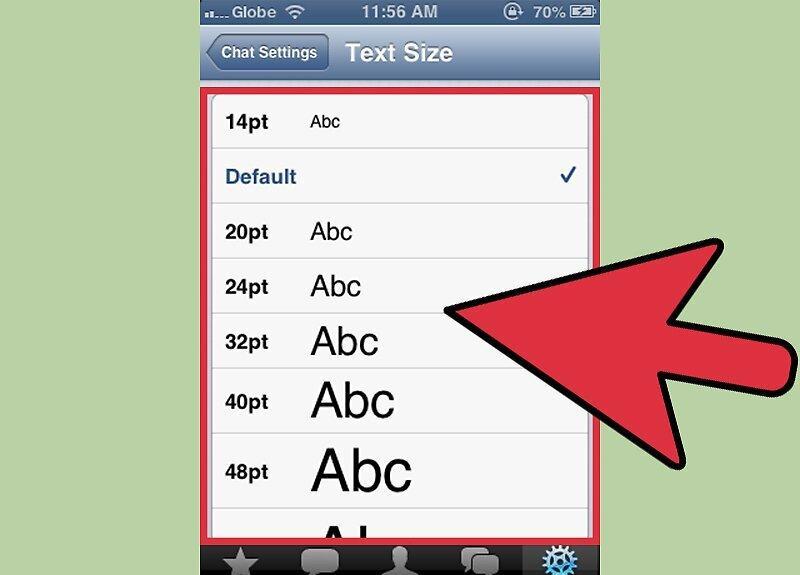
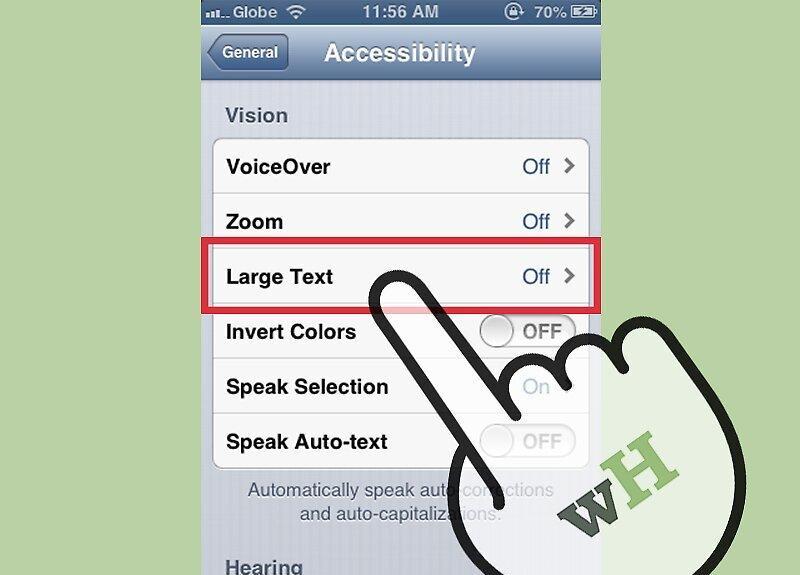
Step 5. Go to Settings → General → Accessibility → Larger Text for the biggest font size.
Android
Step 1. Open the WhatsApp app.
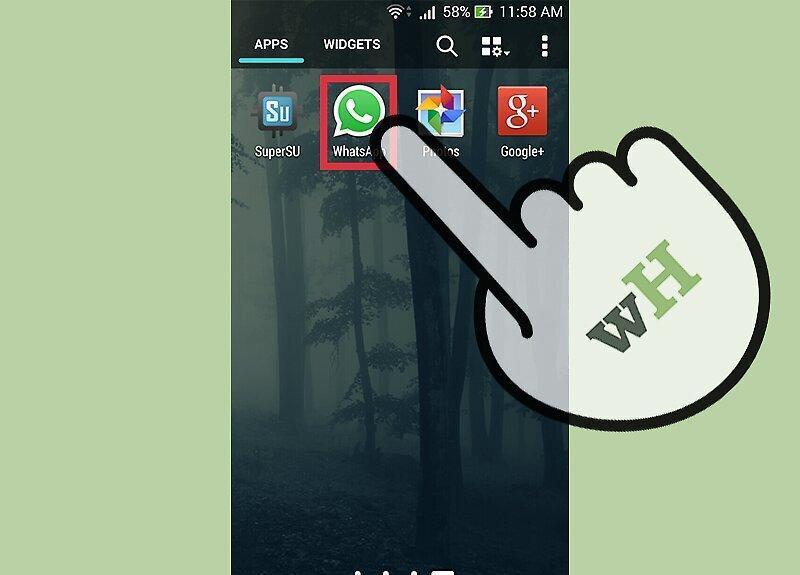
Open the WhatsApp app. In this system, you can change the text size directly within the WhatsApp app.
Step 2. Tap the menu button (⋮) and select Settings.
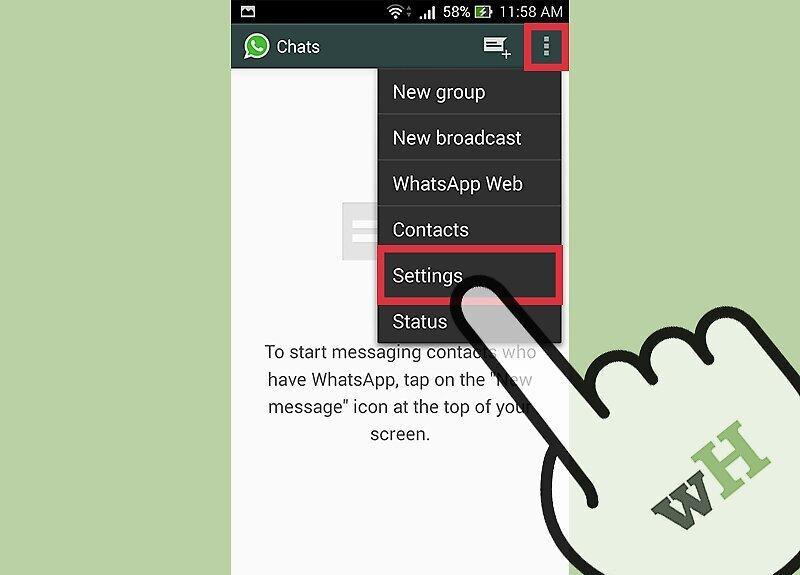
Tap the menu button (⋮) and select Settings. This button is located in the upper right corner.
Step 3. Tap on Chat Settings.
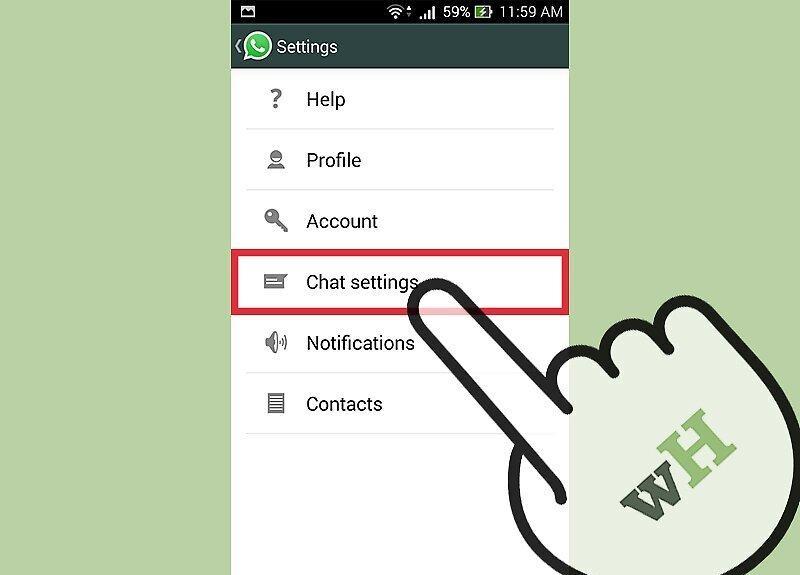
Step 4. Tap on Font Size and select your desired size.
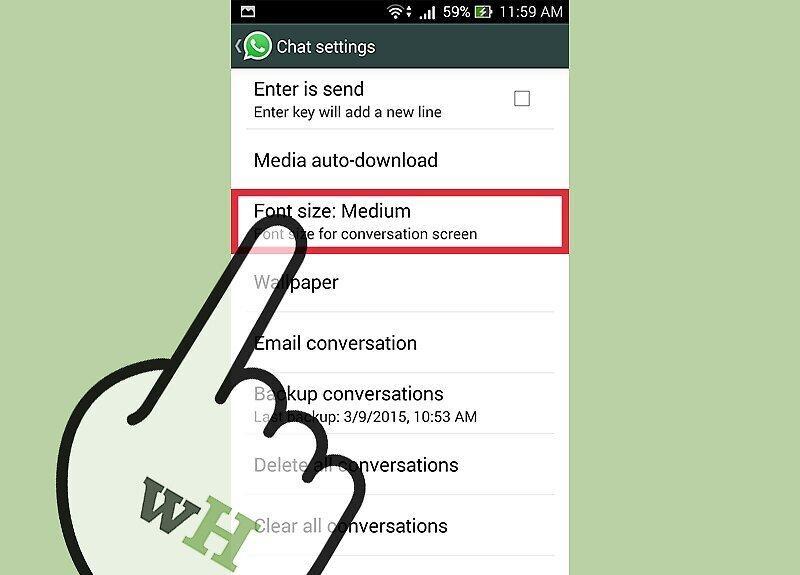
Tap on Font Size and select your desired size. There are three font size options (the default is set to medium).


