
In this article, we’ll guide you through the steps to change your homepage in various browsers. You can do this in Google Chrome, Firefox, Microsoft Edge, Internet Explorer, and Safari on your computer, as well as in Chrome for Android and Firefox for mobile devices.
Google Chrome (Desktop)
Step 1. Launch Google Chrome.
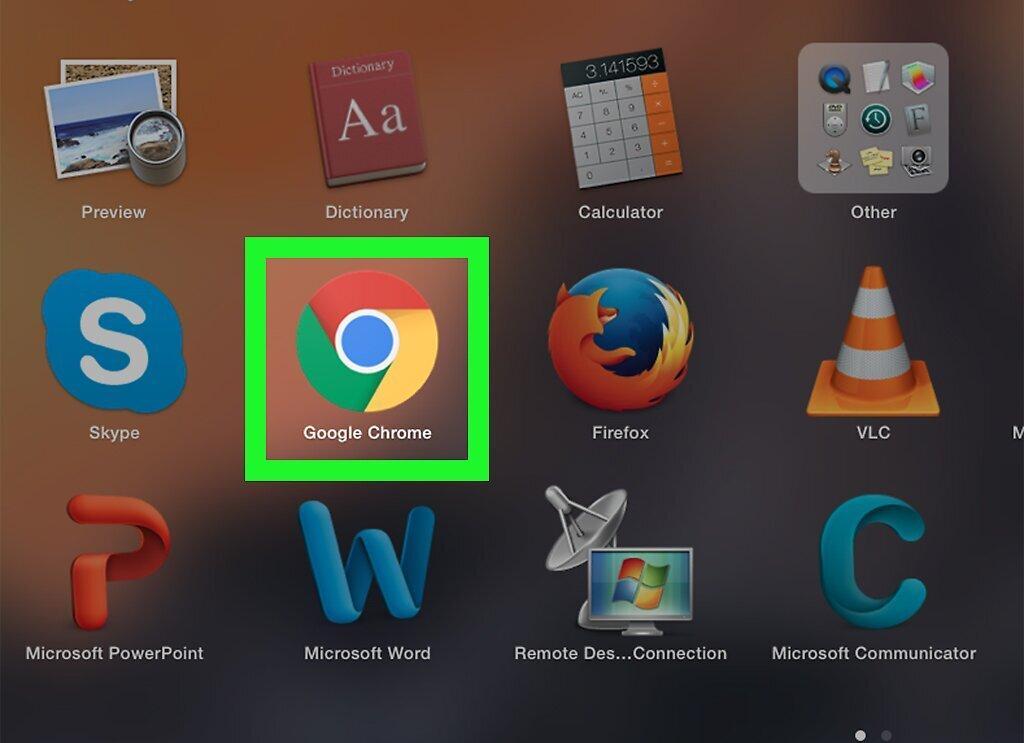
Open Google Chrome by clicking the icon that looks like a yellow-green-red-blue circle.
Step 2. Click on ⋮
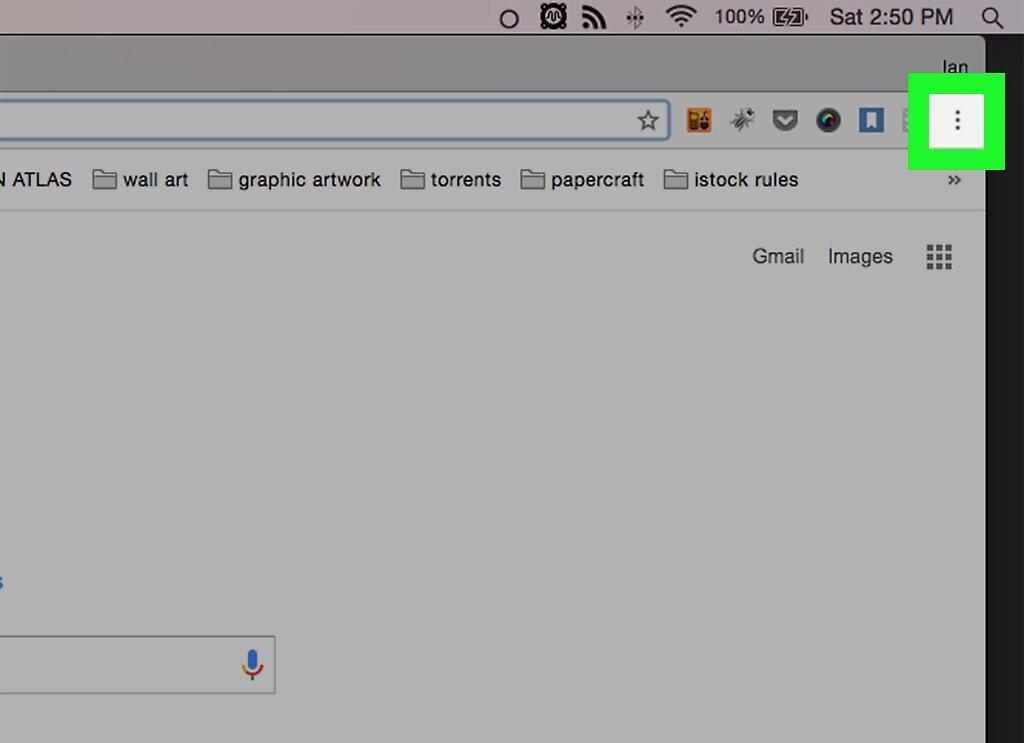
Click on ⋮. This icon is located in the top right corner of the Google Chrome window. A menu will open.
Step 3. Click on Settings
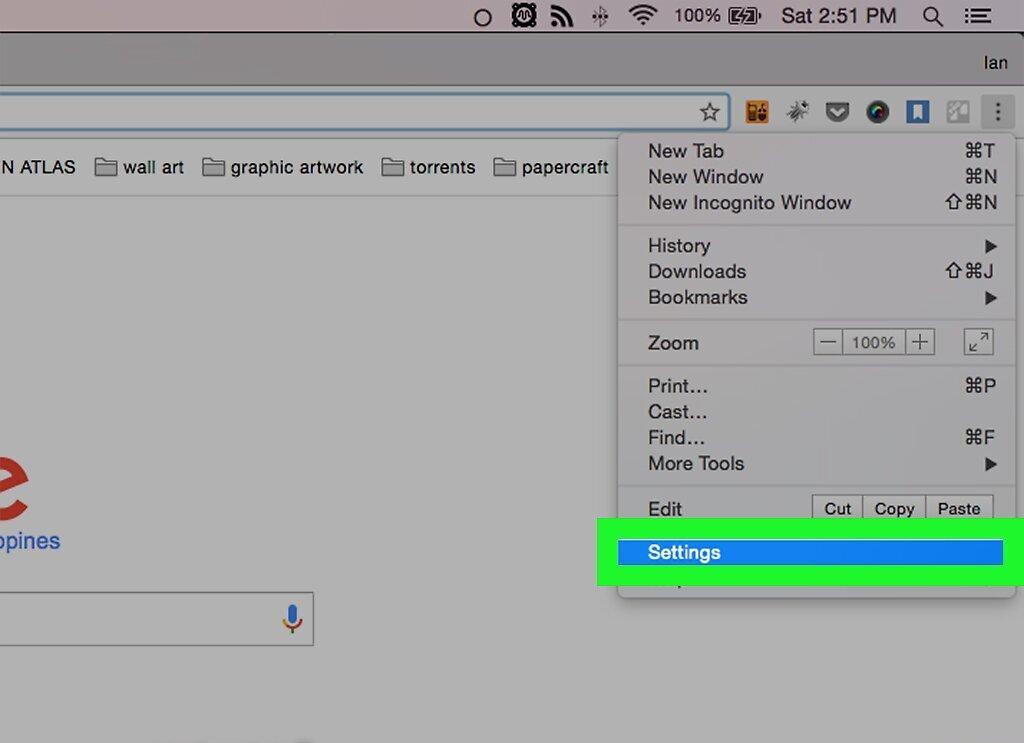
Click on Settings. This option is located at the bottom of the menu.
Step 4. Turn on the "Show Home Button" option
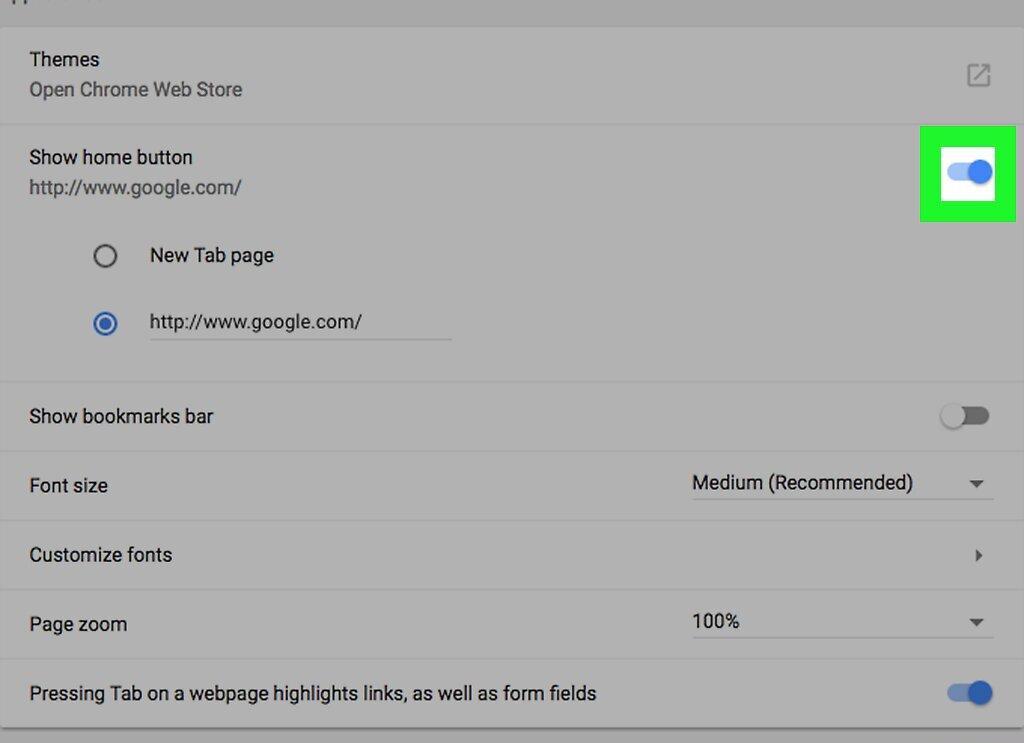
Turn on the "Show Home Button" option. This option is located at the top of the "Appearance" section. A home icon will appear to the left of the address bar.
- If the toggle to the right of this option is blue, the button is already displayed in the browser.
Step 5. Choose your homepage option.
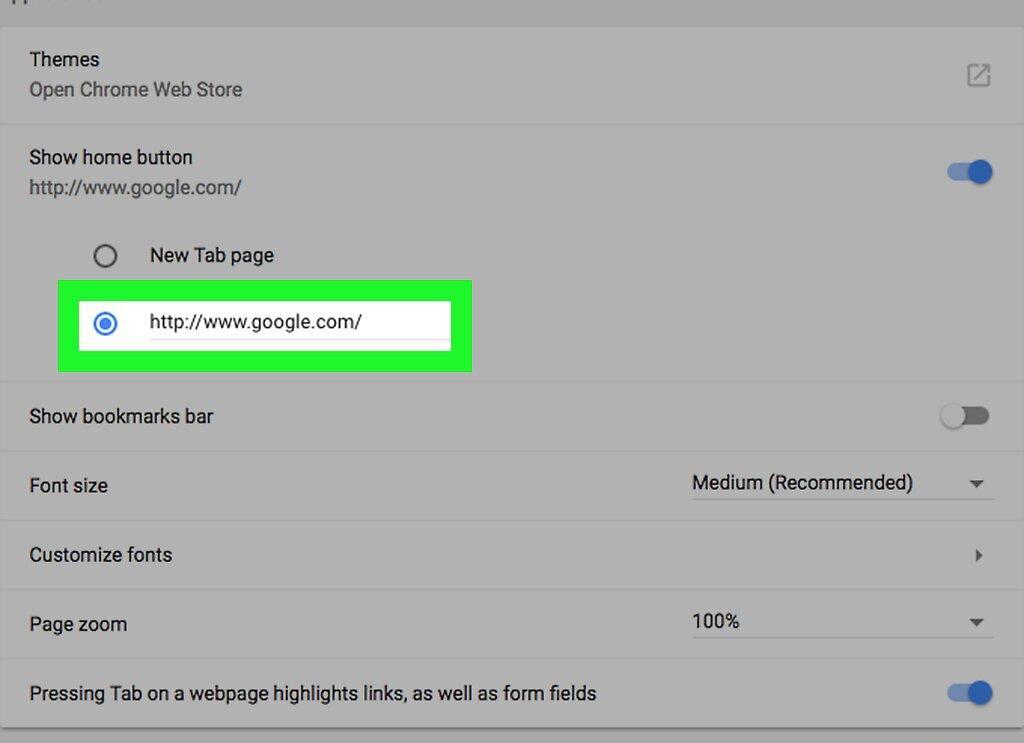
Choose your homepage option. In the "Show Home Button" section, there are two options:
- "New Tab Page" — if you click the home button, a blank tab with a list of your most visited sites will open.
- "Enter URL" — enter the web address (e.g., www.ya.ru) to set it as your homepage. If there is already an address in the field, delete it and then type in your own; the field may be empty.
Step 6. Enter the URL if necessary.
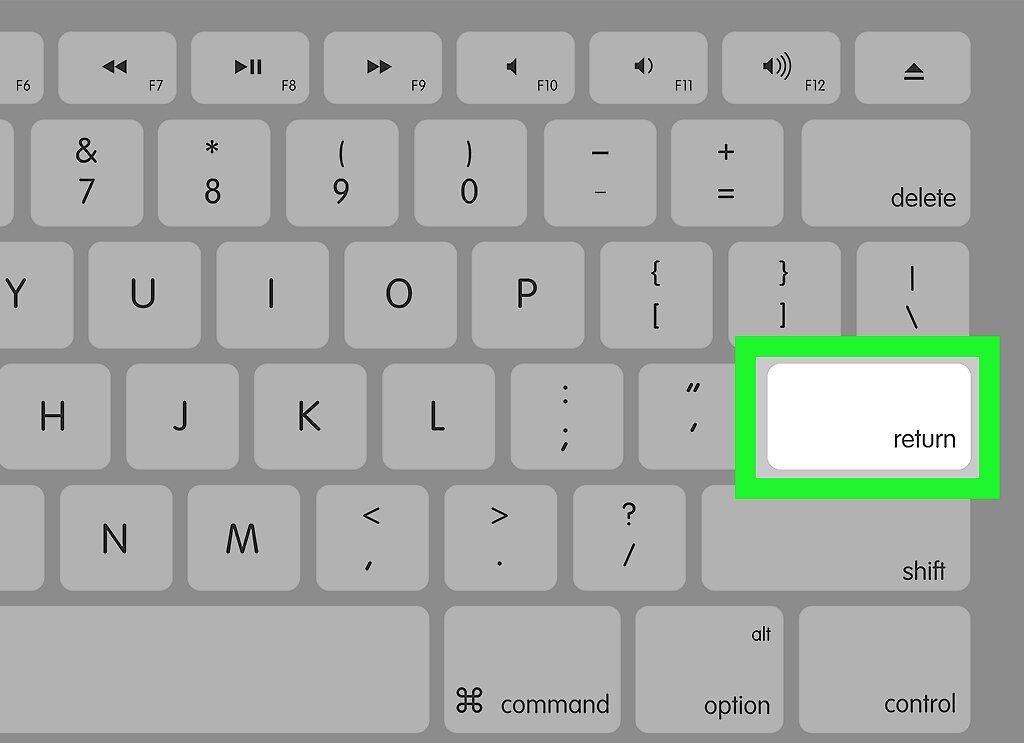
Enter the URL if necessary. If you checked the "Enter URL" option (on an empty field or a field with an address), type in the website address that will become your homepage, then press ↵ Enter. The chosen site will be set as your homepage.
- Skip this step if you chose the "New Tab Page" option.
Google Chrome (Android)
Step 1. Launch Google Chrome.
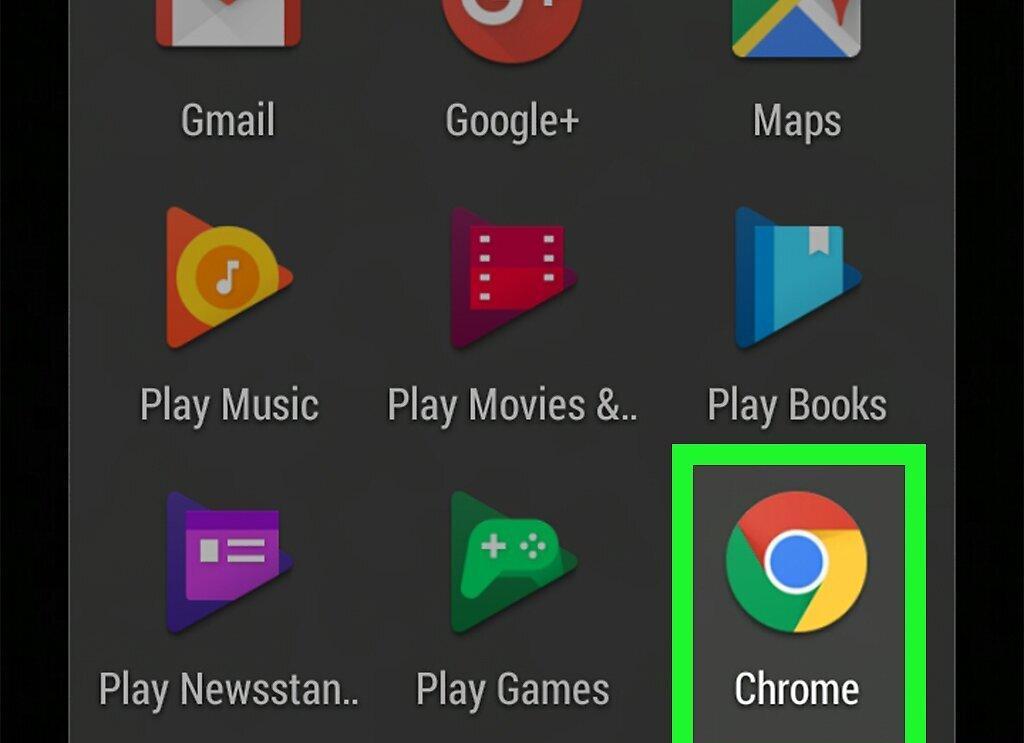
Open Google Chrome by tapping the icon that looks like a yellow-green-red-blue circle.
Step 2. Tap ⋮
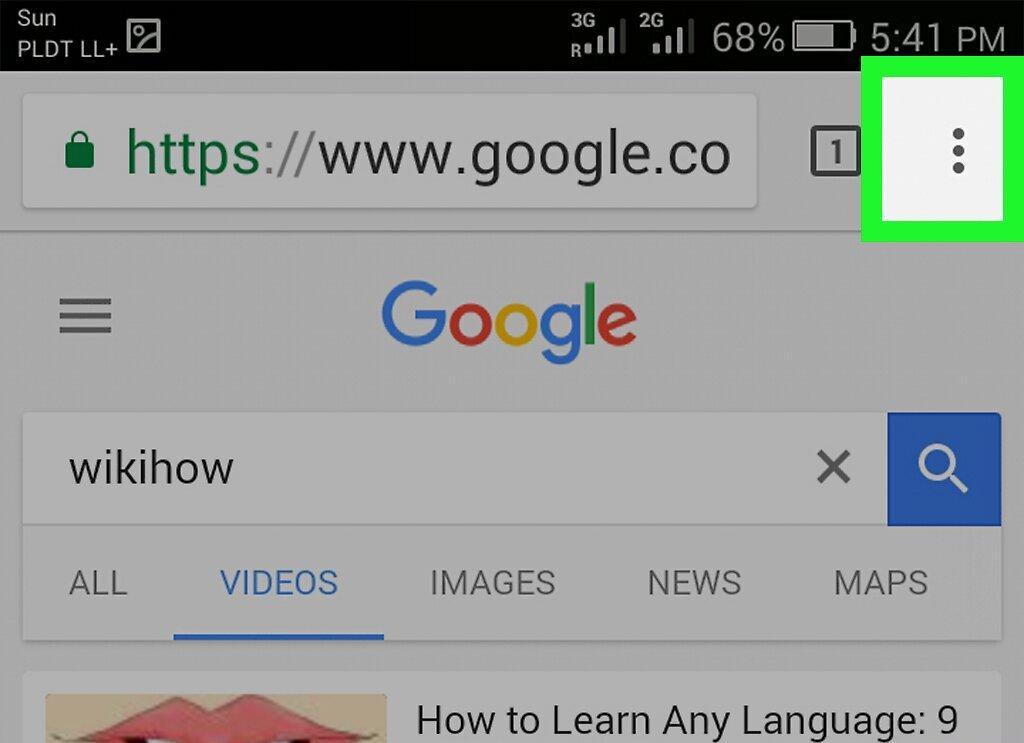
Tap ⋮. This icon is located in the top right corner. A menu will open.
Step 3. Tap Settings
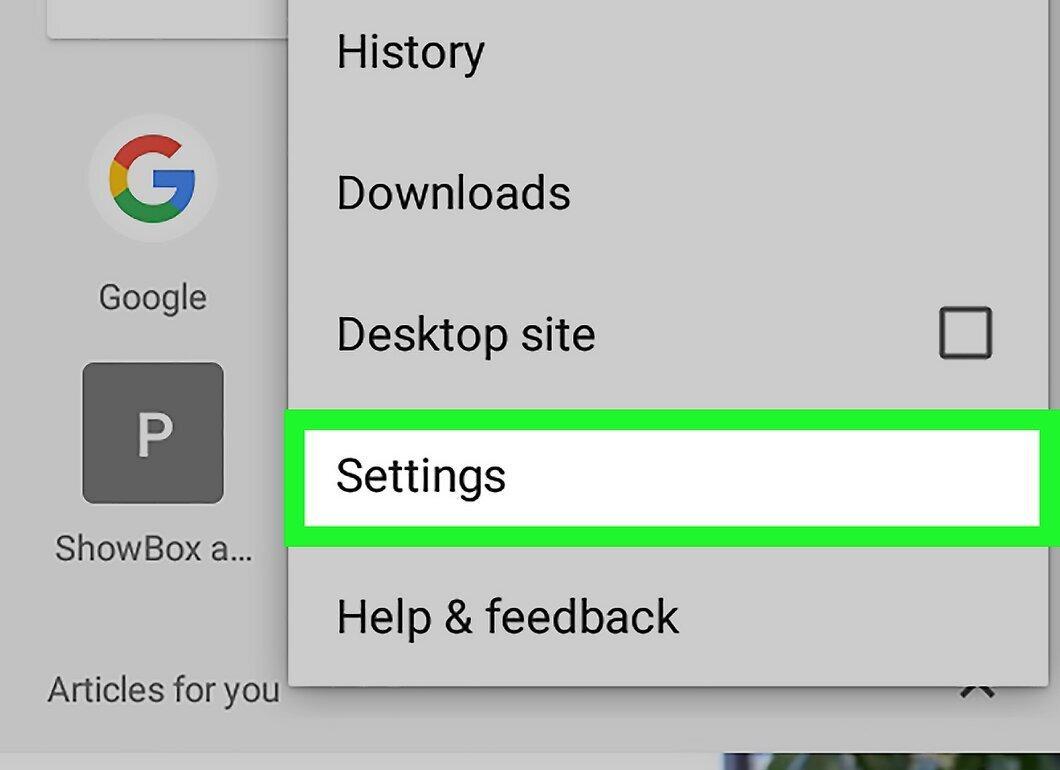
Tap Settings. This option is located at the bottom of the menu.
Step 4. Tap Homepage
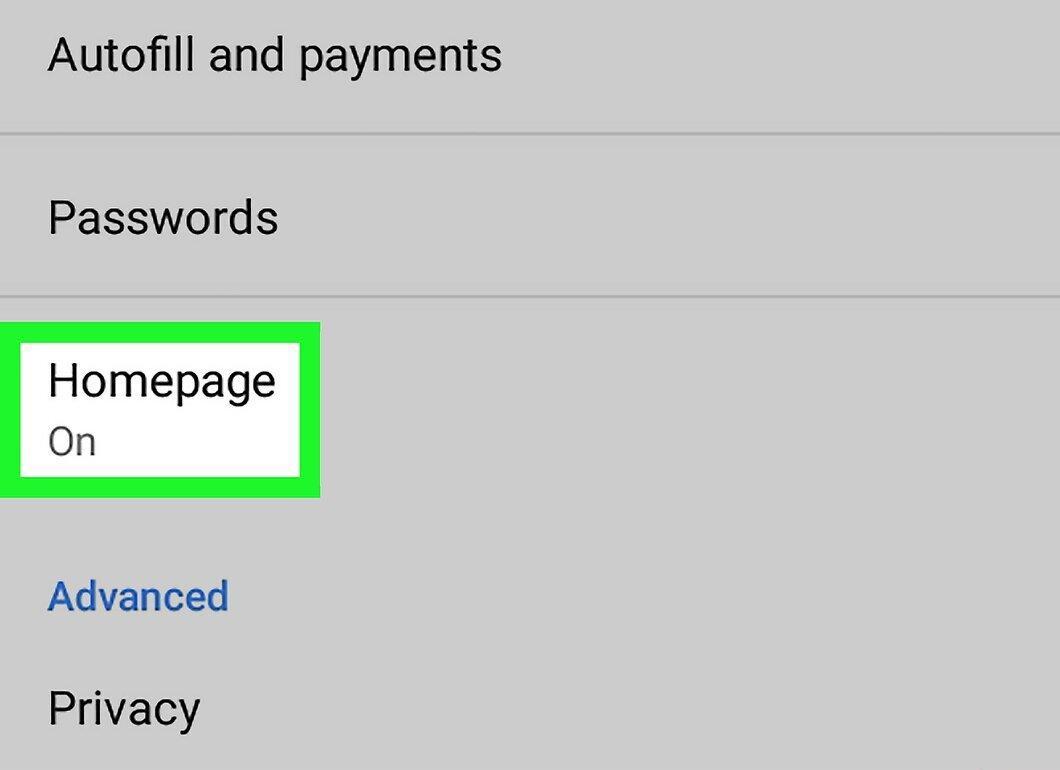
Tap Homepage. This option is located at the bottom of the "Basics" settings group.
Step 5. Turn on the Toggle
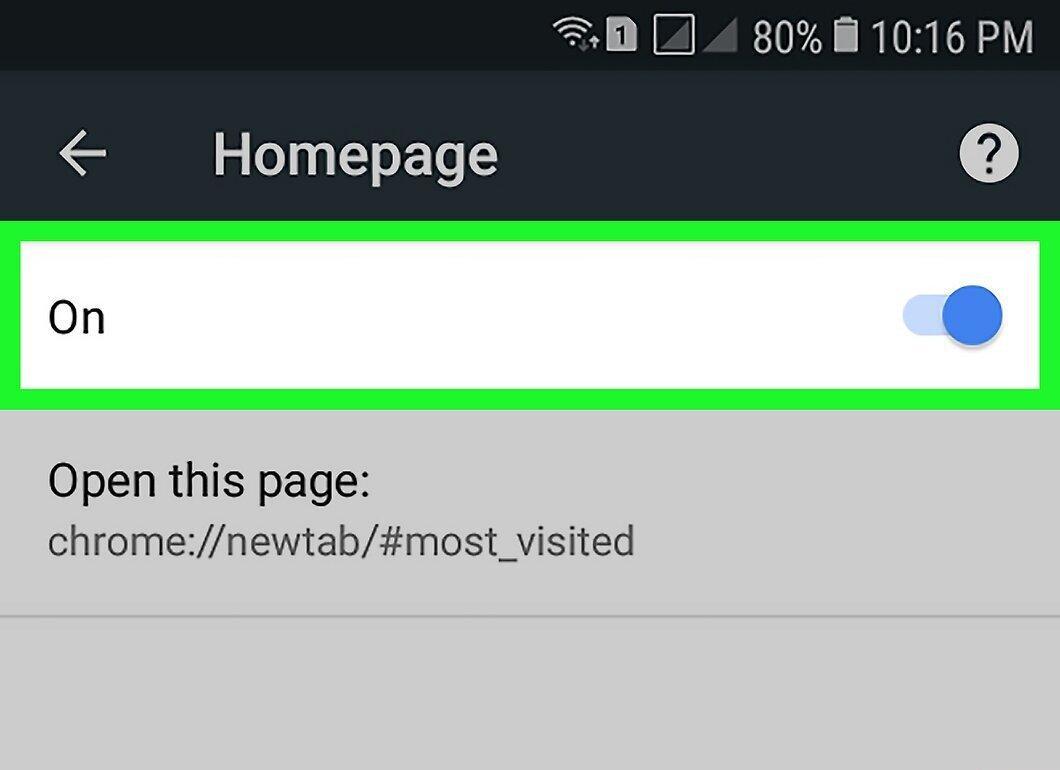
Tap the toggle to turn it on. It will turn blue. This activates the homepage feature in Chrome.
- If the toggle is already blue, this feature is already enabled.
Step 6. Tap Open this Page
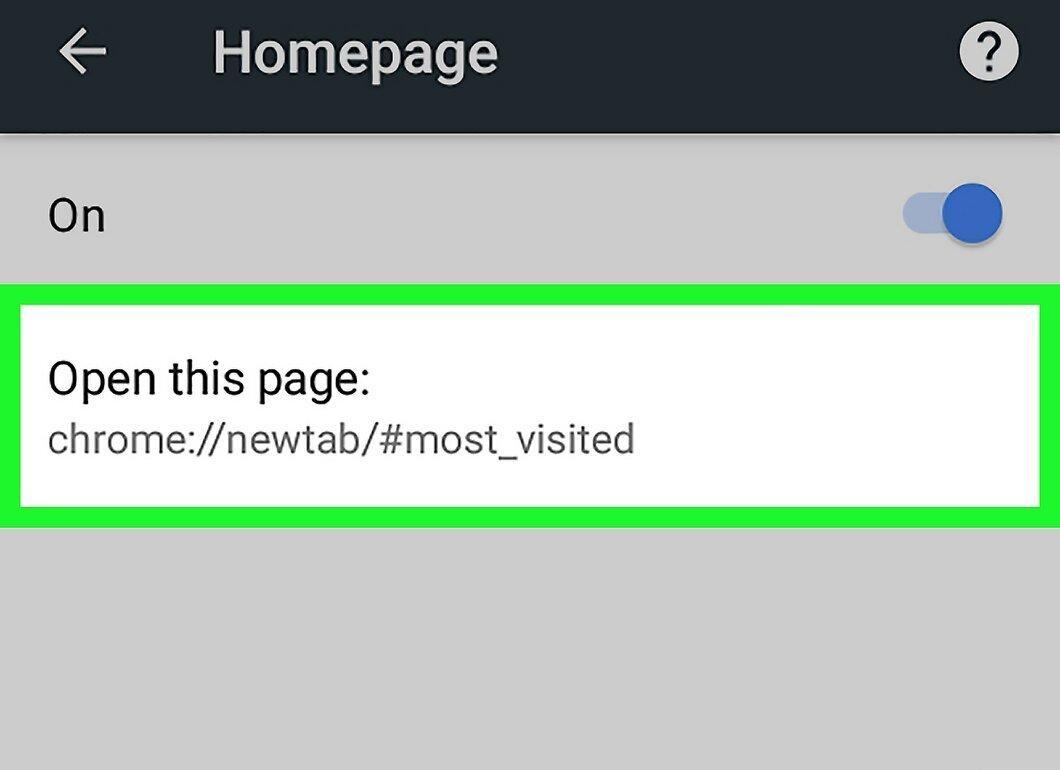
Tap Open this Page. This option is located below the toggle at the top of the page.
Step 7. Tap the Web Address.
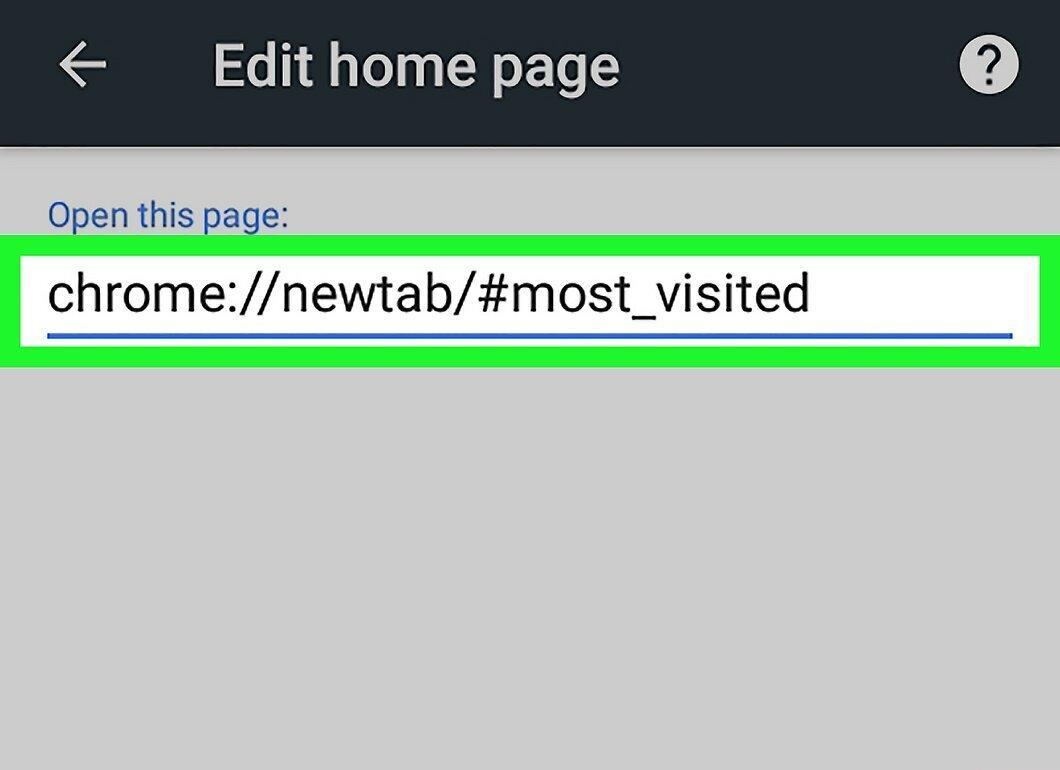
Tap the web address. It is located at the top of the page.
- If there is no web address, tap on the text field.
Step 8. Enter the Website Address.
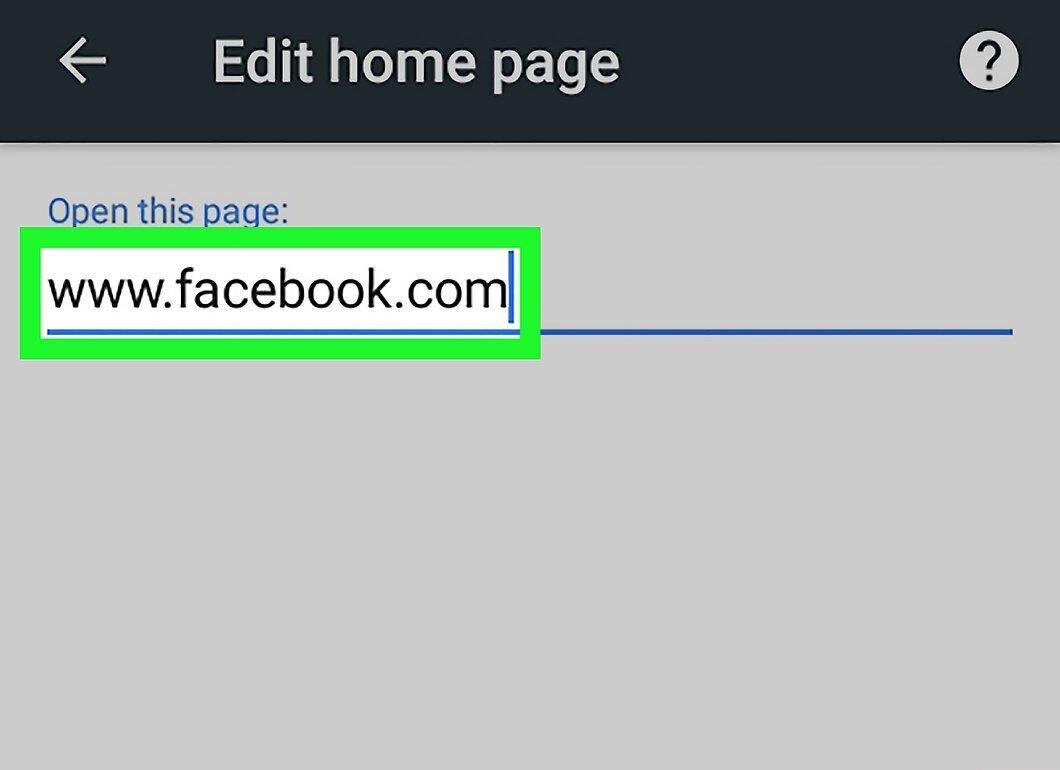
Enter the website address. Type the address in the format www.website.com (instead of .ru it could be .com, .net, .org, etc.). This site will become your homepage.
- For example, to set "Yandex" as your homepage, enter www.ya.ru.
Step 9. Tap Save
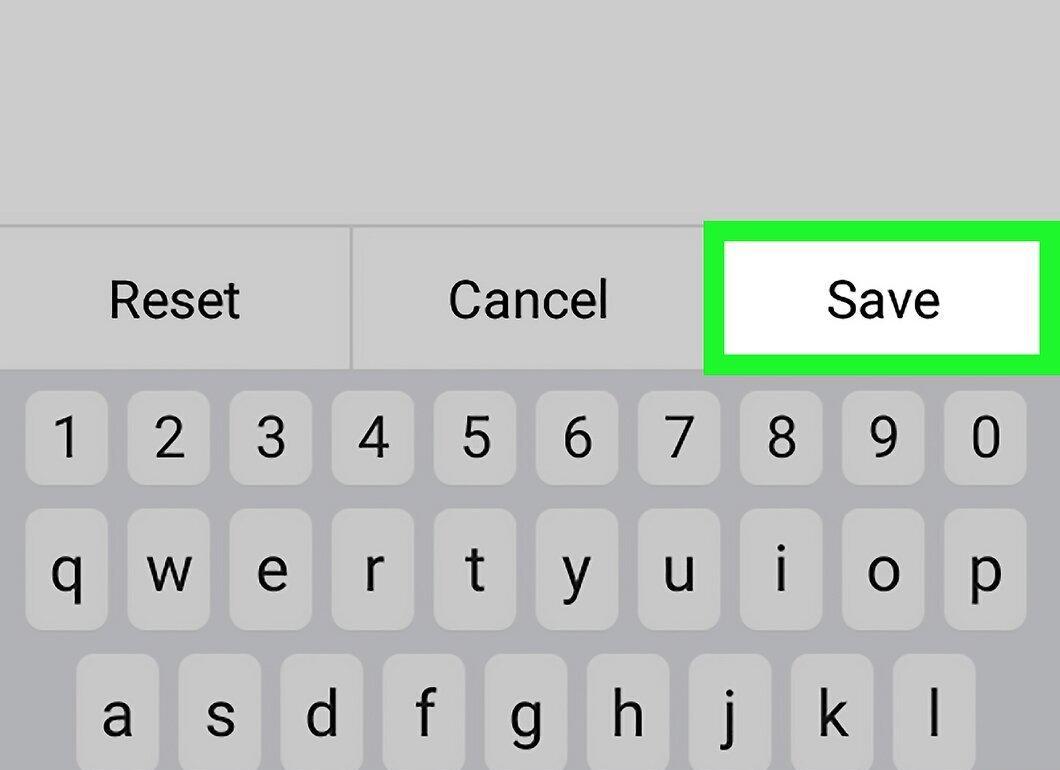
Tap Save. The selected page will become your homepage.
Firefox (Desktop)
Step 1. Launch Firefox.
Open Firefox by clicking the icon that looks like an orange fox on a blue background.
Step 2. Click on ☰
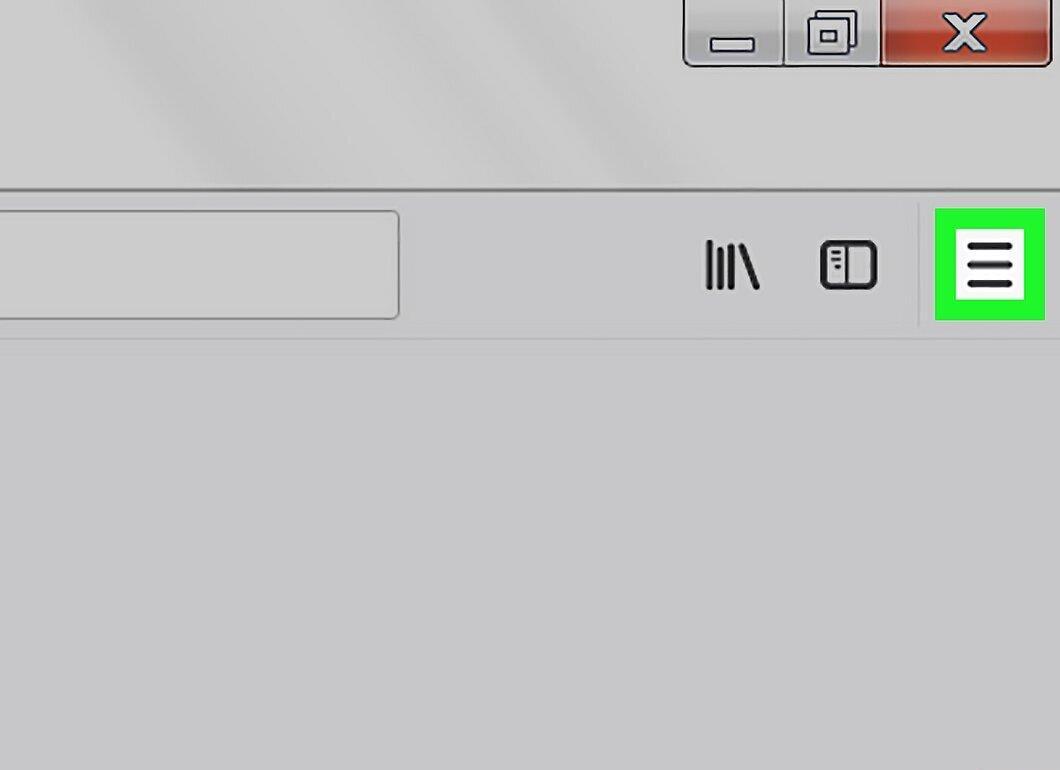
Click on ☰. This icon is located in the upper right corner of the Firefox window. A menu will open.
Step 3. Click on Settings
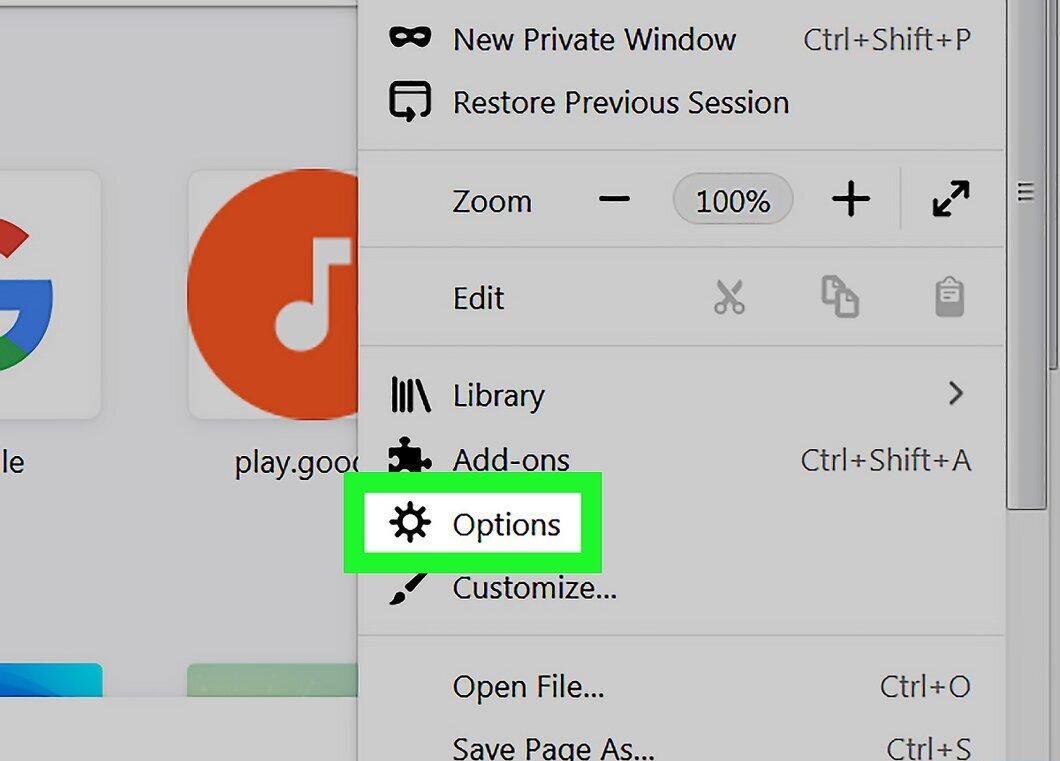
Click on Settings. This option is located in the middle of the menu.
Step 4. Click on the Home tab
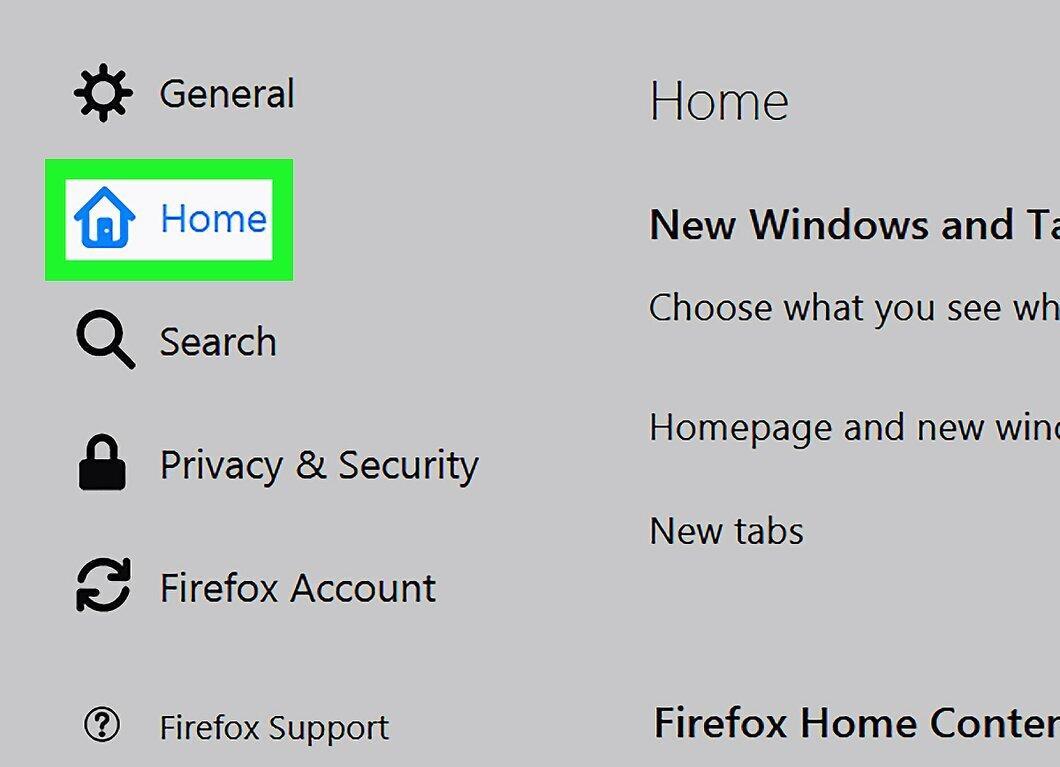
Click on the Home tab. It is located in the upper left corner of the settings page.
Step 5. Click on the Home Page and New Windows menu.
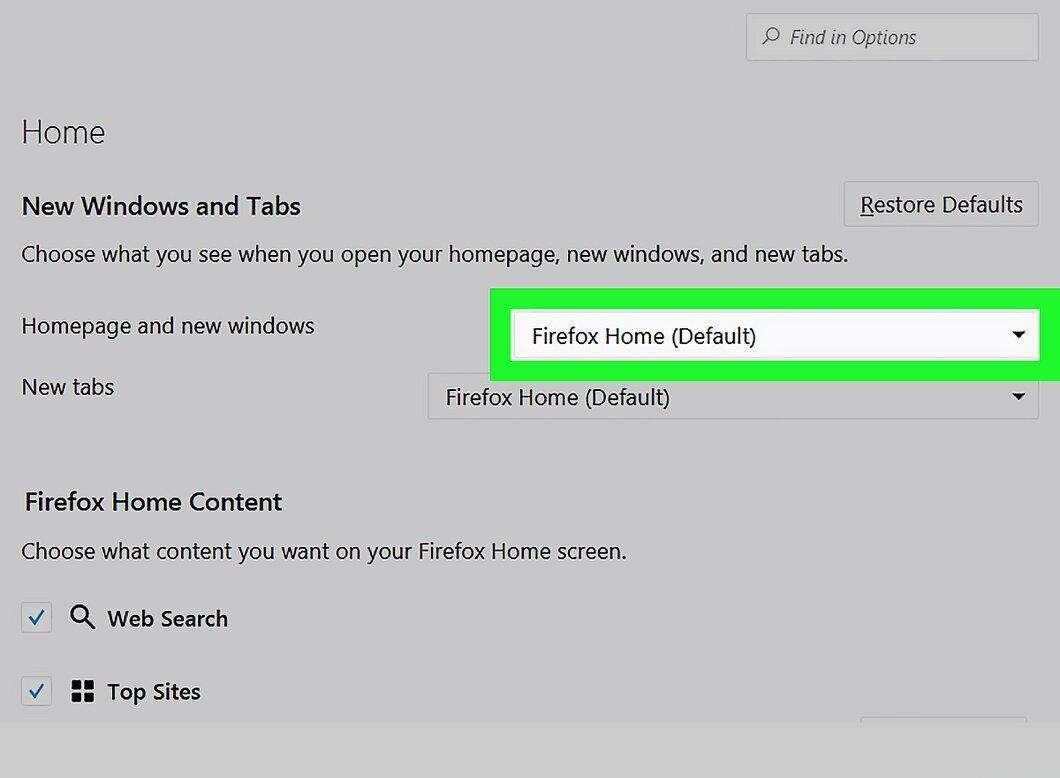
Click on the Home Page and New Windows menu. It is located at the top of the page. A menu will open.
Step 6. Click on Your URLs
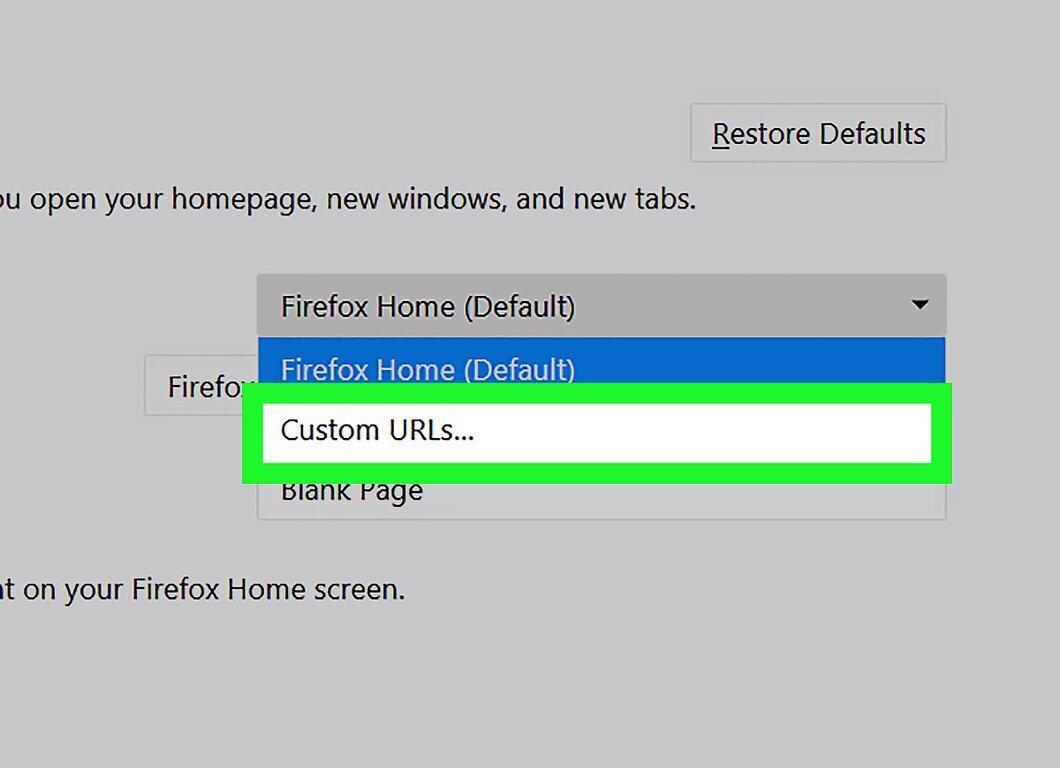
Click on Your URLs. This option is in the menu. A text field will appear.
- If you want to use a blank page as your homepage, click "Blank Page" and skip the rest of this method.
Step 7. Click on the "Paste URL" text field.
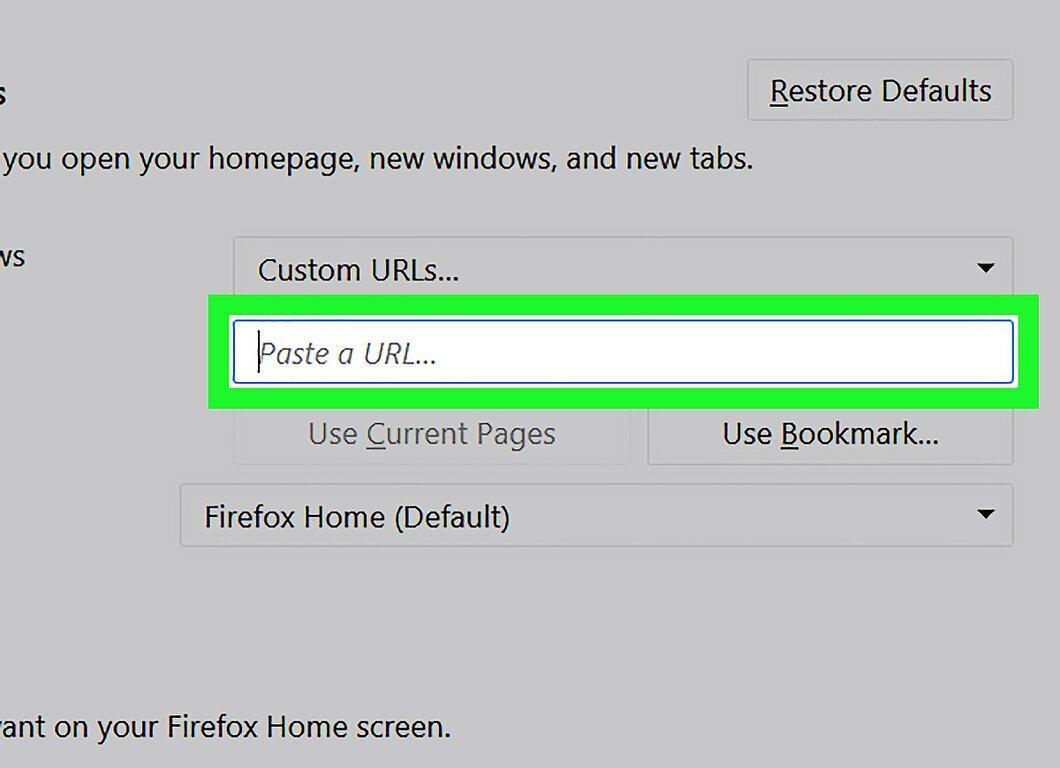
Click on the "Paste URL" text field. It is located under the "Your URLs" menu.
Step 8. Enter the Website Address.
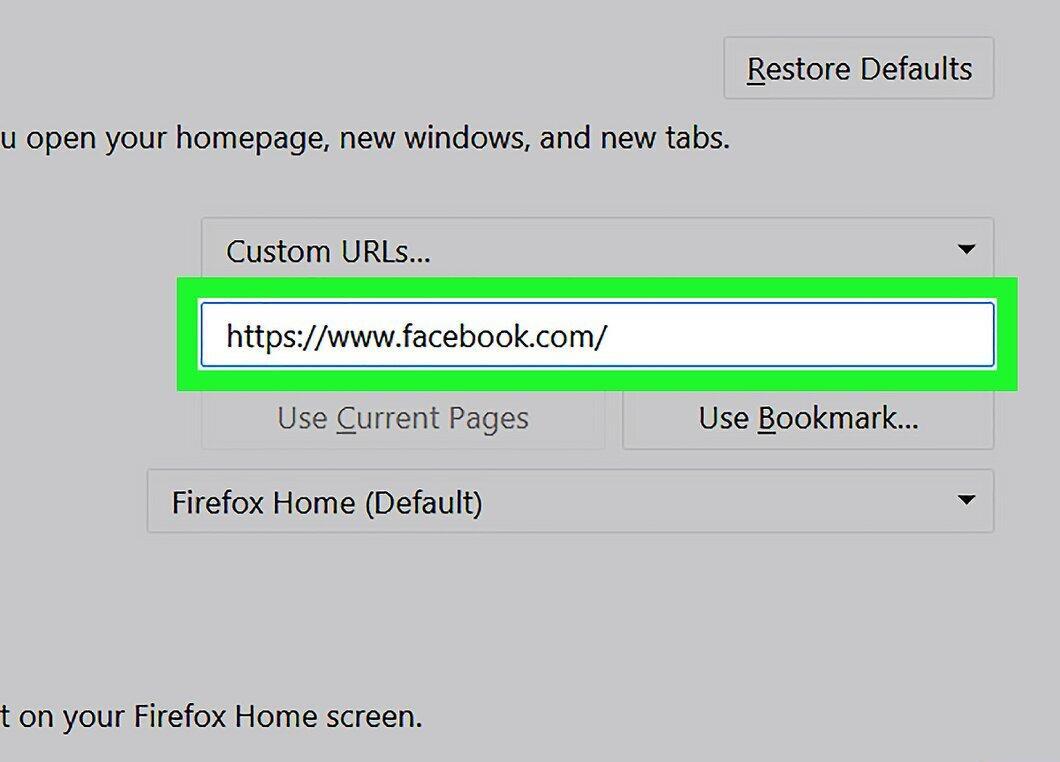
Enter the website address. This site will become your homepage. Now press ↵ Enter to save the settings.
- To go from the settings page to the homepage, click the home icon in the upper left corner of the page.
Firefox (Mobile)
Step 1. Launch Firefox.
Open Firefox by clicking the icon that looks like an orange fox on a blue background.
Step 2. Tap ☰

Tap ☰ (iPhone) or ⋮ (Android). This option is located at the bottom (iPhone) or top right corner (Android) of the screen.
Step 3. Tap Settings
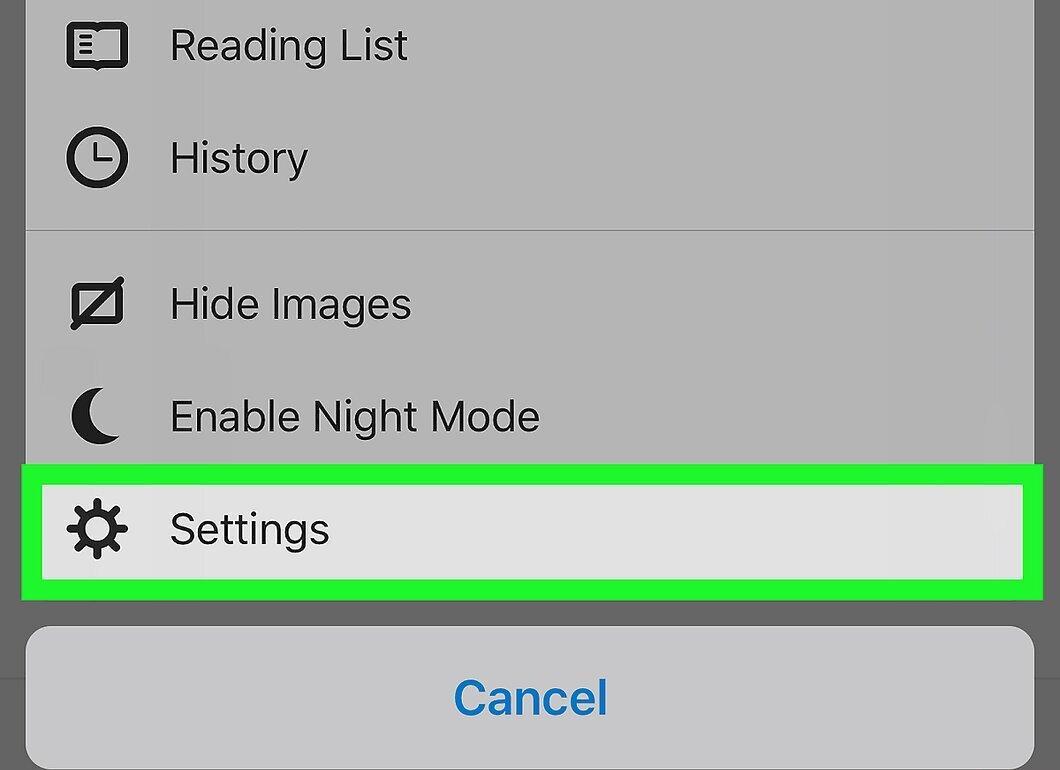
Tap Settings. This option is located at the bottom of the menu.
Step 4. Tap Homepage
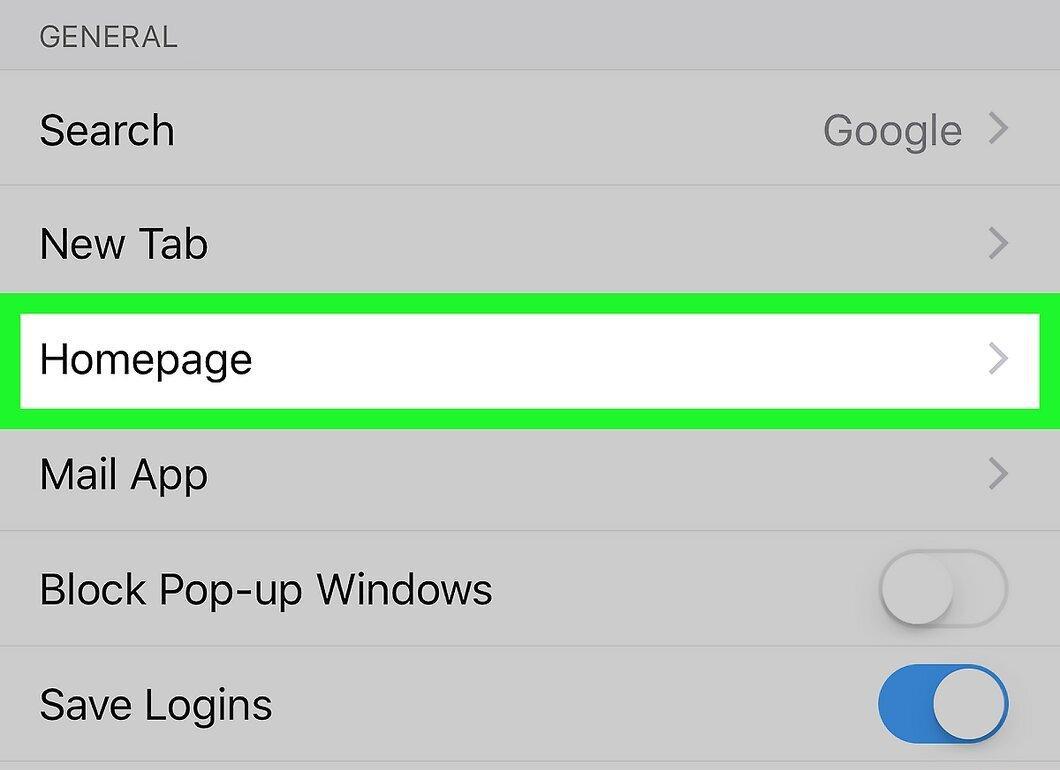
Tap Homepage. This option is located in the "Basics" settings group.
- On Android, tap "Basics," then touch "Home" at the top of the page.
Step 5. Tap the "Enter Address" field.
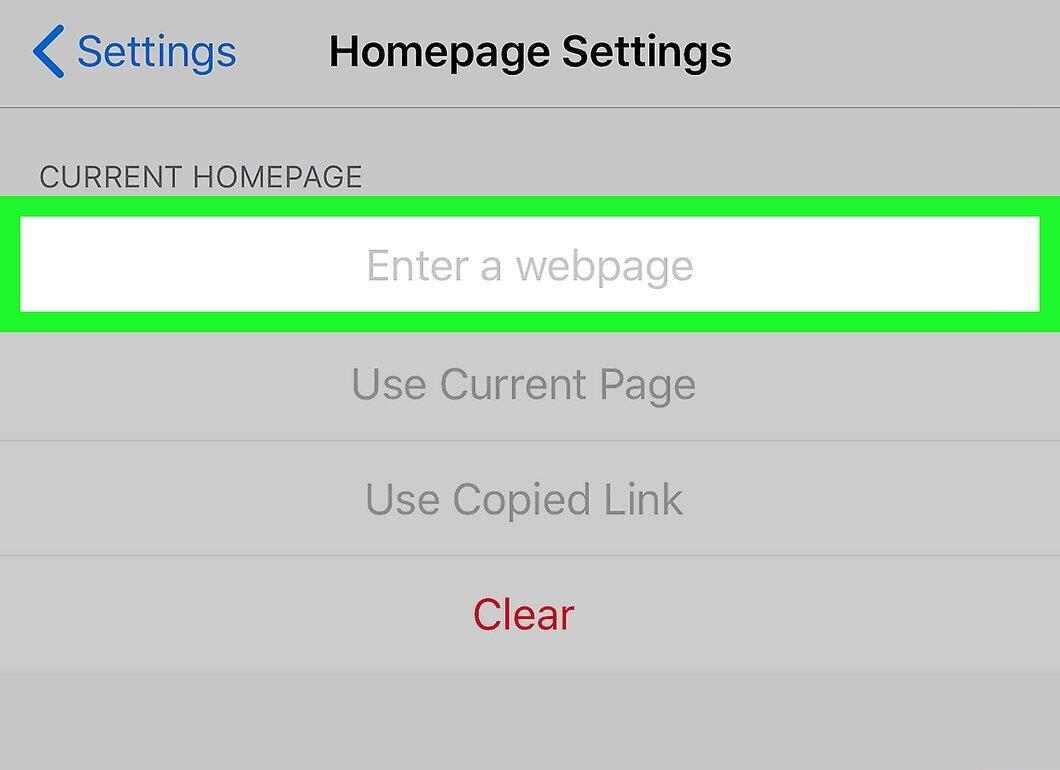
Tap the "Enter Address" field. It is located at the top of the page. The keyboard will open.
- On Android, tap "Set Homepage" > "Other".
Step 6. Tap the "Enter Address" field again.
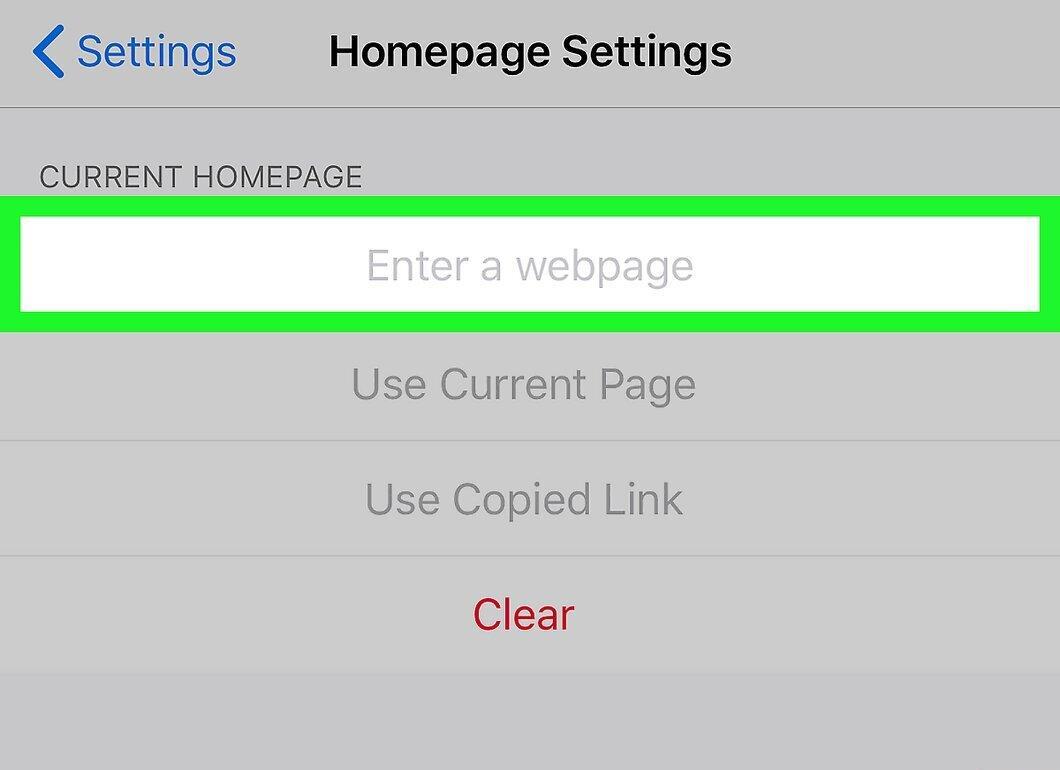
Tap the "Enter Address" field. It is located at the top of the page. If a homepage was already set, its address will appear in this field.
- Skip this step on Android.
Step 7. Enter the Website Address.
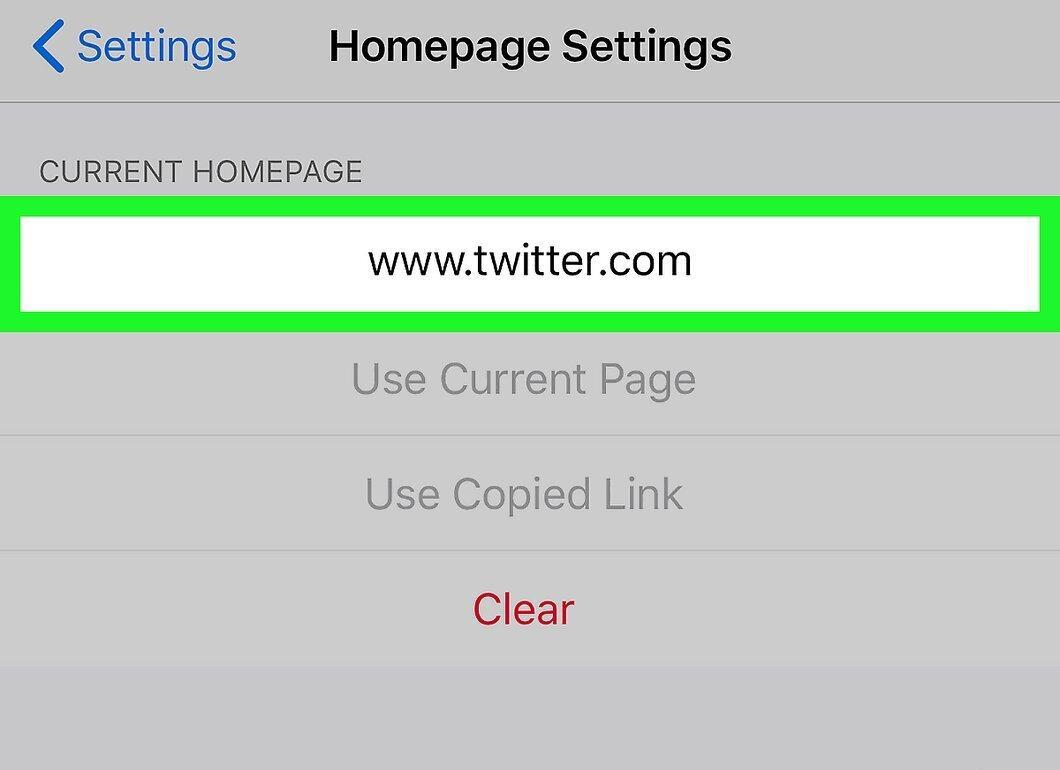
Enter the website address. Type the address in the format www.website.com (instead of .ru it could be .com, .net, .org, etc.). This site will become your homepage.
- For example, to set "VKontakte" as your homepage, enter www.vk.com.
- On Android, tap "OK" to save the changes.
Microsoft Edge
Step 1. Launch Microsoft Edge.
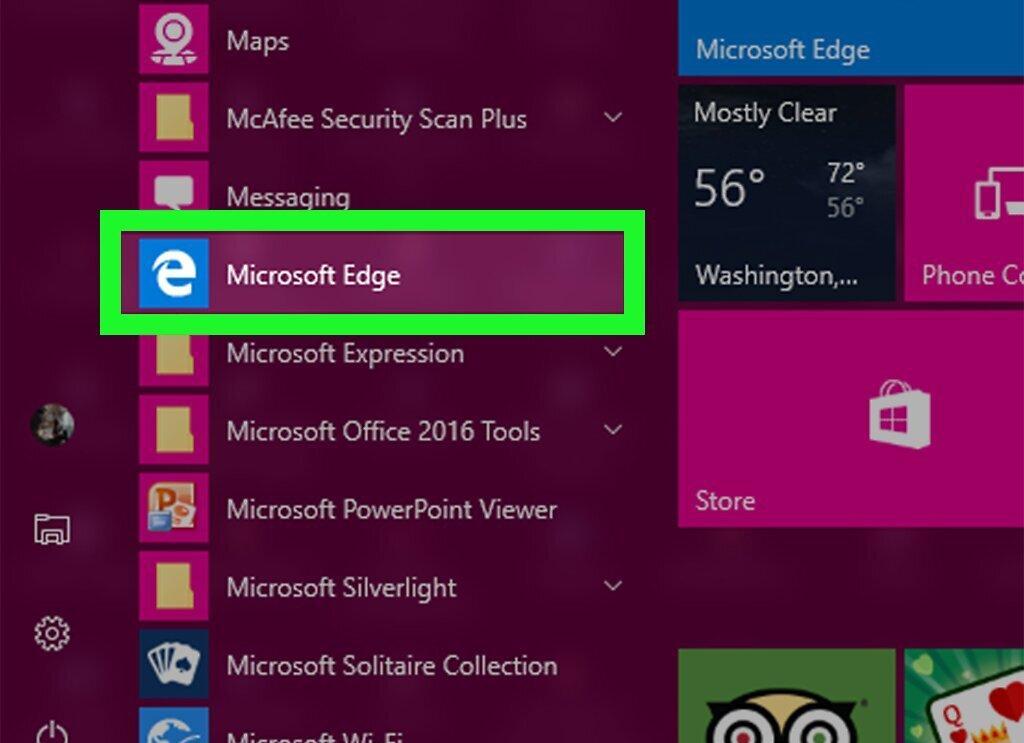
Open Microsoft Edge by clicking the icon that looks like a white letter "e" on a blue background.
Step 2. Tap ⋯
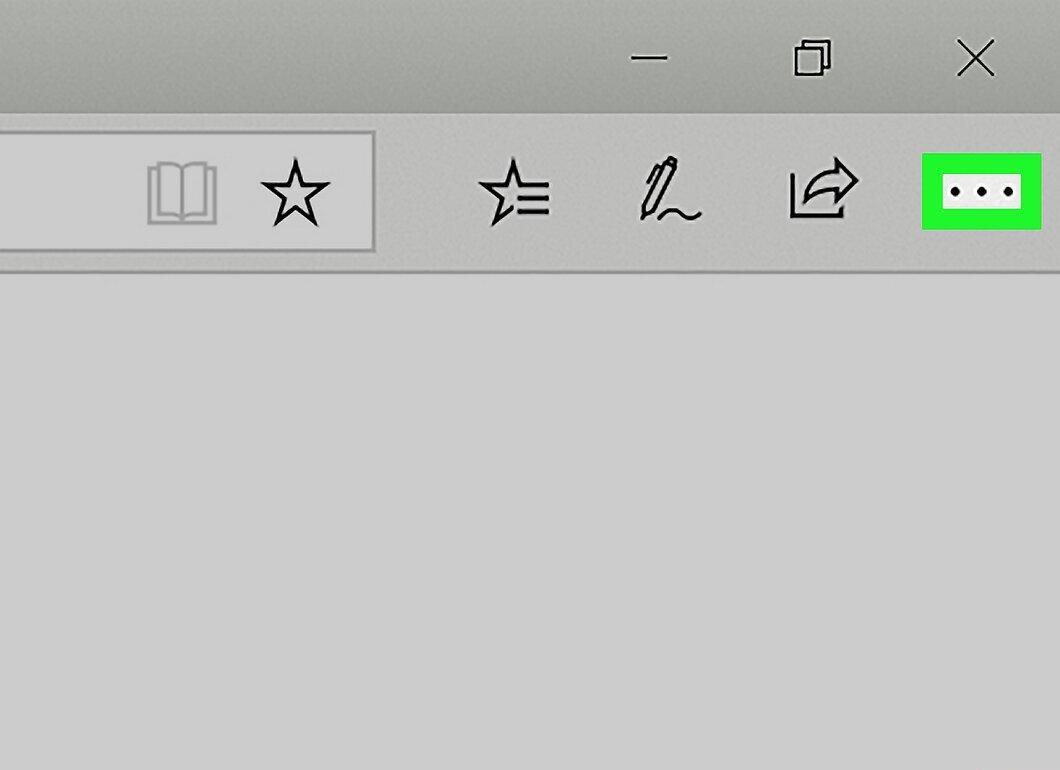
Tap ⋯. This icon is located in the top right corner of the browser window. A menu will open.
Step 3. Click on Settings
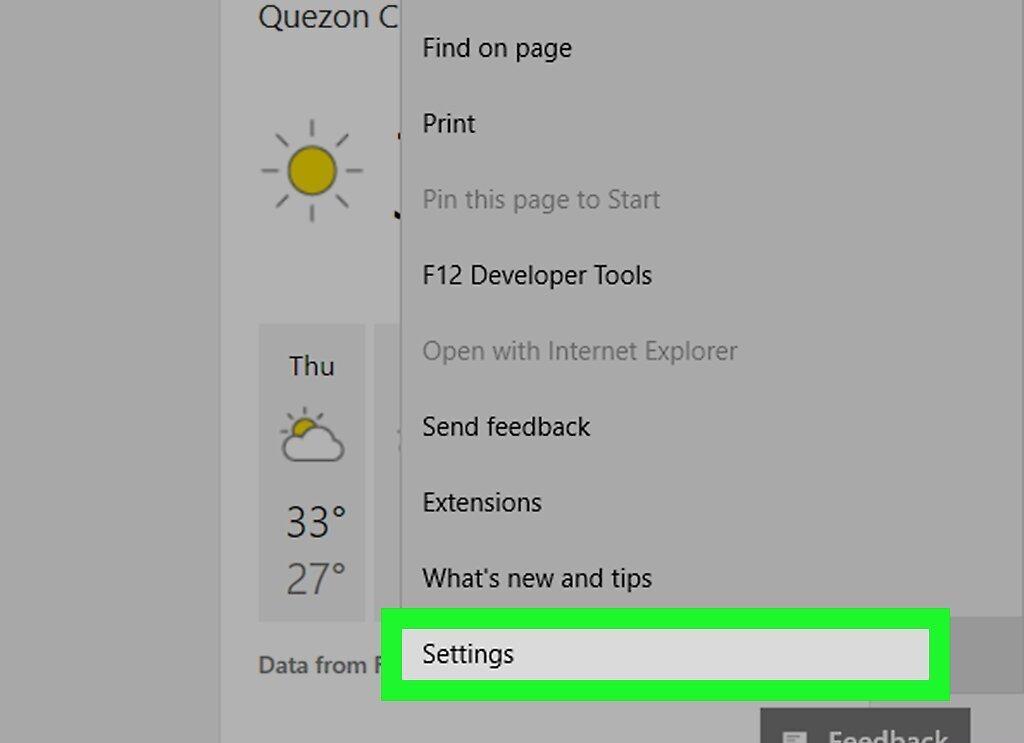
Click on Settings. You’ll find this option at the bottom of the menu.
Step 4. Scroll down and click on Appearance
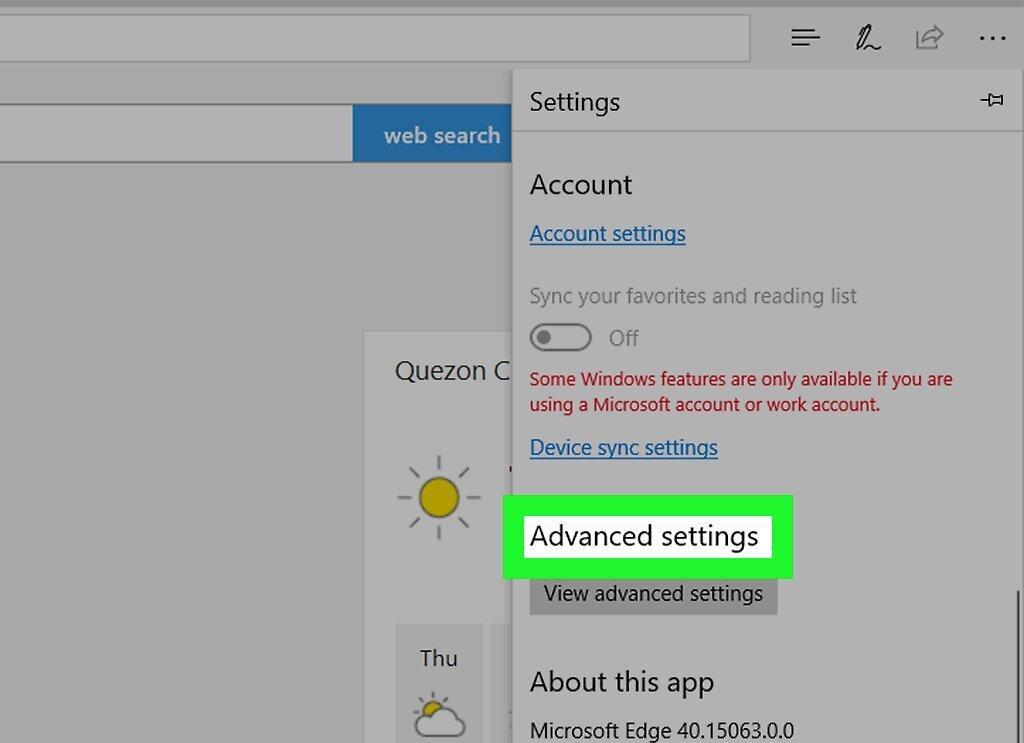
Scroll down and click on Appearance. This option is located at the bottom of the settings menu.
Step 5. Click the Toggle next to "Show Home Button"
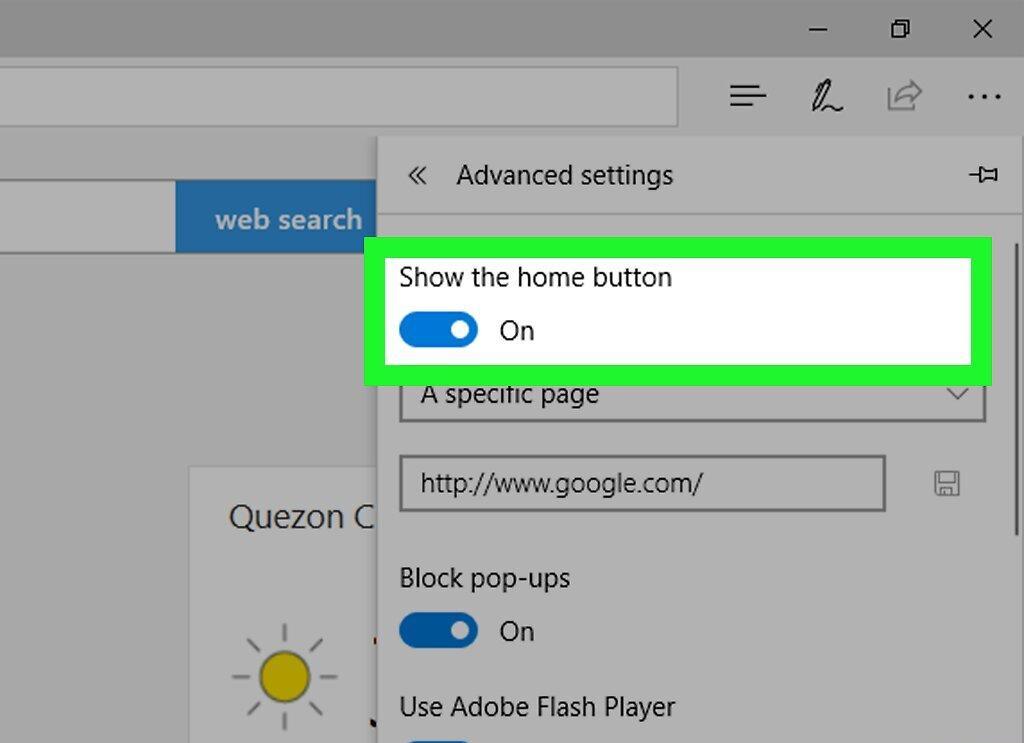
Click the toggle next to "Show Home Button". It is at the top of the Appearance menu. A home icon will appear to the left of the address bar.
- If you see the word "On" next to the toggle, the home button is already enabled.
Step 6. Click on the option under the Home Button.
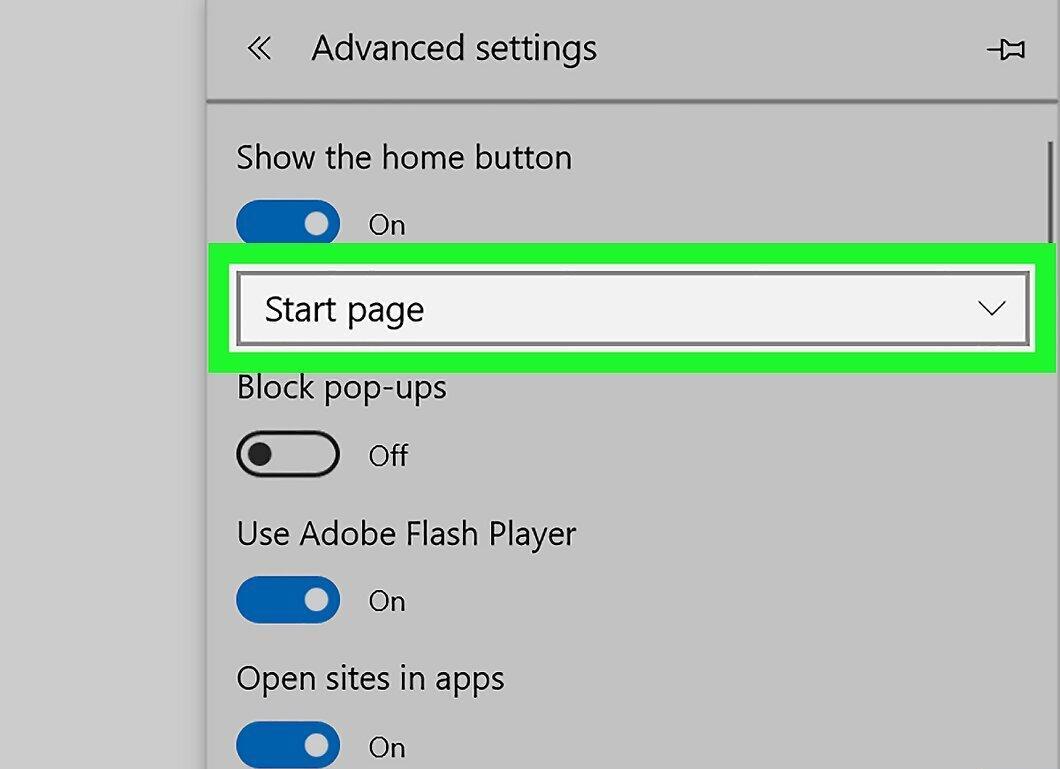
Click on the option under the Home Button. It will likely say "Start Page." A menu will open with the following options:
- "Start Page" — opens the Windows start page, which is set based on your location and the apps you use.
- "New Tab" — opens a blank tab.
- "Enter URL" — opens the web page you choose.
Step 7. Choose the desired option.
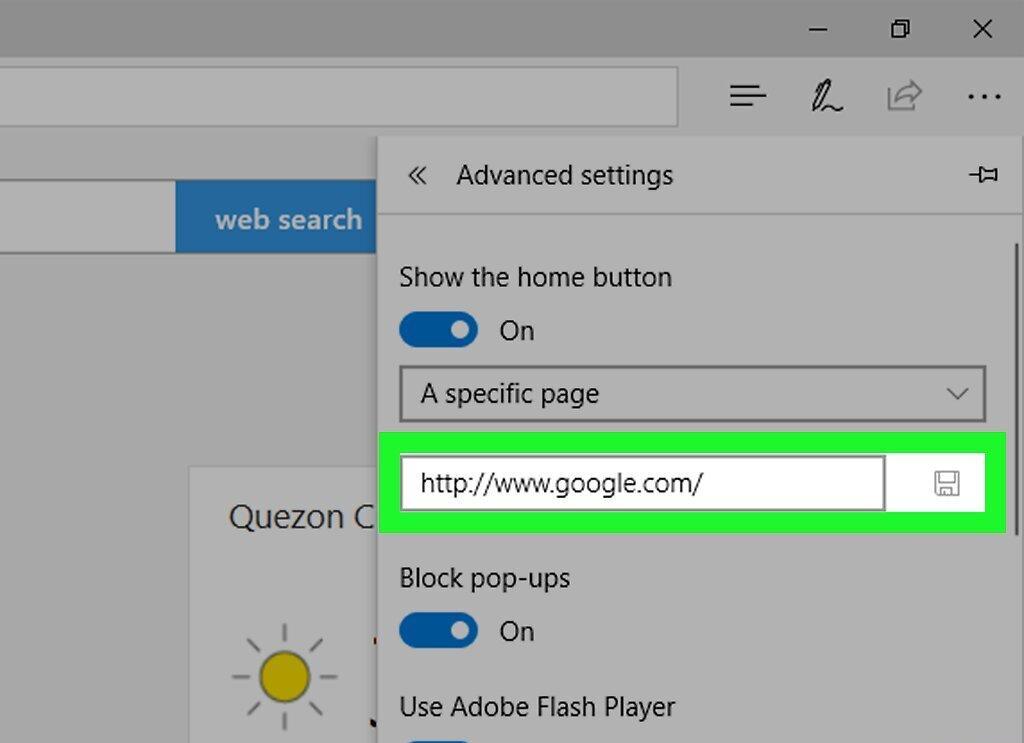
Choose the desired option. If you click "Enter URL," type the page address (e.g., www.google.com) in the "Enter URL" field, then press ↵ Enter. The specified page will become your homepage.
Internet Explorer
Step 1. Launch Internet Explorer.
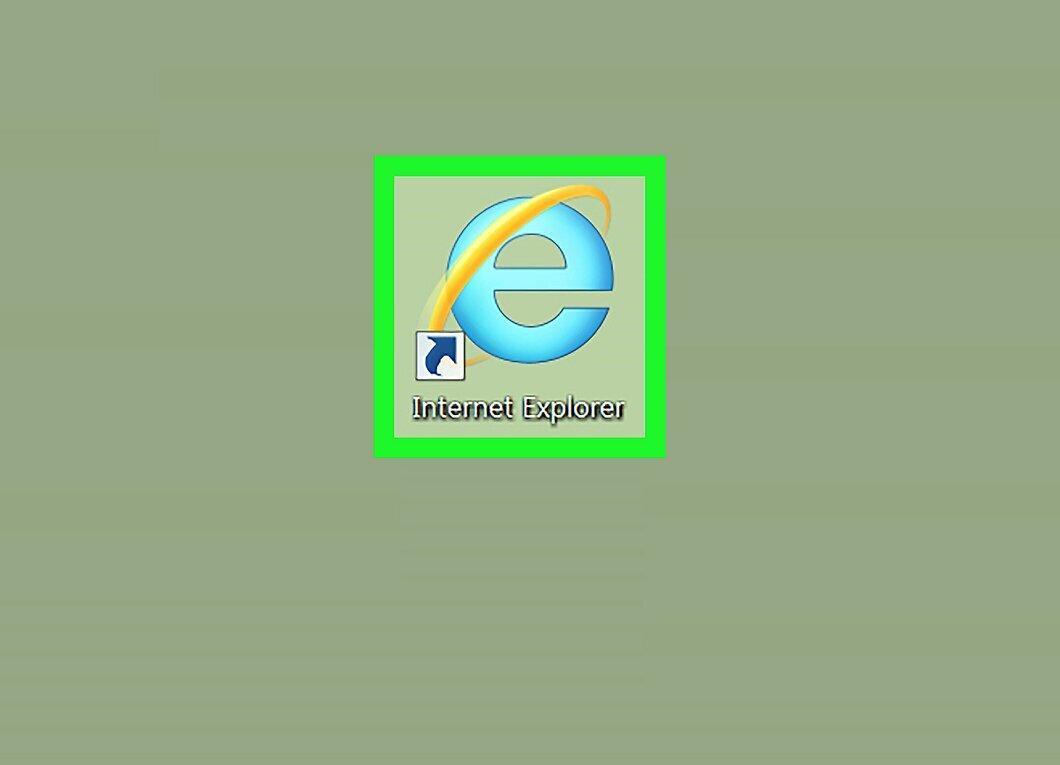
Open Internet Explorer by clicking the icon that looks like a blue letter "e" with a gold band.
Step 2. Click on "Tools"
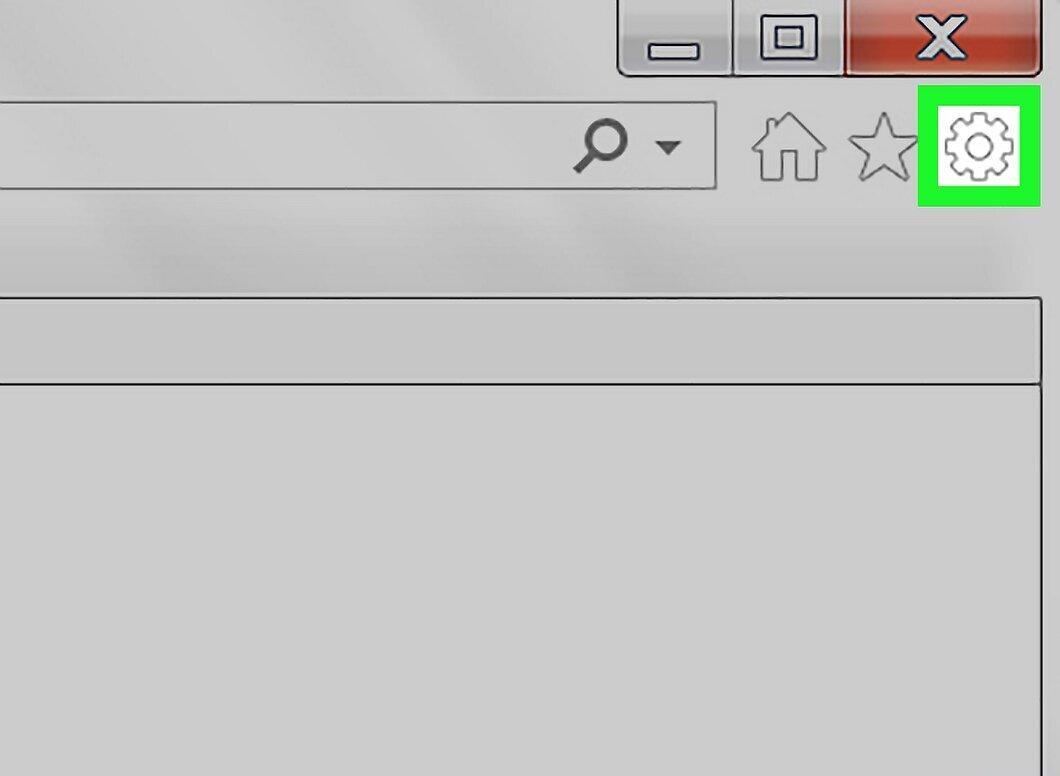
Click on "Tools". This icon is located in the top right corner of the Internet Explorer window.
Step 3. Click on Internet Options
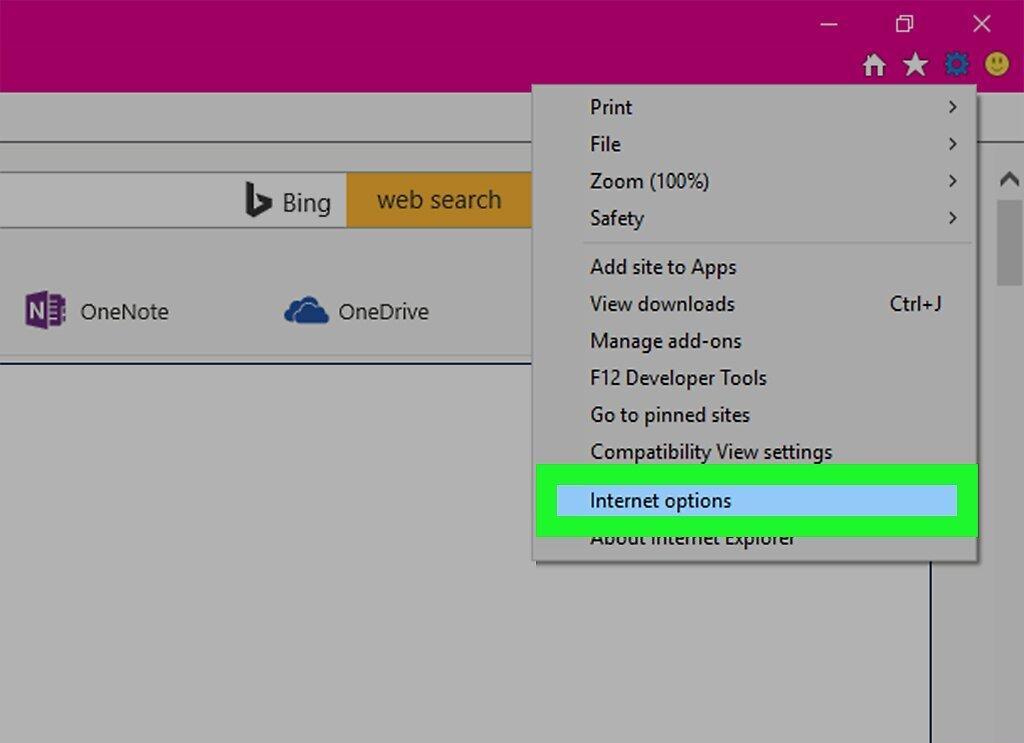
Click on Internet Options. This option is at the bottom of the menu.
Step 4. Enter the page address.
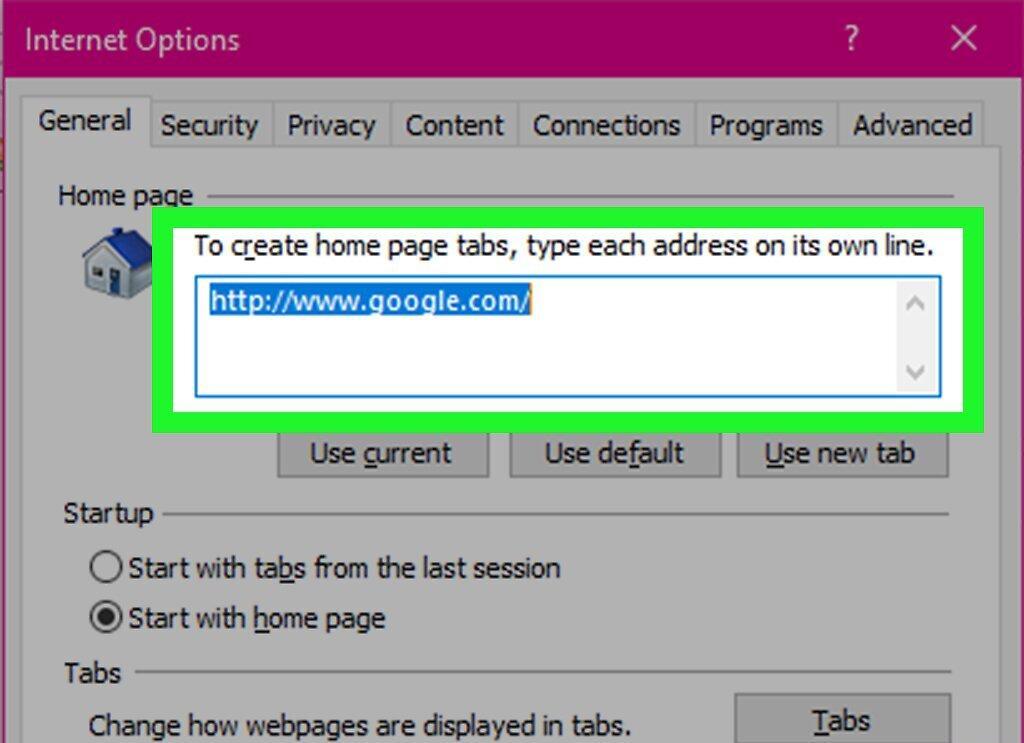
Enter the page address. Do this in the text field in the "Home Page" section, which is at the top of the window.
- Type the address in the format www.website.com (instead of .ru it could be .com, .net, .org, etc.).
- If you prefer to use a blank tab as your homepage, click "Blank". You can also click "Use Default" to use the computer manufacturer's website.
Step 5. Click Apply
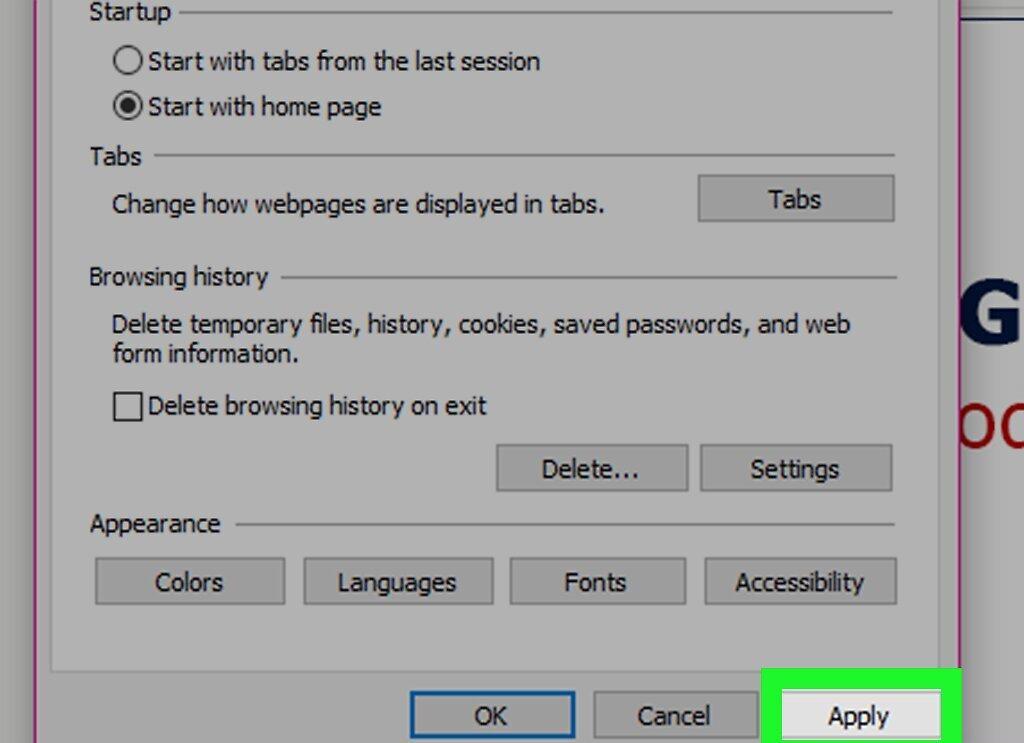
Click Apply > OK. Your changes will be saved.
Safari
Step 1. Launch Safari.
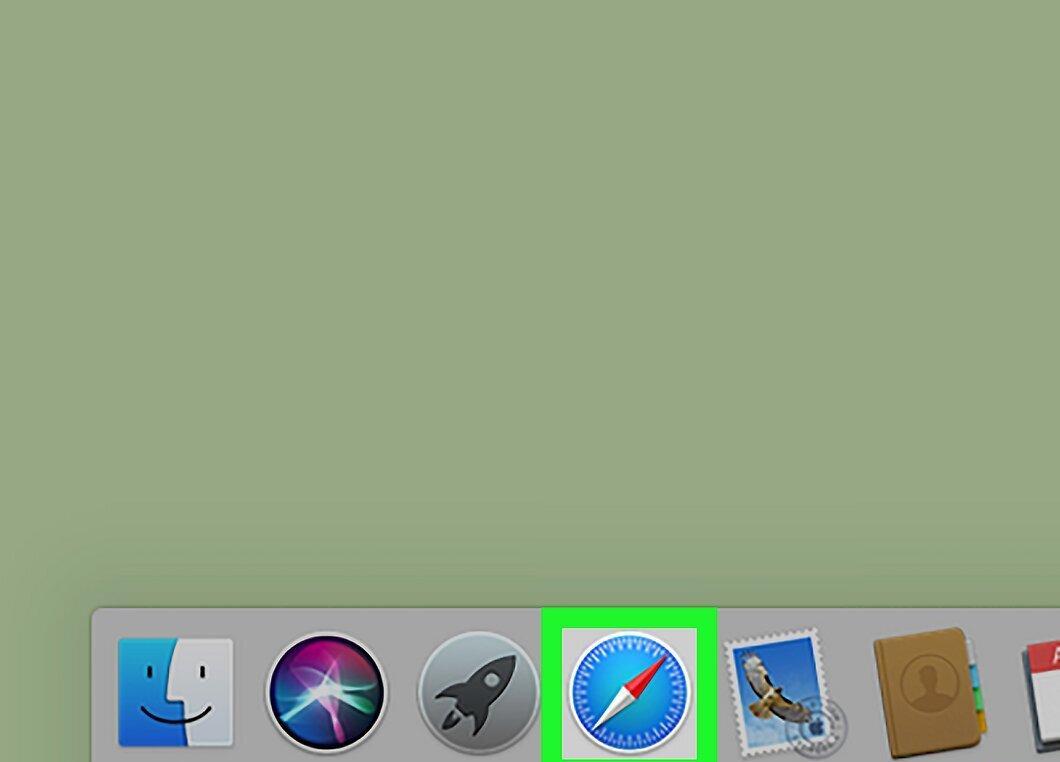
Open Safari by clicking the icon that looks like a blue compass; the icon is located in the dock.
Step 2. Click on Safari
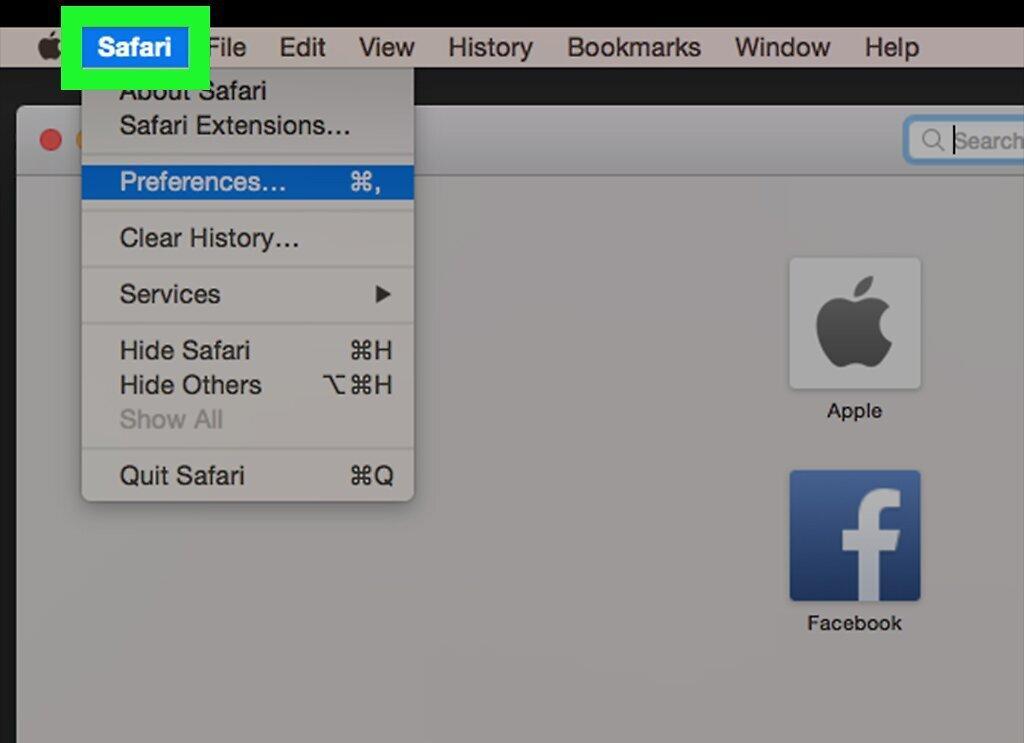
Click on Safari. This menu is located at the top left of the screen. A menu will open.
Step 3. Click on Preferences
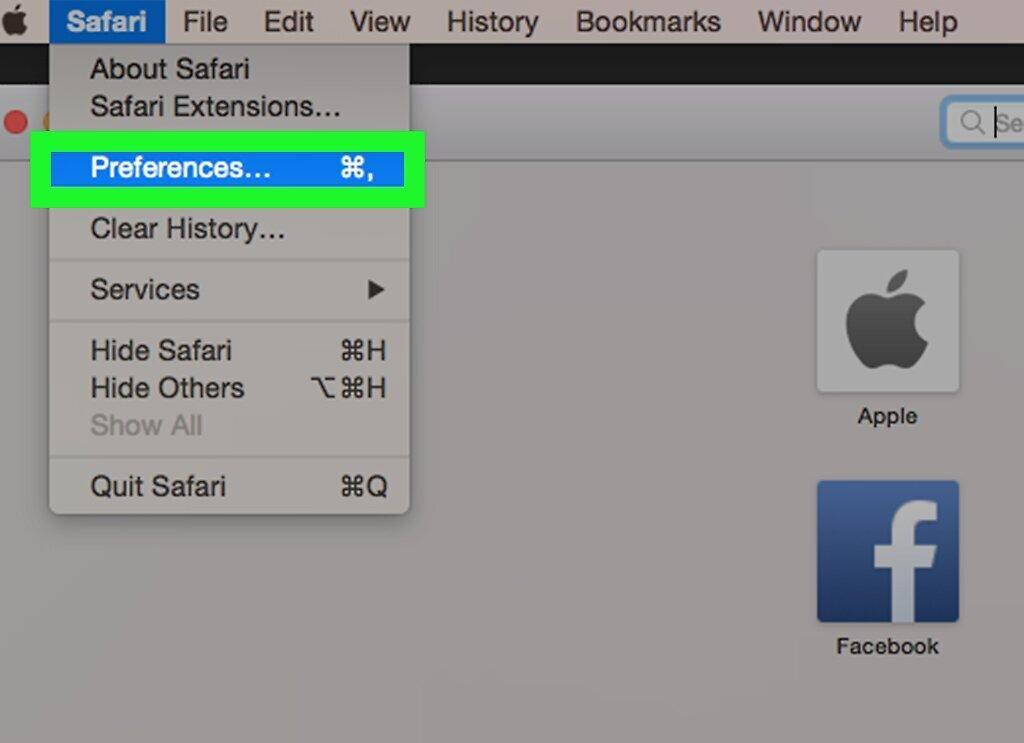
Click on Preferences. You’ll find this option at the bottom of the menu.
Step 4. Click on the General tab
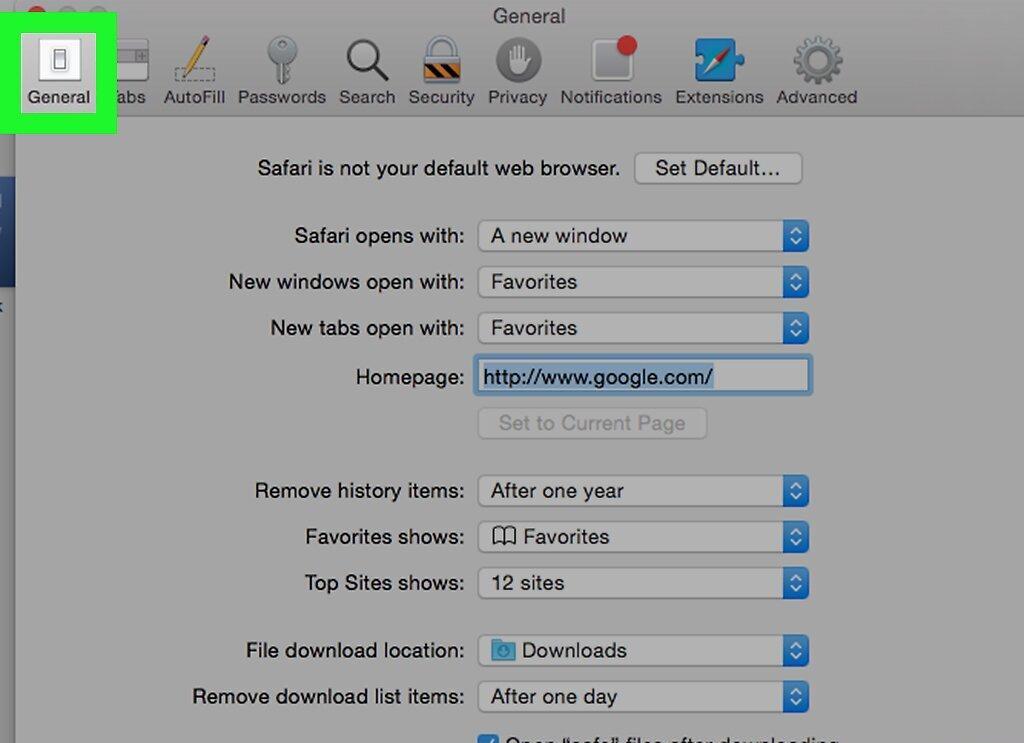
Click on the General tab. It is located in the upper left corner of the settings window.
Step 5. Enter the page address in the "Homepage" field.
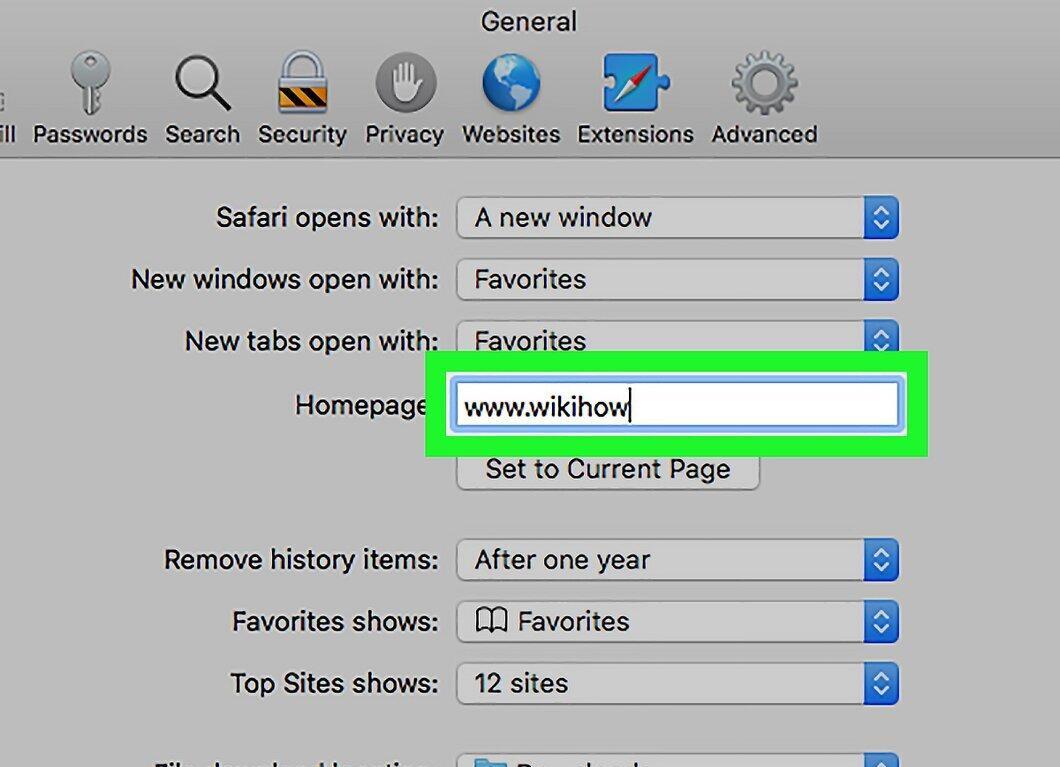
Enter the page address in the "Homepage" field. It is located at the top of the window.
- Type the address in the format www.website.com (instead of .ru it could be .com, .net, .org, etc.).
- If there is already an address in the field, delete it and type your own.
Step 6. Close the Preferences window.
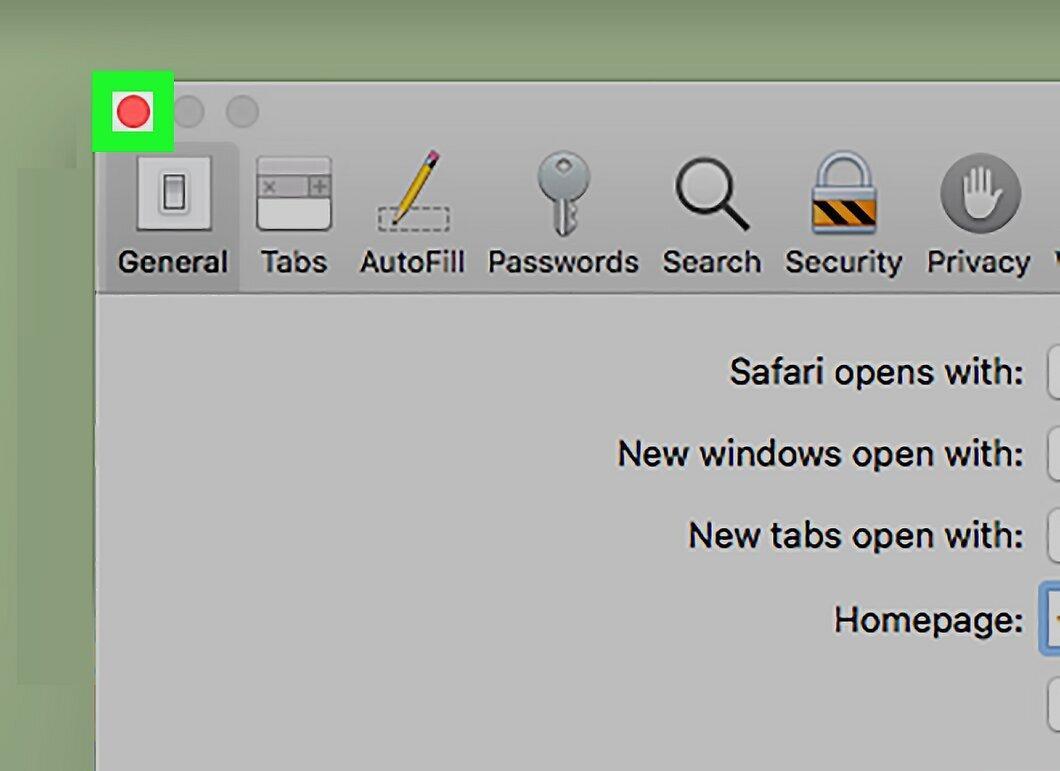
Close the Preferences window. The specified page will become your homepage.


