
Apple has unified all its services, including your iTunes purchases, under one account – Apple ID. If you created an iTunes account, it has now become your Apple ID but still serves the same functions. You can easily change your password through the Apple ID website from a computer or iOS device.
Changing Your Password (iPhone, iPad, iPod)
Step 1. Go to iCloud.
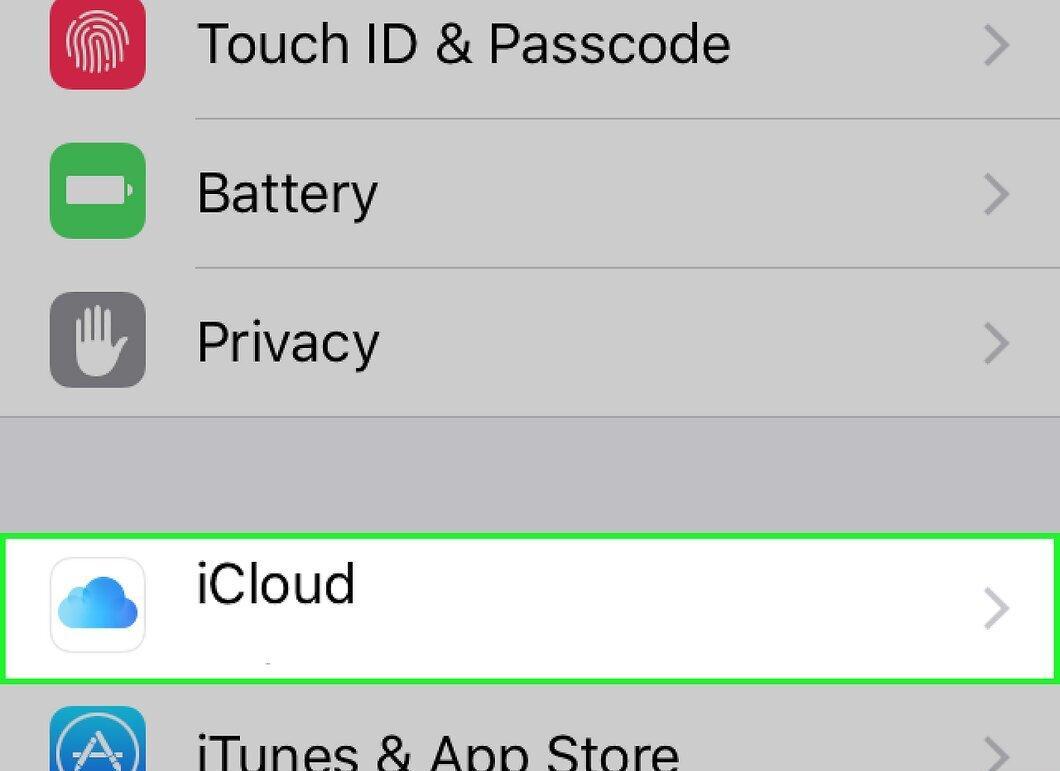
Go to iCloud. You can change your iTunes password directly from your iPhone, provided you know your current password. If you do not know your current password, try resetting it.
- Open the "Settings" menu and select "iCloud."
- Tap on your Apple ID. At this moment, you are logged in to your iPhone using your Apple ID. If you are trying to change the password for a different account, switch to your computer.
- If prompted, enter your password and tap "OK." This will not happen if you are using two-factor authentication and logging in from a trusted device.
Step 2. Go to the "Change Password" section.
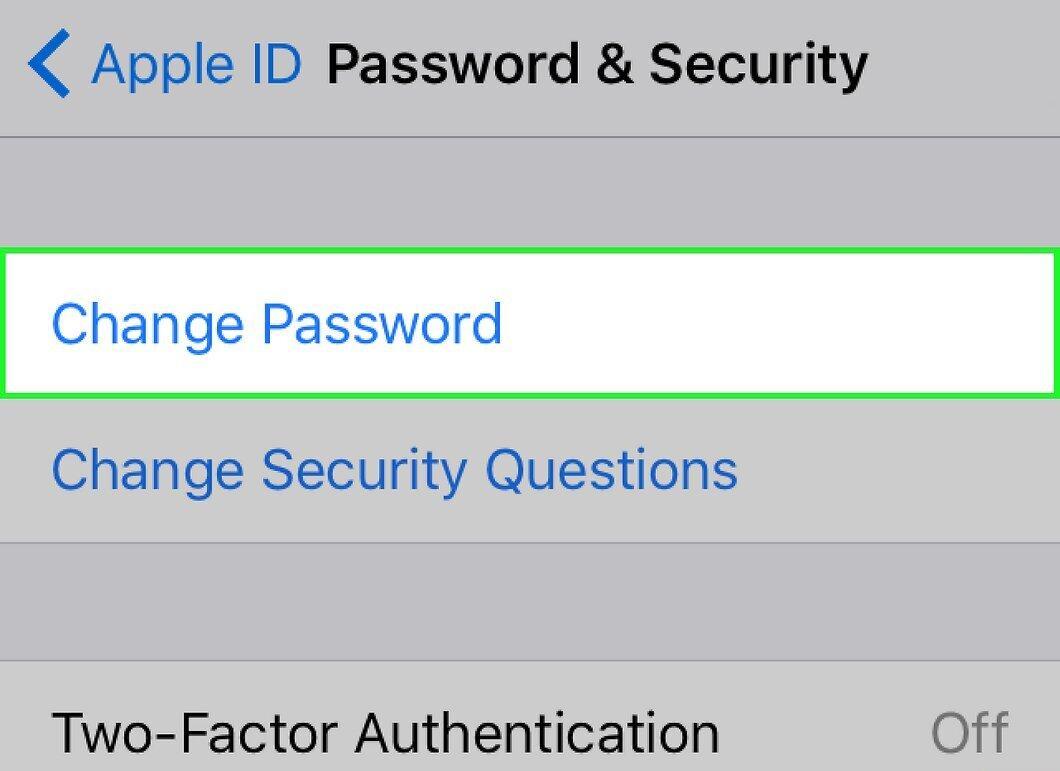
Go to the "Change Password" section. Now you will need to confirm your identity.
- Tap "Password & Security."
- Tap "Change Password."
Step 3. Answer the security questions.
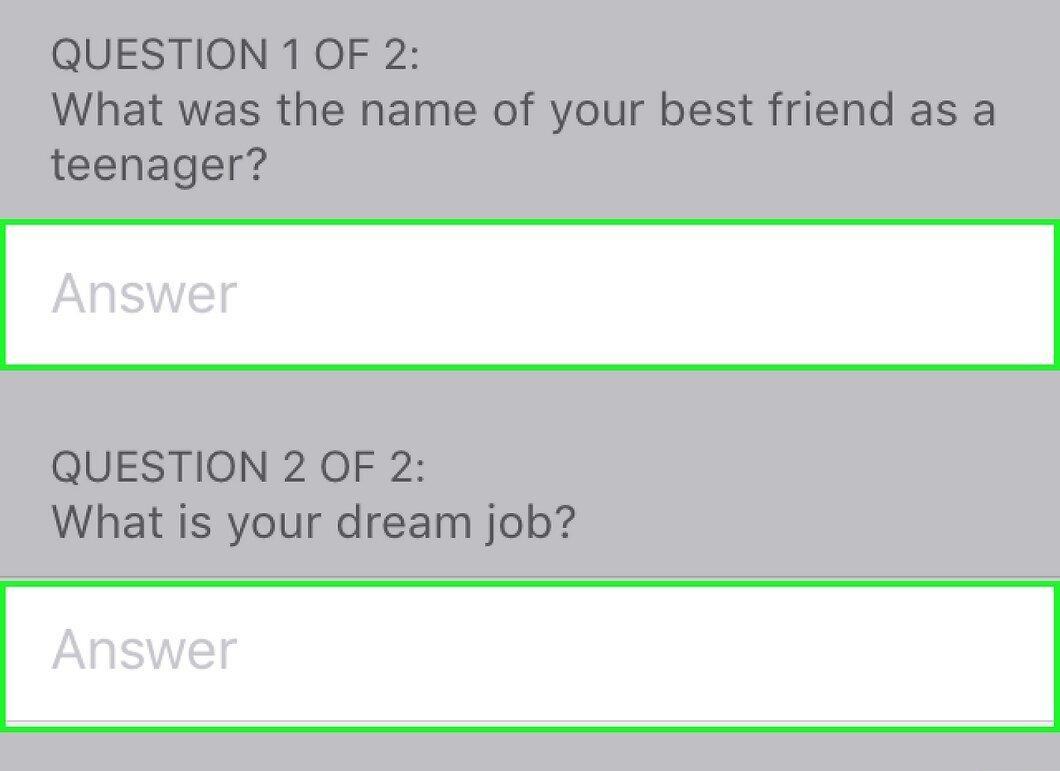
Answer the security questions. After entering your answers, tap "Confirm."
- If you log in from a trusted device, you will not need to answer security questions.
Step 4. Enter your new password.
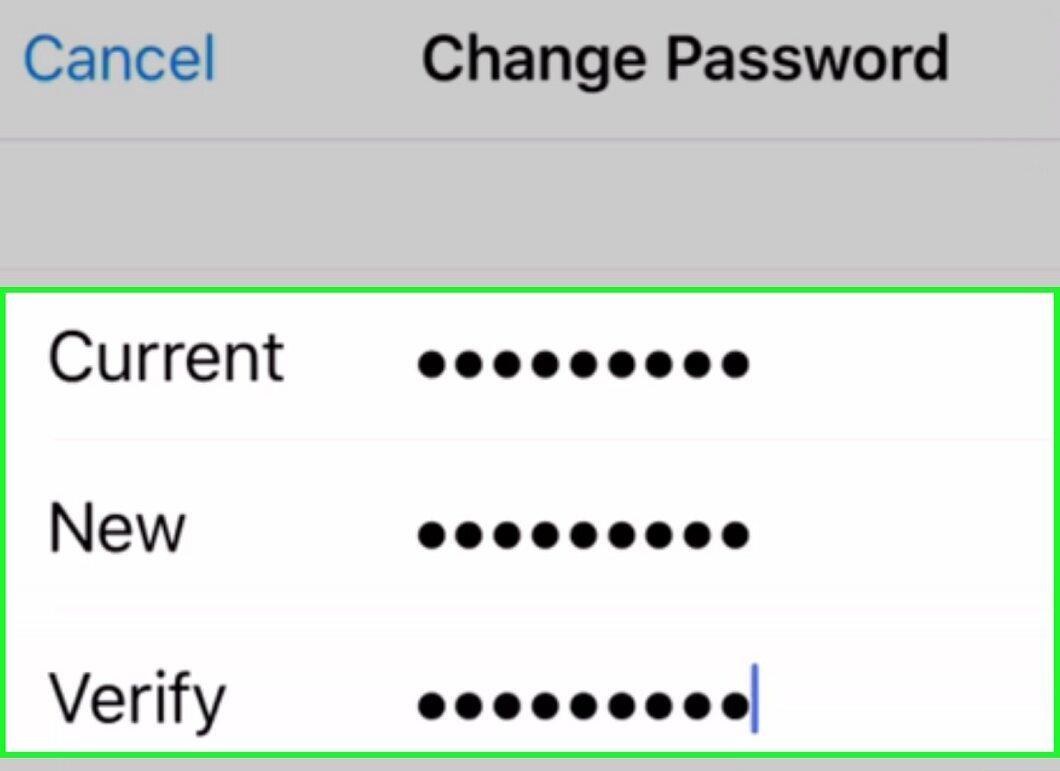
Enter your new password. Type it twice to confirm. From this moment on, your new password will take effect, and until it is entered, you will be logged out of all connected devices.
Changing Your Password (Any Device)
Step 1. Click the "Change Password" link in Apple ID security settings.
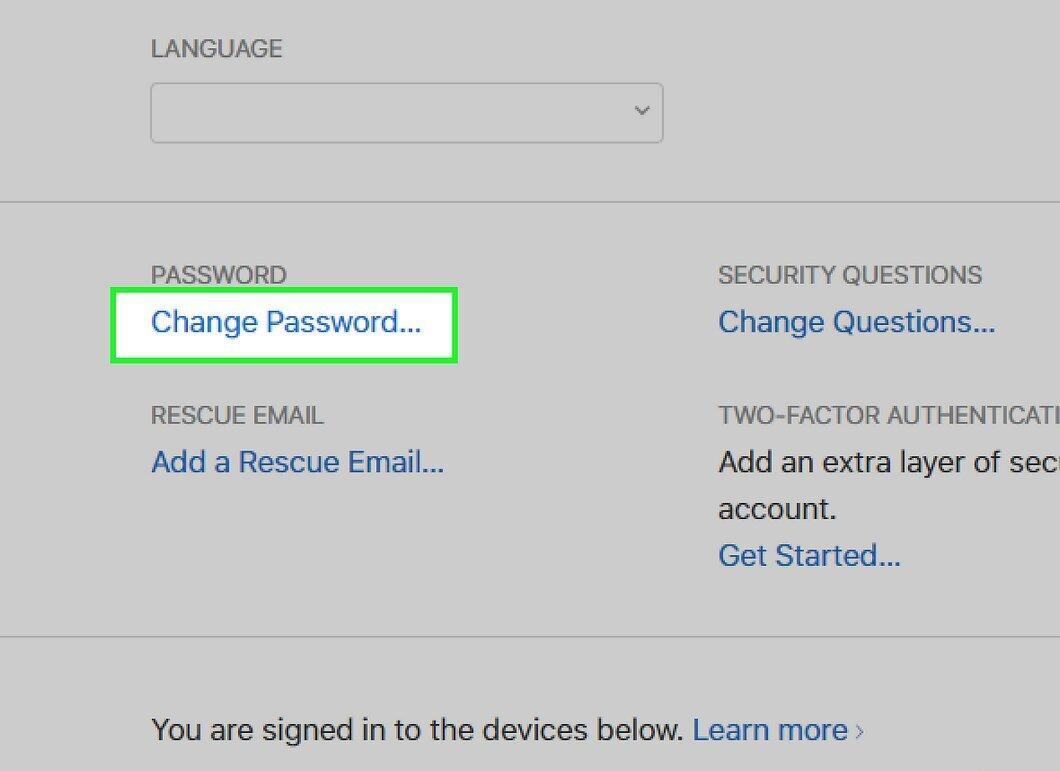
Click the "Change Password" link in the Apple ID security settings. Now that your iTunes account is merged with your Apple ID, you will need to use the Apple ID website to change your password. Your Apple ID is your email address used to sign in to iTunes.
- Open the website appleid.apple.com in your web browser.
- Enter your Apple ID and password. If you cannot remember your password, try resetting it.
- Click the "Change Password" link in the "Security" section.
Step 2. Verify your identity.
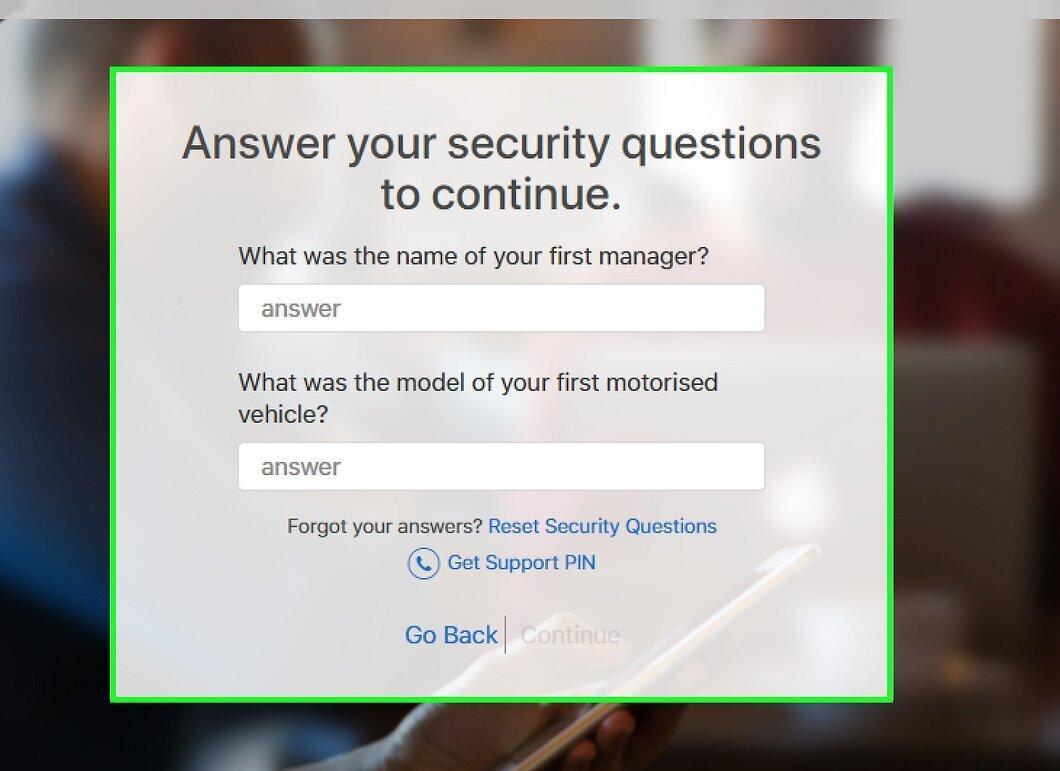
Verify your identity. The information required to confirm your identity will depend on your account's security settings:
- Answer the security questions. These questions were created when setting up your account, and to proceed, you must answer them.
- Verify your number if your account uses two-factor authentication. A code will be sent to your mobile phone. Enter this code on the Apple ID website to start the password reset process.
Step 3. Enter your new password.
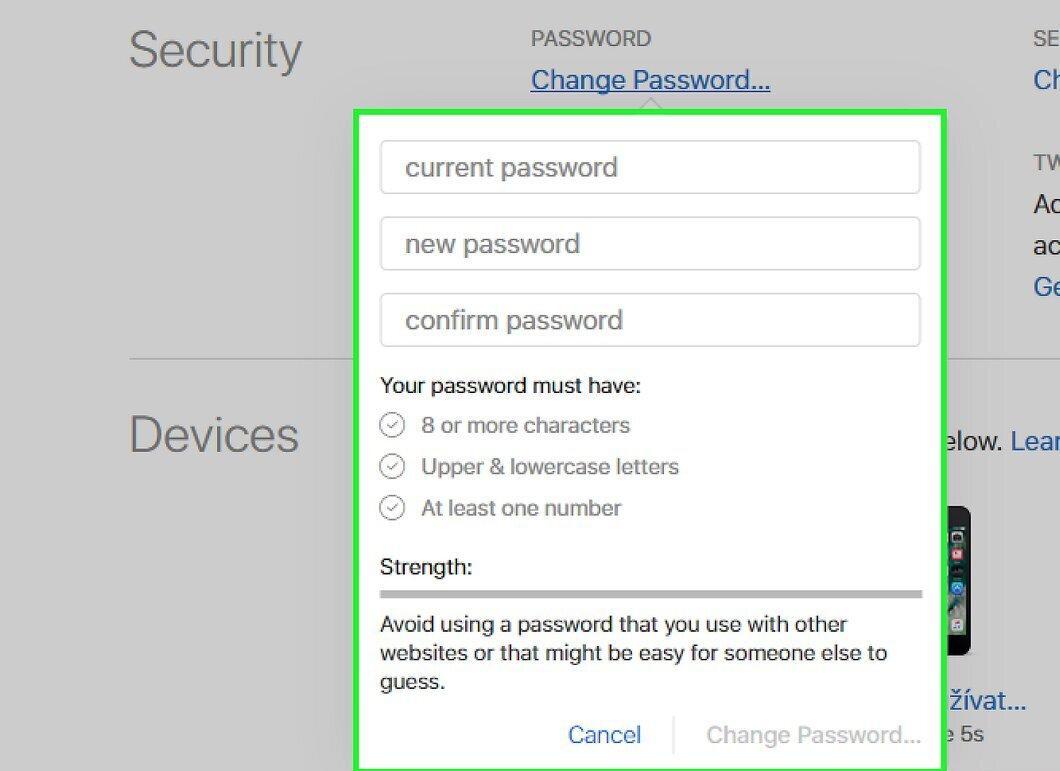
Enter your new password. In the first field, enter your current password, and then enter your new password twice.
- When the new password is activated, you will be logged out of any connected devices. You will need to sign in again using your new password.
Resetting a Forgotten Password
Step 1. Enter your Apple ID at iforgot.apple.com.
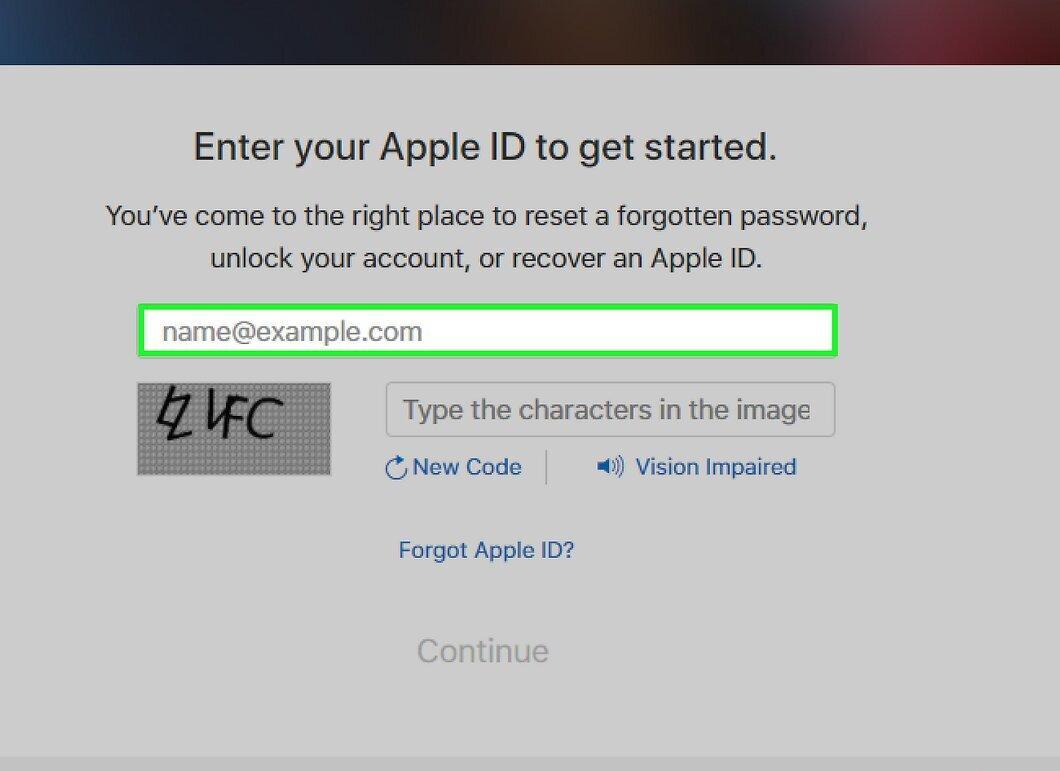
Enter your Apple ID at iforgot.apple.com. The Apple password reset site will guide you through the process of resetting your Apple ID (the new name for your iTunes account).
- Open the website iforgot.apple.com in your web browser.
- Enter the email address you use to sign in to iTunes (this is your Apple ID).
- Click "Continue."
Step 2. Choose a method to verify your identity.
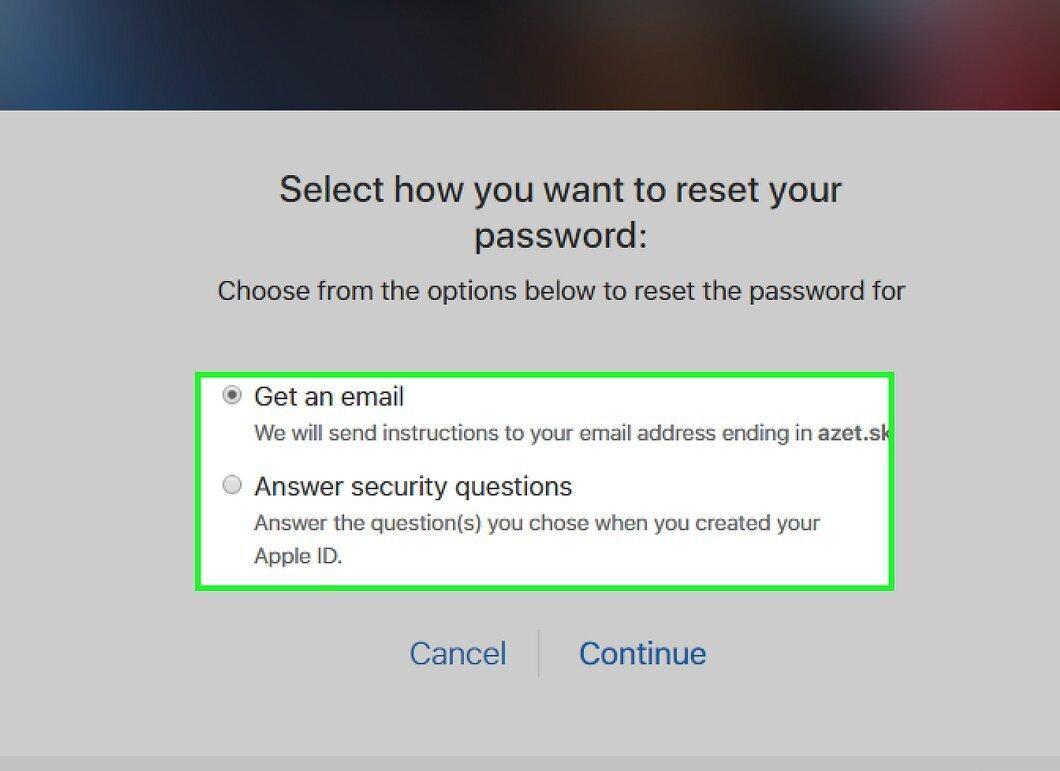
Choose a method to verify your identity. You can confirm that you are the account owner in several ways, depending on your account's security features:
- Email authentication – you will receive a message at your primary or backup email address. Your primary address usually matches the one provided when creating your Apple ID, although you may have changed it since. Click the link in the email to reset your password. Generating the email may take a few minutes, and if you use Gmail, it may be sorted into the "Promotions" category.
- Answer security questions – if you choose this option, you will be asked to answer two security questions that you set up when creating your account. If you forget the answers to these questions but have a backup email address linked to your Apple ID, they can be reset. After answering the questions, you can enter a new password.
- Phone number verification – this option will be available if you enabled two-factor authentication for your account and linked a trusted device. You will be prompted to enter your mobile phone number. A notification will be sent to your iOS trusted device. Tap "Allow," then enter the device password and reset your Apple ID password.
- Enter recovery key – this option only appears if you set up two-step verification for your account. You will be asked to enter the recovery key created when enabling two-step verification. After that, a code created when enabling two-step verification should be sent to your trusted device. After entering the code, you will be able to reset your password. If you lose the recovery key and forget your password, you will not be able to access your account.
Step 3. Specify a new password.
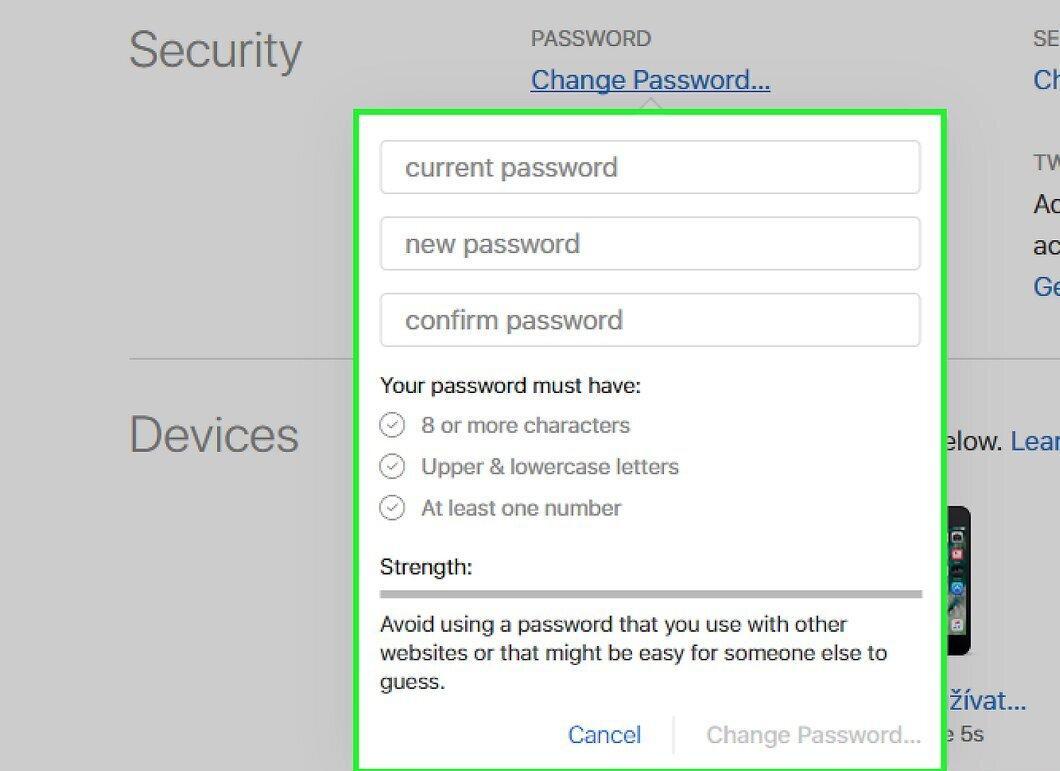
Specify a new password. Enter your new password twice to confirm it.
- Your new password will take effect immediately, causing you to be logged out of all connected devices. To sign in, you will need to enter your new password.
- Consider writing your password down in a secure place, such as in your home office notebook, so you always have it handy if needed.


