
In this article, you'll learn how to change your name on Skype, the name that appears in the contact lists of other Skype users. This can be done on the Skype website and the mobile version of Skype, but not in the Skype application for Windows and Mac OS X. Additionally, to change your username, you need to create a new account.
On the Skype Website
Step 1. Open the Skype website.

Open the Skype website by going to https://www.skype.com/ in your browser. If you are already logged in to Skype, your username will appear in the upper right corner of the screen.
- If you haven't logged in yet, click "Sign In" (at the upper right corner), then enter your email address and password.
Step 2. Click on your name.

Click on your name, which is located in the upper right corner of the screen. A dropdown menu will appear.
- If you needed to log in to Skype, skip this and the next step.
Step 3. Select My Account
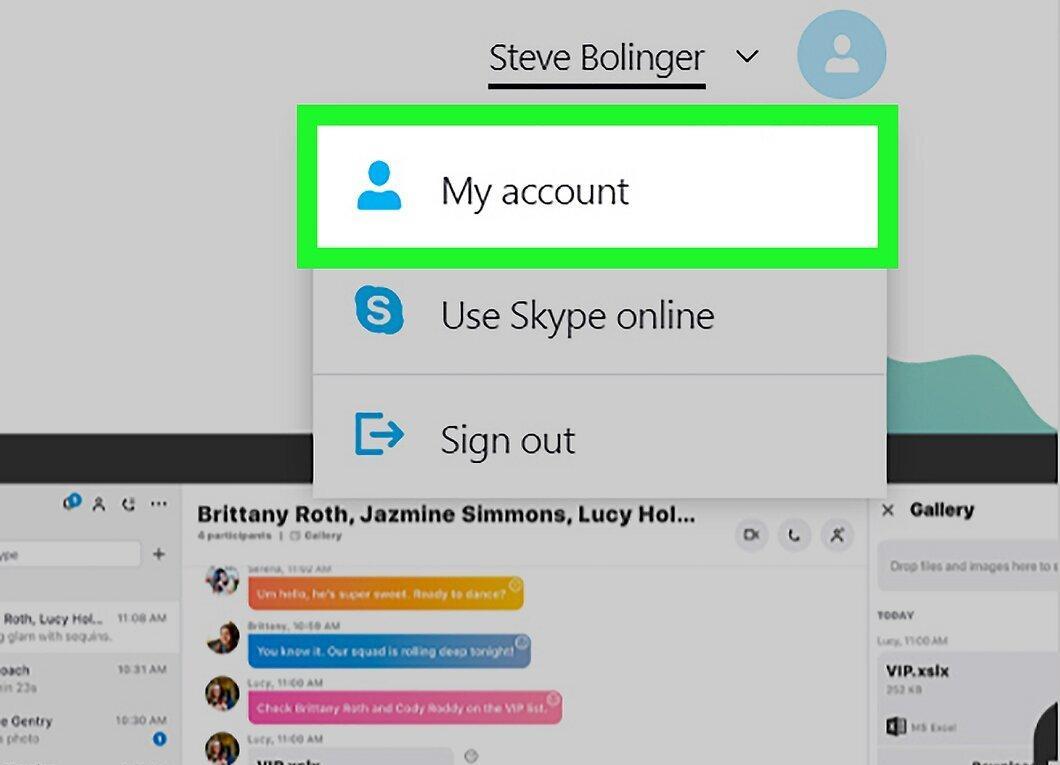
Select My Account. This option is located at the top of the dropdown menu.
Step 4. Scroll down and click Edit Profile
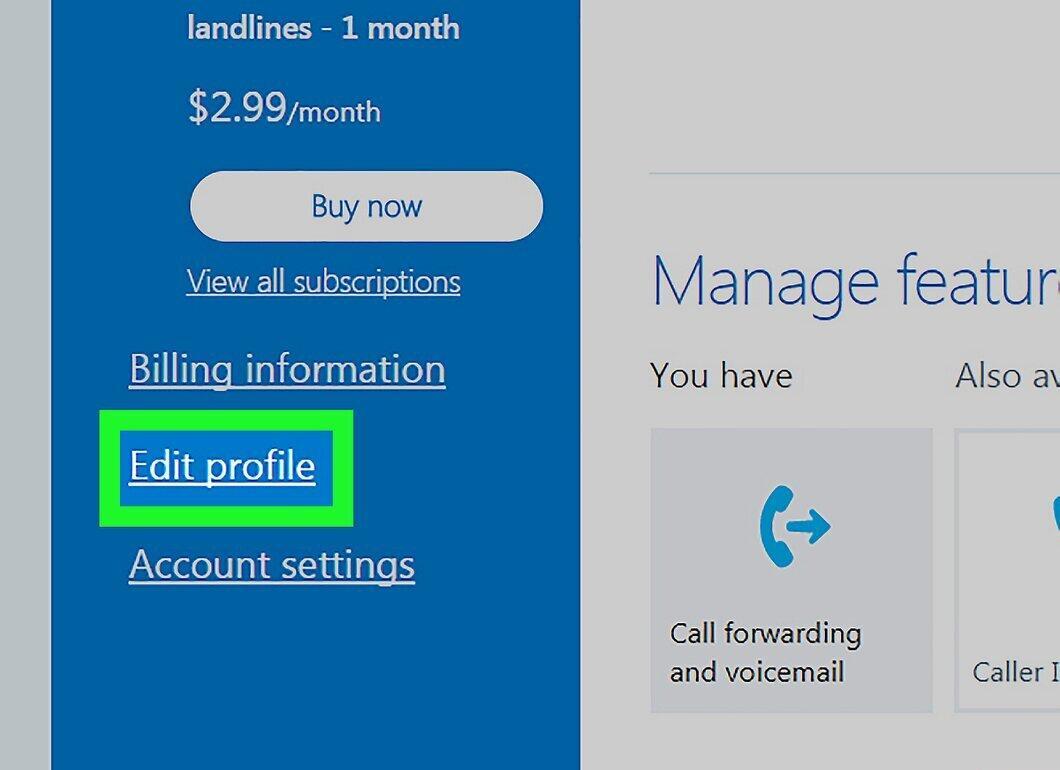
Scroll down and click Edit Profile. This option is located on the blue panel on the left side of the screen. Your profile page will open.
Step 5. Click Edit Profile
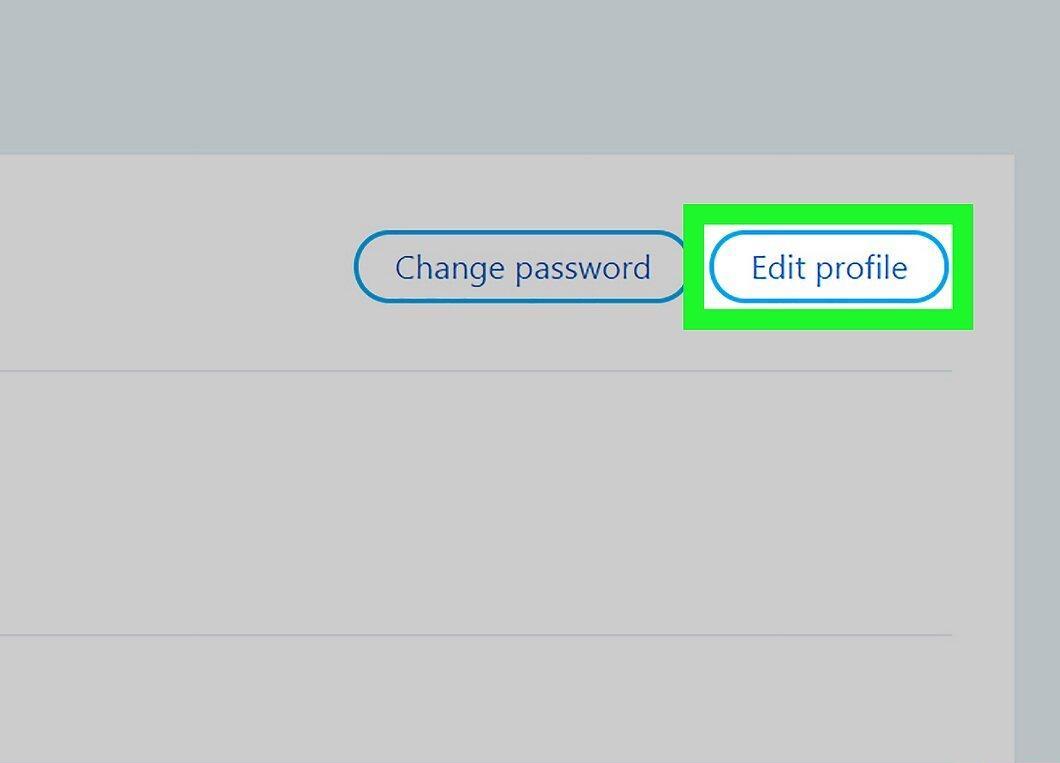
Click Edit Profile. This button is located at the top right of your profile page.
Step 6. Change your name.
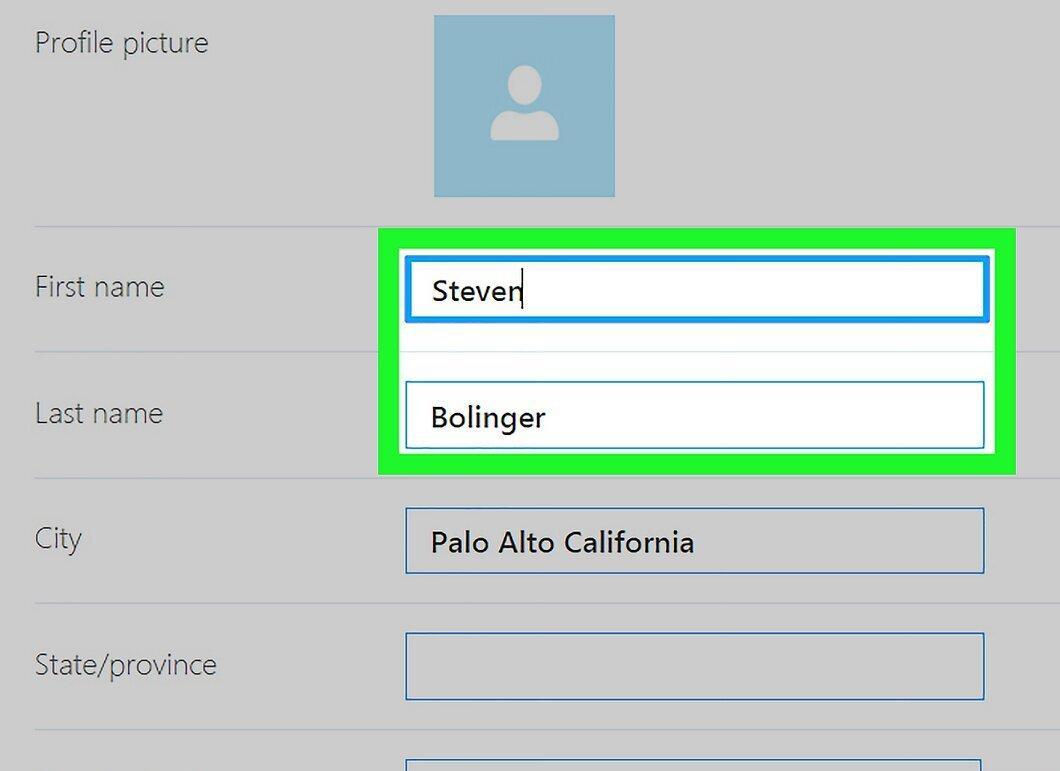
Change your name. Enter your new first and/or last name in the appropriate fields at the top of the "Personal Information" section.
Step 7. Click Save

Click Save. This is the green button at the top right corner of the screen. Your new name will be saved, and you will see it when you restart Skype (with an internet connection).
On Mobile Devices
Step 1. Open the Skype app.

Open the Skype app by tapping the white "S" icon on a blue background. The main Skype page will open if you are already logged in.
- If you haven't logged in to Skype yet, enter your email address (or username or phone number) and password.
Step 2. Tap on your profile picture.

Tap on your profile picture. This is the round image at the top of the screen. A profile menu will open.
Step 3. Tap the Edit icon next to your name.
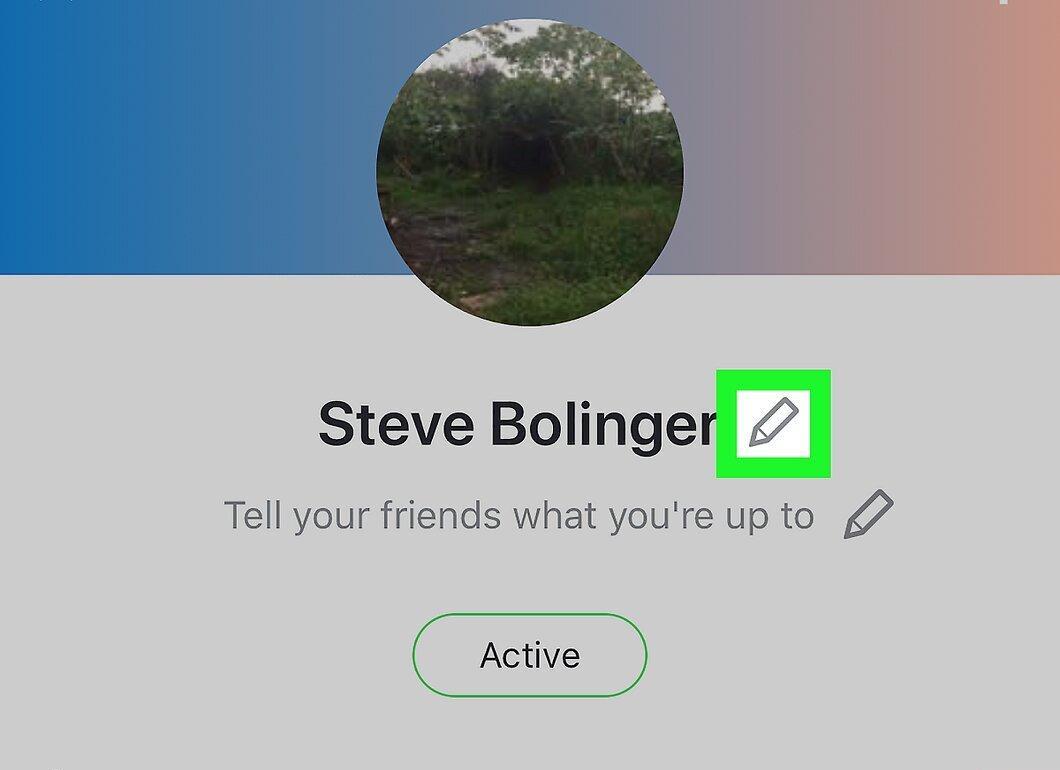
Tap the Edit icon next to your name. You will find this pencil icon at the top of the screen.
- On Android devices, you may need to tap the gear icon first.
Step 4. Change your name.
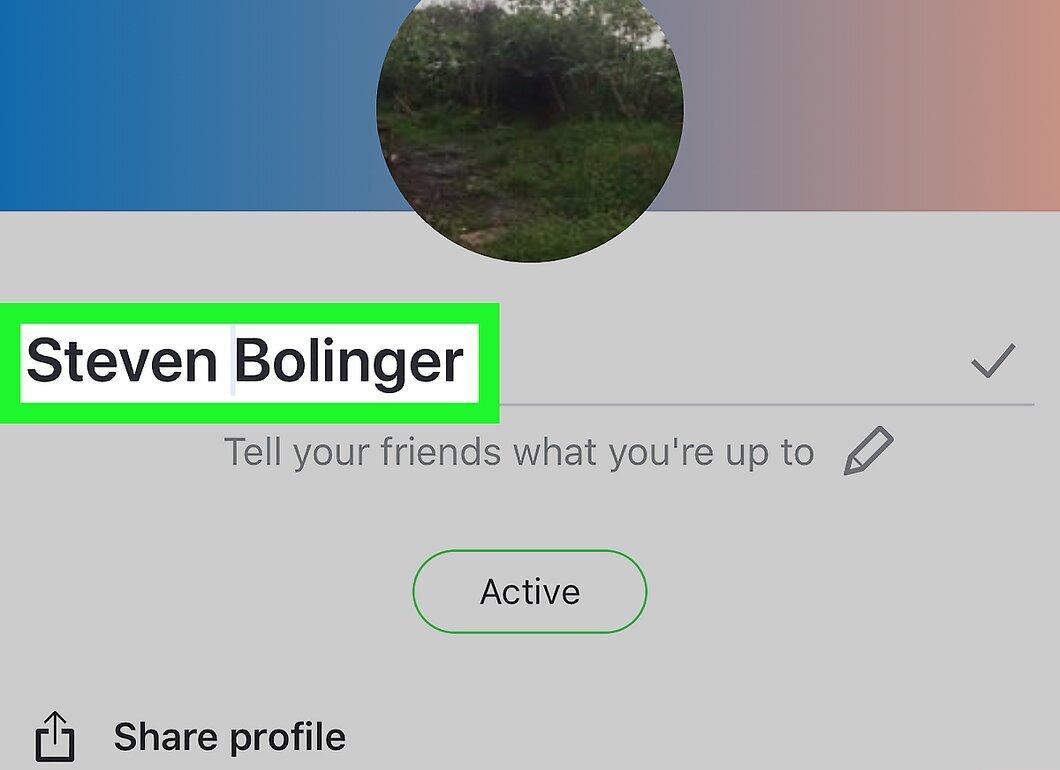
Change your name. Enter your new name using the on-screen keyboard.
Step 5. Tap the checkmark.
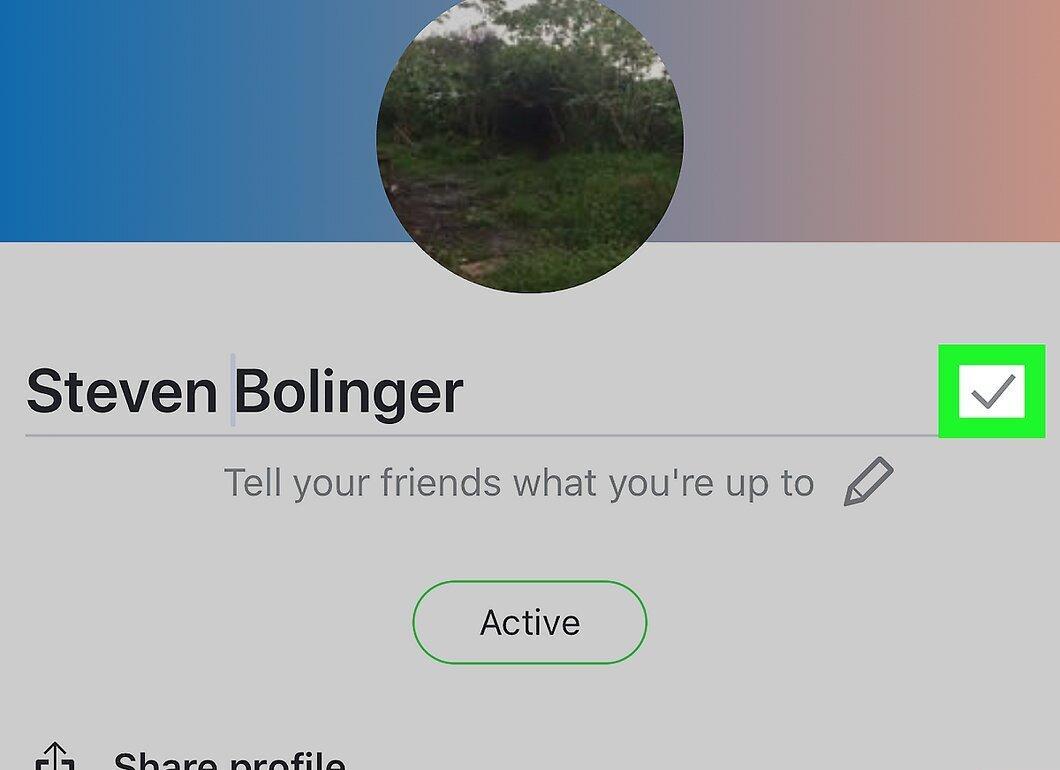
Tap the checkmark. This icon is located to the right of your name. Your new name will be saved and will appear on all devices, including your computer.


