
You may want to change the password on your Netgear router due to a security breach or simply to update it. If you've forgotten your Netgear password, follow the instructions in this article to reset your router to factory settings and change the password. By following one of the methods below, you can change the password of your Netgear wireless router.
Changing the Password on Netgear Genie Routers
Step 1. Open a browser on your computer.
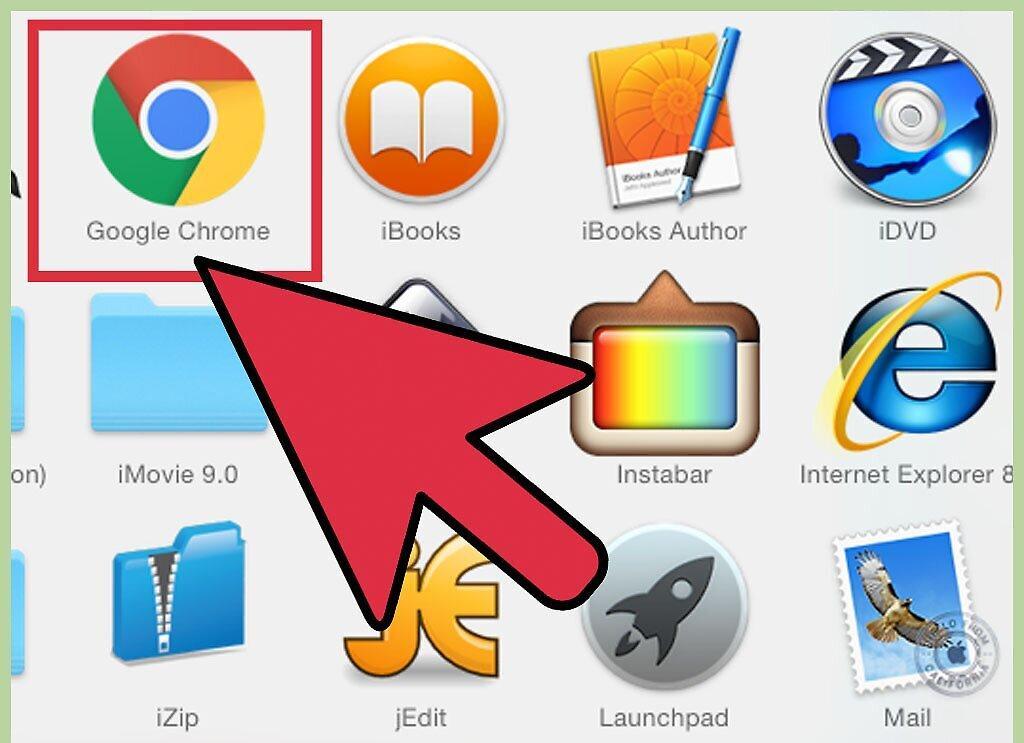
Step 2. Enter one of the following URLs in the address bar:
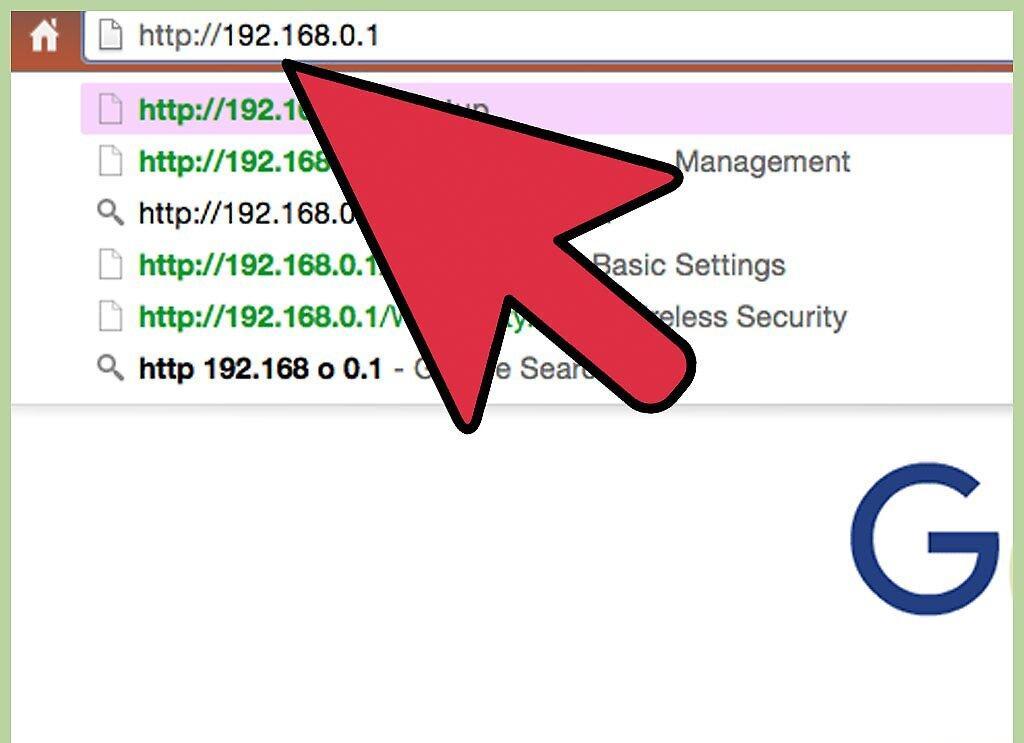
Type one of these URLs into the address bar: "http://www.routerlogin.net," "http://www.routerlogin.com," "http://192.168.1.1," or "http://192.168.0.1."
- If you have changed your router's URL, enter it.
Step 3. Enter your current username and password in the appropriate fields.
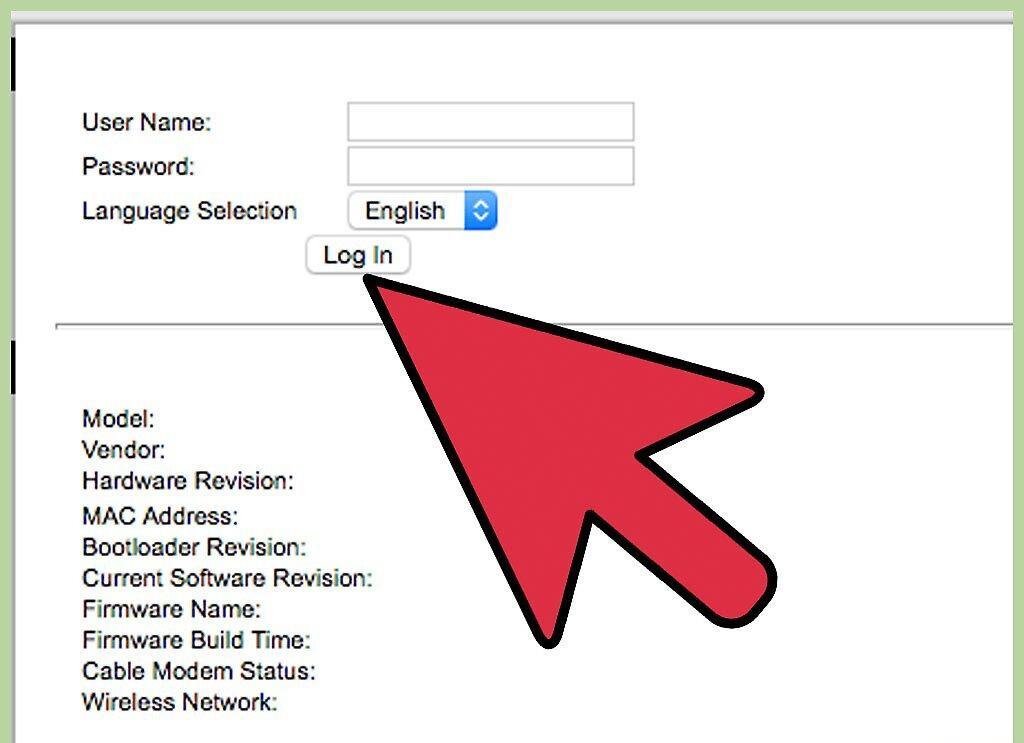
Enter your current username and password in the appropriate fields. The default username and password for your Netgear Genie router are "admin" and "password." The Netgear Genie user interface will appear on your screen.
Step 4. Click on the "Advanced" tab and then select "Setup" on the left side of the window.
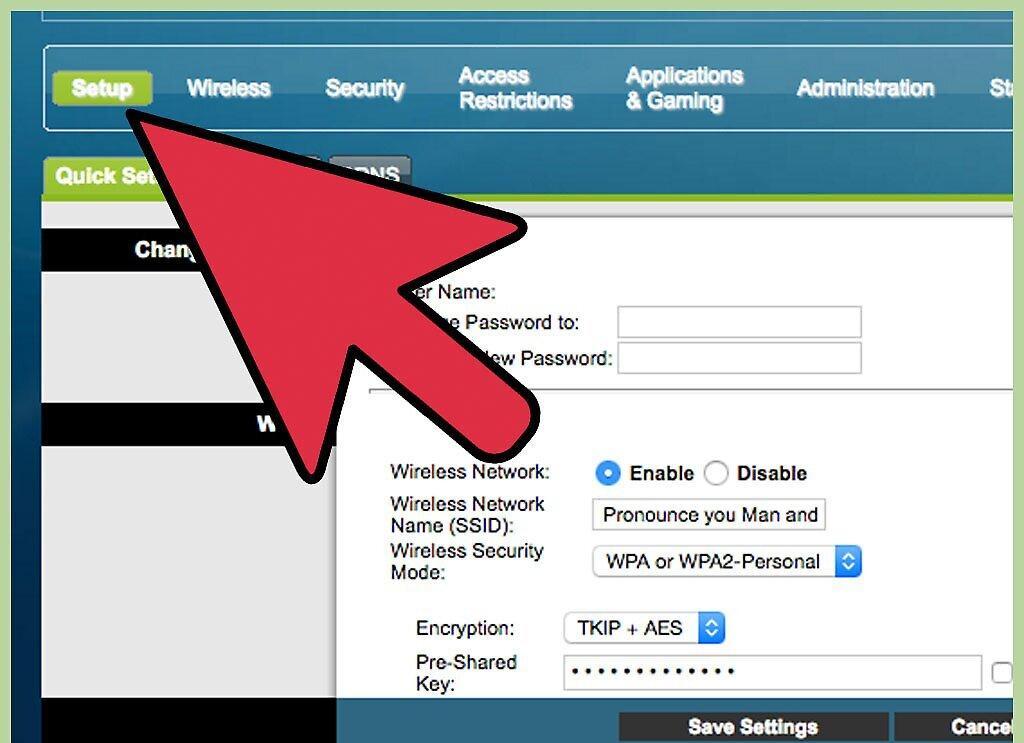
Step 5. Click on “Wi-Fi Settings.”
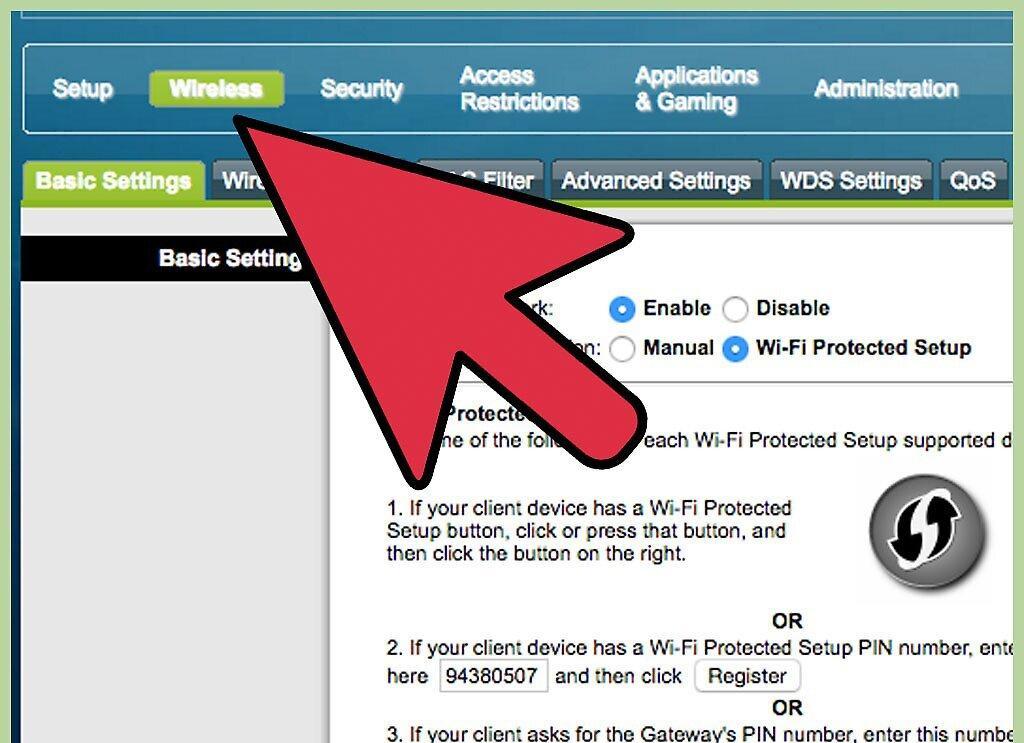
Click on “Wi-Fi Settings.”
Step 6. In the “Passphrase” field under the “Security Options” section, delete the current password.
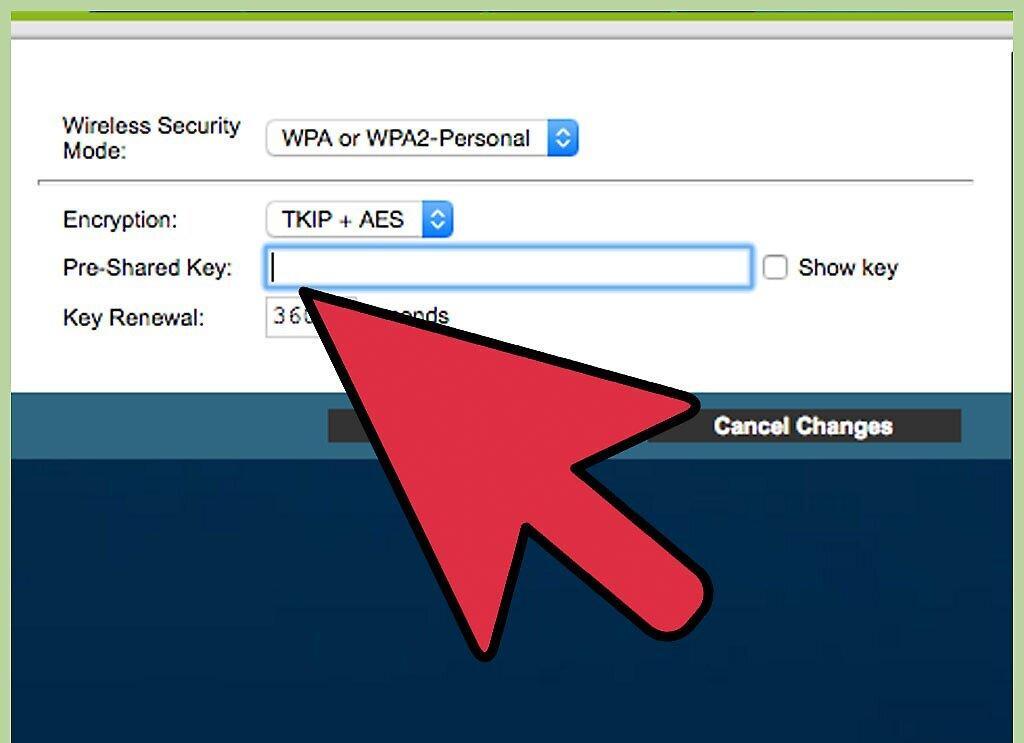
Step 7. Enter a new password, then click "Apply" at the top of the Wi-Fi settings window.
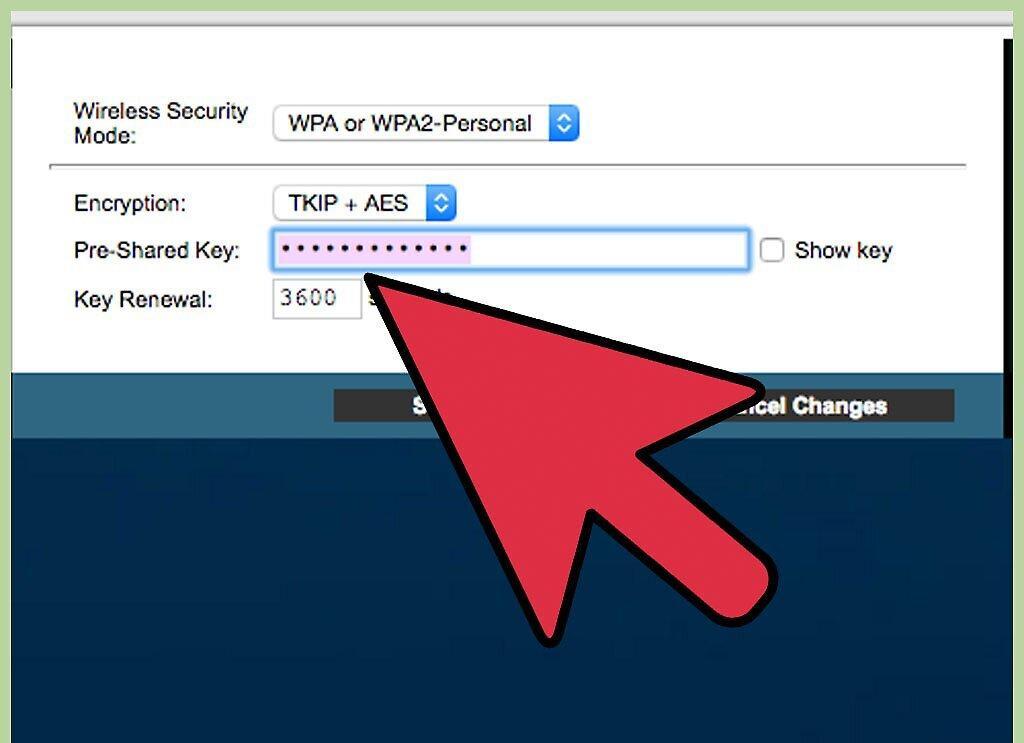
Enter a new password, then click "Apply" at the top of the Wi-Fi settings window. You have now changed the Wi-Fi password for your Netgear Genie router.
- If you have a dual-band router operating on both 2.4GHz and 5GHz, you'll need to change the password in each corresponding field in the “Security Options” section.
Step 8. Log out of the Netgear Genie interface.
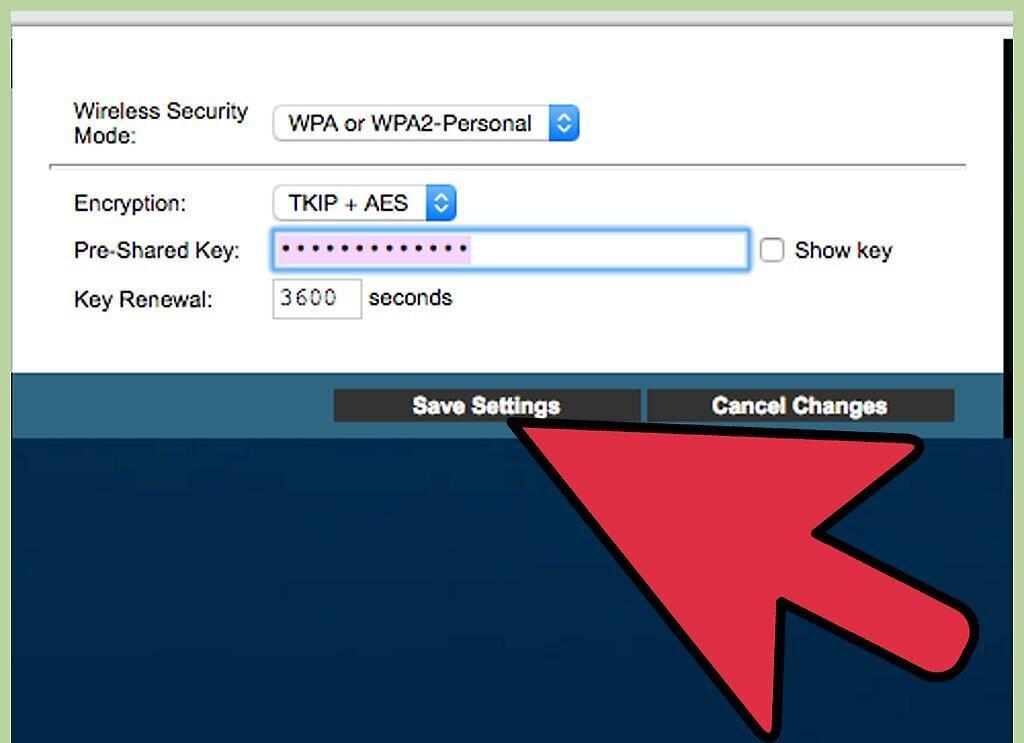
Log out of the Netgear Genie interface. If wireless devices were connected to the router, re-enter the new password to reconnect them.
Changing the Password on Older Netgear Routers
Step 1. Open a browser on your computer.
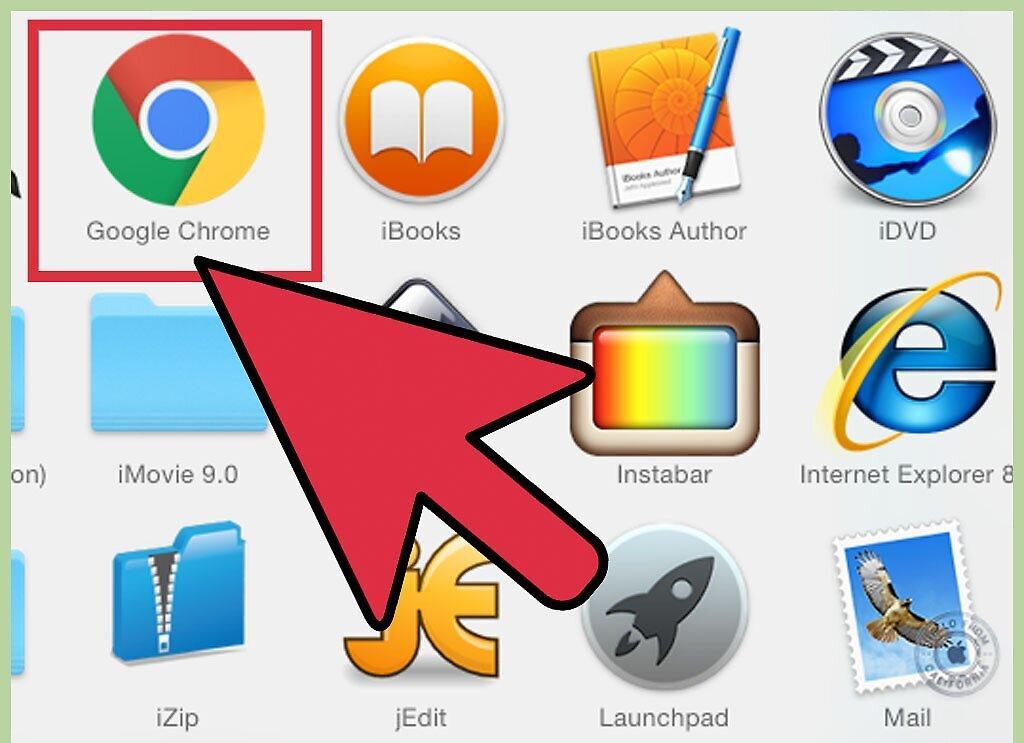
Step 2. Enter one of the following URLs in the address bar:
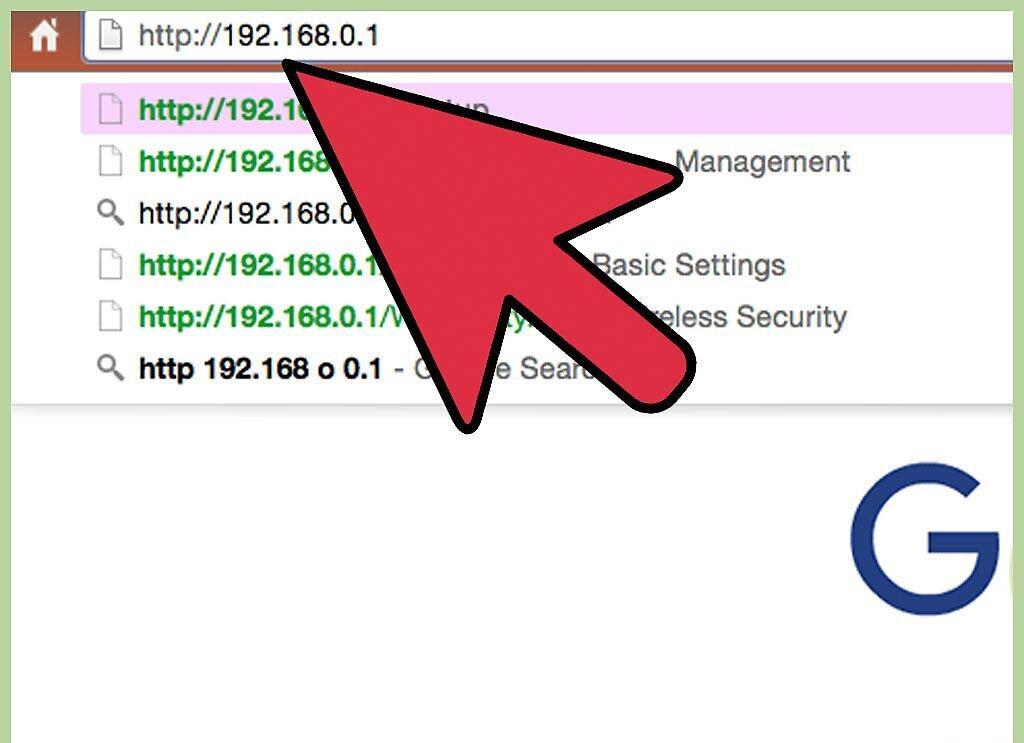
Type one of these URLs into the address bar: "http://www.routerlogin.net," "http://www.routerlogin.com," "http://192.168.1.1," or "http://192.168.0.1."
- If you have changed your router's URL, you need to enter it.
Step 3. Enter your current username and password for your router in the appropriate fields.
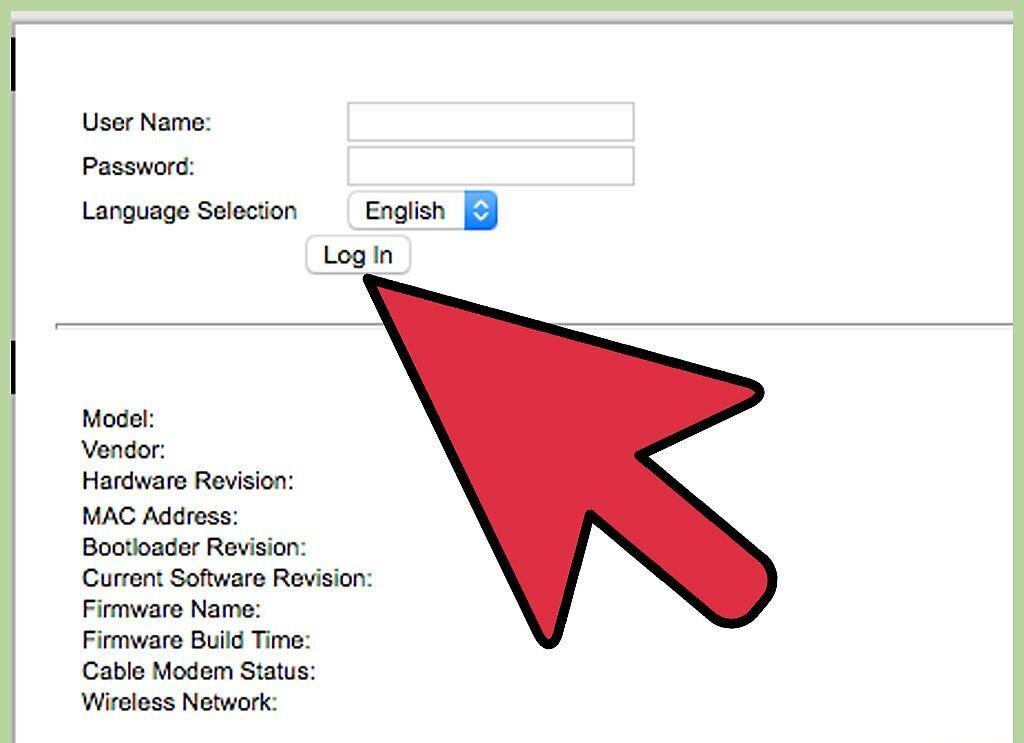
Enter your current username and password for your router in the appropriate fields. The default username and password for Netgear routers are "admin" and "password." The SmartWizard program for your Netgear router will appear on the screen.
Step 4. Click on “Wireless Settings” located under “Setup” on the left side of SmartWizard.
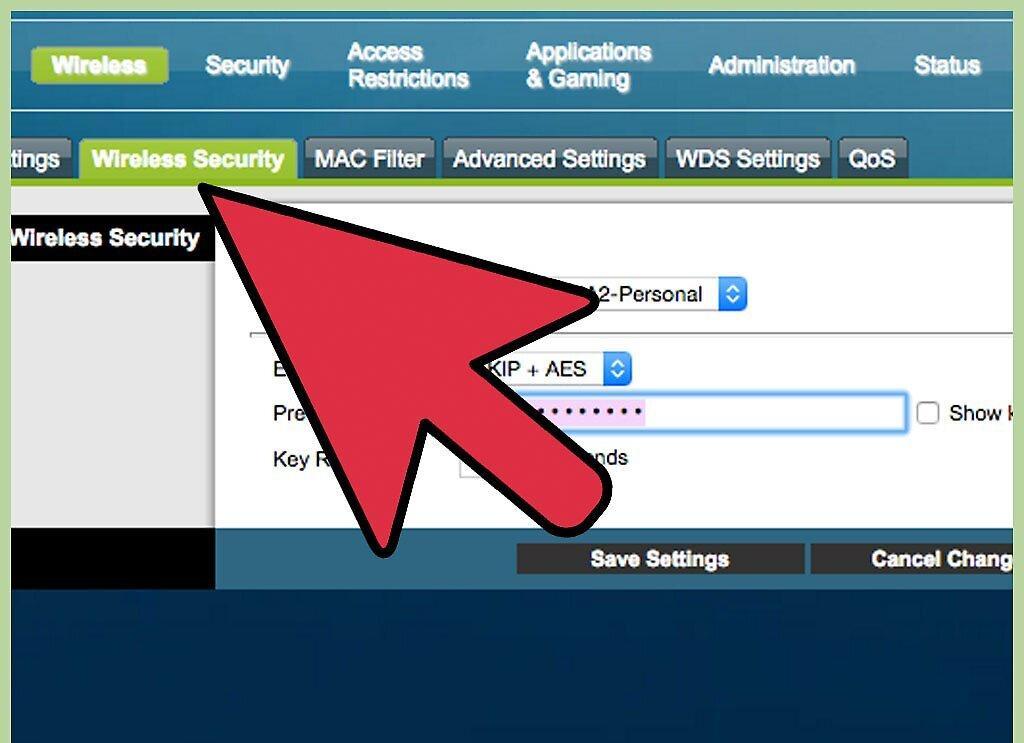
Step 5. In the “Passphrase” field located under the “Security Options” section, delete the current password.
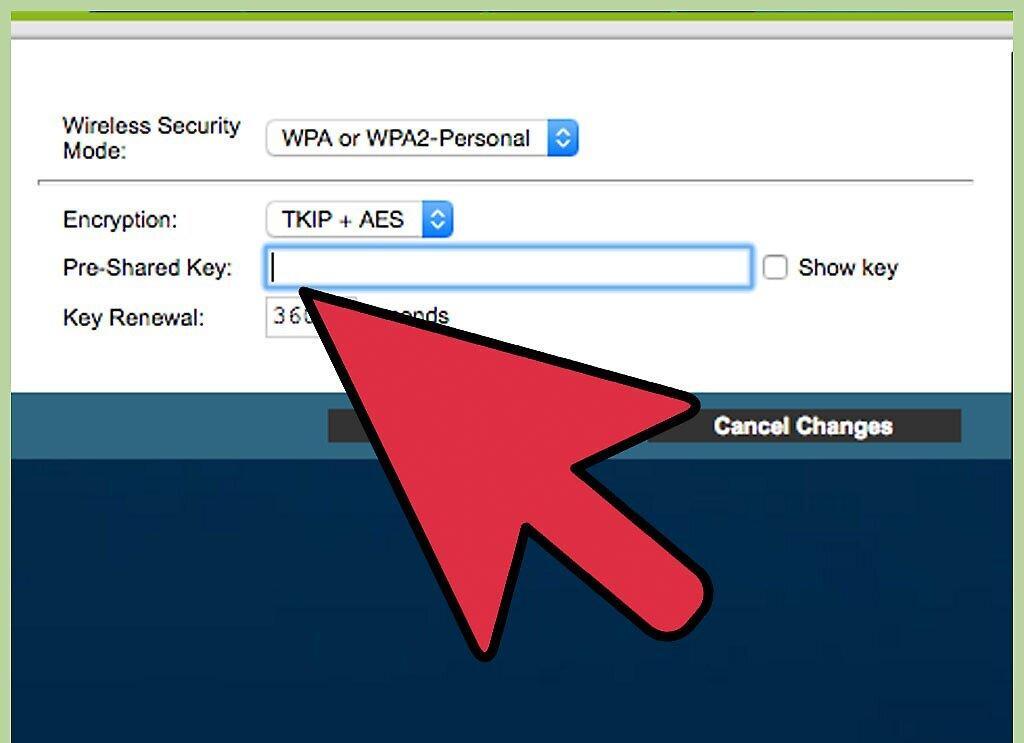
Step 6. Enter a new password in the “Passphrase” field.
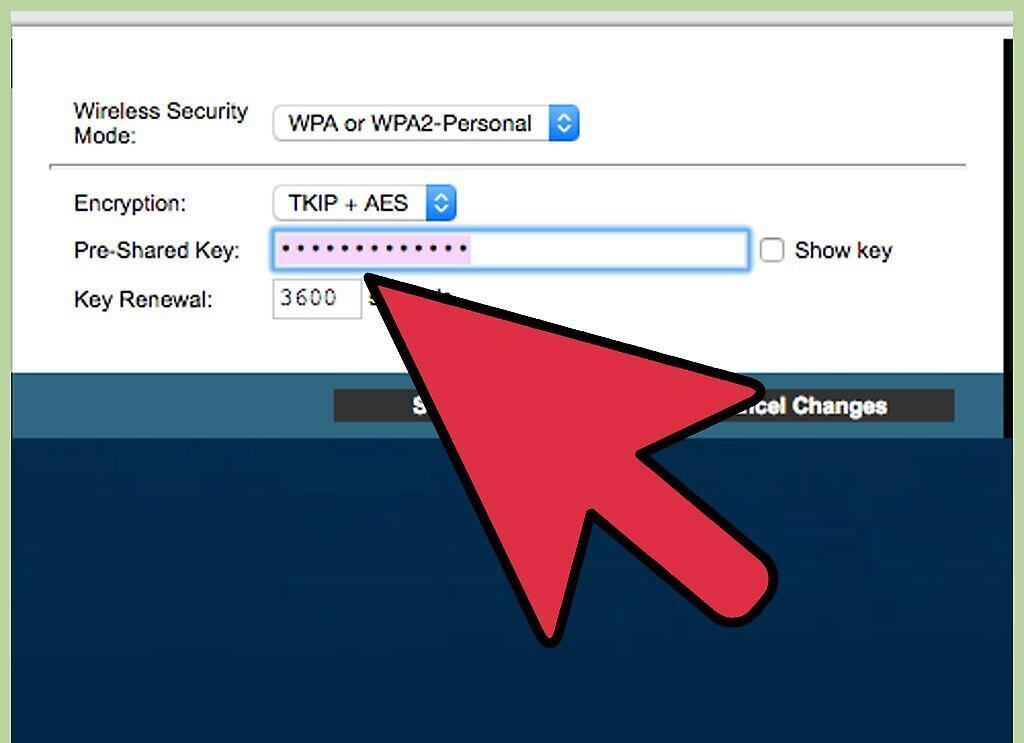
Step 7. At the bottom of the window, click on the “Apply” button and then click “Logout.”
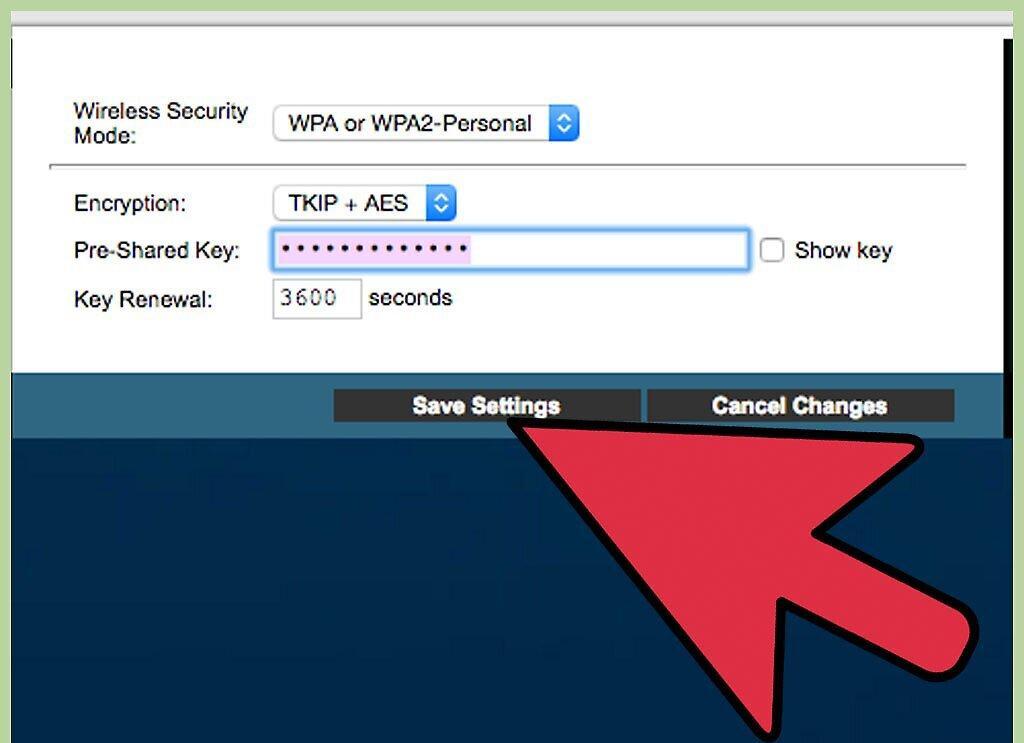
At the bottom of the window, click on the “Apply” button and then click “Logout.” Your Netgear router password has been changed.
Resetting Your Netgear Router to Factory Settings
Step 1. Look for the “Reset” or “Restore Factory Settings” button on your Netgear router.
Look for the “Reset” or “Restore Factory Settings” button on your Netgear router. Sometimes, this button may not be labeled and is recessed into the router's casing.
Step 2. Press it with your finger or a thin object, such as a paperclip.
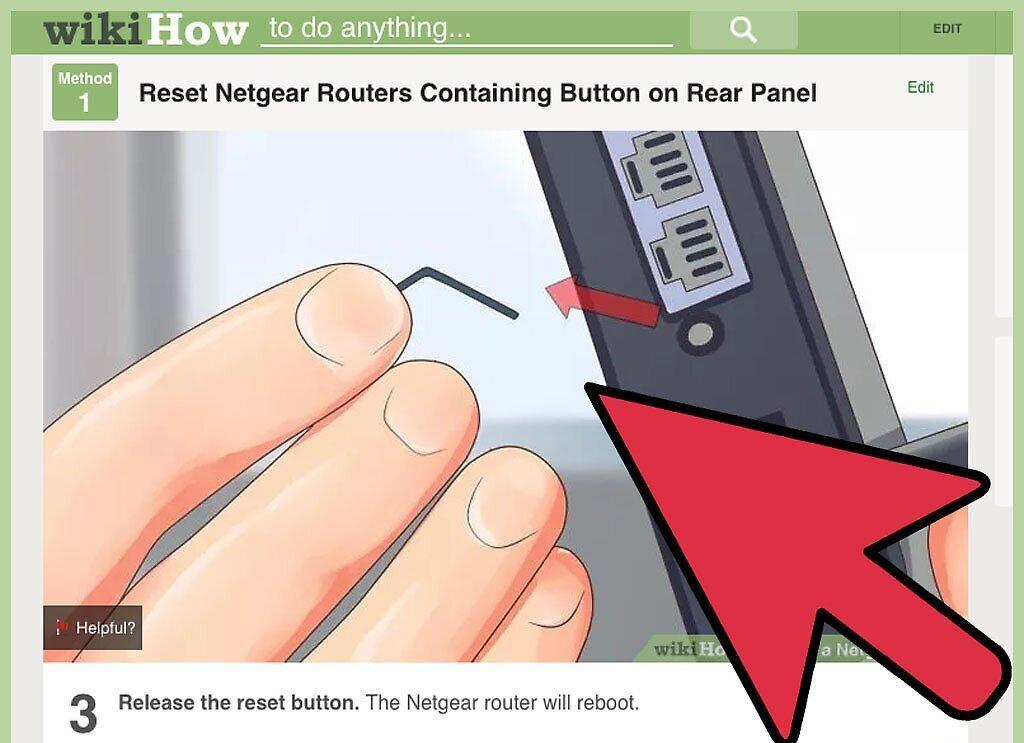
Step 3. Hold the button until the “Power” or “Test” LED starts blinking.
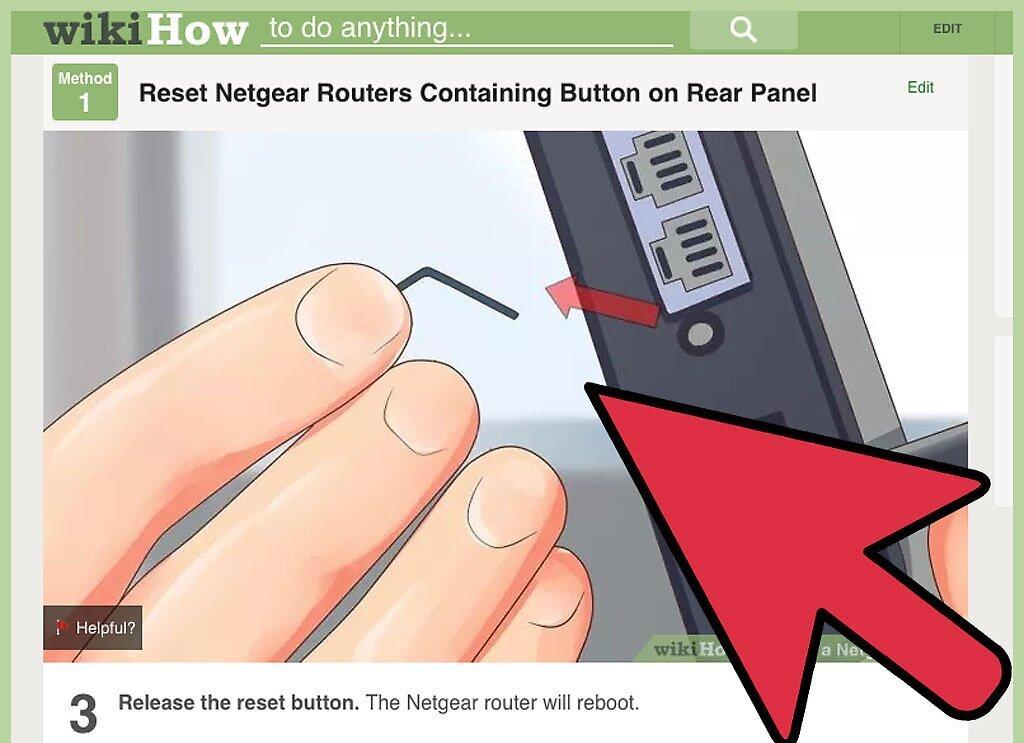
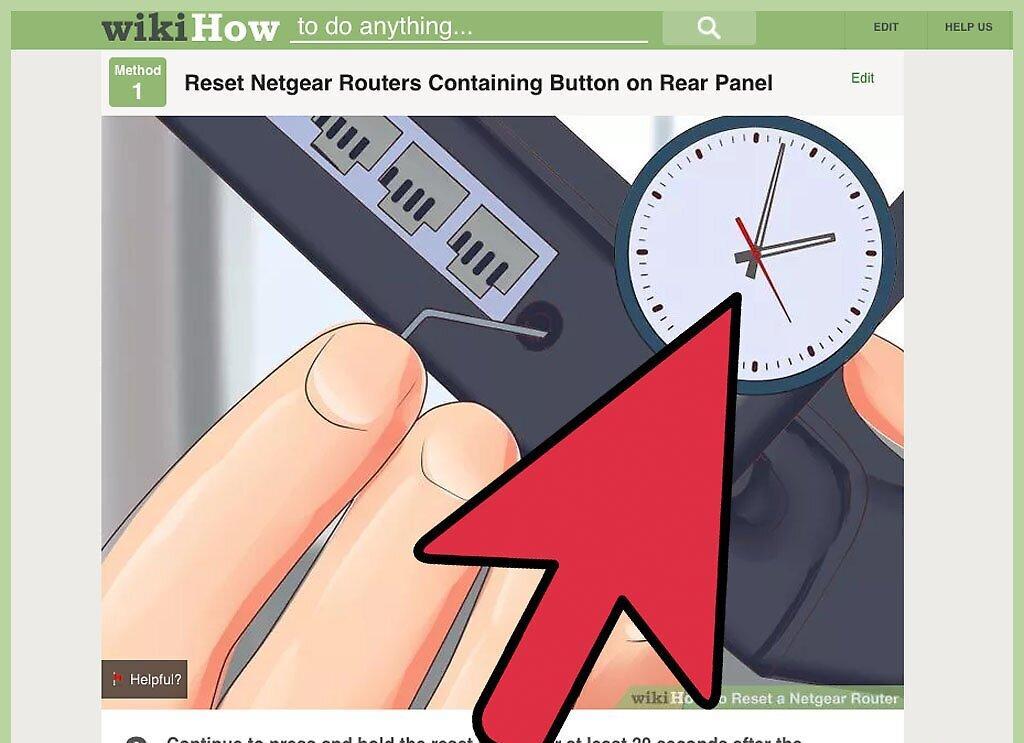
Do not release the button until the “Power” or “Test” LED starts blinking. This should take about 20 seconds.
Step 4. Wait for the router to fully reboot.
Step 5. Log into the router using the default password - “password.”
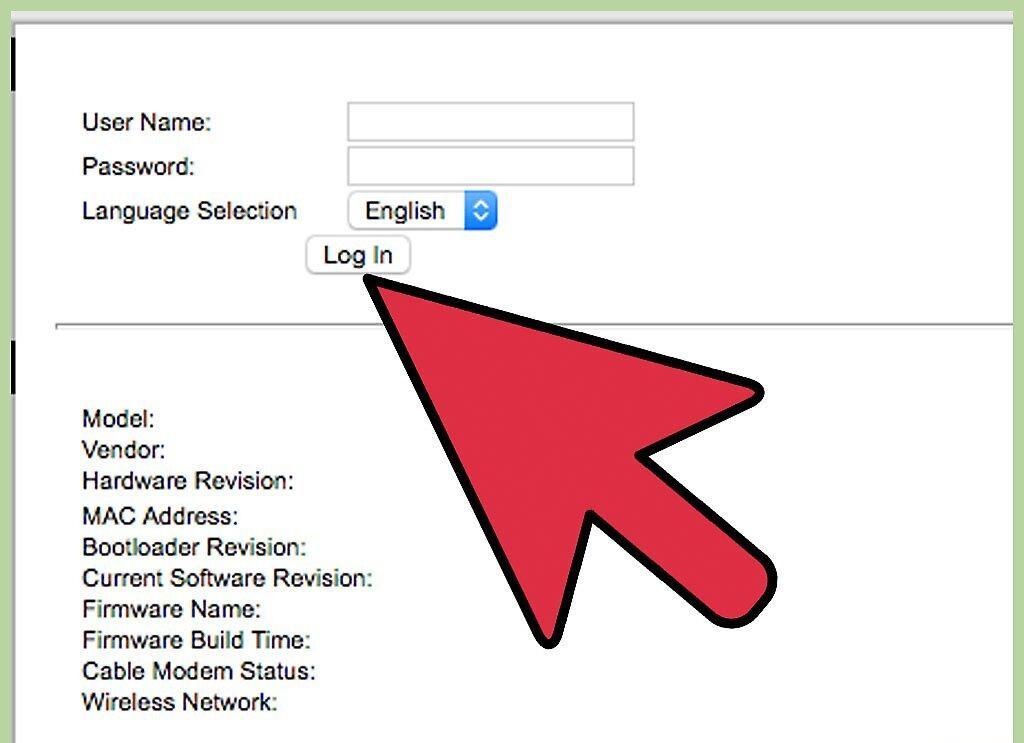
Log into the router using the default password - “password.” Now you can change the password using one of the methods outlined in this article.
- If the procedure in this guide doesn’t work the first time, unplug the router, press the "reset" button, and plug the router back in while holding down the button, then follow the remaining steps for this method.


