
If you’ve been using Windows XP for a while, you may have noticed that your system takes longer to boot up. This is due to an increasing number of programs that add themselves to the startup list, and they all need to load before you can start using your computer. Just follow the simple steps outlined below, and your computer will start up significantly faster!
Change Startup Programs Using MSConfig
Step 1. Open the Microsoft System Configuration Utility (MSConfig).
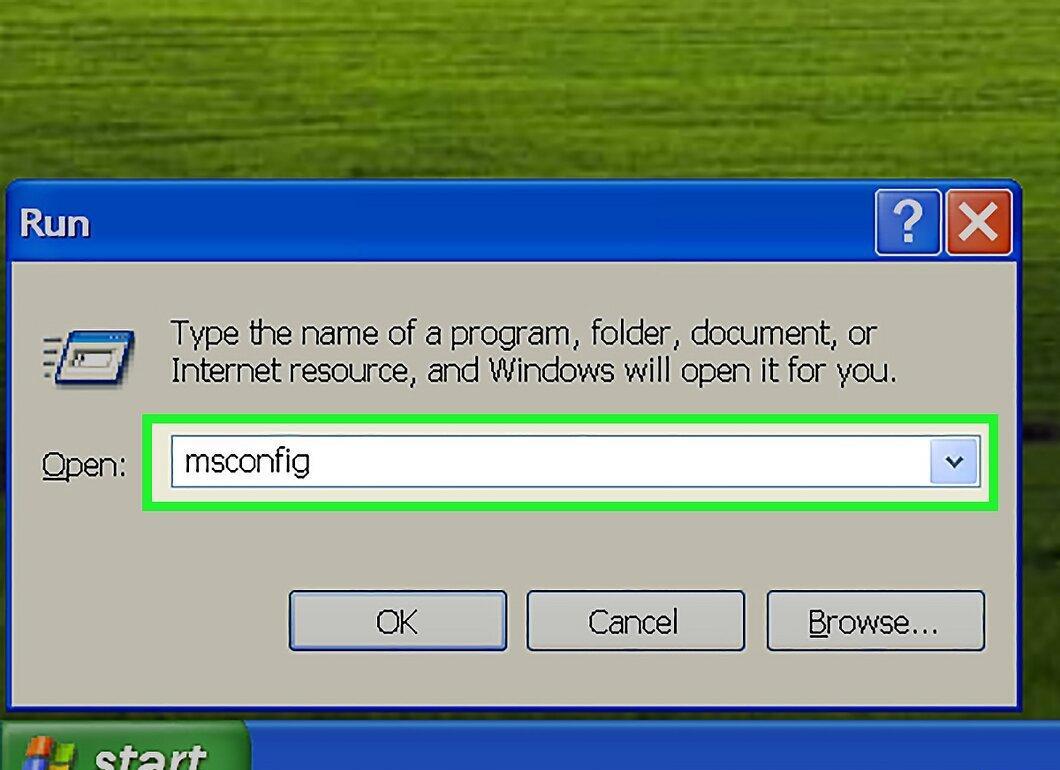
To open the Microsoft System Configuration Utility (MSConfig), click on "Start," then "Run..." and type msconfig. Press Enter to launch the program. A window like the one below should appear.
- Select the Startup tab.
- If "Run" is not in the Start menu, to add it, right-click on "Start" -> "Properties" -> "Start Menu" tab -> "Customize" -> "Advanced" -> enable the "Run" option -> "Apply" -> "OK".
Step 2. Click on the "Startup" tab.
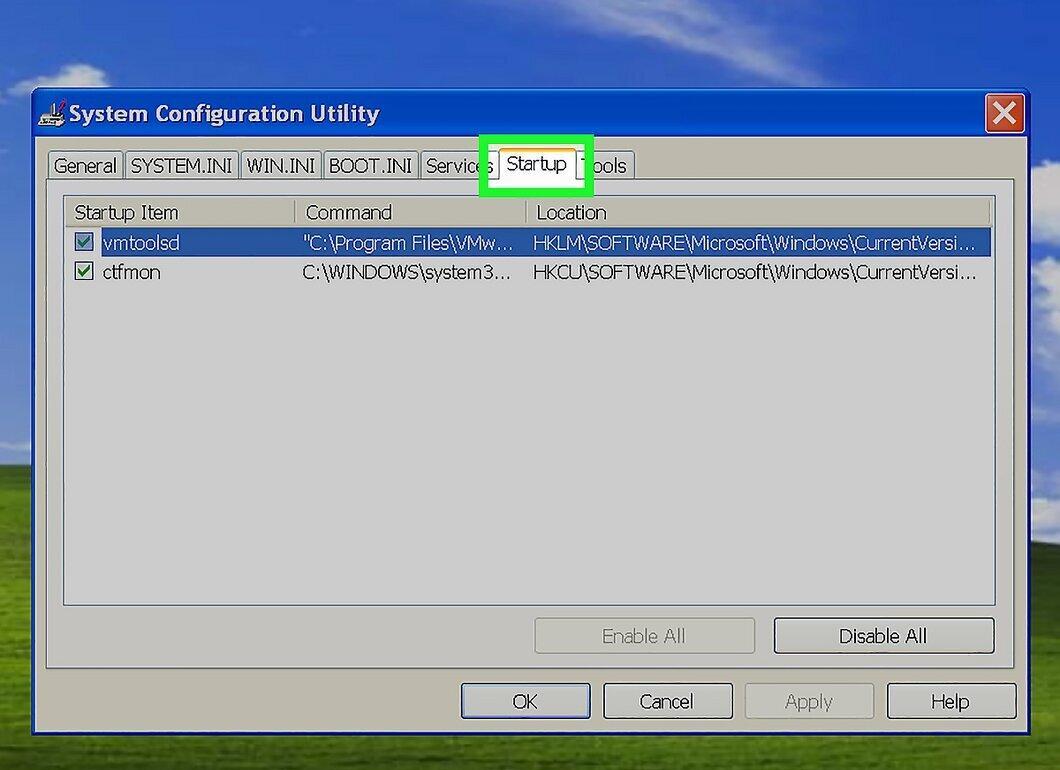
Click on the "Startup" tab. Here you will see a list of programs similar to the one shown below:
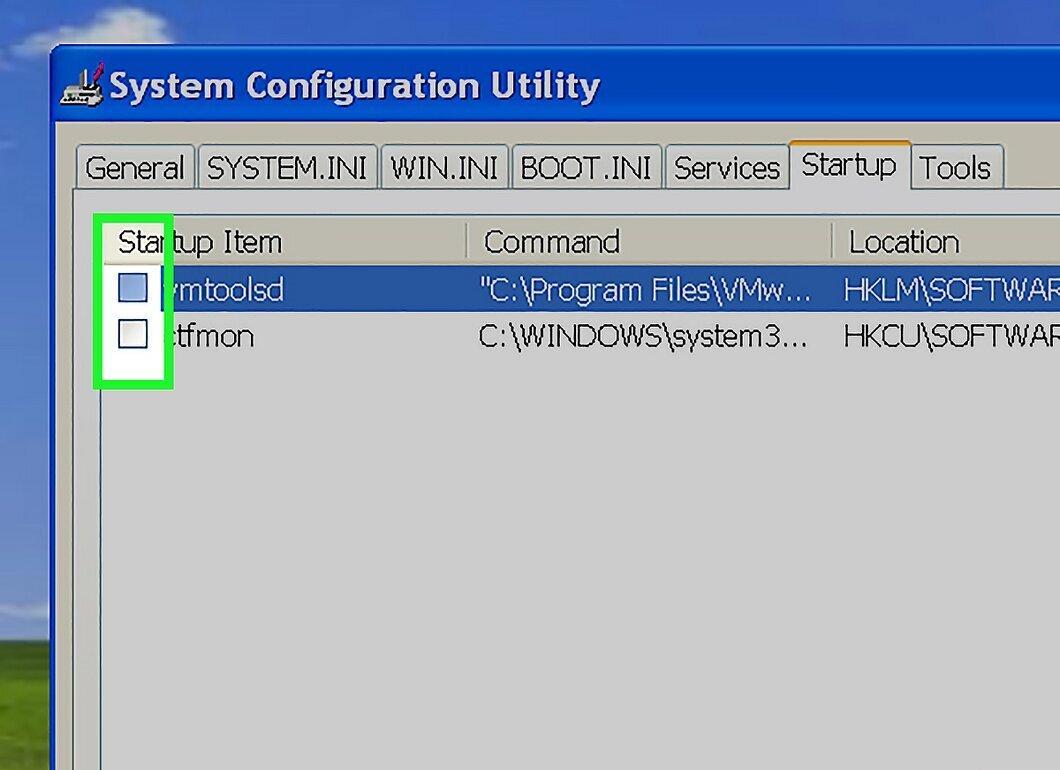
Step 3. Uncheck the programs you do not want Windows to start automatically.
Step 4. Click "OK."
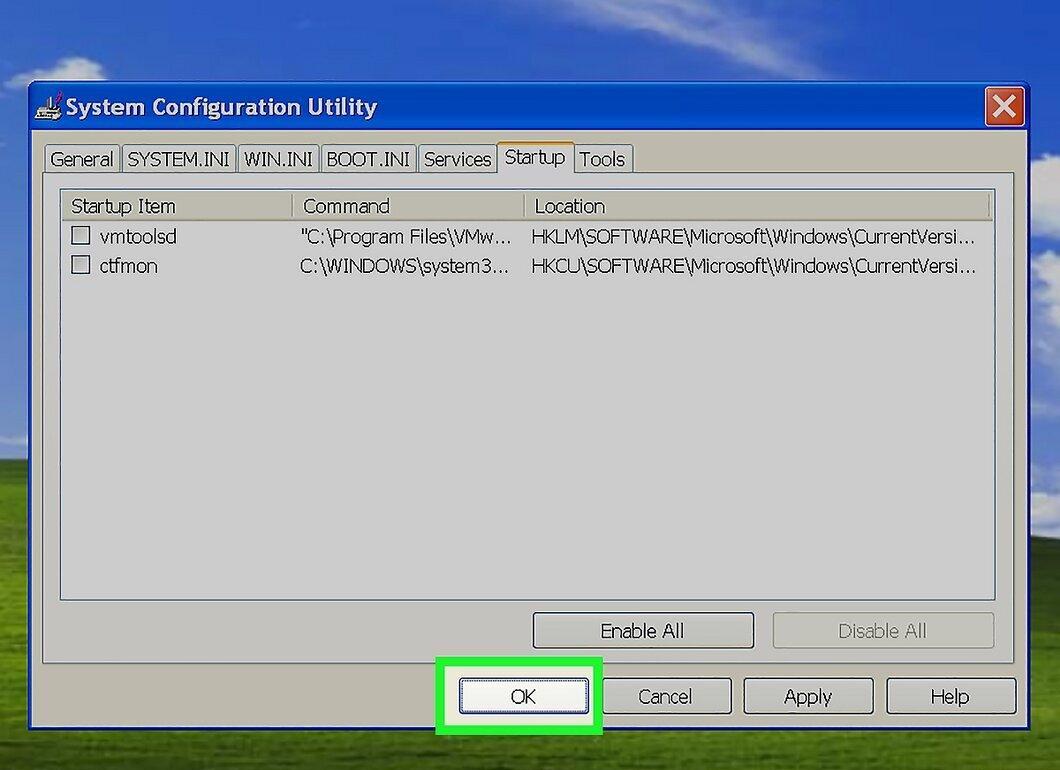
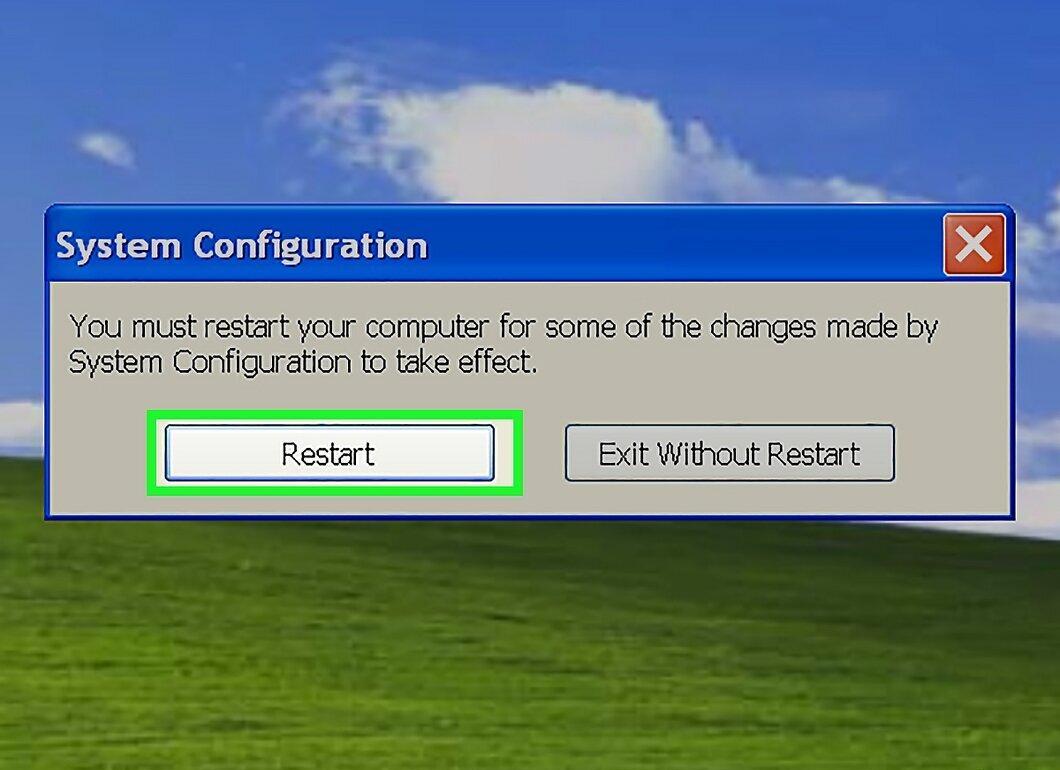
Click "OK." A new window will pop up asking if you want to restart your computer.
Step 5. Click "Restart."
Change Startup Programs Using Windows Defender
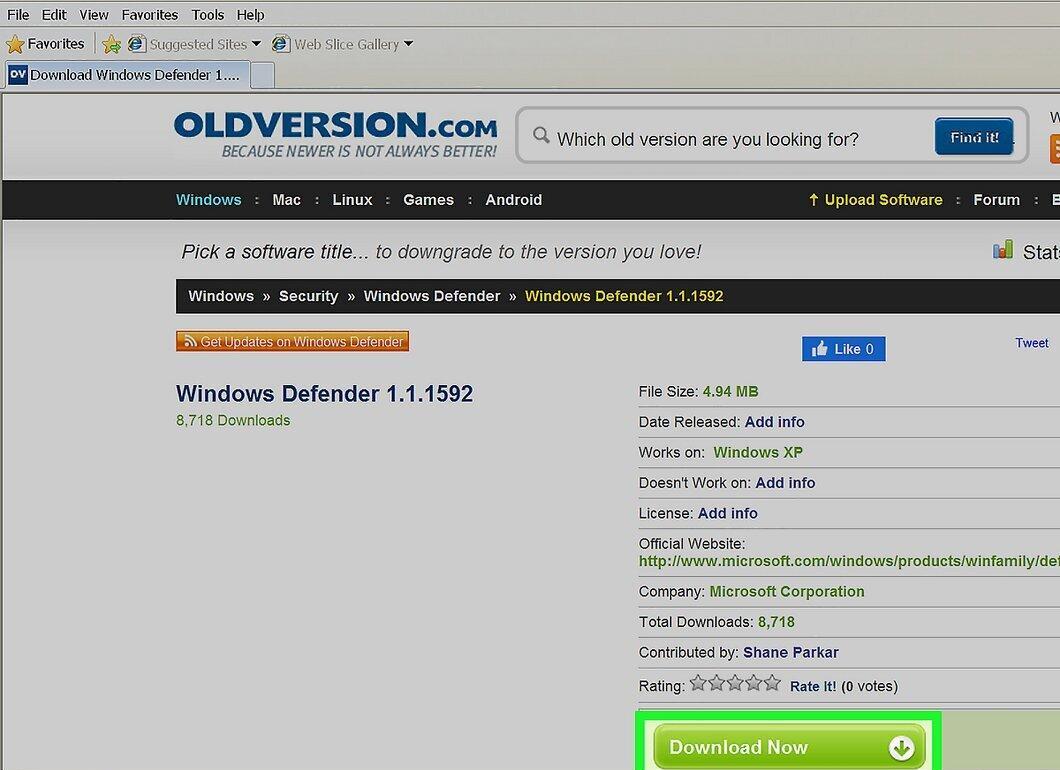
Step 1. Download Windows Defender from the Microsoft website.
Step 2. Click the "Start" button.
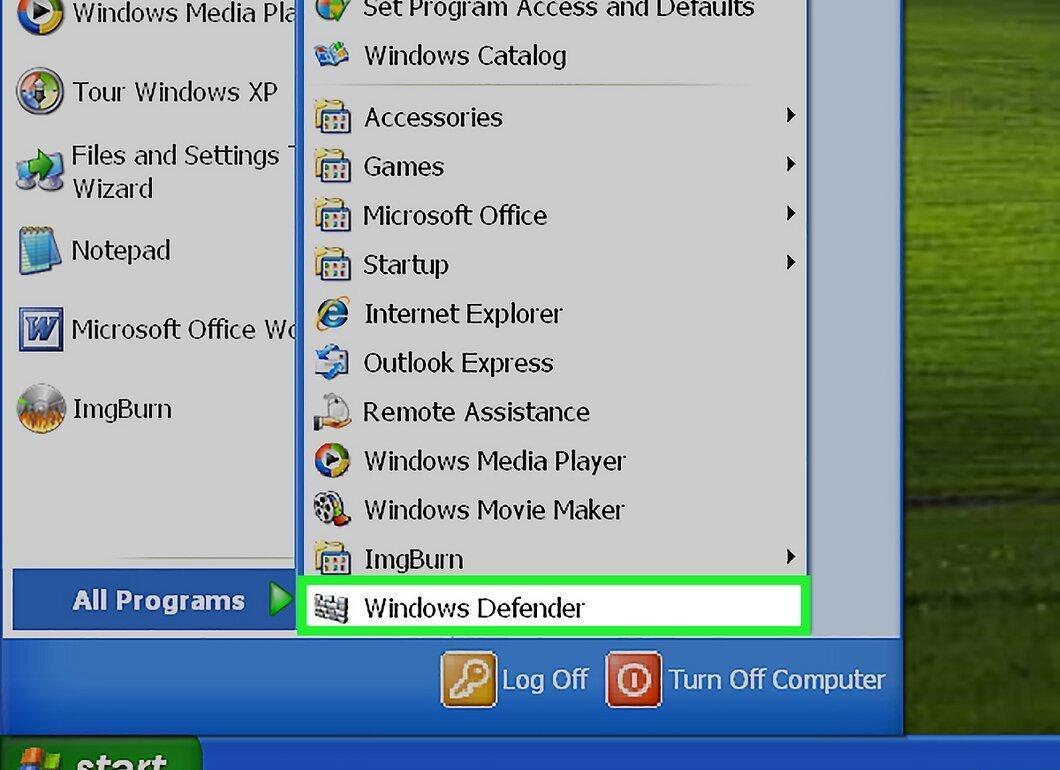
Click the "Start" button. Select "All Programs" and find "Windows Defender" in the list.
Step 3. Select "Tools and Program List."
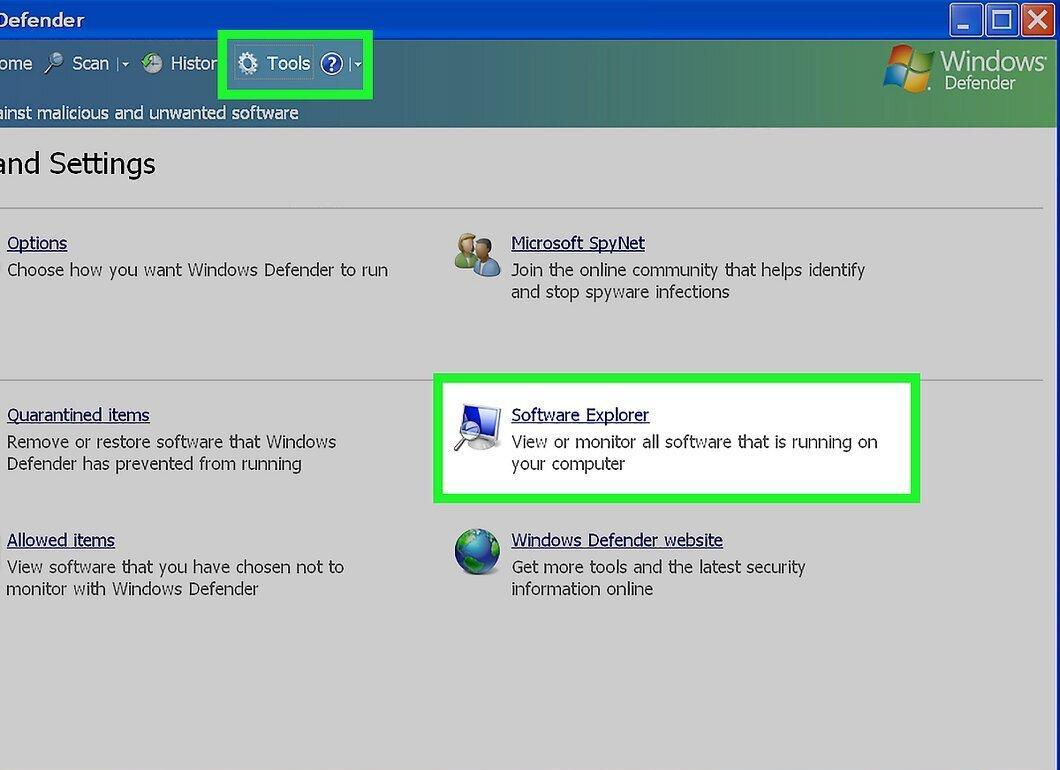
Step 4. Click on the program names in the "Name" column that you want to disable from starting automatically.
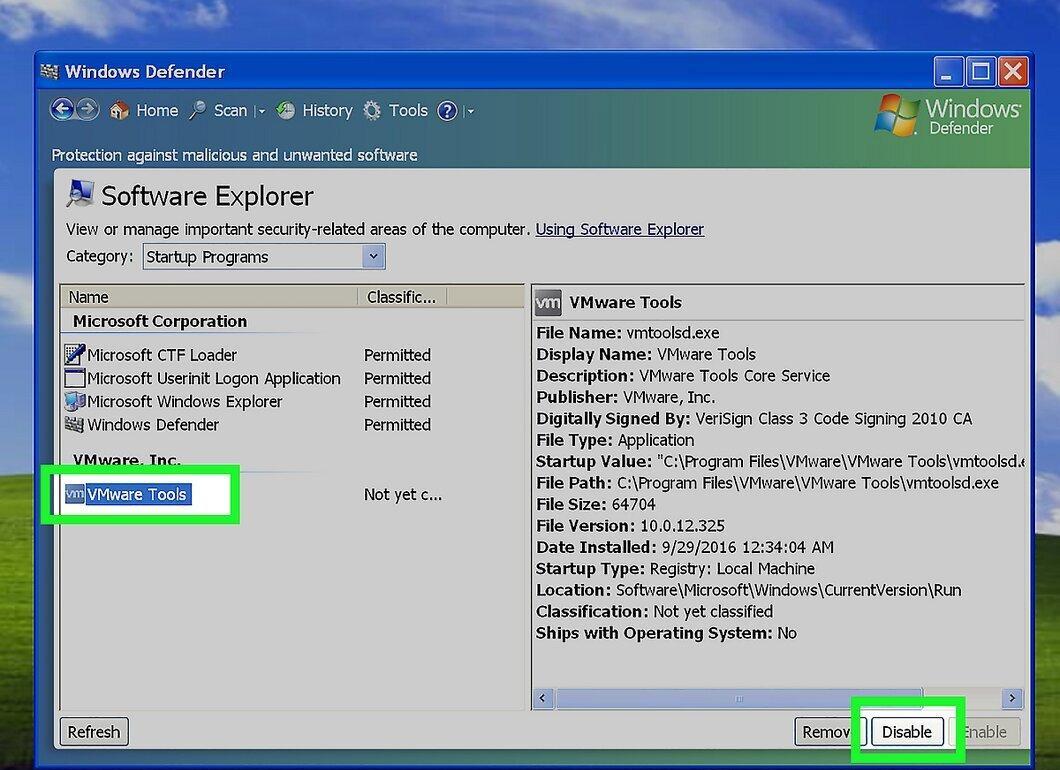
Click on the program names in the "Name" column that you want to disable from starting automatically. Once you finish selecting, click "Disable."
Change Startup Programs Using the Registry Editor
Step 1. Open the Start menu and click "Run."
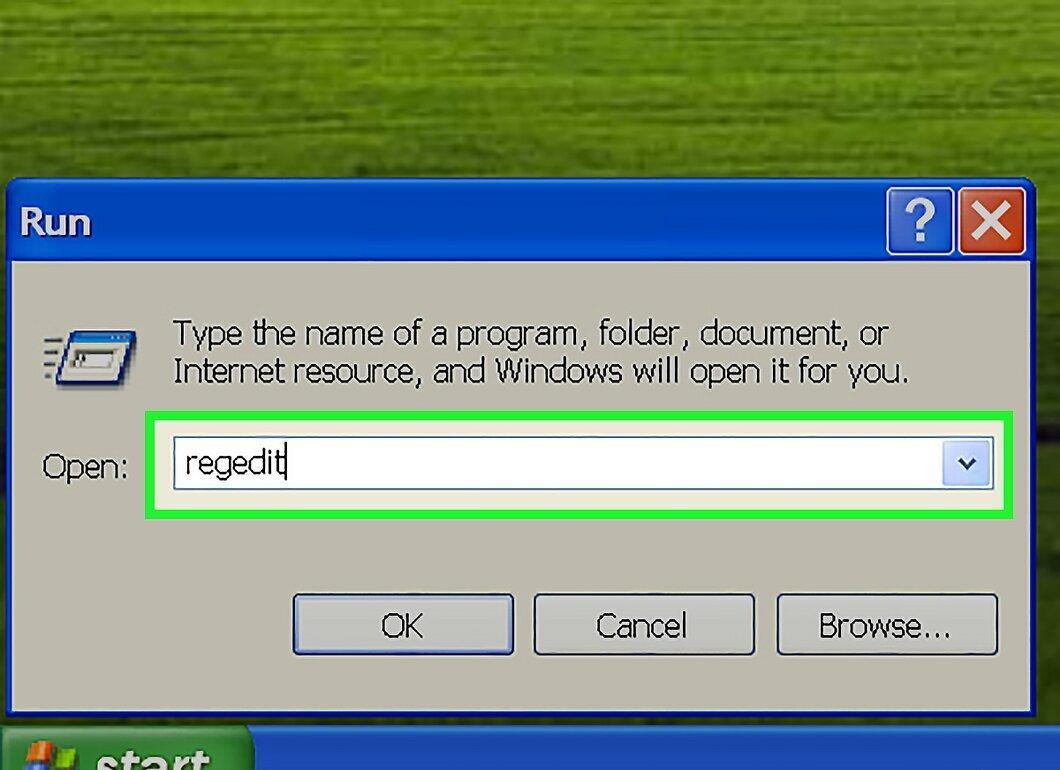
Open the Start menu and click "Run." Type regedit in the empty field and press Enter.
Step 2. Locate one of the following registry keys:
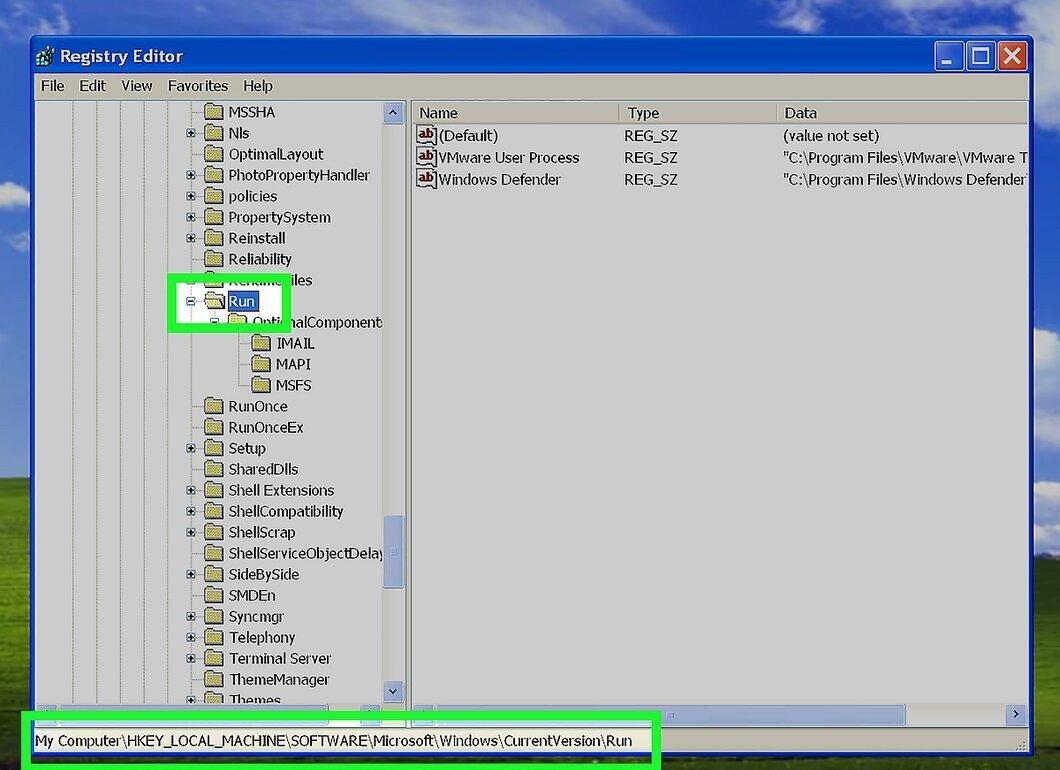
- HKEY_LOCAL_MACHINE\SOFTWARE\Microsoft\Windows\CurrentVersion\Run
- HKEY_LOCAL_MACHINE\SOFTWARE\Microsoft\Windows\CurrentVersion\RunOnce
Step 3. Find the program you want to remove from the startup process.
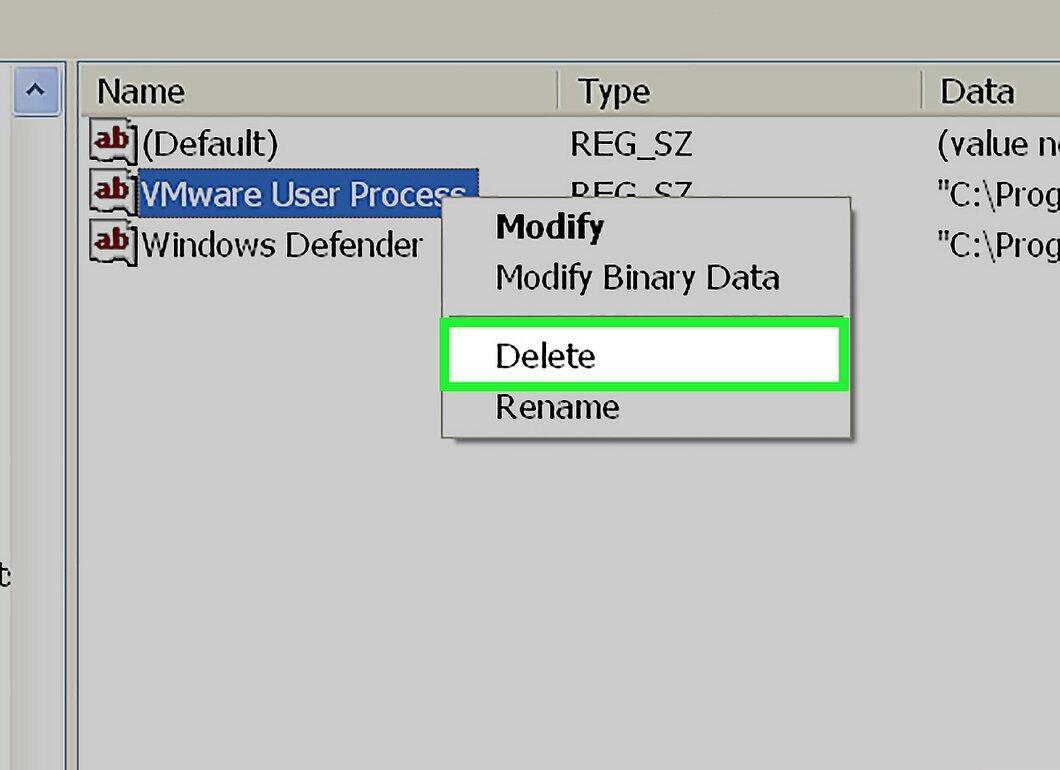
Find the program you want to remove from the startup process. Delete this program from one or both registry keys.
- Warning: Do not delete any other items in the registry. Many of them may be unfamiliar to you, oddly named system files. You can easily disable essential default programs, necessary services, cause instability, or crash the system.


