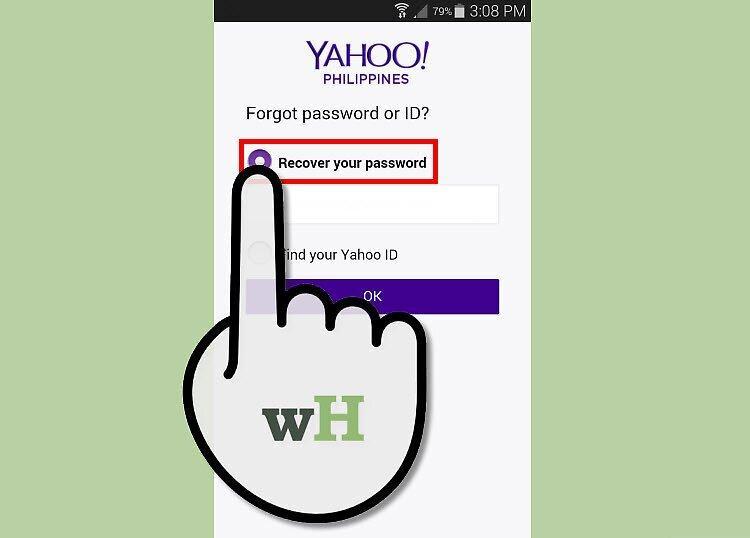
For added security, it's essential to regularly change your email password. Your Yahoo! password applies to your entire Yahoo! account, meaning it works not only for email but also for services like Yahoo! Messenger, Yahoo! Chat, My Yahoo!, and Yahoo! Finance.
Changing Your Password When You Know Your Current Password
Step 1. Log in to your Yahoo Mail account
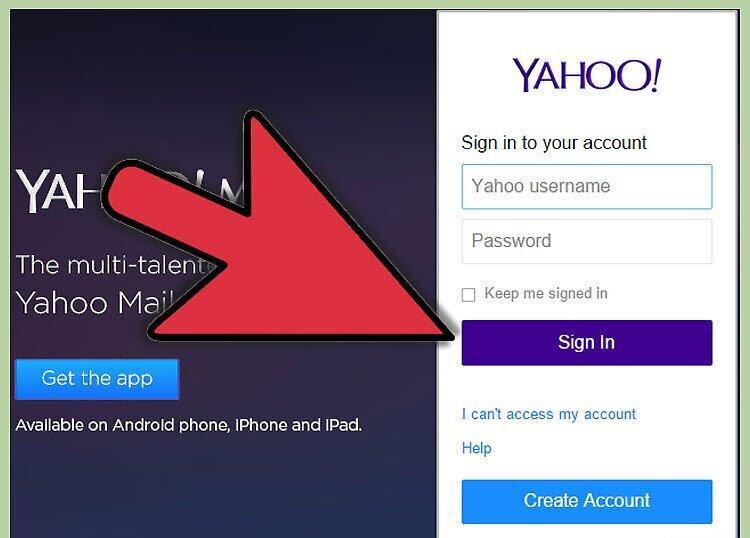
Log in to your Yahoo Mail account.
Step 2. Open your account settings page.
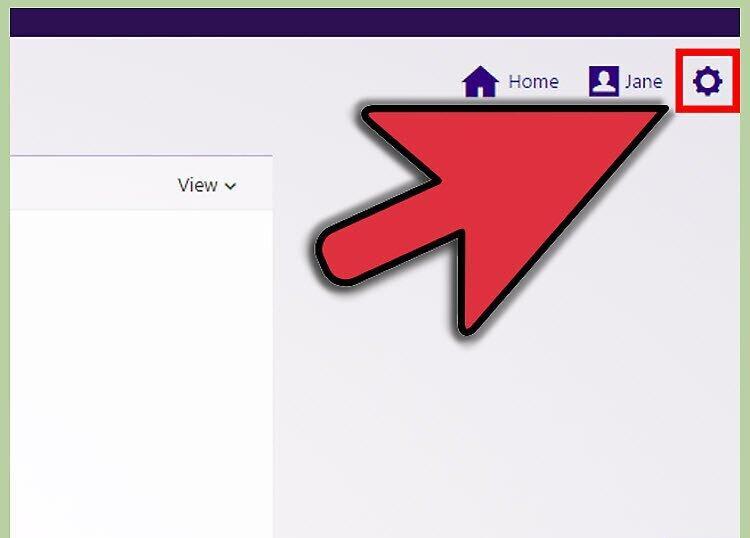
Open your account settings page. On the Yahoo homepage, click on your name and select "Account Settings" from the dropdown menu.
- Your name is located in the top right corner of the page, preceded by the word "Hello."
- You may need to enter your login credentials again to access your account settings.
Step 3. Click on the "Account Info" option, then click on the "Change Password" link.
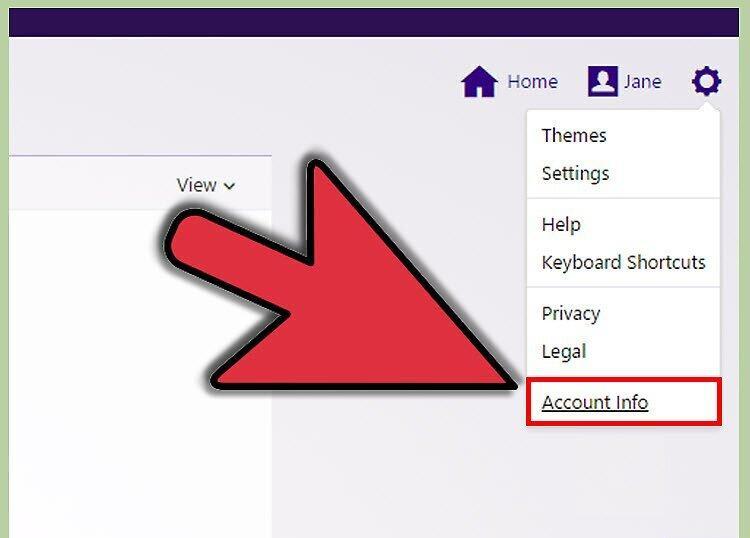
Click on the "Account Info" option, then click on the "Change Password" link. This link is located under the "Security and Sign-in" section.
Step 4. You can also access your account settings from your inbox.
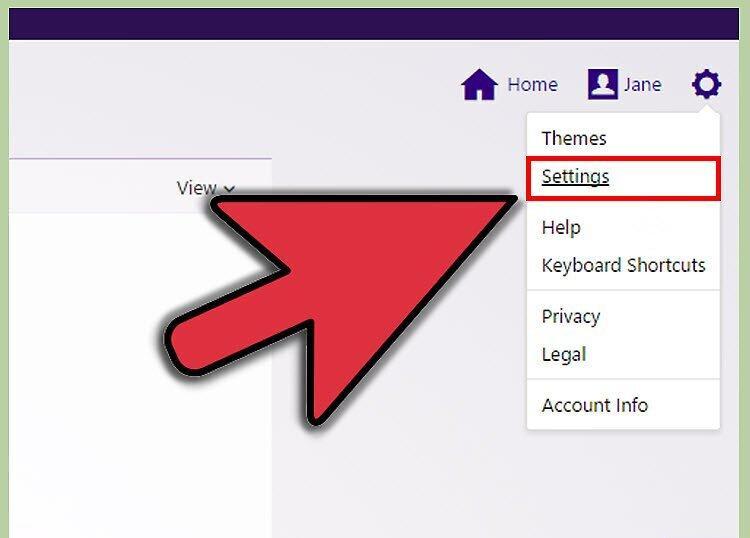
- Click on the gear icon in the top right corner, then select "Settings."
- The password change link will be located at the top of the page.
Step 5. Enter your current password and your new password, then click the "Save" button.
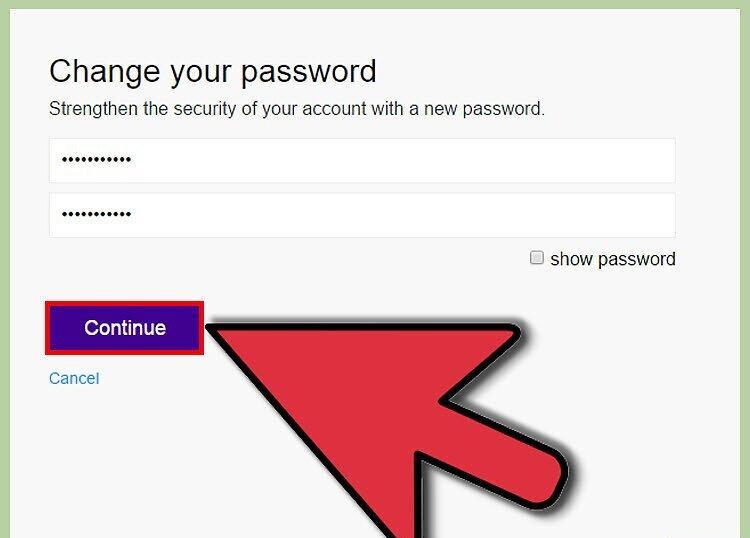
- You will be taken to a confirmation page for the password change.
- As an extra security measure, Yahoo will send you an email notifying you that your password has been changed.
Changing Your Password When You Don't Know Your Current Password
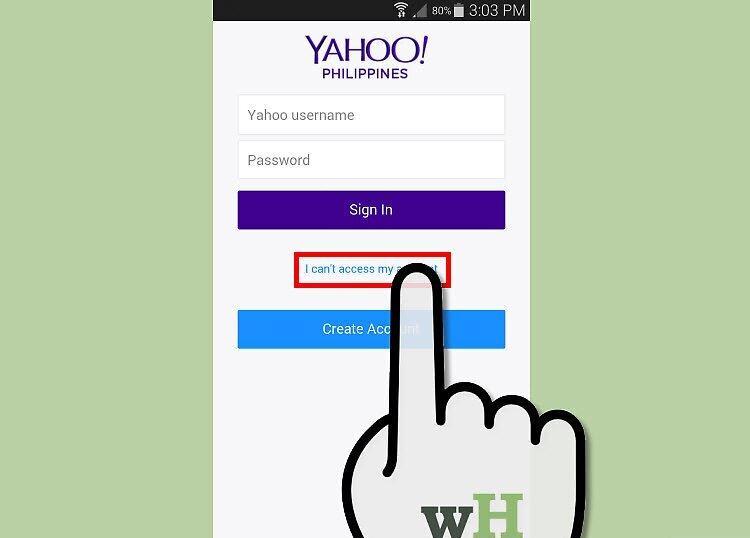
Step 1. On the Yahoo login page, click on the "I can't access my account" link.
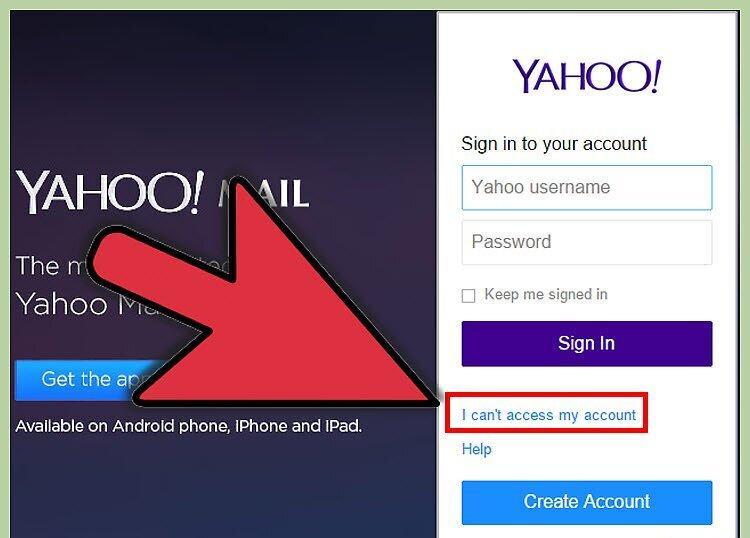
On the Yahoo login page, click on the "I can't access my account" link located below the large purple "Sign In" button.
Step 2. Select "I forgot my password" and click "Next."
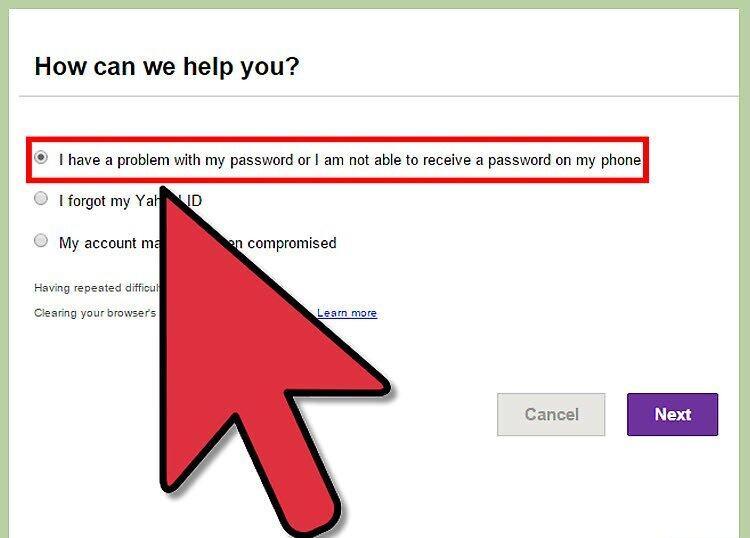
Step 3. Enter your username and click "Next."
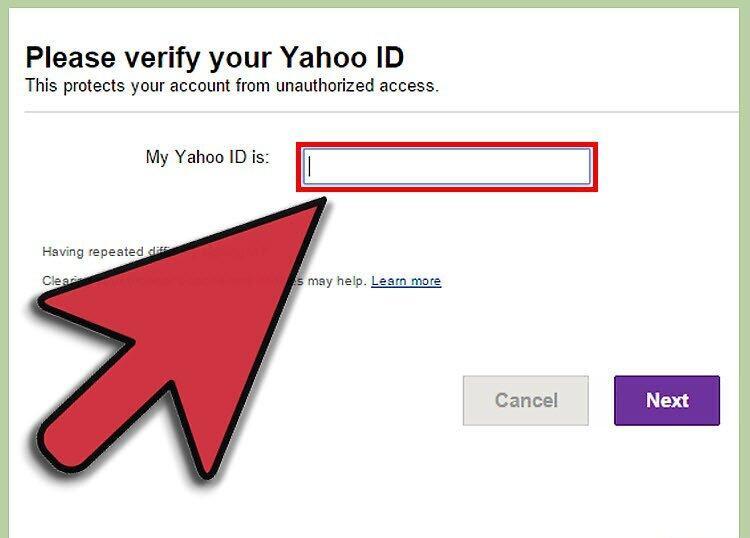
Step 4. Choose an alternative email address.
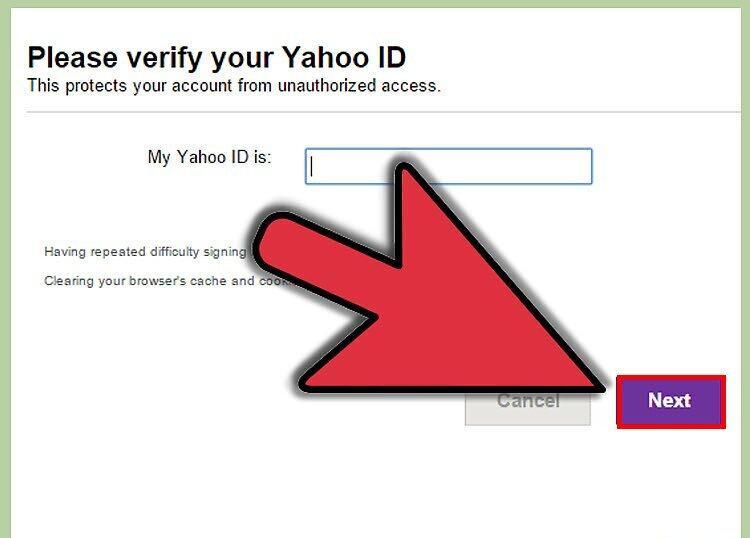
Select an alternative email address. Yahoo will send instructions for changing your password to that address.
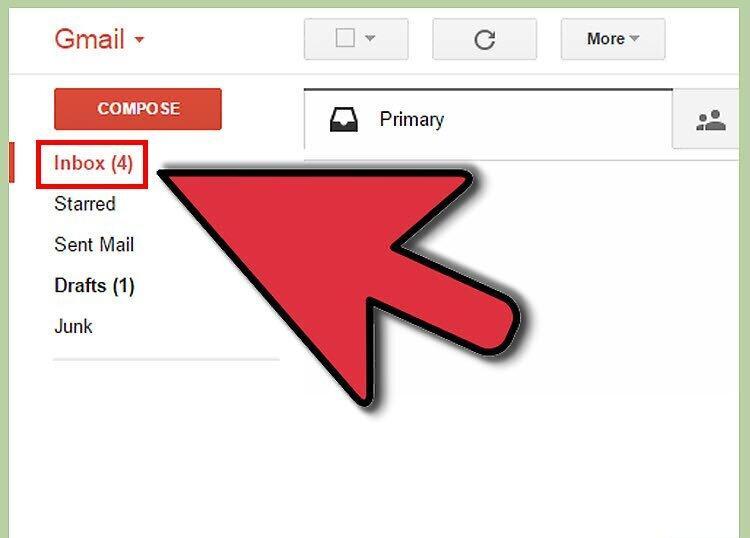
Step 5. Access the email account where the instructions were sent and go to your Inbox.
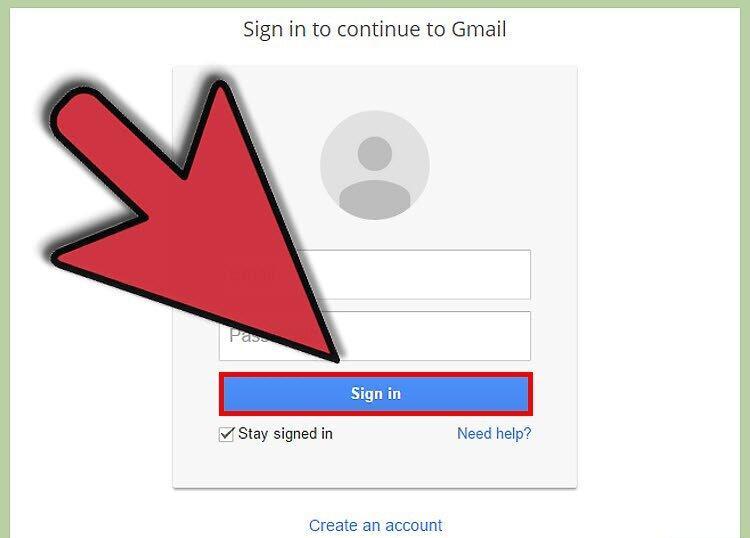
Step 6. Open the email from Yahoo and follow the link to change your password.
Step 7. Enter your current password, new password, and click the "Save" button.
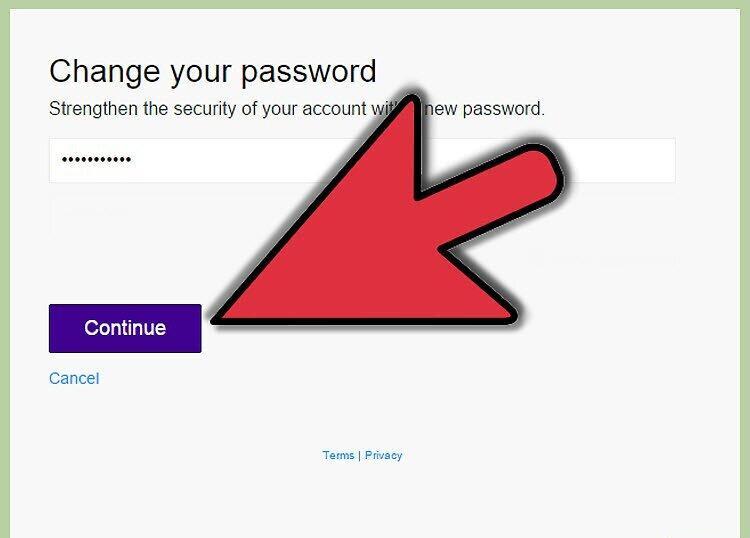
- You will be directed to a confirmation page for the password change.
- As an additional security measure, Yahoo will send you an email informing you that your password has been changed.
Changing Your Yahoo Password on iPhone
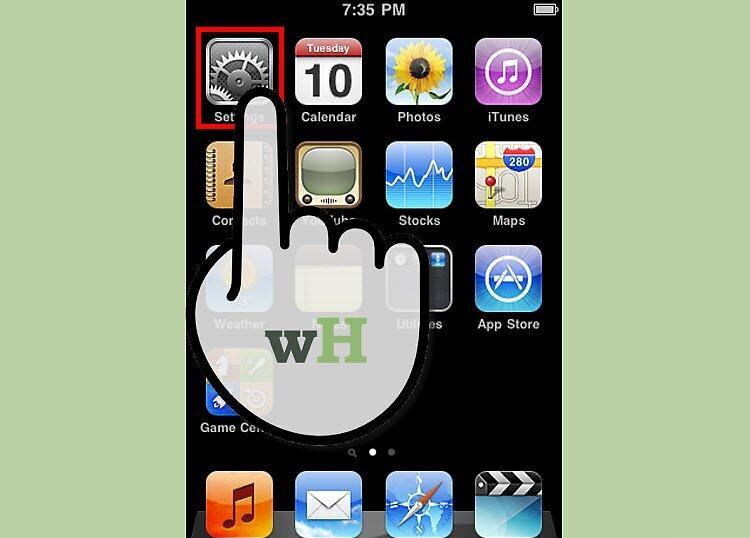
Step 1. On your iPhone's home screen, tap the settings icon (gear symbol).
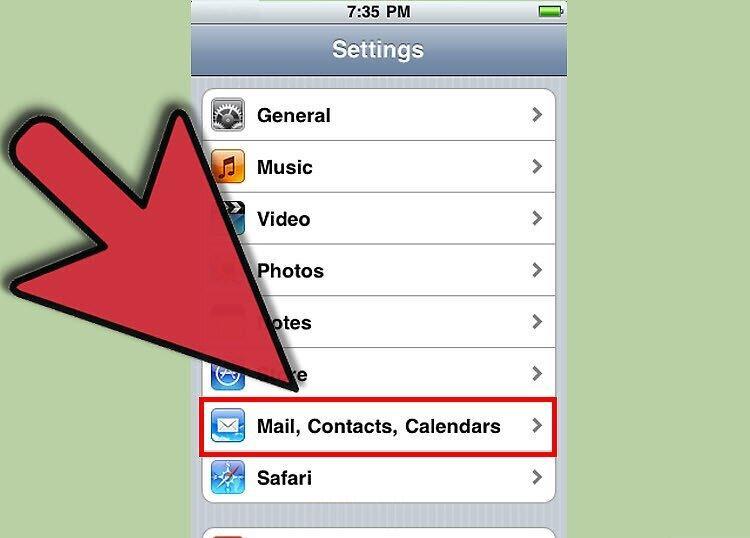
Step 2. Scroll down and select "Mail, Contacts, Calendars."
Step 3. From the list, select your Yahoo email.
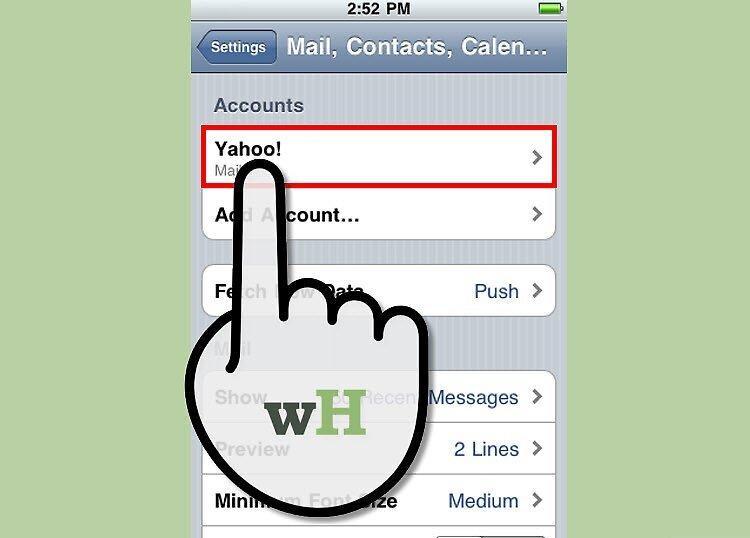
Step 4. Tap on your email address to open a new page.
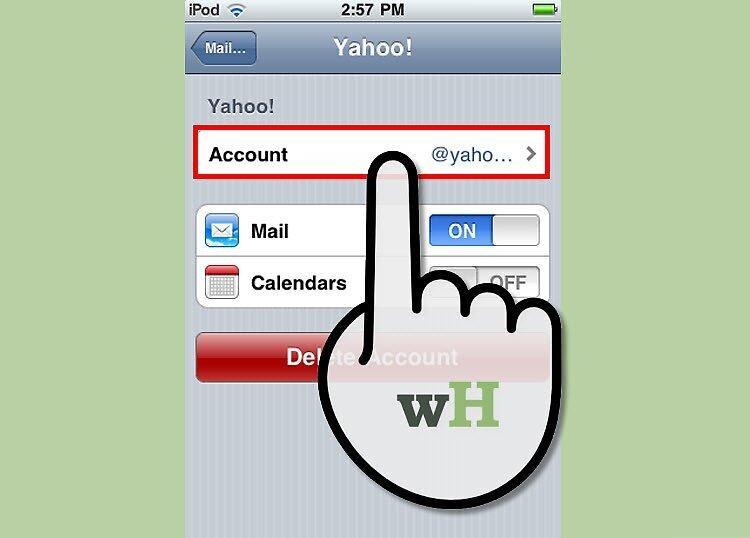
Step 5. Enter your new password.
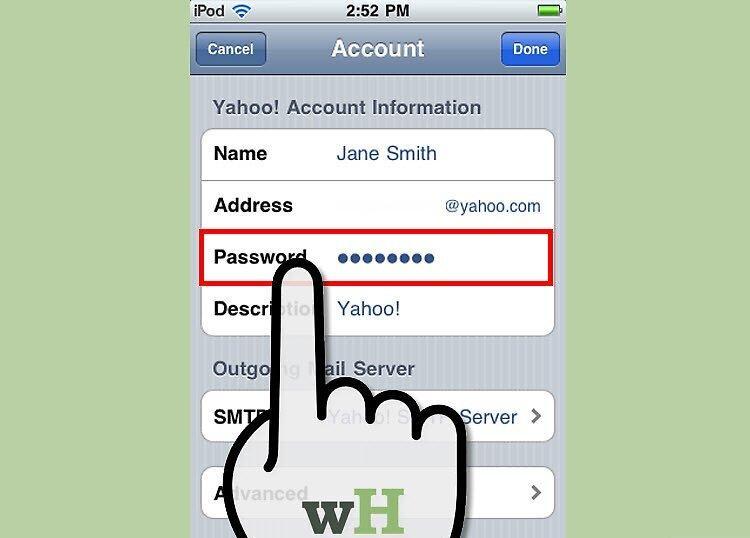
- This will only change the password for accessing your account from your phone.
- It will not change your password for your email.[1] X Source
Changing Your Password on an Android Phone
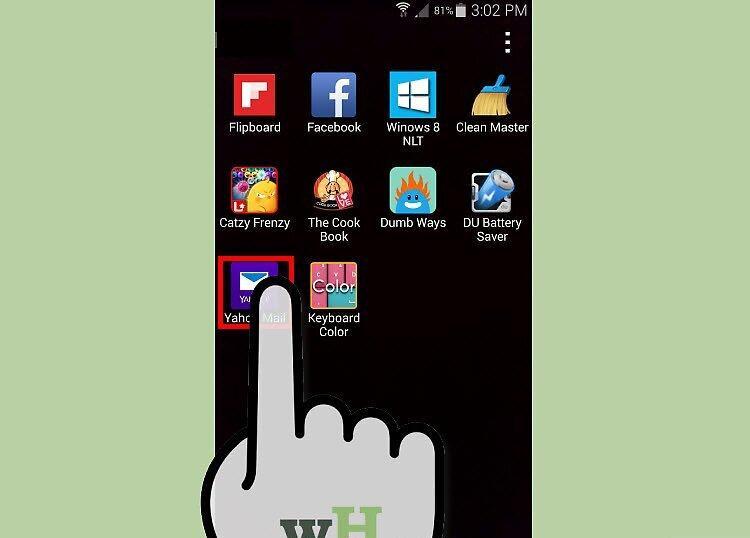
Step 1. On your home screen, tap the Yahoo Mail icon.
Step 2. Tap on the "Sign In" link.
Step 3. Enter your new password.