
MTU, or Maximum Transmission Unit, refers to the largest packet size that your networking equipment can process. If a packet exceeds the configured MTU size, it will be fragmented into smaller pieces, which can slow down data transmission. Many home networks operate with default MTU settings configured in routers. Adjusting the MTU for your home network to the optimal level can significantly enhance its performance.
How to Determine the Optimal MTU Size for Your Network
Step 1. Open Command Prompt.

Open Command Prompt. On your computer, click "Start" to access the menu, then select "Run" and type "command" (for Windows 95, 98, and ME) or "cmd" (for Windows NT, 2000, and XP) without quotes.
- This will open the Command Prompt window.
Step 2. Locate Command Prompt.
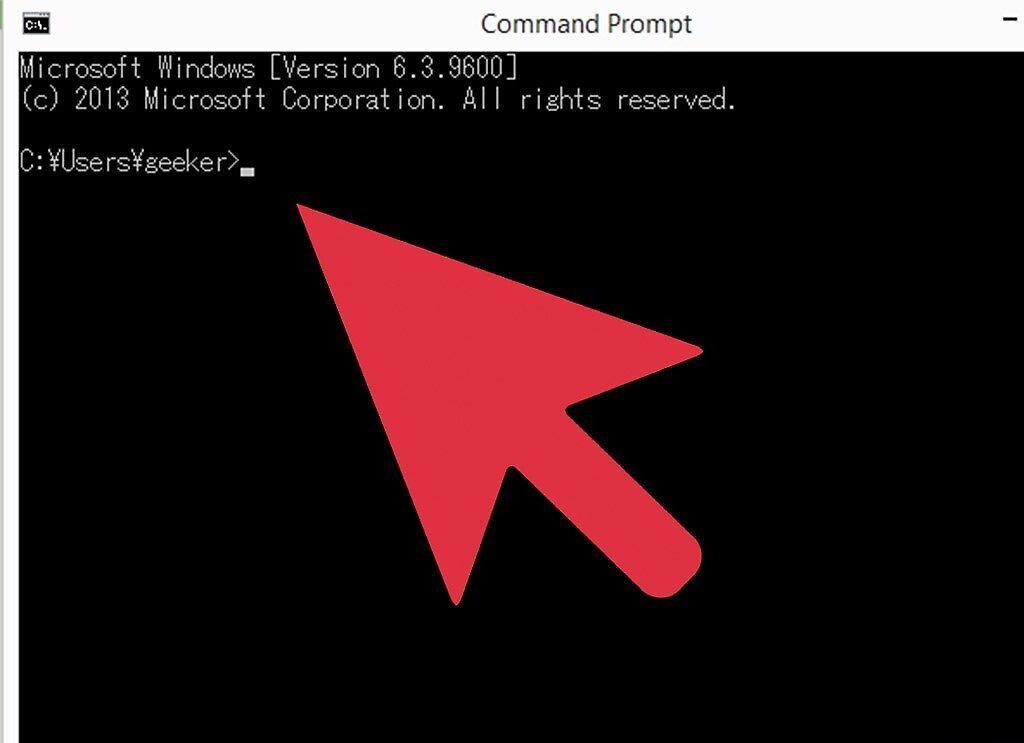
If you are using a newer version of Windows without the "Run" option, you can find Command Prompt through the Programs menu.
- Click "Start" and then "All Programs." Navigate to the "Accessories" folder and select "Command Prompt" to open it.
- If you already accessed Command Prompt in the previous step, you can skip this step.
Step 3. Enter the ping command.
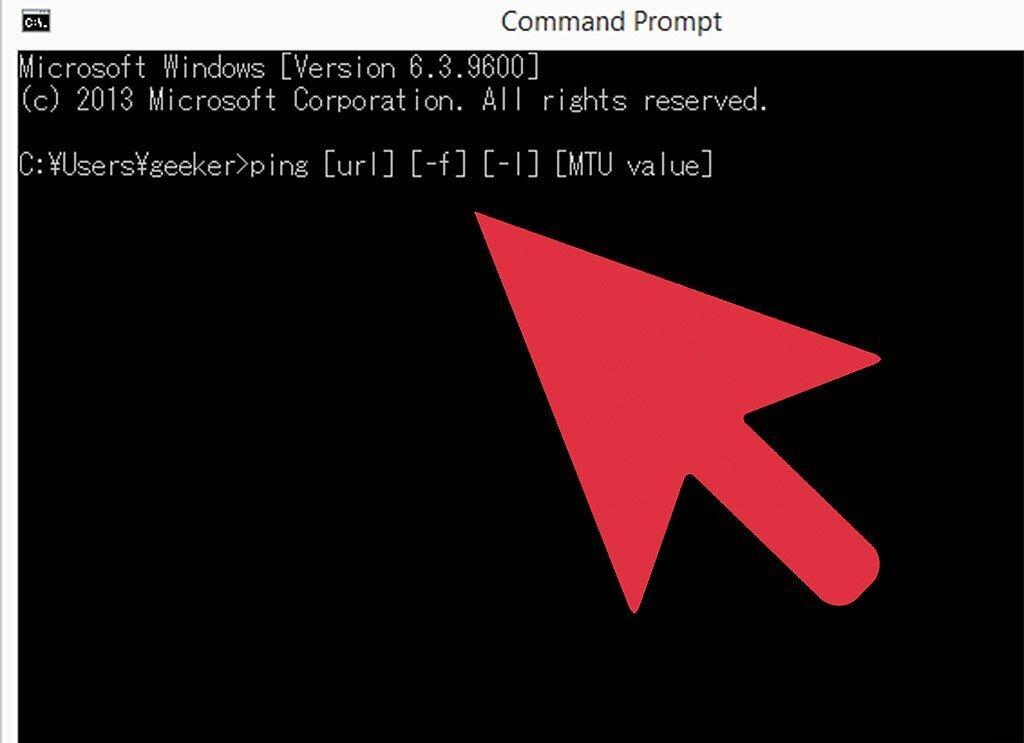
Type the syntax for the ping command in the opened Command Prompt: ping [url] [-f] [-l] [MTU value].
- Make sure to include spaces between the parameters. Follow the syntax and don't worry if it seems complicated.
- In the following steps, we'll explain each parameter.
Step 4. Specify the URL.
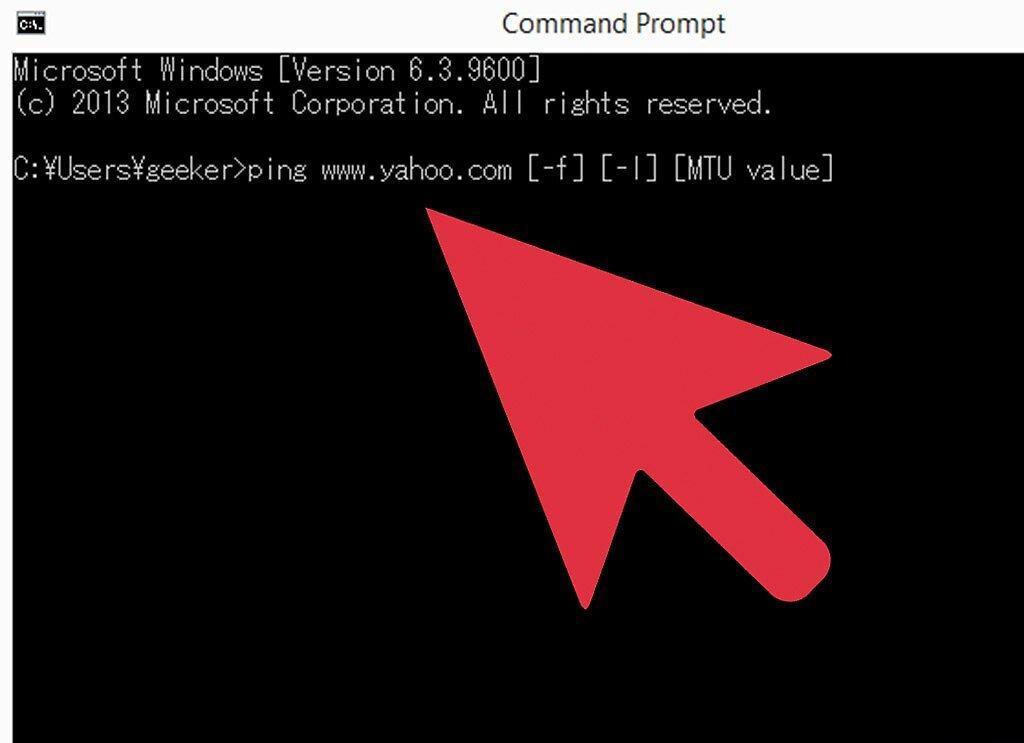
Enter the URL. In the syntax from Step 3, after the command "ping," specify the URL or website address you use most often. This is the address to which the ping request will be sent.
- For example, you could use www.yahoo.com or www.google.com.
Step 5. Set the test packet size.
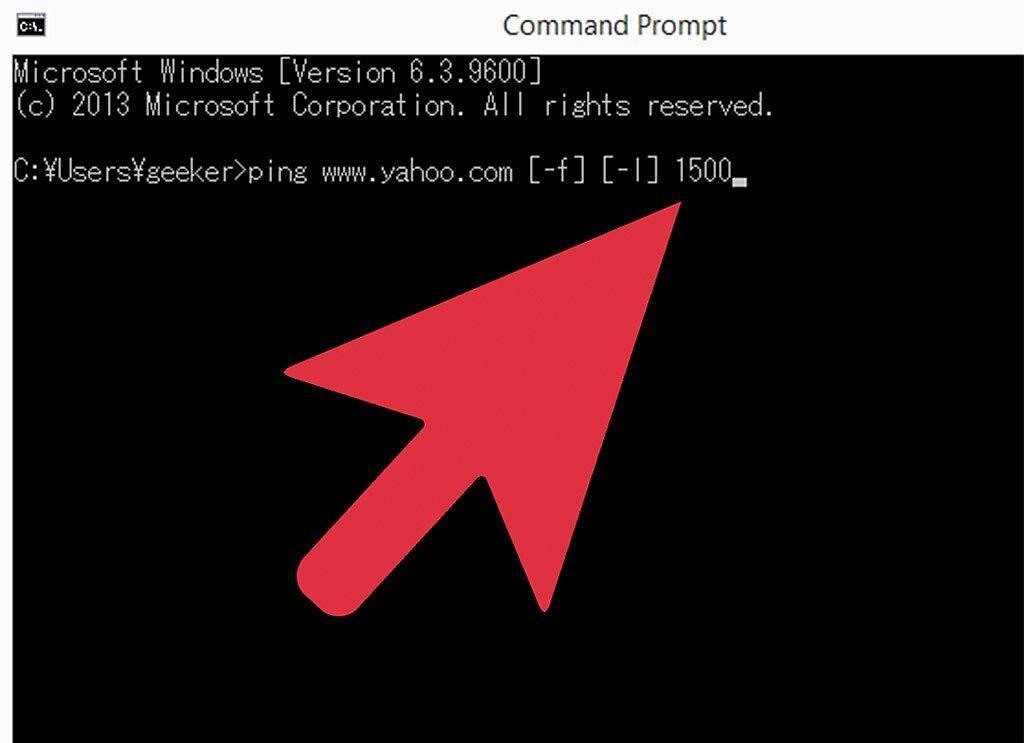
Specify the test packet size. In the syntax from Step 3, the last parameter is the "MTU value," which represents the size in bytes of the test packet sent with the ping request. This number should be four digits long.
- It’s recommended to start with 1500.
Step 6. Send the ping request.
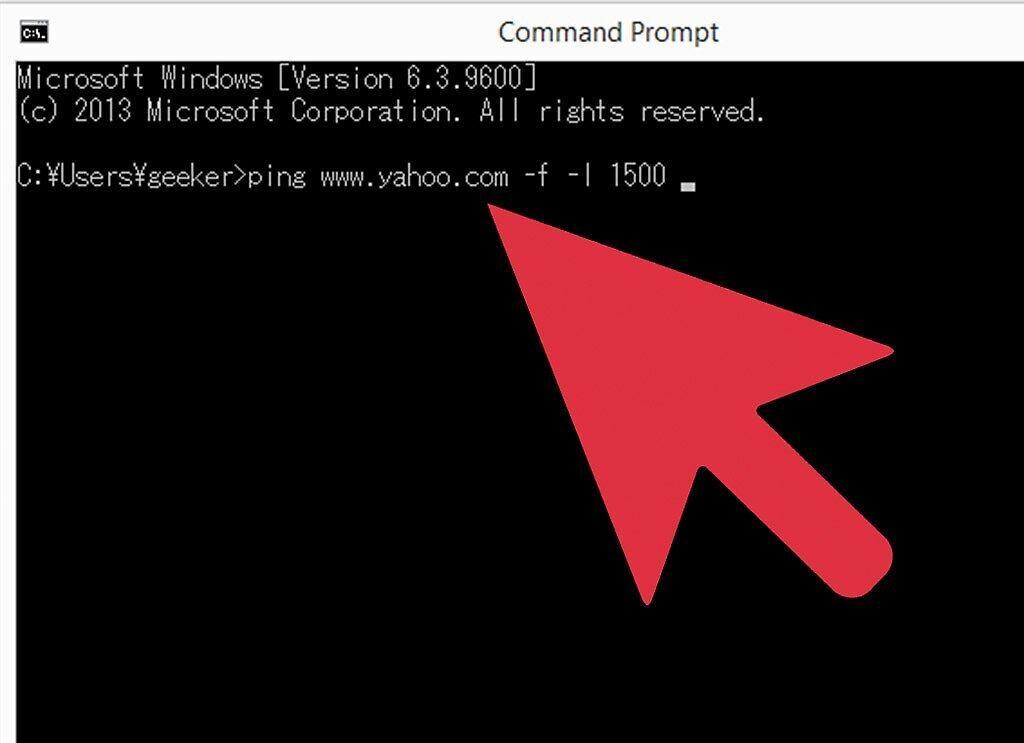
Send the ping request. If you chose the Yahoo site, your syntax will look like this:
- ping www.yahoo.com -f -l 1500
- After that, press "Enter" on your keyboard to send the request.
Step 7. Check the result.
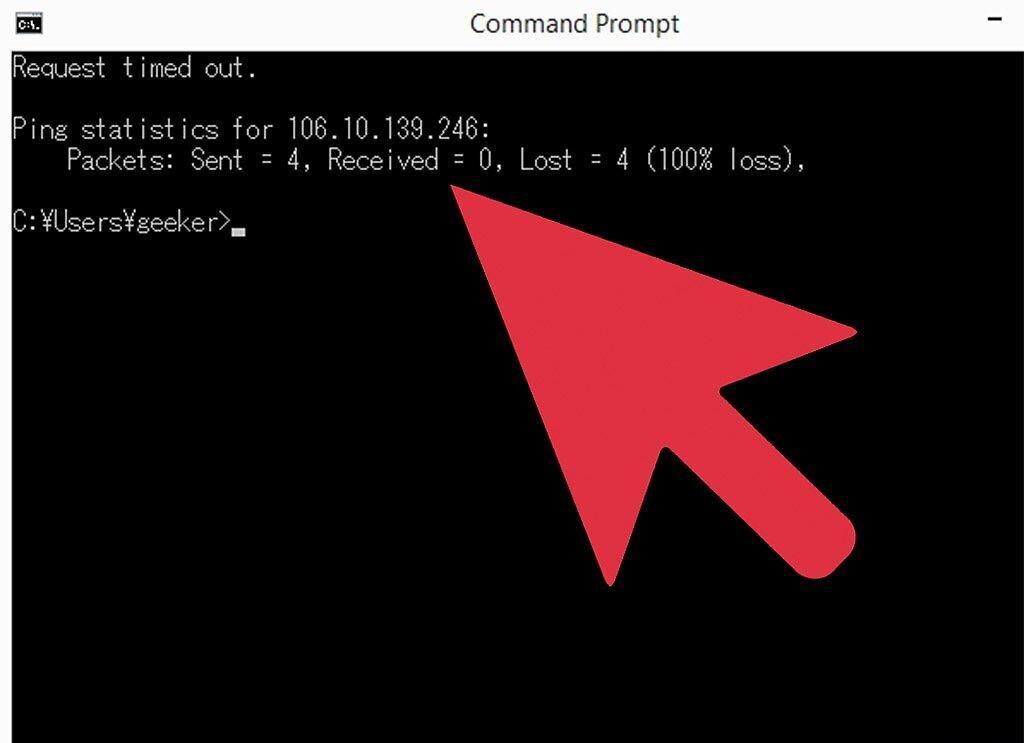
Review the result. After executing the ping command, the result will appear in the Command Prompt window. If you see the message "Packet needs to be fragmented but DF set," it means the packet size is still not optimal.
- Proceed to the next step.
Step 8. Decrease the MTU value.
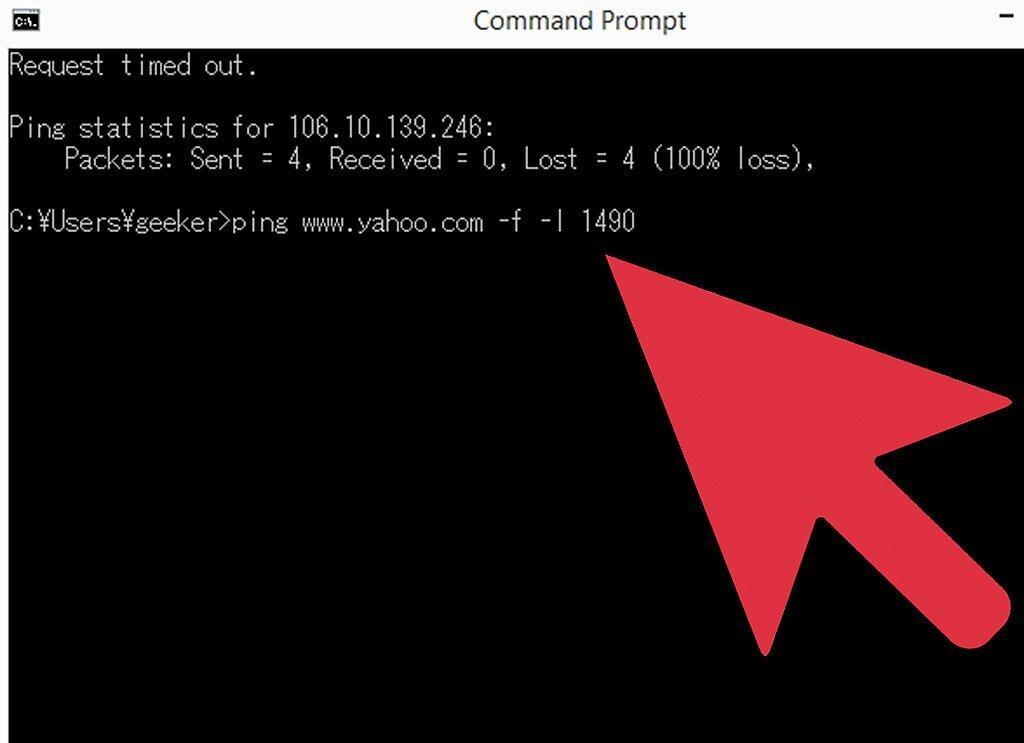
Lower the MTU value. Decrease the packet size by 10 or 12 bytes to determine the optimal size where fragmentation is not required.
Step 9. Repeat the ping.

Ping again. Repeat Step 6 with the decreased MTU value.
- Continue Steps 6 - 9 until you see the message about packet fragmentation.
- If that message no longer appears, proceed to Step 10.
Step 10. Increase the MTU value.
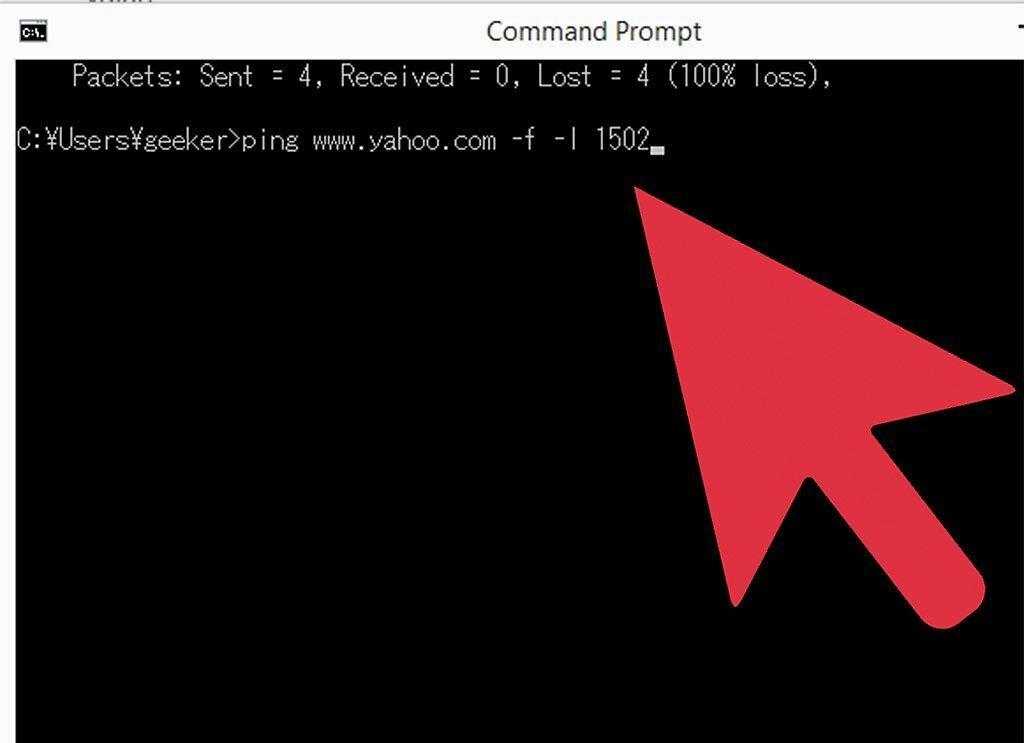
Increase the MTU value. If your packet is not fragmented, slightly increase this value.
- Try increasing by 2 or 4 bytes.
Step 11. Ping again.

Send the ping again. Use the new, increased MTU value.
- Repeat Steps 10 - 11 until you determine the maximum packet size that does not require fragmentation.
Step 12. Add 28 to the MTU value.
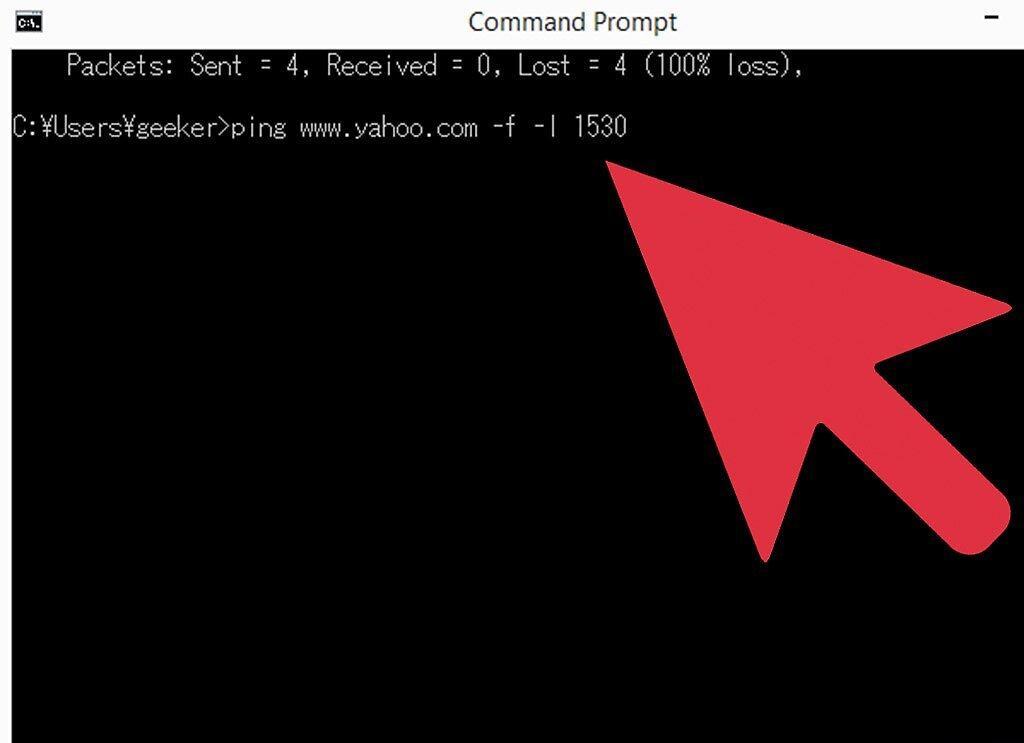
Add 28 to the determined MTU value. Take the maximum packet size you tested and add 28 bytes, which are reserved for the header. This will be your optimal MTU value.
Configuring MTU on Your Router
Step 1. Access the router settings.
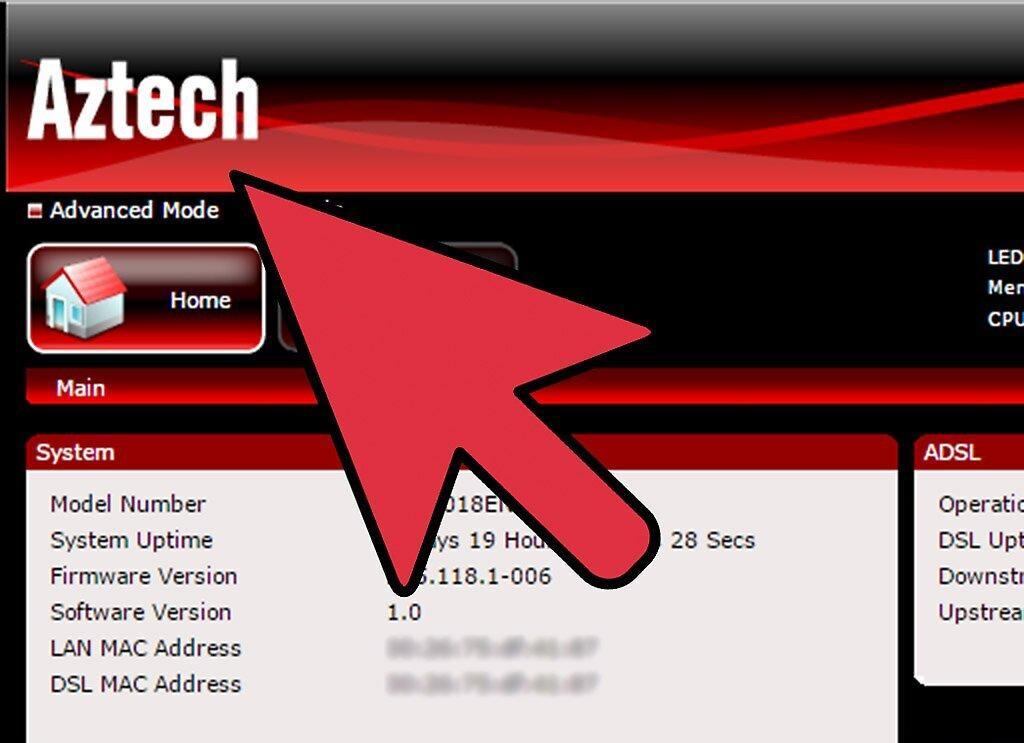
Open the router configuration interface. Launch your browser and enter the router's IP address. Log in using the administrator username and password.
Step 2. Find the MTU setting.
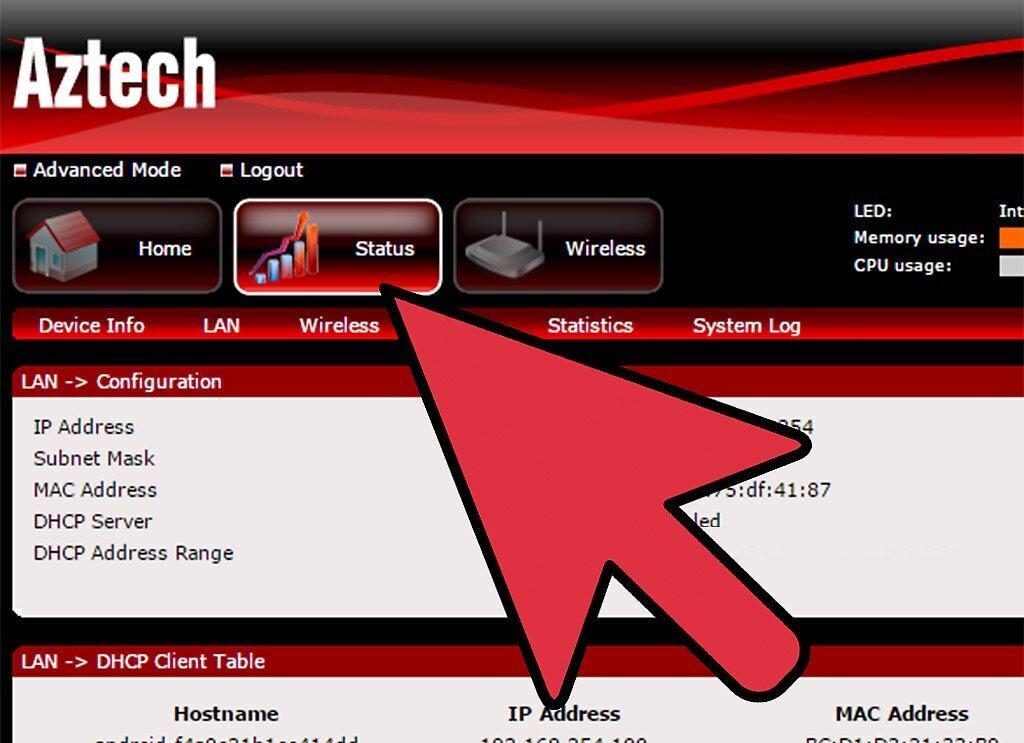
Look for the MTU parameter. Navigate through the router settings and locate the field for changing the MTU. Its location may vary depending on the device model.
Step 3. Enter the optimal MTU value.
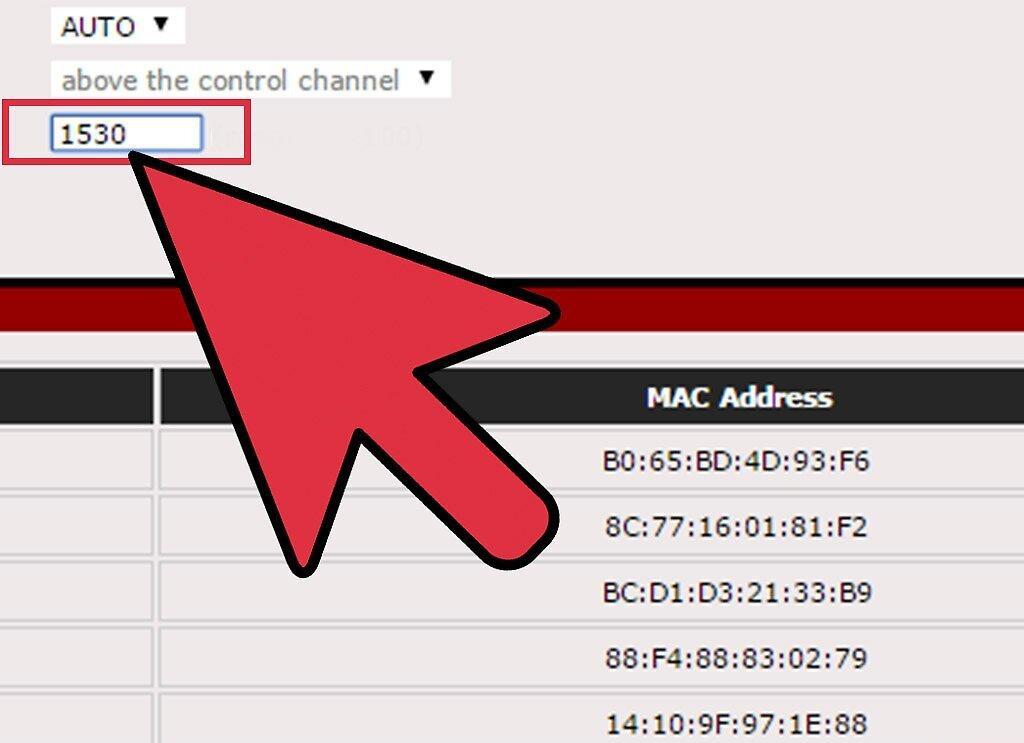
Input the calculated MTU value. If you found the appropriate field, enter the value obtained in Step 12 of the first section.
- Don’t forget to add 28 bytes.
Step 4. Save the changes.
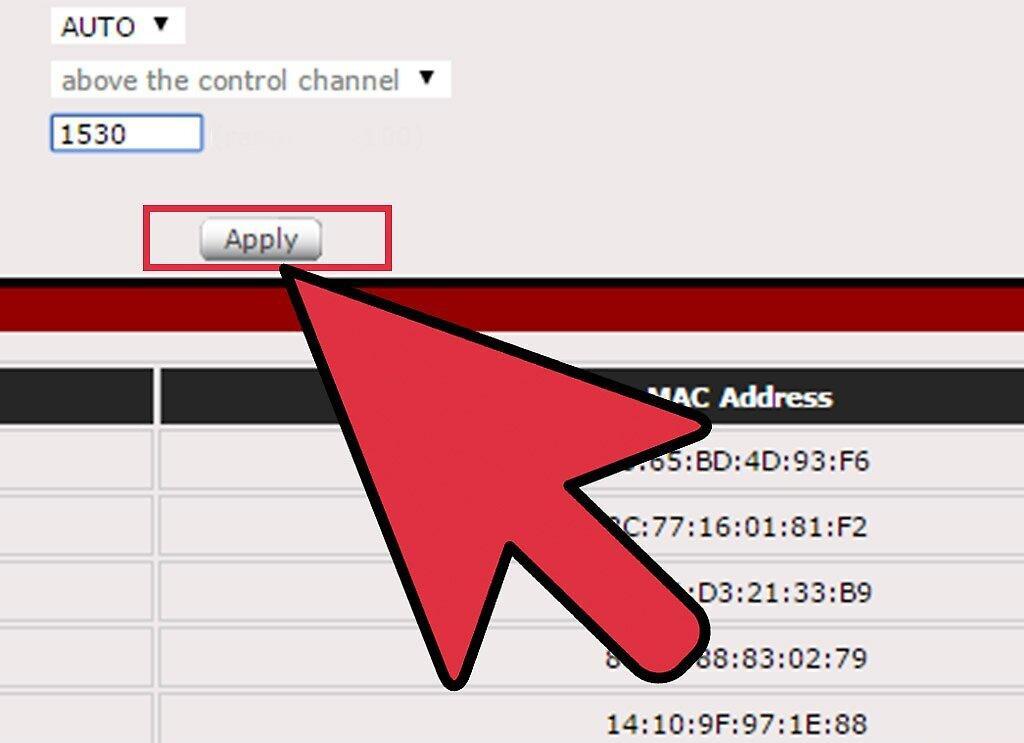
Save your settings. Click "Save" to apply the changes.
- Your network is now operating with the optimal MTU setting.


