
Learn how to quickly and easily copy emojis from the Bitmoji app to various platforms and websites. With Bitmoji on Android, iPhone, iPad, or a PC with Google Chrome, you can effortlessly paste emojis almost anywhere.
For iPhone/iPad Users
Step 1. Open the Bitmoji App.
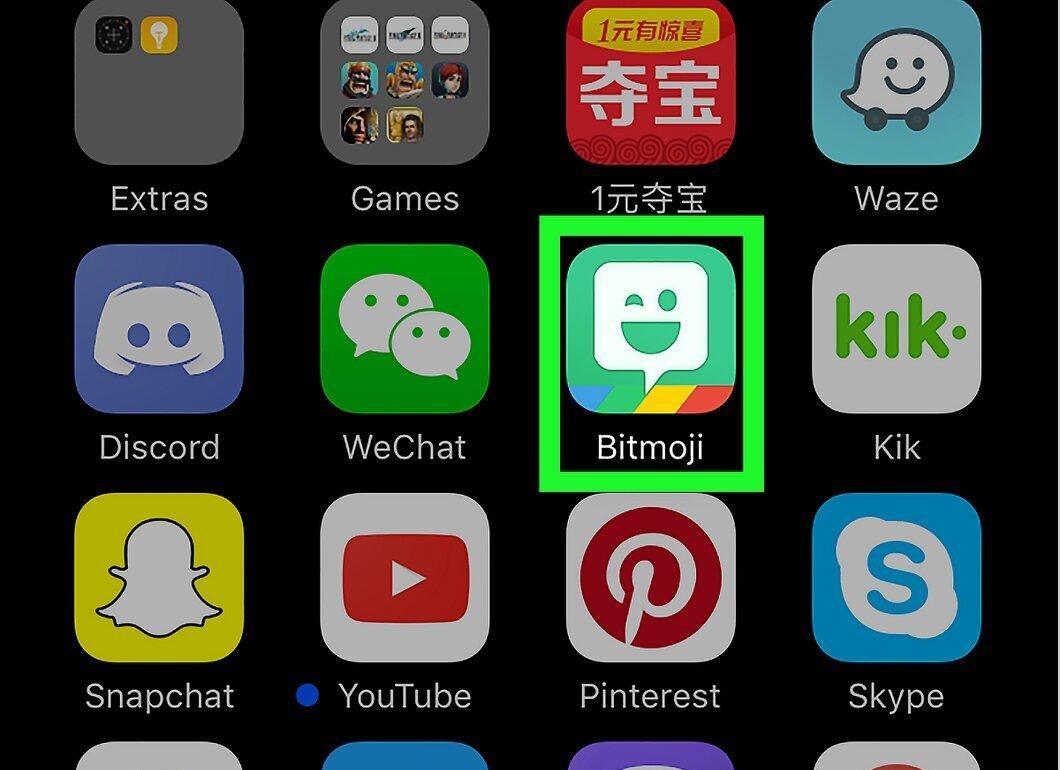
Launch the Bitmoji app by tapping on the smiley icon in a speech bubble with a green background. This icon is typically located on your device's home screen.
Step 2. Find the Emoji You Need.

Scroll through the emoji list to the right and select the one you want. This will open a menu.
Step 3. Tap "Copy."
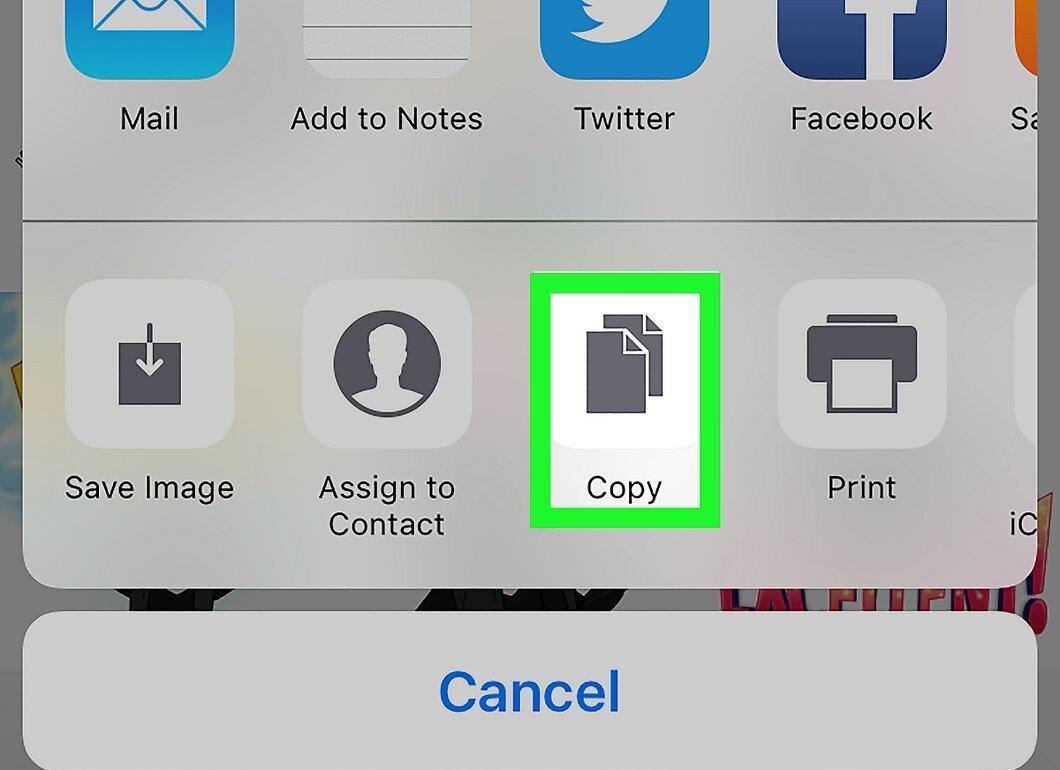
Tap the "Copy" button. The emoji is now saved to your clipboard.
Step 4. Open the App Where You Want to Paste the Emoji.
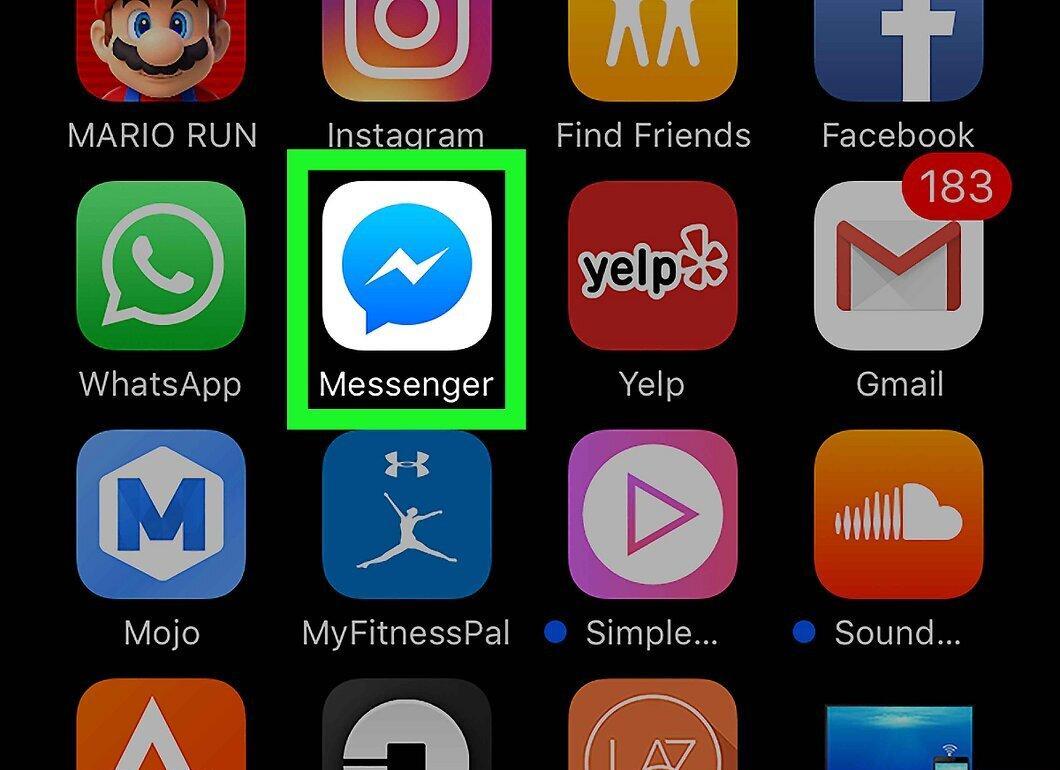
Open the app where you want to paste the emoji, such as Messages, Facebook Messenger, Twitter, or other messaging apps.
Step 5. Long Press the Text Field.
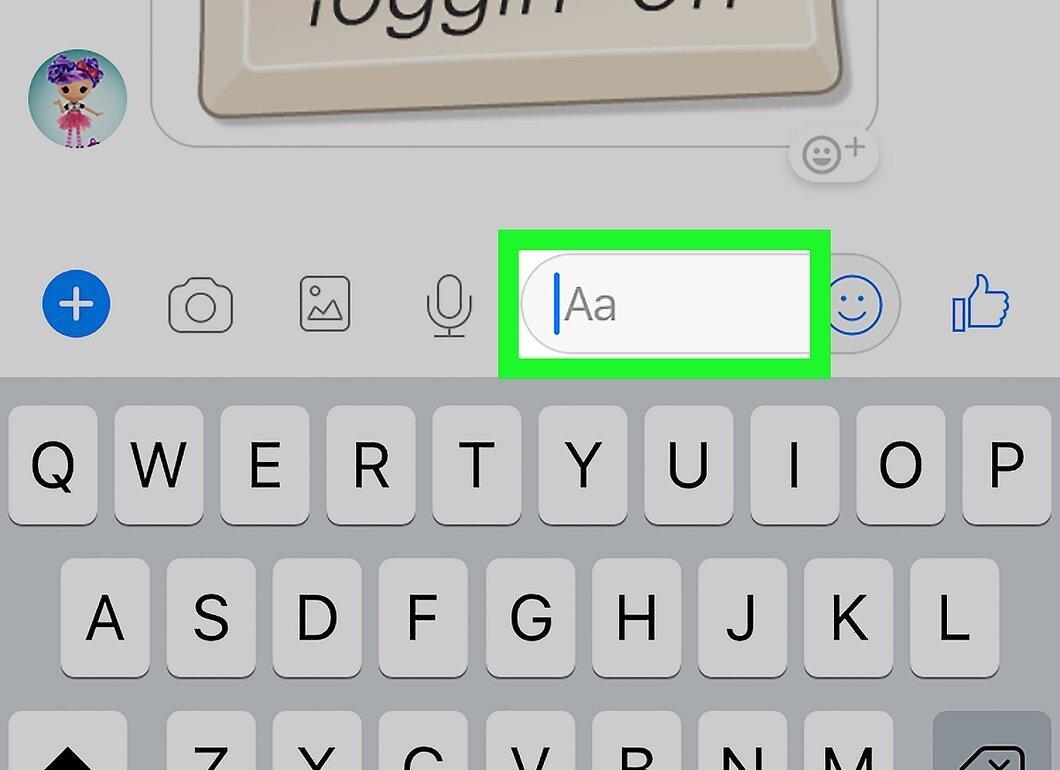
Press and hold the text field where you enter your messages.
Step 6. Tap "Paste."
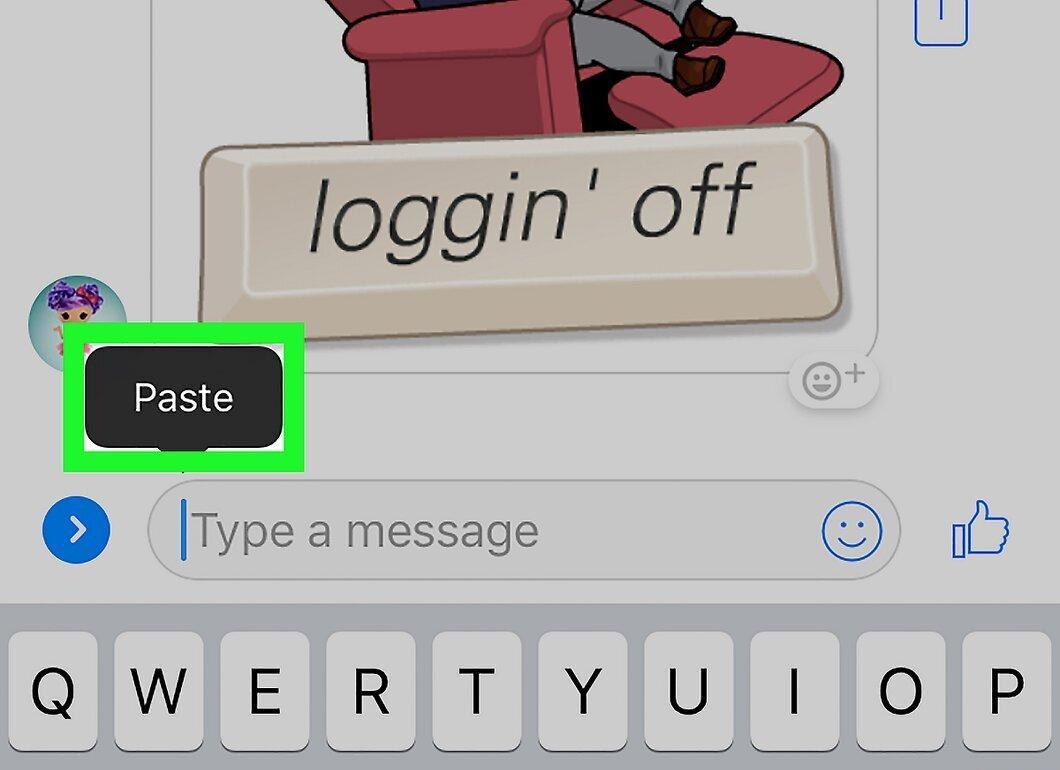
Tap the "Paste" button. The emoji will appear in your message.
- You can also use the Bitmoji keyboard to insert emojis in messages, chats, or posts.
For Android Users
Step 1. Open the Bitmoji App.
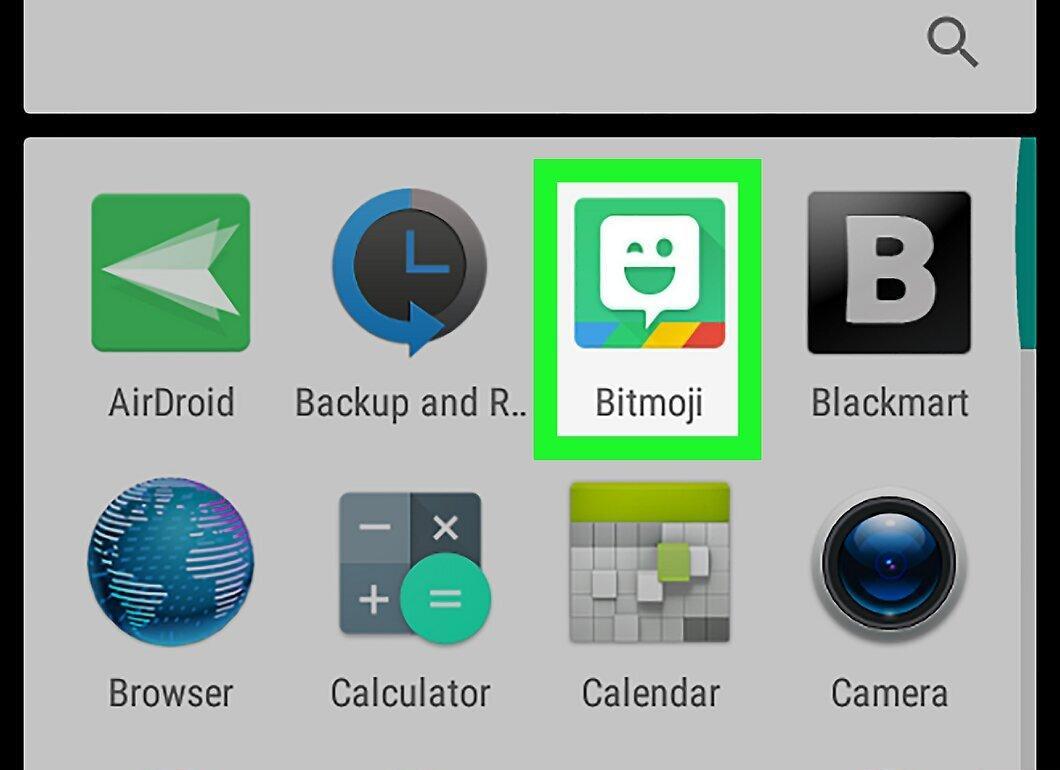
Launch the Bitmoji app by tapping on the smiley icon in a speech bubble with a green background. This icon is usually on your home screen or in the app drawer.
- Note that on Android, you cannot directly copy and paste emojis, so you'll need to use special apps. You can also utilize the Bitmoji keyboard to insert emojis.
Step 2. Find the Emoji You Need.

Scroll right through the emoji list and select the one you want. The menu will open automatically.
- There’s a magnifying glass icon at the top of the screen that you can use to search for themed emojis, like for a birthday.
Step 3. Choose the App to Paste the Emoji.

Select the desired app from the list that appears in the menu. When you tap on the app, it will open, and the emoji will appear in the text field.
- If your app is not in the list, choose the “Save” option (at the bottom of the list) to save the emoji, then attach it to your message as a regular image.
Using Google Chrome
Step 1. Look for the Bitmoji Icon in the Top Right Corner of Chrome.
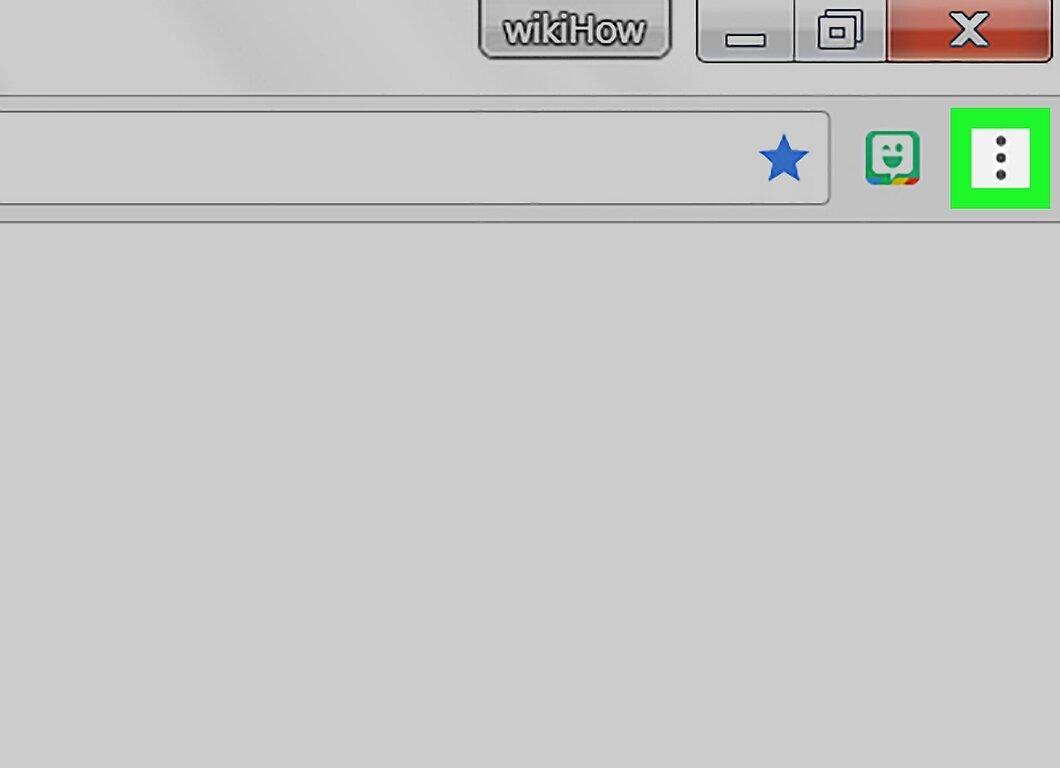
Click on the Bitmoji icon in the upper right corner of the Chrome browser. This icon looks like a smiley in a speech bubble on a green background.
- If the Bitmoji extension is missing, go to https://www.bitmoji.com/, scroll down and click on “Bitmoji for Chrome,” then follow the instructions to install it.
Step 2. Right-Click on the Desired Emoji.
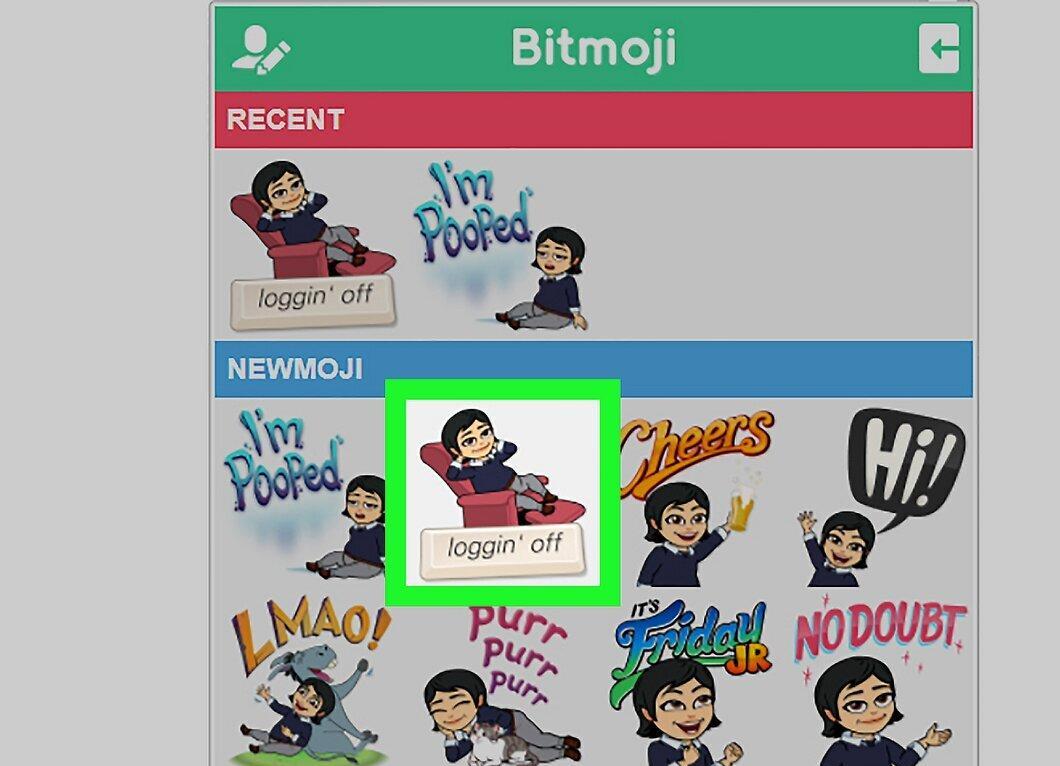
Right-click on the selected emoji. To view various emoji categories, click on the icons at the bottom of the Bitmoji window or use the magnifying glass icon to search for themed emojis.
- If you don’t have a right mouse button, hold the Ctrl key and click or use two fingers on the trackpad.
Step 3. Select “Copy Image.”
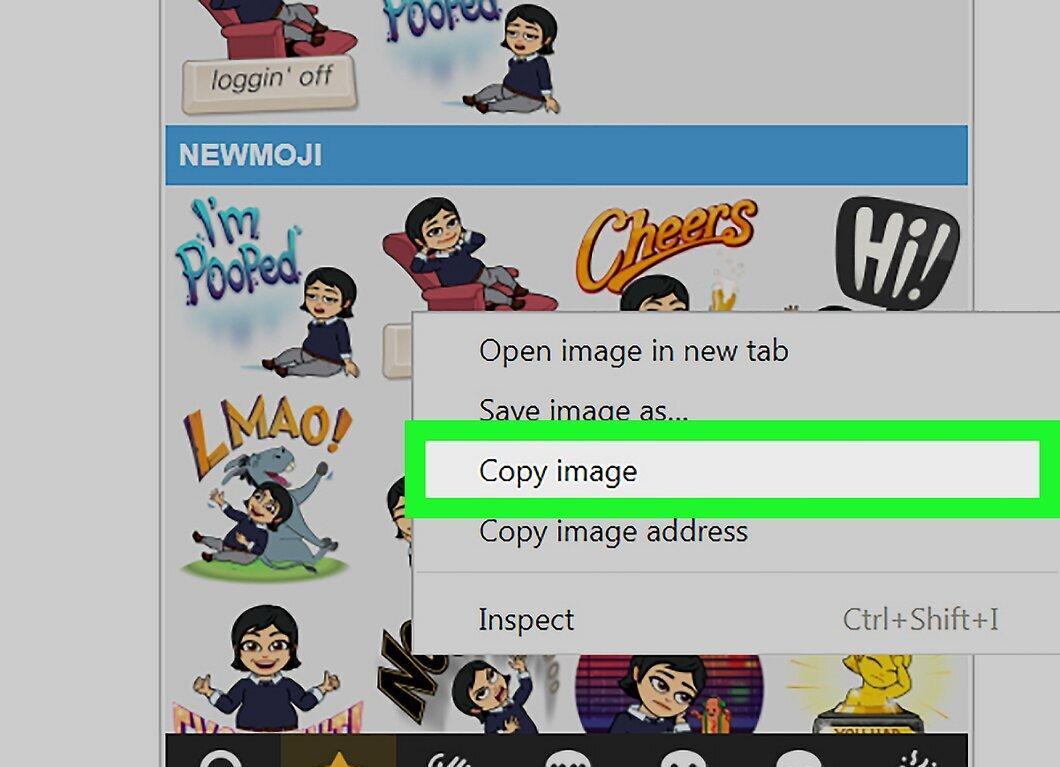
Click on “Copy Image.” Make sure you do not select “Copy Image Address.”
Step 4. Open the Website Where You Want to Paste the Emoji.
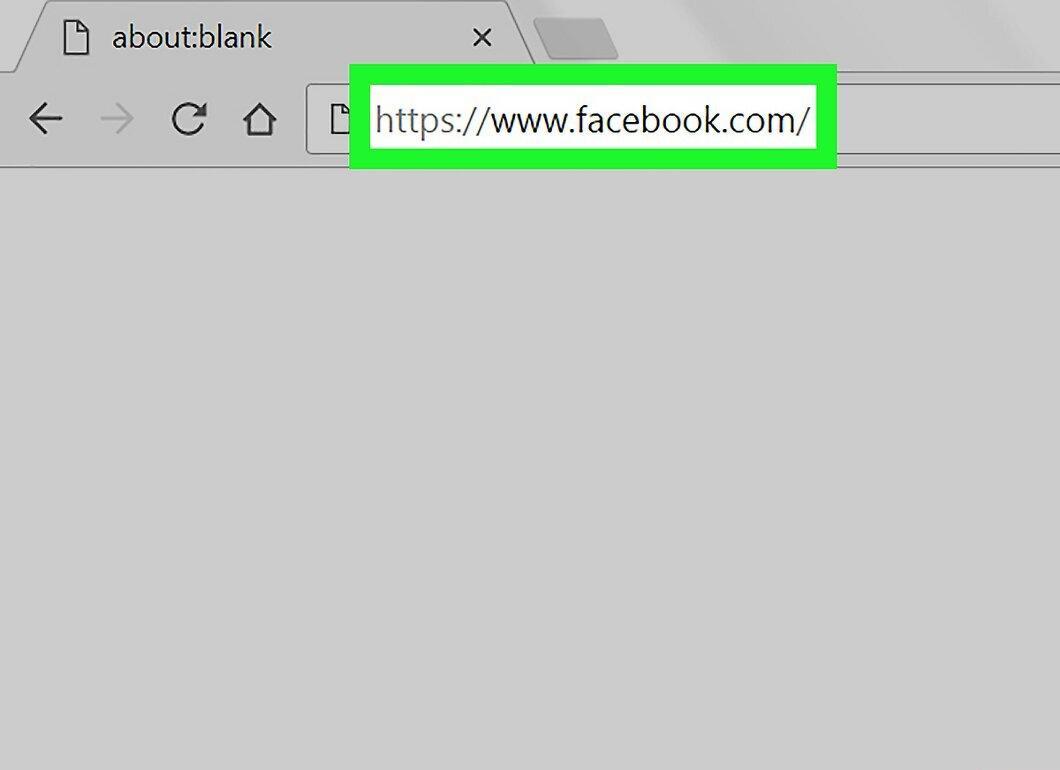
Load the website where you want to paste the emoji. Many sites, including Facebook, Twitter, and Gmail, support pasting emojis.
Step 5. Right-Click on the Text Field.
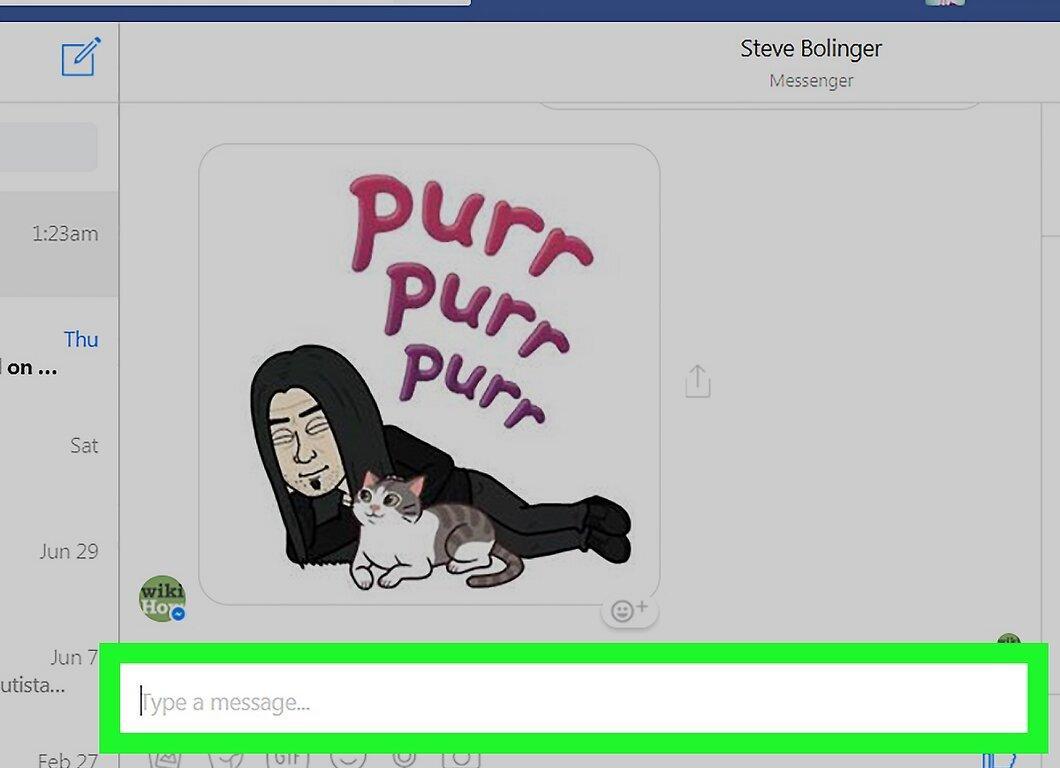
Right-click on the text field where you will type your message or post.
Step 6. Click “Paste.”
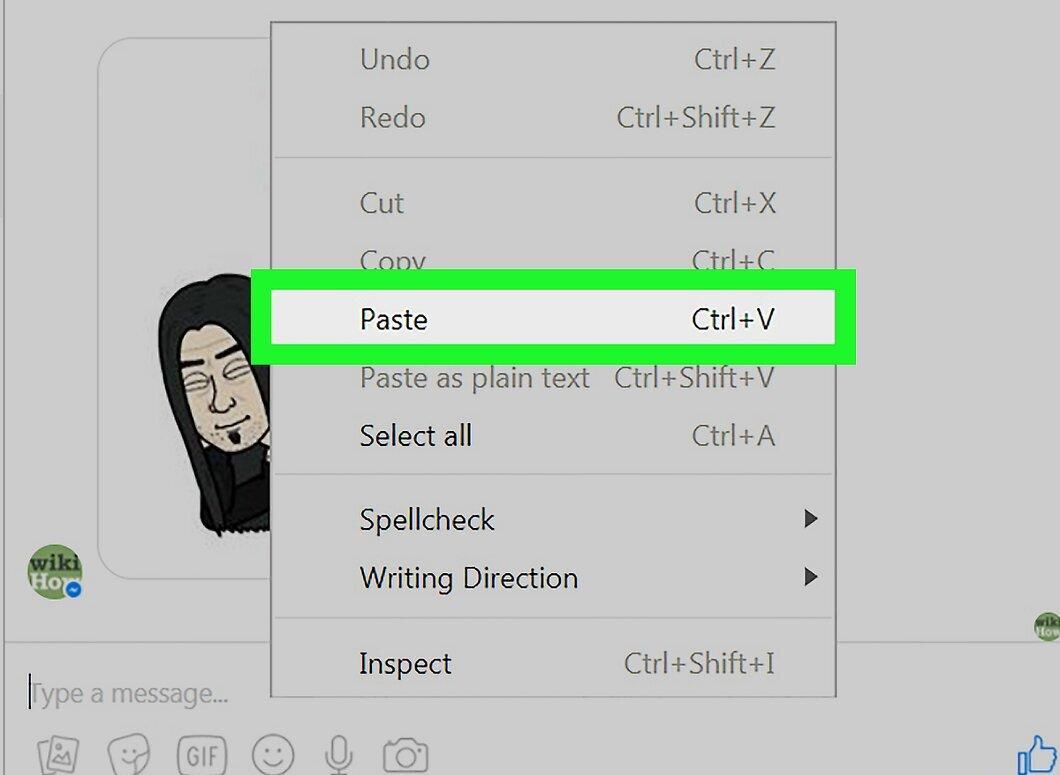
Select the “Paste” option. Now your emoji will appear in the text field.
- If the emoji does not display, the website may not support emoji pasting.


