Many people who have used text editors have encountered the situation where they accidentally press the Insert key and instead of editing text, they start replacing it. In this article, we will show you how to easily disable the Insert key on your keyboard.
Steps to Disable the Insert Key
Step 1. Open the regedit command
Go to the "Start" menu → "Run" and type the command regedit.
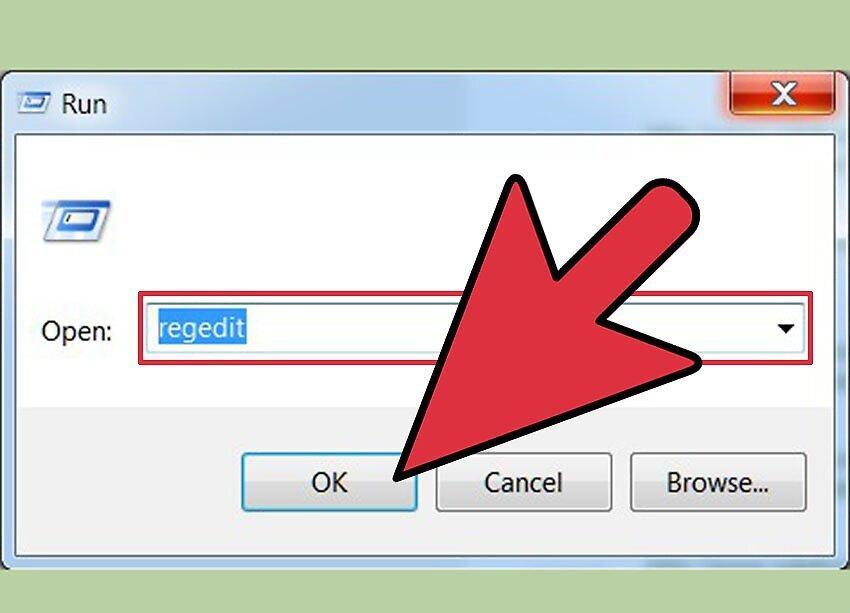
Step 2. Locate the necessary key
Navigate to HKEY_LOCAL_MACHINE\System\CurrentControlSet\Control\Keyboard Layout.
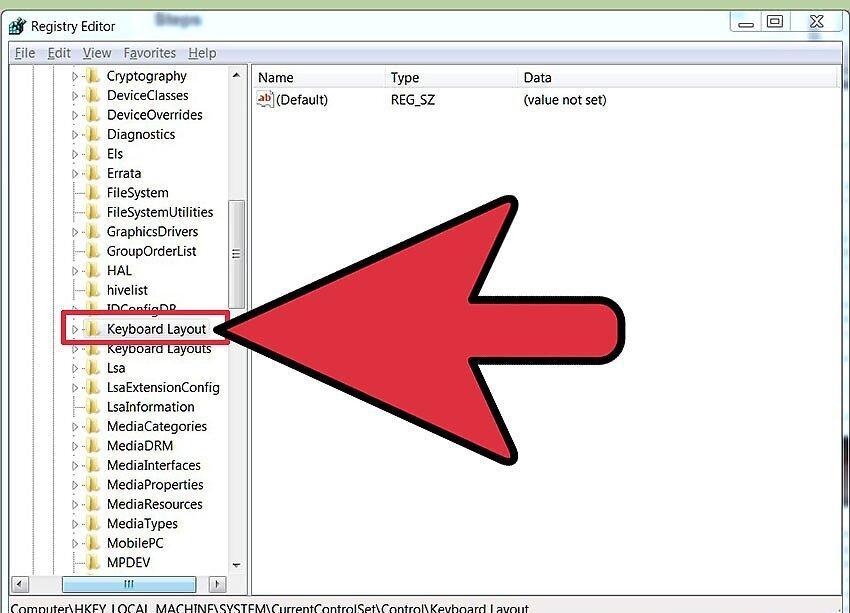
Step 3. Create a new parameter
Right-click in the right pane of the window and select "New" → "Binary Value".
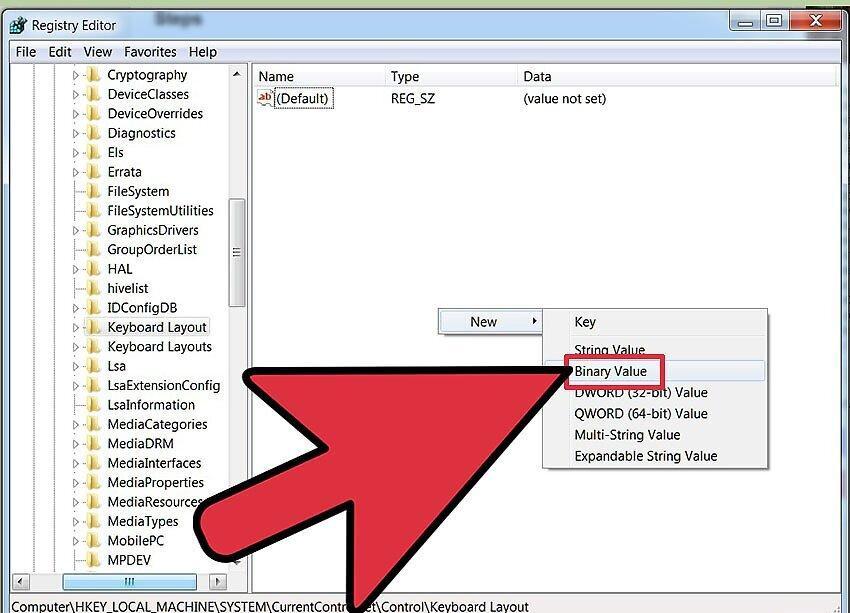
Step 4. Name the new value
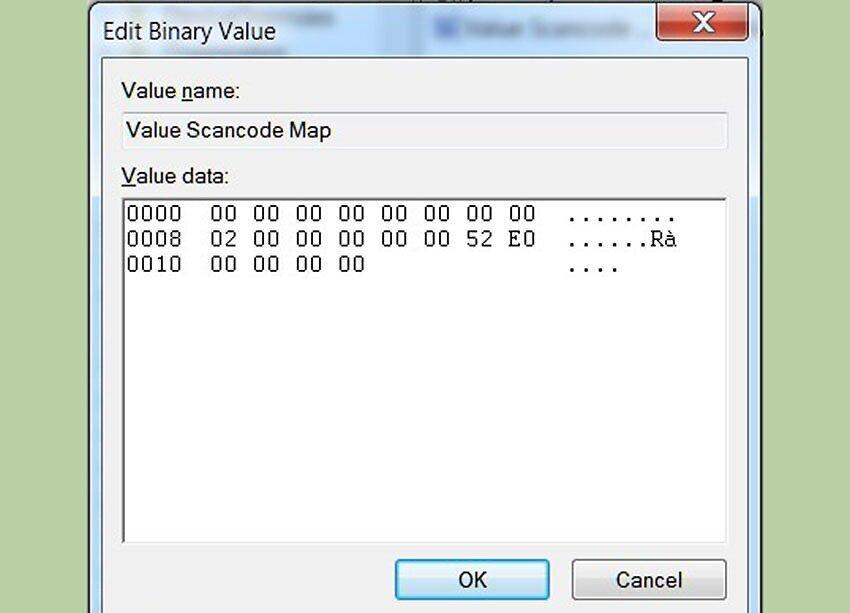
Assign the name Scancode Map to the new value.
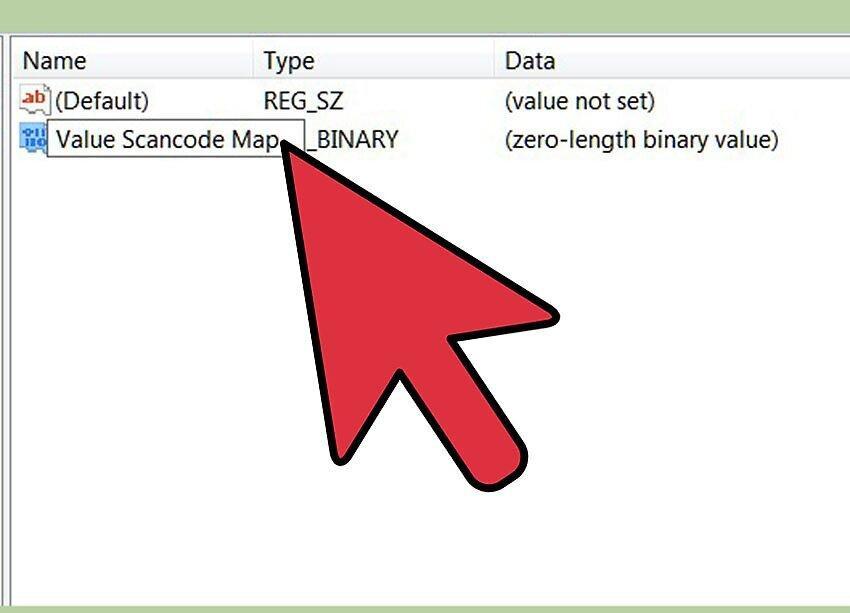
Step 5. Enter the necessary data
Enter the following code: 00 00 00 00 00 00 00 00 02 00 00 00 00 00 52 E0 00 00 00 00.
Step 6. Close the registry editor
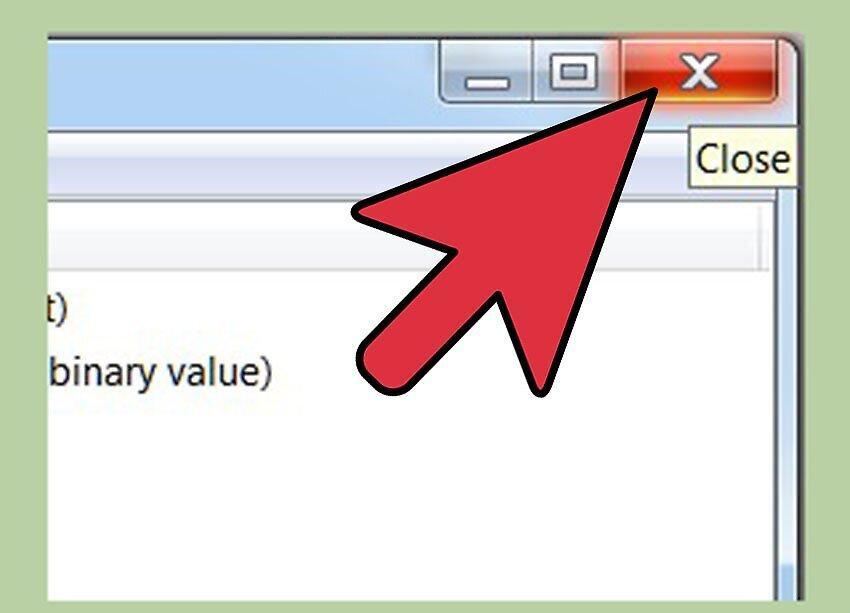
Close the regedit window.
Step 7. Restart your device
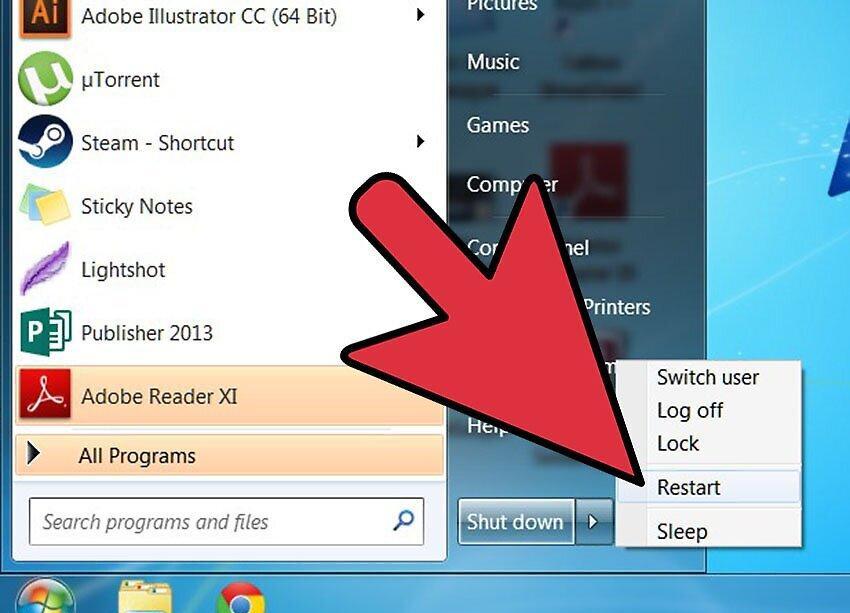
Restart your computer to apply the changes.
Step 8. Additional tip
Additionally: once completed, you can completely remove the Insert key from your keyboard if necessary.