
NBF files are used to store data from outdated Nokia phone models. Other devices may not support this format, but it can be easily opened on a computer. Additionally, the NTI Backup Now program creates backups in the NBF format, which differs from Nokia's and requires a specific approach to handle.
Extracting Data from NBF Files Created on Nokia Phones
Step 1: Transfer the NBF File to a Windows or Mac OS Computer
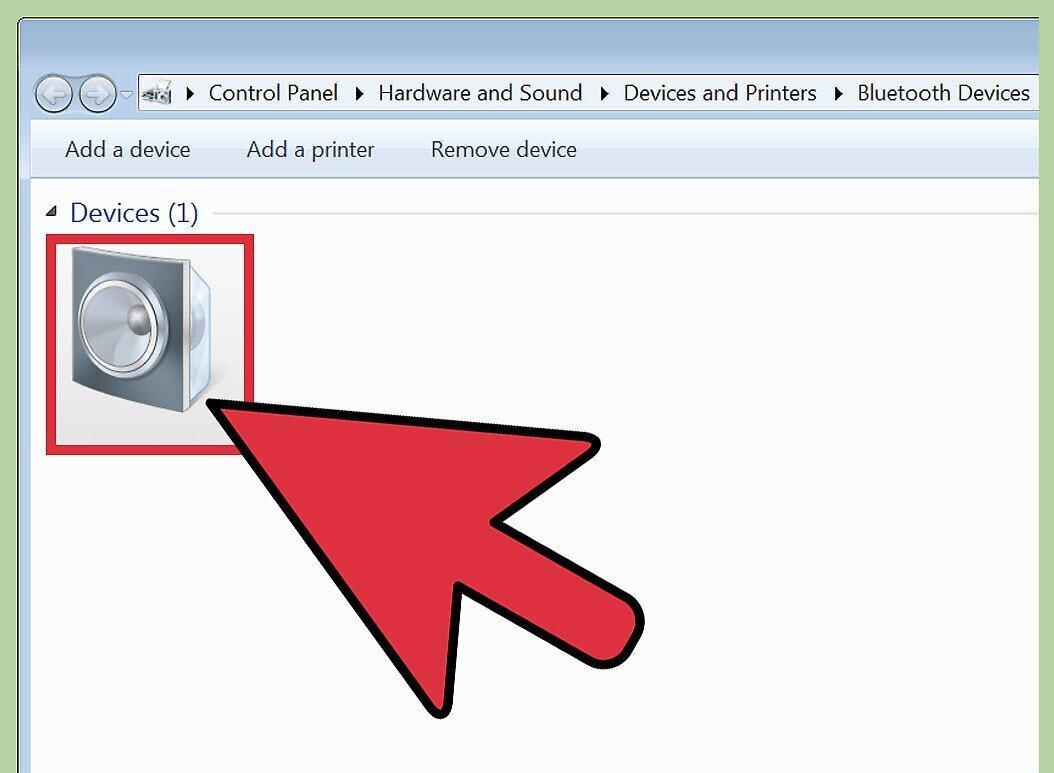
Start by copying the NBF file to your computer running Windows or Mac OS. You can use Bluetooth or another file transfer method, but it’s best to use a USB cable if your phone supports the "Storage" mode.
Step 2: Open the Properties of the NBF File
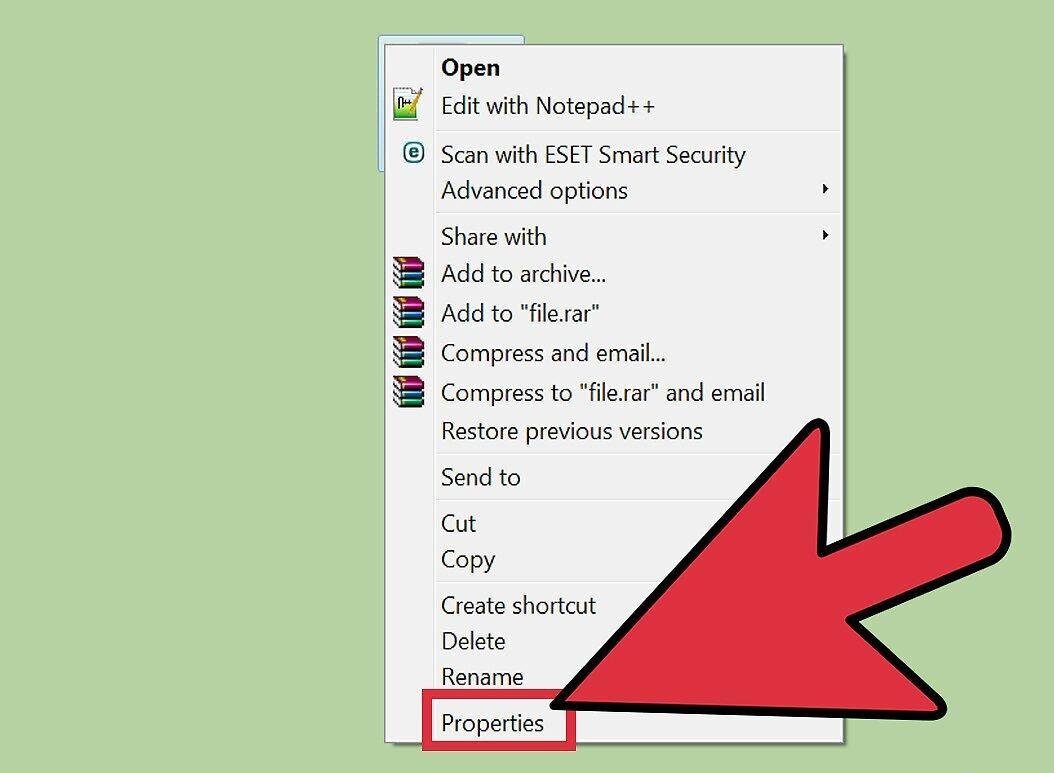
Right-click on the NBF file (on Windows) or hold Control and click the file (on Mac OS) to open its properties. In the menu that appears, select:
- Windows: Properties
- Mac: Get Info
Step 3: Change the Extension to .zip
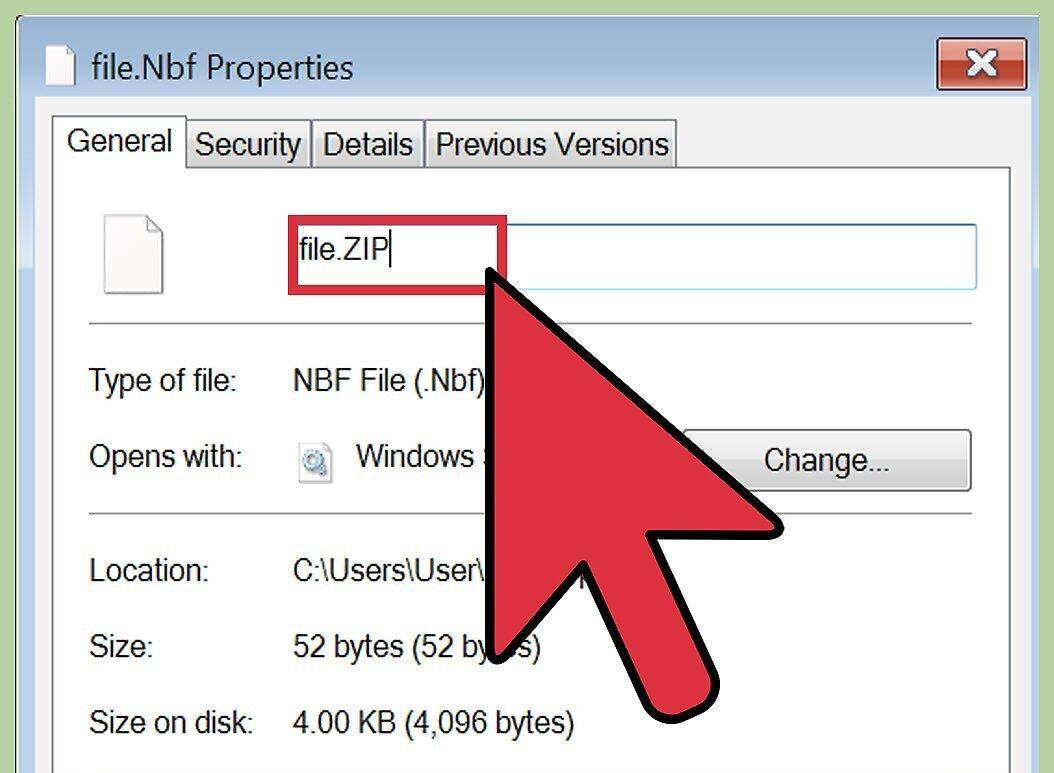
In the file properties, change the extension from .nbf to .zip. Locate the name field and replace "nbf" with "zip". If a confirmation window appears, agree to the change.
- Administrative access may be required to change the extension.
- If the extension is not visible, open Start — Control Panel — Appearance and Personalization — Folder Options — View and uncheck the option "Hide extensions for known file types", then click OK.
Step 4: Open the File
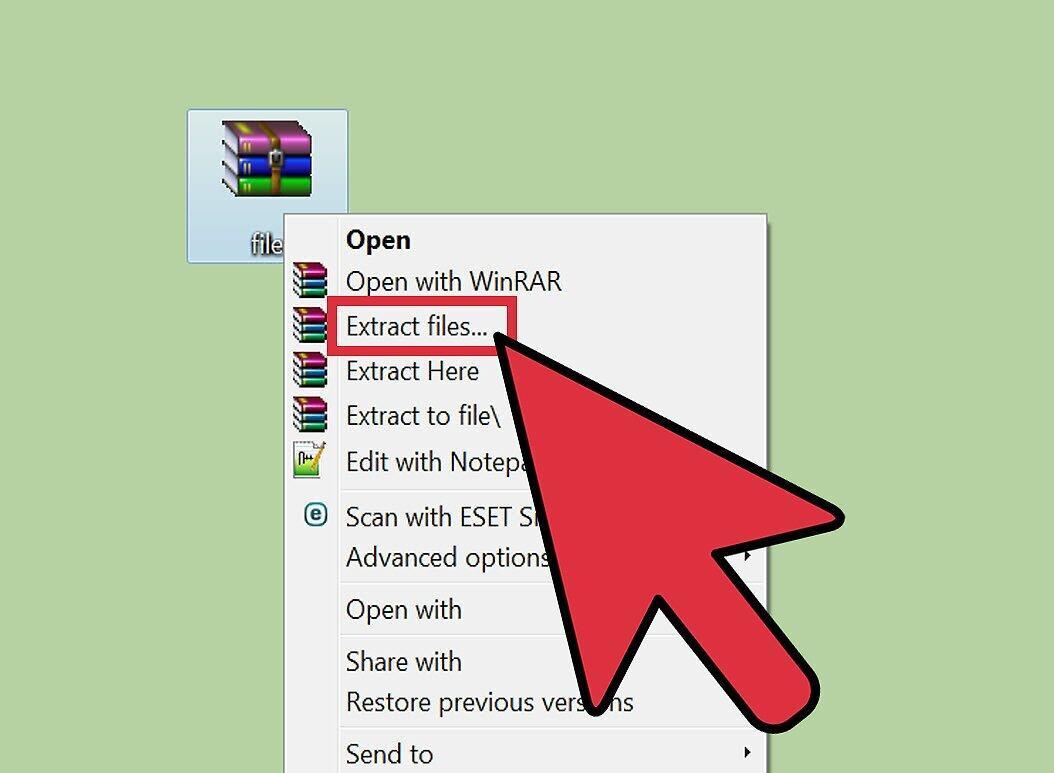
Now double-click the file to open it. If that doesn't work, right-click and select "Extract" or "Open with", then choose an archiver that can unpack ZIP files. This will create a new folder containing all the subfolders and files.
- If you encounter issues, try right-clicking and selecting "Open with" — "Explorer".
Step 5: Locate the Required Data
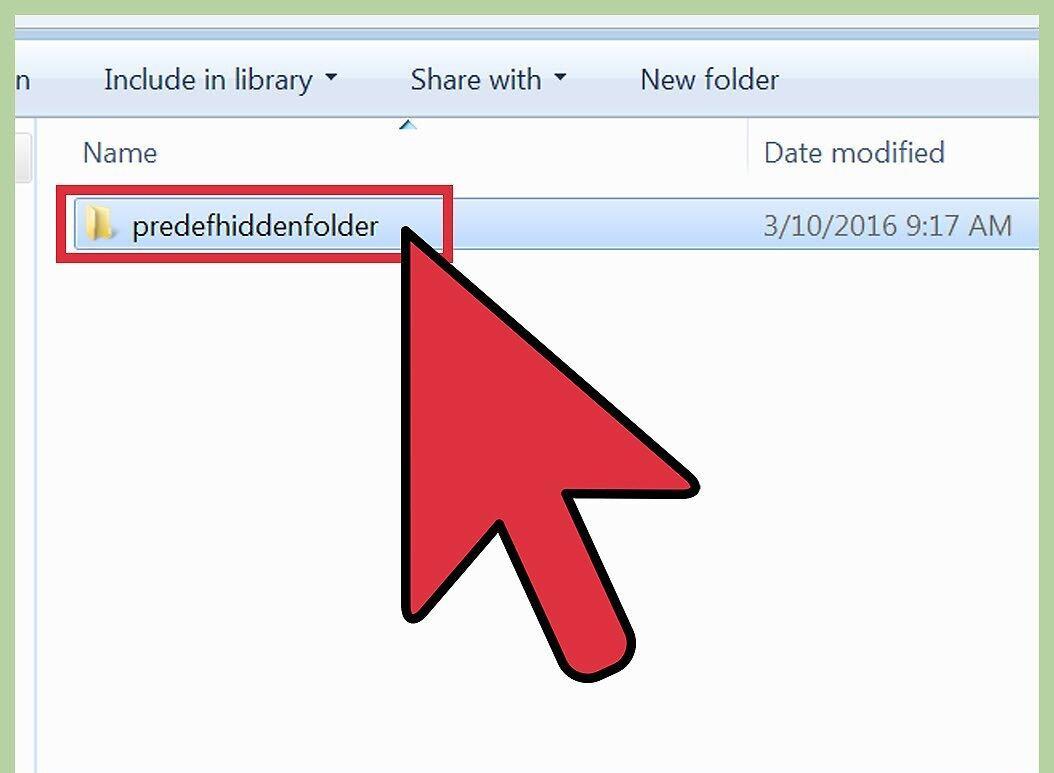
The data is found in VCF files, located at Predefhiddenfolder\Backup\WIP\32\Contacts.
Step 6: Combine All Contacts into One File (if necessary)
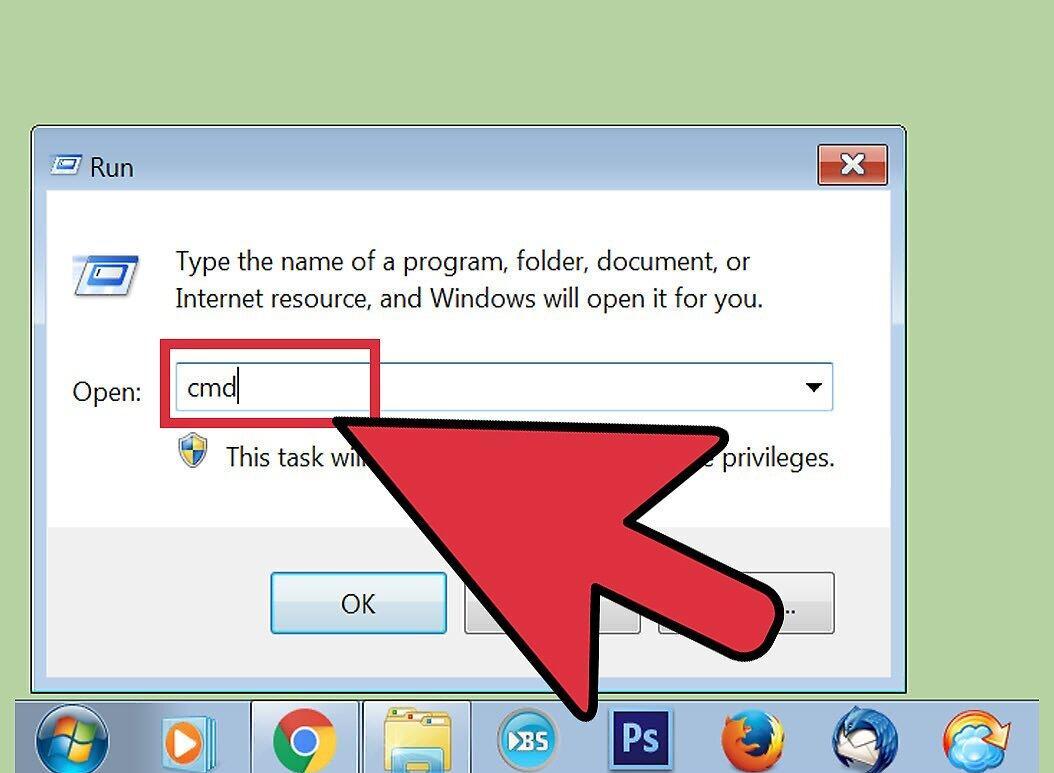
If needed, you can combine all contacts into a single file. Many devices allow copying contacts one at a time, but merging them into one file greatly simplifies the process. However, be aware that some devices and programs may not support files with multiple contacts. Be sure to back up old contacts in case of unforeseen issues.
- For Windows: open the Run dialog and type cmd. In the command line, enter the path to the contacts folder, then type copy *.vcf all_contacts.vcf to create a file with all contacts.
- For Mac OS: open Terminal and enter the path to the contacts folder. Then type cat *.vcf > all_contacts.vcf to create one file with all contacts.
- To find the path to the contacts folder, right-click and select "Properties" or "Get Info". Copy the path from the "Location" field, adding \contacts if necessary.
Step 7: Transfer Contacts to Another Phone
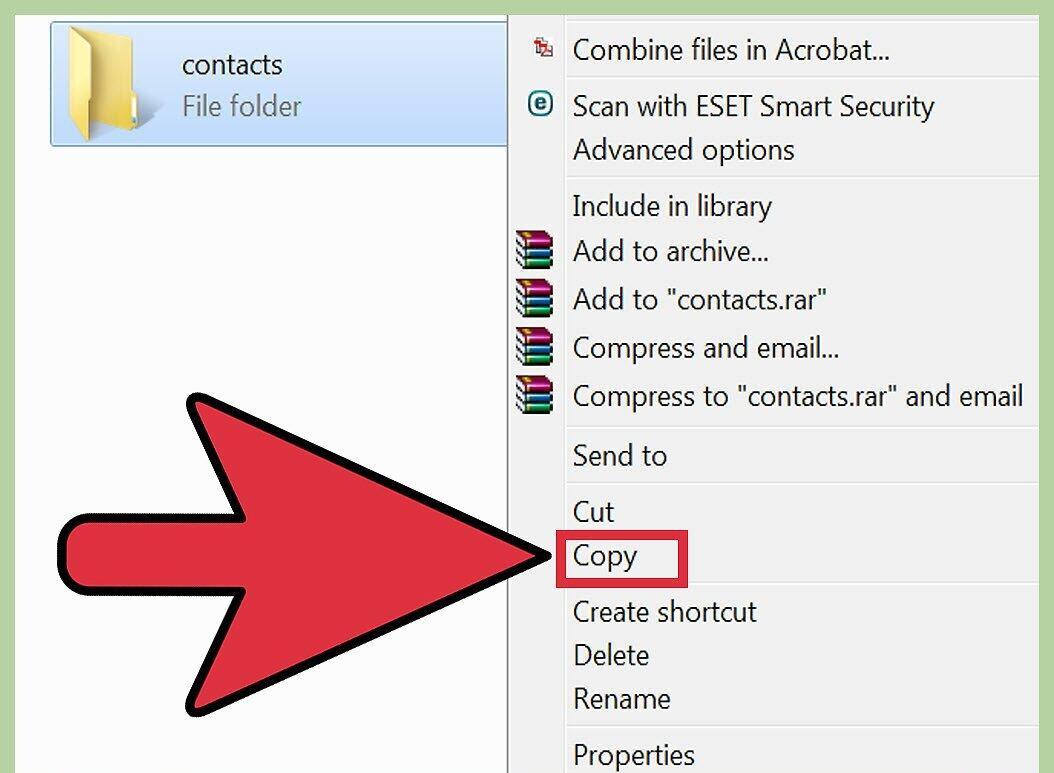
Transfer the contacts to another phone. You can copy the entire contacts folder or individual VCF files. Use one of the following methods:
- Email yourself the attached VCF files. On the new smartphone, open your inbox and download the files.
- If the contacts are stored in iCloud or another cloud service, log in and find the "Import Contacts" or "Import vCard" option.
- On an Android device, copy the VCF files to an SD card. Launch the "Contacts" app and select "Menu" — "Import" — "Import from SD Card". Then restart the app.
- If the phone only supports CSV, import the VCF files to your computer into the Contacts folder or Gmail contacts, then export them in CSV format.
Step 8: Open VCF Files on Your Computer
To open VCF files on your computer, upload them to Microsoft Outlook, Contacts, Address Book, or another program where your contacts are stored. Launch the program and select File — Import. If you need to specify the file type, choose VCF or vCard.
- For simple viewing of contacts (without the ability to add new ones), import them into Excel or another spreadsheet application.
Extracting Data from NBF Files Created Using NTI Backup Now
Step 1: Open the NTI Backup Now Program
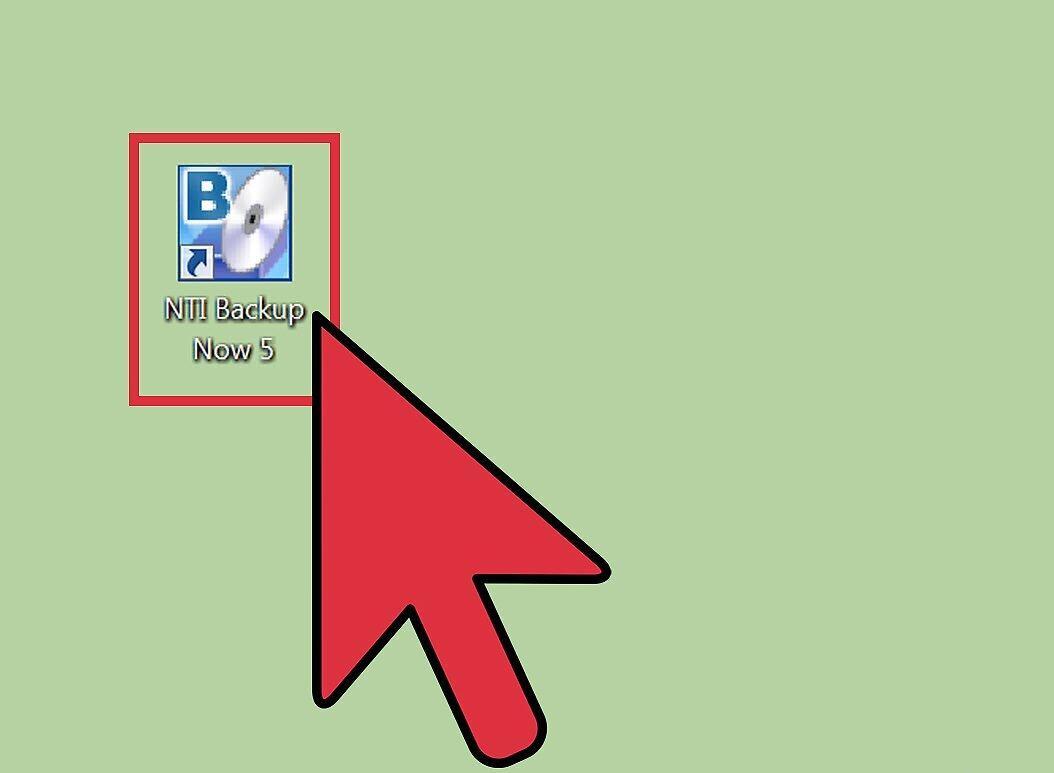
Launch the NTI Backup Now program. If your computer does not recognize the NBF file, it was likely created using this software. NTI Backup Now is designed for backups and is pre-installed on some computers. If you don’t have it, download a trial version from the NTIcorp website.
- Note that the NBF format from NTIcorp differs from the Nokia format, so you will not be able to view contacts through NTI Backup Now.
Step 2: Locate NBF Files
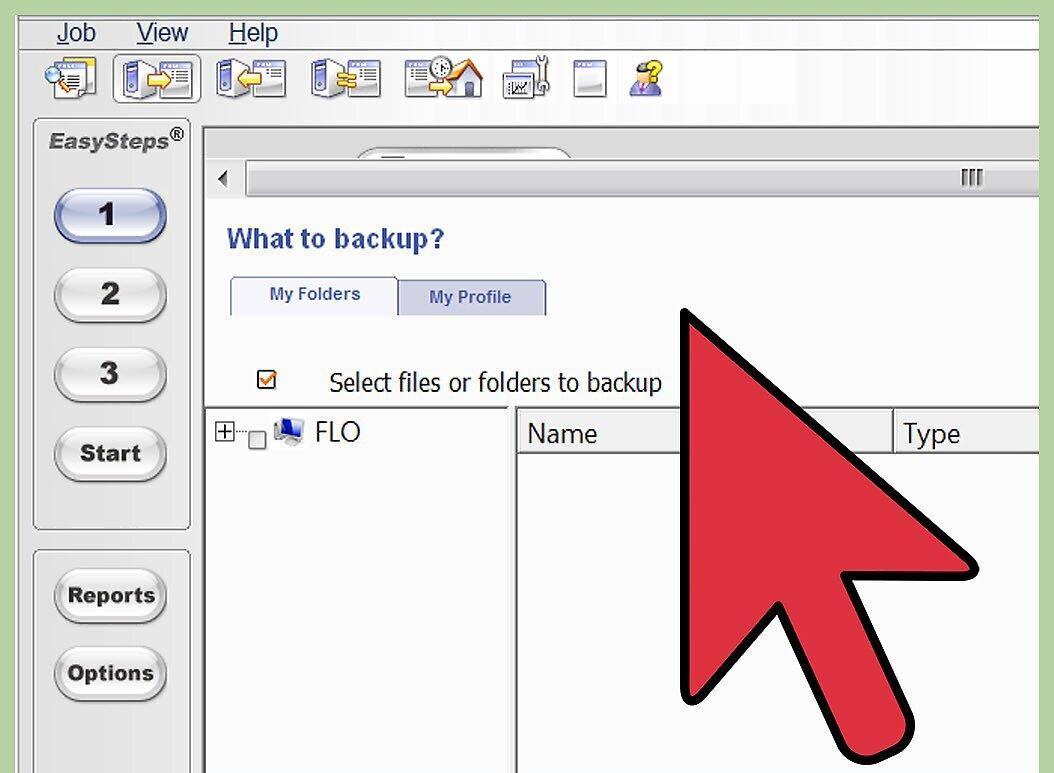
Click on the "Restore Files and Folders" option to see a list of available NBF files.
Step 3: Restore Only Deleted or Corrupted Files
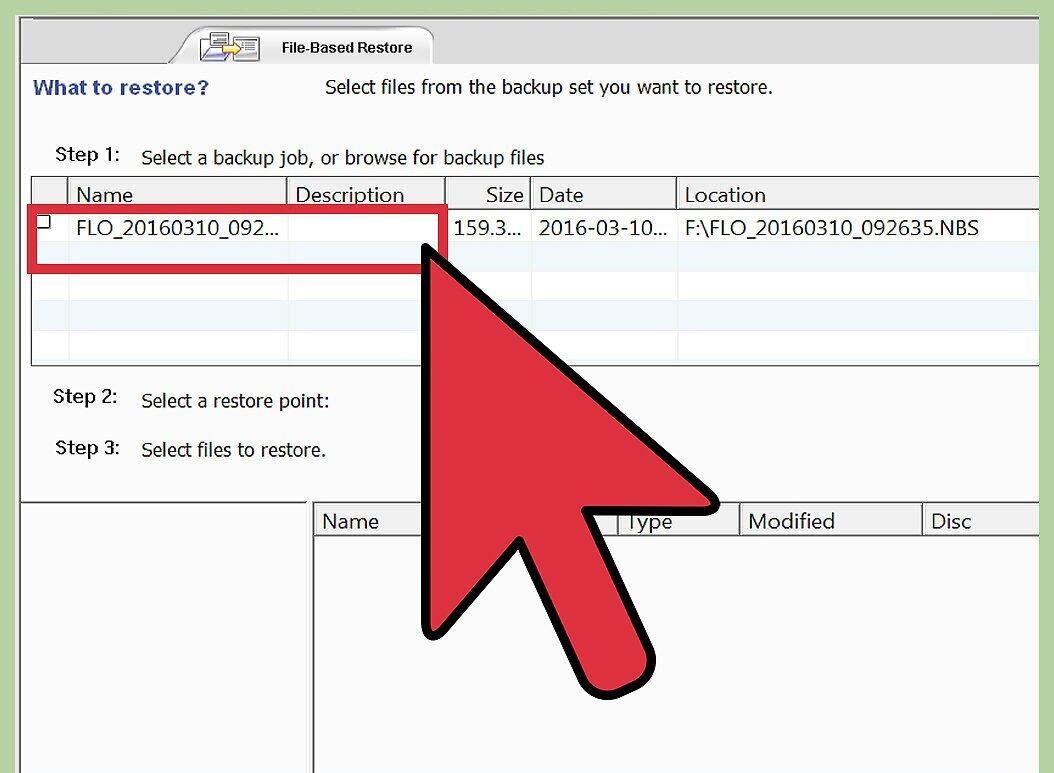
Select only the deleted or corrupted files for restoration. Click "Restore" to recover the selected files. Be aware that if there are already files with the same names on the computer, they will be overwritten, so ensure that important data is not lost.


