
When you connect your computer to a network, it is assigned a unique network identifier known as an IP address. If your device is connected to both a local network and the Internet, it will have two types of IP addresses: an internal (or private) one for the local network and an external one for the Internet. Let's explore how to find both of these addresses.
How to Find Your External IP Address Using a Search Engine
Step 1. Open Bing or Google.
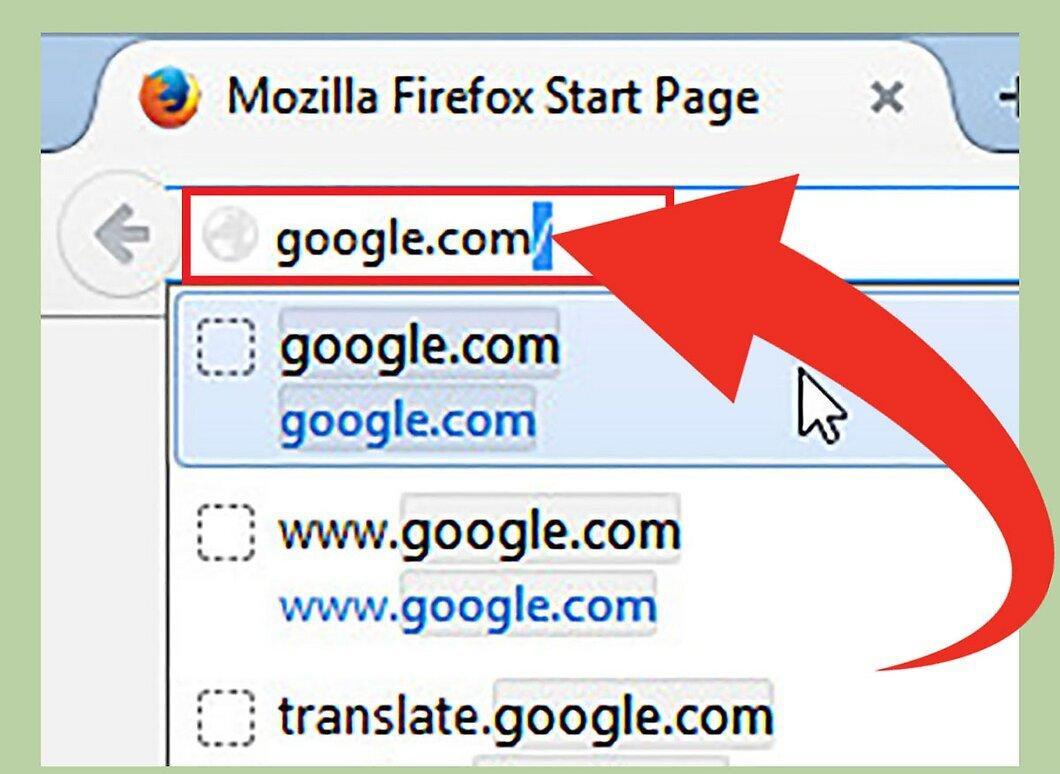
Launch one of the two popular search engines: Bing or Google. They allow you to quickly determine your external IP address, which is used to access the Internet.
Step 2. Type "IP address" in the search bar.
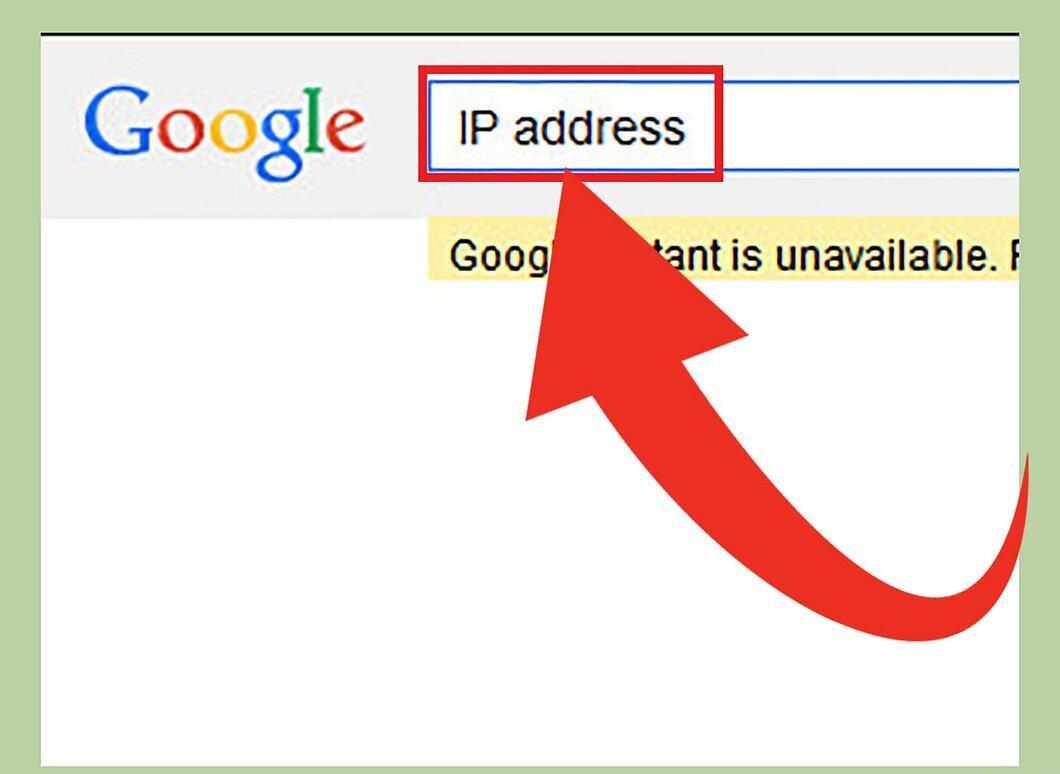
Enter the phrase "IP address" into the search bar and hit Enter. The search results will display your external IP address. This method works on Google, Bing, Ask, and DuckDuckGo, but is not suitable for Yahoo.
Step 3. Find your IP address in the results.
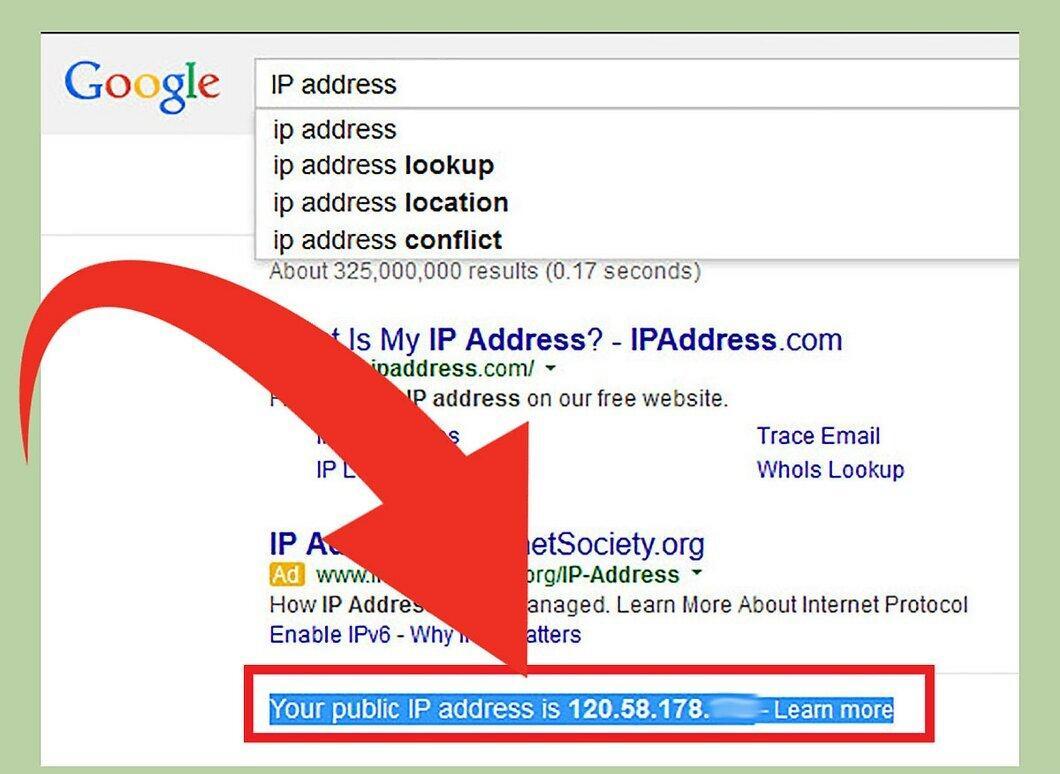
Your external IP address will appear at the top of the results list, sometimes in a separate box. If you are using Ask, it will be located in the "All Answers" section.
- Your external IP address consists of four numbers (each less than 256) separated by periods. For example, it may look like this: 199.27.79.192.
- This address is assigned by your Internet Service Provider (ISP). Most of the time, it is dynamic, meaning it can change periodically. Additionally, it can be hidden using a proxy server.
How to Find Your External IP Address Through Router Settings
Step 1. Access your router settings.
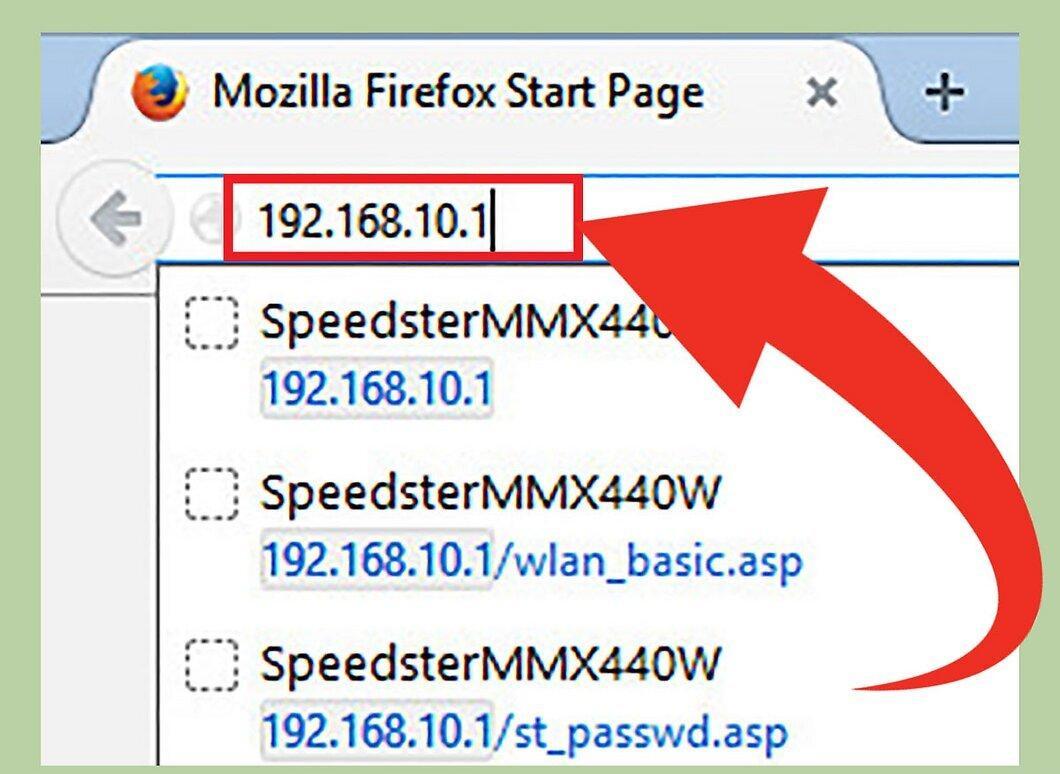
Open your router's web interface. Most routers can be accessed through a browser by entering their IP address. To find this address, refer to your router's manual. The most common addresses are:
- 192.168.1.1
- 192.168.0.1
- 192.168.2.1
Step 2. Navigate to the router's status or WAN page.
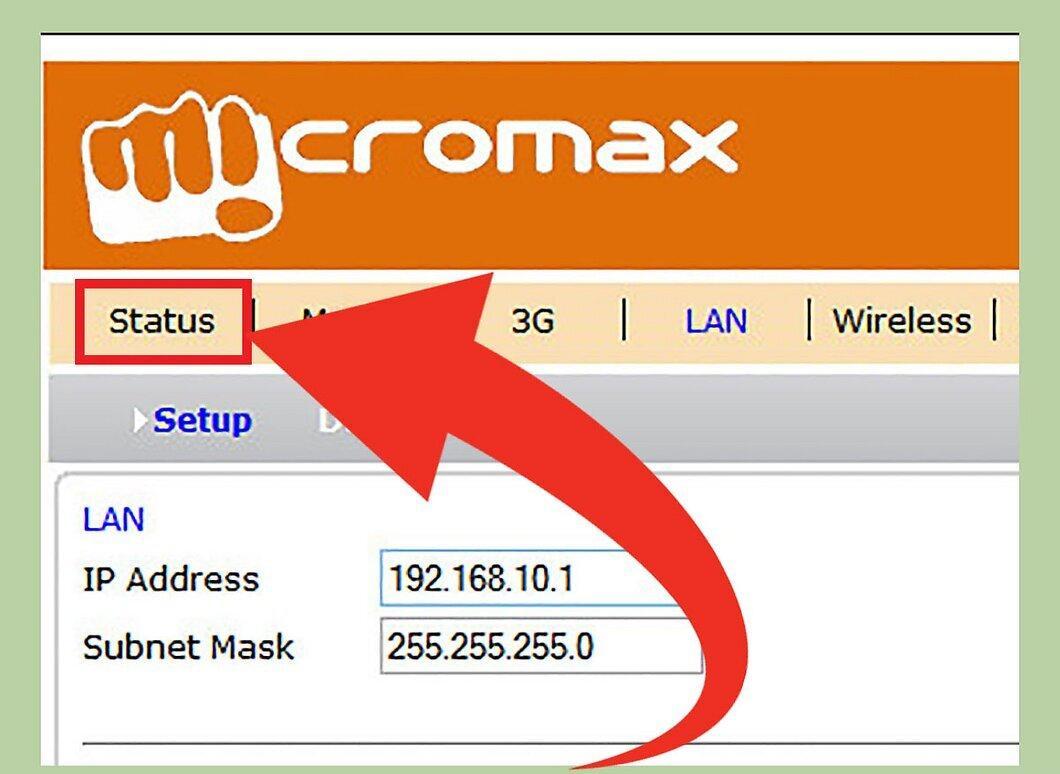
Open the status or WAN page of your router. The location of the external IP address may vary, but it is usually found on the "Internet" or "Status" page.
- If you have a modern Netgear router with the Netgear Genie interface, select the "Advanced" tab and then "Advanced Internal Settings."
Step 3. Find your IP address.
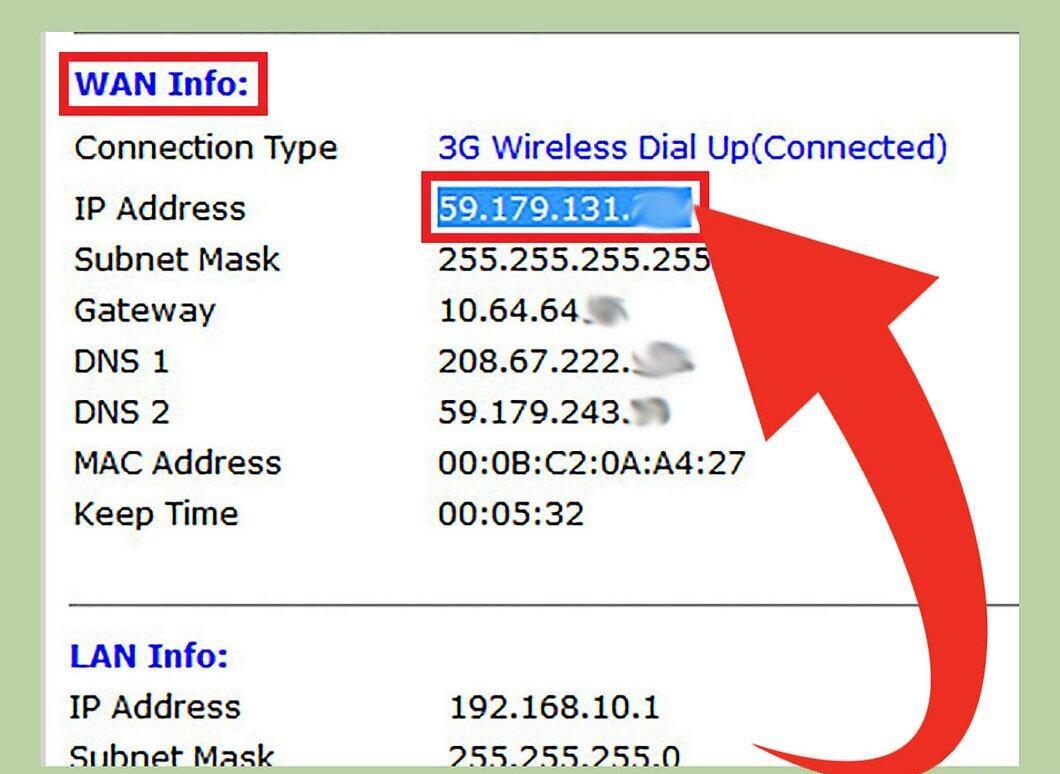
Your external IP address should be listed in the "Port to Internet" or "Internet IP Address" section on the status page. It consists of four numbers (each less than 256), for example: 199.27.79.192.
- This address represents your router's IP address. All external connections will use this address.
- As mentioned earlier, it is assigned by your ISP and can change over time, as well as be hidden using a proxy server.
How to Find Your Private IP Address Using Command Prompt in Windows
Step 1. Open Command Prompt.
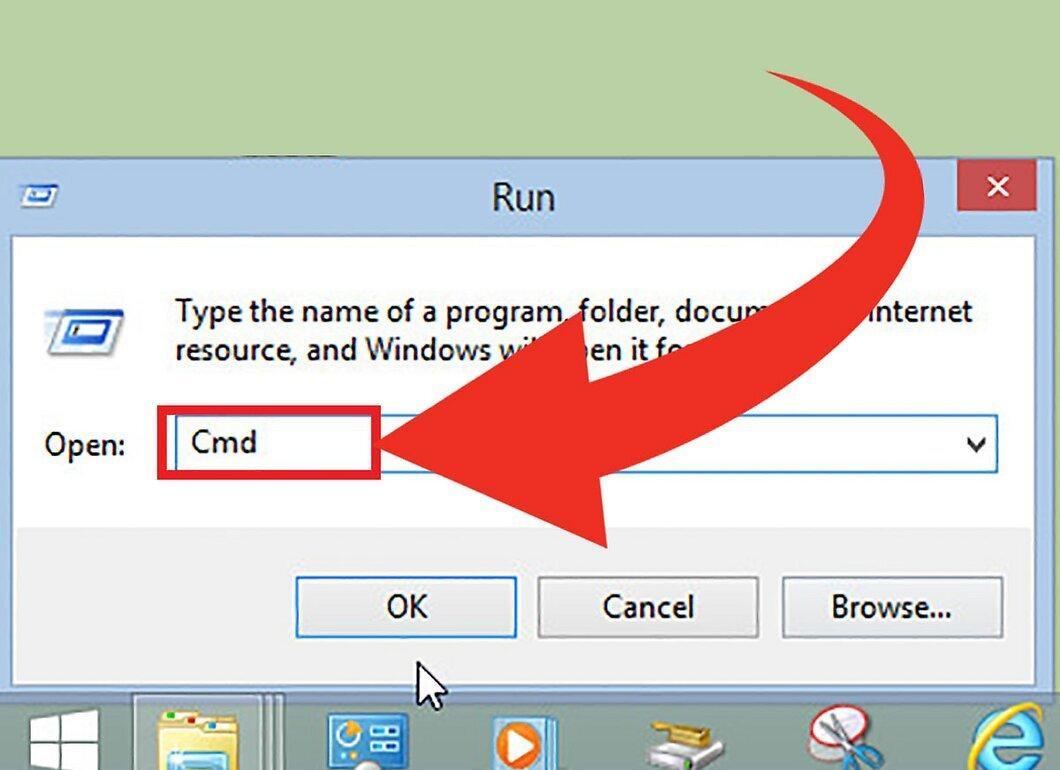
Launch Command Prompt by pressing Windows + R and typing "cmd". Then hit Enter.
- In Windows 8, you can press Windows + X and select "Command Prompt" from the menu.
Step 2. Execute the "ipconfig" command.
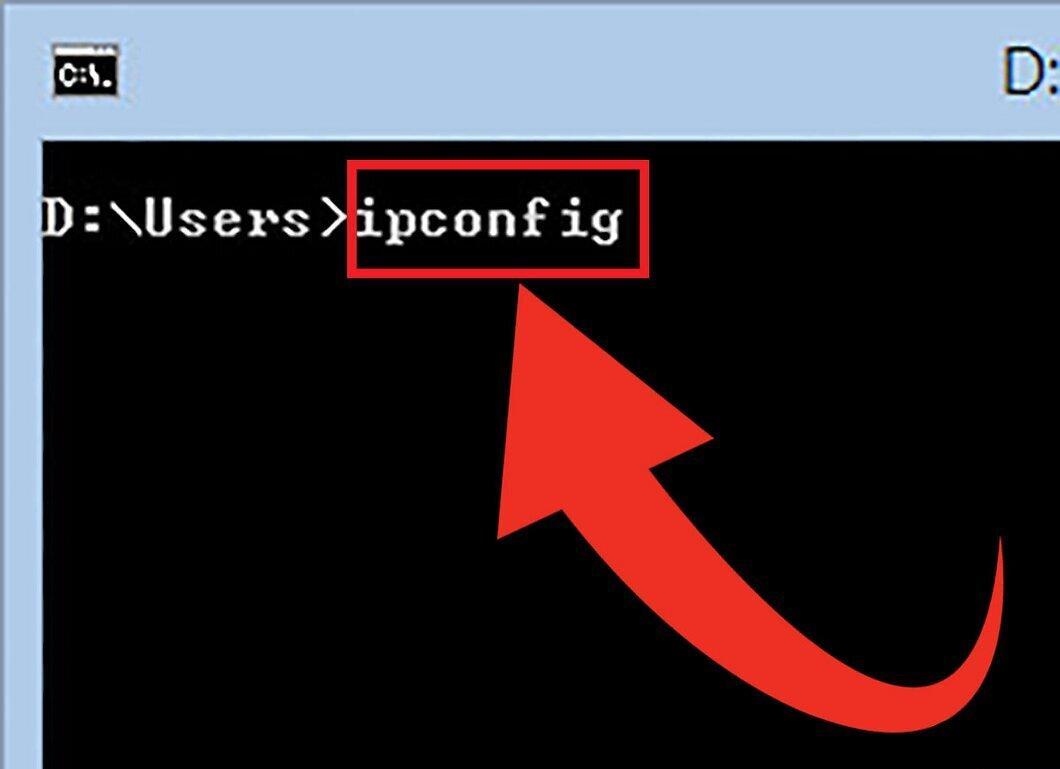
Type the command "ipconfig" and press Enter. This will display a list of all network connections on your computer.
Step 3. Find your IP address.
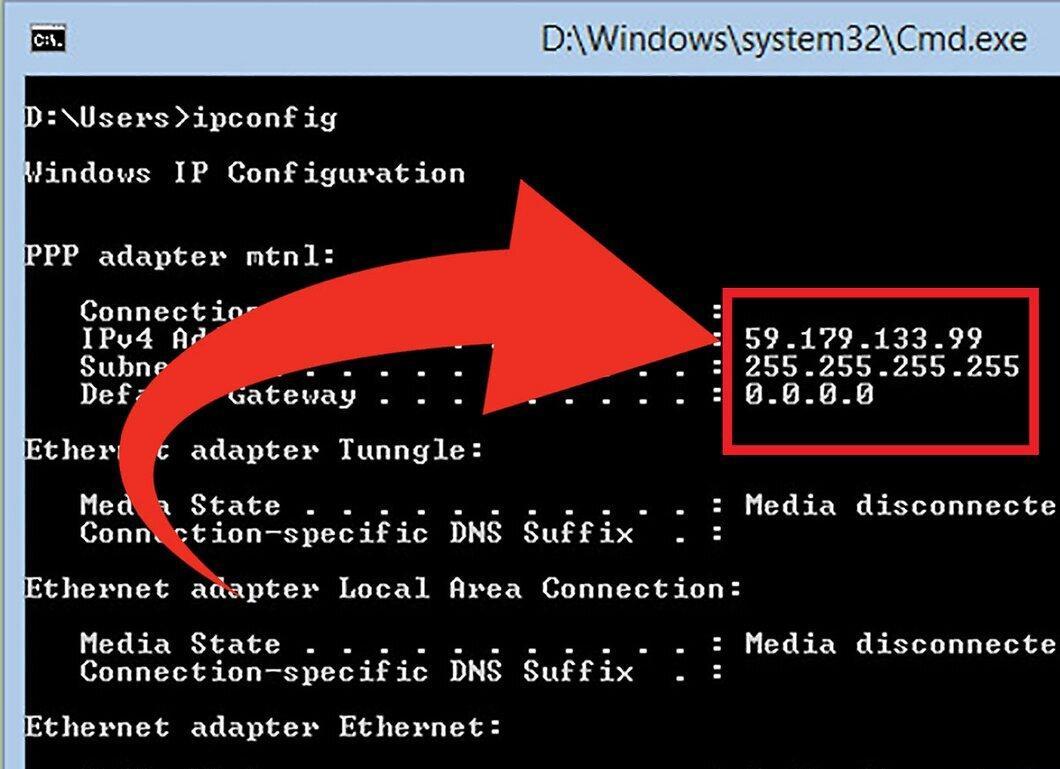
Your active connection may be labeled as "Wireless Network Connection," Ethernet adapter, or local network. Find the active connection and look for the line with the IPv4 address.
- As mentioned earlier, the IP address consists of four numbers (each less than 256), for example: 192.168.1.4.
- Since the "ipconfig" command outputs a fairly long list, you may need to scroll to find the IPv4 address.
How to Find Your Private IP Address via "Network Connections" in Windows
Step 1. Open "Network Connections."
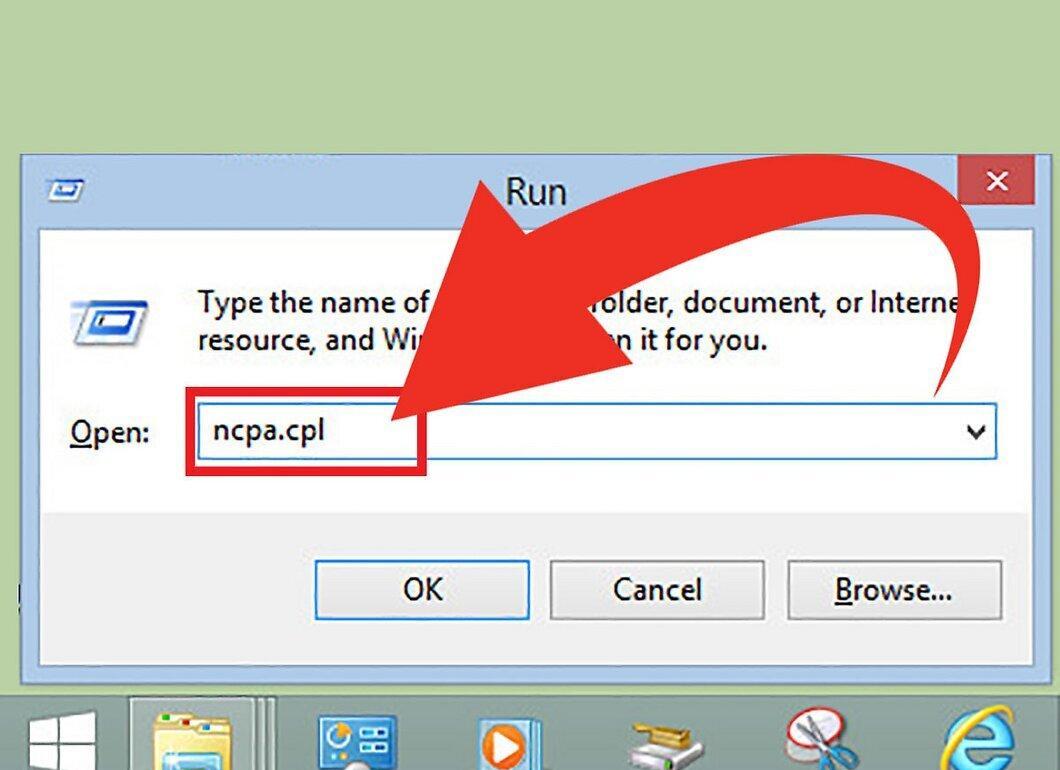
Launch the "Network Connections" window by pressing Windows + R and entering "ncpa.cpl". Press Enter to confirm.
Step 2. Right-click on the active connection.
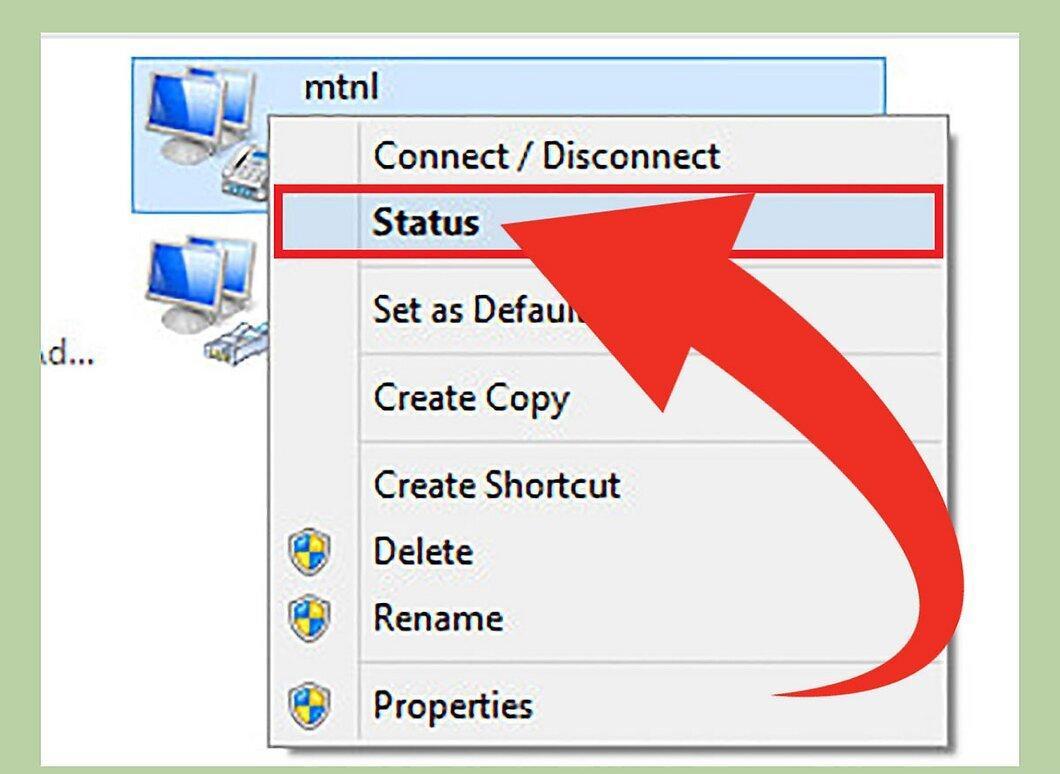
Right-click on your active connection and select "Status." This will open the "Connection Status" window. In Windows XP, go to the "Support" tab.
Step 3. Open "Network Connection Details."
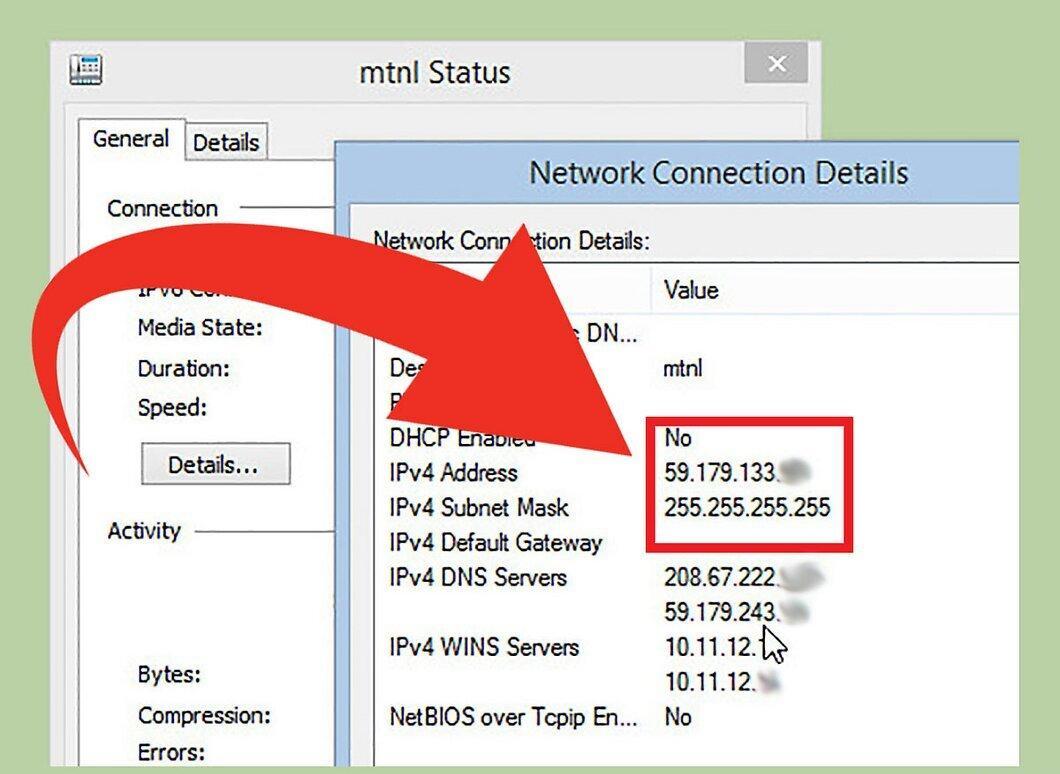
Click on the "Details..." button to open a window with the network connection details. Your private IP address will be displayed in the "IP Address" or "IPv4 Address" field.
- Your private IP address will consist of four numbers (each less than 256), for example: 192.168.1.4.
- It identifies your computer on the local network.
How to Find Your Private IP Address in Linux
Step 1. Open the Terminal.
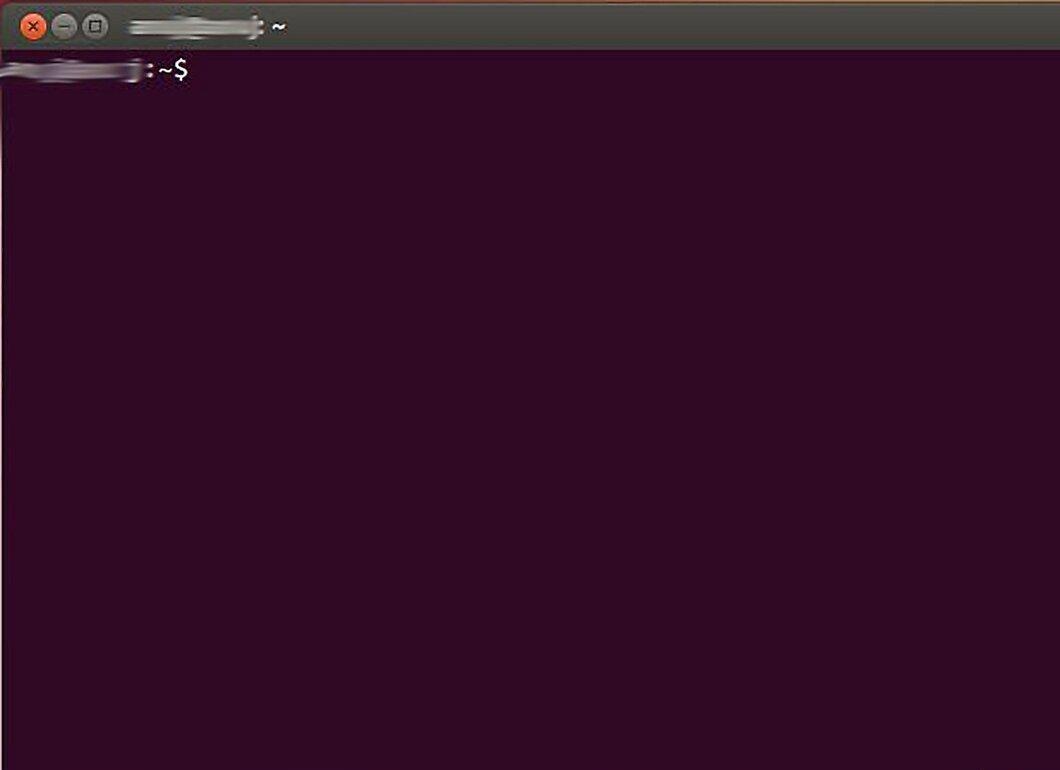
Open the Terminal window. You can find your private IP address through the command line. You can open it from the "Utilities" folder or by pressing Ctrl + Alt + T, which works on most distributions.
Step 2. Enter the command to display the IP address.
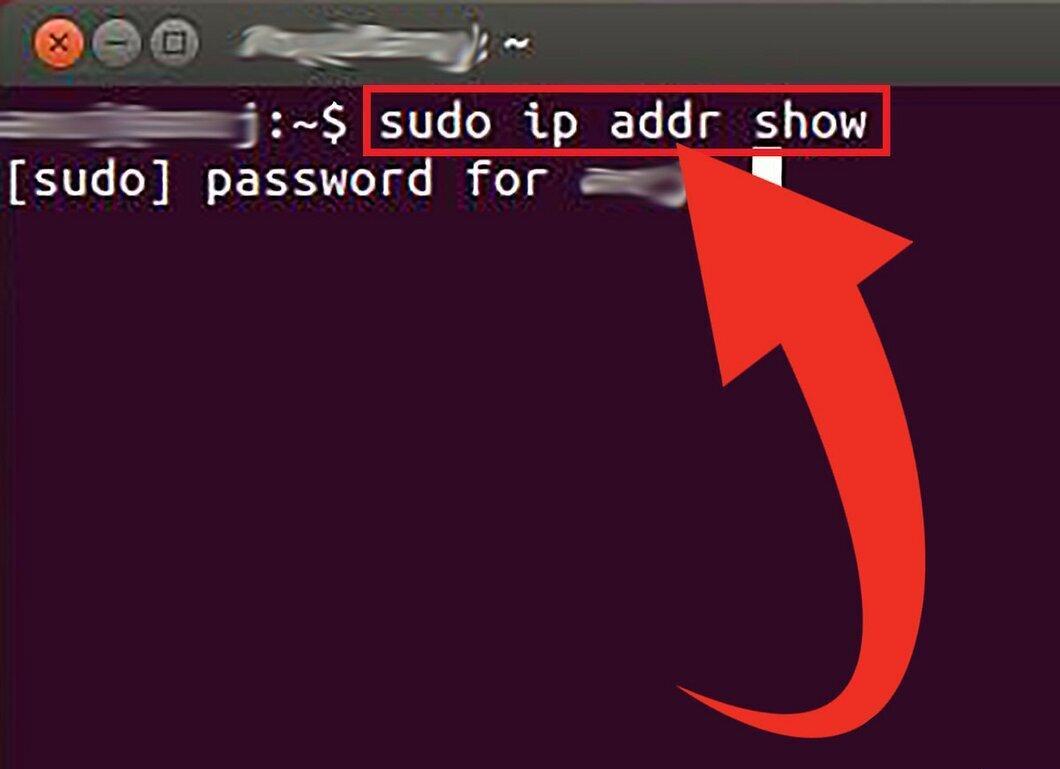
Type one of the commands to find your IP address. You can use the following commands:
- Type
sudo ip addr show, and you will be prompted to enter your administrator password. - Type
/sbin/ifconfig, but you may need to enter your password if required.
Step 3. Find your IP address in the output.
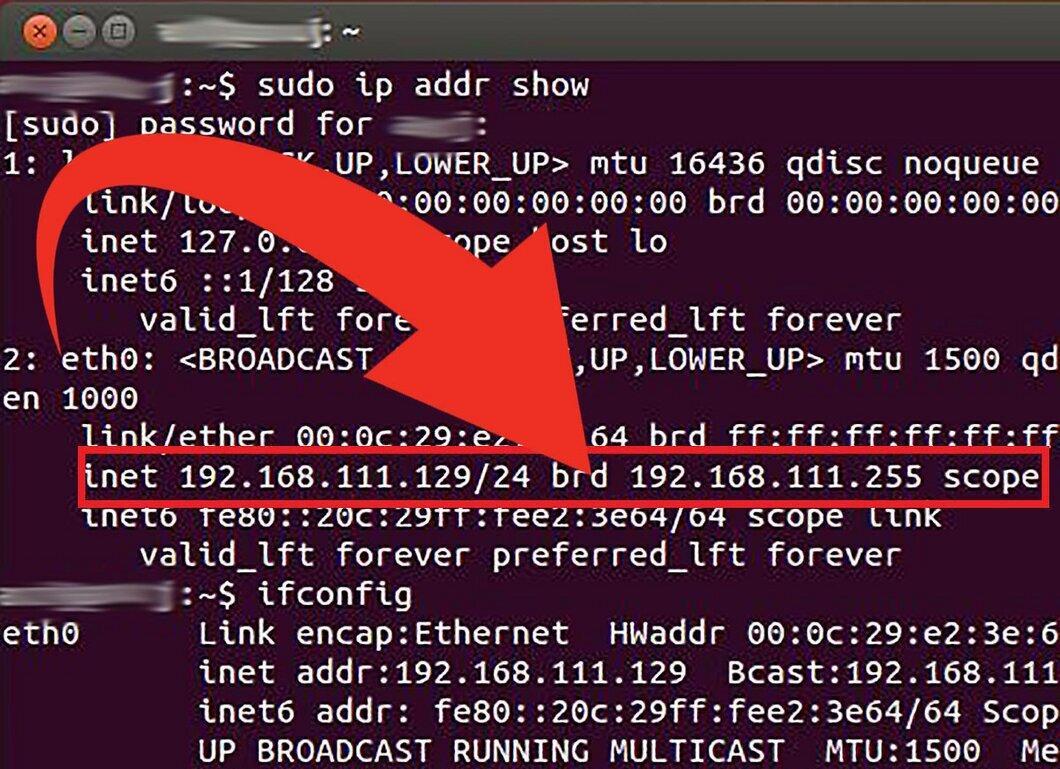
Each of these commands will show information about your network connections. Look for the active connection you are currently using. If you are connected via Ethernet, it is usually called eth0, and for wireless connections, it may be wlan0.
- Your private IP address will contain four groups of numbers, each of which can have up to three digits. For example, it may look like this: 192.168.1.4.


