If you've accidentally sent an email or sent it to the wrong recipient, don't worry—there are ways to fix it!
Gmail
Step 1. Log into your Gmail account and click on the gear icon in the top right corner.
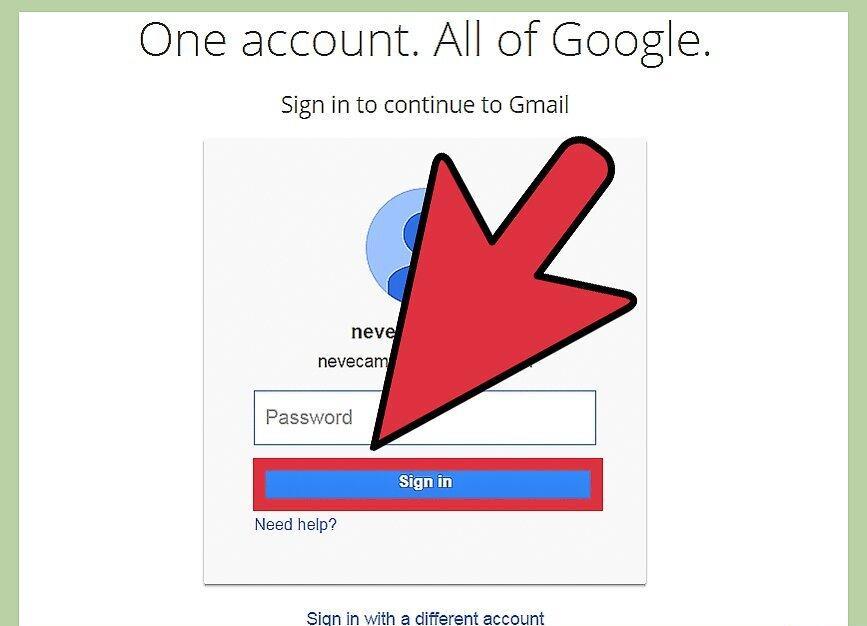
Once logged into Gmail, click on the gear icon in the upper right corner of your browser. In the menu that appears, select "See all settings."
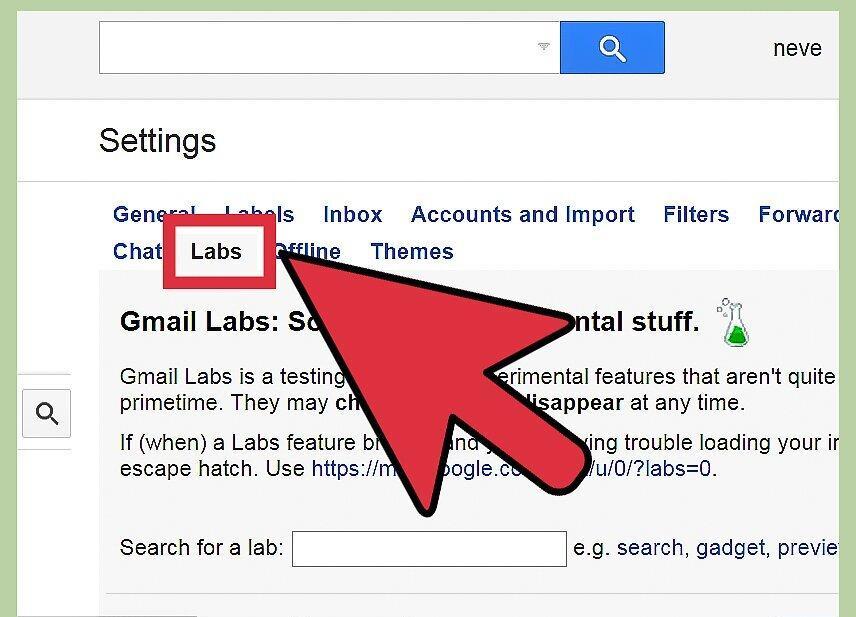
Step 2. Go to the "Advanced" tab.
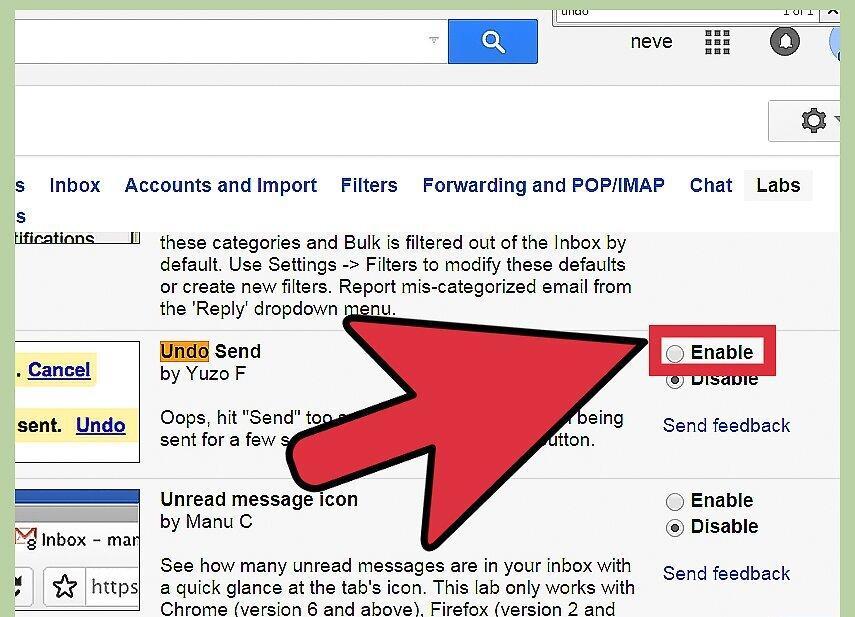
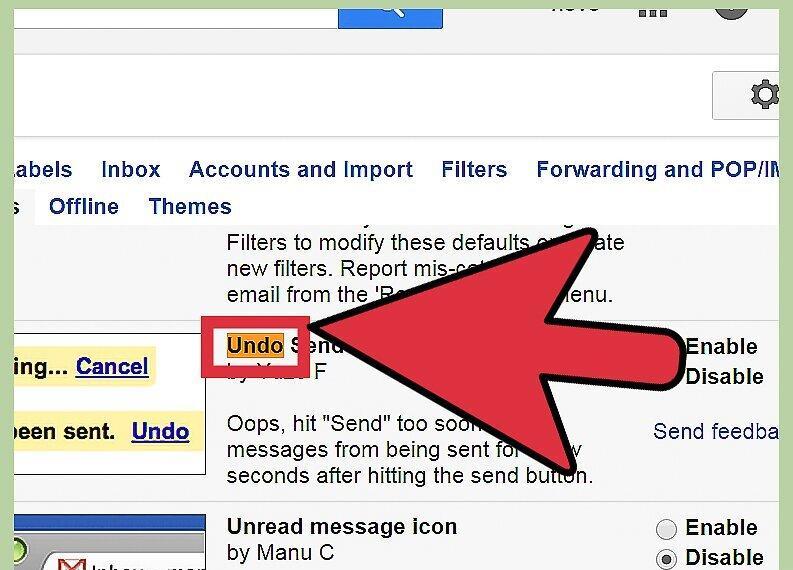
Step 3. Find the "Undo Send" option and enable it by checking the box.
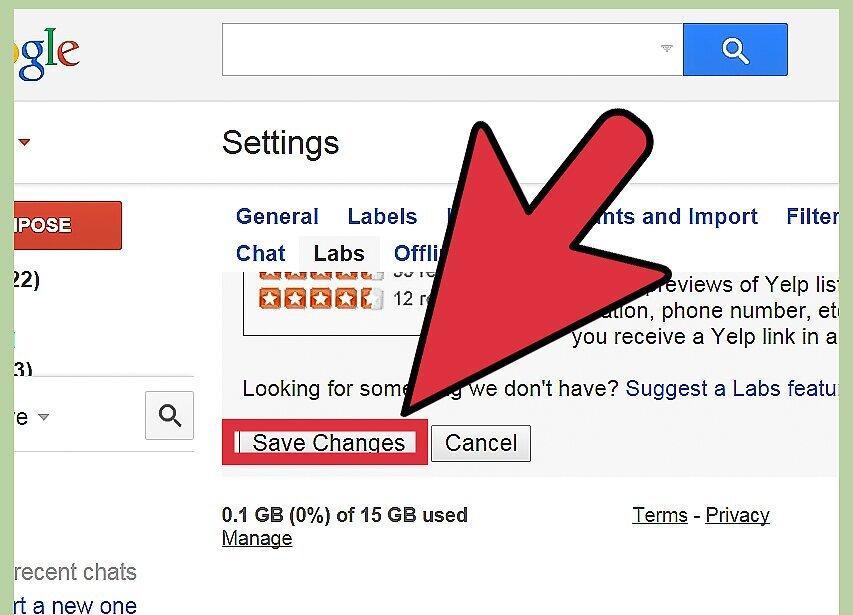
Step 4. Don't forget to click "Save Changes" at the bottom of the page.
Step 5. To recall an email, simply click on the "Undo" button, and your email will be returned to you.
After that, you can make changes to the email and send it again.
Outlook
Step 1. Open Microsoft Outlook and go to the "Tools" section.
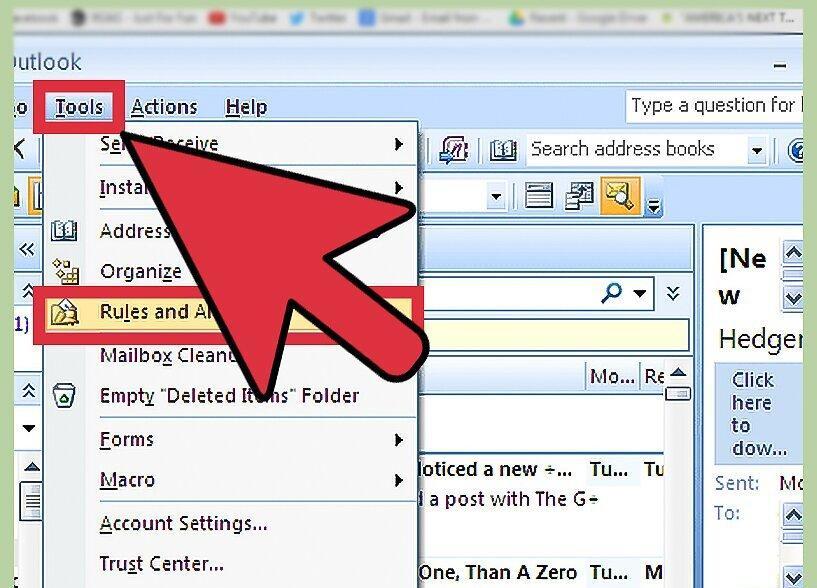
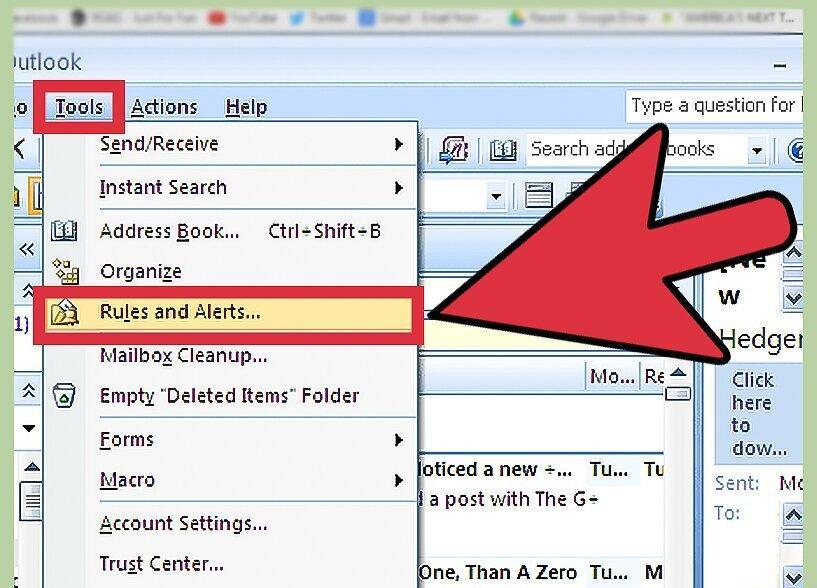
Step 2. Select "Rules and Alerts."
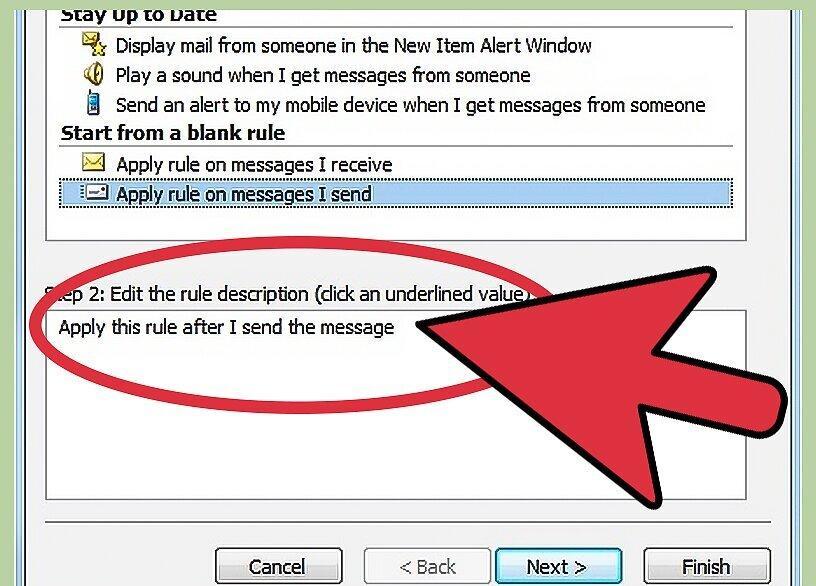
Step 3. Click on "New Rule" and choose the "Check messages after sending" option.
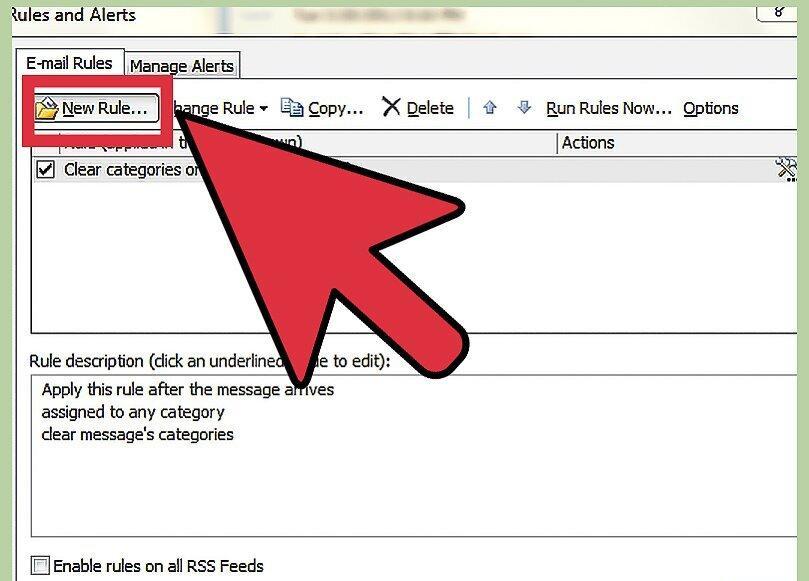
Confirm your selection by clicking "Next" twice.
Step 4. On the "Select Action" page, check the option "defer delivery by a number of minutes."
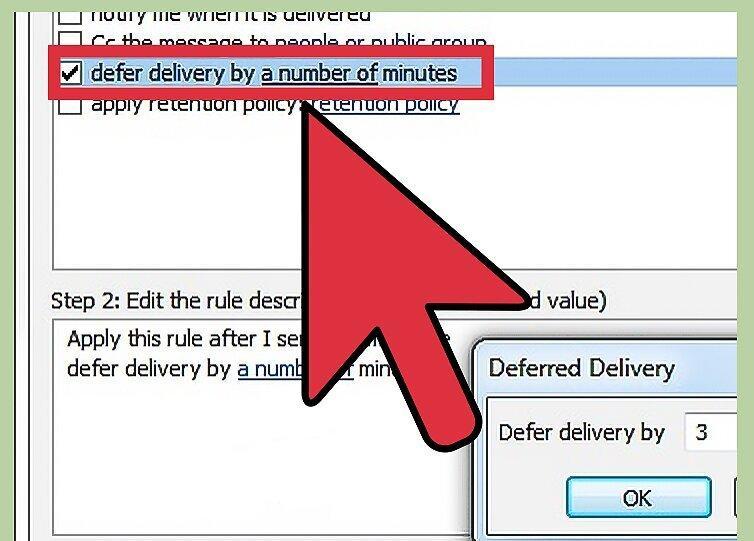
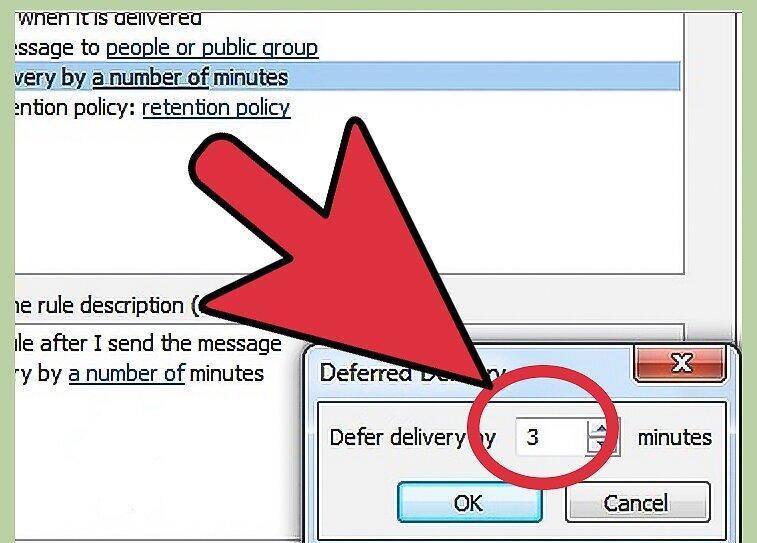
Step 5. Specify the number of minutes for deferred delivery (up to 120 minutes).
Step 6. Click "Next" and add any exceptions for this rule.
For example, emails marked as "important" will be sent immediately.
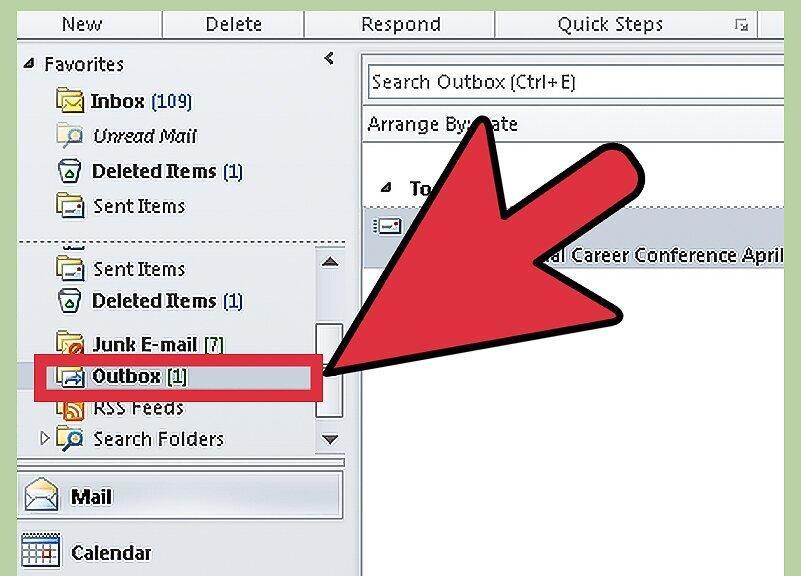
Step 7. To recall an email, go to the "Outbox" folder and move the email to "Drafts" or simply delete it.