
In this article, you will learn how to leave iCloud on your iPhone or iPad using the Settings app.
For iOS 10.3 and Later
Step 1. Open the Settings app.
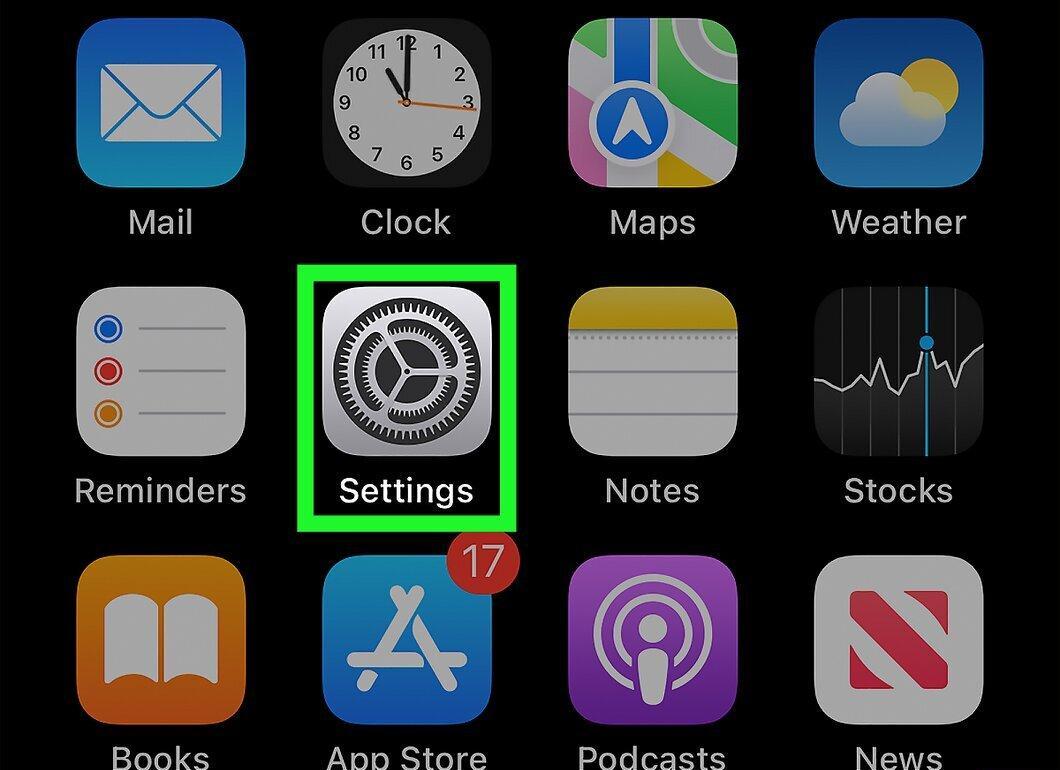
Launch the Settings app — the icon with a gray gear that is usually found on your device's home screen.
Step 2. Tap on your Apple ID at the top of the screen.
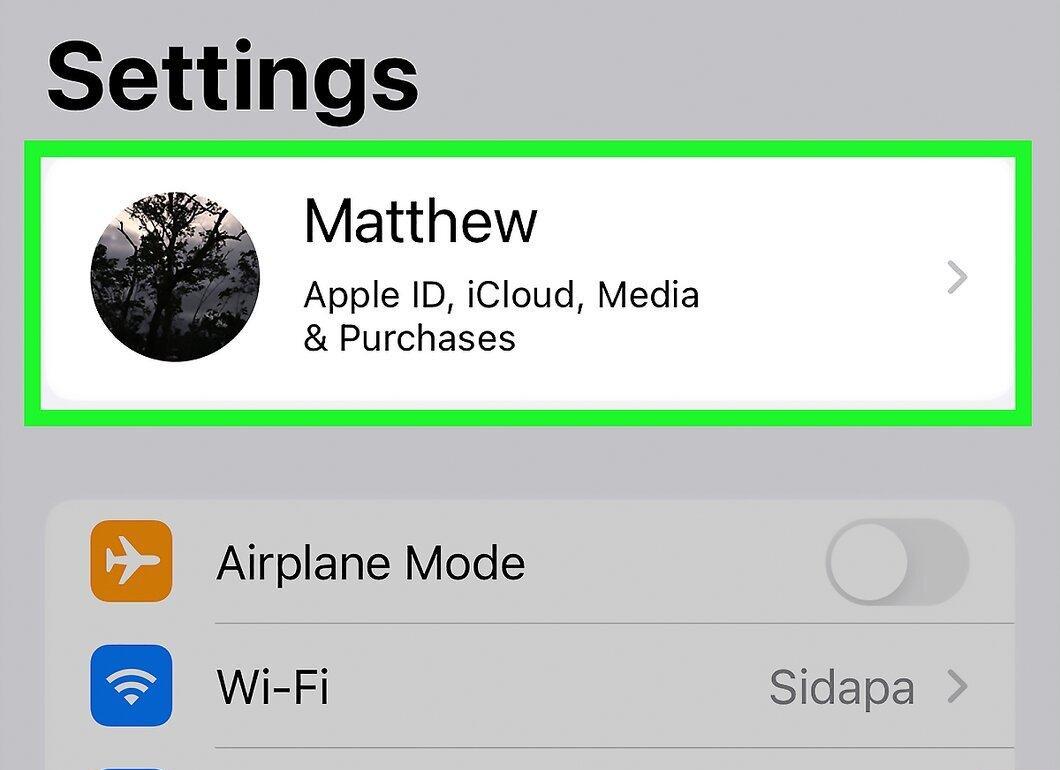
At the top of the Settings app, you will see your Apple ID and profile picture. Tap on this field to open the account management menu.
Step 3. Scroll down and select Sign Out.
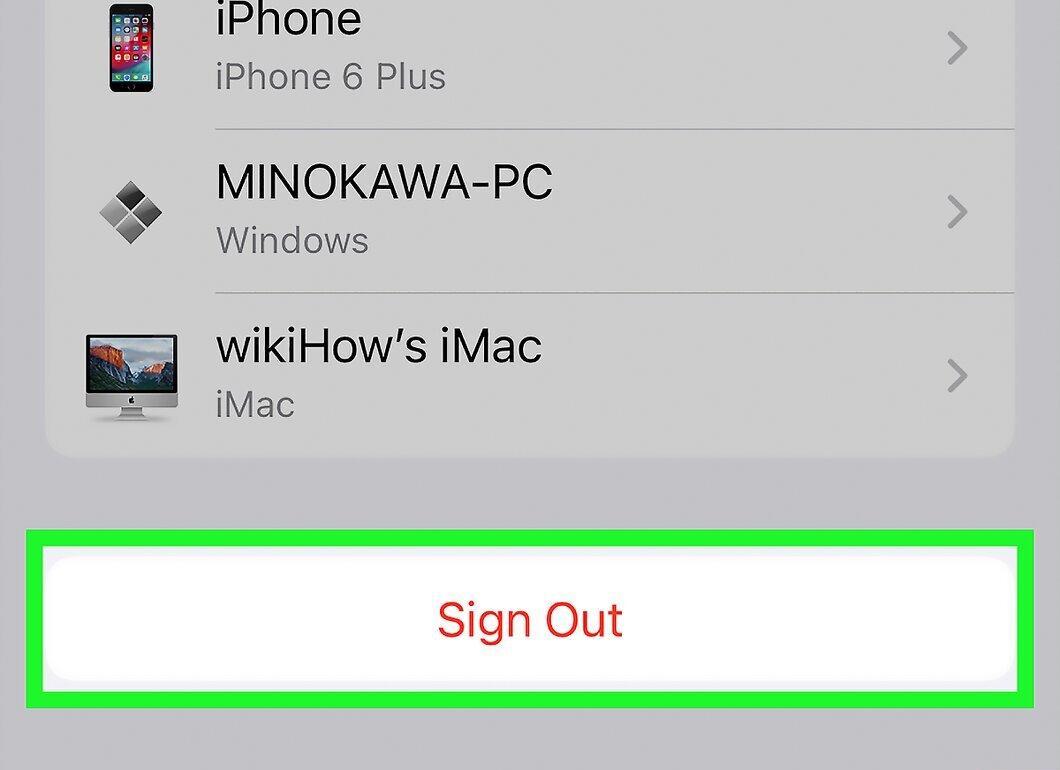
Scroll down and tap the Sign Out option, which will be highlighted in red at the bottom of the menu.
Step 4. Enter your Apple ID password.
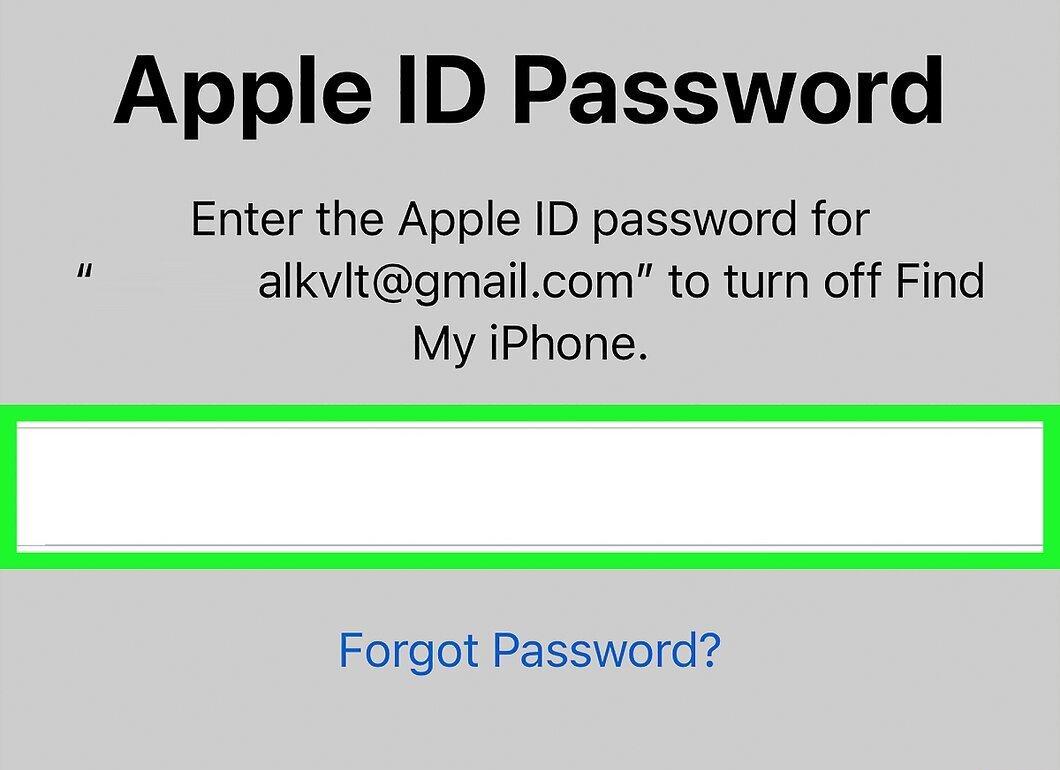
To sign out of iCloud, you need to disable the Find My iPhone feature. Enter your Apple ID password in the pop-up window.
Step 5. Tap Disable in the pop-up window.
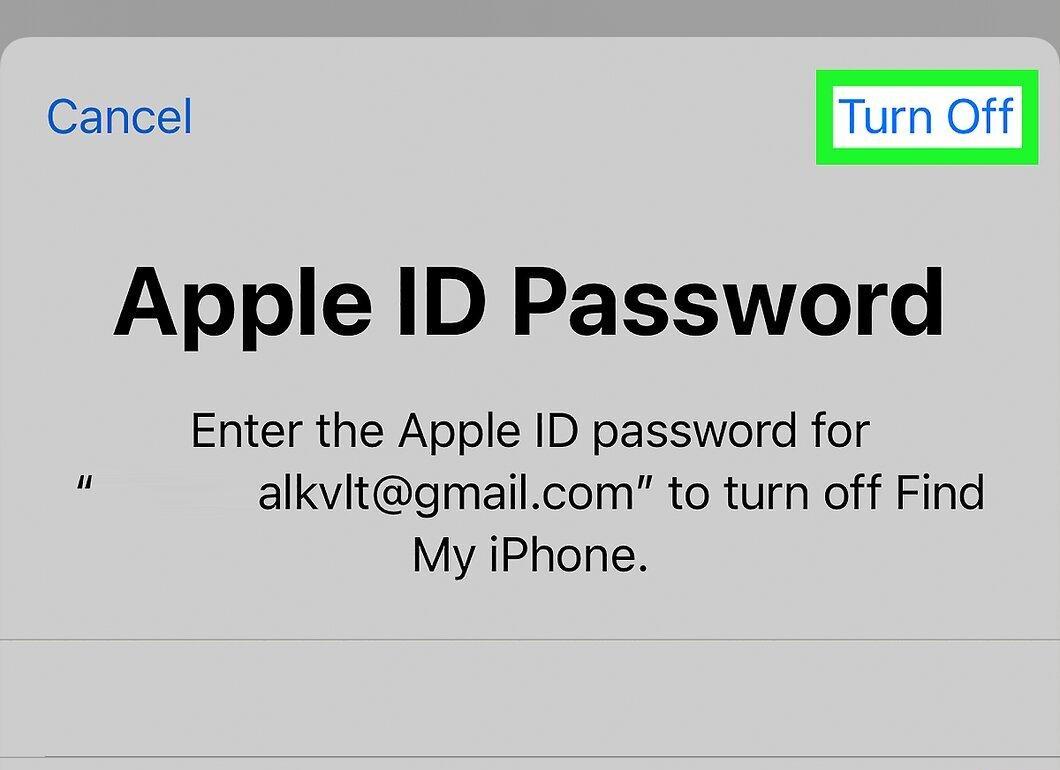
Confirm the disabling of the Find My iPhone feature by tapping Disable.
Step 6. Choose the data you want to keep on the device.
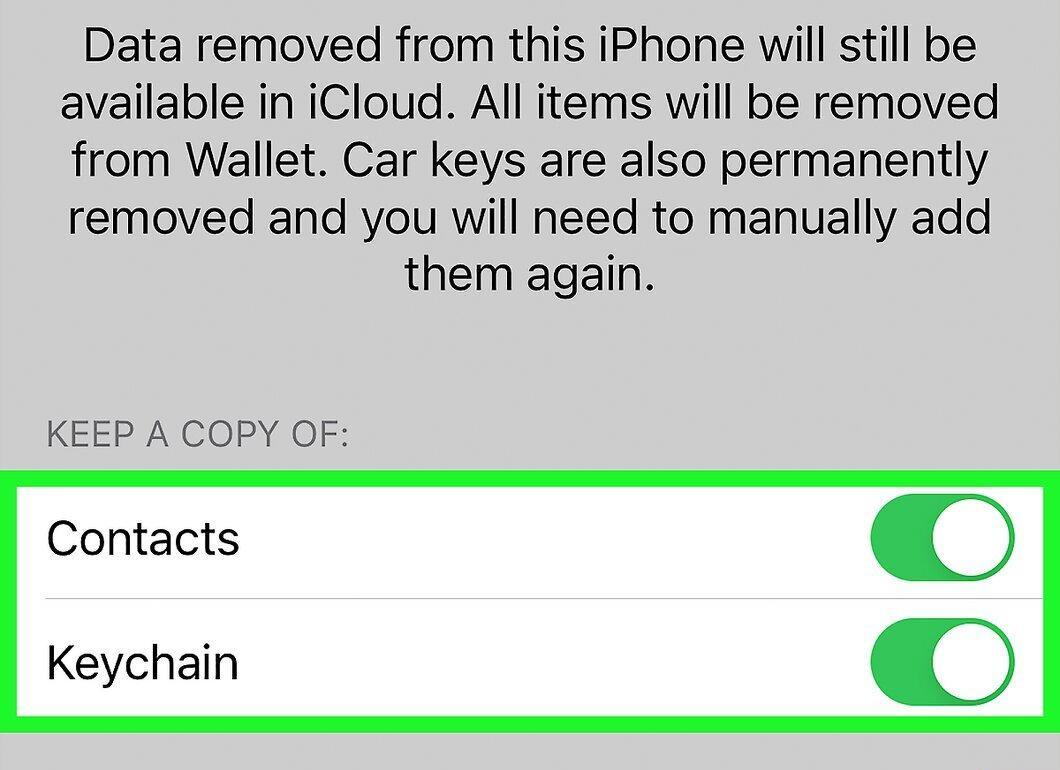
Before signing out of iCloud, you can save contacts and Safari data on your device. For each type of data, toggle the switch to turn it green.
- If you delete all data from your device, it will remain in iCloud. To restore data later, simply sign in and sync your device.
Step 7. Tap Sign Out.
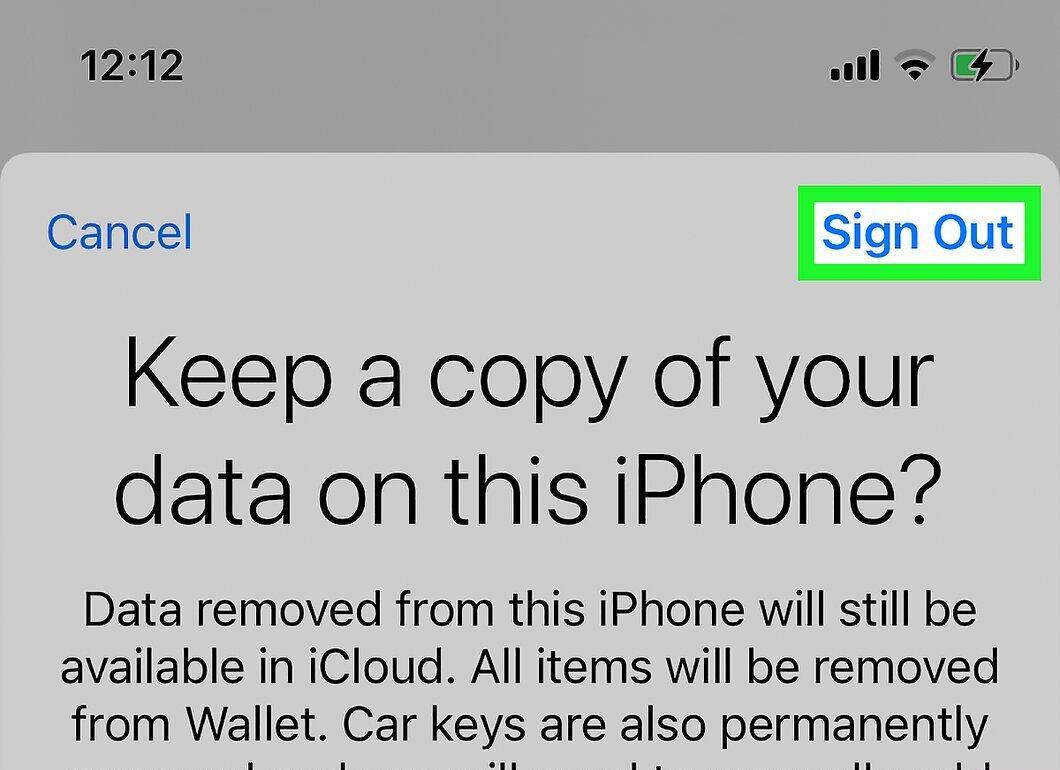
Tap the Sign Out button located in the top right corner of the screen. Confirm your actions when prompted.
Step 8. Confirm the sign-out by tapping Sign Out in the pop-up window.
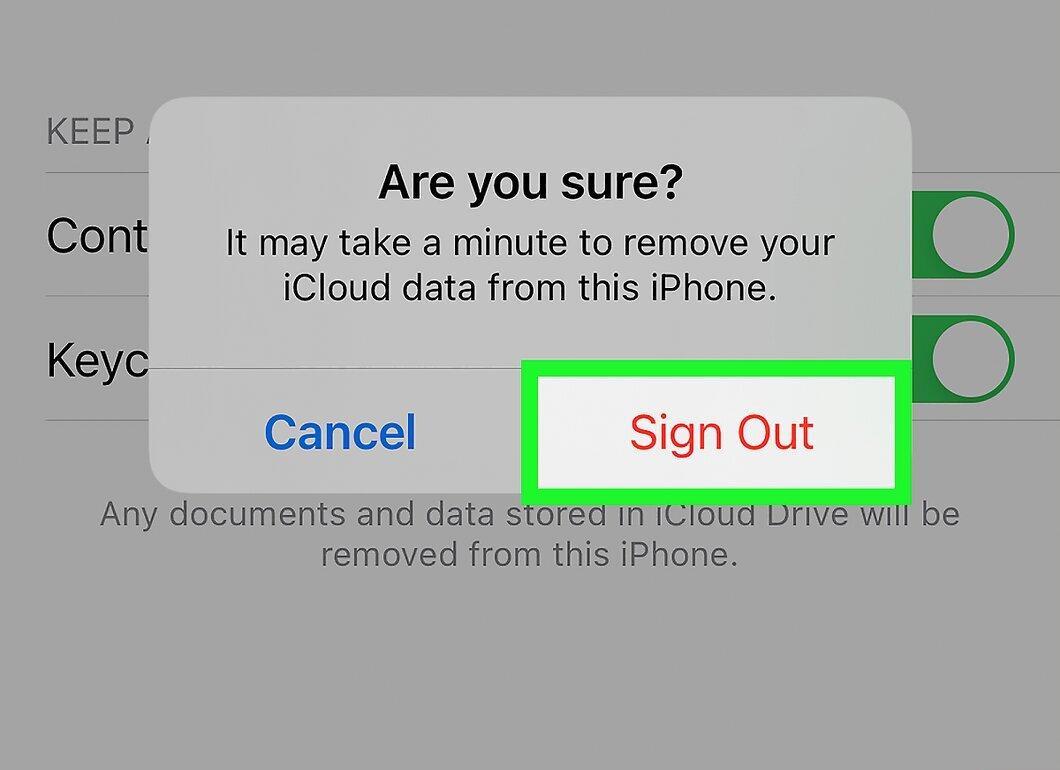
In the pop-up window that appears, select Sign Out to complete the sign-out process from iCloud on your device.
For iOS 10.2.1 and Earlier
Step 1. Open the Settings app.
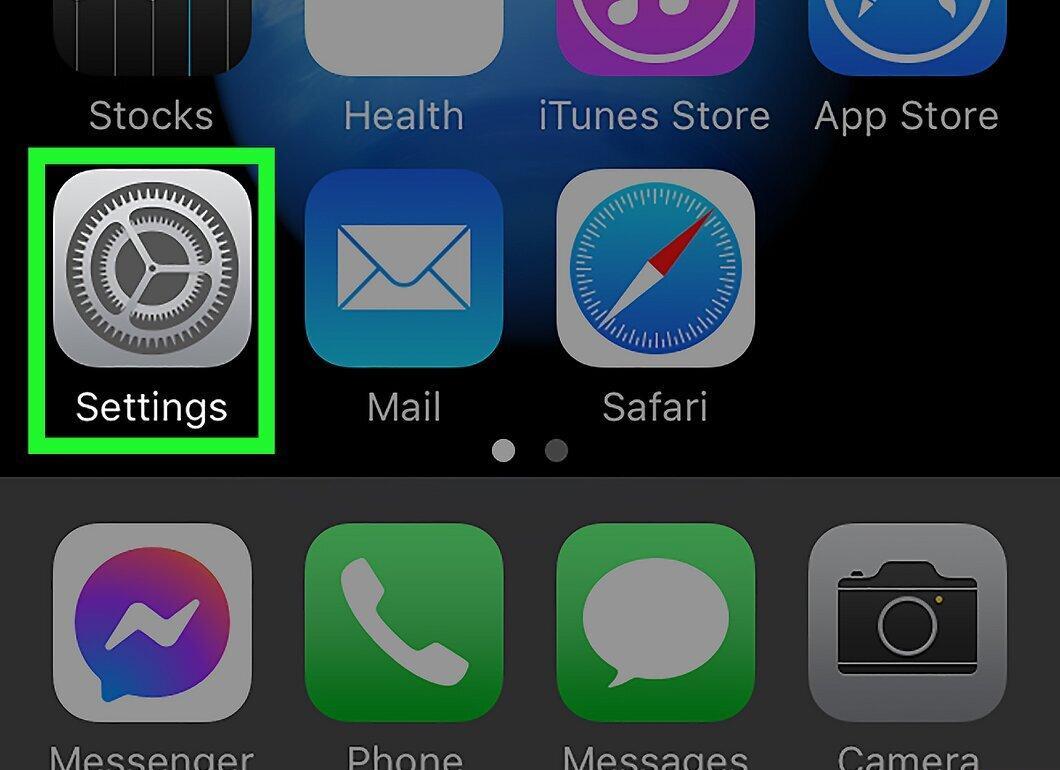
Open the Settings app — the gray gear icon on the home screen.
Step 2. Find iCloud in the menu and tap on it.
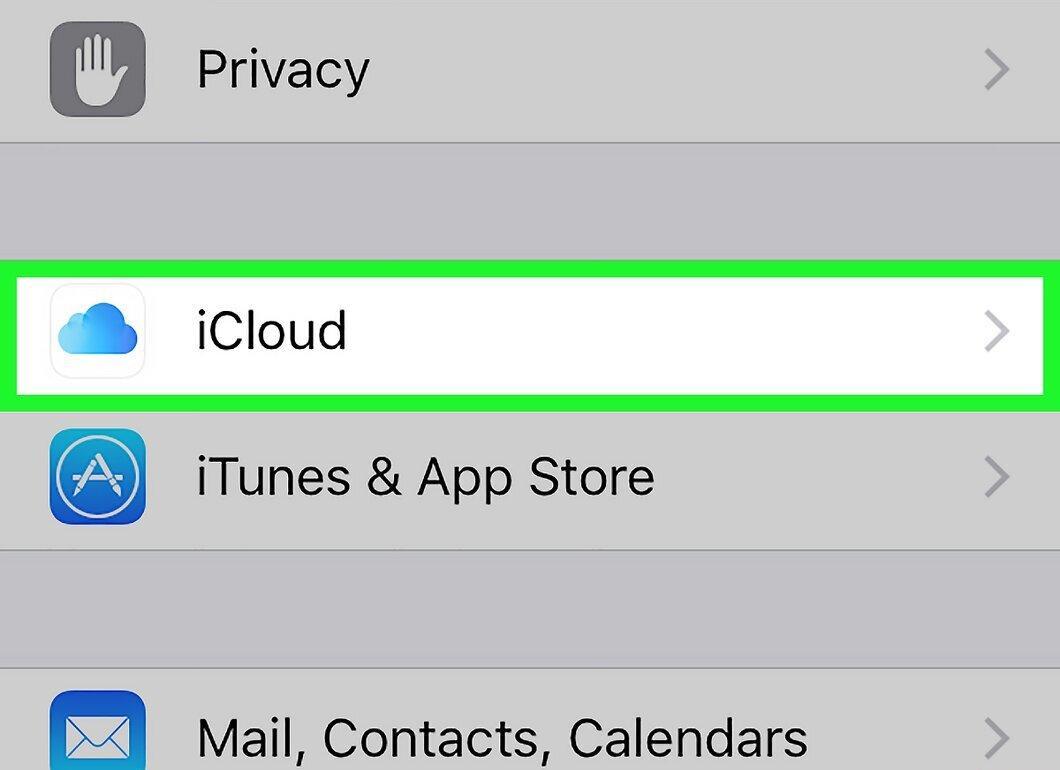
Scroll down to the iCloud section and tap on it — it’s the blue cloud icon.
Step 3. Select Sign Out.
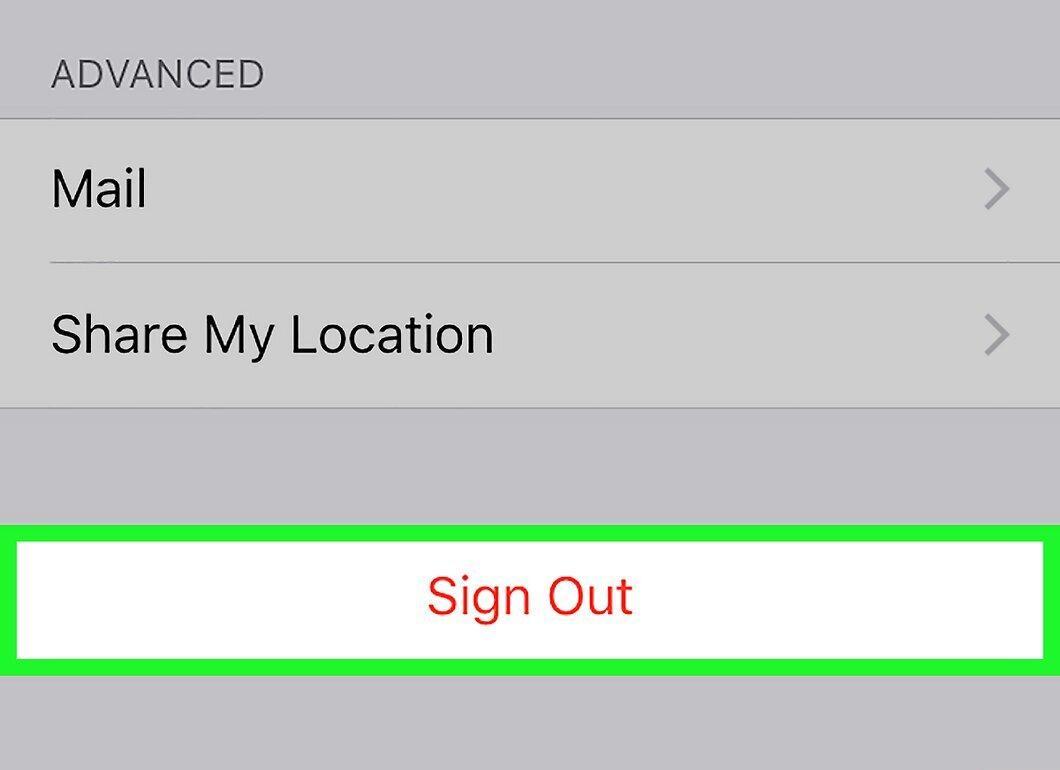
Scroll down and tap on Sign Out, highlighted in red at the bottom of the iCloud menu. You will be prompted to confirm your action in a pop-up window.
Step 4. Confirm the sign-out by tapping Sign Out in the pop-up window.
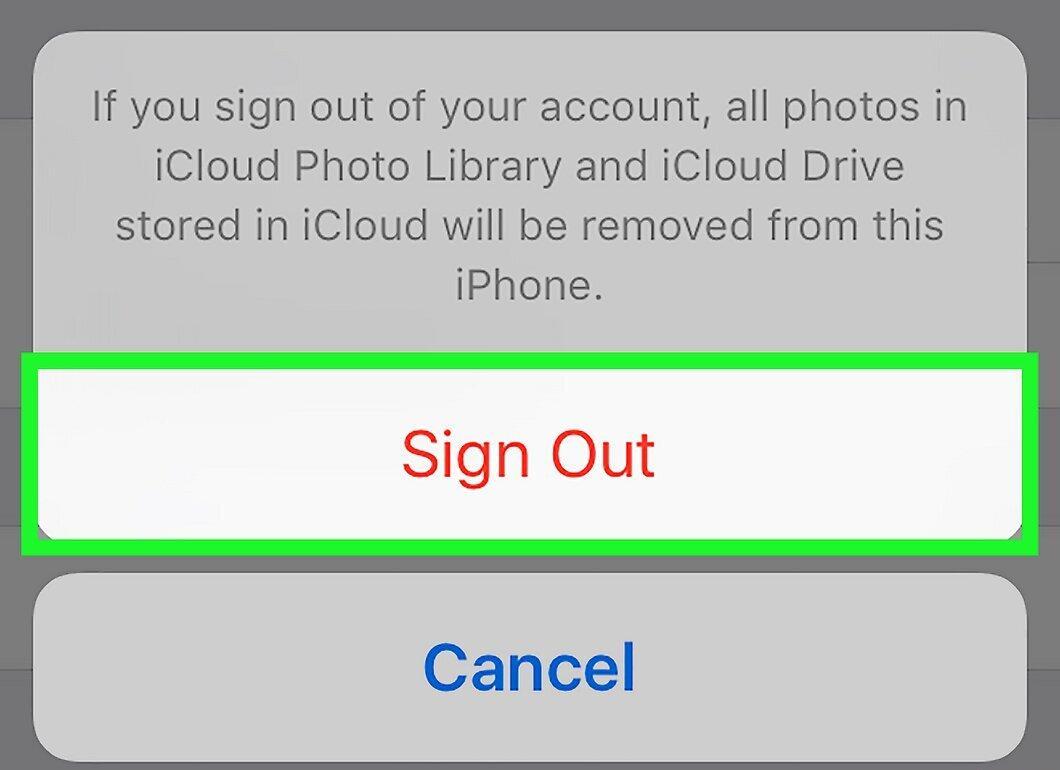
In the pop-up window, select Sign Out to confirm your intention.
Step 5. Tap Remove from iPhone/iPad.
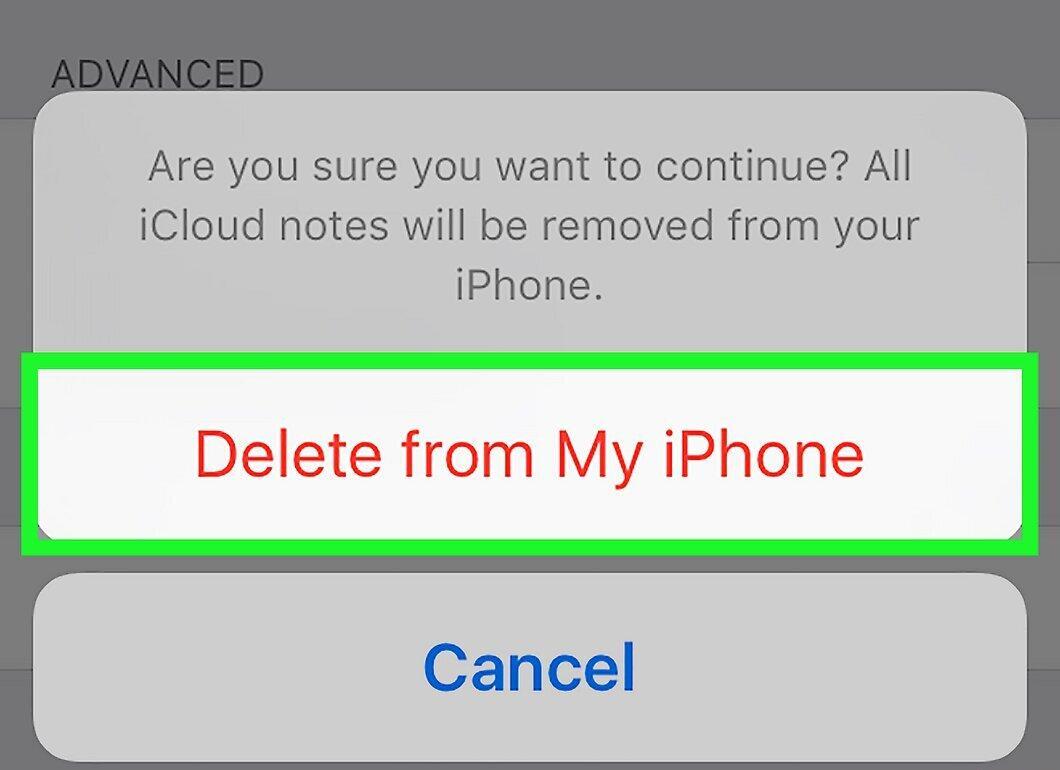
Select Remove from iPhone/iPad to delete all iCloud notes from the device. This option is also highlighted in red. After this, another confirmation window will appear.
- All notes will remain accessible in iCloud. If you need them, just sign in and sync your device with iCloud.
Step 6. Decide whether to keep Safari data.
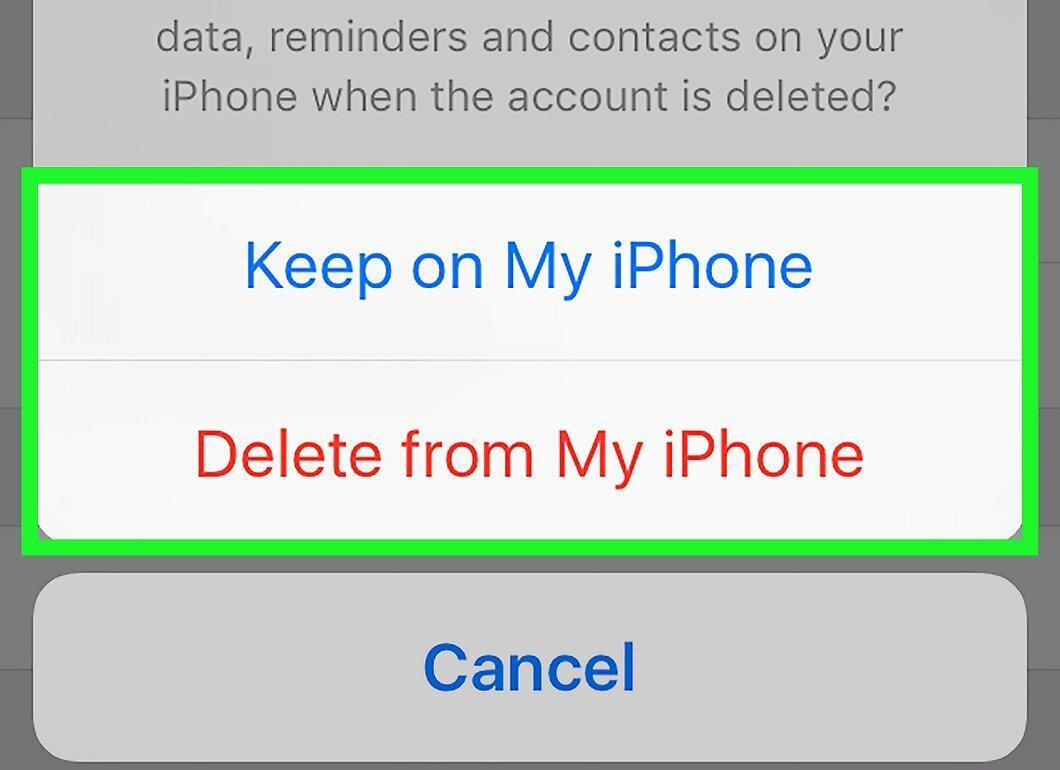
Indicate whether you want to keep Safari data. Your tabs, bookmarks, and history can sync across devices if you sign in with your Apple ID. You can choose to keep or delete this information.
Step 7. Enter your Apple ID password.
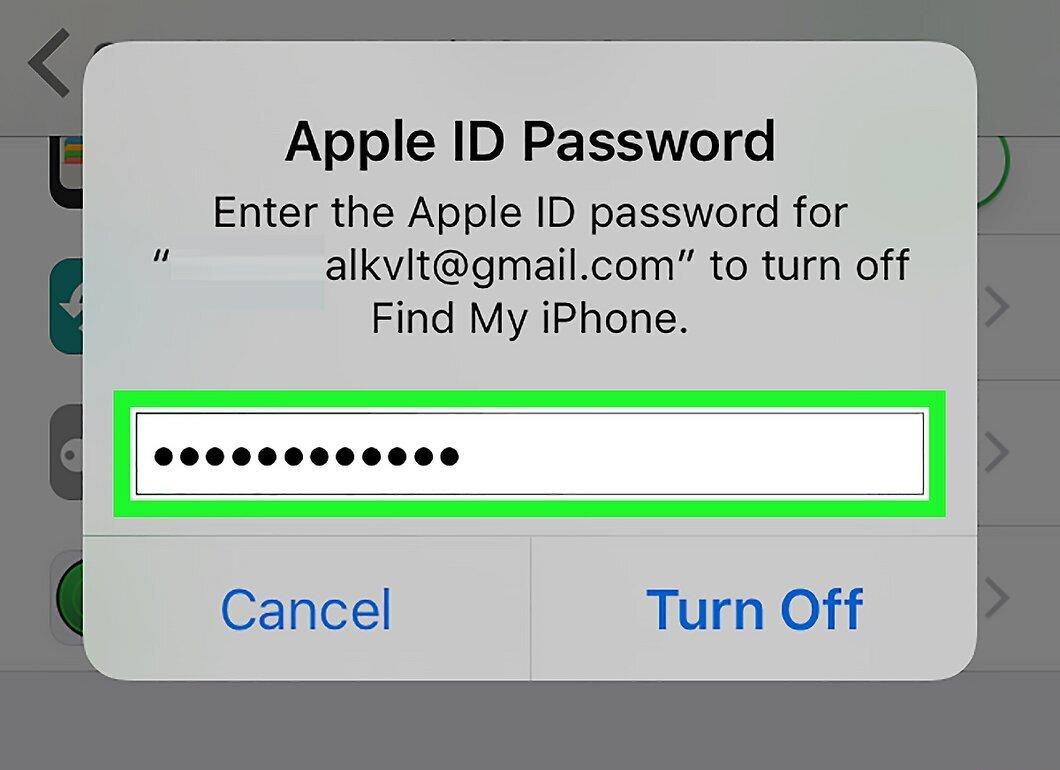
To complete signing out of iCloud, you will need to enter your Apple ID password to disable the Find My iPhone feature. Type it in the pop-up window.
Step 8. Tap Disable in the pop-up window.
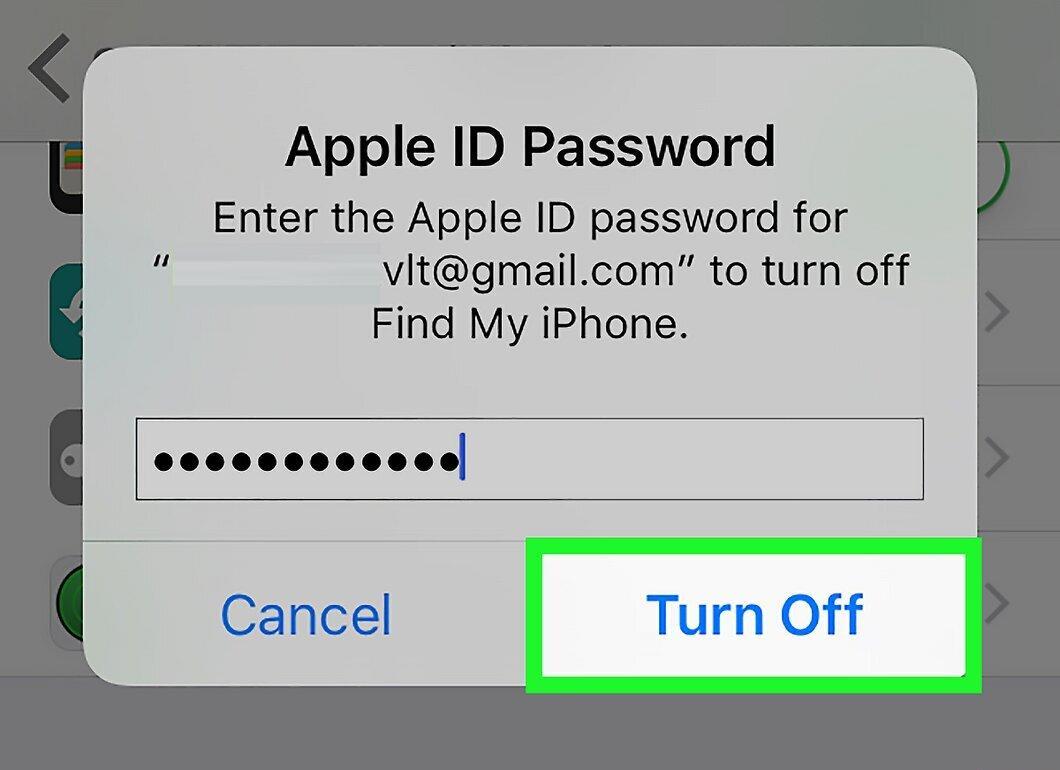
Confirm the disabling of the Find My iPhone feature by tapping Disable, and you will successfully sign out of iCloud.


