
In this article, we will share a simple process for trimming videos on Samsung Galaxy devices.
Part 1
Step 1. Open the Gallery App.
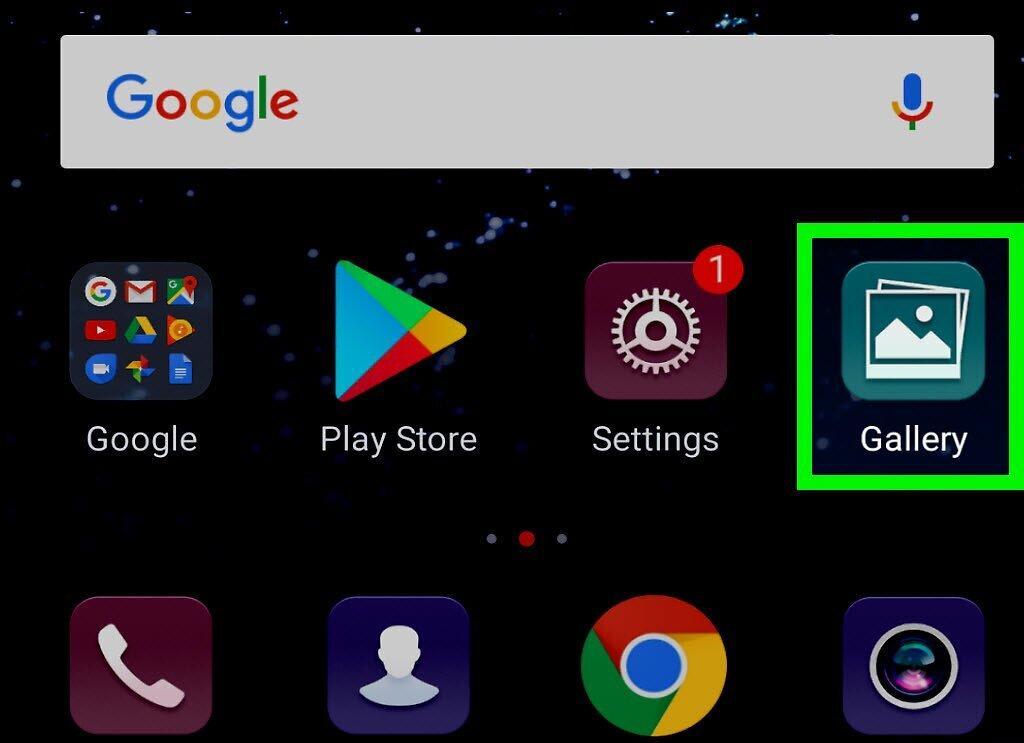
Launch the Gallery app by tapping the icon that looks like a landscape, located on your home screen or in the apps list.
Step 2. Select the Video You Want to Trim.
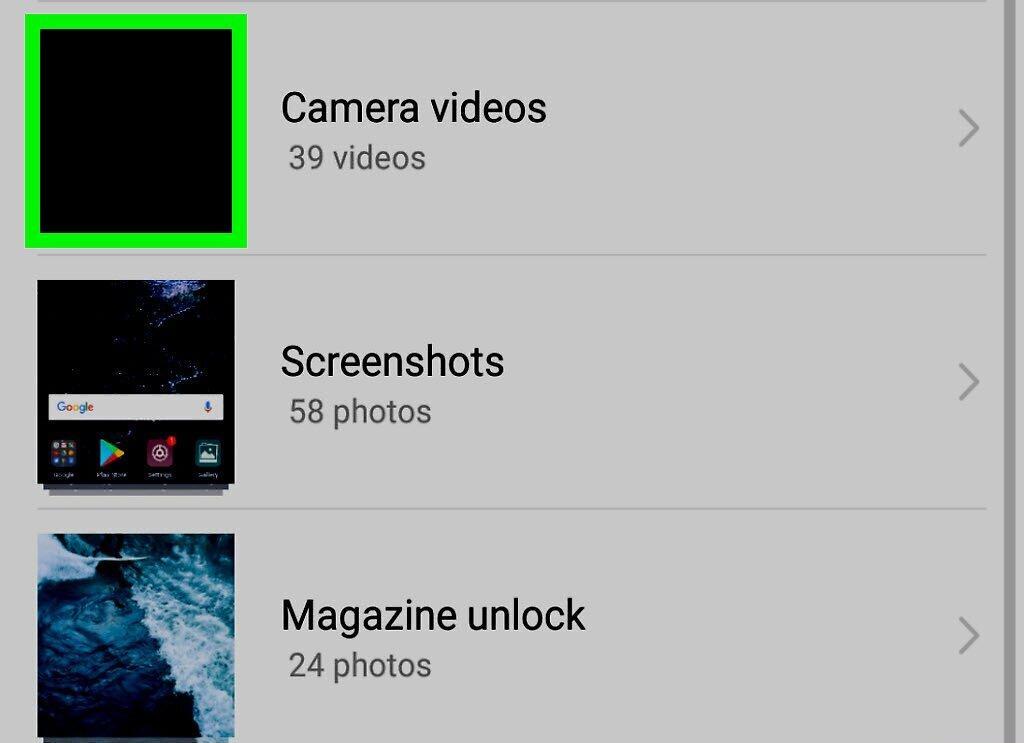
Tap on the video that you want to trim. It will open on your screen.
Step 3. Tap the Edit Button.
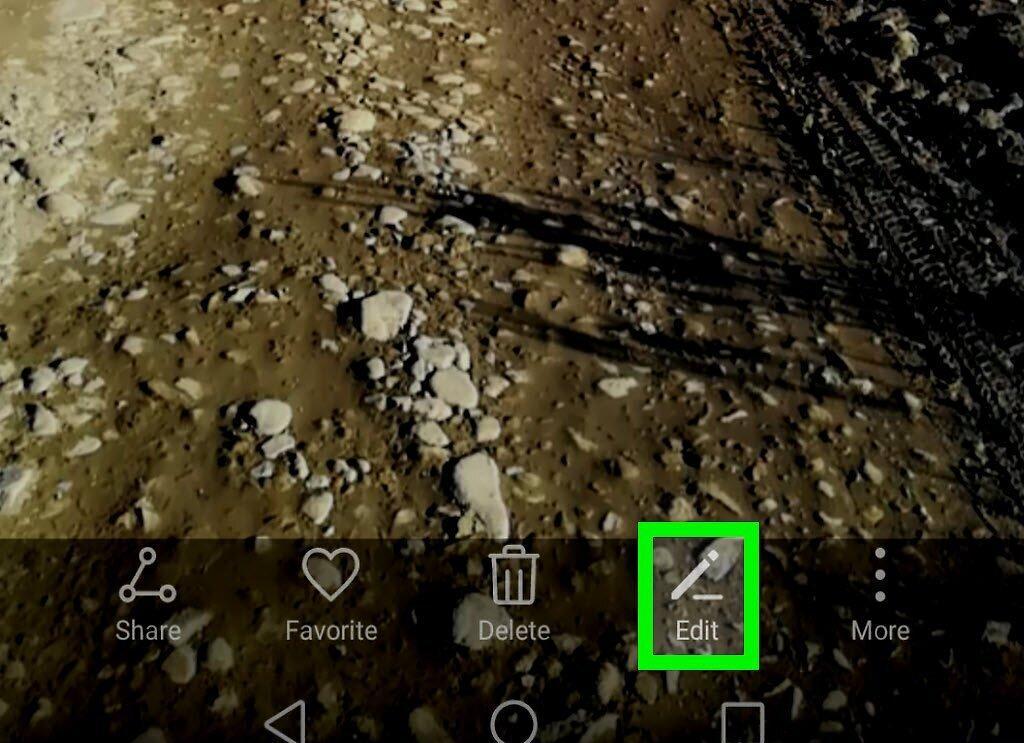
Click on the Edit button, which is represented by a pencil icon and located at the bottom of the screen. A new menu will appear.
Step 4. Grant Access Permission.
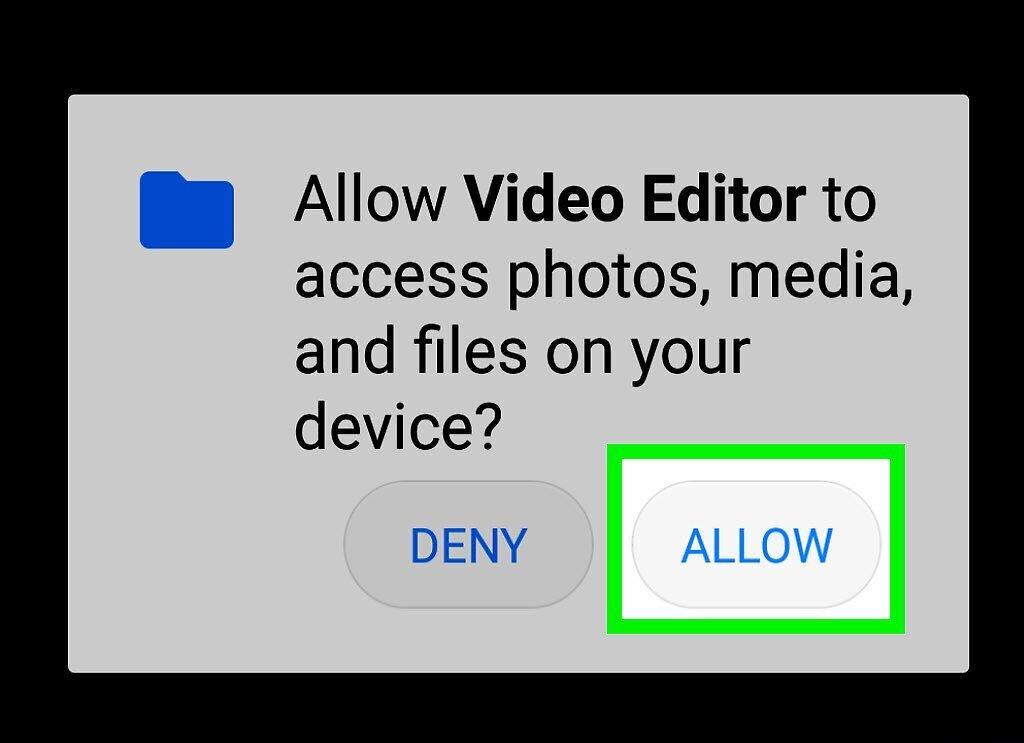
Tap "Allow". This is necessary for the app to work with your video.
Step 5. Set the Start Trim Point.
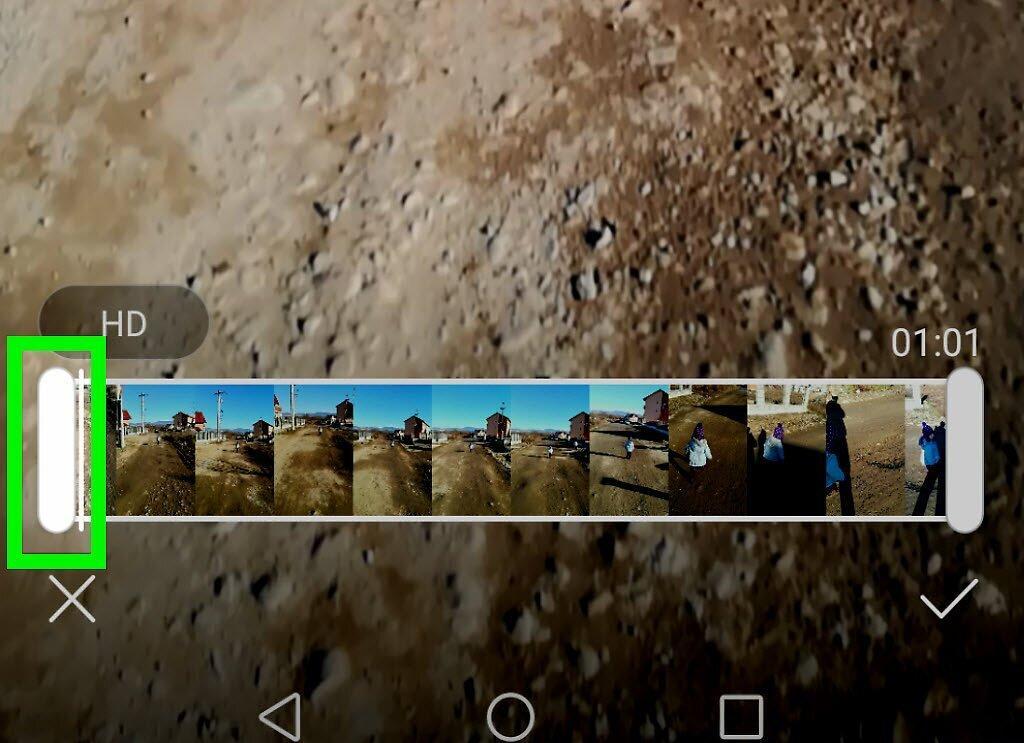
Step 6. Set the End Trim Point.
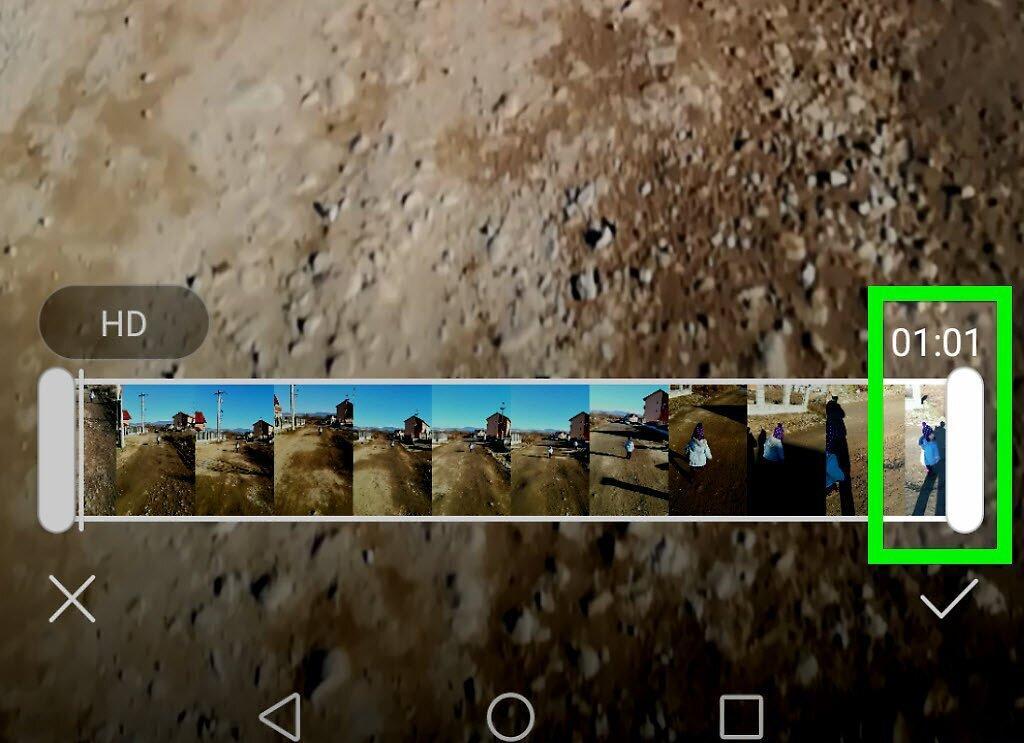
Move the right slider to the point where you want the video to end. The area outside of the trim will be shaded.
Step 7. Preview the Trimmed Segment.
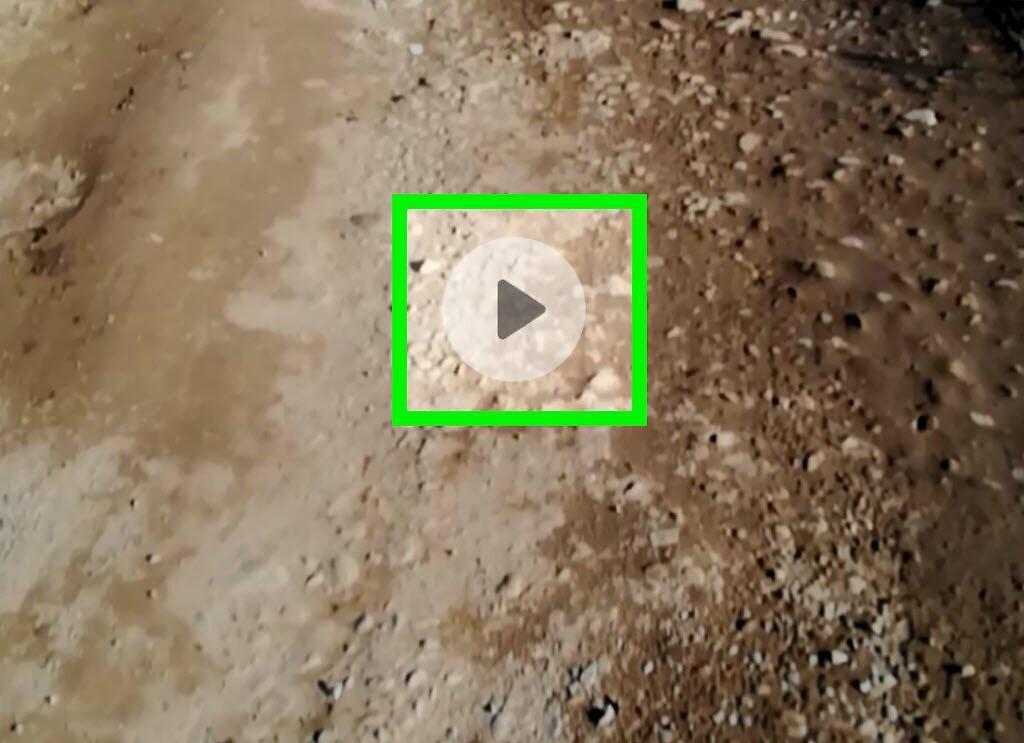
Press the play button to preview the trimmed segment. It is represented by a triangle and located in the center of the screen. If necessary, adjust the trim area by moving the sliders.
- You may need to tap "Trim" to start the preview.
Step 8. Save Your Changes.
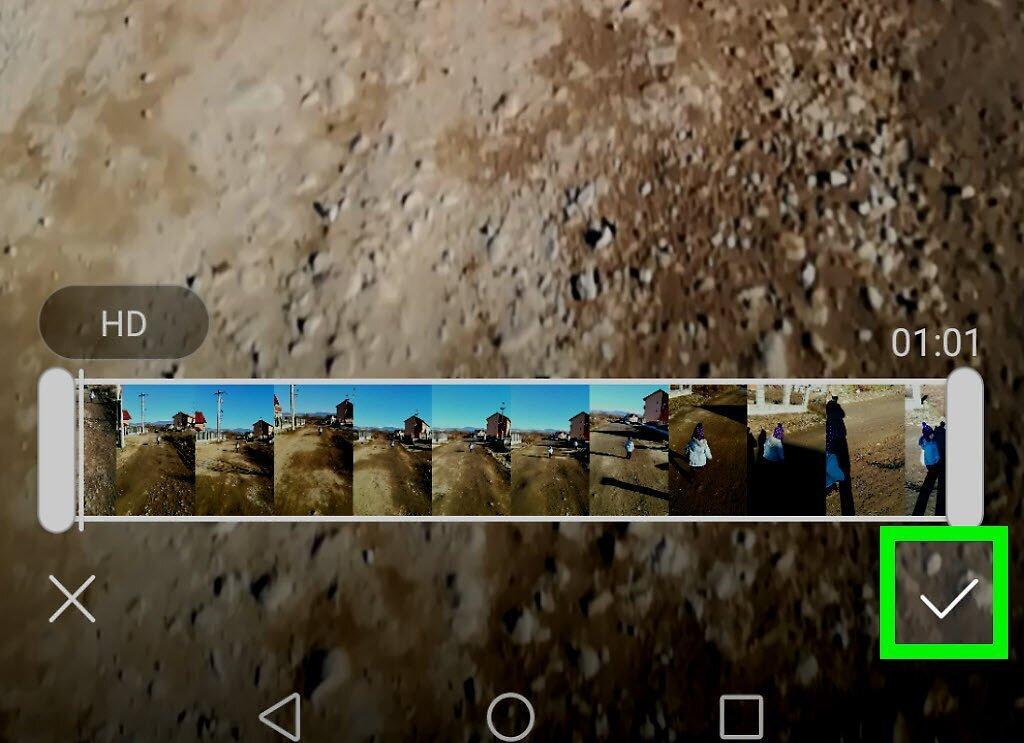
Tap the "Save" button in the upper right corner to save the trimmed video to your device.


