
How to Easily Unsubscribe from Email Lists
Unsubscribing from Email Newsletters
Step 1. Find the email containing the newsletter you want to unsubscribe from.
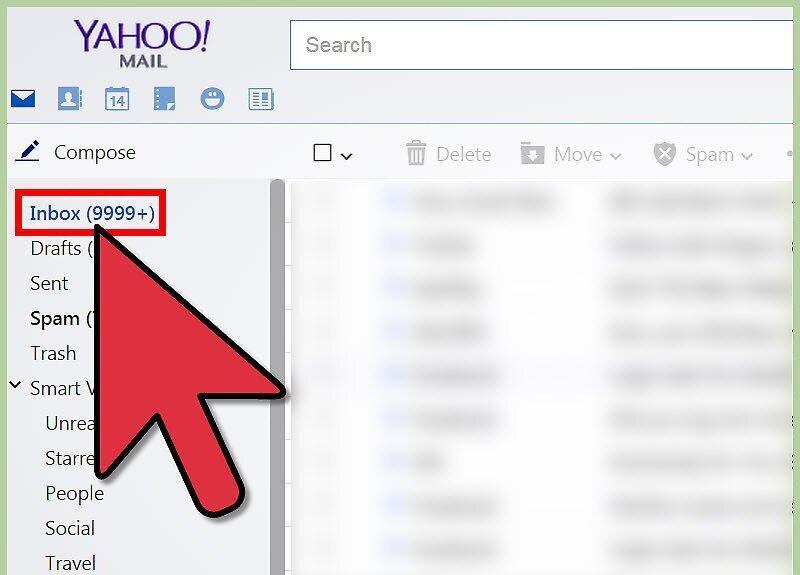
Step 2. Scroll to the bottom of the email and locate the "Unsubscribe" link.
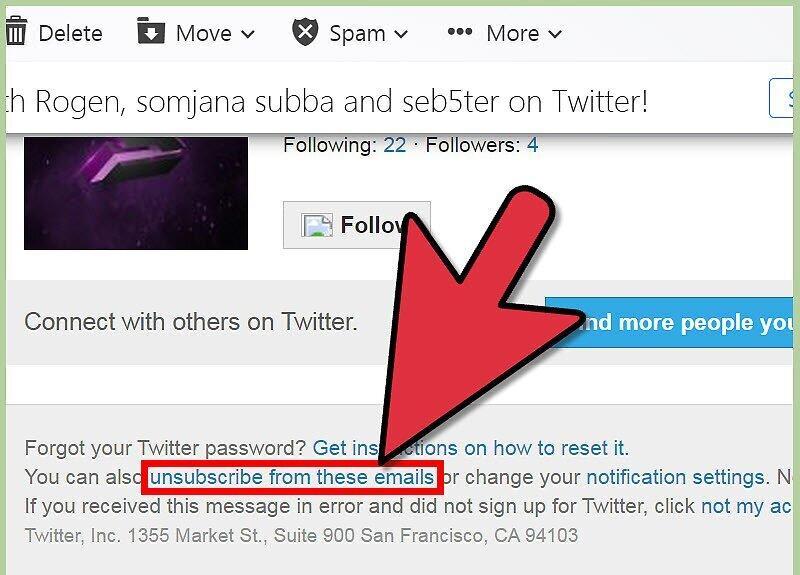
Step 3. Click the link and follow the instructions to complete the unsubscription process.
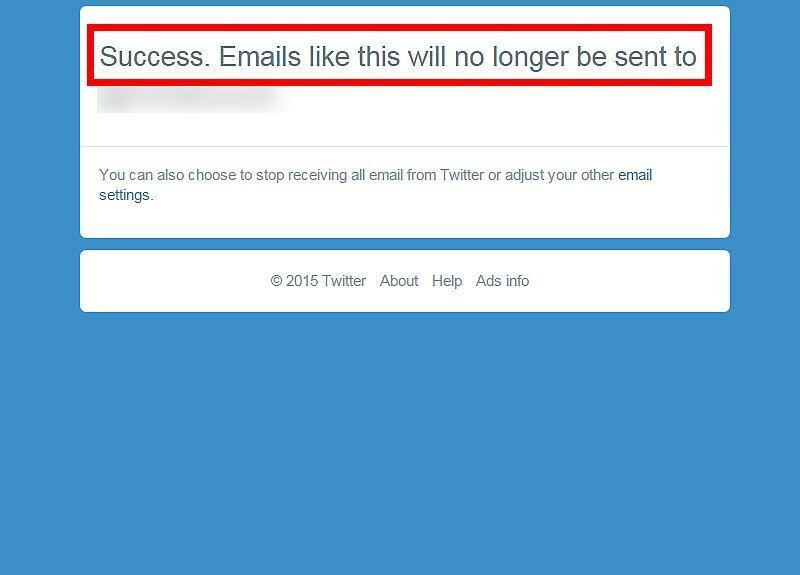
By clicking the link, you can unsubscribe. You might need to provide a reason for unsubscribing, after which your email address will either be immediately removed from the mailing list or you will receive a confirmation about it.
Unsubscribing from Newsletters in Gmail
Step 1. Open the email with the newsletter.
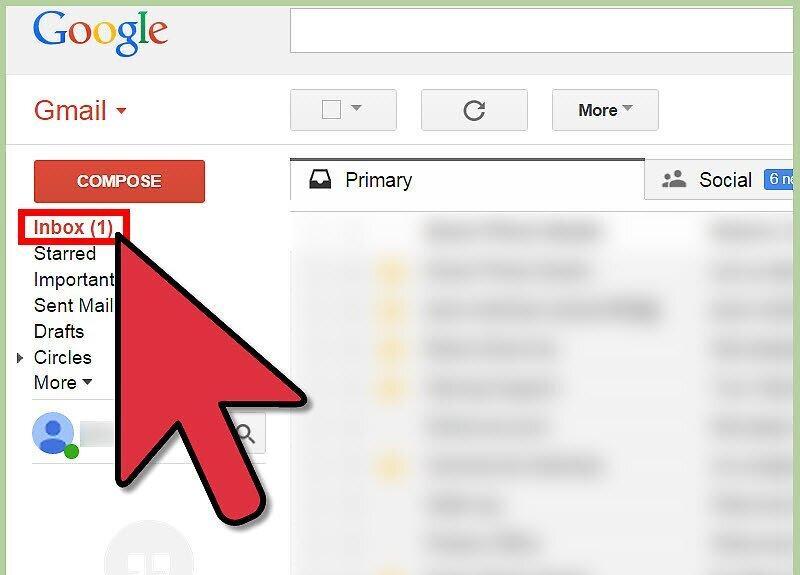
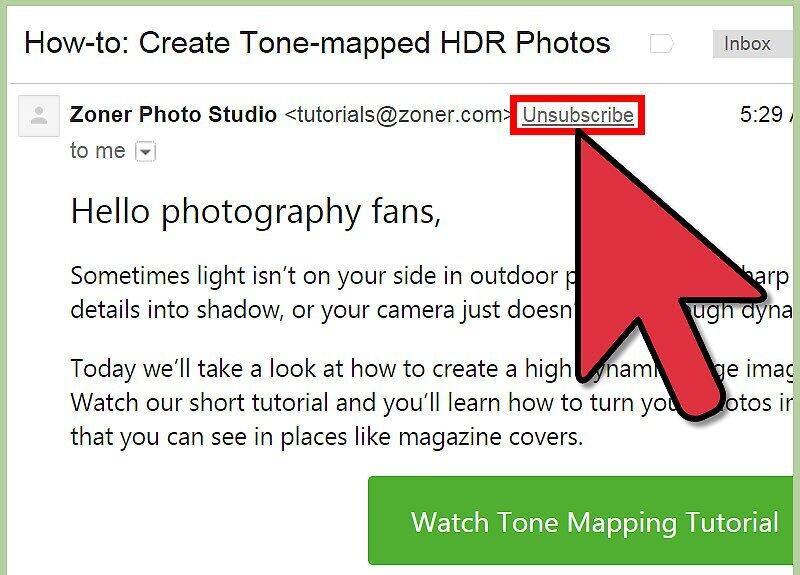
Step 2. Find the "Unsubscribe" button next to the sender's email address and click it.
Step 3. Confirm the unsubscription by clicking "Unsubscribe" in the pop-up window.
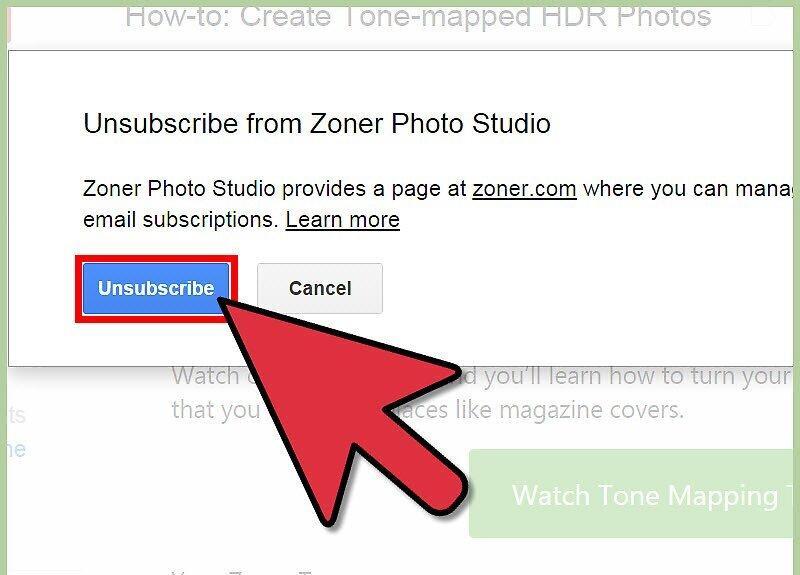
After this, Google will automatically complete the unsubscription from the newsletter.
Unsubscribing Using Unroll Me
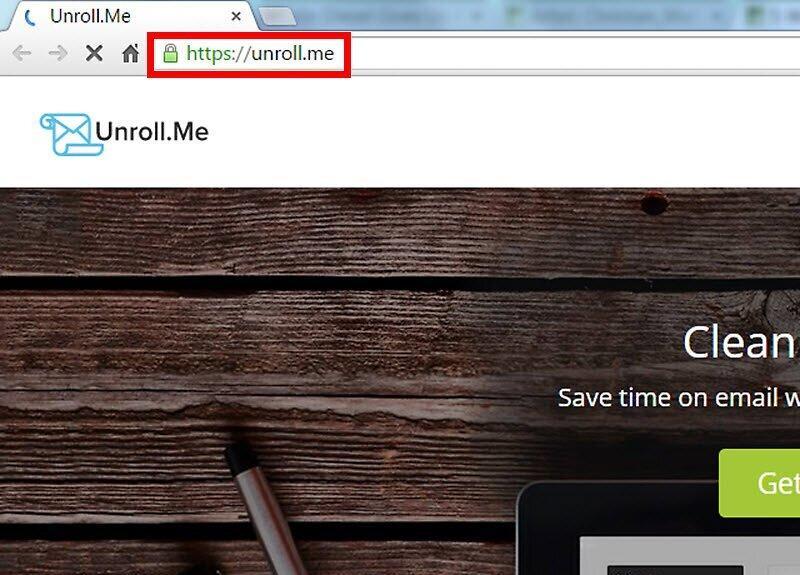
Step 1. Go to the Unroll Me website.
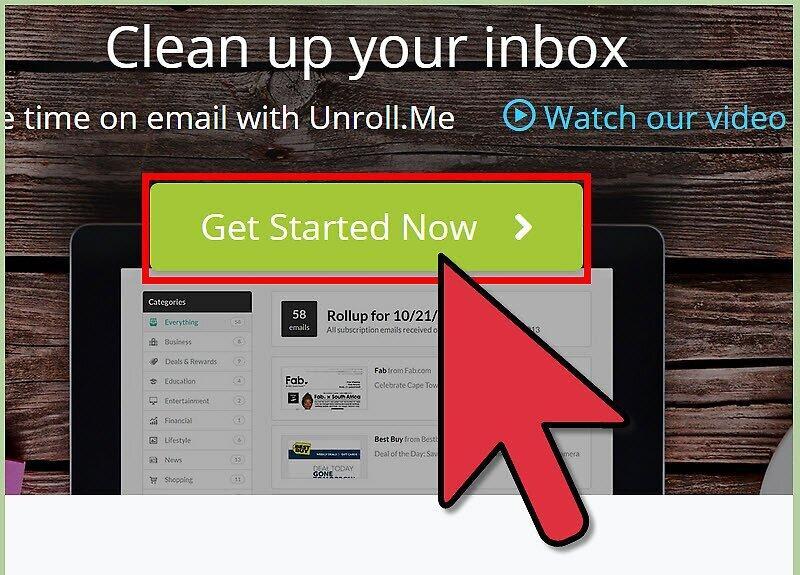
Step 2. Click the "Get Started" button.
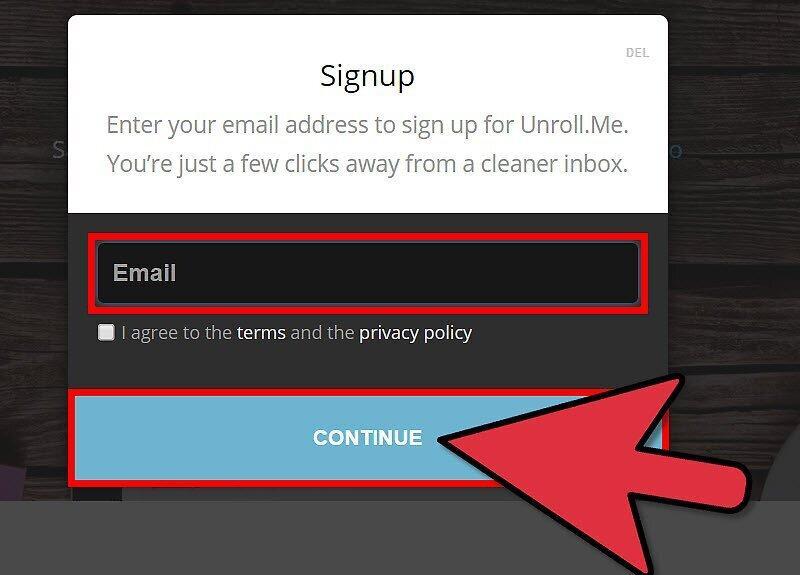
Step 3. Enter your email address where the newsletters are received and click "Continue".
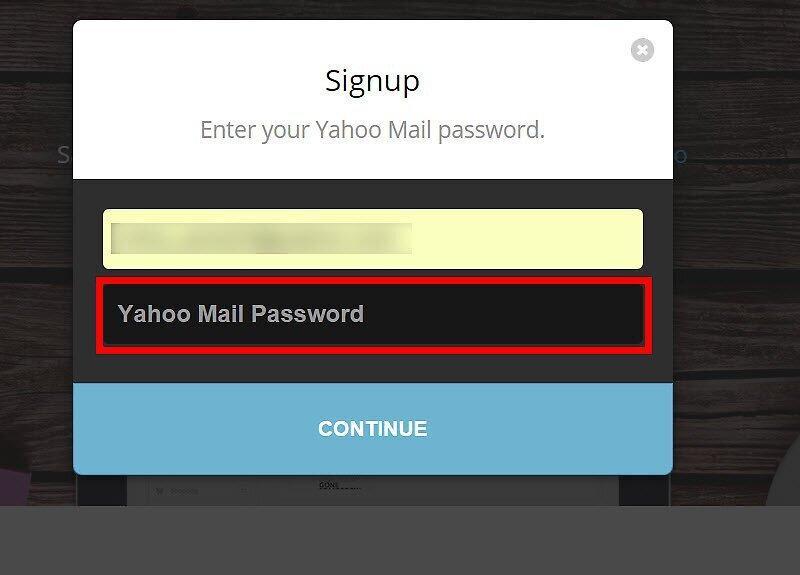
Step 4. Enter your email account password.
Step 5. Review the terms and click "Accept".
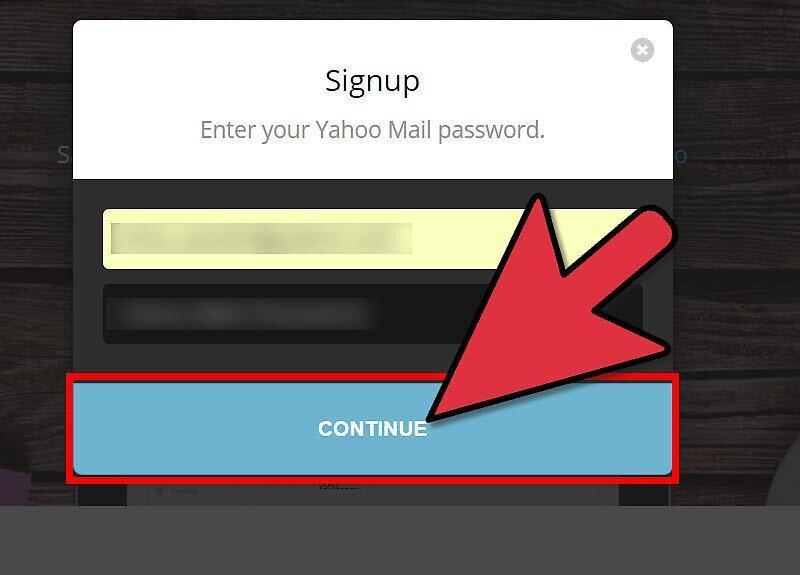
Step 6. Click "Continue".
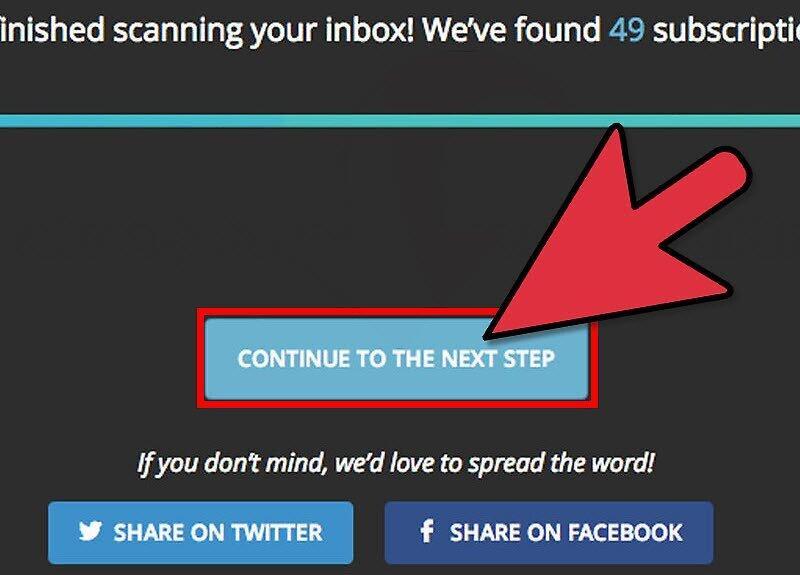
You will see a list of all your subscriptions.
Step 7. Click "Unsubscribe" next to each newsletter you want to opt out of.
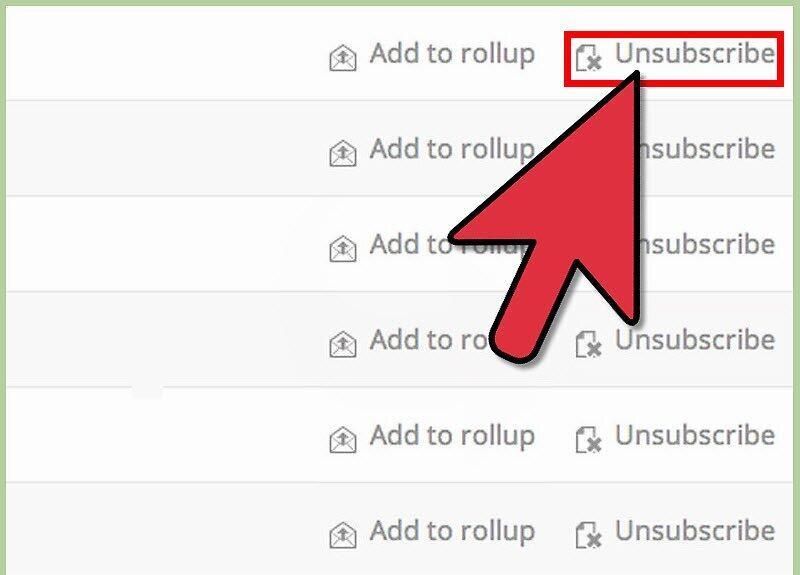
With Unroll Me, you can quickly unsubscribe from all selected newsletters.
Unsubscribing on Facebook
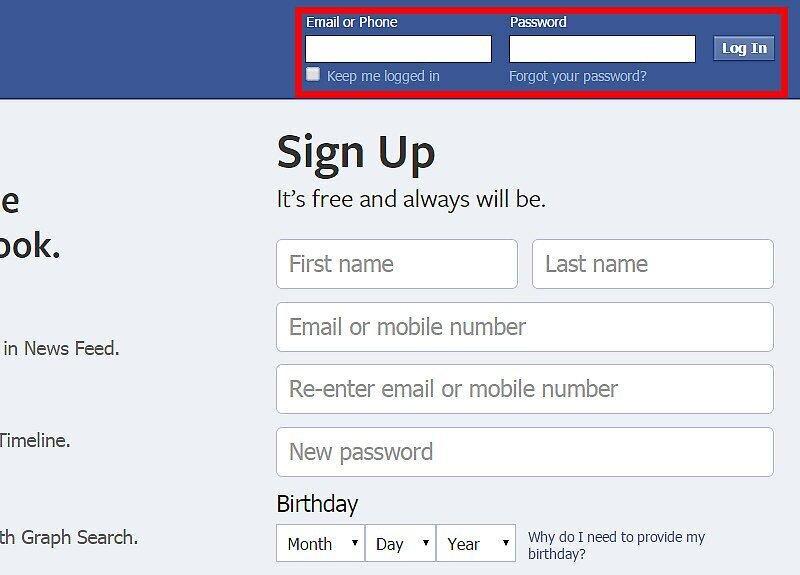
Step 1. Log into your Facebook account via the official website.
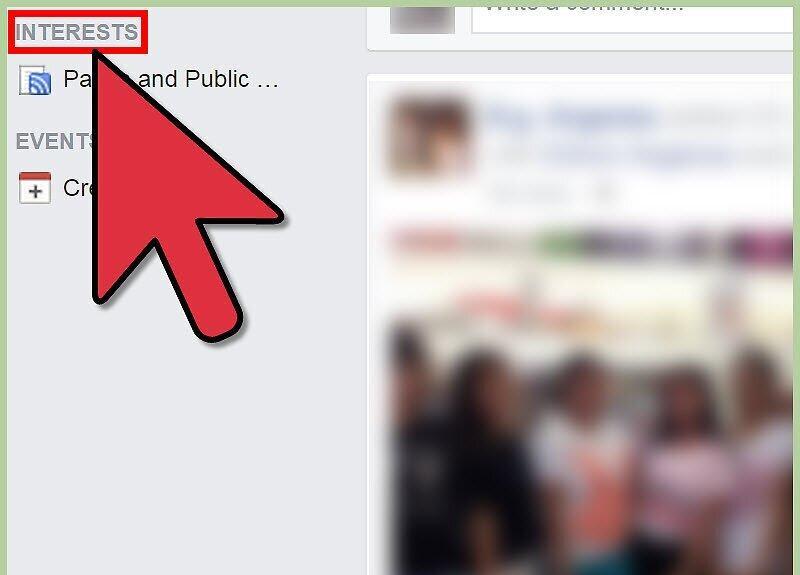
Step 2. On the left side of the screen, select "Interests".
- To unsubscribe from Facebook notifications, click "Unsubscribe" at the bottom of the relevant notification.
Step 3. Click on "More".
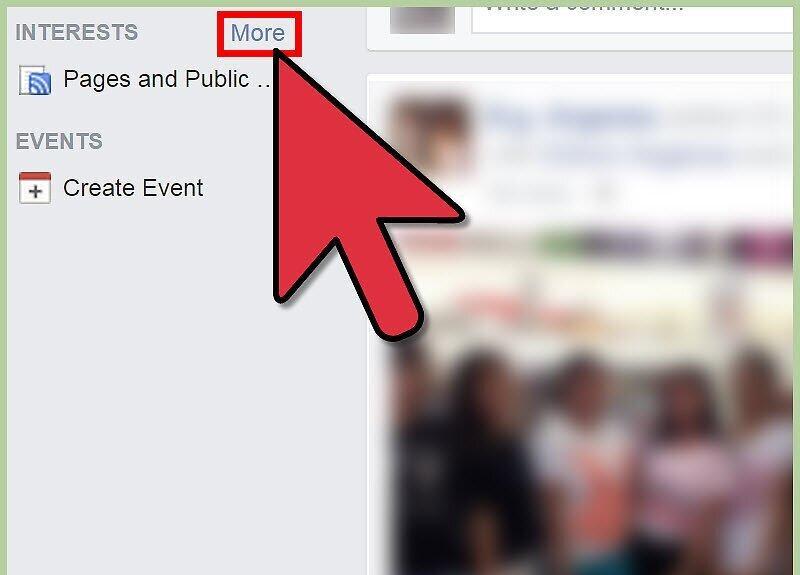
After this, you will see a list of all the interests you are subscribed to.
Step 4. Click on the gear icon next to the subscription you want to remove.
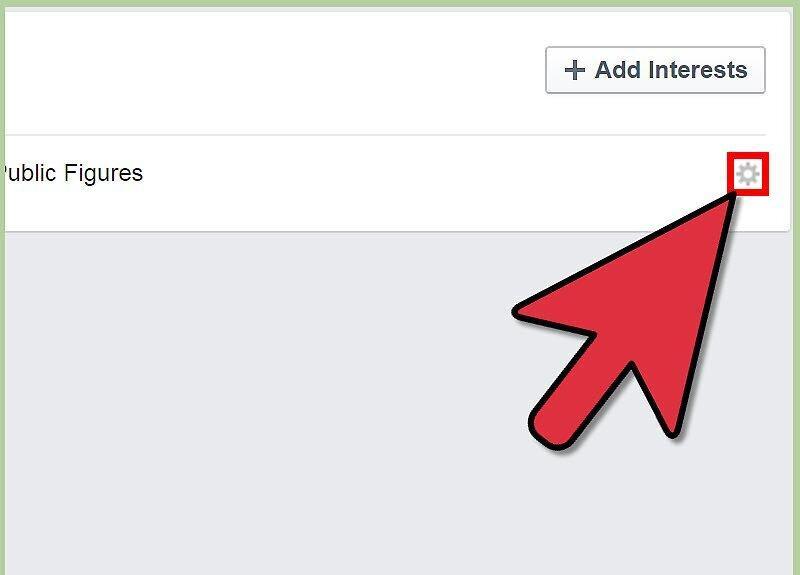
Step 5. Select the option "Remove List".
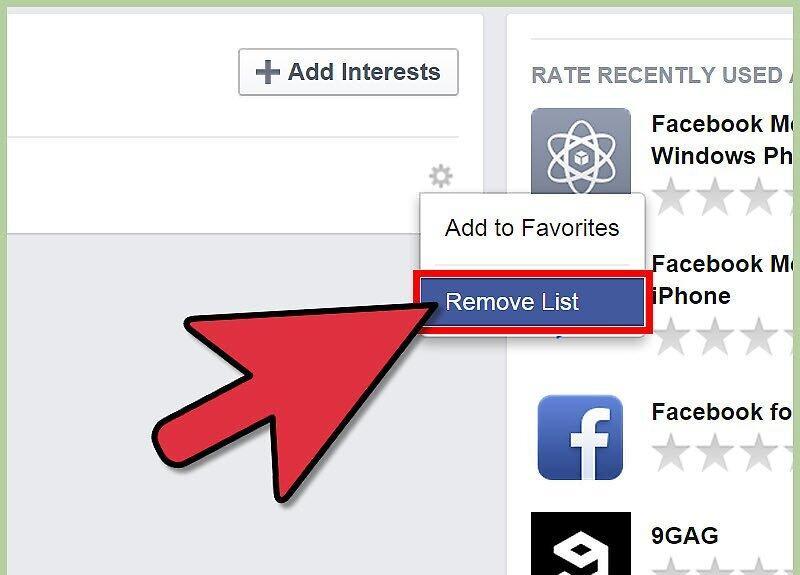
You have now successfully unsubscribed on Facebook.
Unsubscribing on Twitter
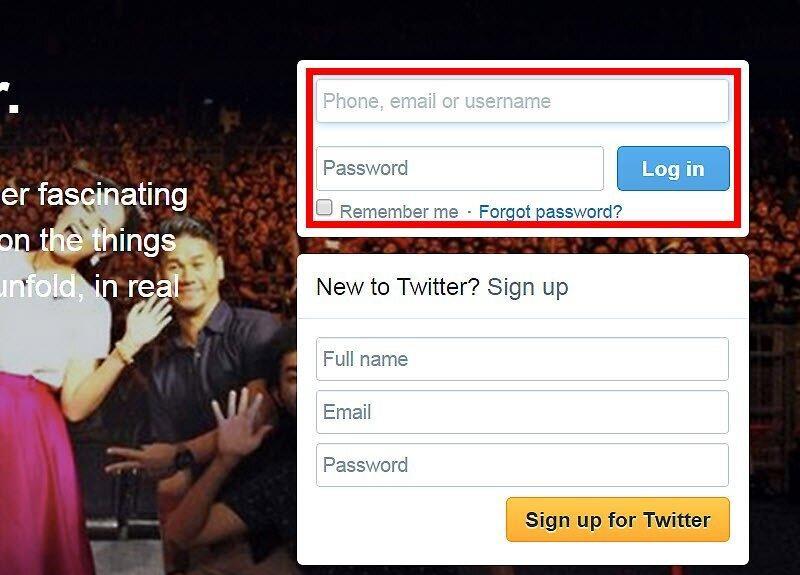
Step 1. Log into your account on Twitter.
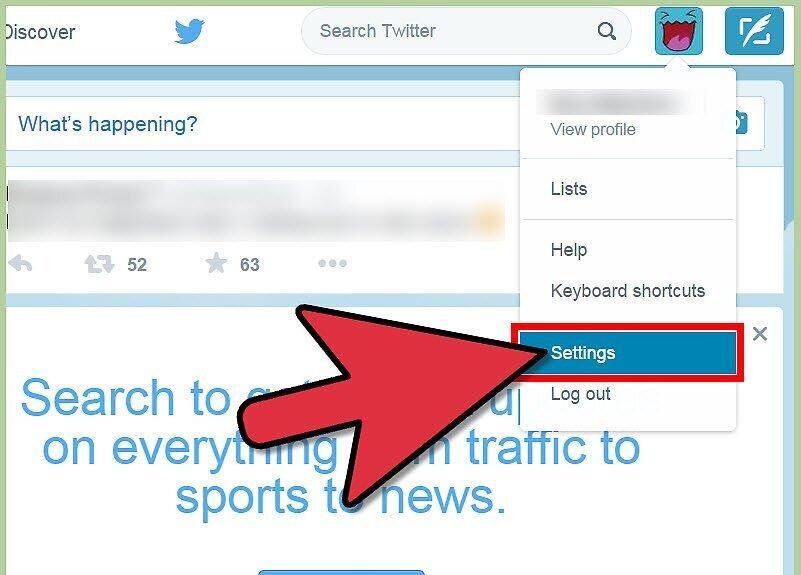
Step 2. Click on the gear icon in the upper right corner and select "Settings".
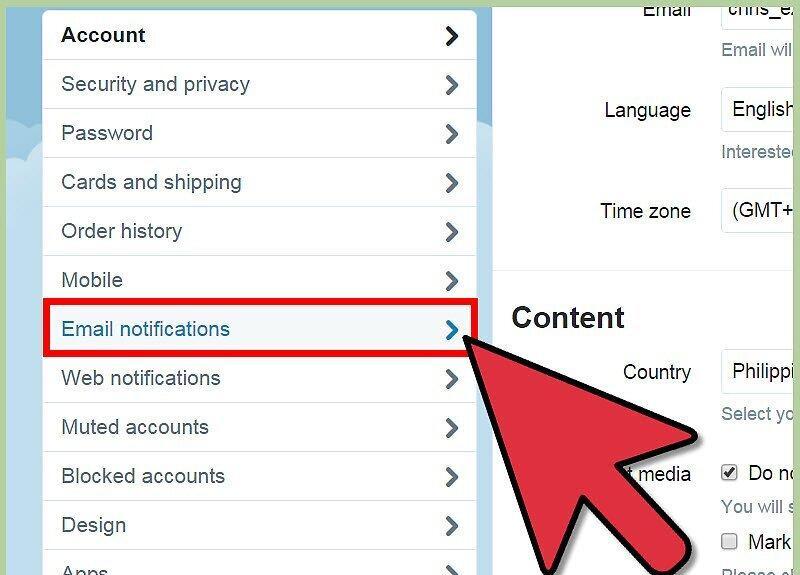
Step 3. In the left column, select "Email Notifications".
Step 4. Click on "Disable".
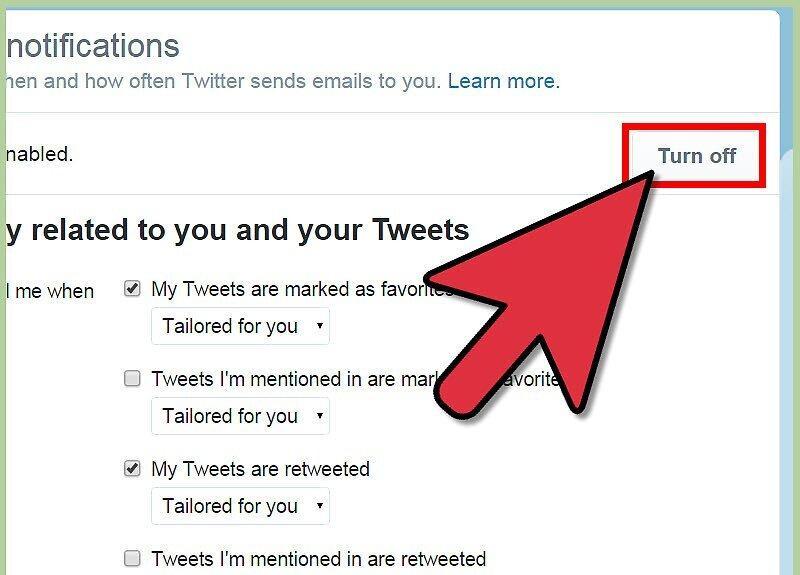
You have now unsubscribed from notifications on Twitter.
- You can also uncheck any notifications you do not wish to receive.


