
How to Easily Update Your PS4 Software: A Step-by-Step Guide
Gaming consoles are at the peak of their popularity today. With the rise of online gaming and internet connectivity, users now have access to a plethora of new features. One such feature is the regular software updates for your Sony console. These updates help improve console performance and ensure that you have the latest software version.
Updating via PS4 Console
Step 1. Turn on your PS4.
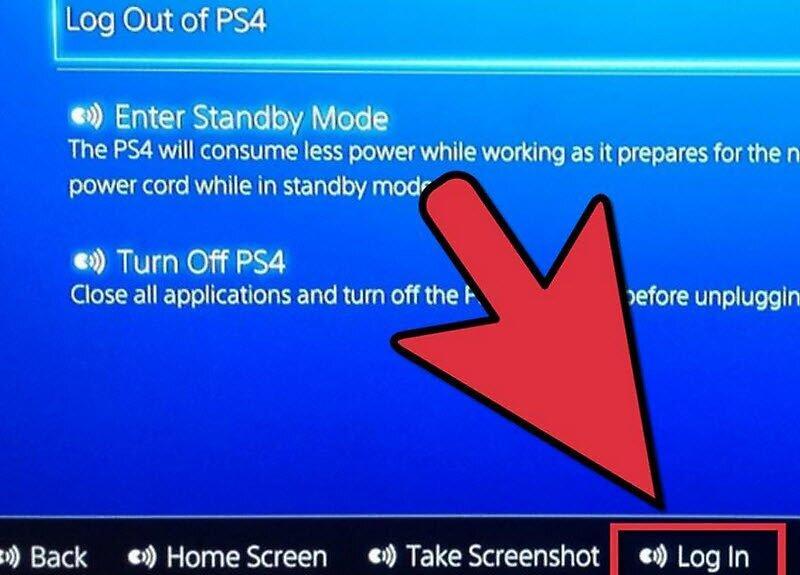
To get started, turn on your PS4. Simply press the "On" button on the console or the "PlayStation" button on the controller (the small round button in the center).
Step 2. Open the "Settings" menu.
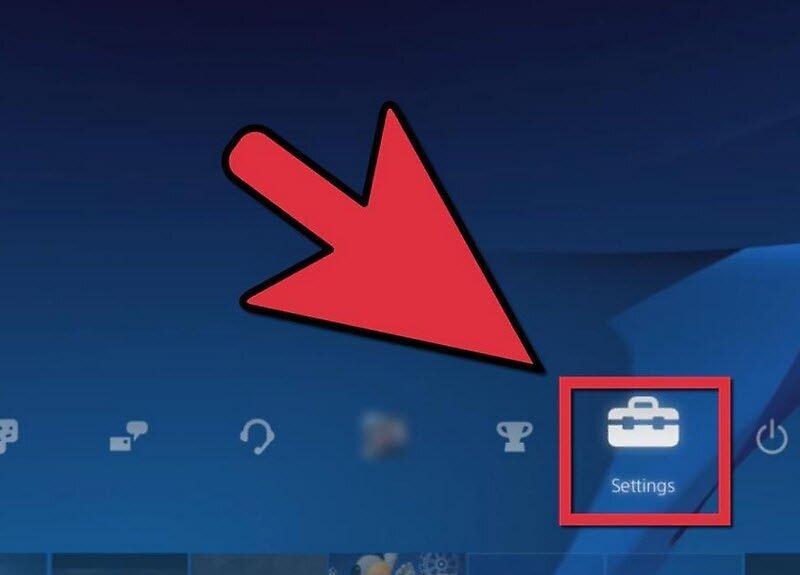
From the main screen, select the "Settings" section. Look for the icon that resembles a toolbox and click on it.
Step 3. Find "System Software Update."
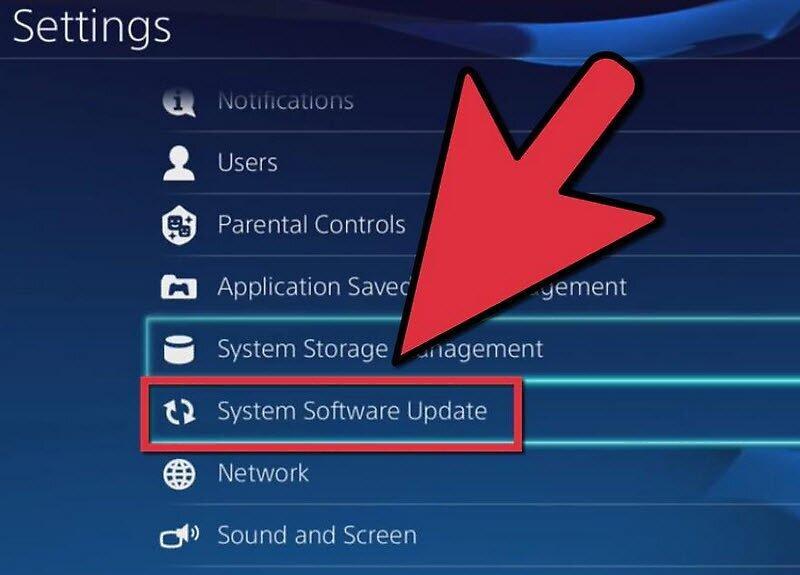
Select the "System Software Update" option. Your console will check if the latest software version is available. If not, the system will automatically download the update from the internet.
Step 4. Install the new update.
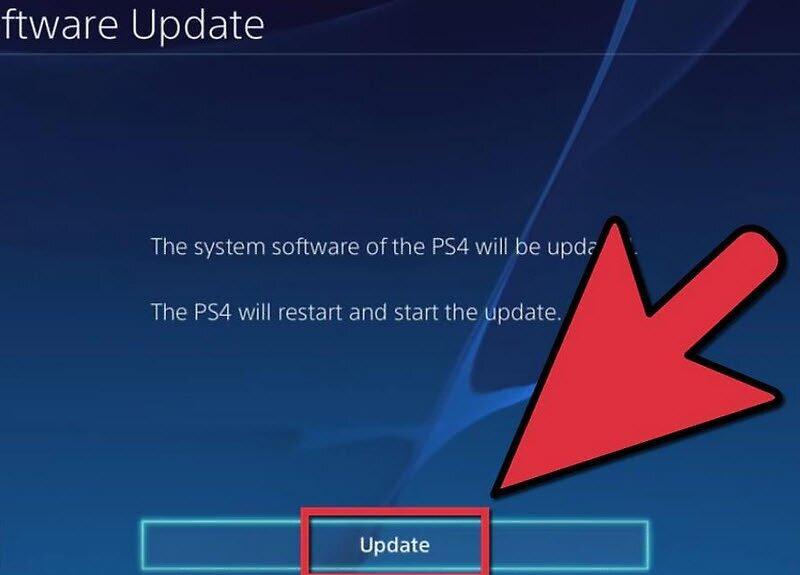
Once the download is complete, you will see a notification in the upper left corner of the screen. Go to the "Notifications" section, then select "Downloads." Launch the update file and follow the on-screen instructions to complete the installation.
Updating via USB Drive
Step 1. Prepare your USB flash drive.
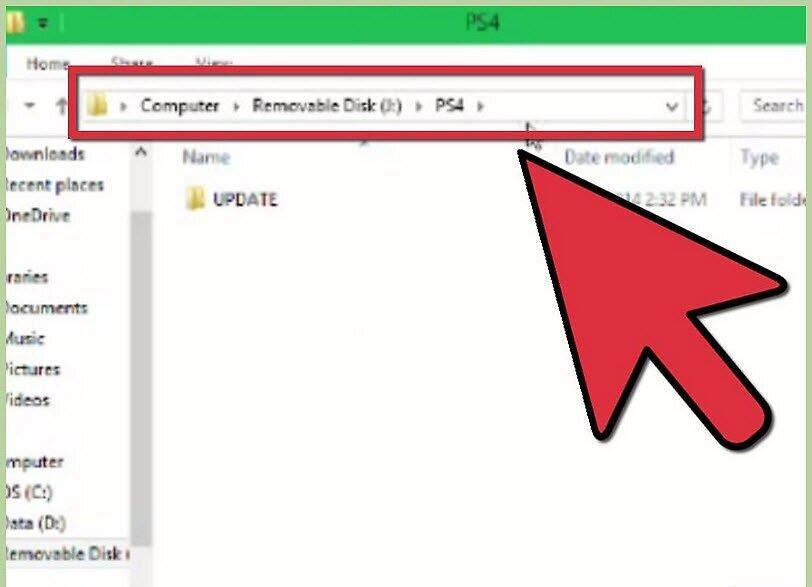
First, take a USB flash drive. On your computer, create the necessary folders to save the update file. Open the root folder of the flash drive by double-clicking it, then create a new folder named "PS4."
- Inside the "PS4" folder, create another folder called "UPDATE."
Step 2. Download the update file.
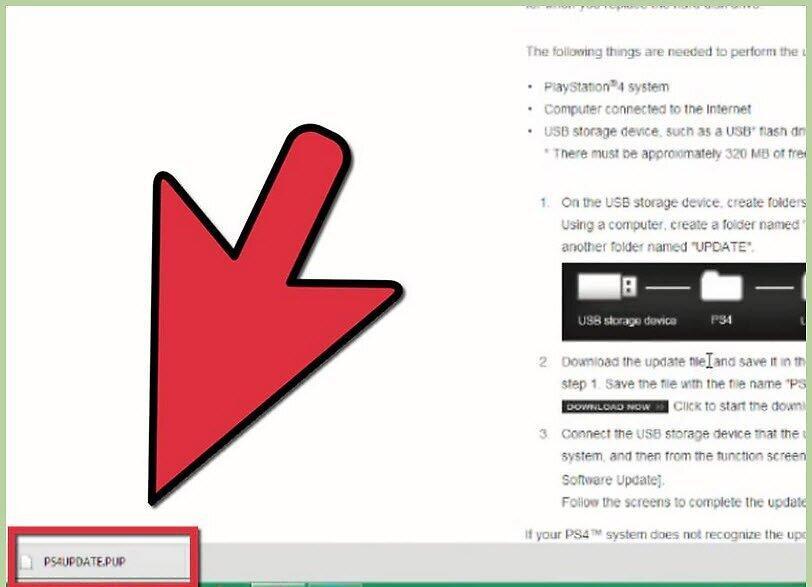
Now download the update file. Save it in the "UPDATE" folder with the name "PS4UPDATE.PUP."
Step 3. Completely power off your PS4 console.
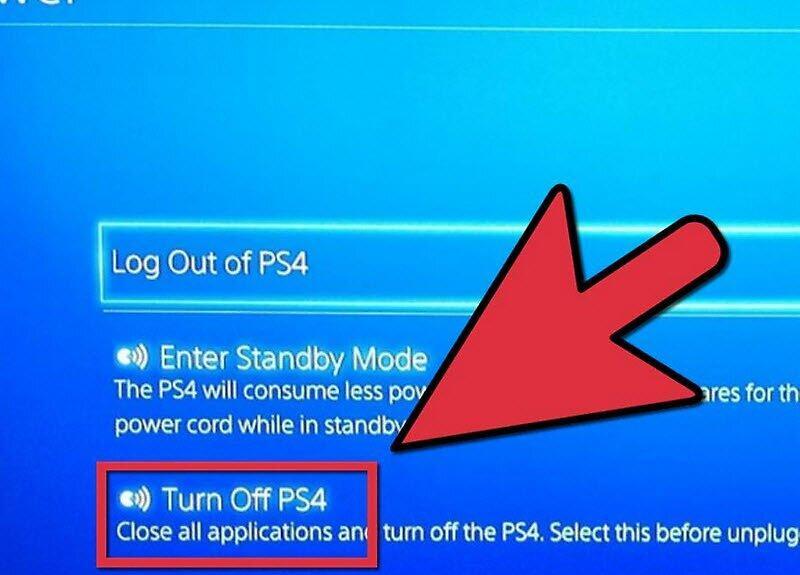
Before proceeding, ensure that your console is completely powered off. If the power indicator is orange, hold down the power button on the console for at least 7 seconds until you hear a second beep.
Step 4. Connect the USB drive and enter "Safe Mode."
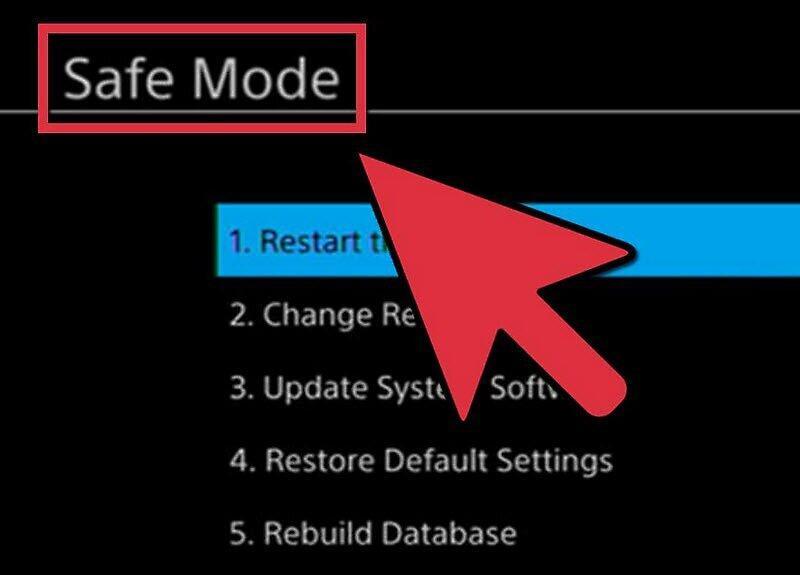
Connect the USB flash drive to the console and boot into "Safe Mode." First, make sure the console is off, then plug the drive into a USB port, and press and hold the power button for at least 7 seconds.
Step 5. Install the update.
Now select "Update System Software" and follow the on-screen instructions to complete the update installation.


