
In this article, you will learn how to view all the apps installed on your Android device, including the ones that are hidden.
Using the App Drawer
Step 1. Tap the App Drawer Icon.
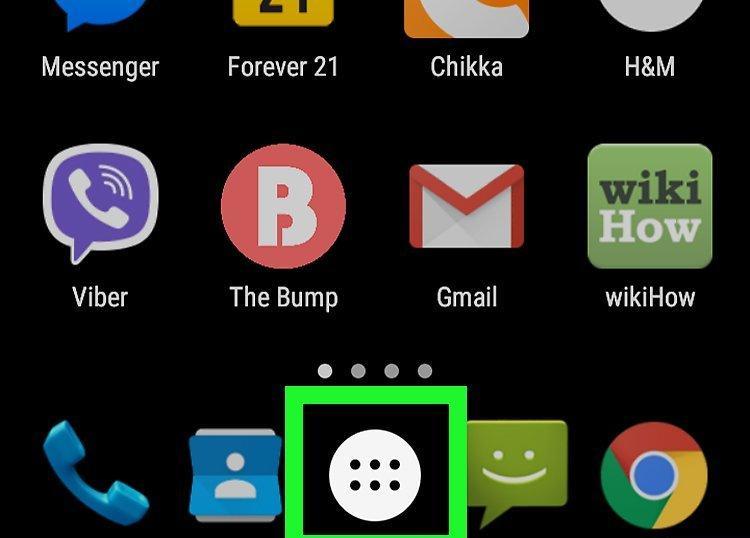
Tap the App Drawer icon, which looks like a grid of 6–16 small squares or circles. It is usually located on the home screen at the bottom or in the right corner.
Step 2. Open the Menu.
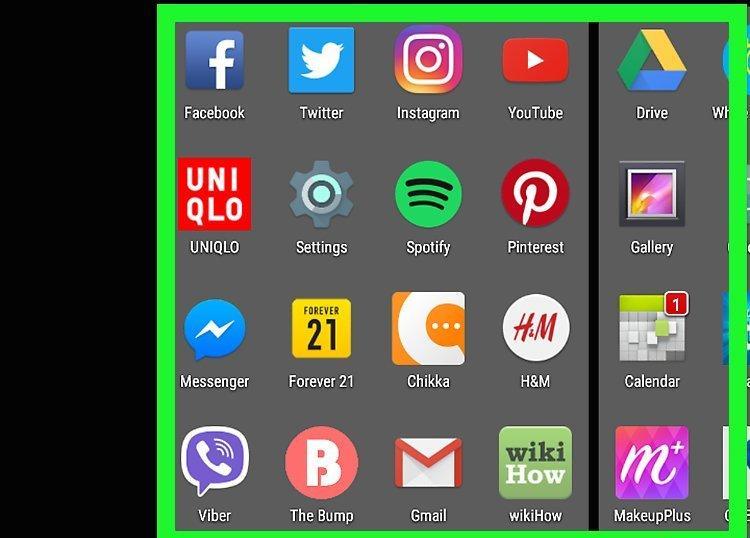
Open the menu, which may have different icons on various devices, such as: ⁝, , ☰. This icon is typically found at the top of the app list.
- If your device has a “Menu” button (located to the right of the “Home” button), just press it.
Step 3. Select Show Hidden Apps.
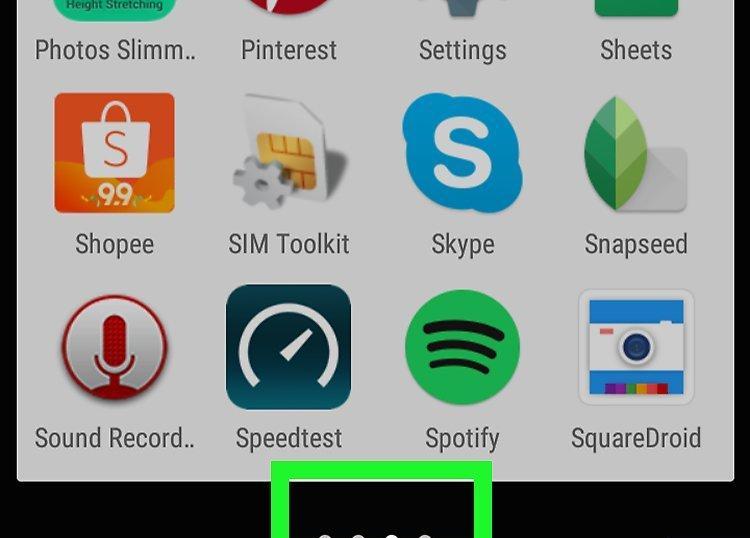
Tap on the option to Show Hidden Apps, and all hidden apps will appear on the screen.
- If this option is not available, it means you have no hidden apps. To check, simply tap “All” and review the complete list of installed apps.
Using the Settings App
Step 1. Launch the Settings App.
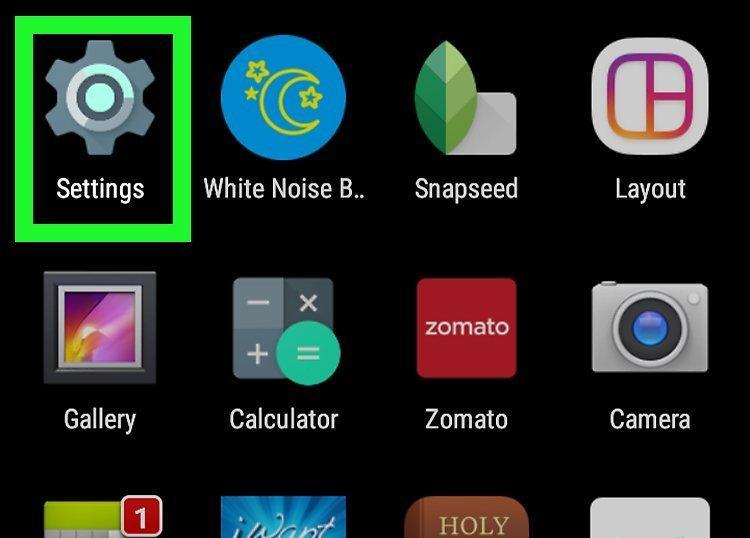
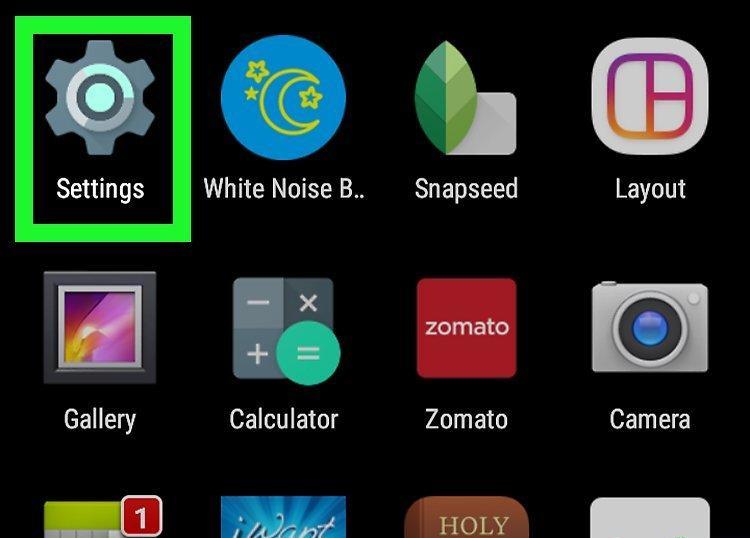
Open the Settings app, the icon for which is available on the home screen or in the App Drawer.
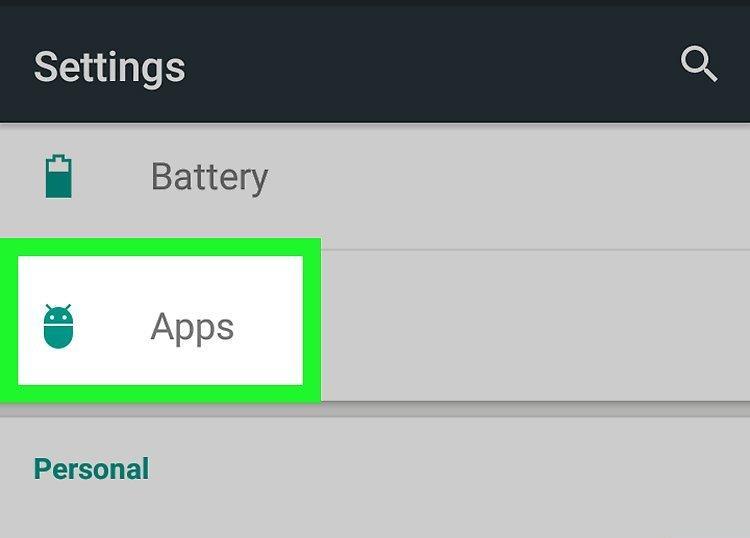
Step 2. Scroll Down and Select Apps.
Scroll down the page and select the Apps section. This will open a complete list of all apps installed on your device.
Step 3. Tap on All.
Tap on the All option. If you do not see it on the screen, check the dropdown menu.
- On some devices, you can select the “Hidden” option to see only the hidden apps.
- In Android 5.0 (Lollipop) and earlier versions, to open the list of all installed apps, swipe twice across the screen from right to left.


