
Hard drives are an integral part of computers where we store vital data, from family photos to work documents and emails. Unlike most other PC components, which are electronic and not subject to physical wear, hard drives are mechanical devices that unfortunately have a finite lifespan. Therefore, it's crucial to be able to recognize the signs of potential failure to back up your data in time and avoid irreversible data loss.
Part 1
Step 1: Identify Signs of Potential Failure Before They Occur
It's important to learn how to recognize signs that indicate a potential hard drive problem. While it may sometimes fail without warning, tracking early symptoms can help you back up your data in time and seek professional assistance. Avoid opening the hard drive if you lack the necessary expertise, as this could lead to damage from dust contamination. Backing up your data is always easier and cheaper than recovering it after loss. As soon as you notice the first warning signs, ensure you have backups.
Step 2: Listen for Strange Noises

If you hear unusual sounds like grinding or clicking, it could mean your hard drive is beyond repair. For example, the read/write head might be stuck, or the motor may be failing. If you notice such sounds, act immediately—you may not have much time.
Step 3: Watch for Data Loss and Errors
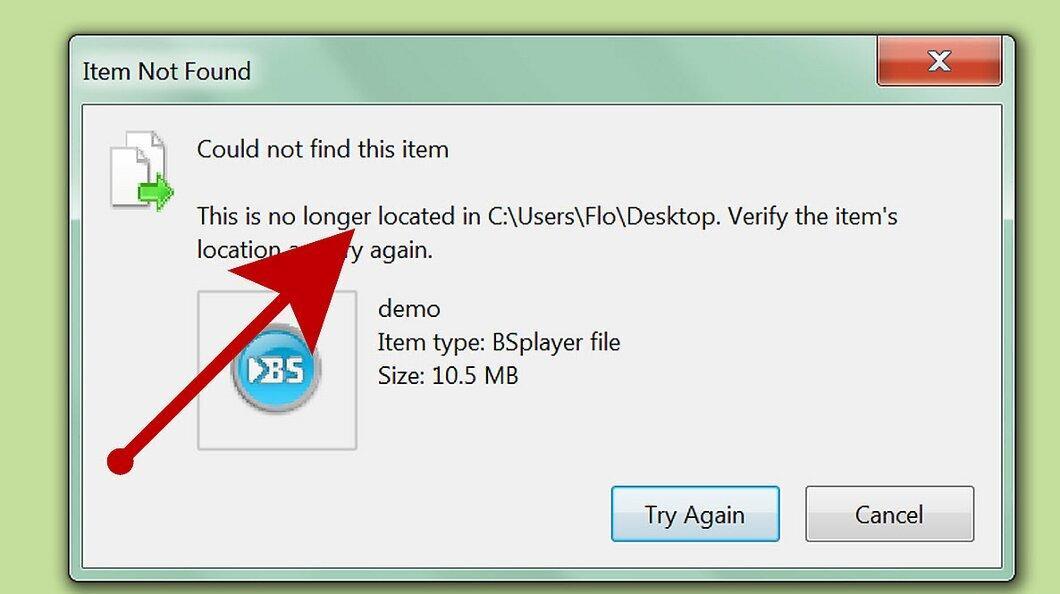
If your computer fails to save documents or files that you saw yesterday suddenly disappear, this can be a troubling sign. Programs that used to work seamlessly may start requiring you to specify the file location. Such changes could indicate that the hard drive is starting to fail. While this may be related to user actions or viruses, data loss should always raise your alarm.
Step 4: Computer Fails to Recognize the Drive
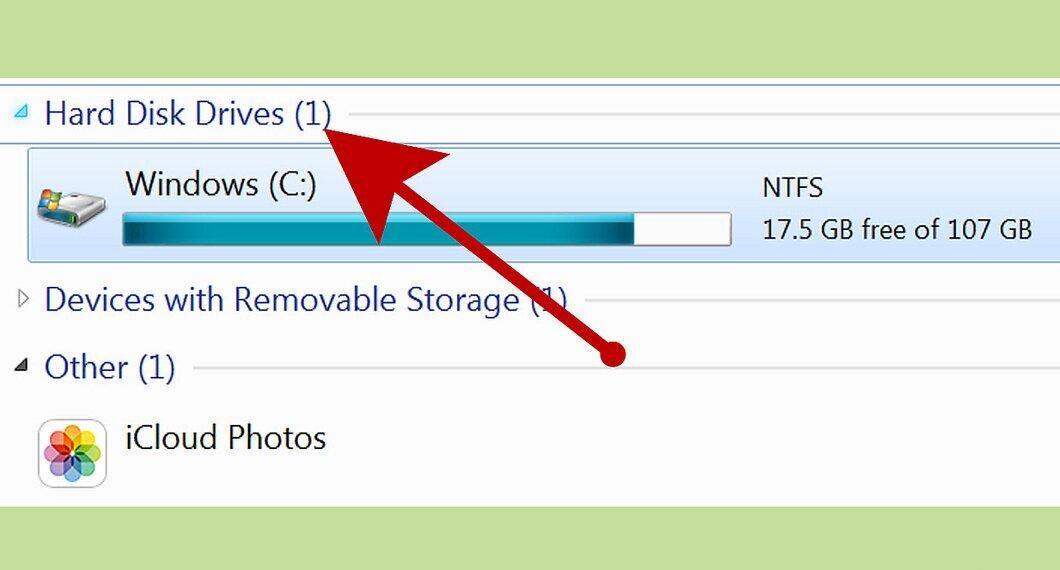
If your computer no longer recognizes the hard drive, this is a clear sign of an issue with the drive itself. Test it on another computer to confirm. Typically, such situations are linked to logical errors if you don’t hear unusual sounds indicating mechanical failures.
Step 5: Frequent Computer Crashes
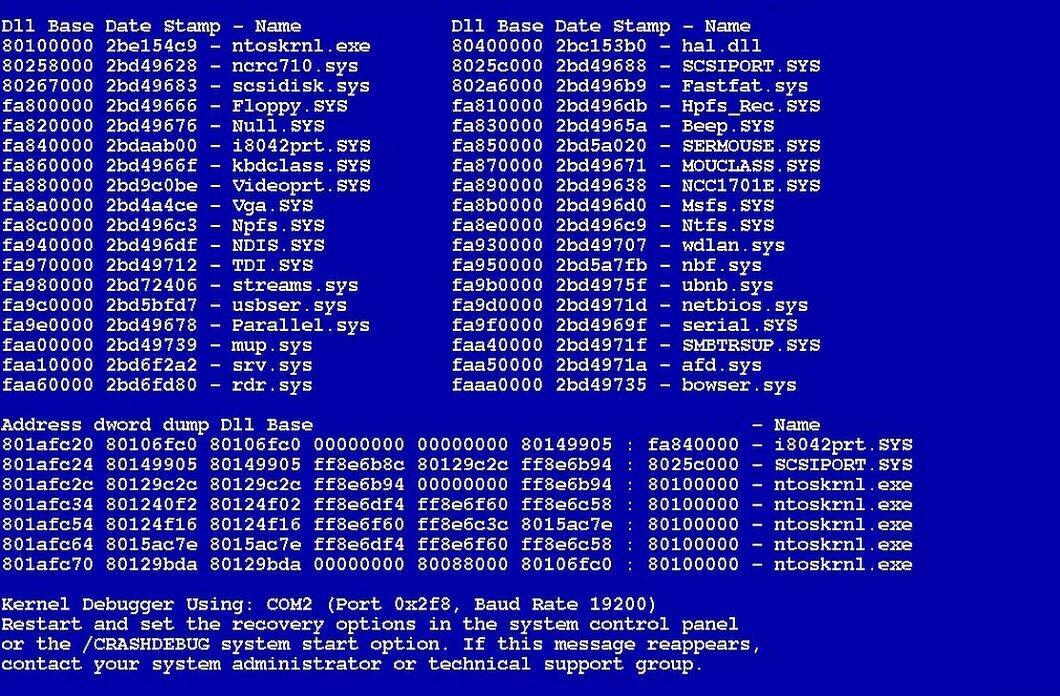
If your computer frequently displays the Blue Screen of Death or restarts on its own, this may indicate hard drive problems. Crashes during boot or while accessing files are additional warning signs.
Step 6: Long Data Access Times
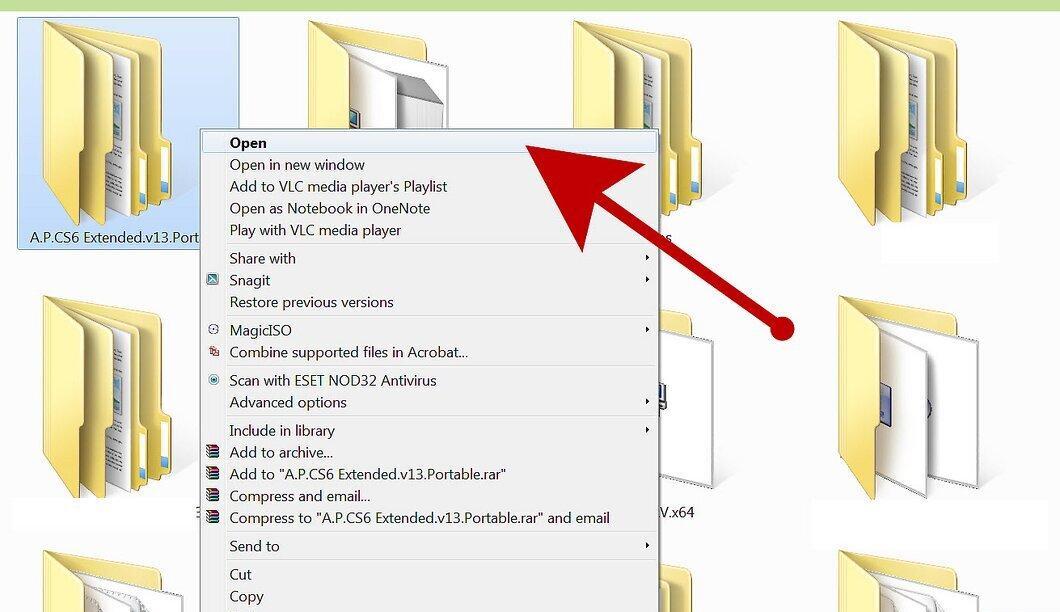
If it takes a long time to open folders in Explorer or empty the Recycle Bin becomes a time-consuming task, this could be a sign of an impending hard drive issue. Users often encounter such situations that may precede a device failure.
Step 7: Unusual Noises are a Key Indicator
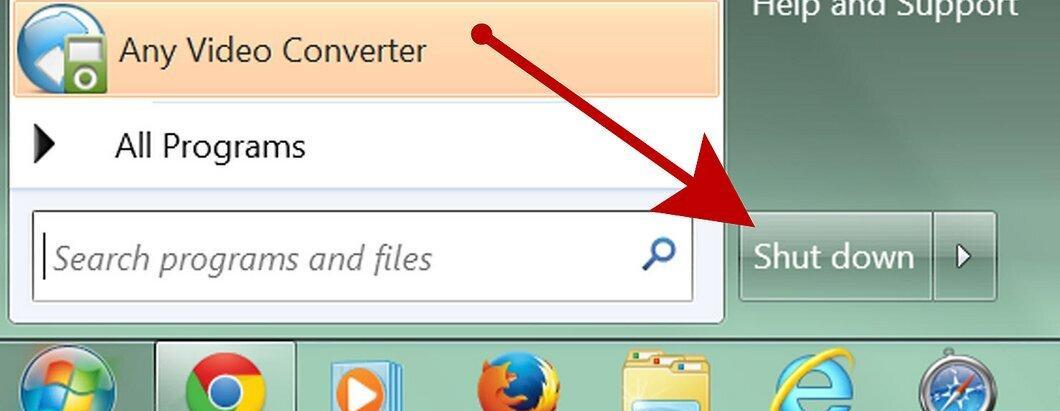
If you start hearing clicks or scratches that differ from the usual sound of the drive, you should immediately shut down your computer. Remember how the drive sounds when it's functioning properly so you can notice even the slightest changes in sounds as it begins to wear out.
Step 8: Issues Accessing Recently Used Files
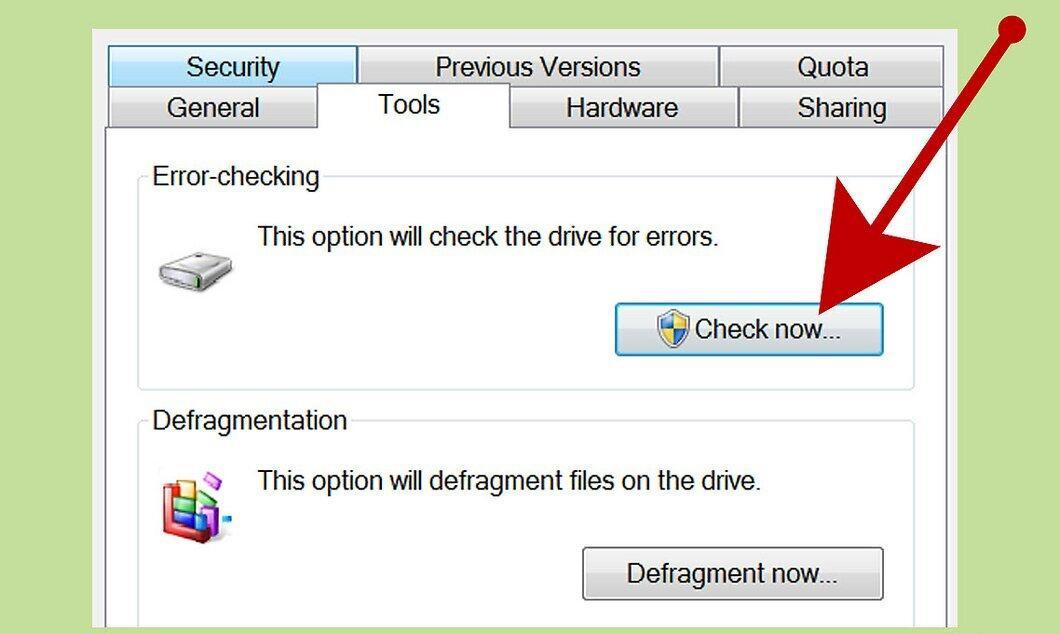
If your computer cannot find files you recently accessed, this may indicate physical wear on the hard drive or issues with the file system. Such errors can often be addressed using the chkdsk command available in most versions of Windows. To fix errors on the C: drive, open the command prompt as an administrator and type "chkdsk C: /f". If you want to check the disk for errors, add the parameter "chkdsk C: /f /r". This command will scan for and repair issues in the file system.


