
.MKV files are video containers that support multiple formats and are often referred to as "Matryoshka". They offer distinct advantages over other formats like AVI, MP4, and ASF. However, not all media players can play .mkv files. Don't worry, this issue is easily fixable. In this article, we've prepared several effective ways to tackle this problem.
Using a .MKV Compatible Media Player
Step 1. Choose a Free Media Player that Supports .MKV
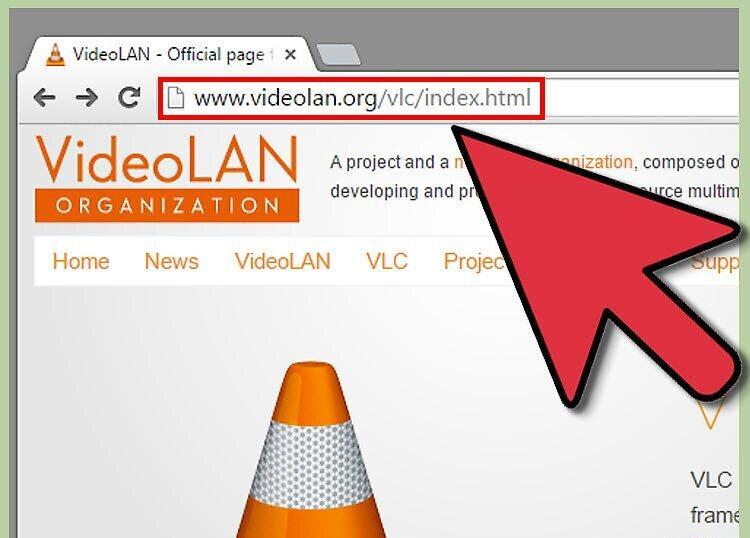
Select a free media player that can play .mkv files. There are many options available online, some of which even outperform popular players. Each player has its strengths and weaknesses, so it's important to choose the latest version capable of opening .mkv files.
- VLC Media Player (VLC) is a free and widely used player that excels at this task. For the remainder of this article, we will assume you have chosen VLC.
- However, VLC is not the only option for opening .mkv files. Alternatives include Media Player Classic (MPC) and MplayerX, both of which are also quite good. Keep in mind that many features of these players may duplicate VLC's capabilities.
Step 2. Download and Install the Player

Download and install your chosen player. Although we will focus on VLC, the instructions will be universal for all players. Find a reliable website for downloading to avoid issues, and follow the installation instructions.
- To simplify access, create a desktop shortcut — this is especially handy if you're not very tech-savvy.
- Make sure you download the version compatible with your operating system. For instance, VLC has versions available for both Windows and Mac.
Step 3. Launch VLC

Launch VLC. After successful installation, open the player. Sometimes you may need to allow internet access. As a result, you will see a black window with an orange traffic cone in the center. Congratulations, you are now ready to watch!
Step 4. Open the Video File
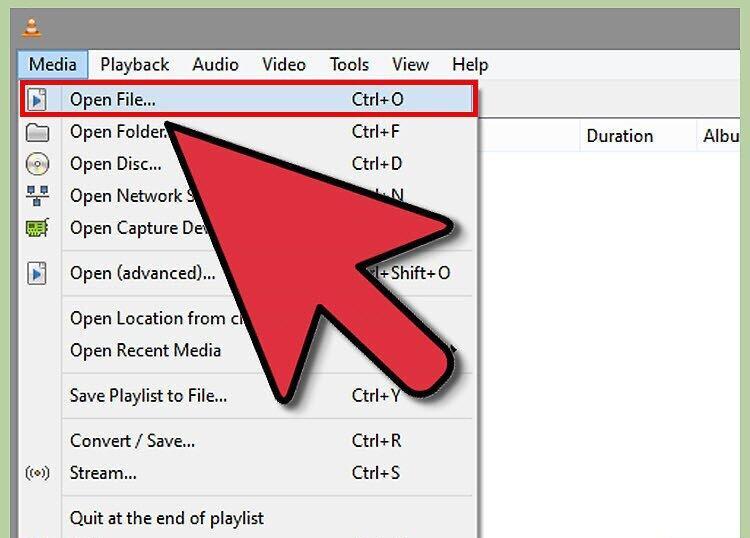
Now, open the video file. Click on the "Media" button in the top menu and select "Open File". Use the file explorer to locate the desired .mkv file. This process usually goes smoothly.
- Note that we are discussing VLC on Windows.
- VLC should be able to open most .mkv files without issues. However, if you encounter files compressed in RealVideo format, you may need a special player to play them.
Using Codecs
Step 1. Understand the Pros and Cons of Using Codecs
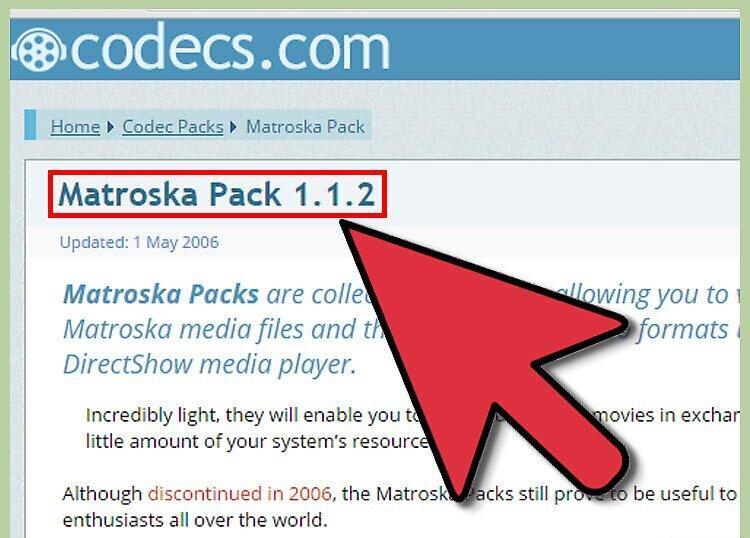
Understanding the pros and cons of using codecs is very important. Codecs (coder-decoders) are programs that allow you to encode and decode digital media content. You need a codec to work with .mkv files, and there are plenty available.
- Pros of Codecs: When you download one, you gain support not only for .mkv but also for many other formats. Installing a codec can resolve many playback issues.
- Cons of Codecs: This is a last resort in attempts to open stubborn videos. You may waste disk space downloading gigabytes of codecs just to open a single file. If a problem arises, it can be difficult to determine which codec caused it.
Step 2. Download and Install Necessary Codecs
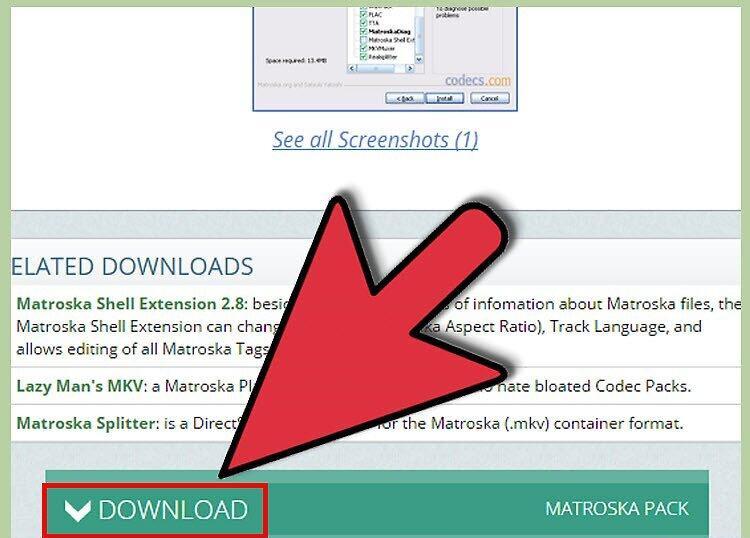
If you decide to use codecs, download them from a reliable source. The Combined Community Codec Pack (CCCP) is a great choice for Windows. You might also consider the K-Lite Codec Pack, available at codecguide.com. Installation should be straightforward: download the codecs and follow the on-screen instructions.
- For Mac users, it may be easier to download an .mkv-compatible player like Perian, which adds support for Quicktime Player. However, it's worth noting that Perian has not been updated since 2012, and developers recommend alternative options such as Niceplayer, VLC, or MPlayer OS X.
- It is advisable to remove old codecs before installing new ones to avoid compatibility issues.
Step 3. Open the .MKV File in Your Favorite Media Player
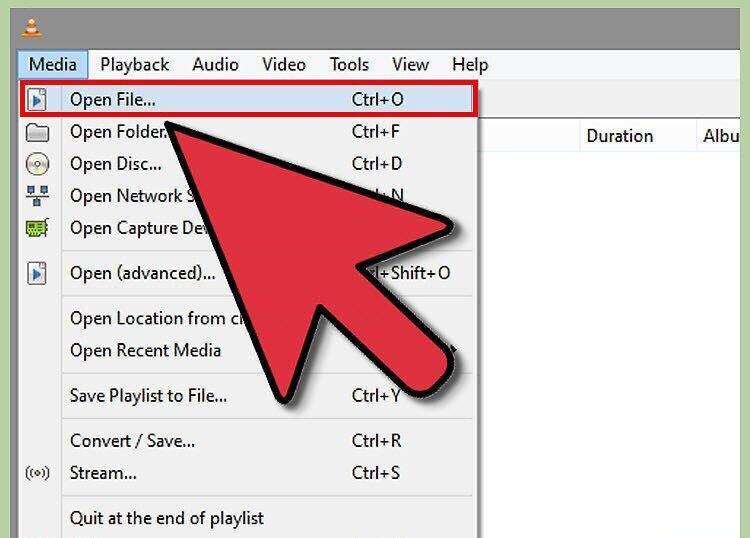
Now, open the .mkv file in your media player. After installing the codec, you should be able to open the .mkv file without any trouble. Use any player — it doesn’t matter as much now.
- After installation, you may be prompted to adjust filtering settings. If you are unsure what to choose, simply leave everything at default.
- If a particular file won’t open, try playing other files in that format. If they work, the issue may lie with the corrupted file.
Troubleshooting
Step 1. Use a Free Tool to Diagnose .MKV Files
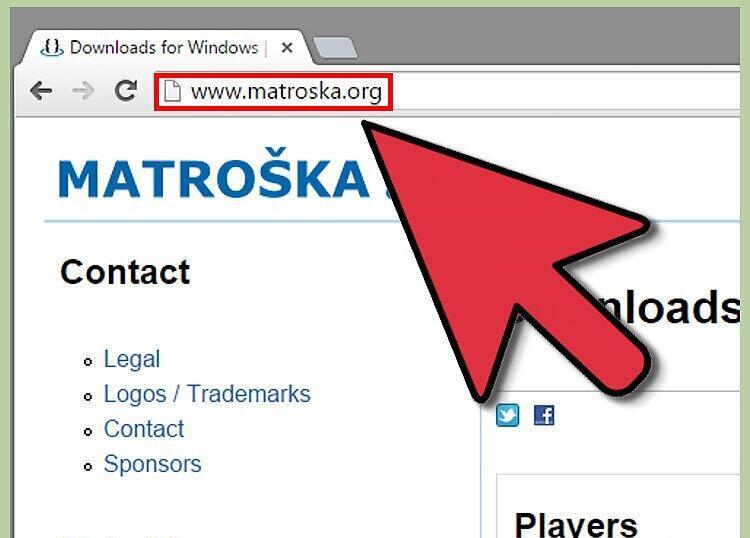
Try using a free tool to diagnose .mkv files. Despite the efforts of MKV developers, playback issues can still occur on PCs. A specific program called matroskadiag.exe was created to analyze .mkv files and identify the causes of problems. You can download this program from matroska.org.
Step 2. Use Third-Party Diagnostic Tools
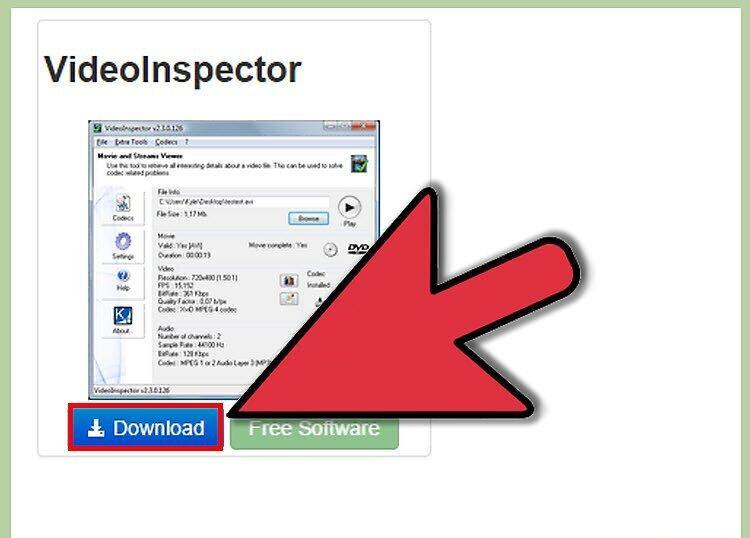
There are many third-party programs for diagnosing video files that can work with multiple formats. For example, VideoInspector from KC Software, which can be downloaded from afterdawn.com.
Step 3. Install a RealVideo-Compatible Media Player

If you are experiencing playback issues with .mkv files, it may be due to the RealVideo format. You will need a special player to play such files. The official solution is RealPlayer, which can be downloaded for free from real.com.
- If you prefer not to use the official player, you can find an alternative — Real Alternative, which is also available for free online.


