
How to Open MSG Files Without Outlook: Simple Methods
In this article, you'll learn how to open MSG format files used in Outlook, even if you don't have the software installed. There are several online tools that can help you convert MSG files to PDF and view attachments.
Zamzar
Step 1. When to Use Zamzar?
Use Zamzar if you need to obtain a PDF version of your emails with attachments that are no larger than 20 MB. To access the documents, you'll need to provide your email address to receive a download link. If you prefer not to leave your email, try Encryptomatic instead.
Step 2. Go to Zamzar's Website.
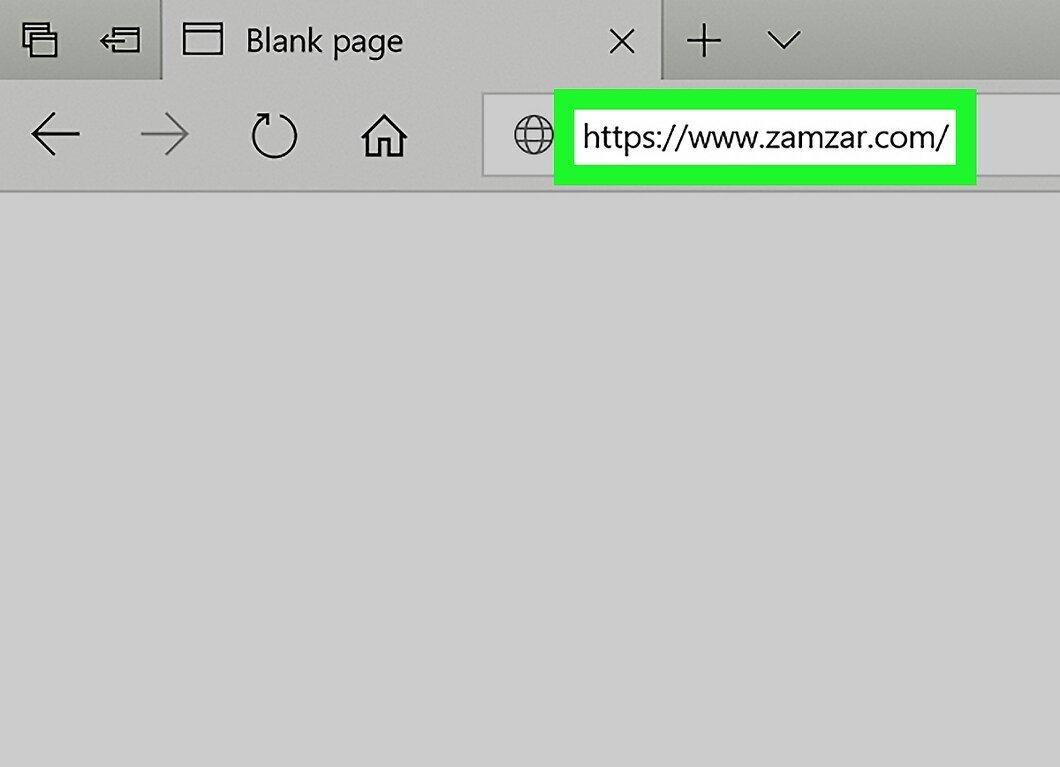
Visit Zamzar's website at https://www.zamzar.com/ through your web browser.
Step 3. Select Files
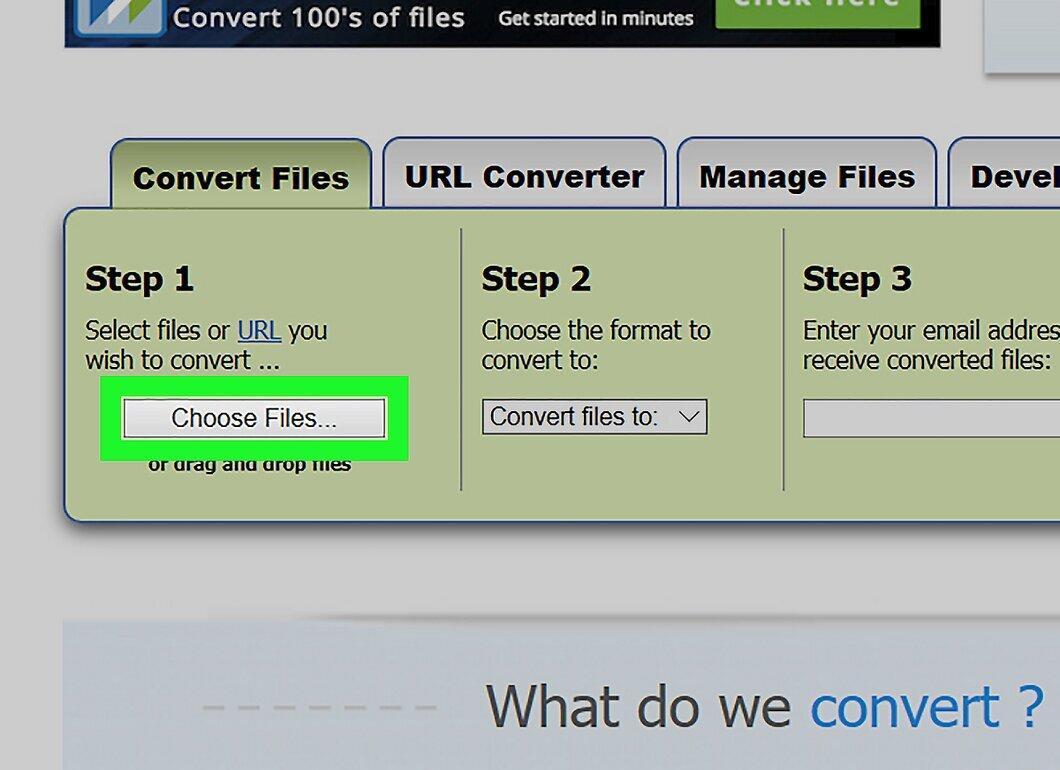
Click on the “Choose Files” button in the “Step 1” section in the middle of the page. A file selection window will open.
Step 4. Choose the MSG File
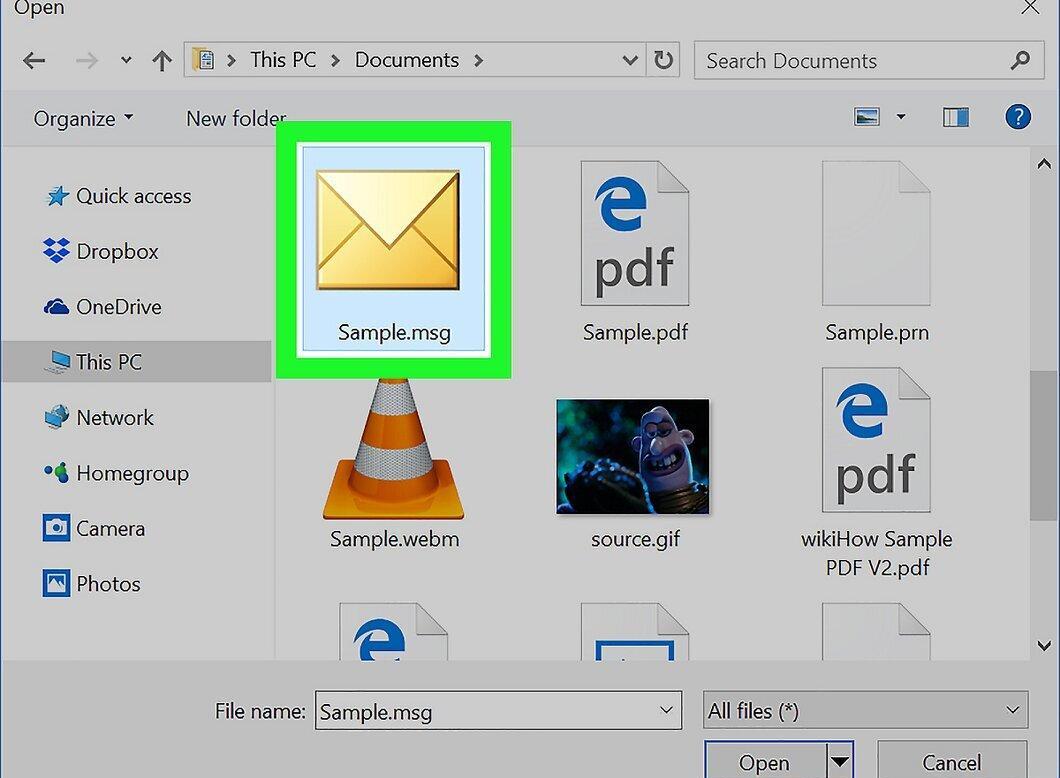
Navigate to the folder where your MSG file is stored and select it.
Step 5. Open the File
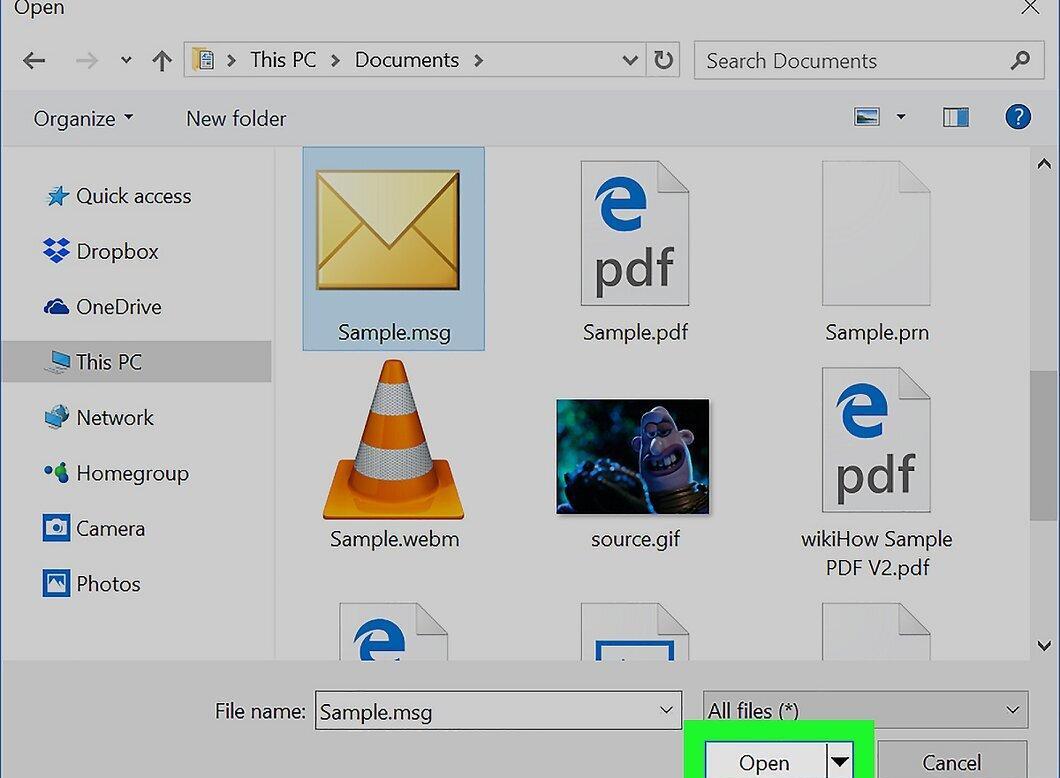
Click the “Open” button located at the bottom right corner of the window. The MSG file will upload to Zamzar.
Step 6. Select the Format for Conversion
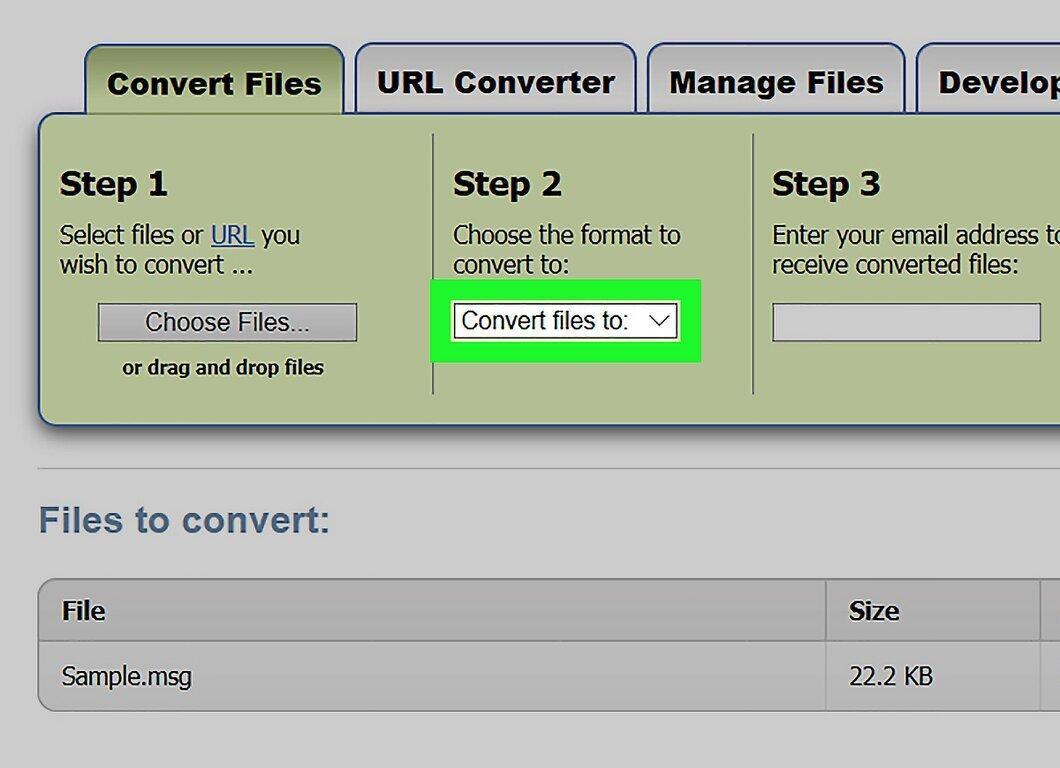
In the “Step 2” section, choose the menu “Convert files to.”
Step 7. Choose PDF
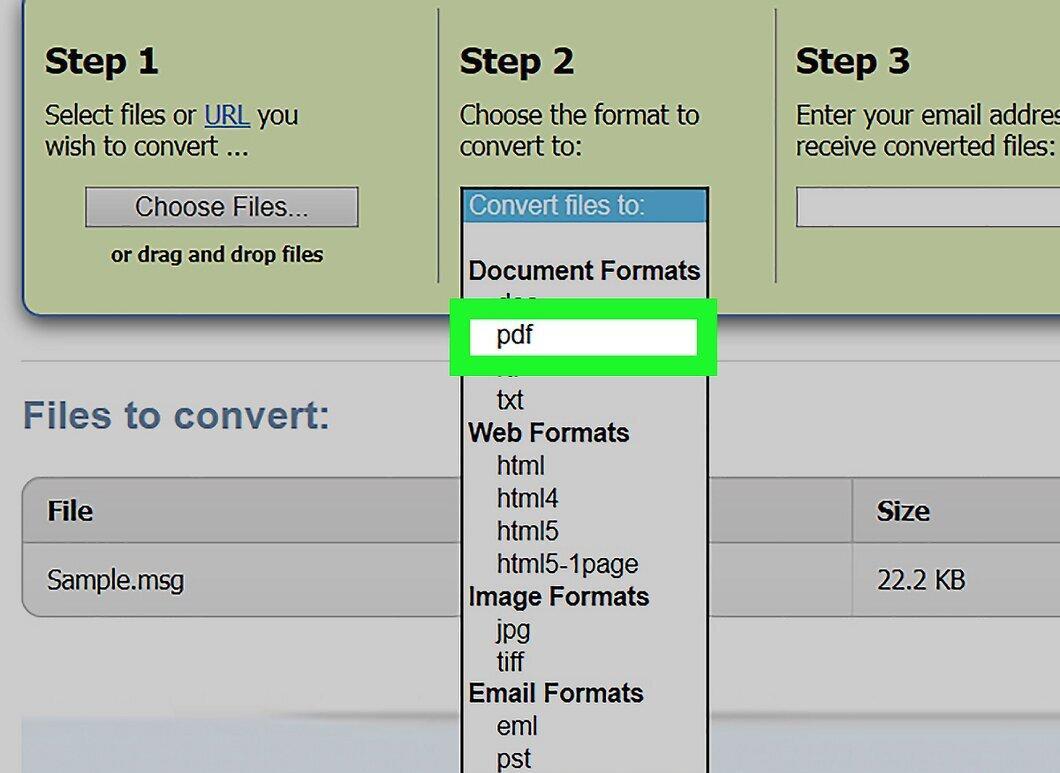
Click on the pdf option in the “Documents” section.
Step 8. Enter Your Email Address
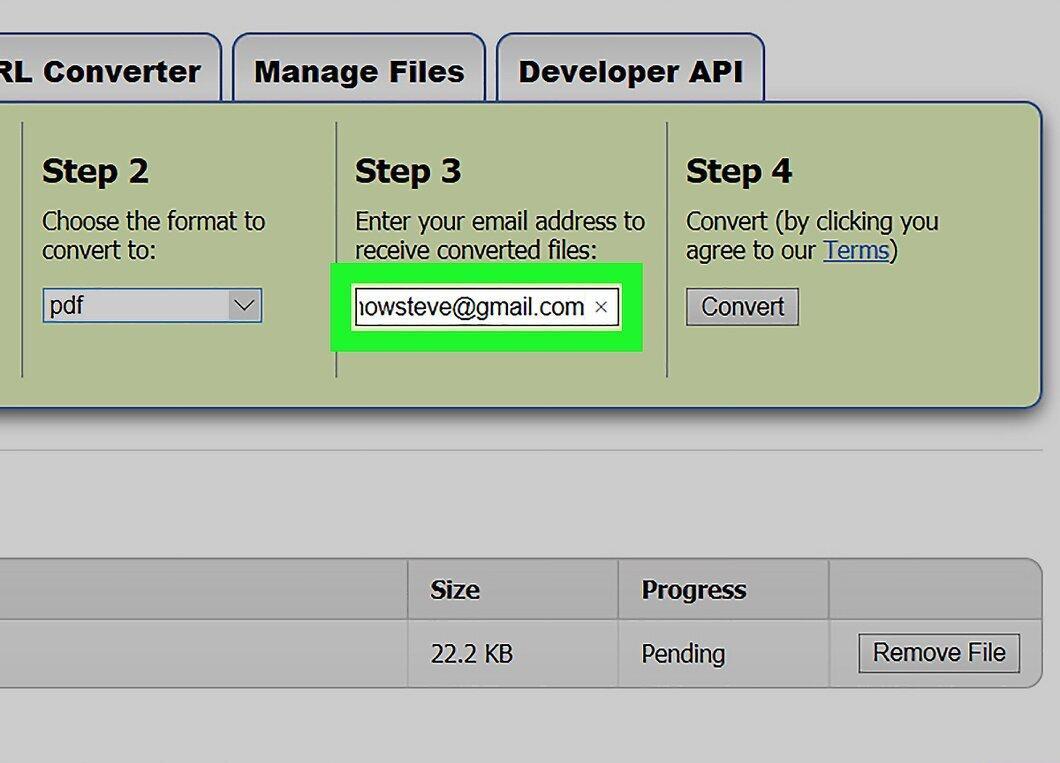
Type your email address into the text field in “Step 3.”
Step 9. Click the Convert Button
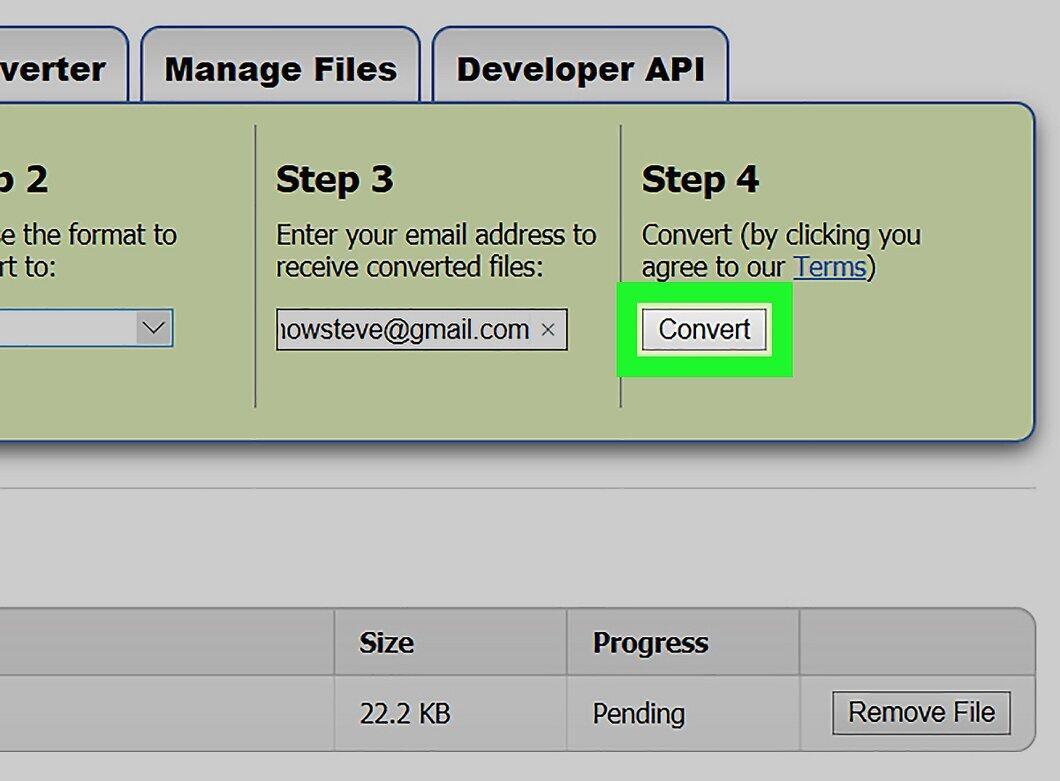
Click the gray “Convert” button in the “Step 4” section. Zamzar will begin the process of converting the MSG file to PDF.
Step 10. Receive the Download Link
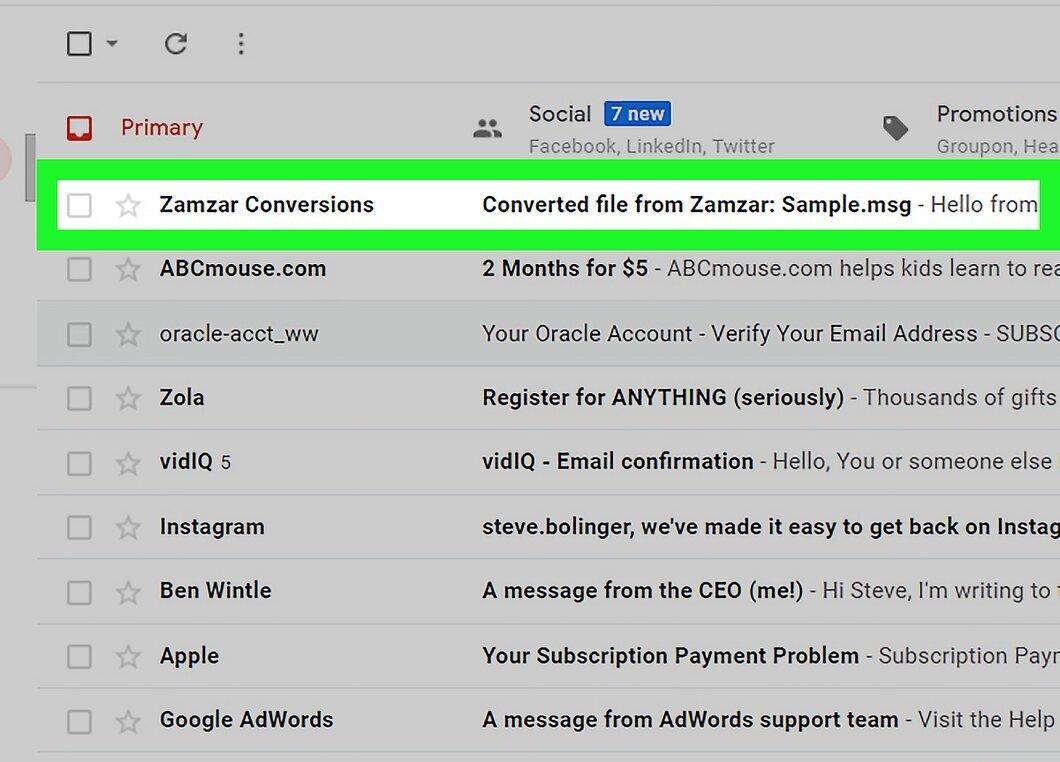
Once the conversion is complete, you will receive a confirmation email with a link to download the modified file. To find it:
- check your inbox;
- open the email with the subject “Converted file from Zamzar”; don't forget to check the “Spam” folder if you don't receive it within 5 minutes.
Step 11. Download the PDF File
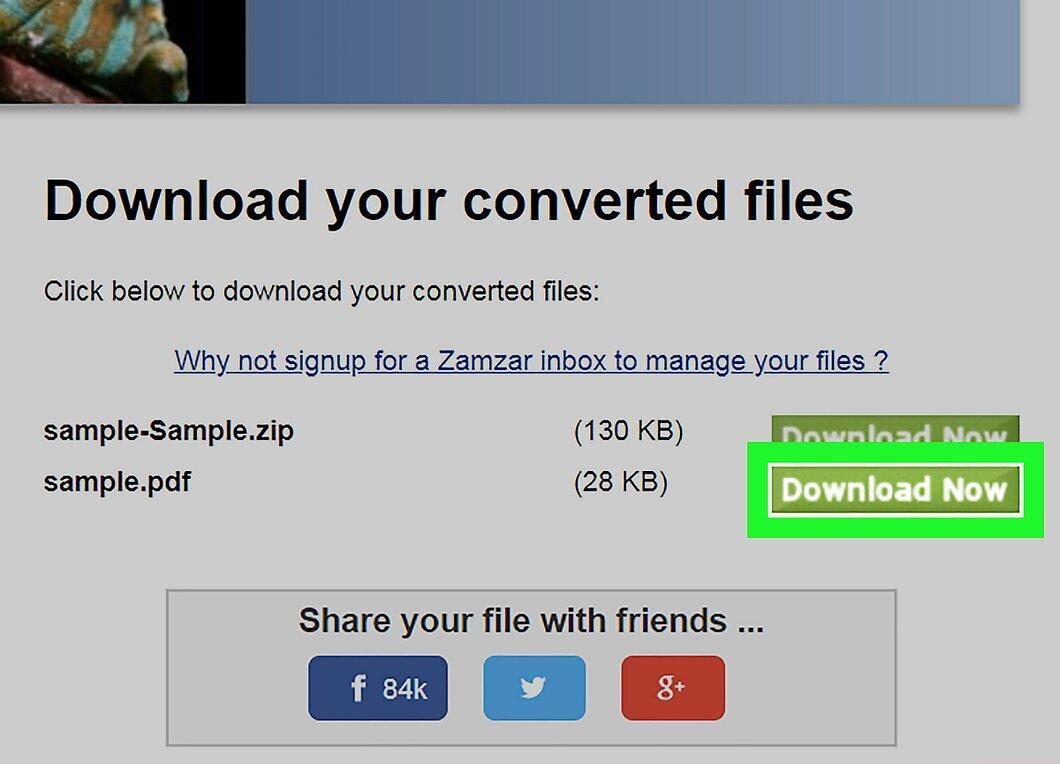
Click the green “Download Now” button next to the PDF file. The file name will match the email subject, for example, hello.pdf.
Step 12. Download Attachments
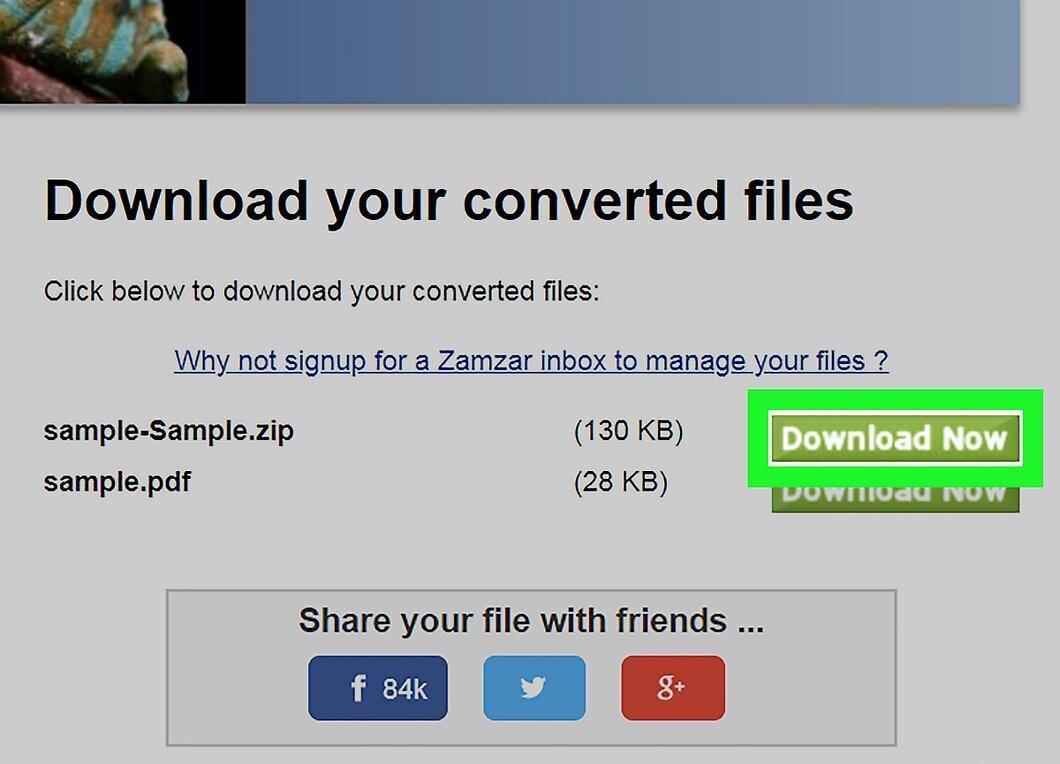
If your emails have attachments, click “Download Now” next to the ZIP file labeled “Attachments” to download them. The attachments will be downloaded as a ZIP archive.
- Don’t forget to unzip the archive to view the attachments.
Encryptomatic
Step 1. When to Use Encryptomatic?

Use Encryptomatic if you just want to view emails and their attachments, with file sizes not exceeding 8 MB. You can download attachments directly from the viewing page.
- Note that Encryptomatic has limitations on email and attachment sizes. If you need to download multiple files from MSG, Zamzar may work better.
Step 2. Go to Encryptomatic's Website.
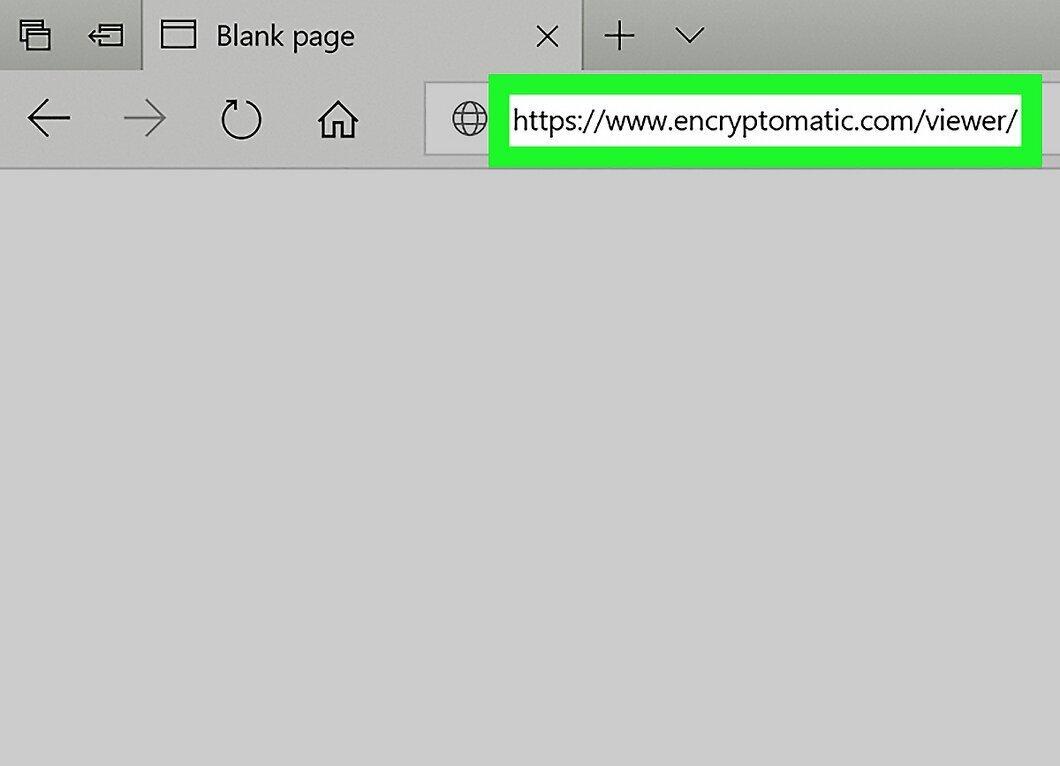
Visit Encryptomatic's site at https://www.encryptomatic.com/viewer/ through your browser.
Step 3. Click Browse
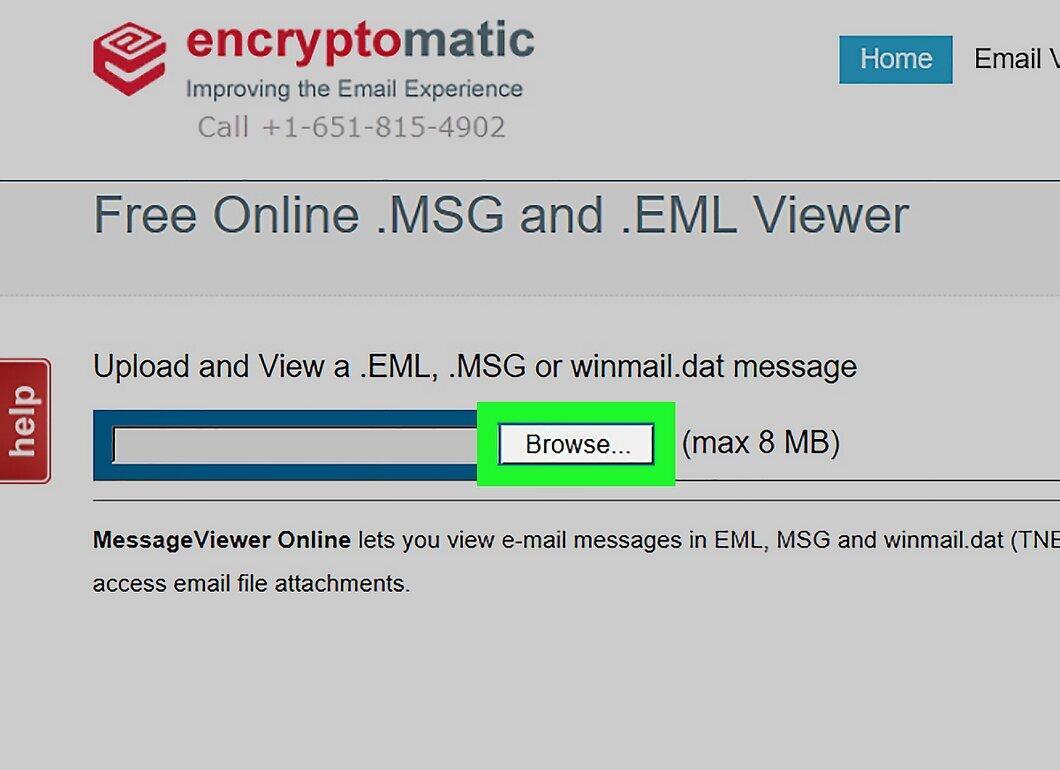
Click the gray “Browse” button at the top left of the page. This will open a file selection window.
Step 4. Choose the MSG File
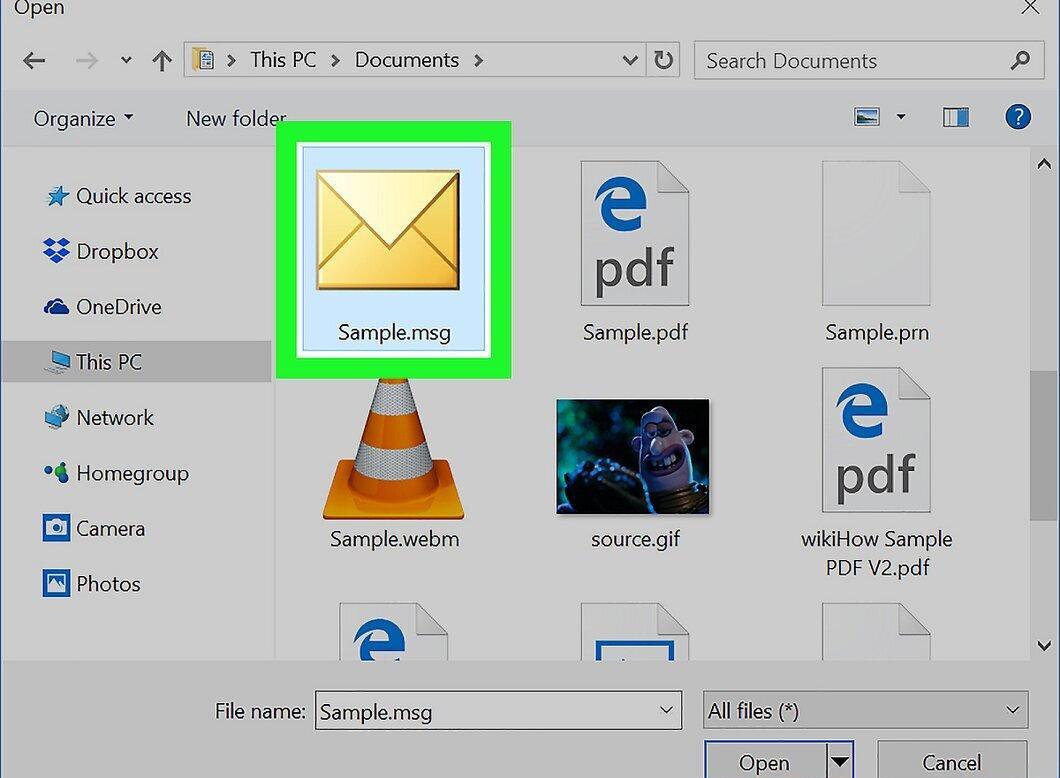
Navigate to the folder with your MSG file and select it.
Step 5. Click Open
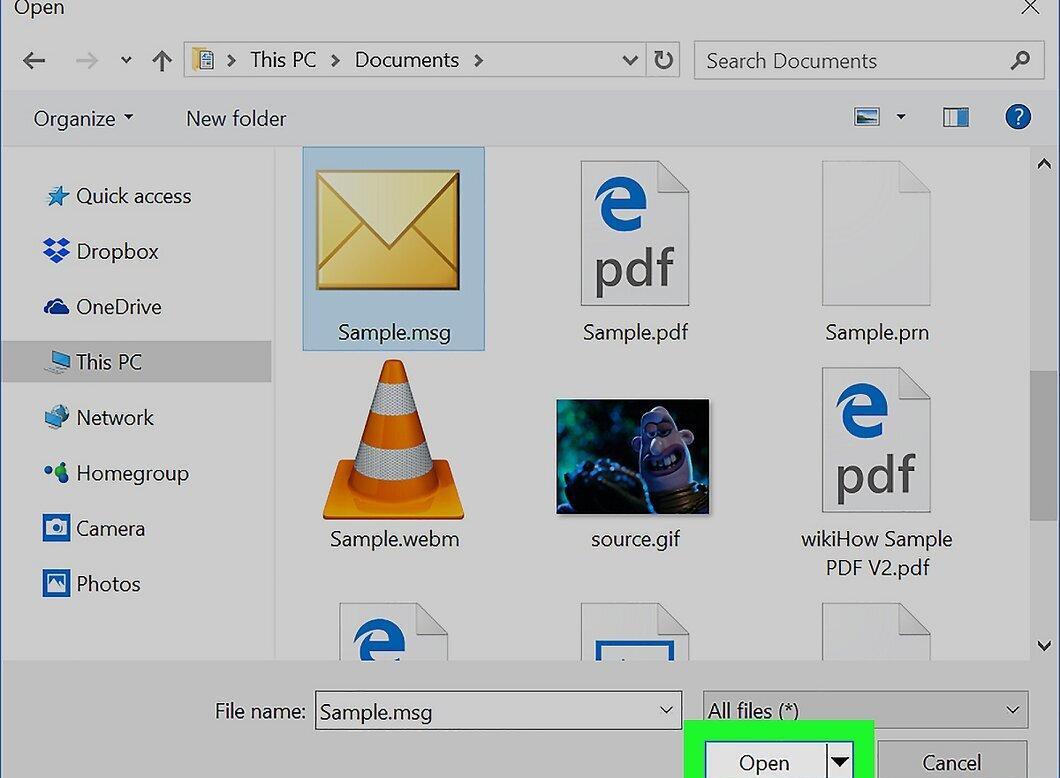
Click “Open” at the bottom right corner. Your MSG file will upload to the Encryptomatic page.
- If you see a message “File is too large” next to the “Browse” button, it means the MSG file is too large for Encryptomatic. In this case, use Zamzar.
Step 6. Click View
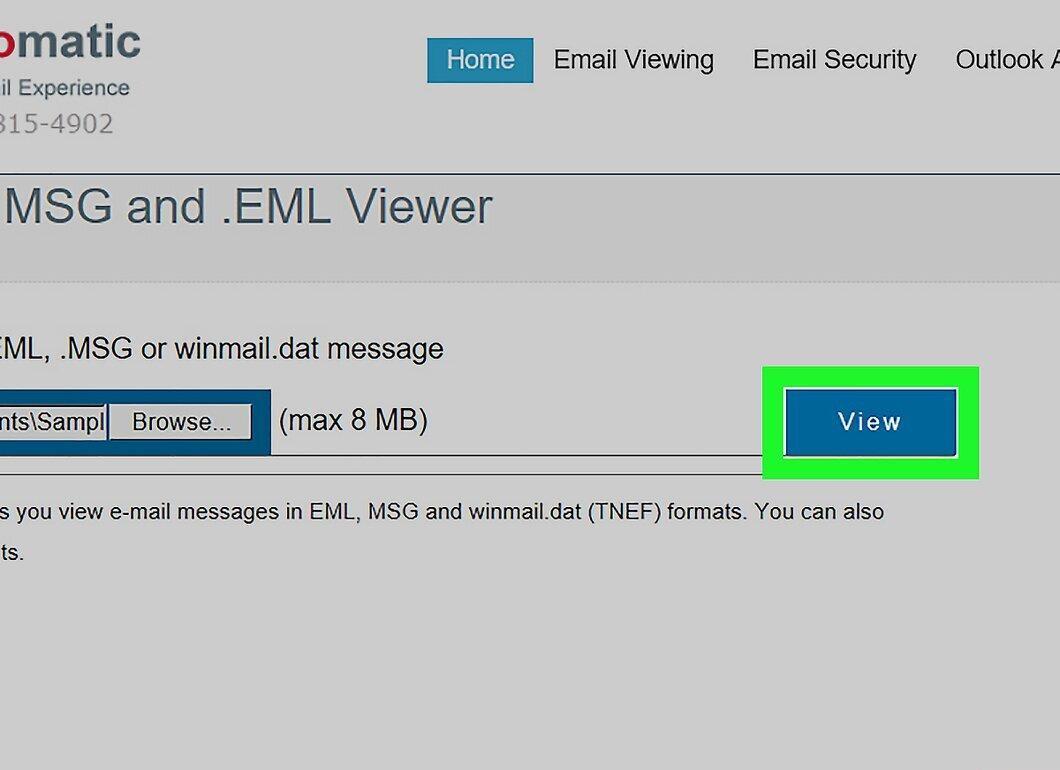
Click the blue “View” button next to the “Browse” button. A page will open to view your email.
Step 7. Read the Email
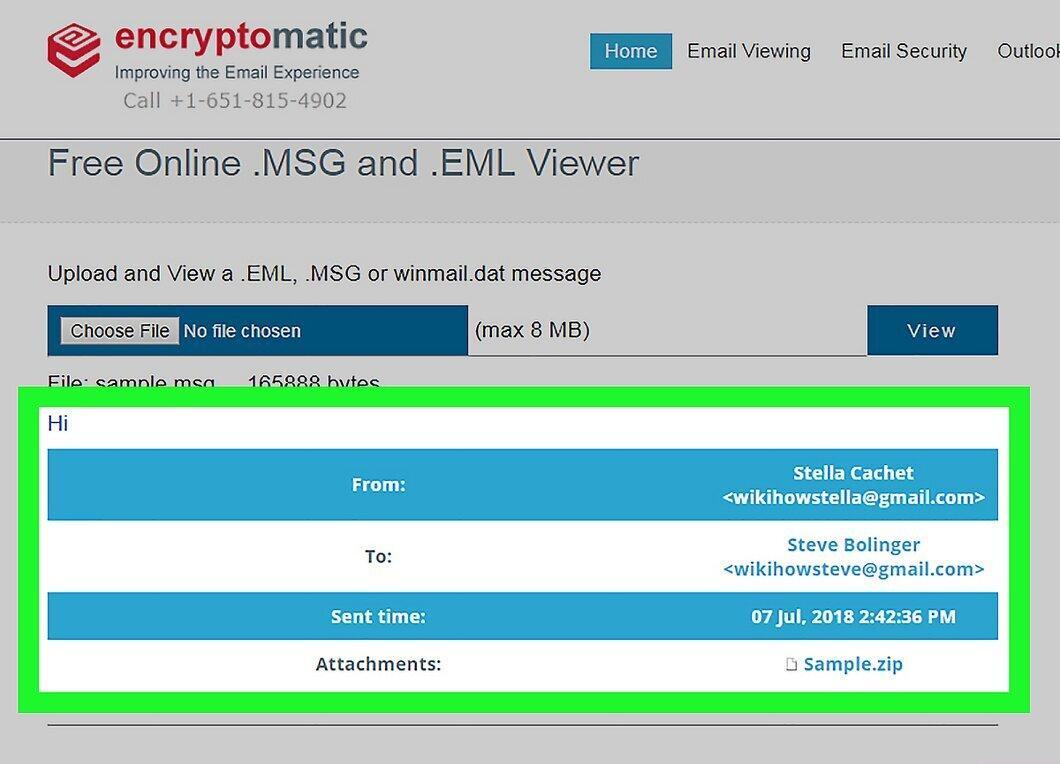
Scroll down to view the email text and images.
Step 8. Download Attachments
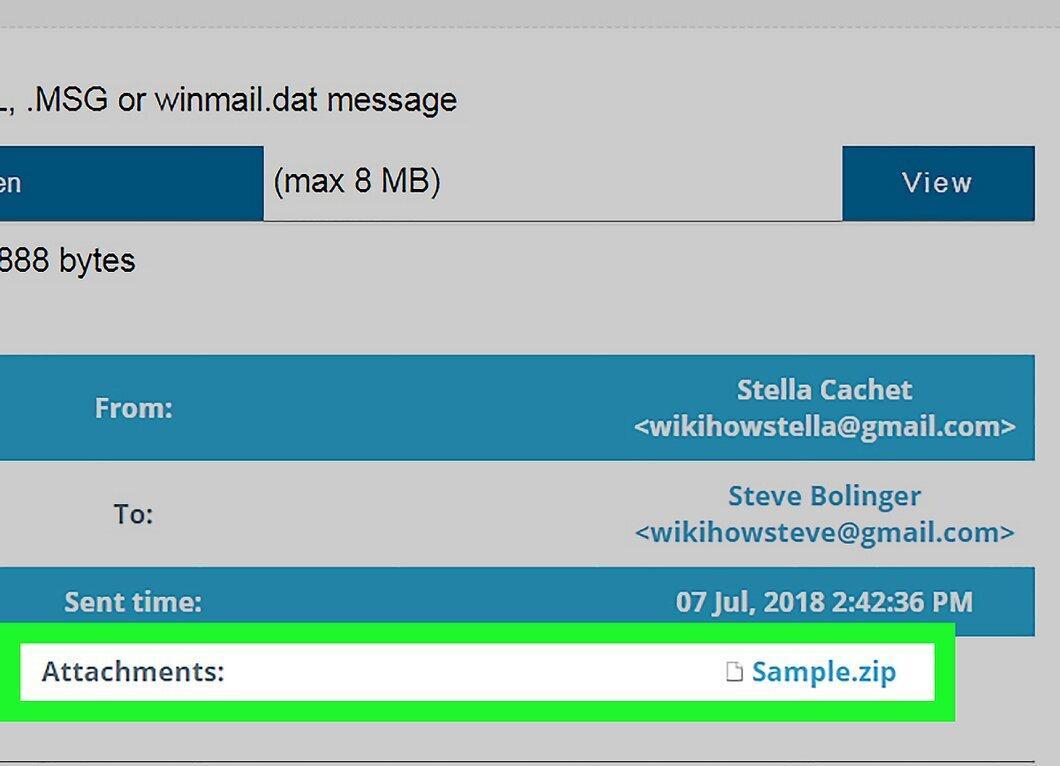
If there is an attachment in the email, its name will appear next to “Attachments” on the page. Click the attachment name to download it to your PC.


