
In this article, we will discuss how to open SWF files on your computer. Typically, these files represent videos or games that used Flash for hosting on websites. Unfortunately, modern browsers and operating systems do not have built-in tools to play SWF files, so you'll need to install special software.
For Windows Users
Step 1. Go to the SWF File Player website.
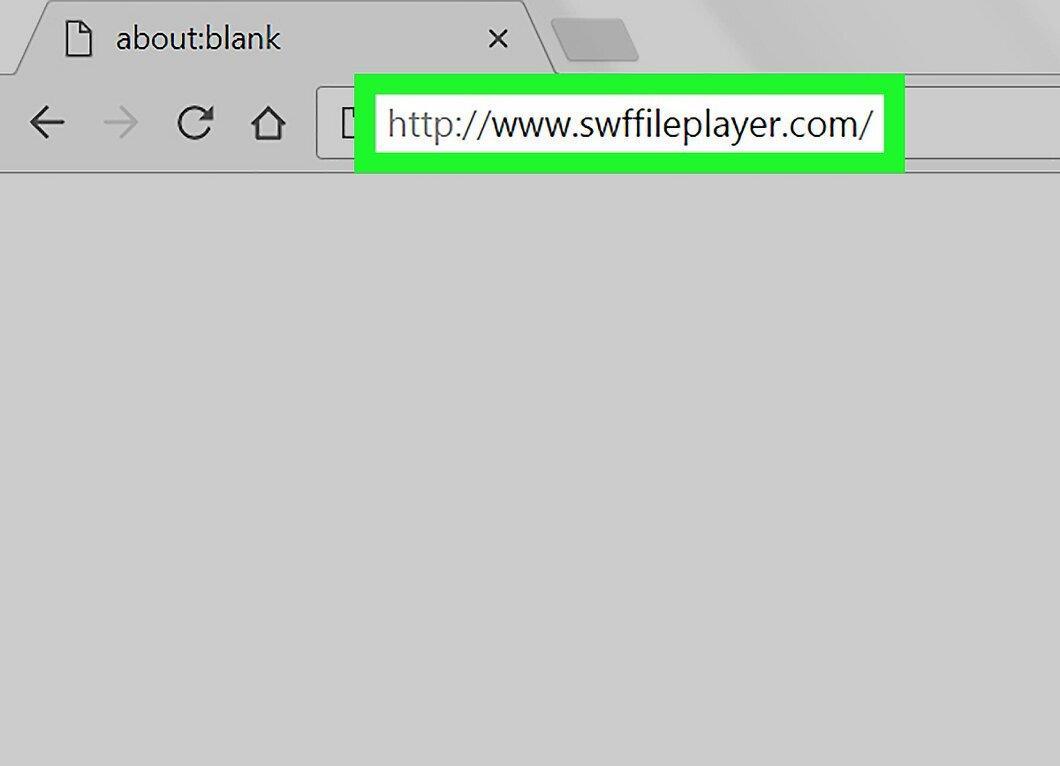
Open the SWF File Player website at http://www.swffileplayer.com/. This program allows you to play SWF videos and run some SWF games.
Step 2. Click the Download Now button.
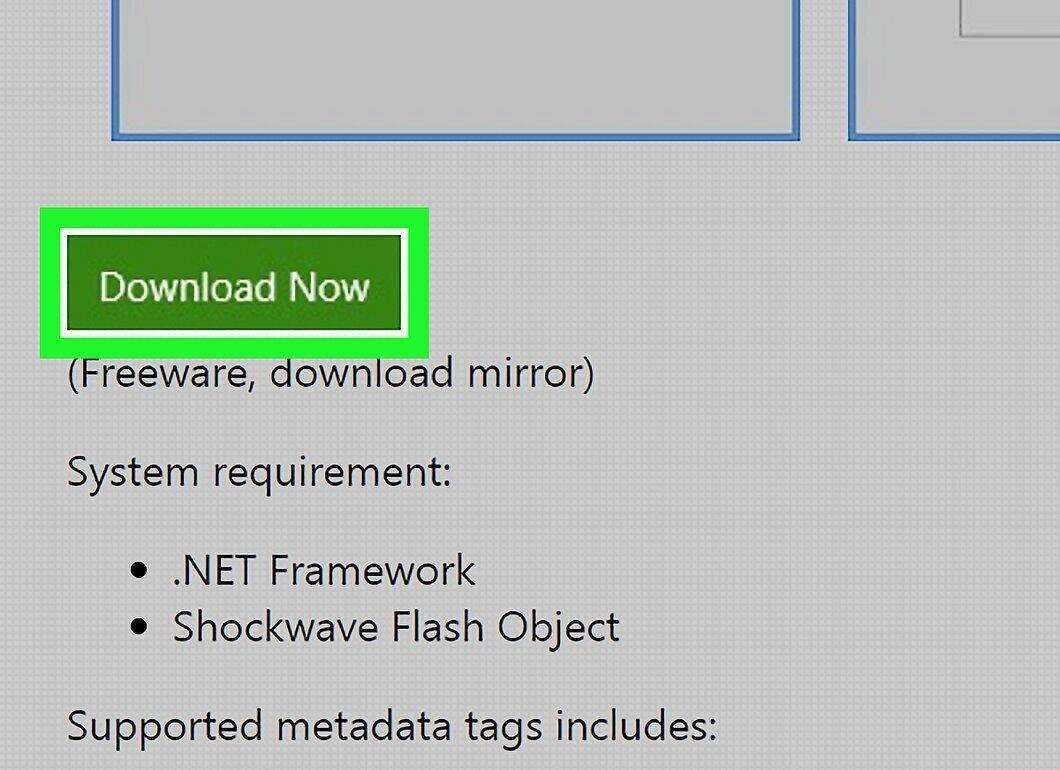
Click the green Download Now button on the left side of the page. This will open the download page.
Step 3. Wait for the file to download.
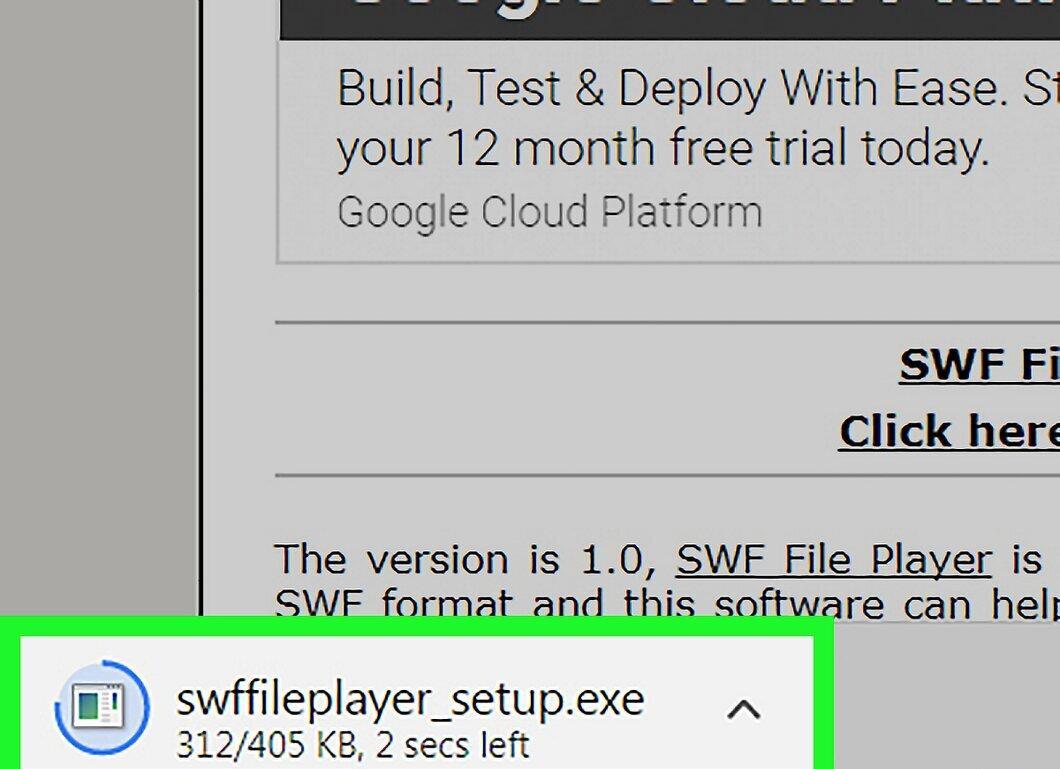
Wait for the installer file to finish downloading. This process can take a few seconds to several minutes.
- If the download doesn’t start automatically, click “Click here” to begin the download.
Step 4. Install SWF File Player.
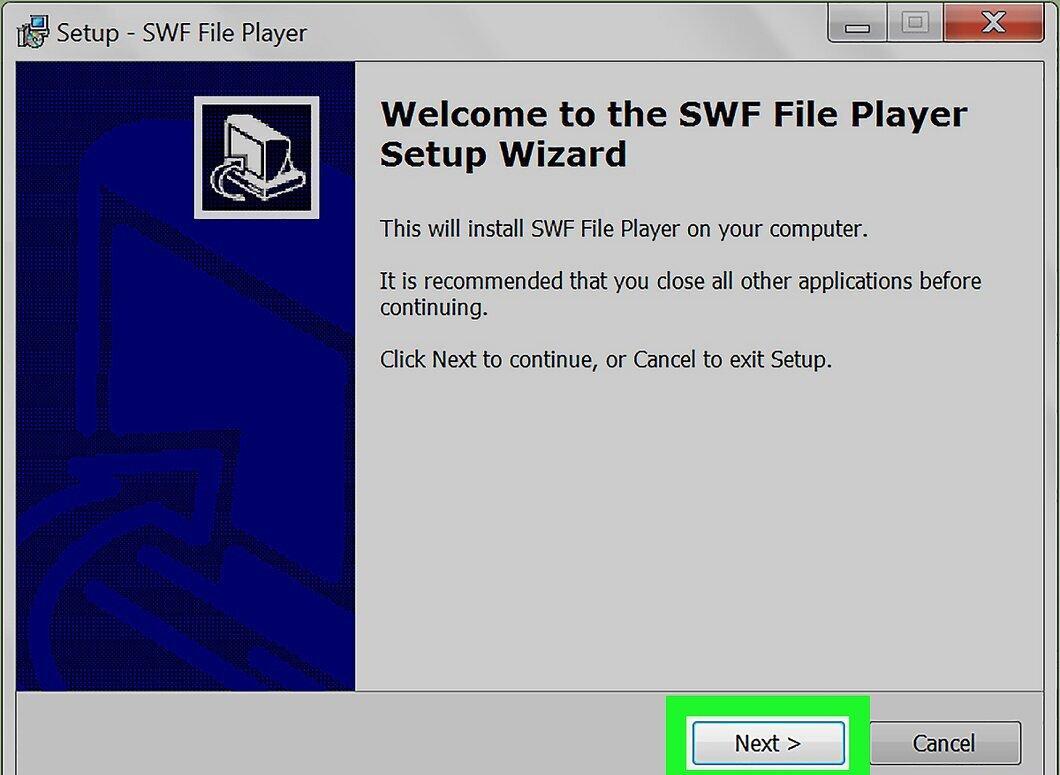
Run the installer by double-clicking it in your downloads folder and follow the on-screen instructions. The program will launch once the installation is complete.
- If the program doesn’t open, double-click its icon.
Step 5. Select the File menu.
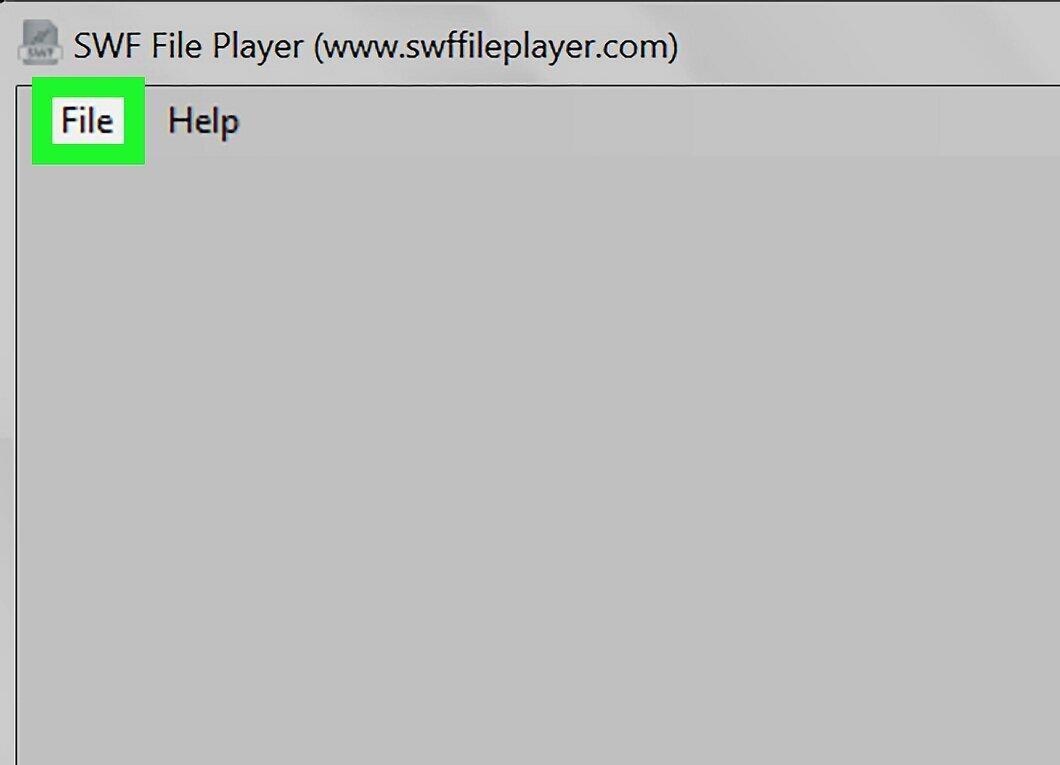
Click on File in the upper left corner of the window. A dropdown menu will appear.
Step 6. Click Open.
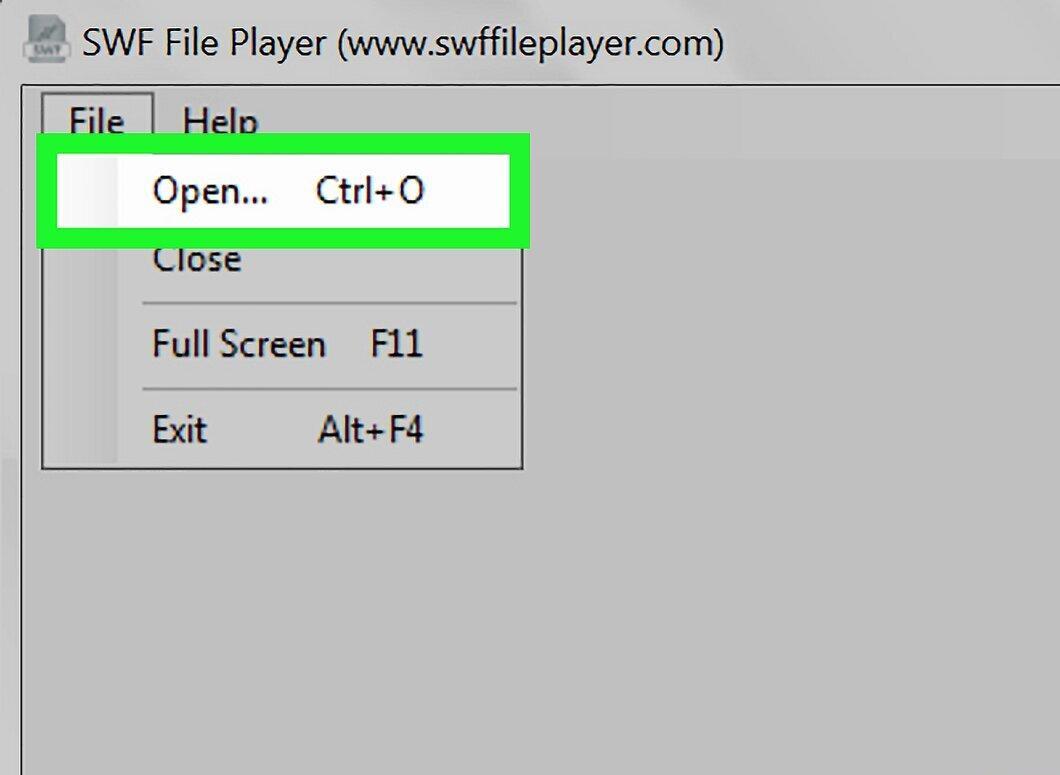
Select the Open option at the top of the File menu. A File Explorer window will pop up.
Step 7. Navigate to your file folder.
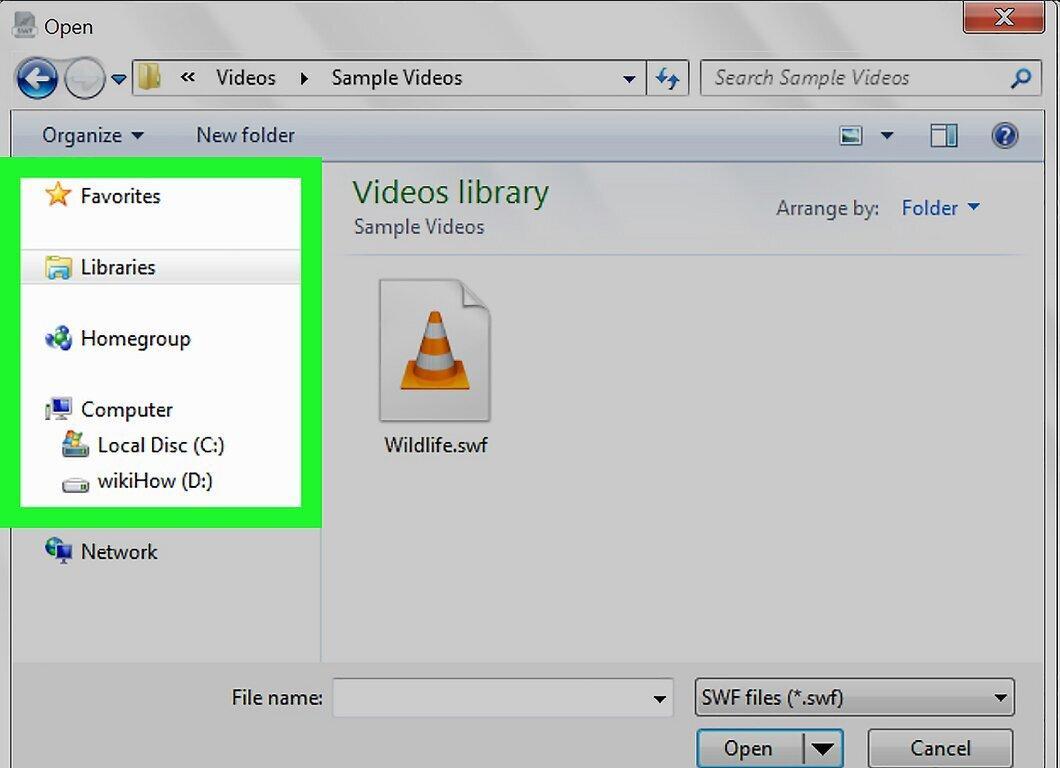
Find the folder where your SWF file is stored. Typically, the required folder is located on the left panel of the File Explorer window.
Step 8. Select the SWF file.
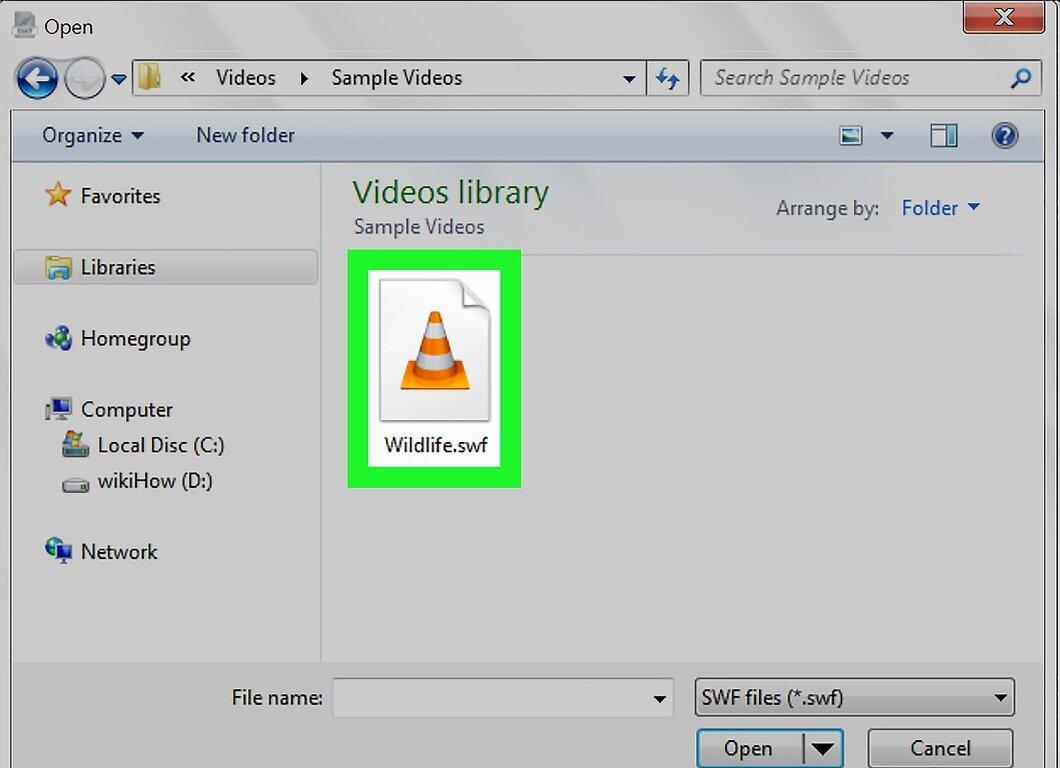
Click on the desired SWF file to highlight it.
Step 9. Click Open.
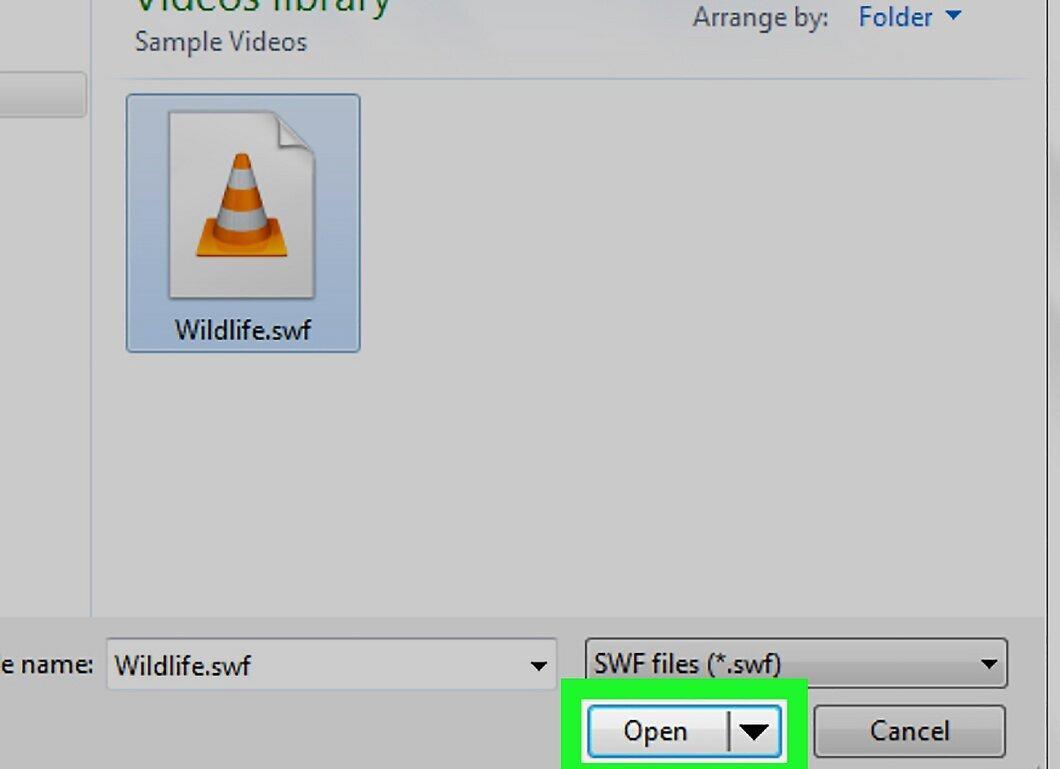
Click the Open button in the lower right corner of the window.
Step 10. Click Play.
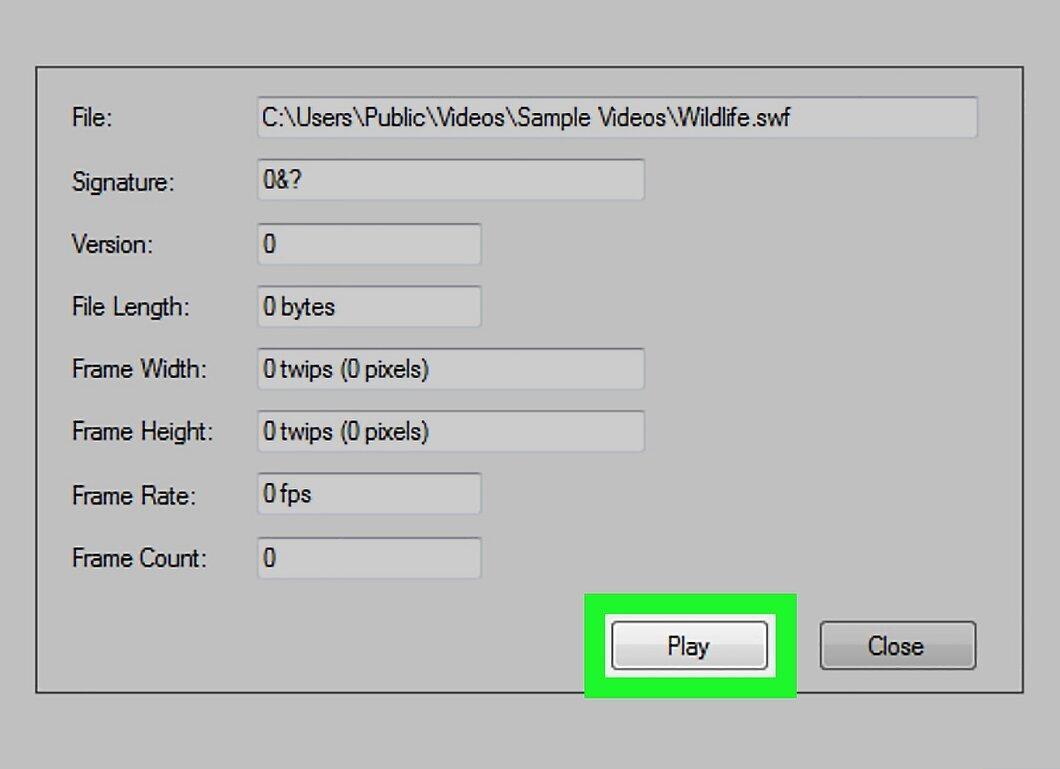
Click Play to start viewing the SWF file. If it’s a game, it will launch just like in a browser.
For Mac OS X Users
Step 1. Go to the Elmedia Player website.
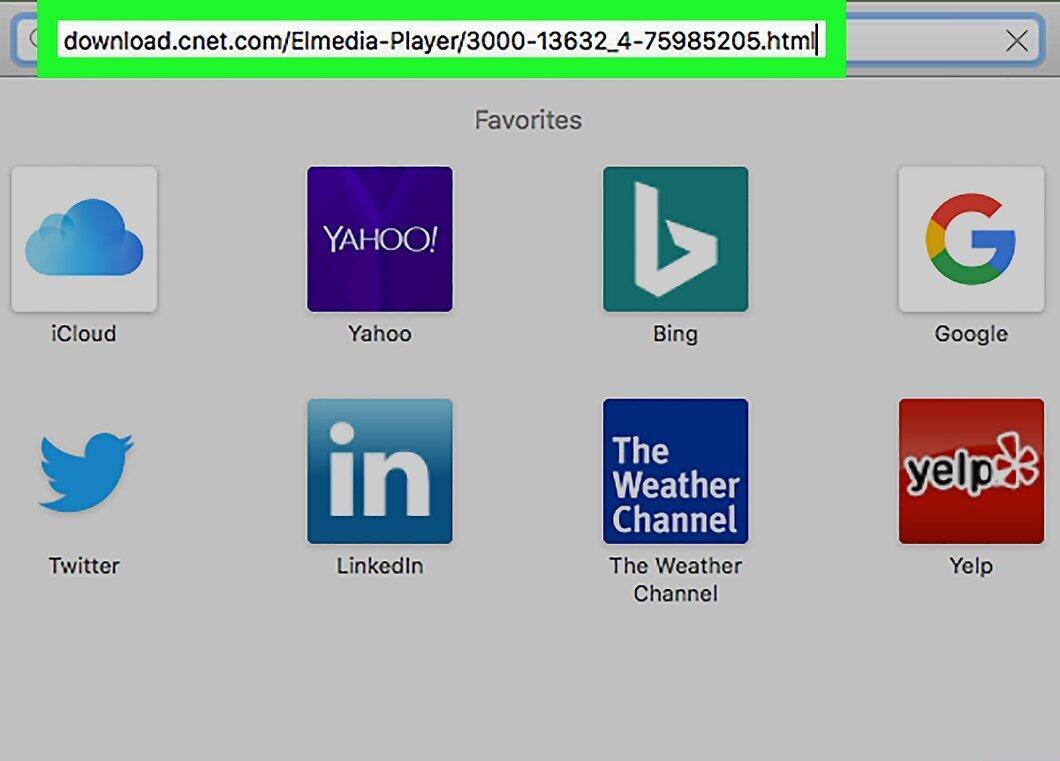
Visit the Elmedia Player website at http://download.cnet.com/Elmedia-Player/3000-13632_4-75985205.html. This media player supports various formats, including SWF.
Step 2. Click Download Now.
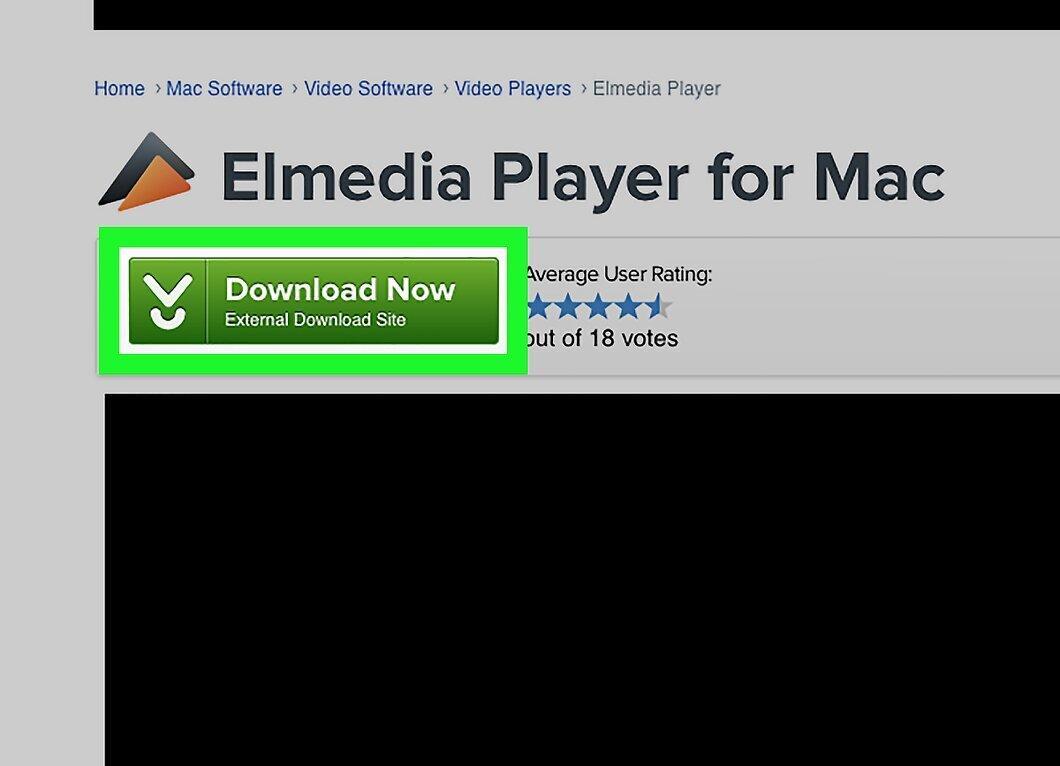
Click the Download Now button to start downloading the installer file.
- If the download doesn’t start, click “Restart the download.”
Step 3. Install the program.
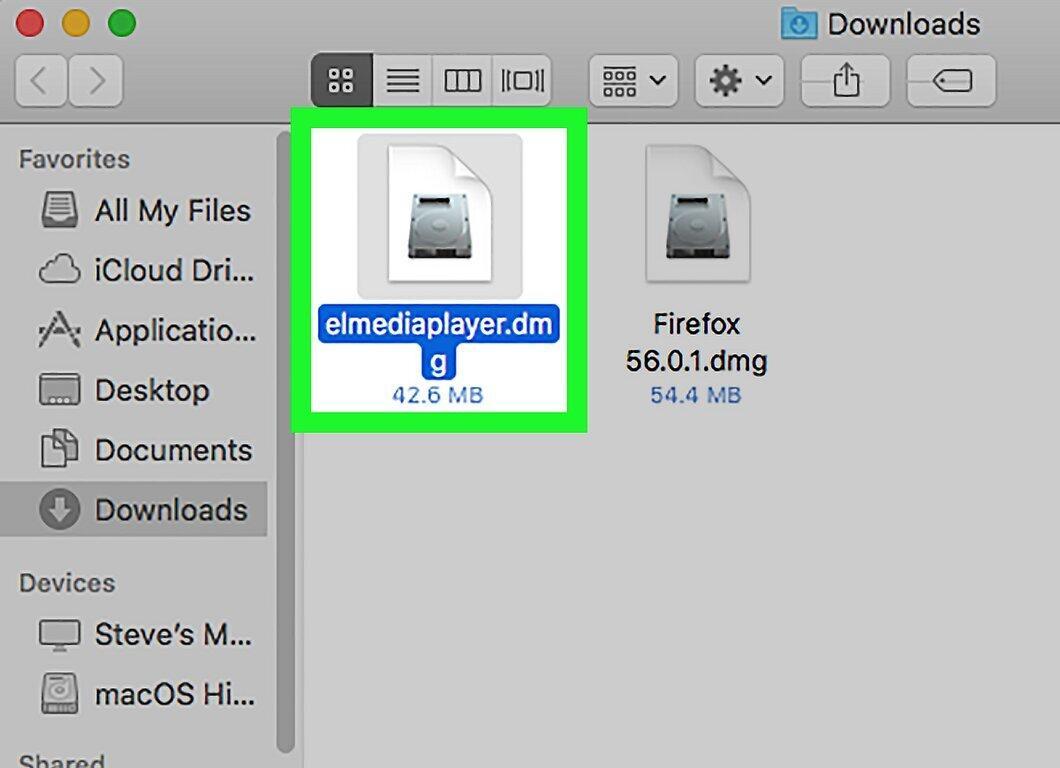
Double-click the downloaded file and follow the installer instructions. You may need to allow the installation from an unknown developer.
Step 4. Launch Elmedia Player.
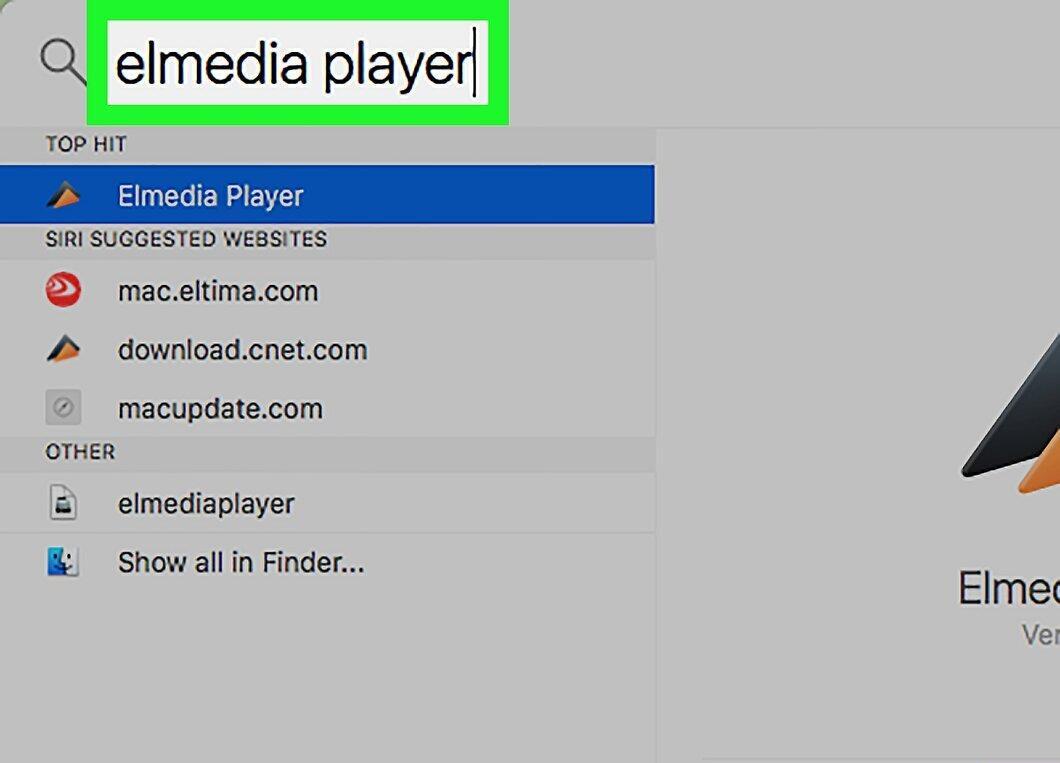
Open Spotlight, type “elmedia player,” and select it from the search results.
Step 5. Select the File menu.
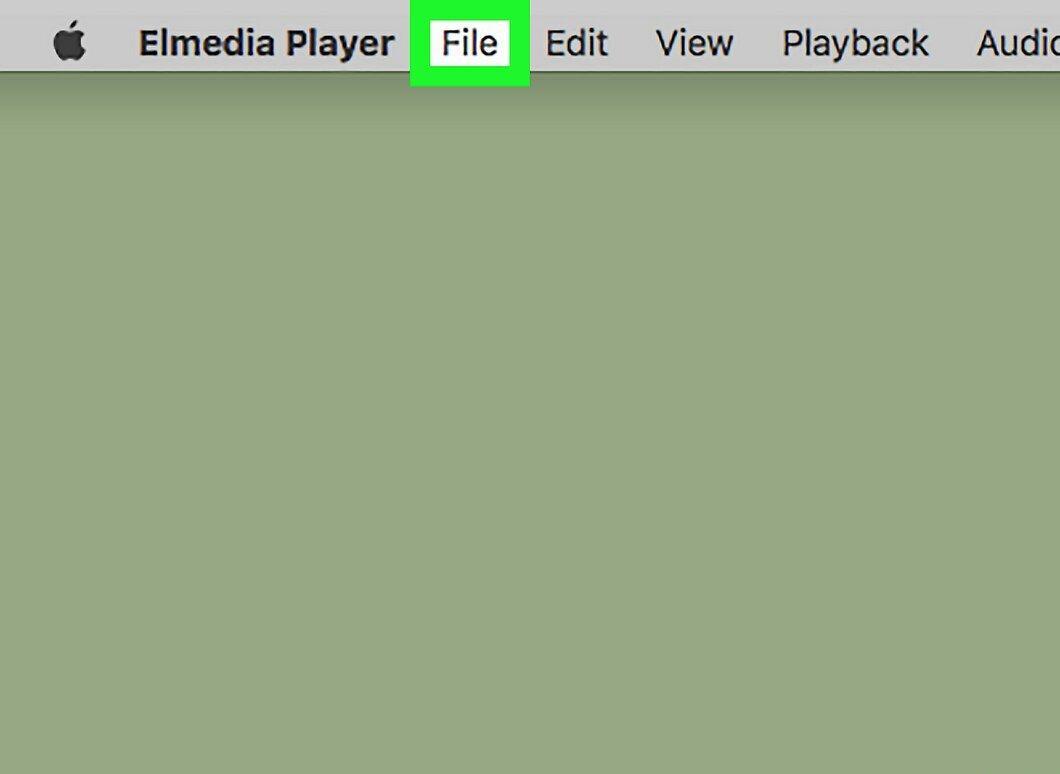
Click on File in the upper left corner of the screen. A dropdown menu will appear.
Step 6. Click Open.
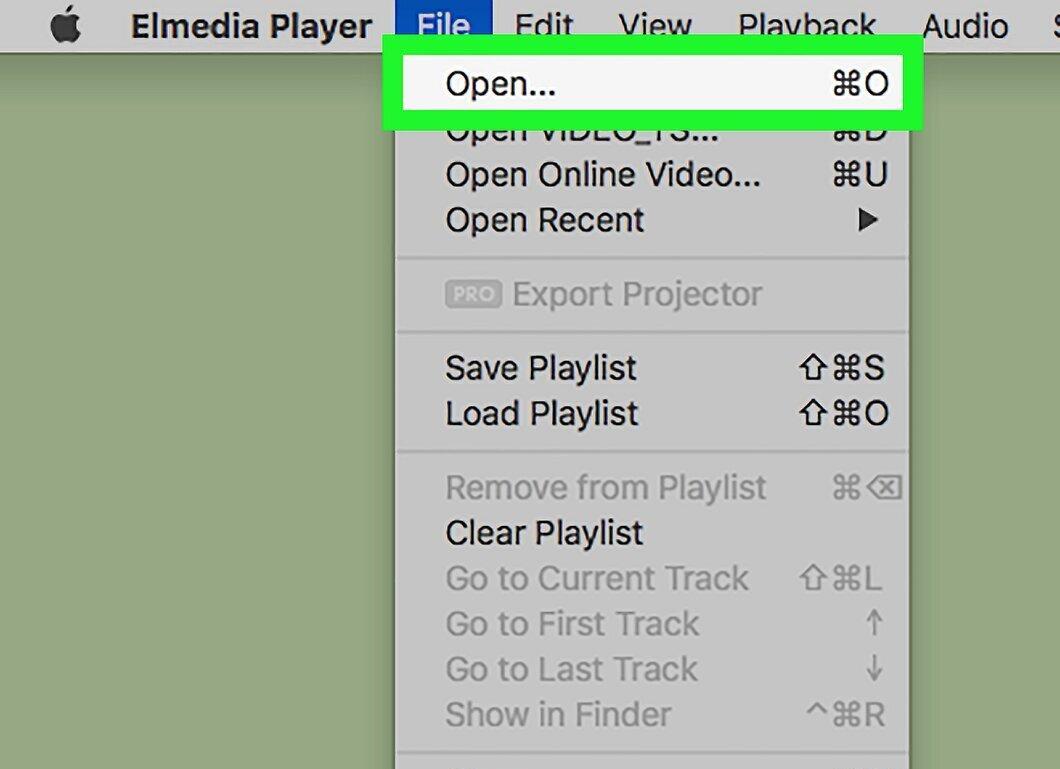
Select Open at the top of the File menu. A Finder window will open.
Step 7. Find the SWF file.
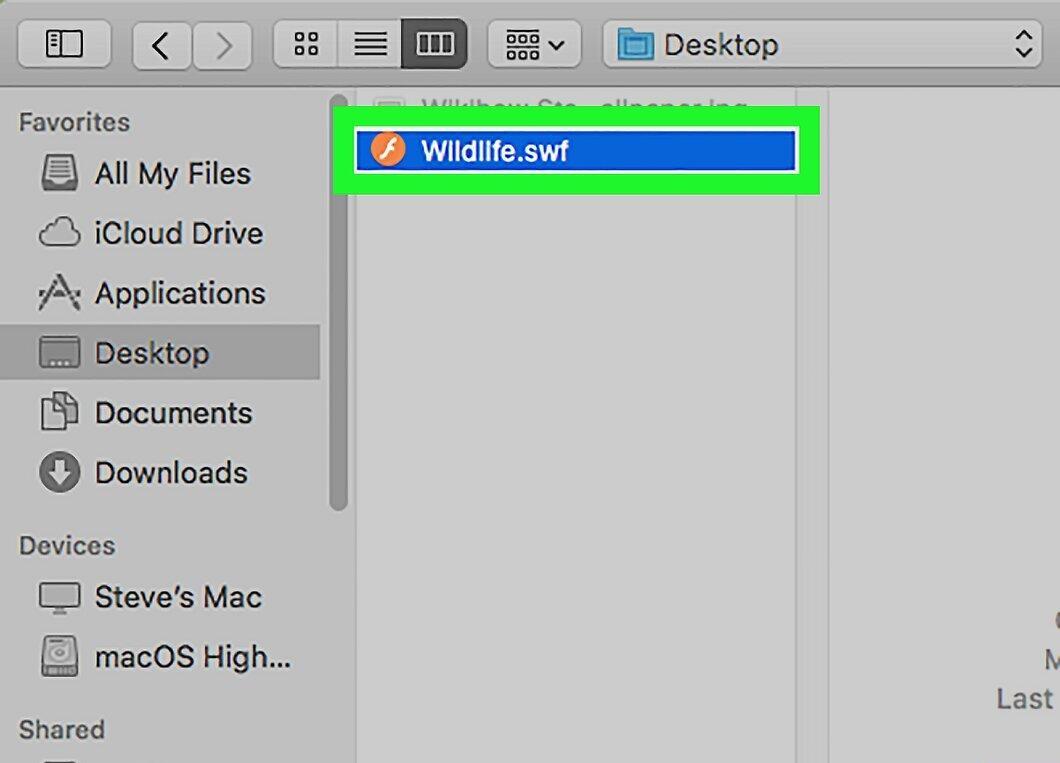
Locate the SWF file by clicking on the folder containing it in the left panel of Finder, then select the file itself.
Step 8. Click Open.
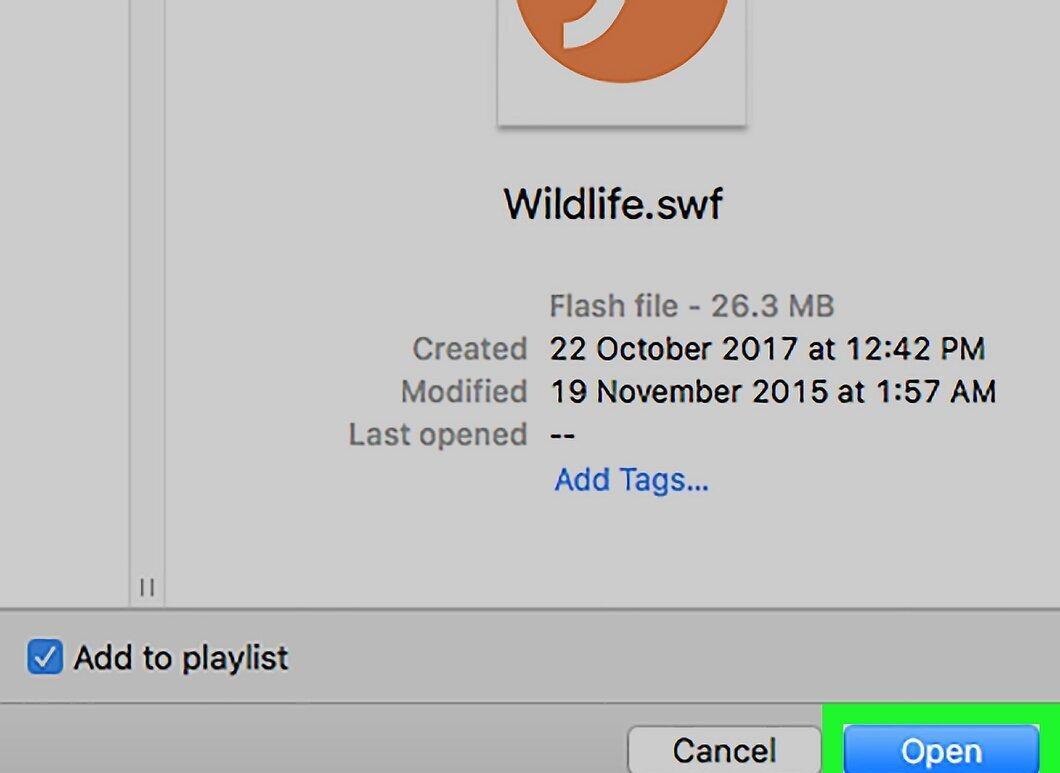
Click the Open button in the lower right corner. The SWF file will load in Elmedia Player and playback will start automatically if the file is a video.


