
In this article, we will explain how to deal with winmail.dat files. These files usually come as attachments in emails sent using the Microsoft Outlook client. To access the content of these files, you can use special online services or mobile applications. Note that the information in the winmail.dat file corresponds to the text of the email, so you don’t need to open it if you have access to the email itself.
On a Computer
Step 1. Download the winmail.dat file.
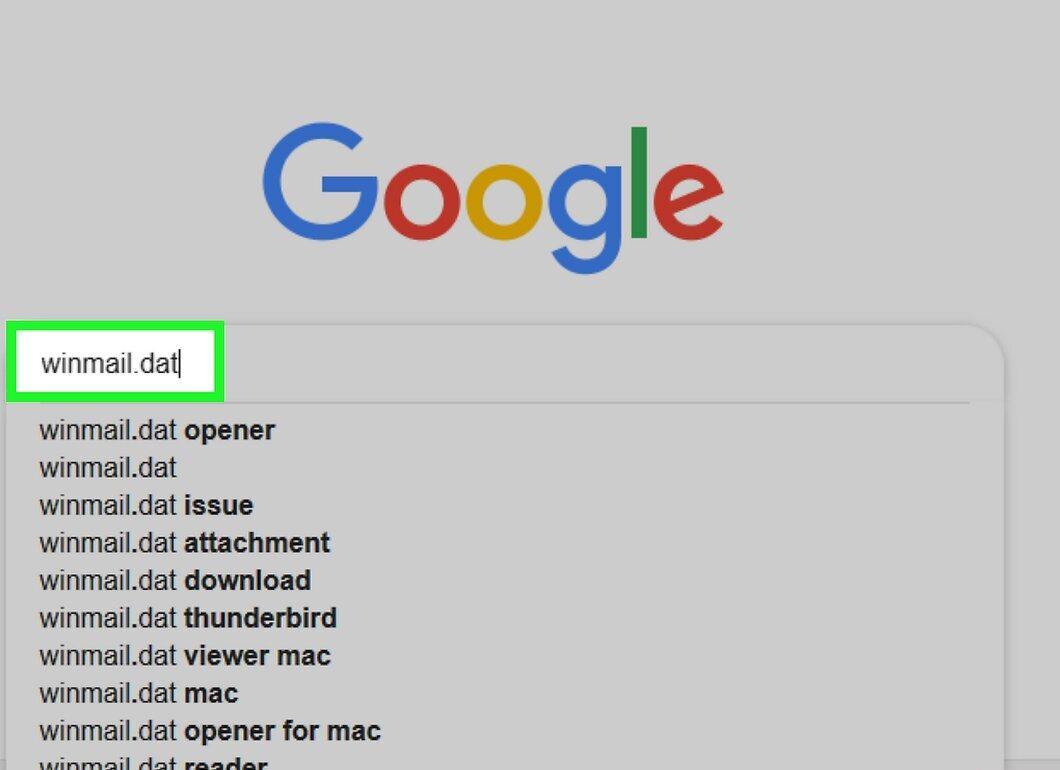
First, download the winmail.dat file. To do this, open the email with the attachment, then click the download button next to or within the preview window.
- In some cases, you may need to confirm the download or select a folder to save the file.
Step 2. Go to a winmail.dat conversion site.
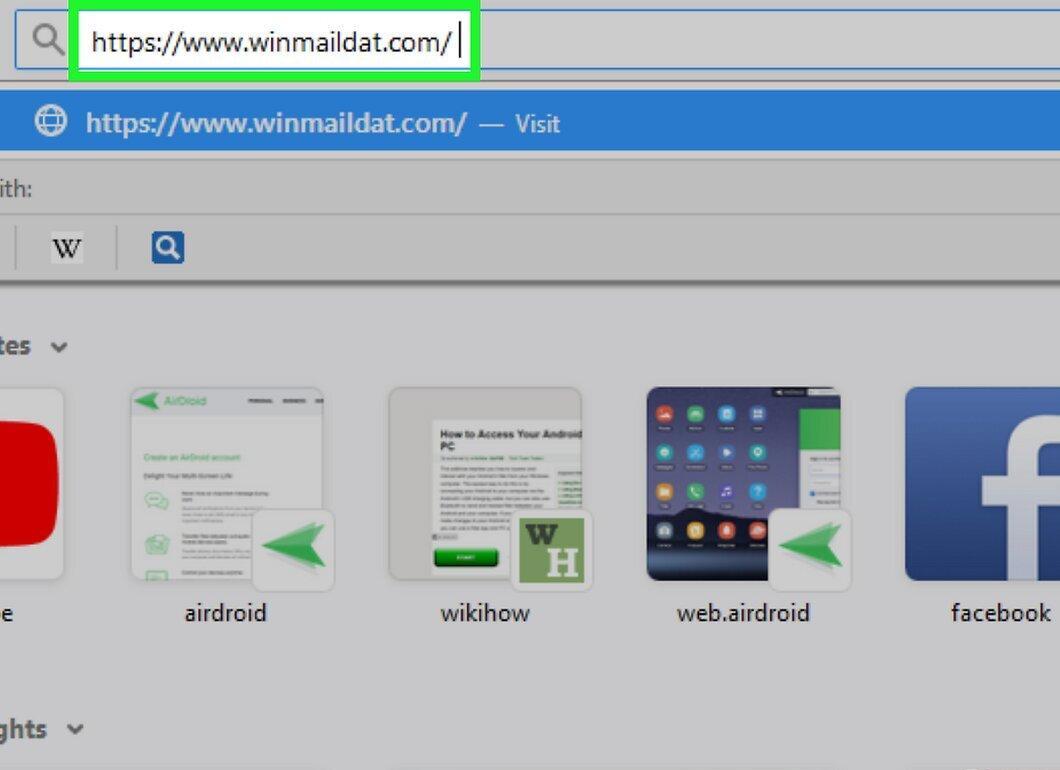
Visit a winmail.dat conversion site, such as https://www.winmaildat.com/. This service allows you to convert the winmail.dat file into an RTF document that can be opened with Microsoft Word, WordPad, or TextEdit.
Step 3. Click on the "Browse" button.
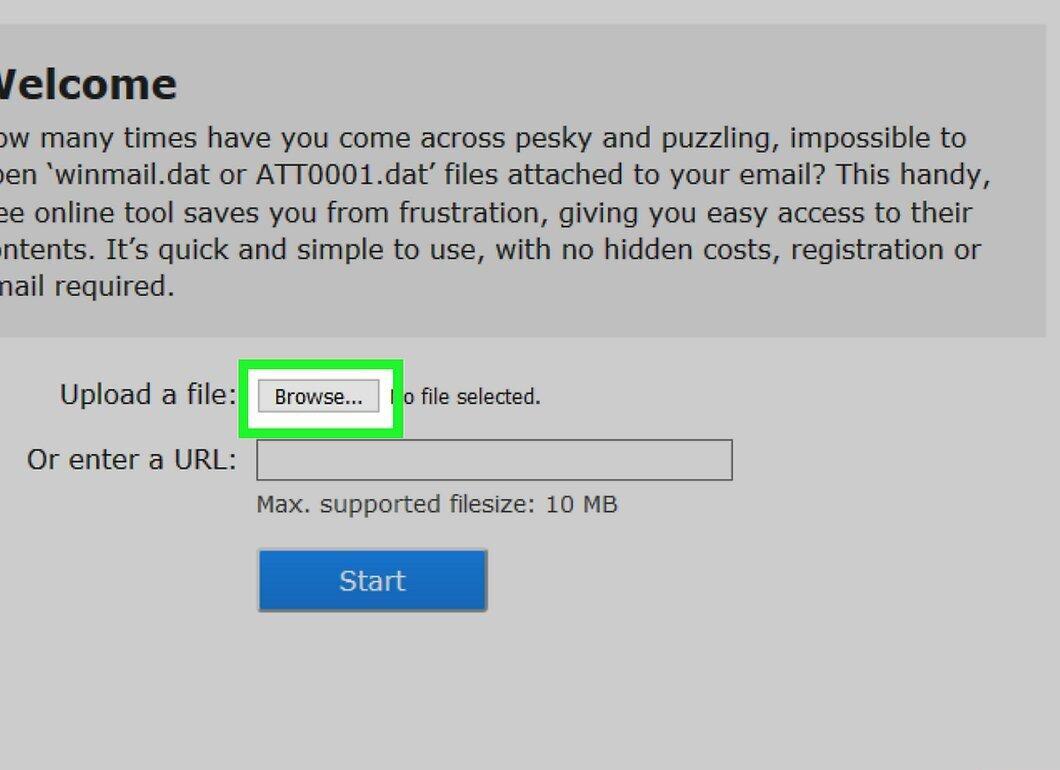
Click the "Browse" button at the top of the page. This will open a Windows Explorer or Finder window.
Step 4. Select the file.
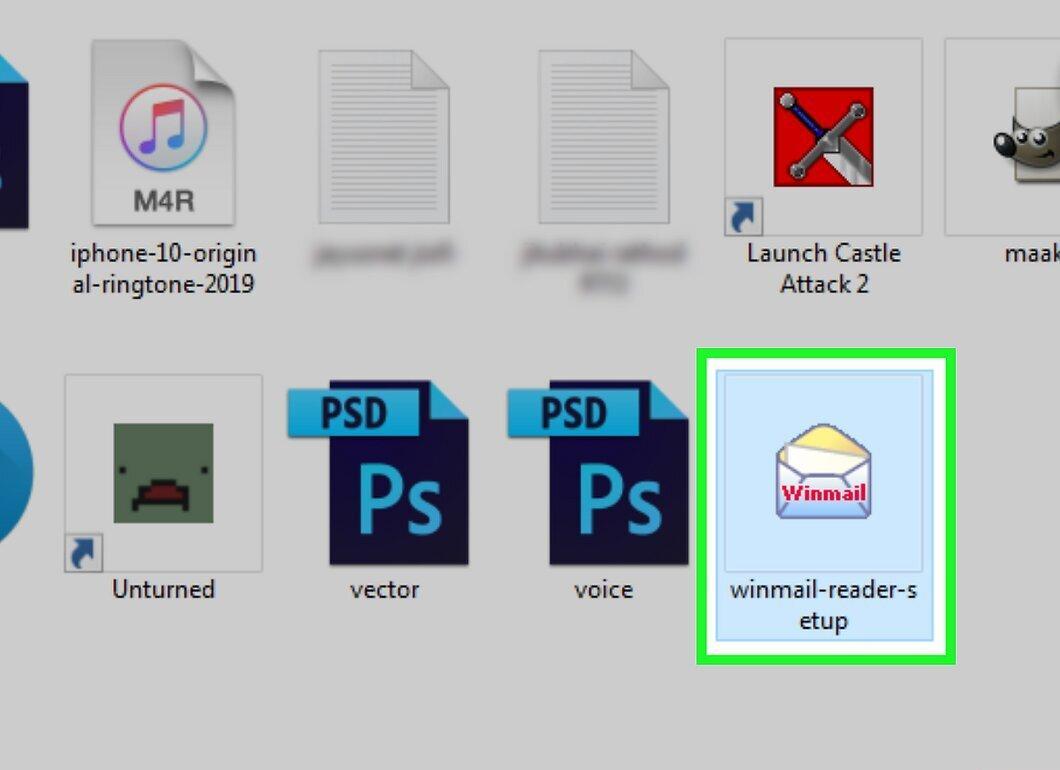
Navigate to the folder where you downloaded the winmail.dat file and select it.
Step 5. Click "Open".
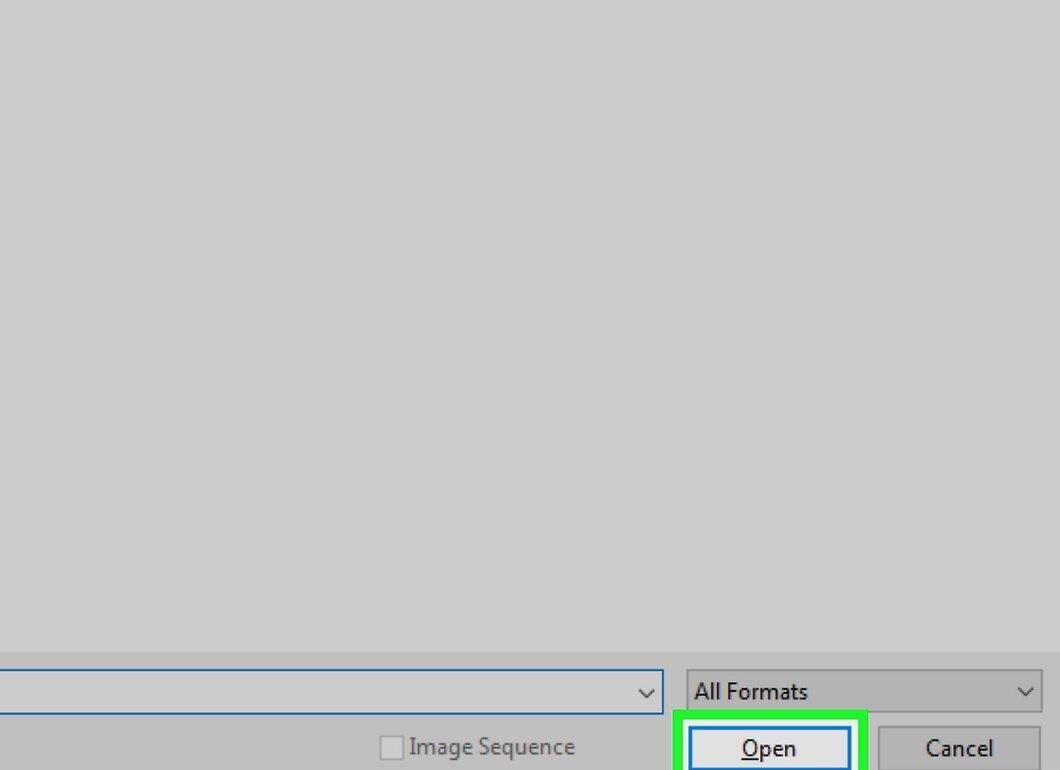
Click the "Open" button located at the bottom right. After this, the winmail.dat file will be uploaded to the site.
Step 6. Click "Start".
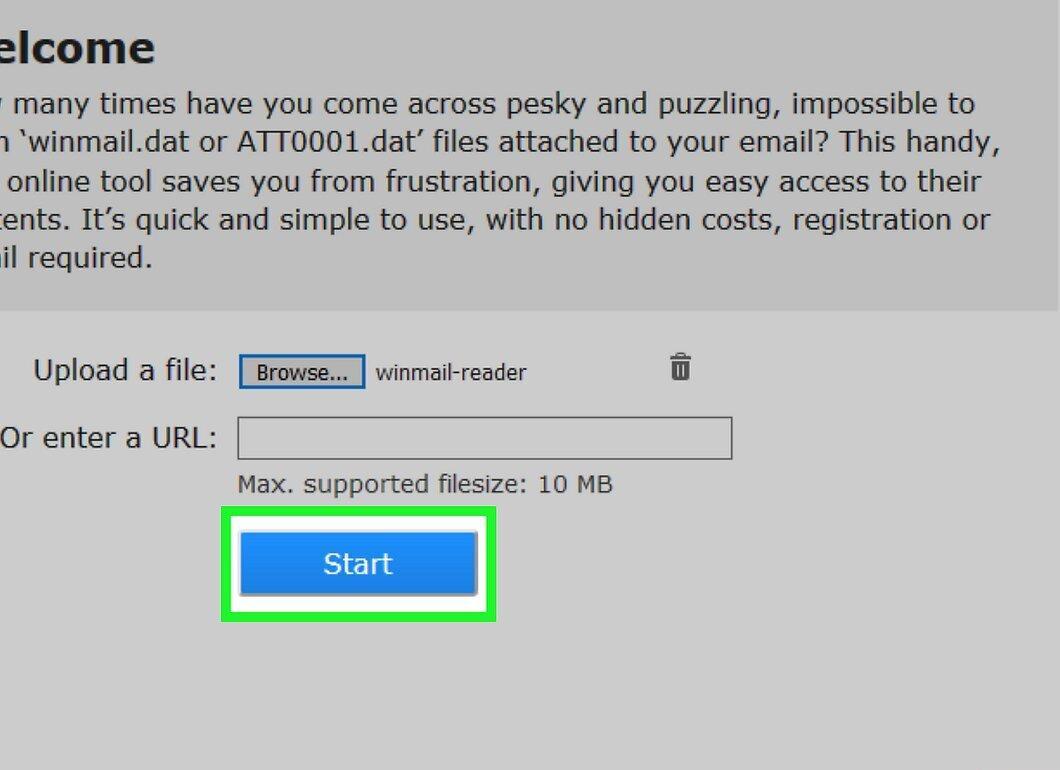
Click the "Start" button in the center of the page to initiate the process of converting the winmail.dat file into an RTF document.
Step 7. Download the email text.
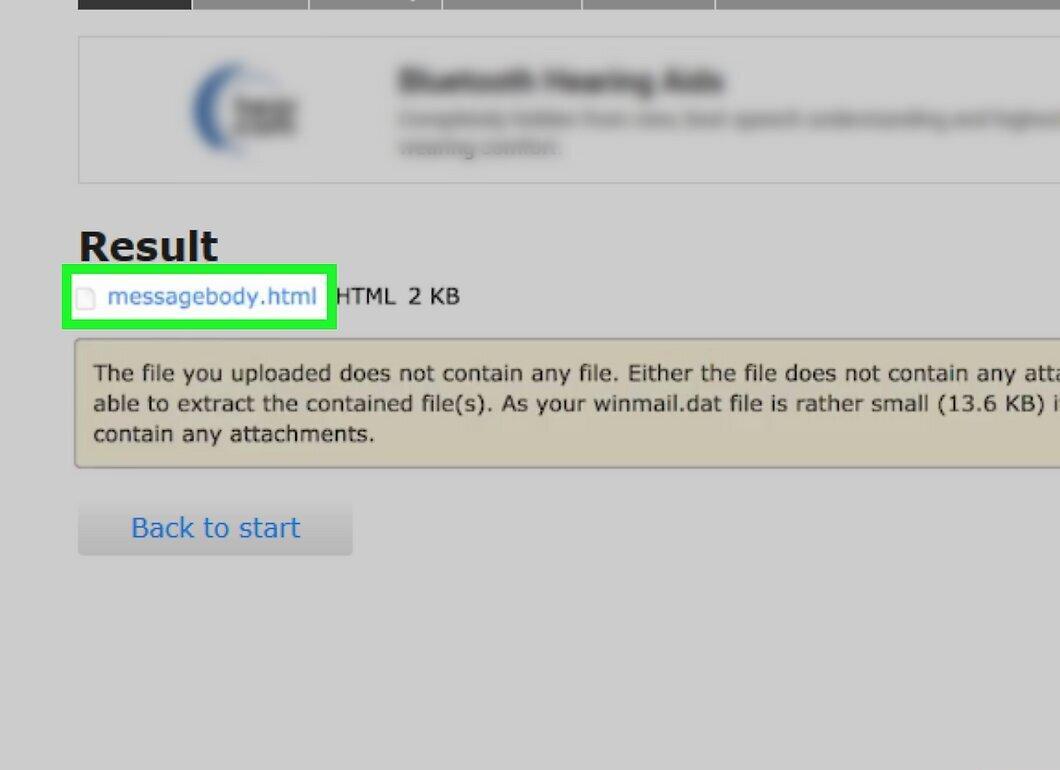
Click the "messagebody" link that appears at the top of the page. The RTF file will be downloaded to your computer.
- You may need to confirm the download or choose a folder to save the file.
Step 8. Open the RTF document.

Double-click the downloaded RTF file to open it in a text editor. Now you can view the contents of the winmail.dat file.
On iPhone
Step 1. Install the "Winmaildat Opener" app.
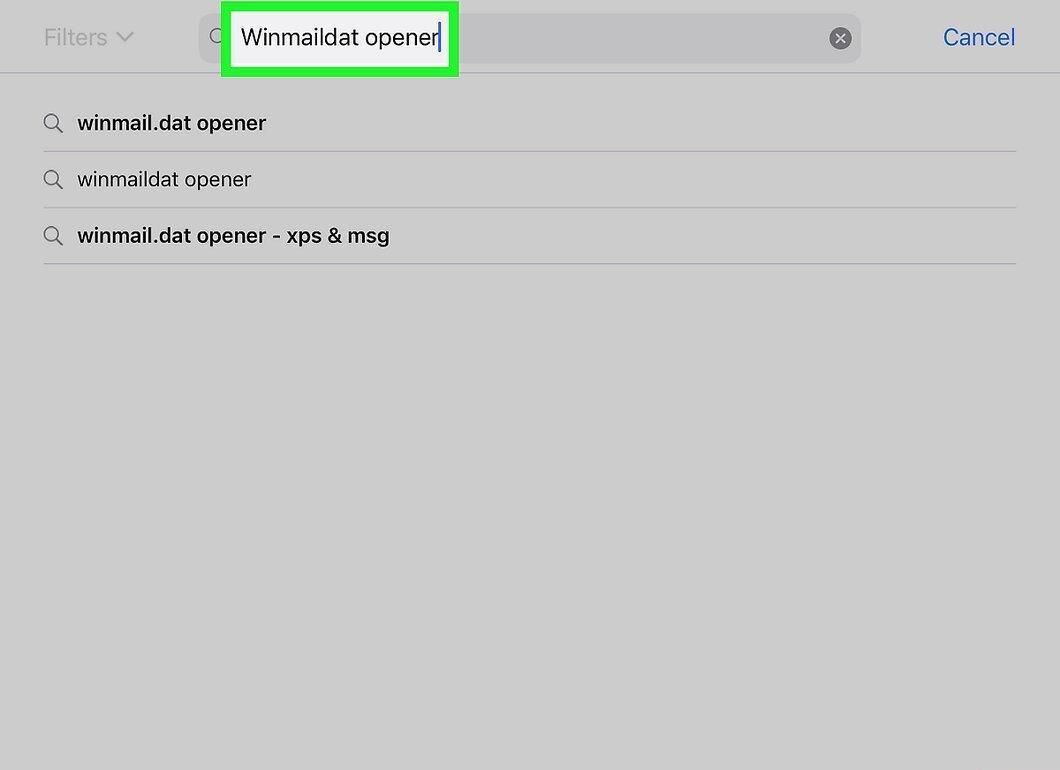
Download the "Winmaildat Opener" app from the App Store; it is designed to open winmail.dat files on your iPhone.
- Open the App Store.
- Tap on "Search" in the bottom right corner.
- Type "winmaildat opener" in the search bar.
- Tap "Search".
- Tap the "Download" button next to "Winmaildat Opener".
- When prompted, enter your Apple ID or use Touch ID/Face ID.
Step 2. Return to the home screen.

Press the "Home" button to exit the App Store and return to the home screen.
- On iPhone X and newer models, use the side button.
Step 3. Open your email app.
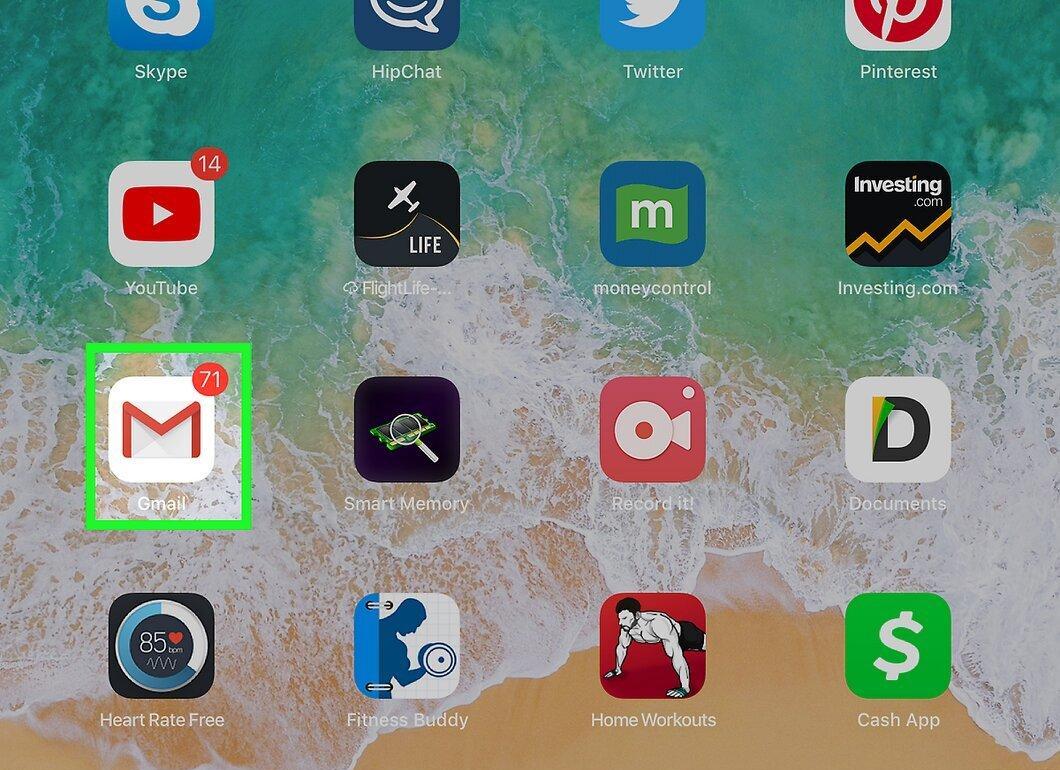
Launch the email app where the email with the winmail.dat file is located.
Step 4. Open the email with the attachment.
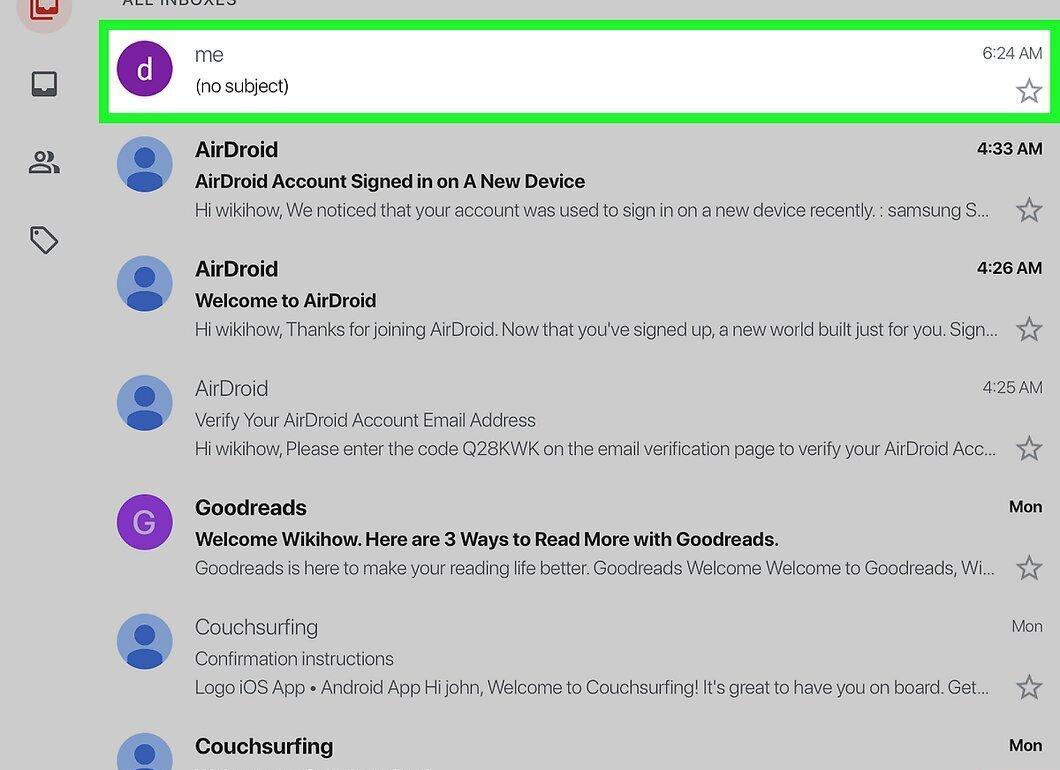
Select the email containing the winmail.dat file by tapping on its subject.
Step 5. Select the winmail.dat attachment.

Tap on the winmail.dat attachment at the bottom of the email. If the file opens in the Winmaildat Opener app, you can skip the next steps.
Step 6. Use the "Share" feature.
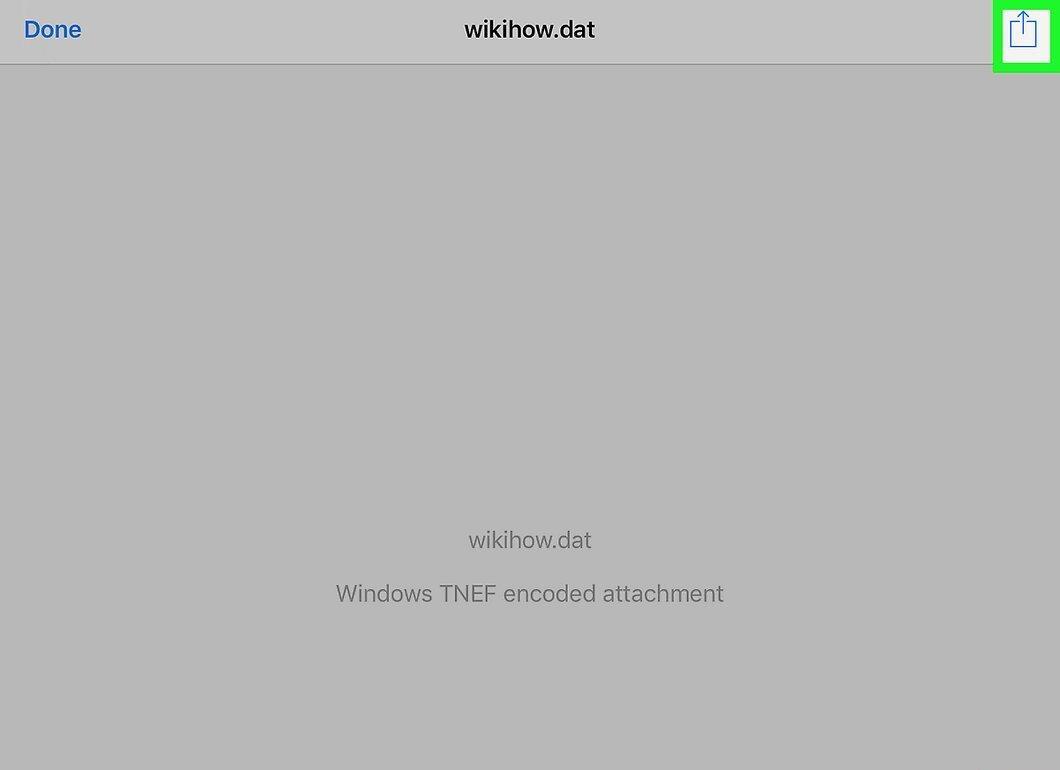
Tap the "Share" icon in the top right corner. A menu with available options will open.
Step 7. Select "Copy to Winmaildat".
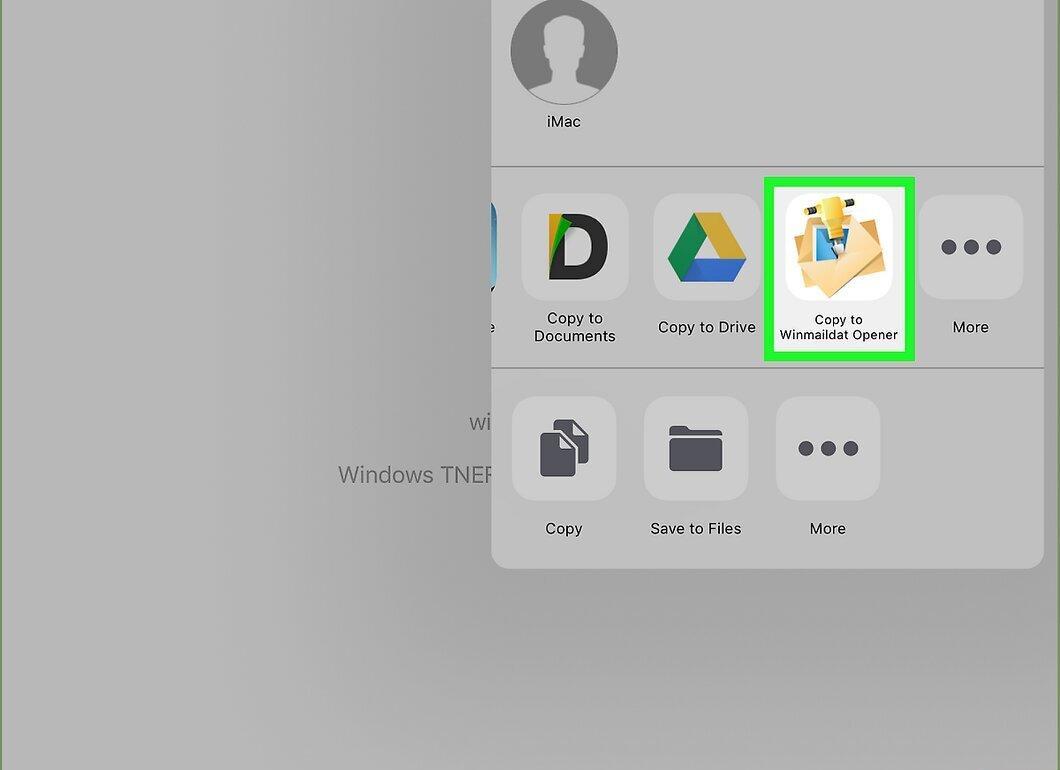
Scroll the menu to the right and select the "Copy to Winmaildat" option. The file will be sent to the Winmaildat Opener app and converted to RTF.
Step 8. Open the RTF file.
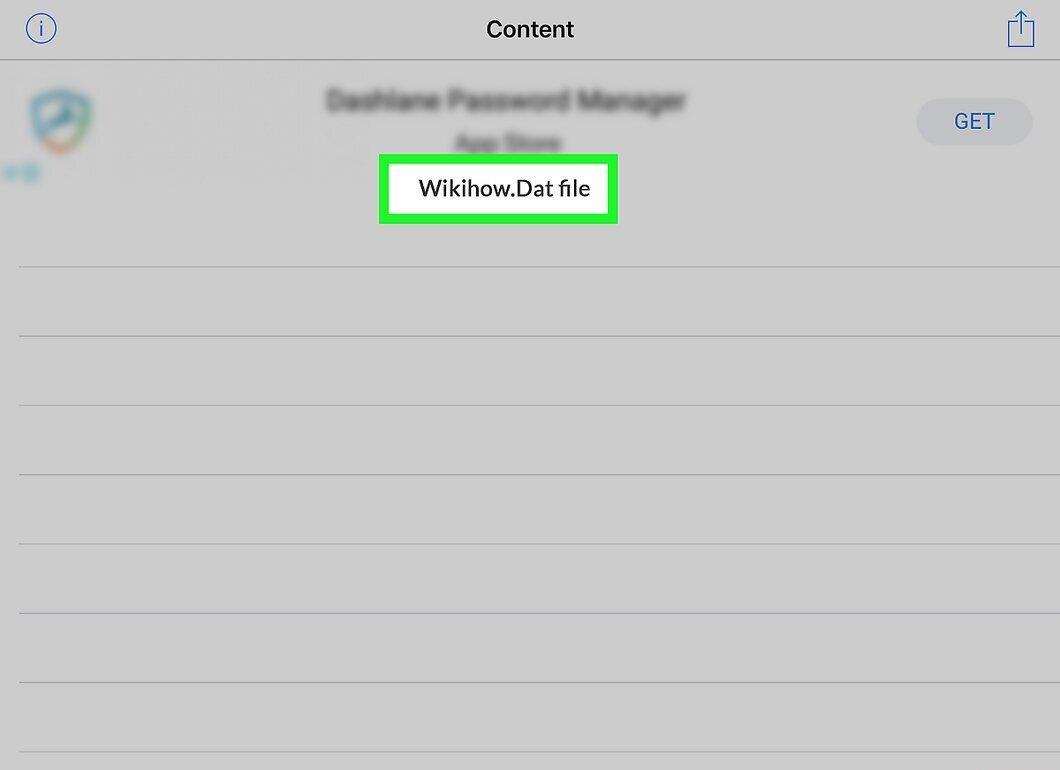
Tap the name of the RTF file at the top of the screen to open it and view the contents of the winmail.dat file.
On Android
Step 1. Install the "Winmail.dat Opener" app.
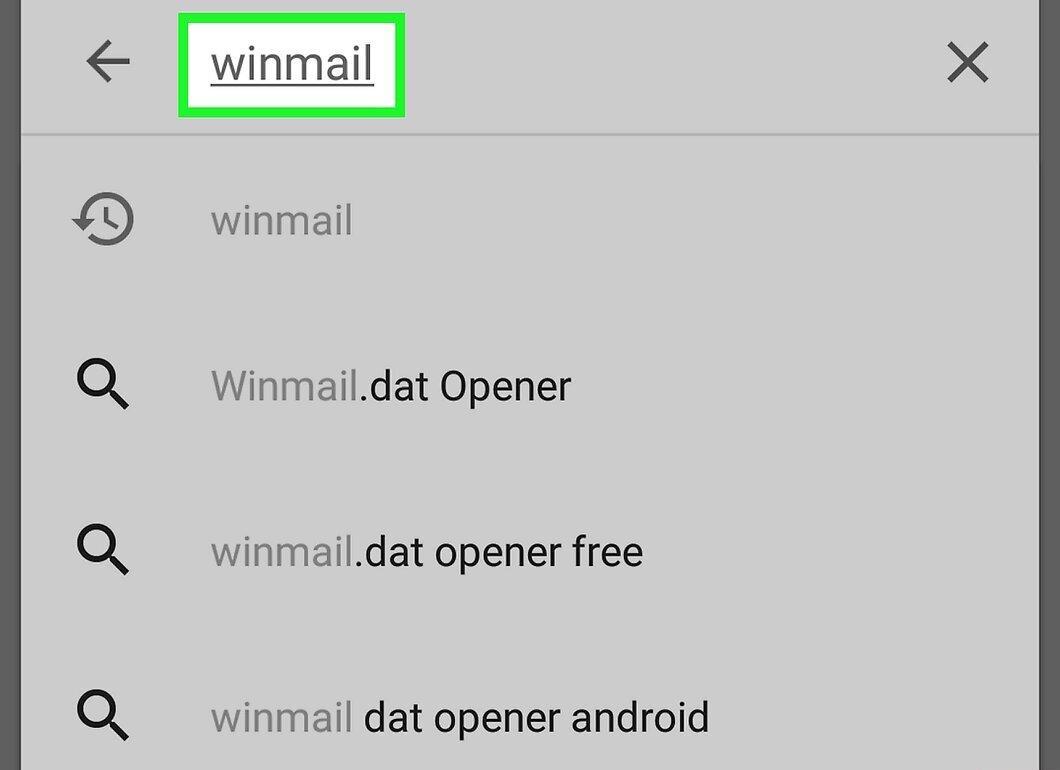
Download the "Winmail.dat Opener" app from the Play Store; it will help you open winmail.dat files on your Android device.
- Open the Play Store.
- Tap the search bar.
- Type "winmail".
- Find "Winmail.dat Opener" in the list and tap "Install".
Step 2. Return to the home screen.
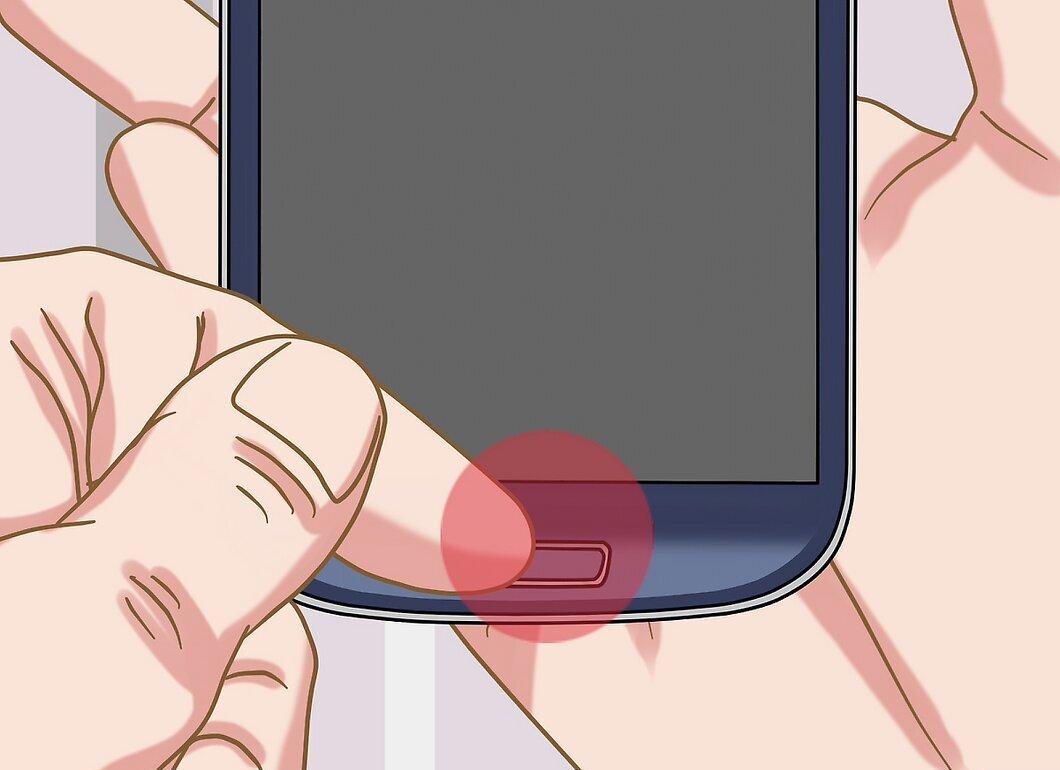
Press the "Home" button to minimize the Play Store and return to the home screen.
Step 3. Open your email app.
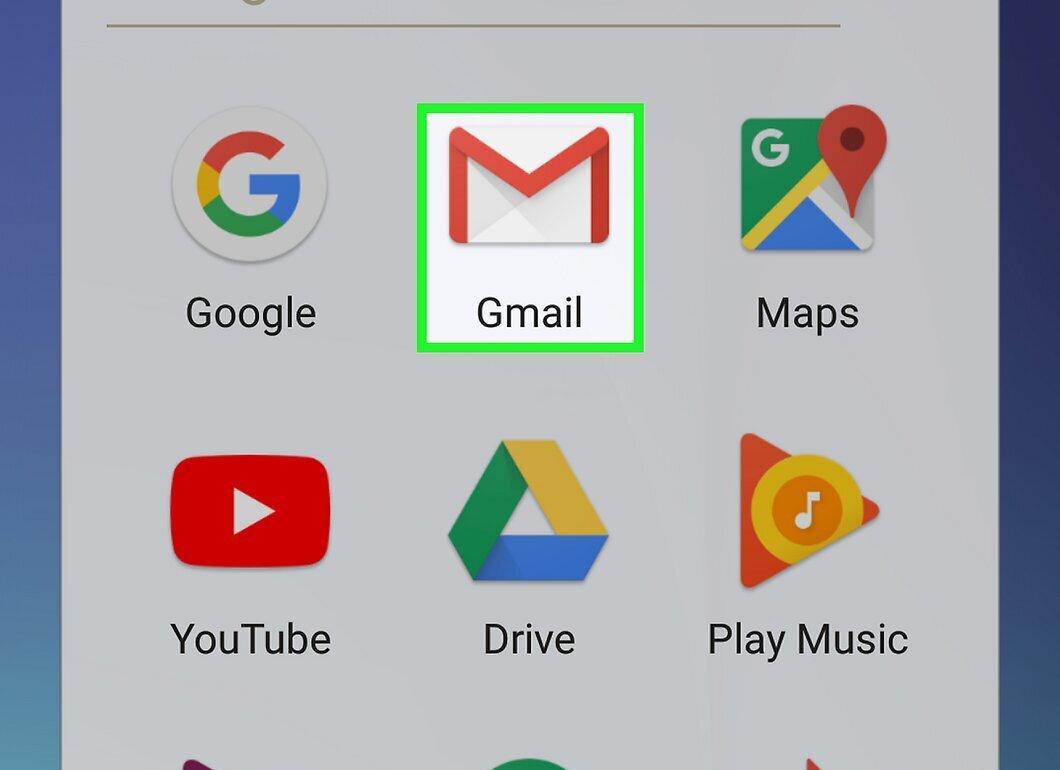
Launch the email app where the email with the winmail.dat file is located.
Step 4. Find the email with the attachment.
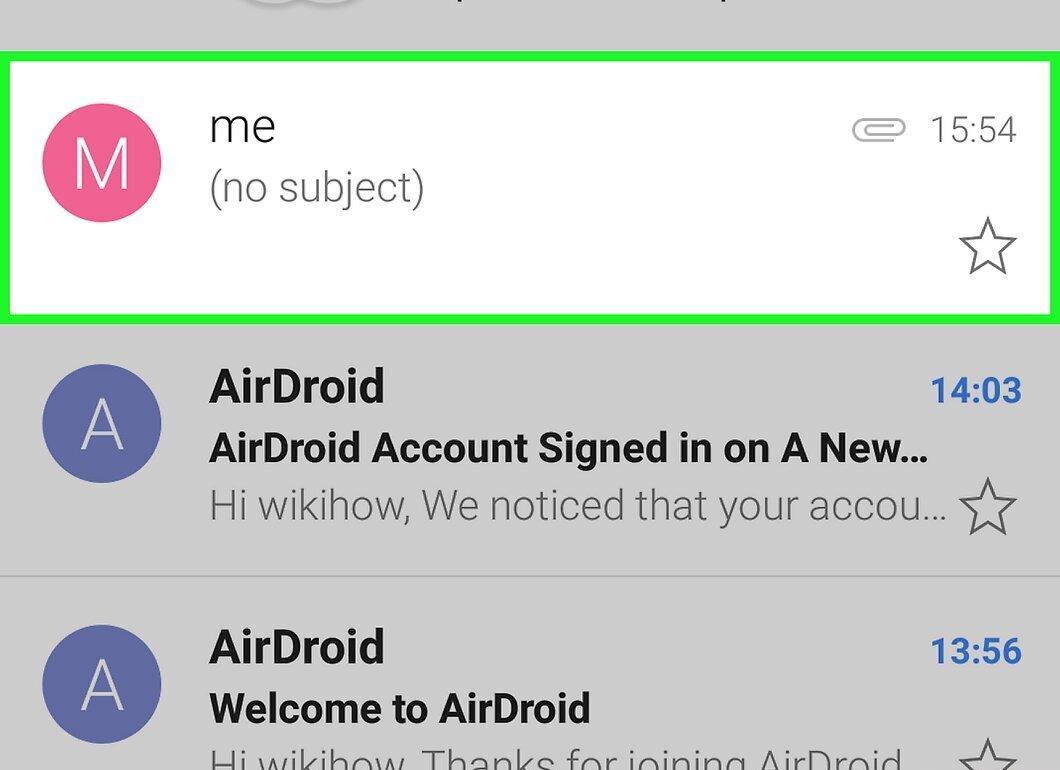
Open the email that has the winmail.dat file by tapping on its subject.
Step 5. Open the winmail.dat attachment.
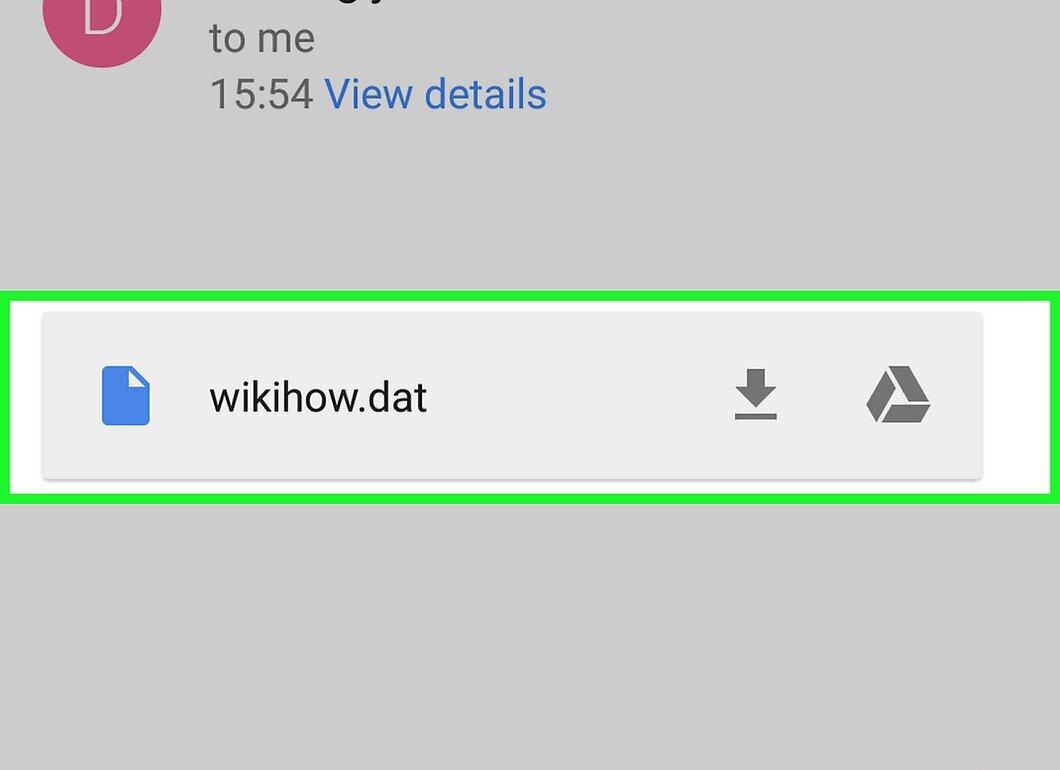
Tap on the winmail.dat attachment at the bottom of the message; it will open in the Winmail.dat Opener app.
Step 6. View the RTF file.
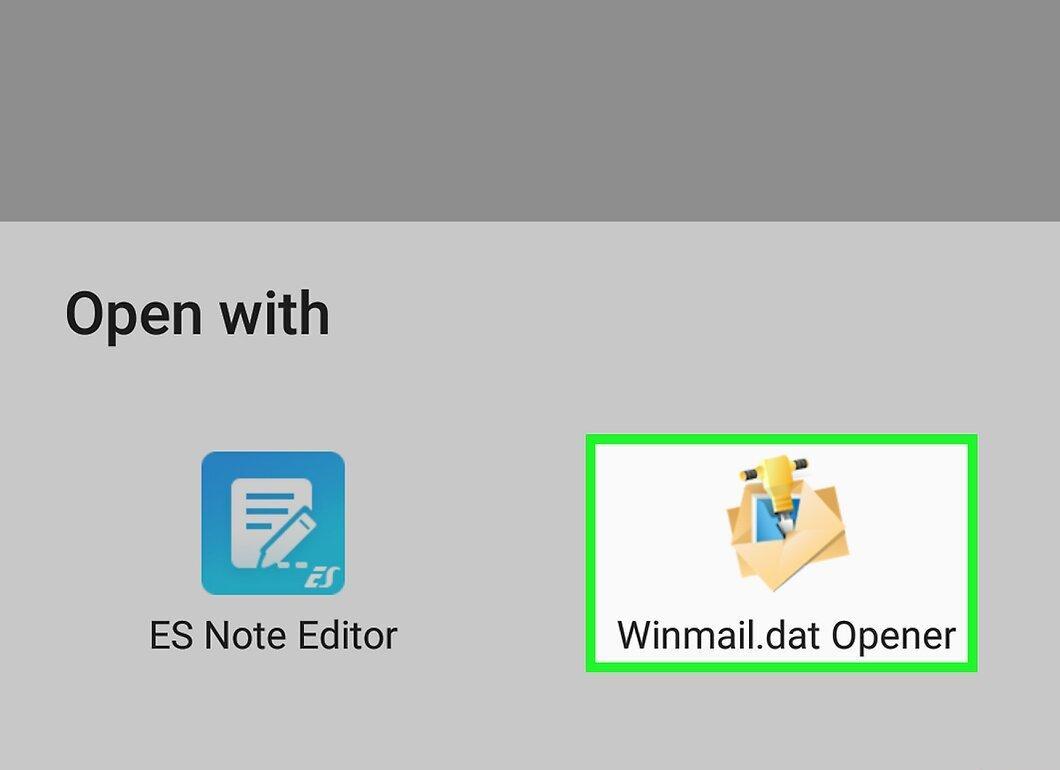
Tap the name of the RTF file at the top of the screen to open and view the contents of the winmail.dat file.


