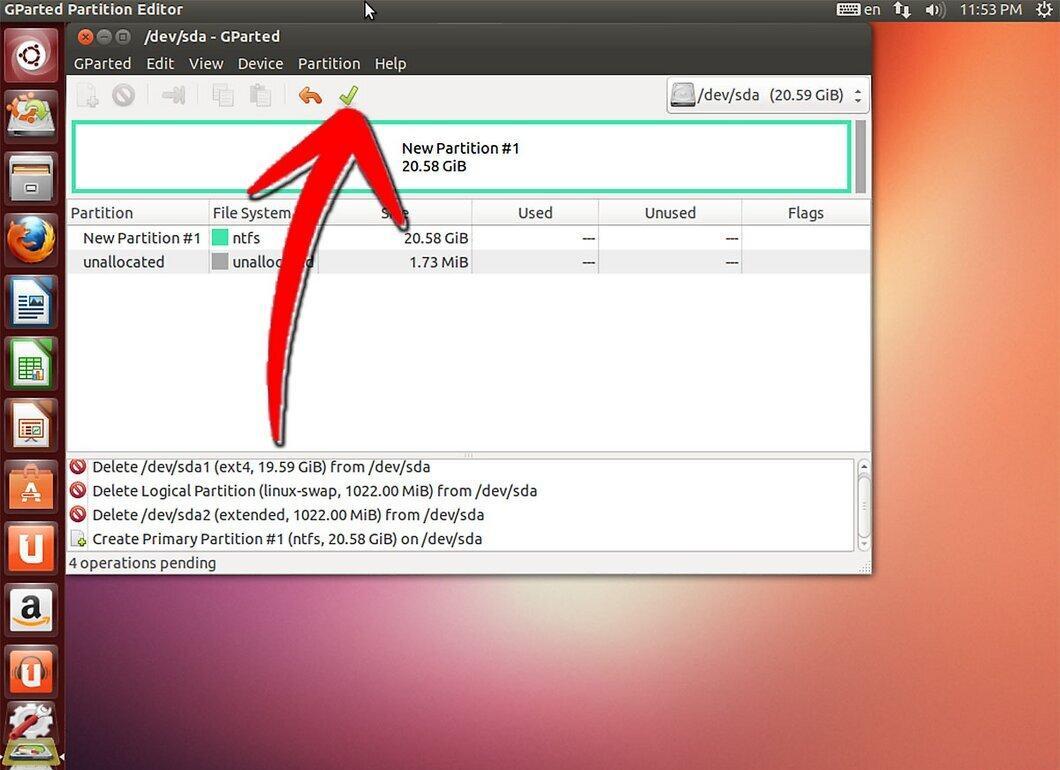
When it comes to file systems, Windows and Linux use different formats: ext3 for Linux and NTFS for Windows. If you're operating in a Linux environment and plan to install Windows, you'll need to format your hard drive to the appropriate format. You'll need installation disks for both operating systems—Linux and Windows.
Windows Installation Disk
Step 1. Insert the Windows disk and restart your computer.
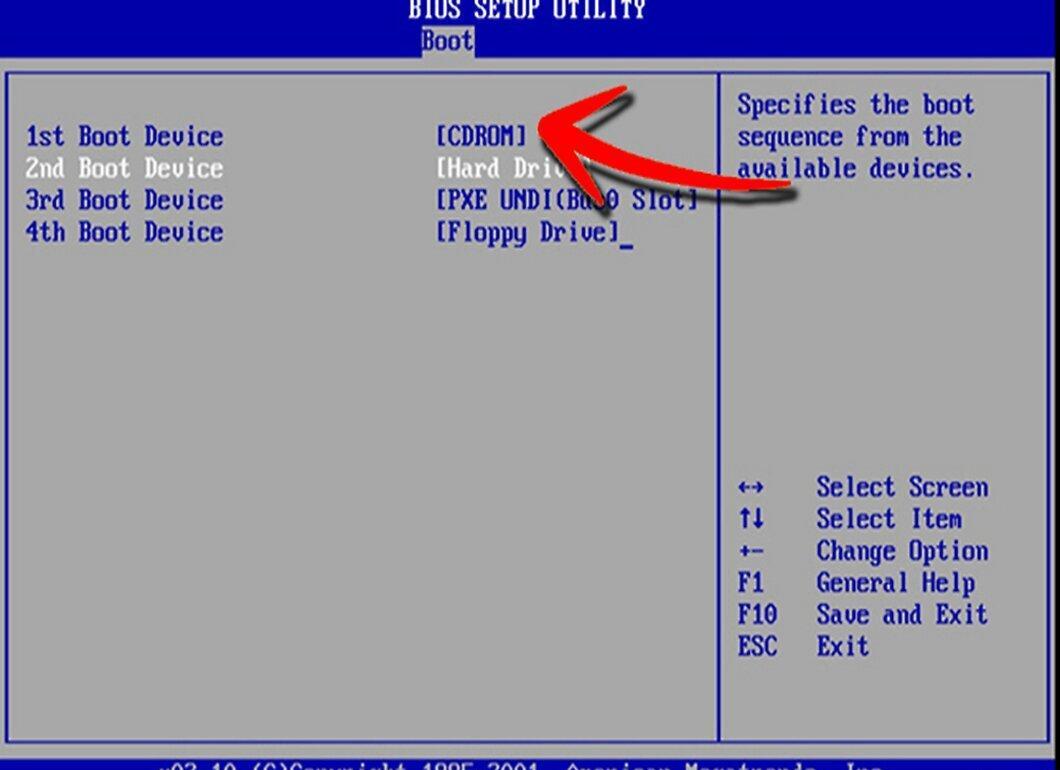
Step 2. Press Enter to boot from the CD.
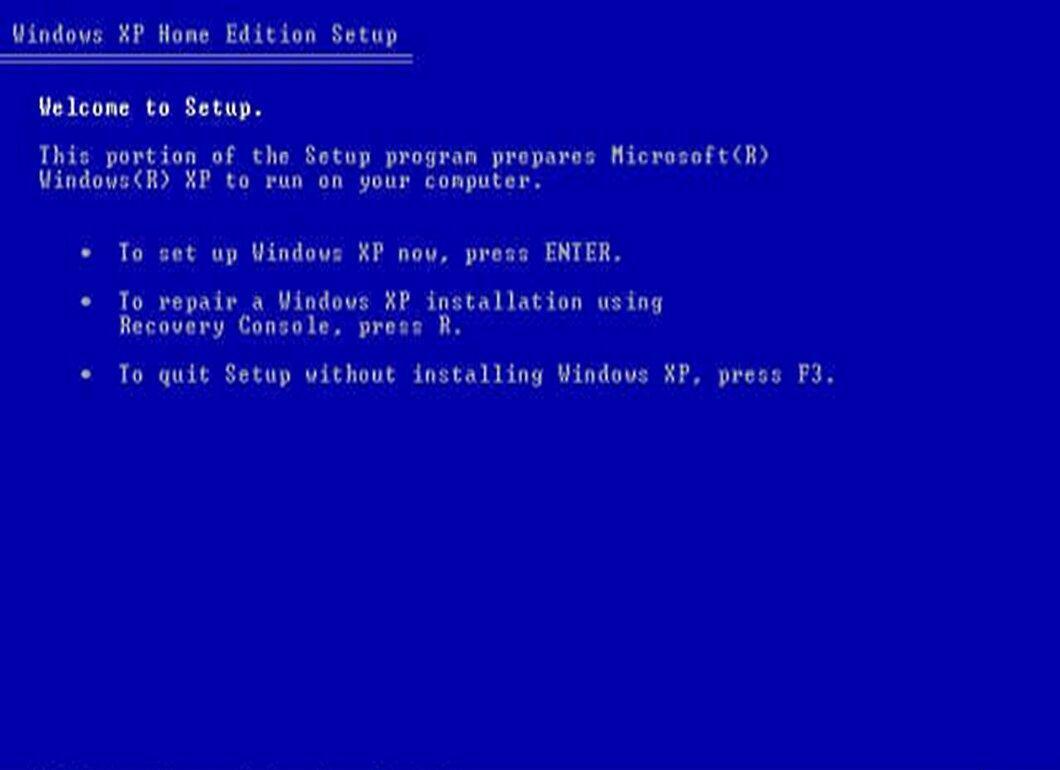
Step 3. Press F8 to agree to the Windows license agreement.
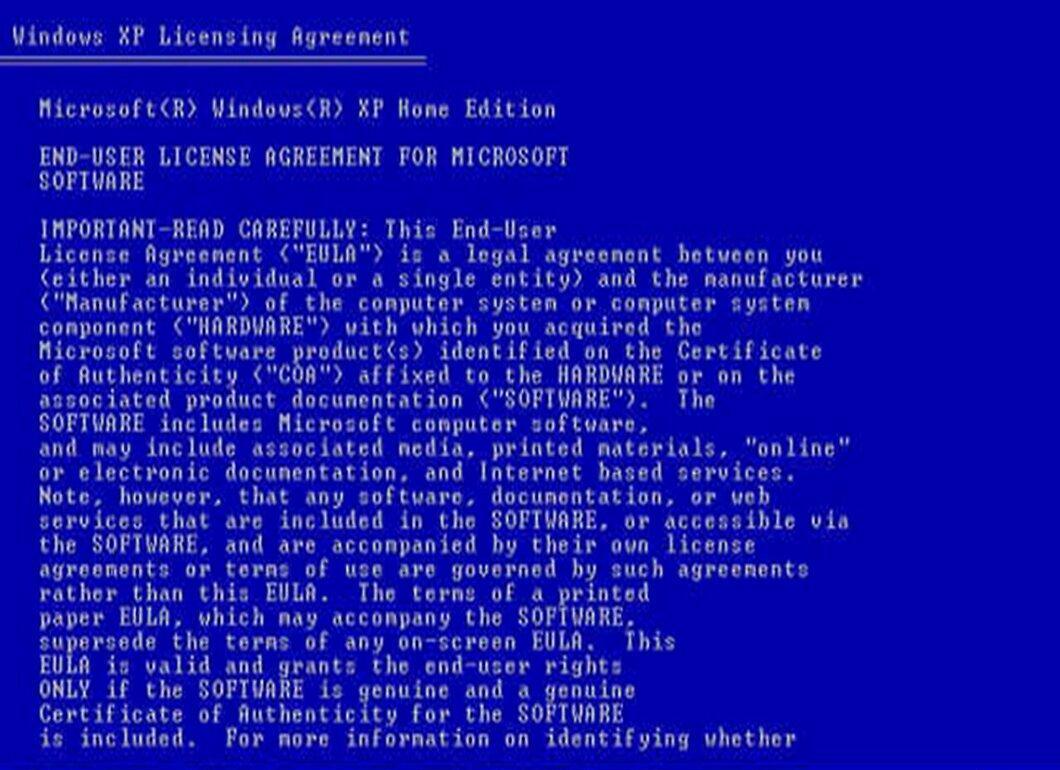
Step 4. If the installer detects another copy of Windows, press Esc to abort the installation.
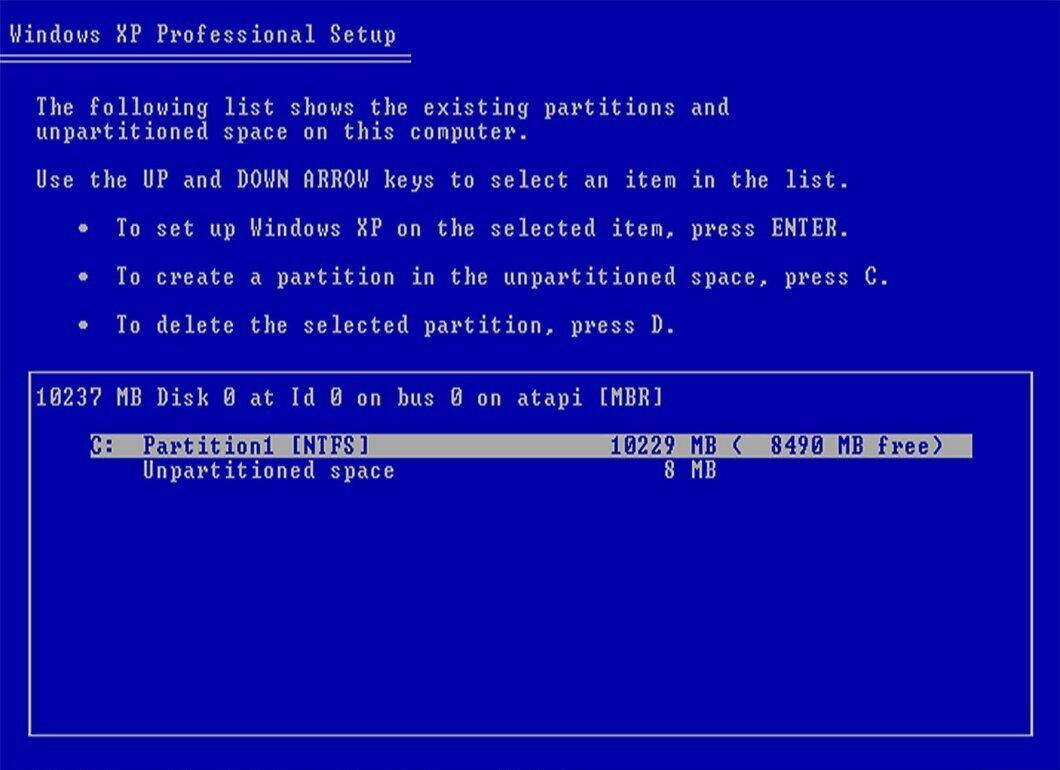
Step 5. Use the arrow keys to select the partition you want to delete.
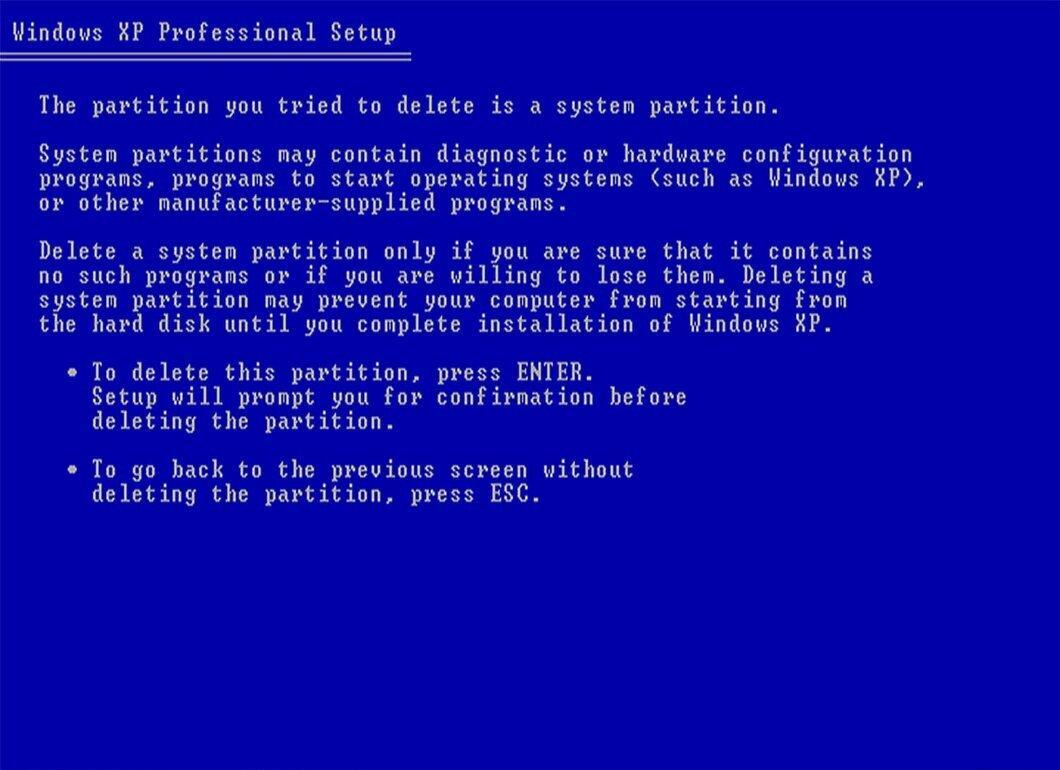
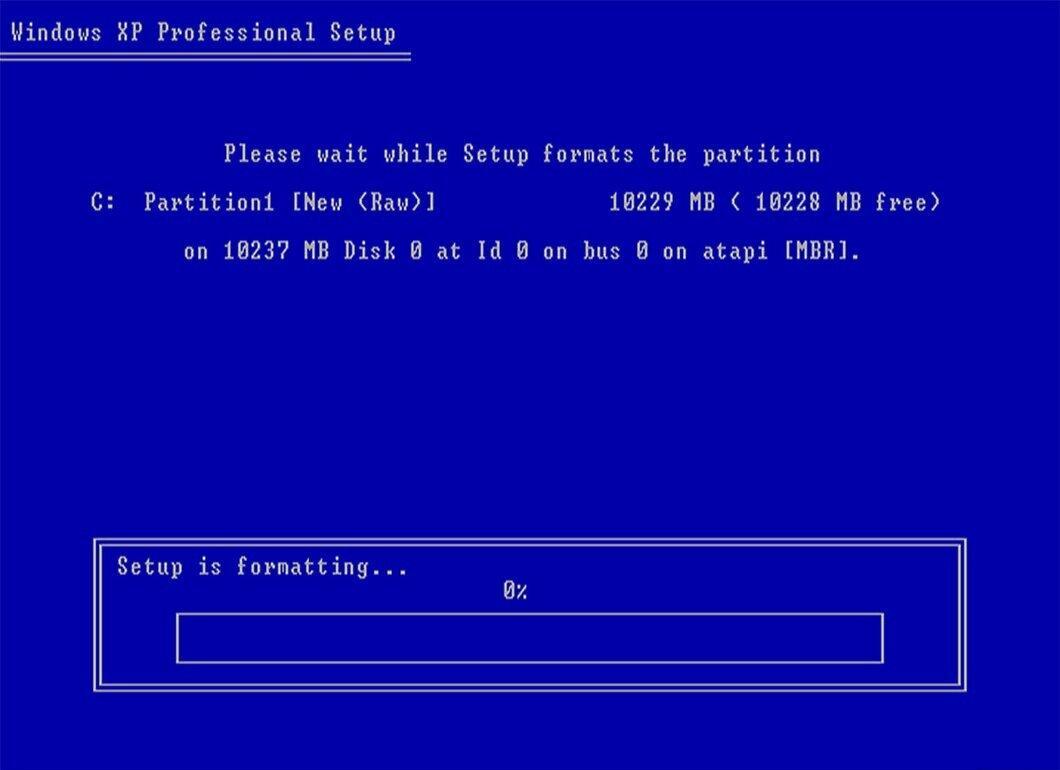
Using the arrow keys, select the desired partition and press D to delete it, then L to confirm. The installer will mark the deleted partition as "Unallocated Space." Repeat the process to delete other partitions as needed.
Step 6. To create a new partition, select "Unallocated Space" and press Enter.
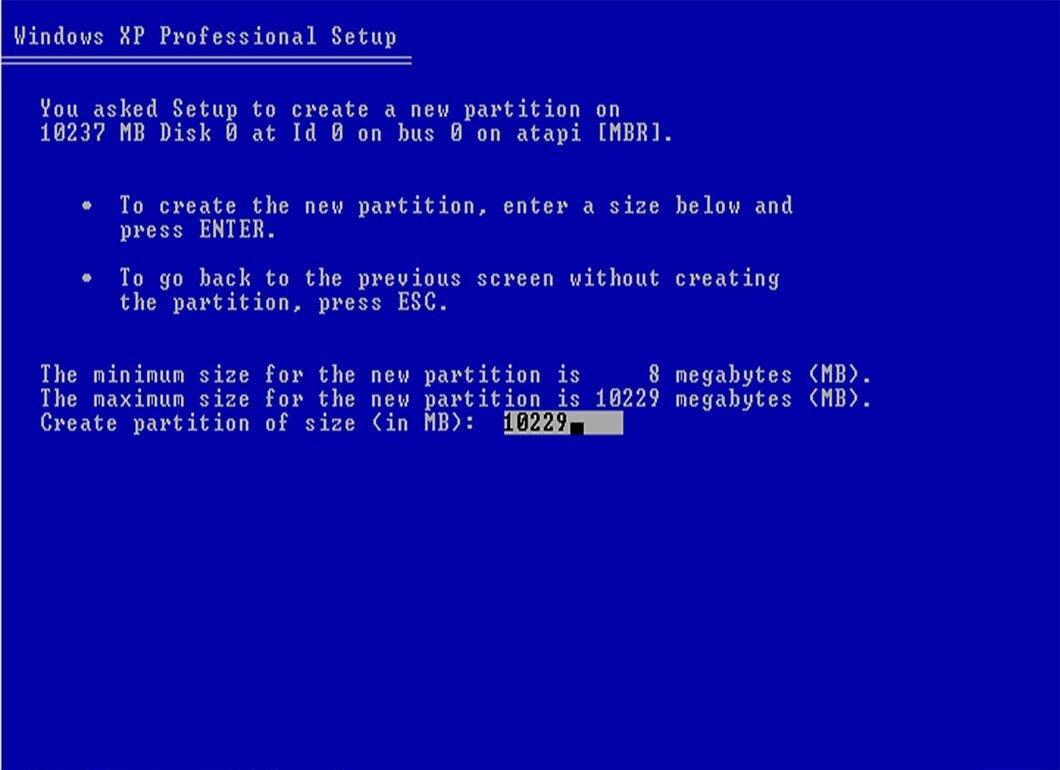
Step 7. Choose NTFS as the file system.
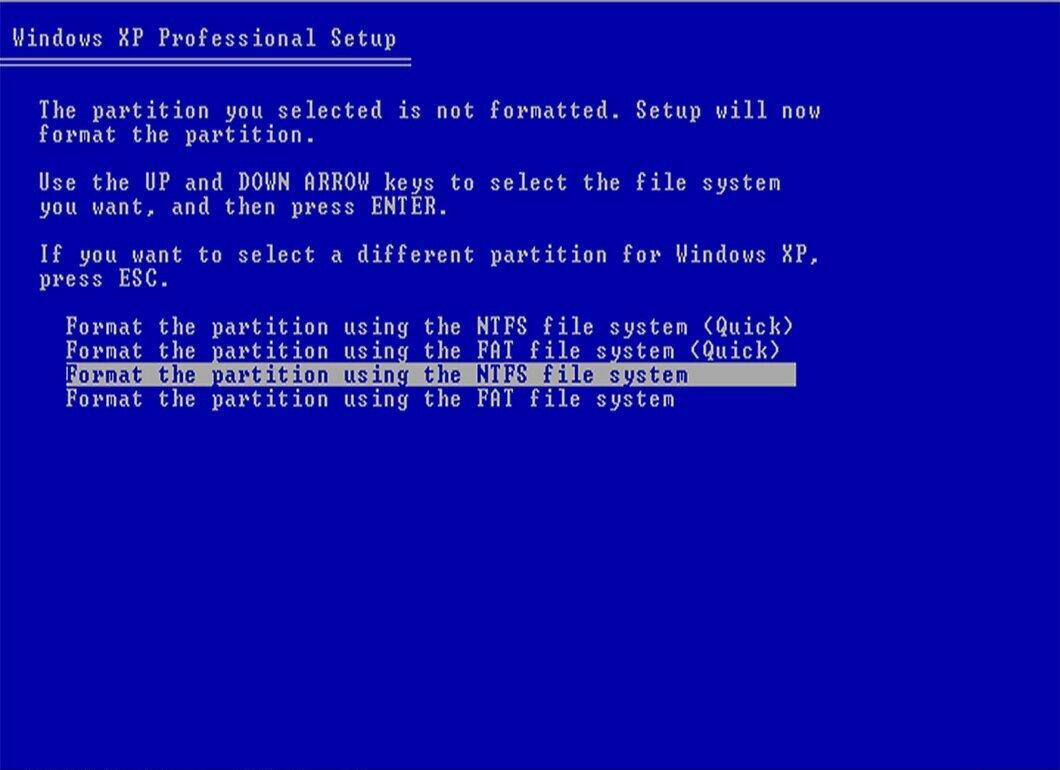
Select NTFS for the Windows installation. If you want to use both Windows and Linux, choose FAT32 instead.
Step 8. Proceed with the Windows installation on the new partition.
Ubuntu Installation Disk
Step 1. Insert the Ubuntu disk and boot from it.
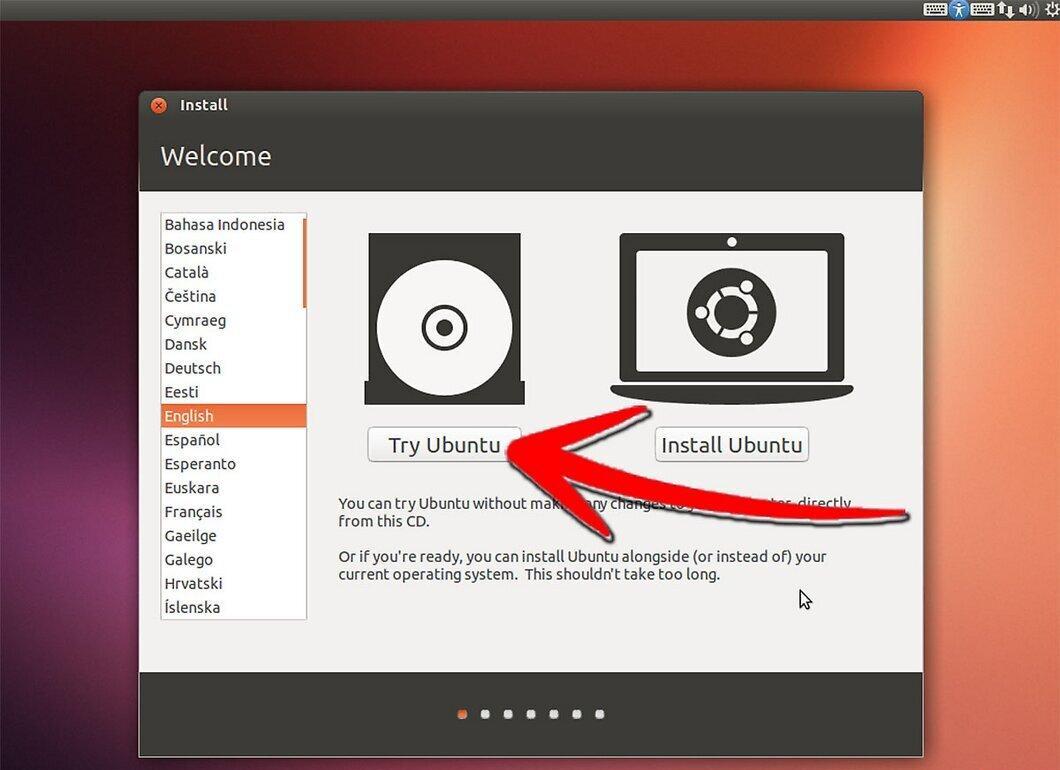
Boot from the Ubuntu installation disk. In the menu that appears, select "Try Ubuntu without installing" to avoid installing the system on your hard drive.
Step 2. Launch the Partition Editor application (go to "System" - "Administration").
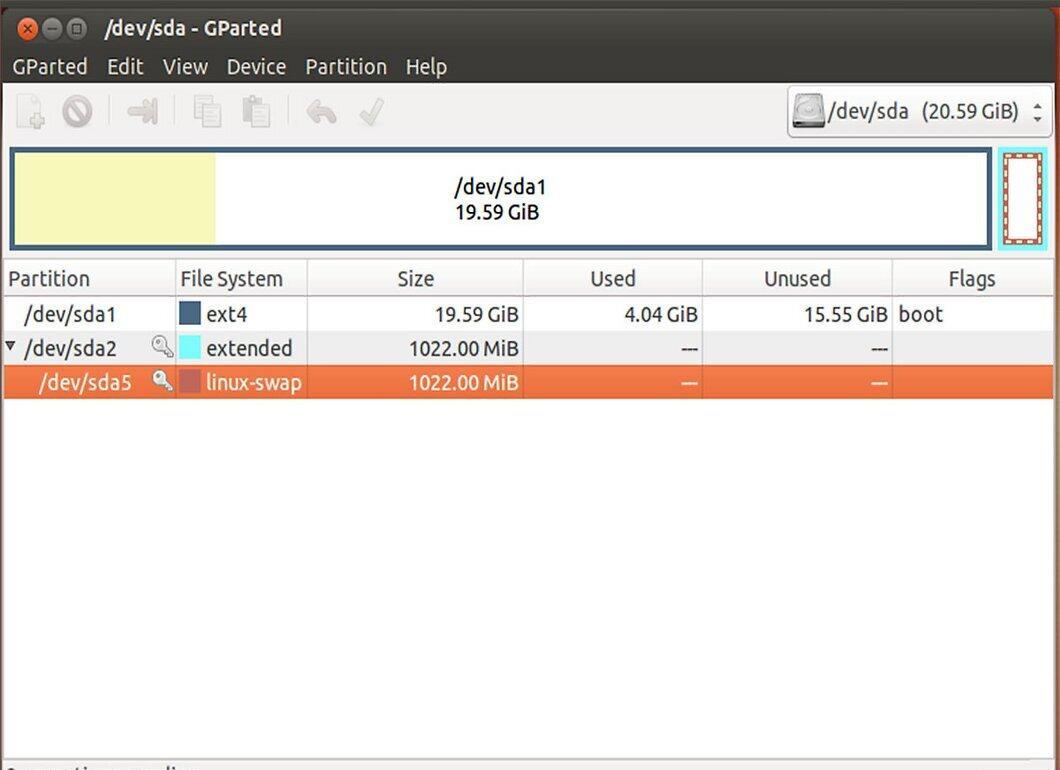
Step 3. Highlight the Linux partition and click "Delete."
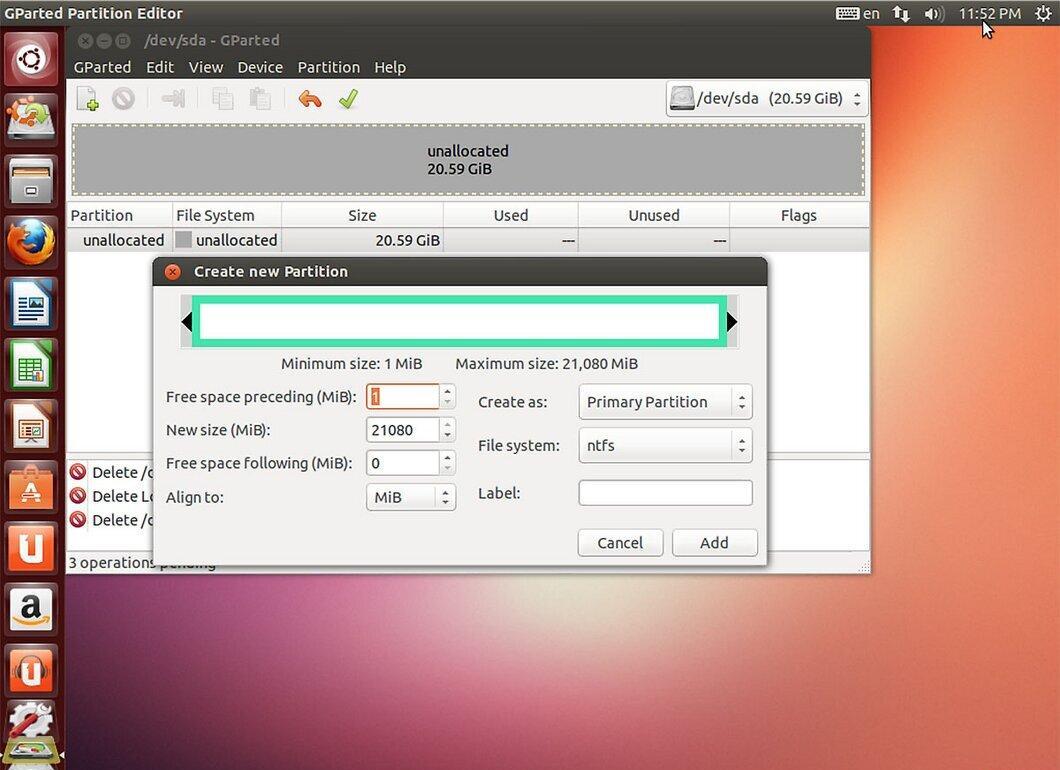
Select the Linux partition and click "Delete." Next, click "Create" to make a new partition for Windows, choosing the NTFS file system.
Step 4. Click "Apply" to save the changes; you are now ready to install Windows on the new partition.