
Clearing History in Safari: Simple Steps
Clearing your browsing history or removing individual entries is available on both Mac and iOS devices. This can come in handy when you are using a shared computer or want to get rid of certain sites from your history. The process takes just a few minutes, regardless of your operating system.
macOS (Removing All History)
Step 1. Open Safari and select the 'Safari' menu.
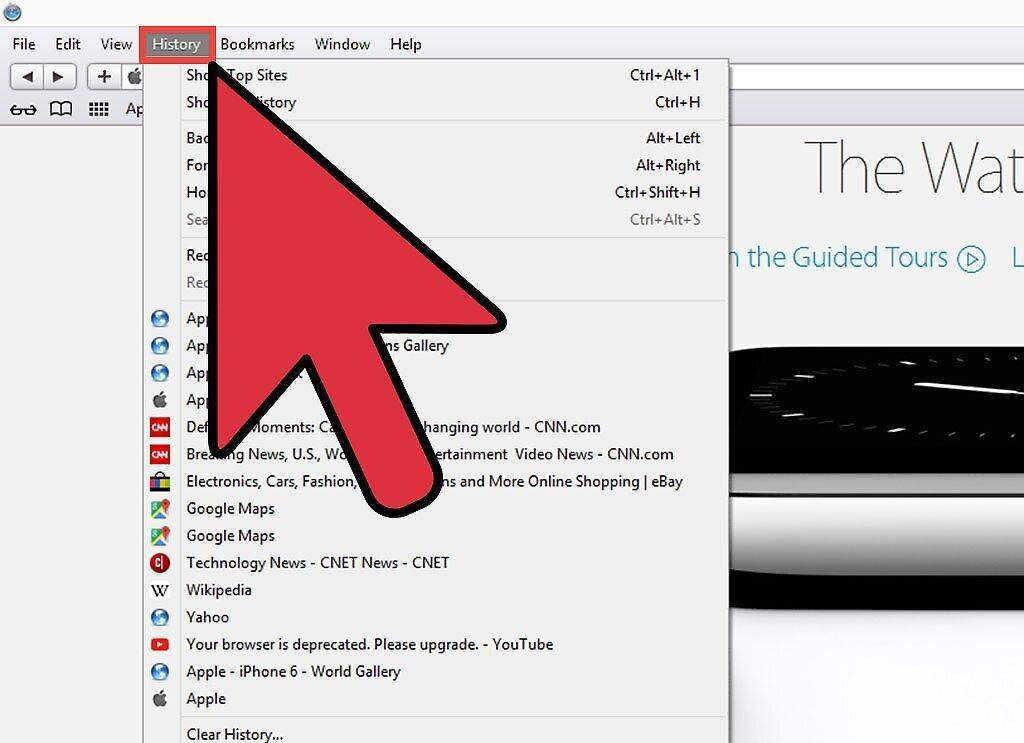
Launch Safari and click on the 'Safari' menu. This will allow you to clear all history quickly. If you only want to remove a single entry, proceed to the next section.
- For older versions of Safari, select the 'History' menu, then click 'Clear History'.[1] X Source
Step 2. Ensure the option 'Clear History and Website Data' is selected.
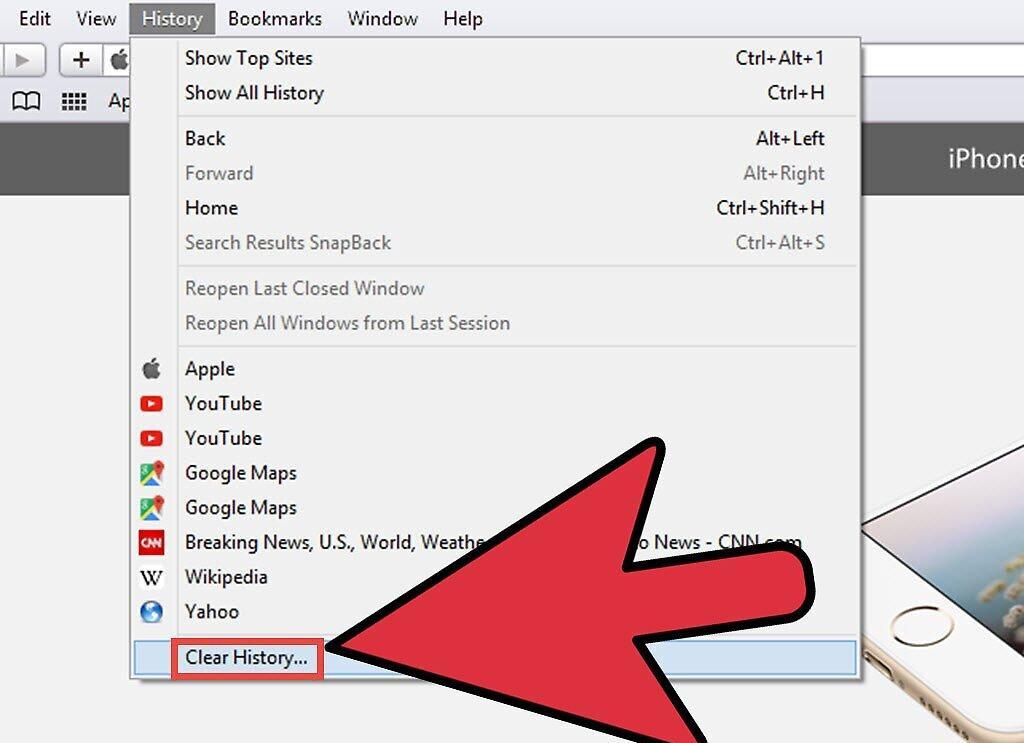
Step 3. In the pop-up, choose the time range for which you want to delete history.
Here, you can select the period for which you want to delete the history: all time, the last hour, today, or the last and current days.
Step 4. Confirm the action by clicking 'Clear History'.
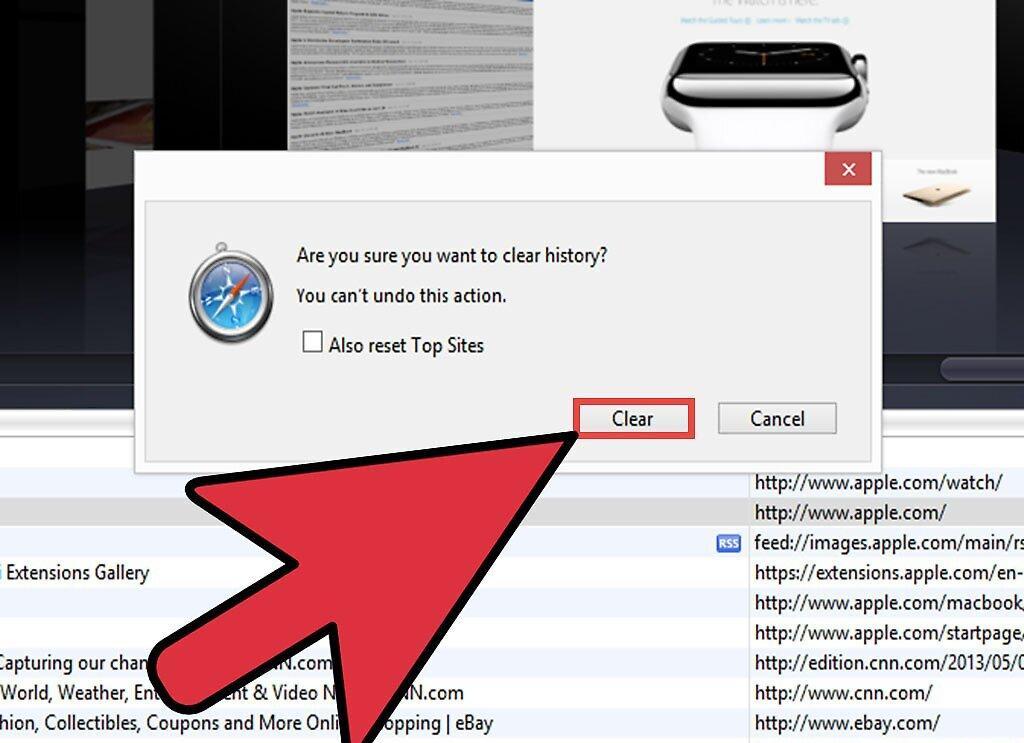
Click 'Clear History' to confirm your decision. This will delete history, cookies, search queries, and other data for the selected period.
- Note that this action will also reflect on all devices linked to your iCloud account.
macOS (Removing Individual Entries)
Step 1. Open Safari and select the 'Safari' menu.
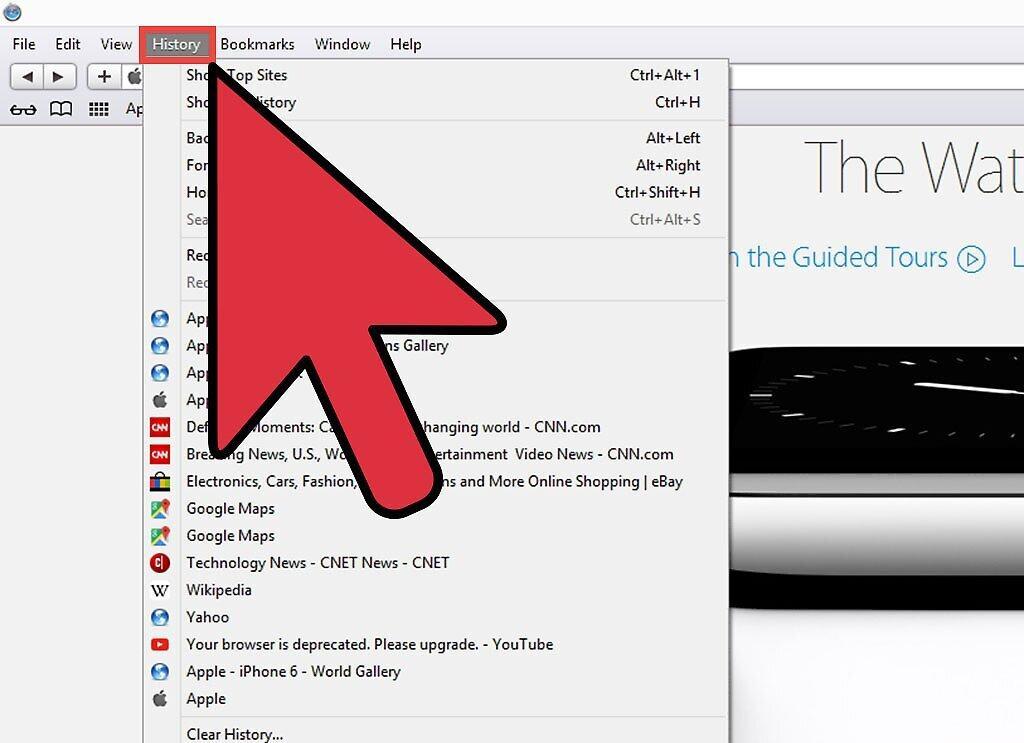
Step 2. Click on 'Show All History'.
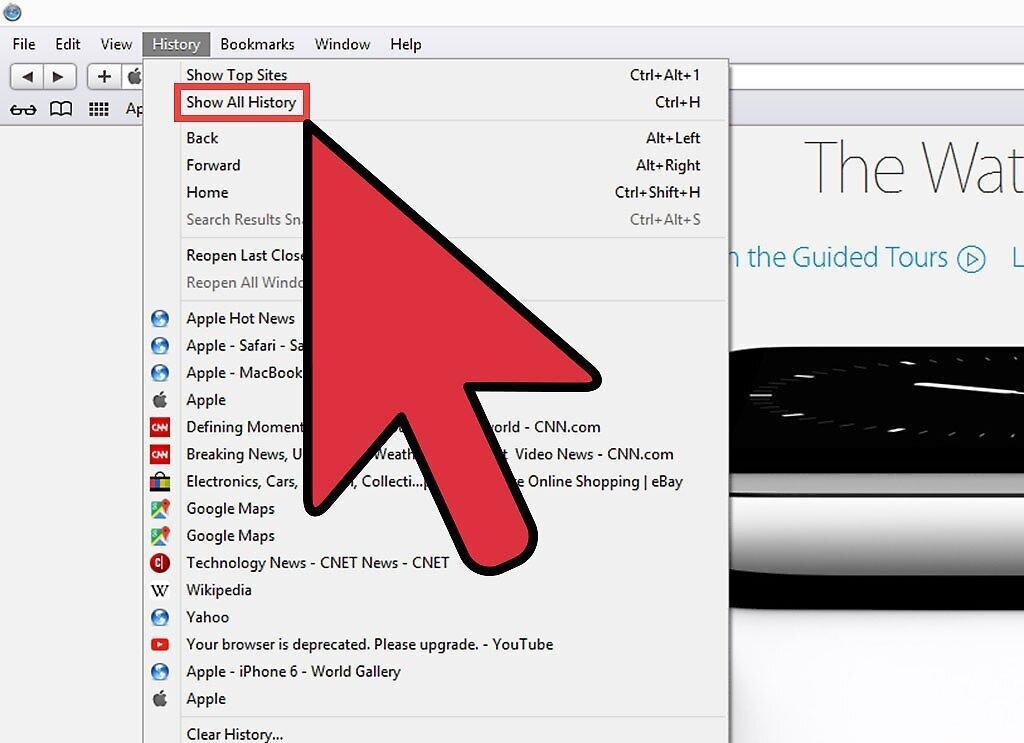
Select 'Show All History' or use the keyboard shortcut ⌘ Command+⌥ Option+2 to open the history menu.
Step 3. Find the entry you want to delete.
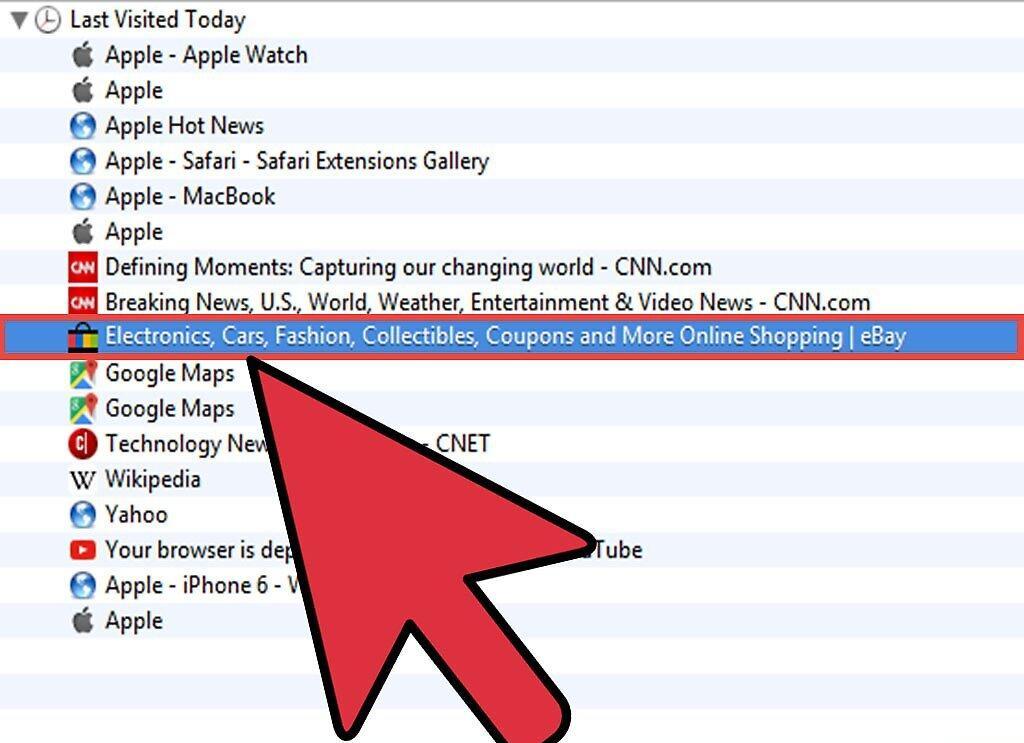
Use the search bar in the upper right corner of the screen or expand the dates to locate the desired entry.
Step 4. Right-click on the entry and select 'Delete'.
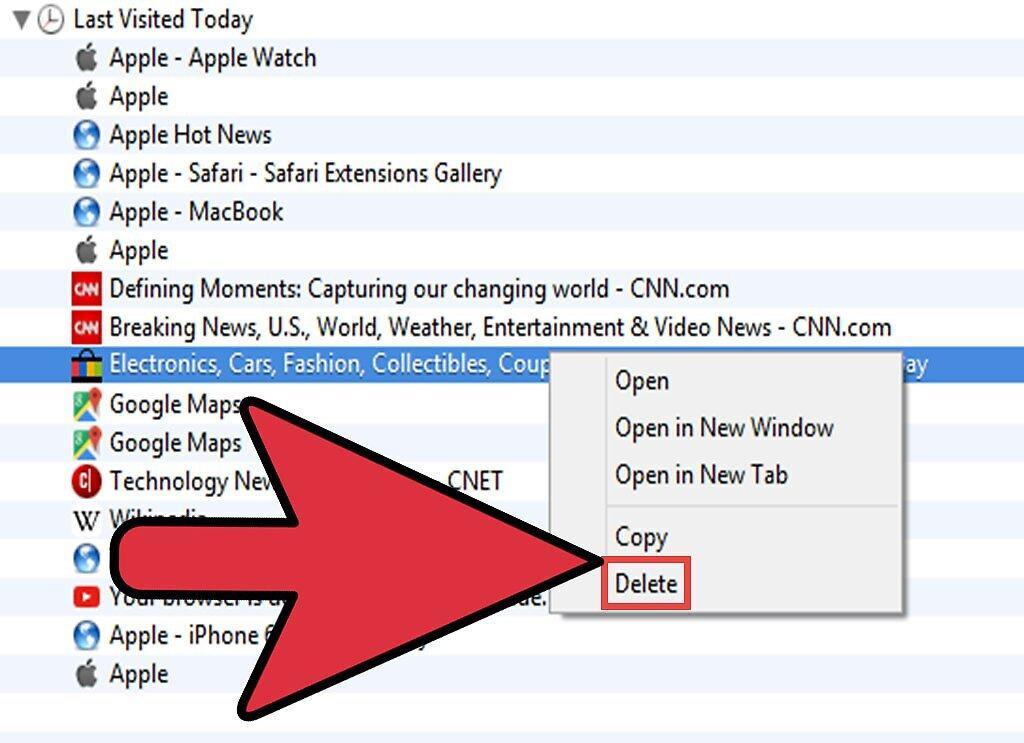
Right-click on the entry you wish to delete and select 'Delete'. If you have a one-button mouse, hold down the Control key and click to open the menu. Repeat this process to delete any other entries.
iOS (Removing All History)
Step 1. Open the 'Settings' app.
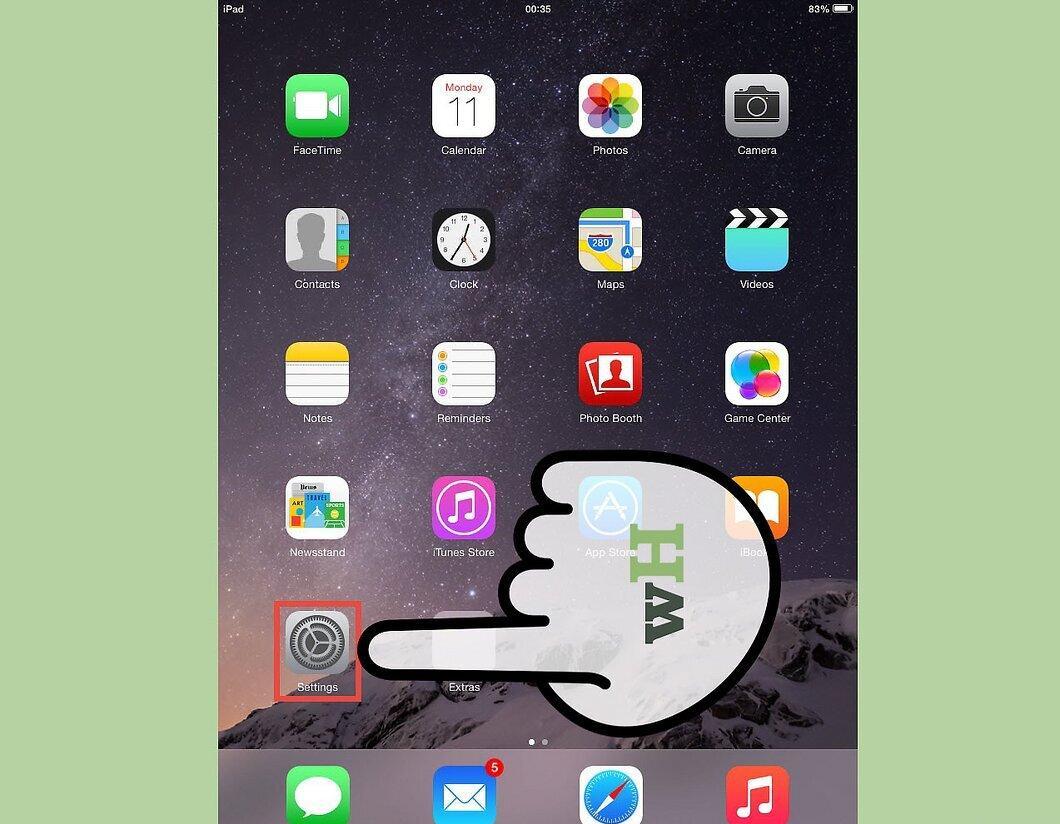
Launch the 'Settings' app. To delete all Safari history, you need to do this through the settings, not through the browser itself.
- To delete individual entries, proceed to the next section.
Step 2. Scroll down and select 'Safari'.
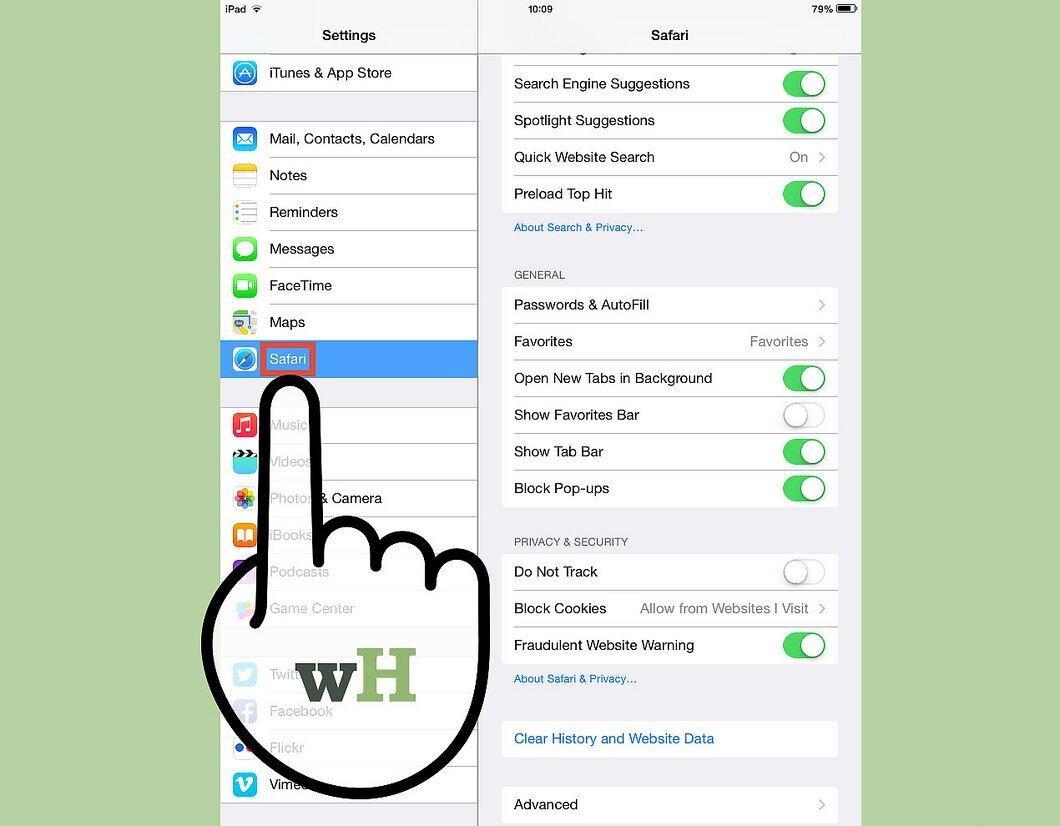
Step 3. Scroll down and tap 'Clear History and Website Data'.
Select 'Clear History and Website Data', then confirm by tapping 'Clear History and Data'. This will delete all history, cookies, and other data.
iOS (Removing Individual Entries)
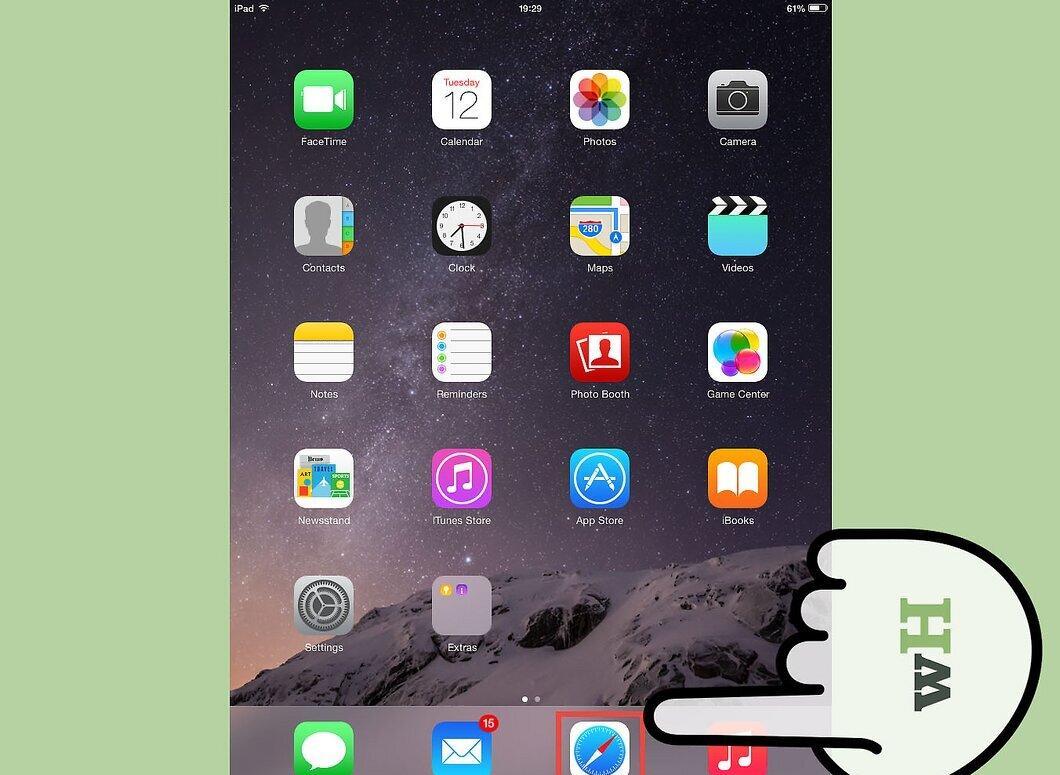
Step 1. Launch the 'Safari' app.
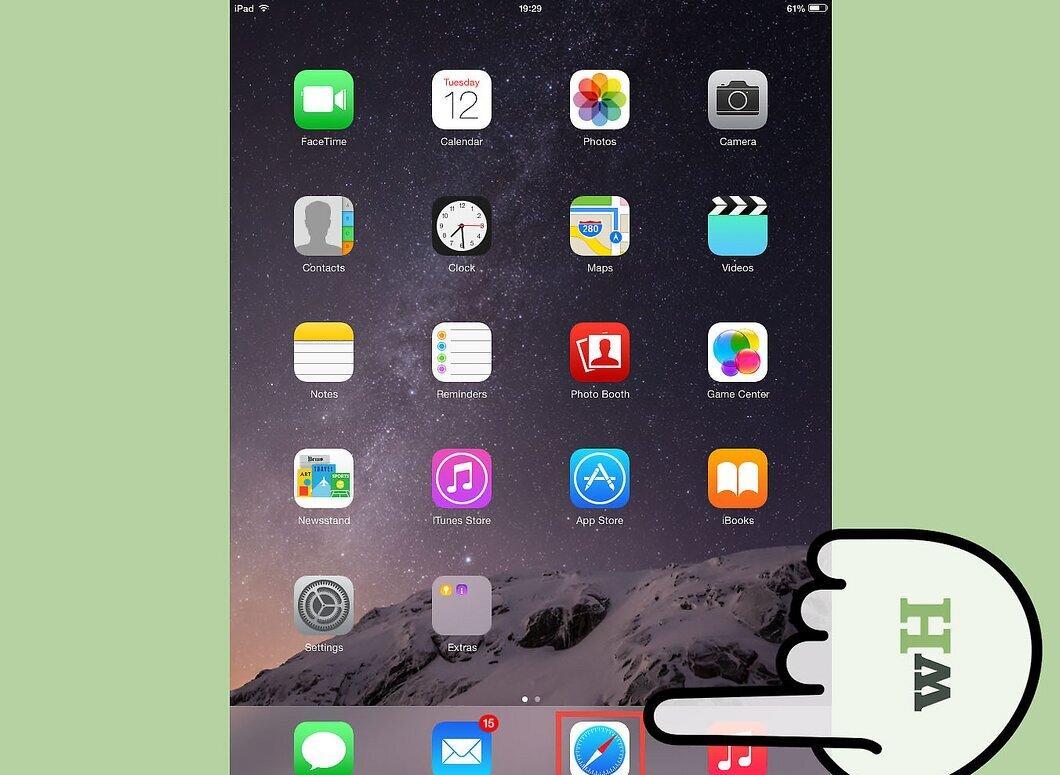
Open Safari on your device to delete individual history entries directly in the browser.
Step 2. Tap 'Bookmarks' at the bottom of the screen.

This is the icon resembling an open book.
Step 3. In the 'Bookmarks' menu, select 'History'.
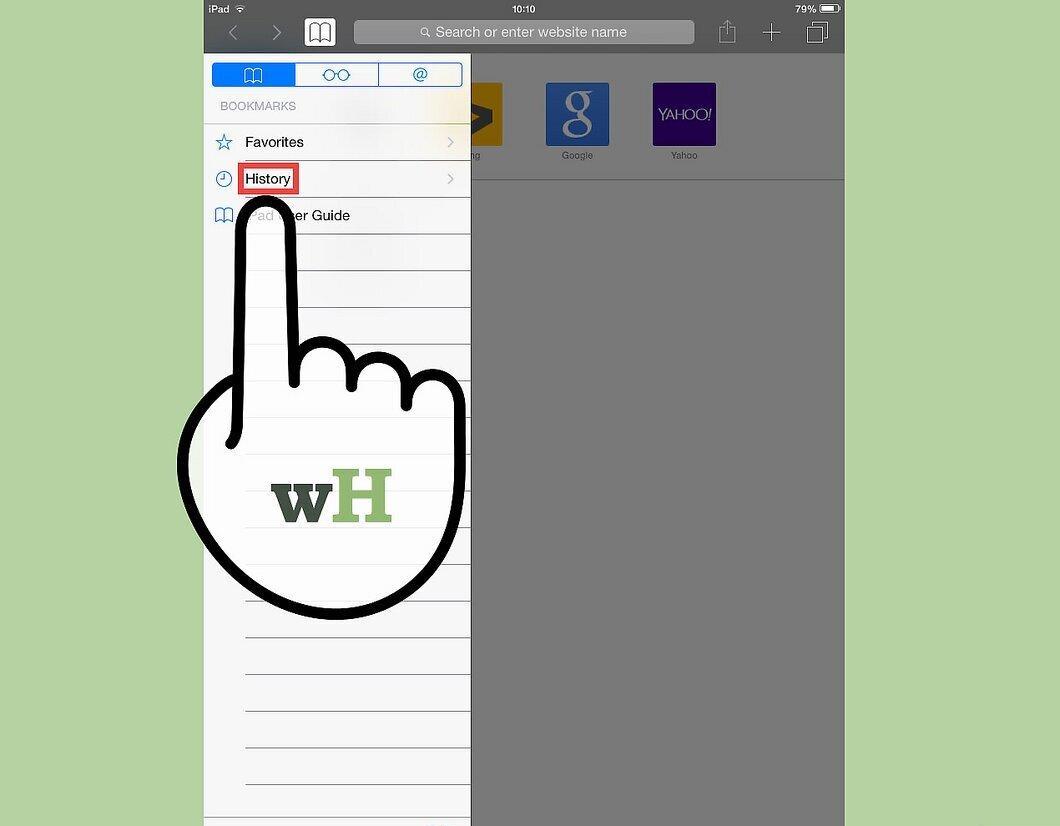
Step 4. Find the entry you want to delete and swipe left on it.
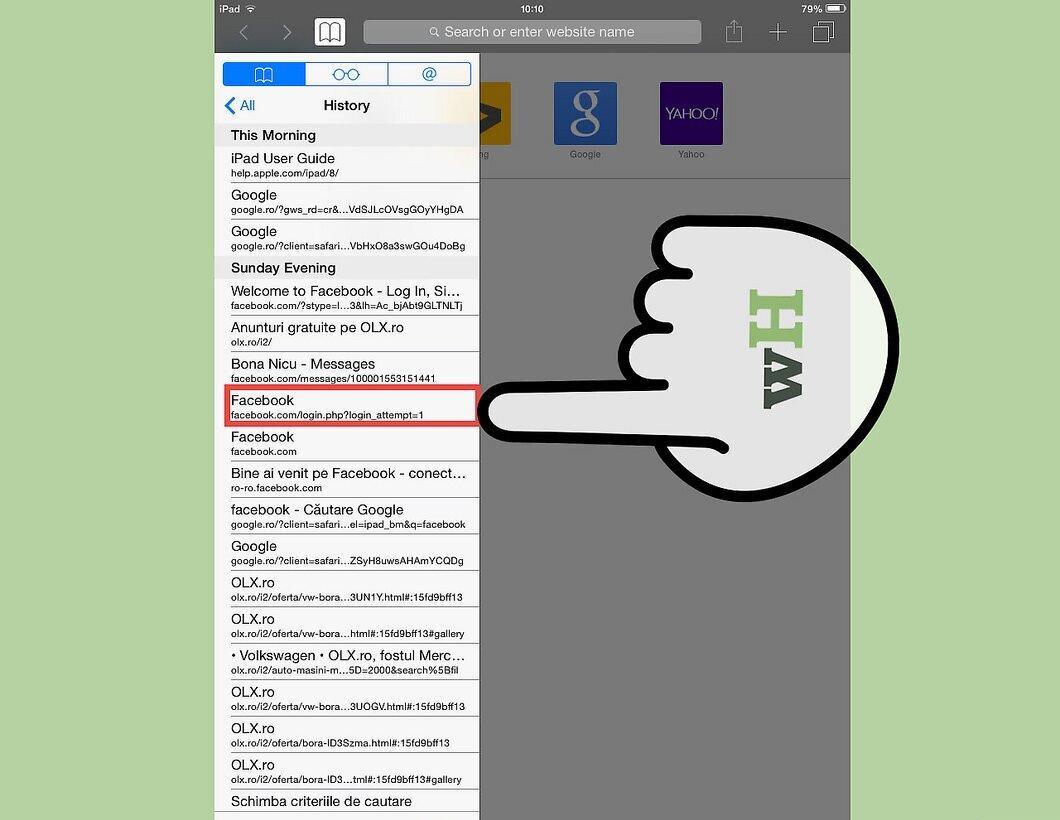
You will see a 'Delete' button when you swipe left on the entry.
Step 5. Tap 'Delete' to remove the entry.

Tap 'Delete' to permanently remove the entry. Repeat the process to delete any other entries. After deleting, tap 'Done' to finish.


