
If your modem refuses to work, leading to intermittent connection or complete disconnection, the first step is to restart it. You can do this by unplugging the modem or hitting the Reset button. However, if the modem is in an inaccessible location, you can restart it remotely. To avoid trekking through your home, you can restart the modem remotely via your computer, using a remote switch, or by calling your internet service provider.
Restarting via Computer
Step 1. Open your browser.
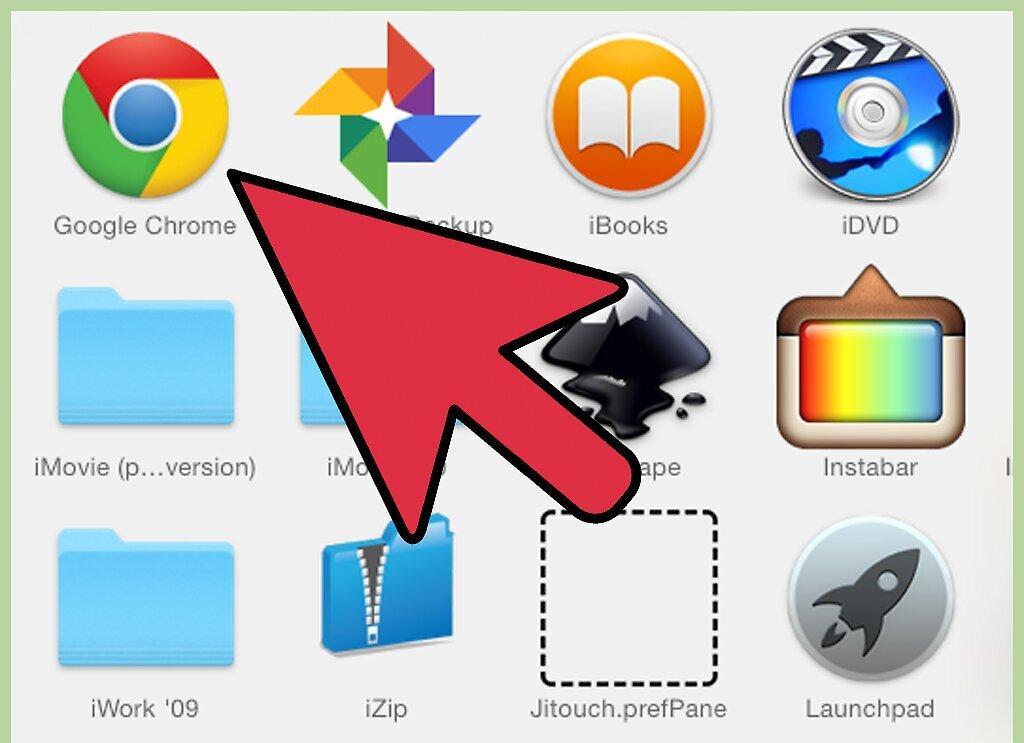
Open a web browser on your computer. This can be Internet Explorer, Firefox, or Chrome—whichever you prefer. The important thing is that you can enter an address in the browser's address bar.
Step 2. Enter the modem's IP address.
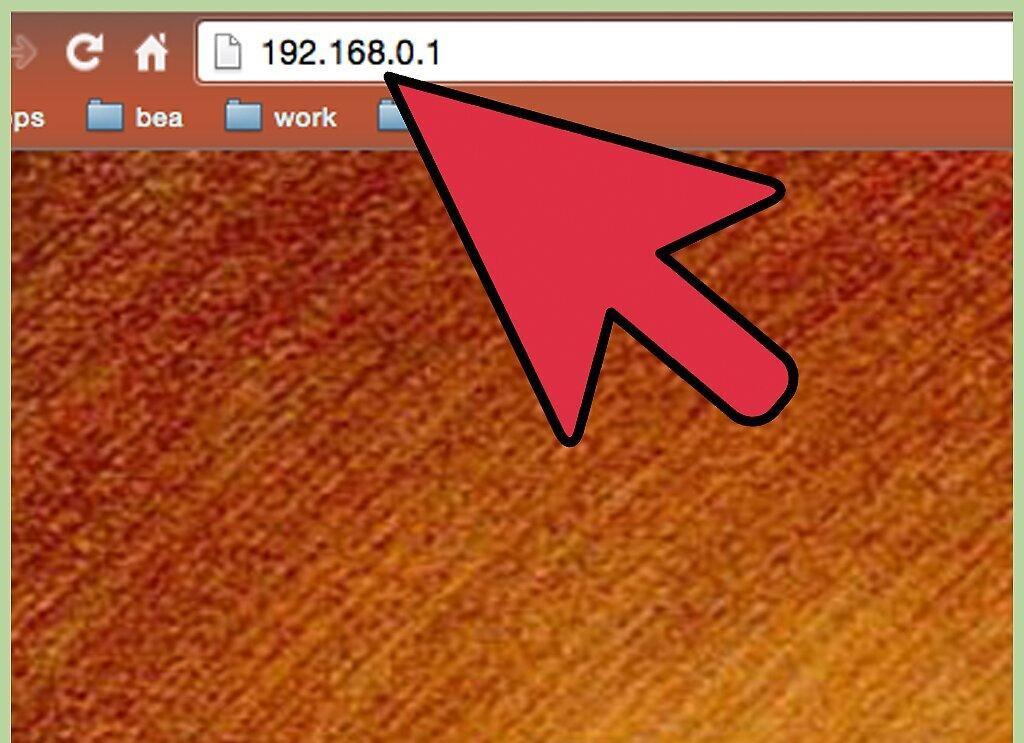
Enter the modem's IP address. The Internet Protocol (IP) address is an identifier that your computer uses to send data over the network. You need to enter the modem's IP address in the browser's address bar. It's usually http://192.168.1.1 or something similar. Input this as the default IP address.
- If the standard IP address doesn't work, open the Command Prompt (in Windows) and type "ipconfig" (without quotes) to find the correct IP address for your modem. To do this, click on the Start button, go to "All Programs", then "Accessories", and select "Command Prompt". The correct IP address will be listed next to "Default Gateway".
- Another method is to click on the Start button, then go to "Control Panel". After that, click on "Network and Sharing Center". In this window, find the network name and click on "Status". Click on the "Details" button to display various information, where the modem's IP address will be next to "IPv4 Default Gateway".
Step 3. Enter the administrator password.
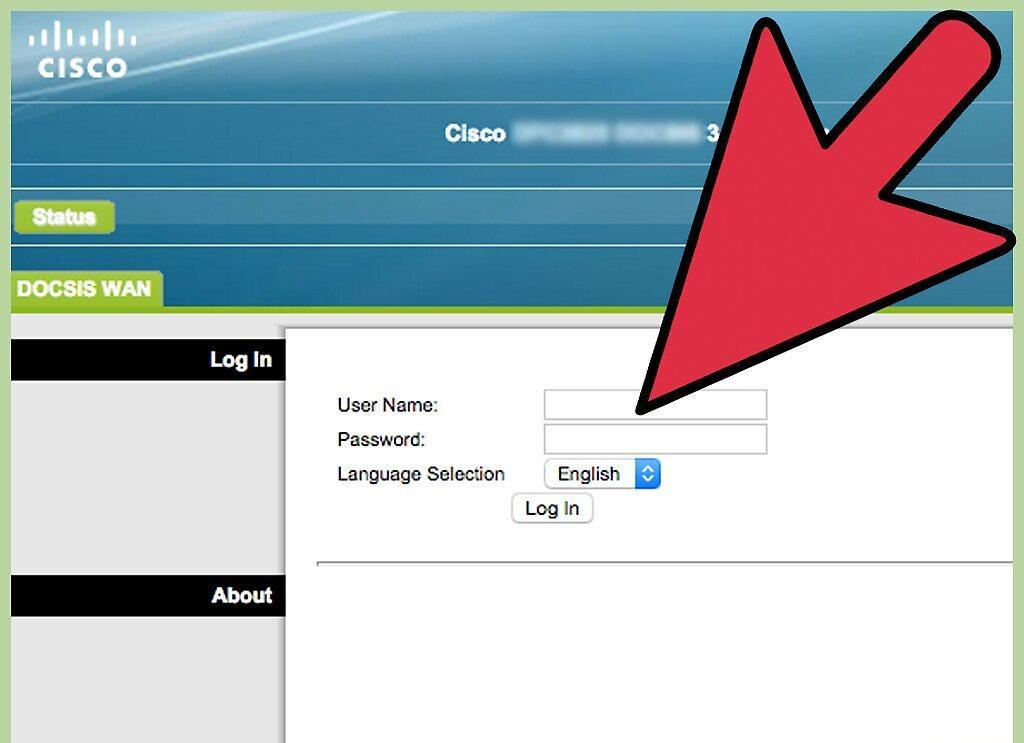
Enter the administrator password. At this stage, you need to enter the network administrator's username and password. Without administrator access, you won't be able to access the modem's settings. If you're on your home computer, you shouldn't have any issues. Additionally, it's possible that the modem uses its default username and password, which can be found in the user manual or on a sticker on the modem itself.
Step 4. Go to the modem's settings page.
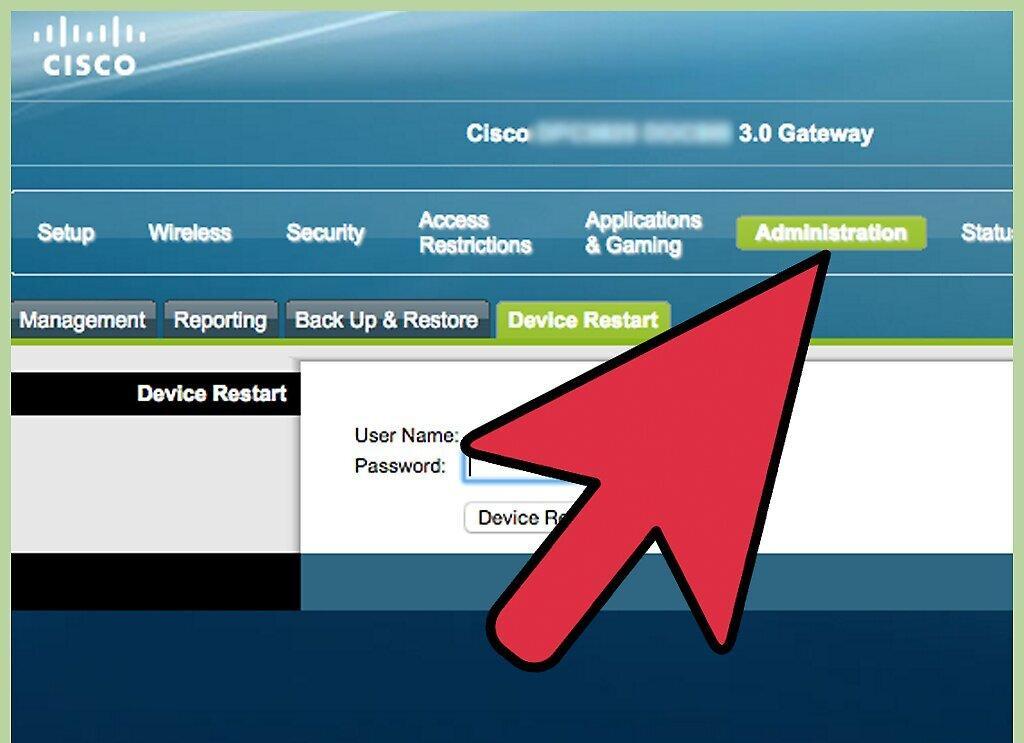
Access the modem's settings page. Although every modem has slight variations, they all have a "Settings" or "Management" tab that can be accessed with administrator privileges. This tab should automatically appear in your browser. You should also find an option to restart the modem to its "factory settings".
Step 5. Click "Save", "Apply", or "Restart".
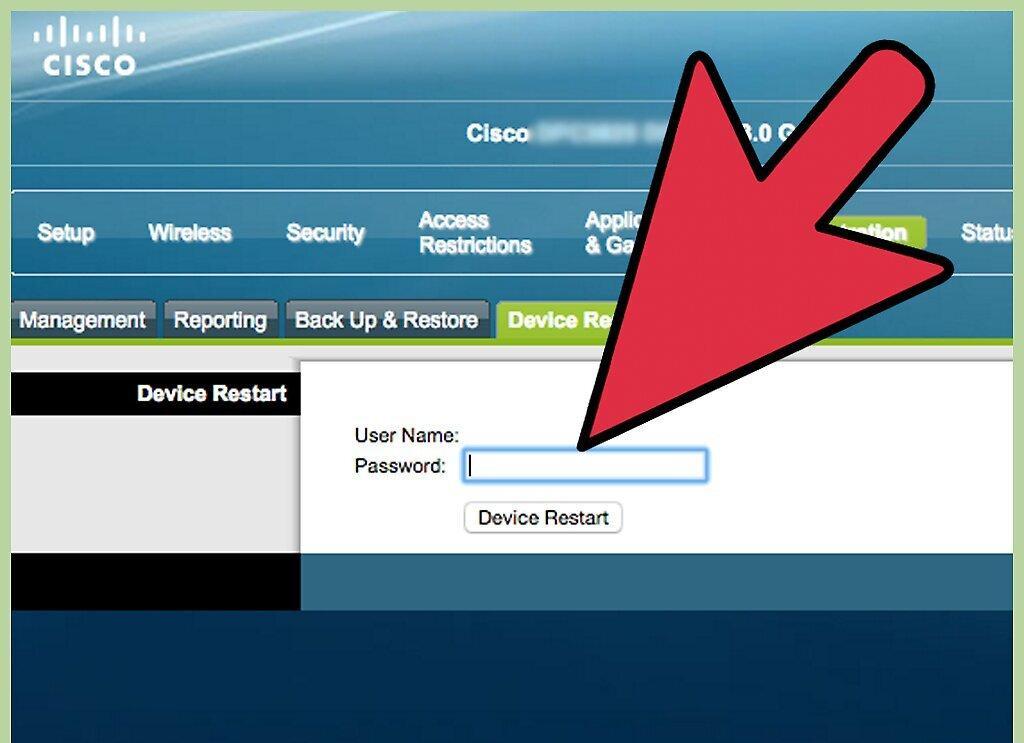
Click "Save", "Apply", or "Restart". After selecting one of these options, the modem should automatically restart and reconnect to the network. Be careful not to change anything in the basic and advanced modem settings to avoid any issues. If you do experience problems, reset the modem to factory settings by pressing the Reset button.
Step 6. Wait for the modem to restart.
Wait for the modem to restart. Before the router is operational, it might take a little time. Once the modem is up and running, the screen should automatically refresh. The restart will not be complete until a message about the internet connection appears on your computer.
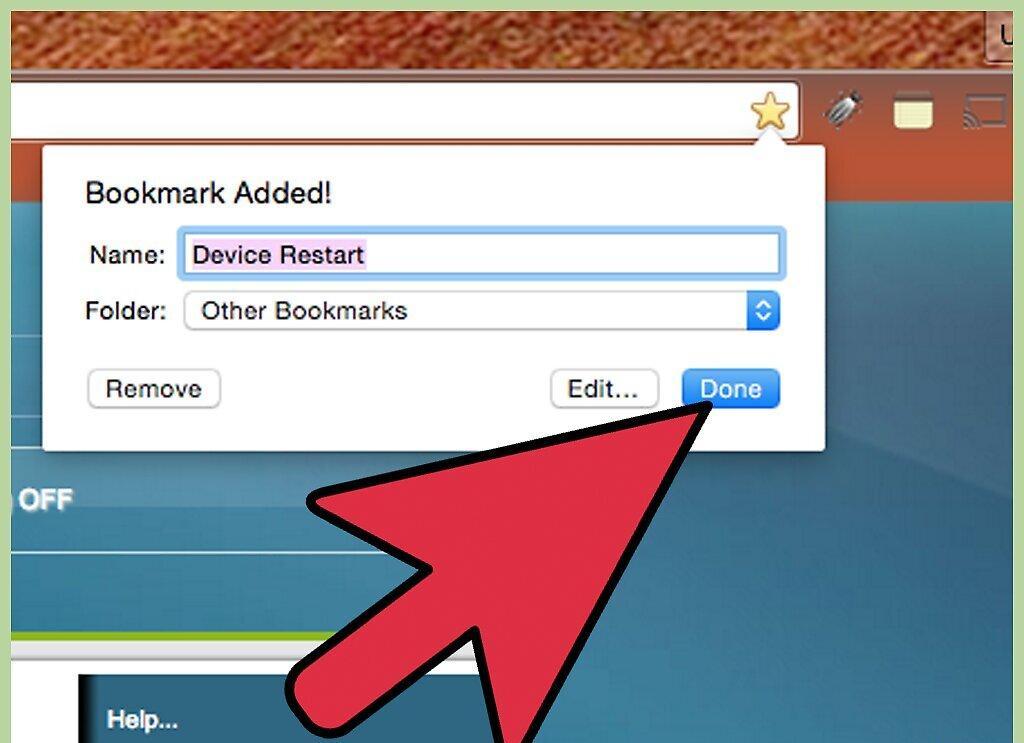
Bookmark these steps. Bookmark the IP address as a shortcut. This will save you time the next time you need to repeat the process. Save the link as a bookmark right after you click "OK". The link should look something like this: http://192.168.1.1/htmlV/reset.asp?restart=TRUE
Restarting the Modem Using a Remote Switch
Step 1. Purchase a remote switch.
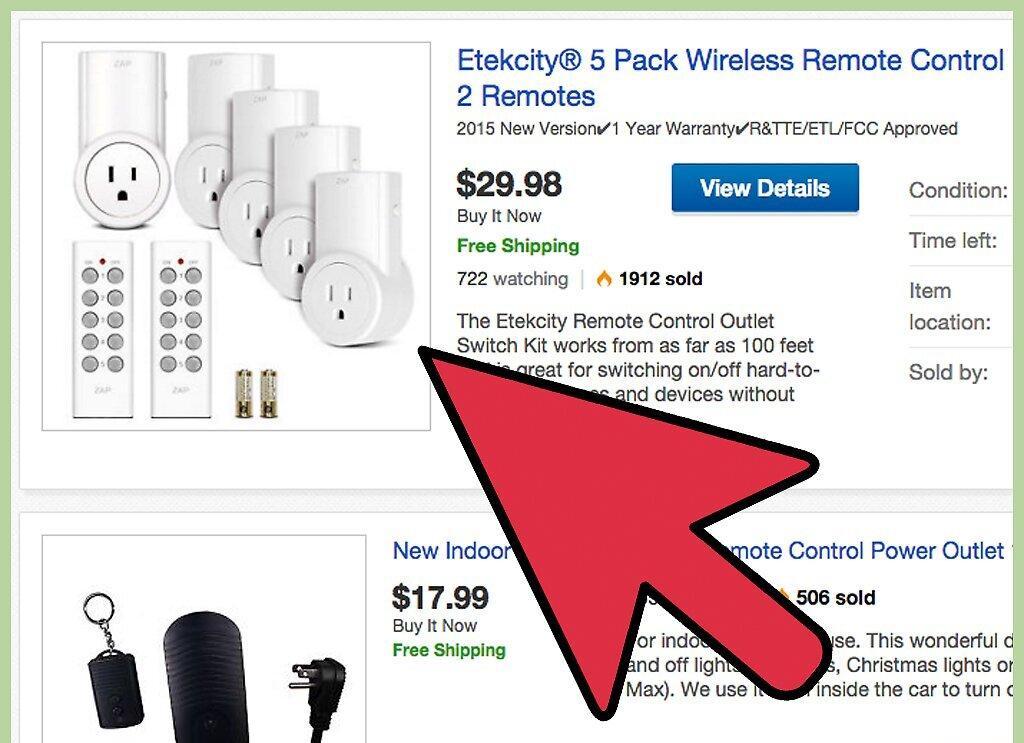
Purchase a remote switch. You can remotely restart the modem using a device known as a remote switch. These devices connect to your computer and automatically manage network operations and internet access, as well as reboot cable and DSL modems. Models such as iBoot can be purchased at computer or online stores for about 12,000 rubles.
Step 2. Connect the device.
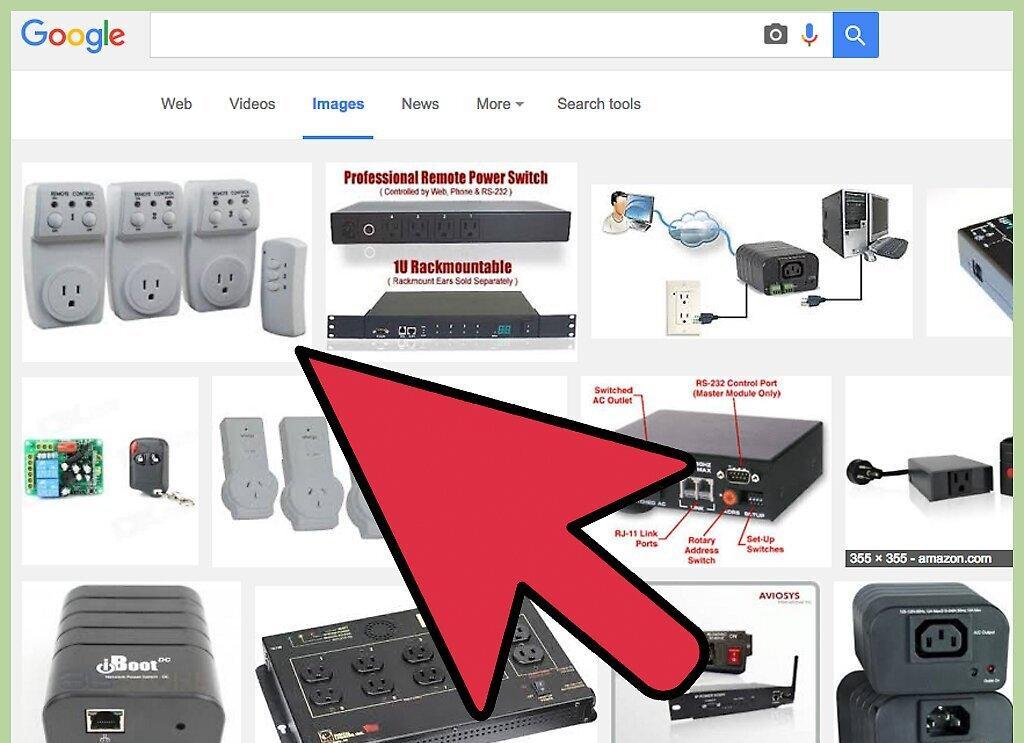
Connect the device. Remote switches are attached directly to your computer's case. Plug the computer's power supply and network cable into the device. Once you connect the main computer, you will be able to remotely manage some functions of other computers on the network and even automate their operations.
Step 3. Enable the remote reboot function.
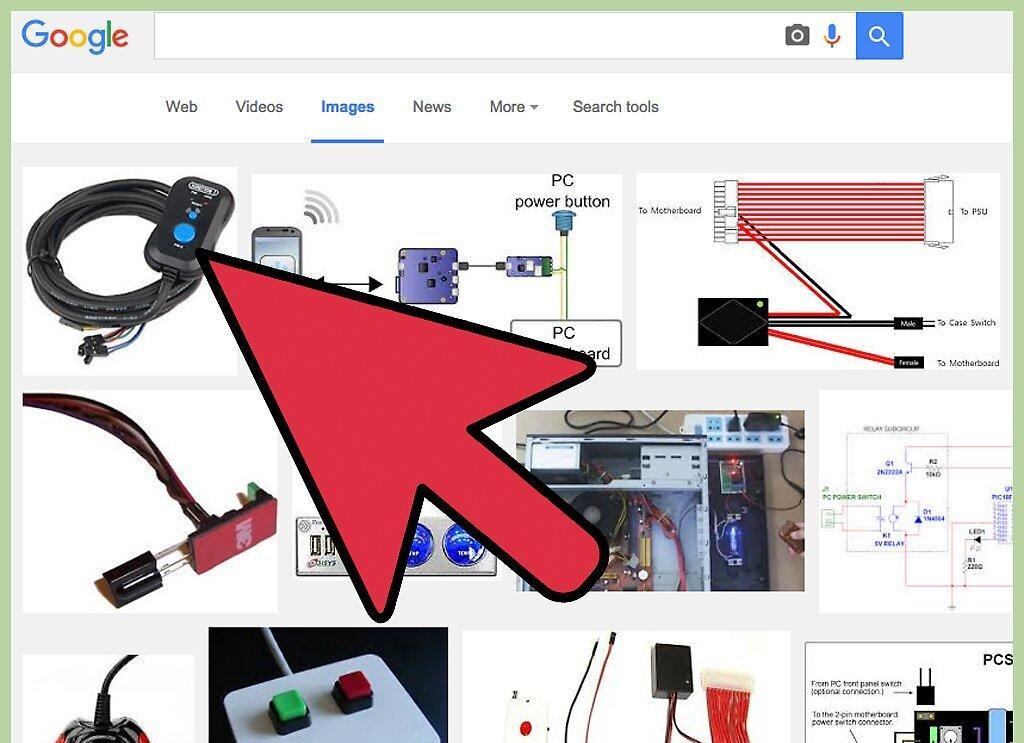
Enable the remote reboot function. Once you connect the device to your computer, configure the remote switch to automatically monitor the internet connection and reboot the modem in case of any issues. To set up the switch, you need to access its settings on your computer. You can also configure it to reboot the modem at specific times, such as every morning or every other day.
Step 4. Turn on the device.
Turn on the device. The remote switch will start working automatically as soon as you configure it. If the modem is operating poorly, the device will detect this and restart it, so you won’t have to worry about a bad connection anymore.
Step 5. Wait for the reboot.
Wait for the reboot. Similar to before, after rebooting the modem, it may take some time before it works again. The internet connection should resume within a few minutes.
Restarting the Modem through Your Internet Provider
Step 1. Identify your provider.
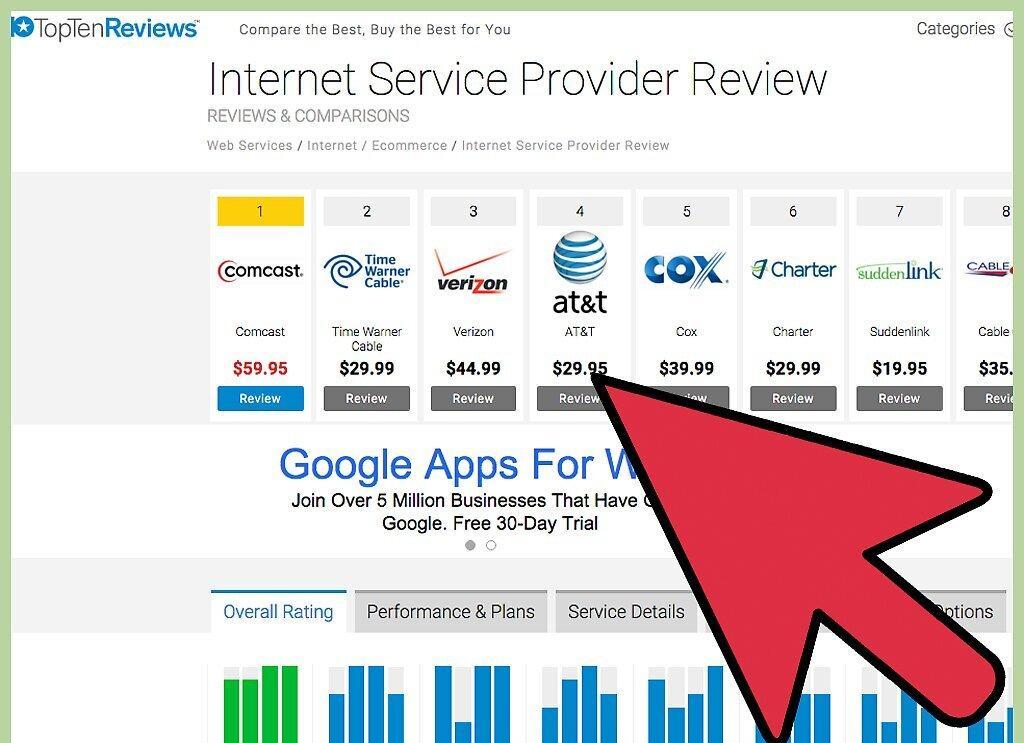
Identify your internet provider. Depending on the situation, you first need to determine who your internet provider is. This includes finding the public IP address from which your connection originates. Some websites can help you do this. You can also find the necessary address on a site that identifies IP addresses. The IP address will be in the format: xxx.xxx.xxx.xxx. Other websites might inform you about the organization using that public IP address and provide the name of your internet provider, along with its address and phone number.
Step 2. Call your provider.
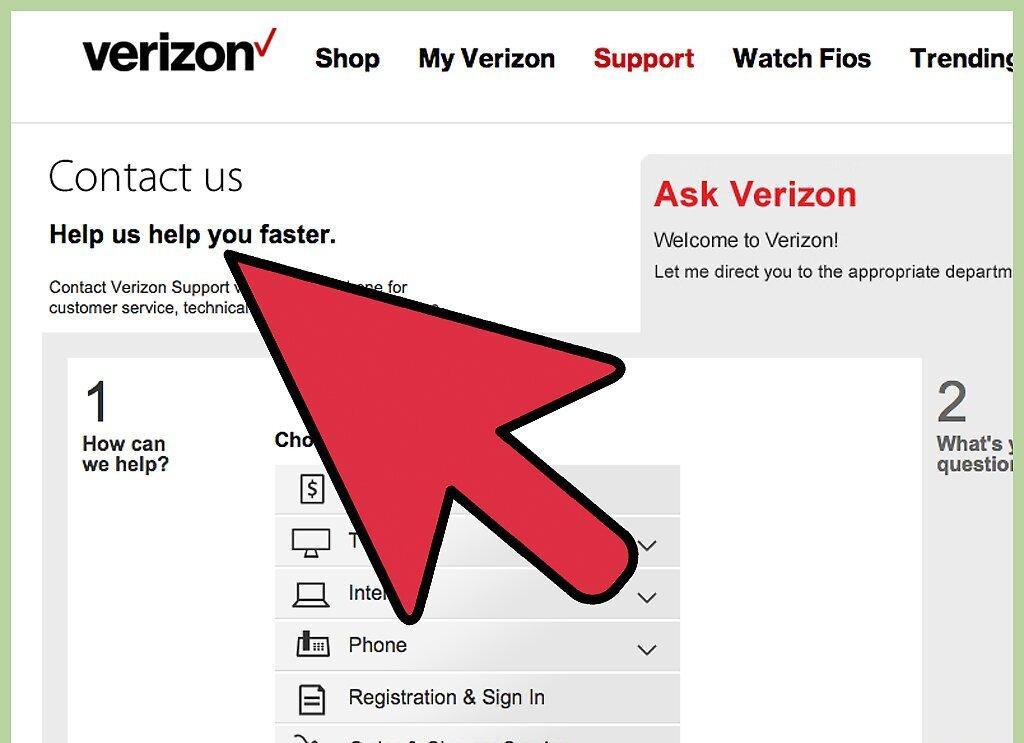
Call your provider. If you cannot restart the modem using the first two methods or if you are experiencing persistent connection issues, contact your provider by phone and report the problem. There’s a good chance there’s a network issue that needs fixing. You’ll need to talk to a customer support representative, provide your name, and share your account information.
Step 3. Ask your provider to restart the modem.
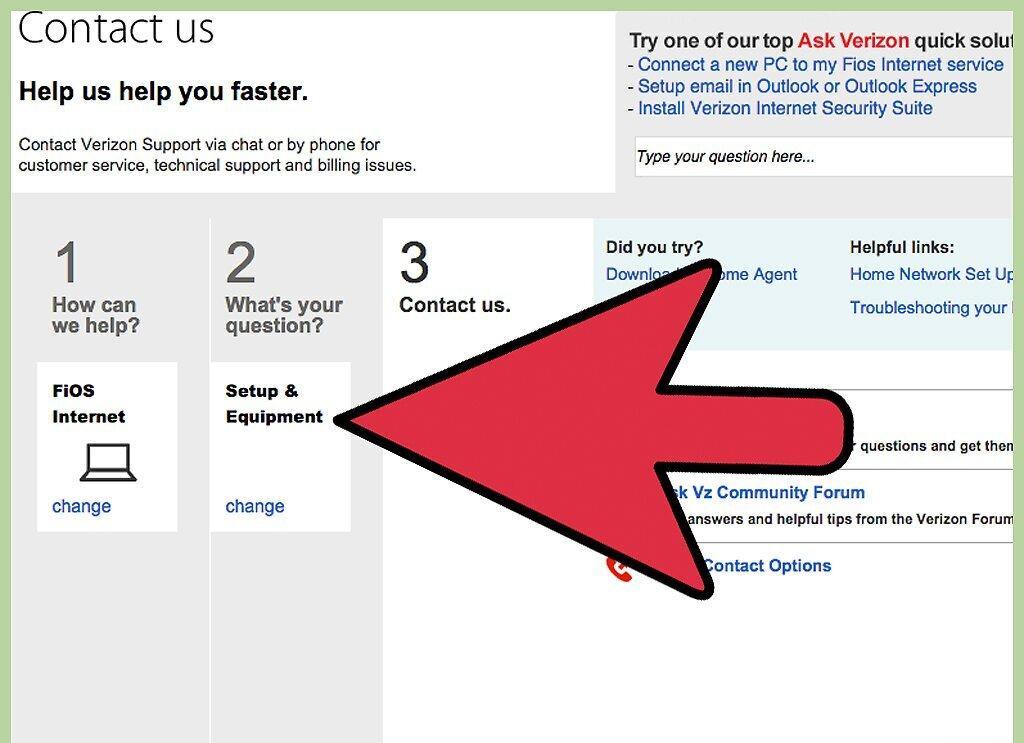
Request your provider to restart the modem. If the modem you are using was provided by your provider, there’s a high likelihood they can remotely access it through TR-069 or the CPE WAN Management Protocol. This protocol is used by high-speed internet service providers for remote management and troubleshooting of modems, routers, and gateways. It’s possible that your provider can restart the modem for you.
Step 4. Wait for the modem to work again.
Wait for the modem to work again. Restarting the modem may take some time for your provider, so be patient. Once the modem is rebooted, it should start functioning correctly and provide a stable connection.


